
Problem
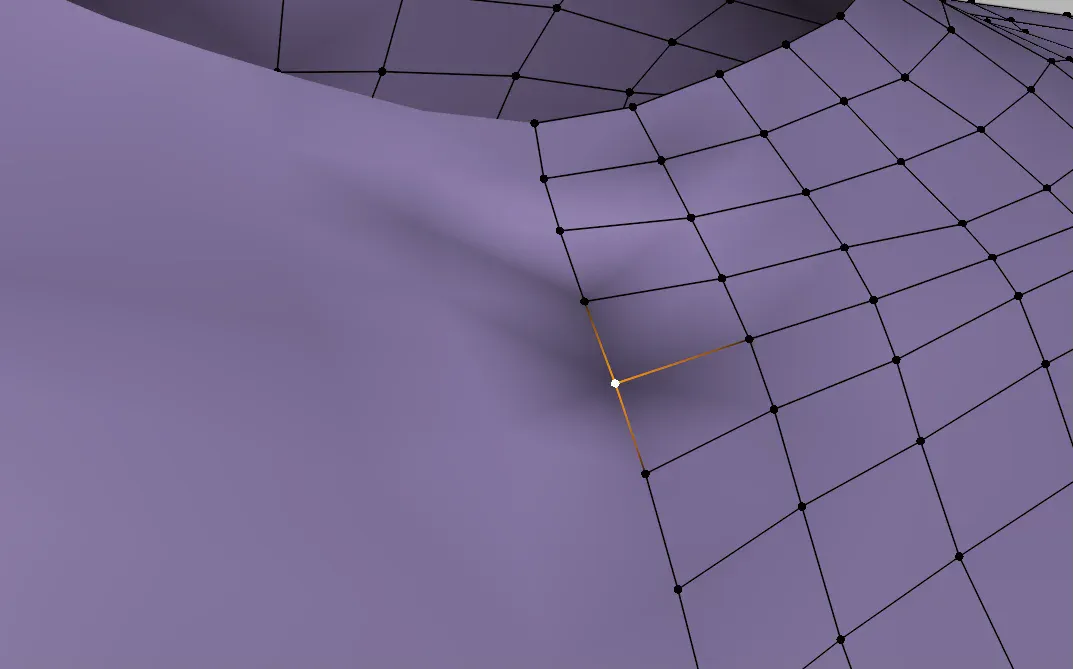
Sometimes unwanted shadows or color banding appear on 3D model surfaces. This is especially noticeable when smooth shading is applied, and can significantly degrade the model's appearance.
Common Causes and Solutions
Try these three methods in order.
1. Normals Are Flipped
When face normals point inward, shading becomes incorrect.
How to check:
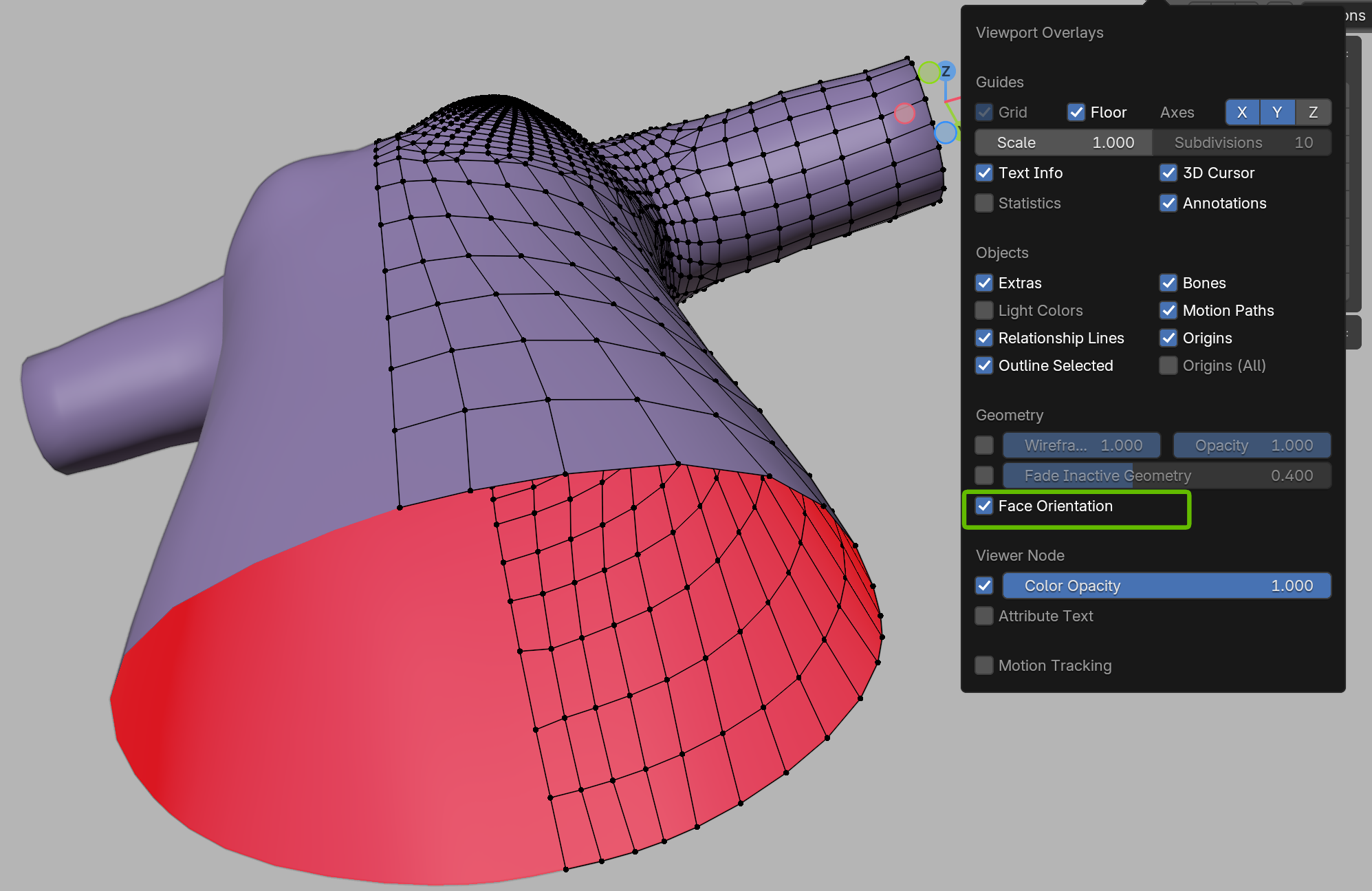
- Go to Overlays → Enable Face Orientation
- Blue = outward (correct), Red = inward (problem)
Solution:
- In Edit Mode, select all (
A) Shift + N→ Recalculate Outside
2. Duplicate Vertices
When multiple vertices exist at the same position, shading can be affected.
Solution:
- In Edit Mode, select all (
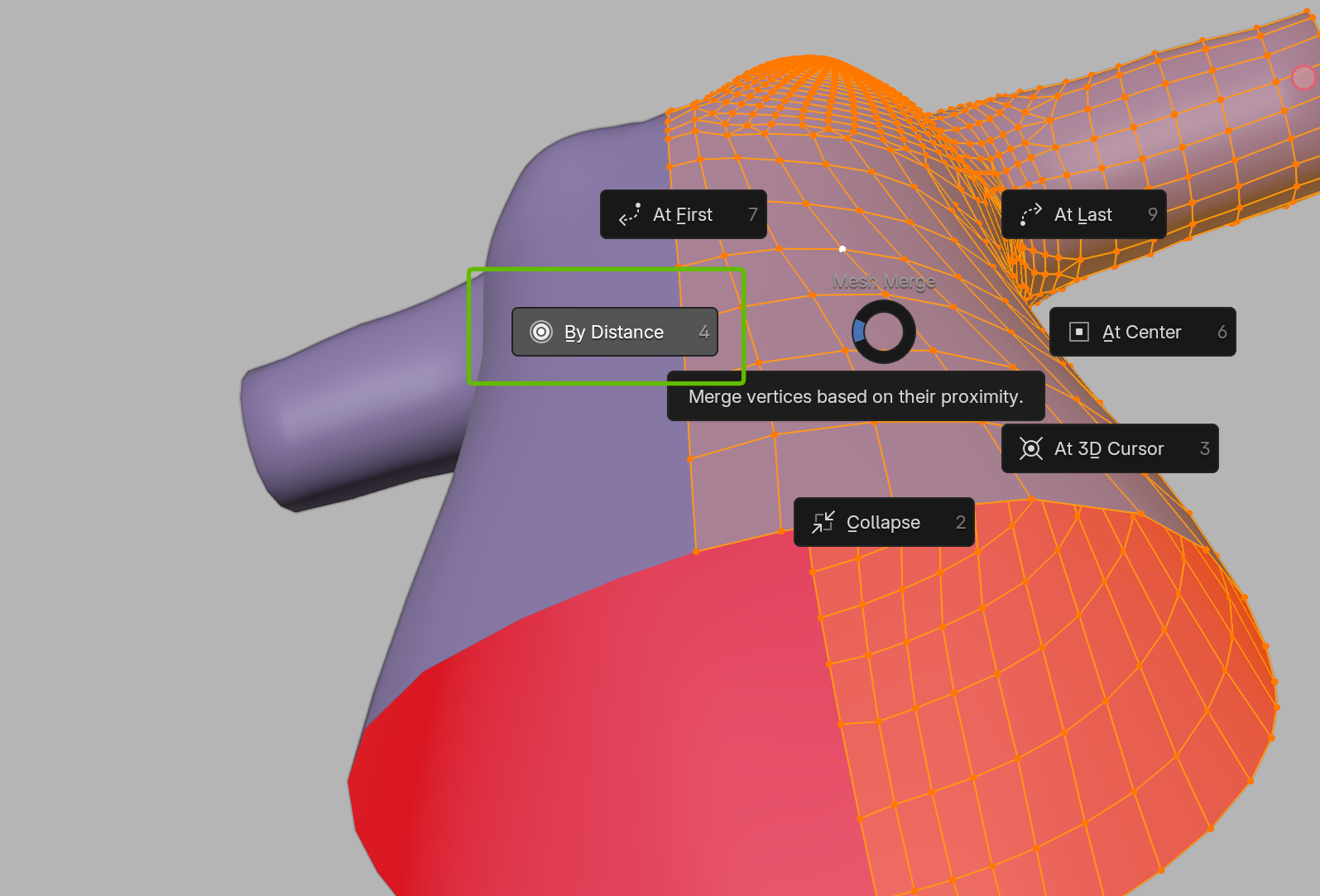
A) M→ Merge by Distance
3. Custom Normal Data Remains
Models imported from other software or those that have used Data Transfer may have custom normal data set. This can cause unwanted shadows.
Solution:
- Enter Edit Mode
- Menu → Mesh → Normals → Reset Vectors
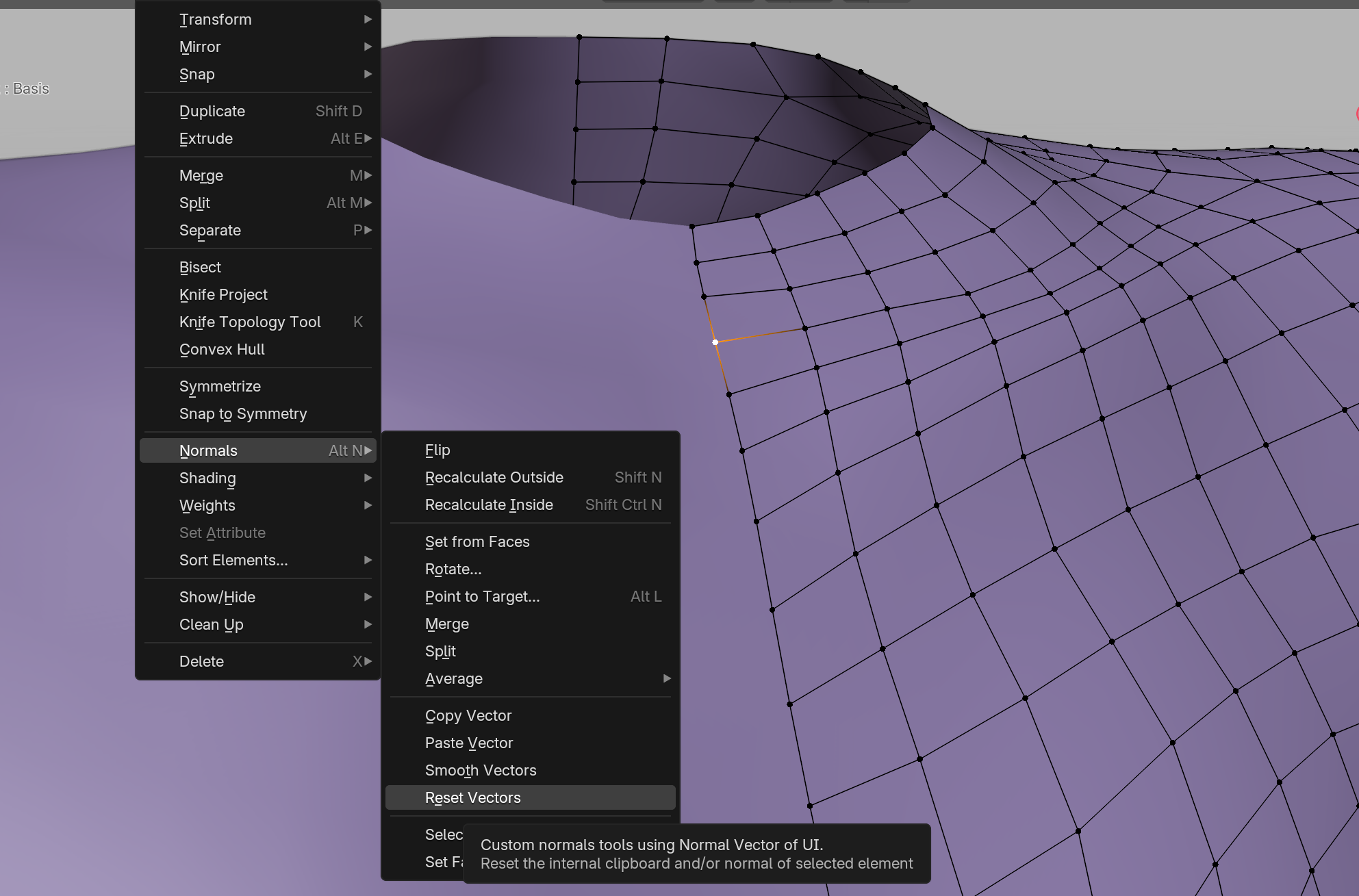
This clears the custom normal data and returns to automatically calculated normals.
Note: Custom normals are sometimes intentionally set to make low-poly models appear smoother. If you created the model yourself from scratch, it's usually safe to clear them. If you're unsure, save your file beforehand. You can always undo with Ctrl + Z if something goes wrong.