The AI code editor "Cursor" has been making waves among developers lately. Drawn by all the buzz, I finally started using it myself.
I had already experienced a 10x speed improvement using tools like ChatGPT Pro and Claude 3, but after adopting Cursor, I felt another 10x boost -- roughly 100x faster than my original workflow. I'm completely sold on Cursor.
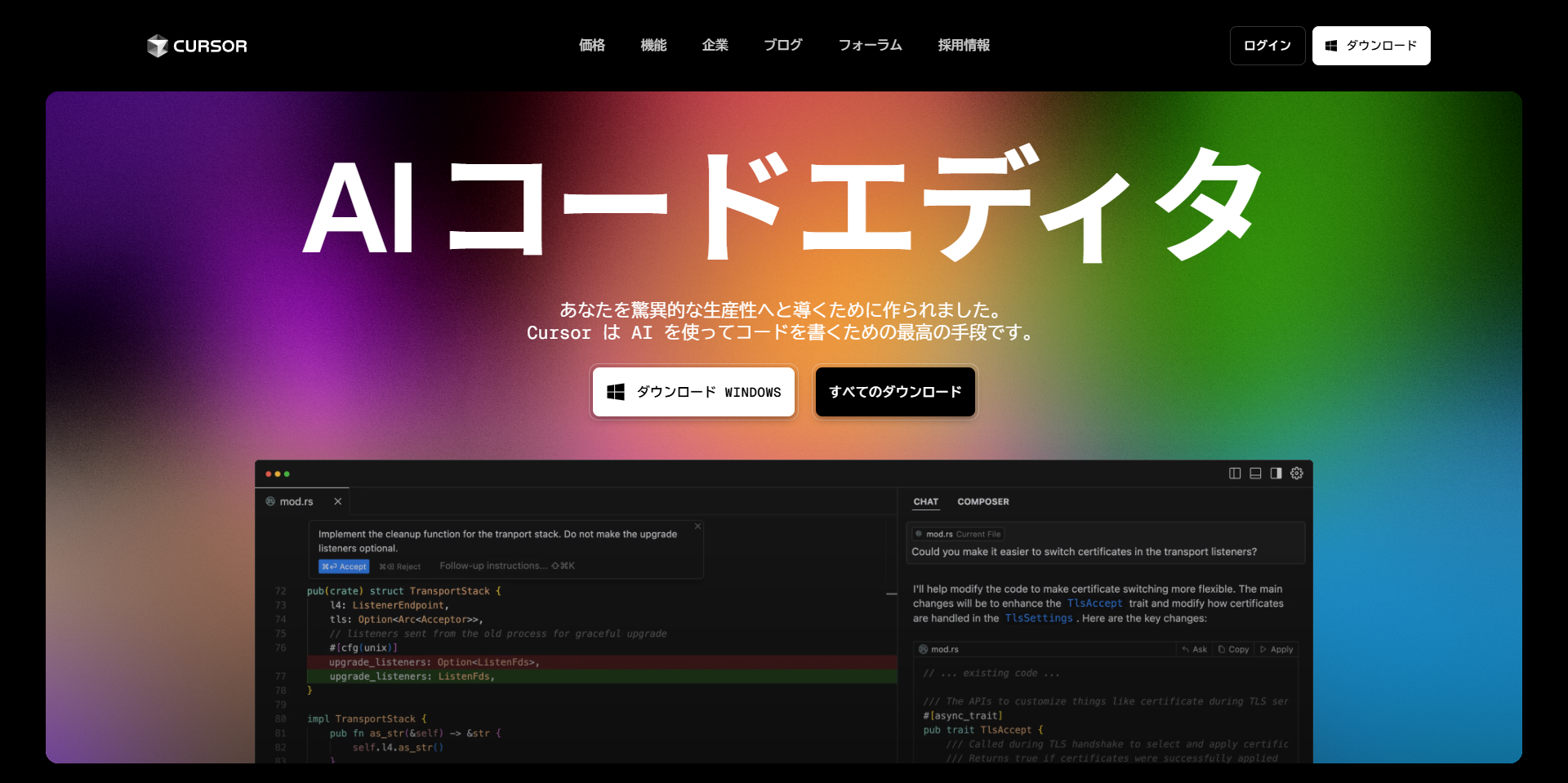
What makes Cursor so powerful is the ability to interact with AI directly inside the editor. While coding, you can ask things like "refactor this group of components" or paste a console error and ask "what's causing this and how do I fix it?" AI-generated code changes are displayed as color-coded diffs (like Git), making it easy to reject unintended modifications. Package installations and file deletions only execute after you click the "Accept" button, so you stay in control.
While web-based AI tools like ChatGPT and Claude can do similar things, Cursor provides suggestions with a deeper understanding of your entire project's file structure and dependencies, resulting in more accurate fixes and a much smoother development experience.
Additionally, web-based AI tools can become unreliable or cut off during long conversations or large code generation tasks. Cursor, on the other hand, handles massive modifications all at once.
Occasionally (especially with high-performance models), overly aggressive modifications may occur, but the "Restore" feature lets you easily roll back file states to the point before your last instruction. (However, recovering deleted folders can be difficult, so reviewing code before clicking Accept is important.)
Now, let's get to the main topic.
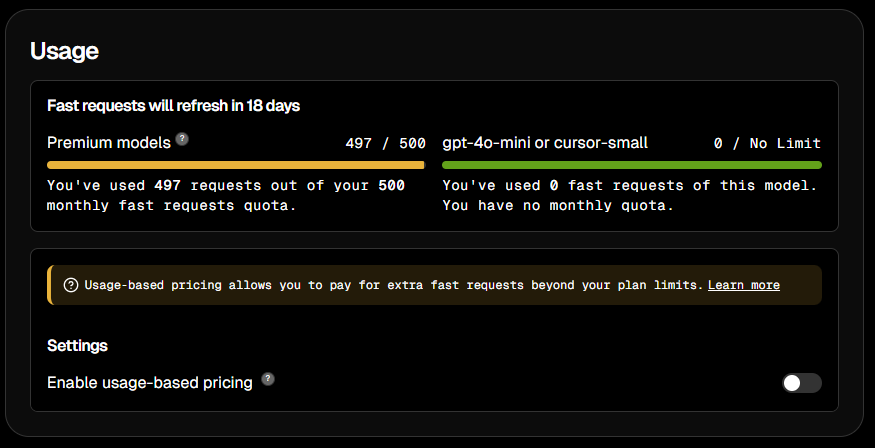
Cursor's Pro plan has a monthly limit of 500 requests for using high-performance premium models in Fast mode.
Think of it as 500 tickets per month for high-speed AI processing. This is plenty for typical usage, but if you get deeply engrossed in tool development or large-scale refactoring like I did, you can hit the limit within just a few days.
Once you exceed the limit, you can still use Slow mode, but once you've experienced the speed of Fast mode, Slow mode can feel painful.
Cursor doesn't offer a direct plan to "increase premium model usage." To maintain Fast mode beyond the limit, you need to set up your own API key from OpenAI or Anthropic and pay per usage.
This article provides a clear, step-by-step guide for anyone looking to connect Claude API with Cursor, covering how to obtain a Claude API key from Anthropic Console, add credits, and configure it in Cursor.
In This Article
- What Are Cursor's Premium Models? Understanding the Limits and Fast Mode
- Setting Up an Anthropic API Key (From Account Creation to Purchasing Credits)
- How to Connect Cursor with Claude API
- How Pay-Per-Use API Integration Works and What to Watch Out For
- Real-World Costs After Claude API Integration and Alternatives
- Summary: Maintaining Development Efficiency with Cursor and Claude API
- Update: Slow Mode Might Actually Be Usable?
- Update 2: The Reality of Slow Mode and Gemini 2.5 Pro as a Powerful Alternative (April 2025)
What Are Cursor's Premium Models? Understanding the Limits and Fast Mode
Cursor comes with multiple AI models built in, and the most capable ones are categorized as "Premium Models." Notable examples include:
- Claude 3.5 Sonnet (by Anthropic)
- GPT-4 / GPT-4o (by OpenAI)
- Other cutting-edge high-performance models
These premium models excel at complex code generation, advanced debugging assistance, and accurate Q&A, delivering significantly better results than standard models.
Cursor's paid "Pro plan" ($20/month) allows you to use these premium models in "Fast" mode up to 500 times per month. In Fast mode, your AI requests are processed with priority, letting you work without any waiting.
Once you exceed the 500 monthly requests, you're automatically switched to "Slow" mode. In Slow mode, AI responses take longer, and during peak server times, you might experience wait times ranging from seconds to minutes.
However, by enabling the "Enable usage-based pricing" option in Cursor's settings, you can maintain Fast mode beyond the 500-request limit. In this case, additional charges are incurred based on the token volume (amount of text processed) through the connected API service (Anthropic, in this case).
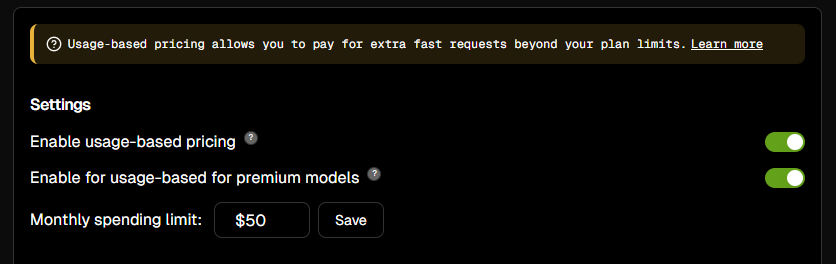
When you enable "Enable usage-based pricing," the settings shown above will appear.
The key setting here is the "Monthly Spending Limit." This is a safety feature that automatically stops API usage through Cursor once your pay-per-use charges reach the set limit. Note that this is separate from the Cursor Pro plan fee ($20) -- you pay the API charges directly to the API provider (Anthropic or OpenAI).
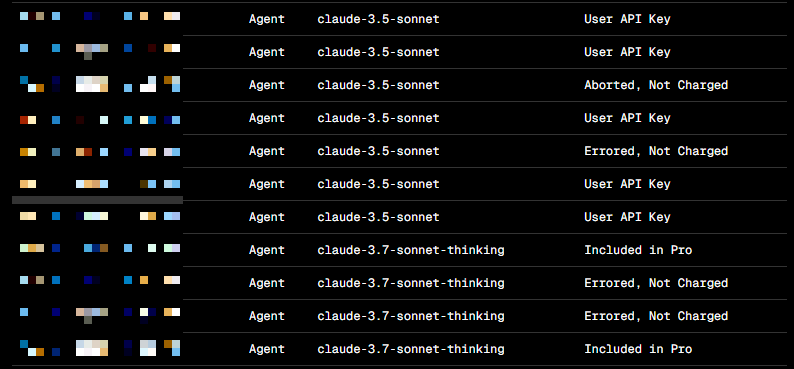
At the bottom of Cursor's settings screen, you can view detailed usage history showing which models you've used and how many times.
Items labeled "Included in Pro" represent the 500 monthly premium model requests included in the Pro plan. Items labeled "User API Key" represent usage through your own API key (such as Claude API), which incurs pay-per-use charges.
Looking at the history, you'll notice entries like "Aborted, Not Charged" and "Errored, Not Charged." This means you won't be billed for requests that were cancelled or failed -- a welcome detail for users.
Setting Up an Anthropic API Key (From Account Creation to Purchasing Credits)
Let's walk through the steps to obtain an Anthropic API key so you can use Anthropic models like Claude 3.5 Sonnet with pay-per-use pricing in Cursor.
Step 1: Create an Account on Anthropic Console
- Visit Anthropic's official website at console.anthropic.com.
- Click "Sign Up," set your email address and password to create an account, then verify your email through the confirmation message sent to your inbox.
- After logging in, fill in any required basic information such as your name or organization name.
Step 2: Generate an API Key
- After logging in, select "API Keys" from the left menu.
- Click the "Create Key" button.
- Enter a name to identify your API key (e.g., "Cursor-Integration" -- something descriptive is recommended).
- Your API key will be generated and displayed on screen. This key is shown only once, so be sure to copy it and store it in a secure location like a password manager.
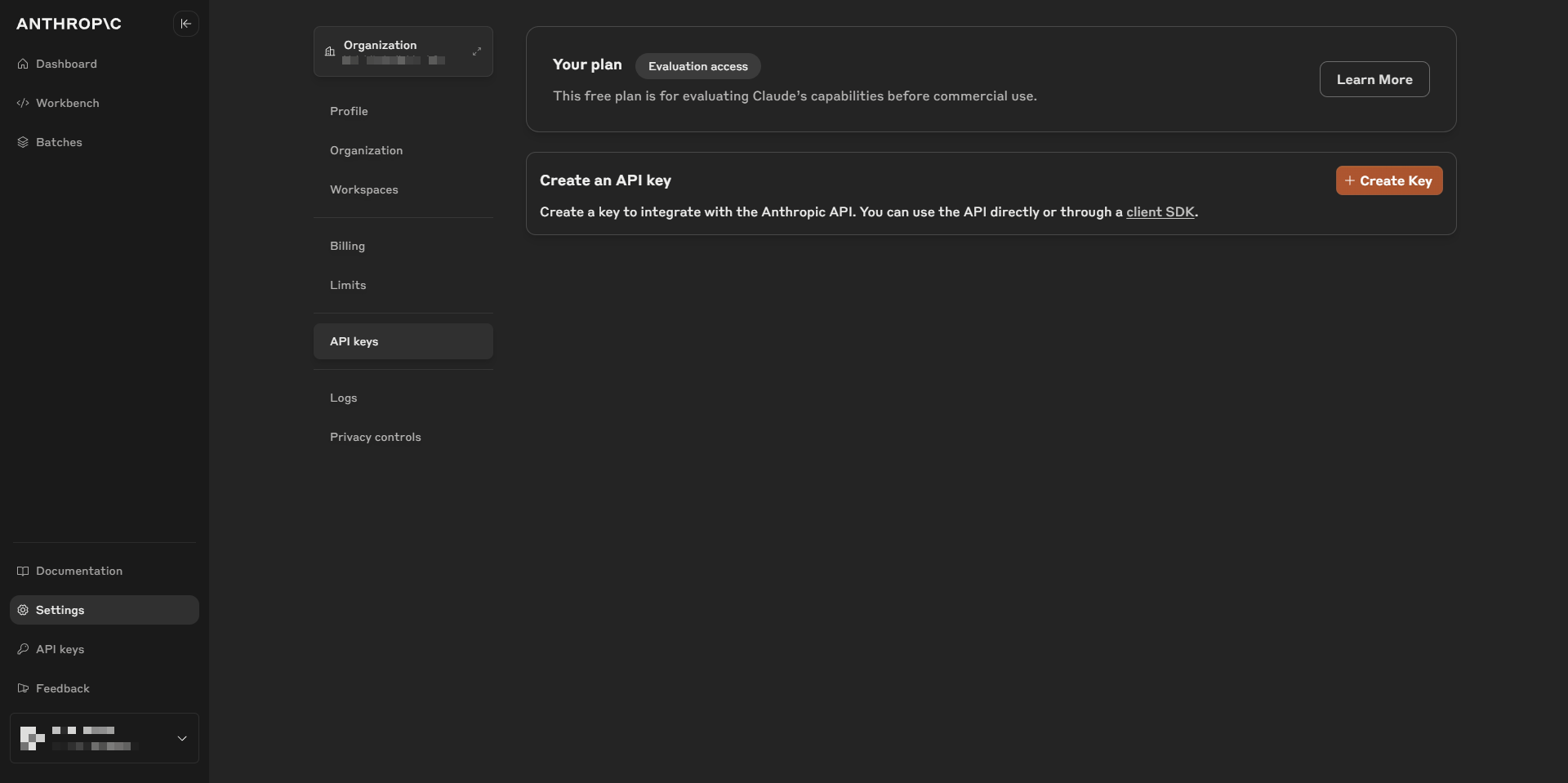
Step 3: Set Up Payment Information and Purchase Credits
- Navigate to "Plans & Billing" from the left menu.
- To use the API, you need to purchase credits in advance. Click "Add Payment Method" and register your credit card information.
- Next, purchase credits in the "Purchase credits" section. For testing purposes, the minimum amount of $5 should be sufficient.
- There's also an "Auto-reload" feature that automatically purchases additional credits when your balance drops below a certain amount. However, to avoid unintended charges, it's recommended to keep this turned off initially.
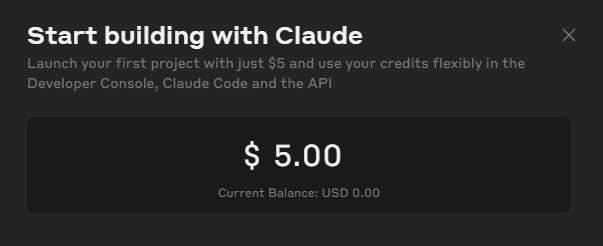

Once the credit purchase is complete, your balance (e.g., $5.00) will be displayed on the dashboard. Each time you use the Claude API through Cursor, charges will be deducted from this balance.

The "Auto Reload" settings allow configurations like "automatically add $10 when the balance drops below $5." This is convenient if you use the API frequently and find manual top-ups tedious, but it's best to assess your usage patterns before enabling it.
How to Connect Cursor with Claude API
Once your Anthropic Console setup is complete, it's time to connect Cursor with the Claude API. The process is straightforward.
Step 1: Register the Anthropic API Key in Cursor
- Open the Cursor editor and navigate to "Settings" > "Configure models" from the menu bar (or settings screen).
- Find the "Anthropic API Key" field in the settings.
- Paste the API key you previously obtained from Anthropic Console and saved securely.
- Click "Save" or "Apply" to save the settings (the UI may vary slightly depending on the version).
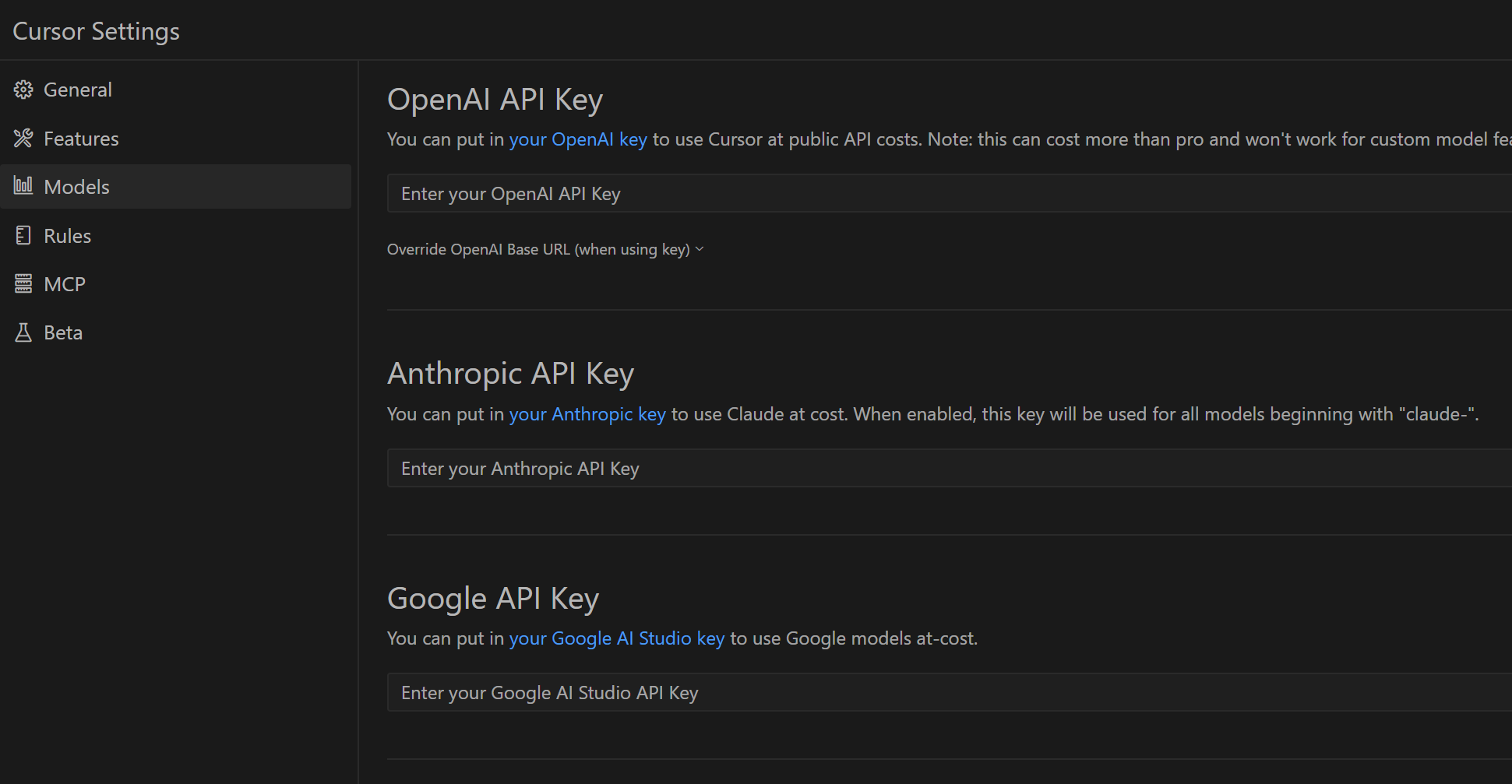
Step 2: Verify the Connection and Start Using It
- Once configured, try using Cursor's AI features (code generation, chat, etc.). Specifically, try selecting a premium model (like Claude 3.5 Sonnet).
- If you've already exceeded the Pro plan's monthly 500-request limit, the API integration should restore "Fast" mode responses.
- To confirm, check the "Usage" or "Billing" page on Anthropic Console to verify that token usage and corresponding costs are being recorded.
That's it -- your Cursor and Claude API integration is complete. If your Cursor usage history shows entries under "User API Key," the connection is working correctly.
How Pay-Per-Use API Integration Works and What to Watch Out For
Here's a summary of the key concepts and precautions to know when using an external API like Claude API with pay-per-use pricing for the first time.
- How pay-per-use works: Each time you use the Claude API through Cursor, charges are calculated based on the amount of text processed (token count) and automatically deducted from the credit balance you purchased on Anthropic Console.
- Watch your balance: When your credit balance runs out, you may lose the ability to use the API through Cursor (Fast mode becomes unavailable, or errors may occur). Check your balance regularly on Anthropic Console.
- Auto Reload: As mentioned, this feature is OFF by default. When enabled, it automatically charges your credit card when your balance drops below a specified amount. While convenient, it's recommended to keep it OFF (or set the amount carefully) until you understand your usage patterns to avoid unexpected charges.
- Stay cost-conscious: While API integration is technically simple, always keep in mind that you're "paying for what you use." Frequent large-scale code generation or multi-file refactoring can consume credits faster than expected. Regularly monitor your usage on Anthropic Console to stay on top of costs.
Understanding these points will help you confidently leverage the Cursor and Claude API integration.
Real-World Costs After Claude API Integration and Alternatives
How Long Does $5 of Credit Last?
After connecting Cursor with the Claude API, the natural question is: "How far does $5 of credit go?"
Based on my usage (frequent multi-file refactoring and moderately complex code generation), $5 of credit was consumed faster than expected. Roughly speaking, intensive usage could exhaust $5 in about 50 requests.
That's a heavy-use scenario. If you continued using the API at the same pace after exhausting the Pro plan's 500 monthly requests, API charges alone could reach $50 for another 500 requests. Of course, simple questions or short code fixes would cost much less (perhaps just a few dollars). (And if your usage is that light, you probably wouldn't exceed the 500-request limit in the first place.)
Alternatives to Reduce Costs
If Claude API integration costs more than expected, consider these alternatives:
- Multiple Cursor account strategy: A bit of a workaround, but subscribing to Cursor Pro with a second account gives you a total of 1,000 premium model Fast requests per month. Depending on your API costs, this might actually be cheaper ($20 x 2 = $40/month).
- Other AI code editors and APIs: Editors like "Cline" can use models like Deepseek, which are reportedly much cheaper than the Claude API. For routine code generation or refactoring, these models may perform well enough while being more cost-effective.
- Hybrid strategy (mixing models): If you have a separate ChatGPT Plus or Claude Pro subscription, use those for complex design discussions and high-level planning, then use Cursor (or other editors) with low-cost APIs for the actual coding work. For example, you could finalize the approach in Claude, then pass those instructions to an editor with Deepseek API integration for implementation -- balancing quality and cost.
Consider these alternatives and find the approach that best fits your development style and budget.
Summary: Maintaining Development Efficiency with Cursor and Claude API
This article explained how to maintain fast response performance (Fast mode) and keep your development efficiency high by integrating the Claude API after reaching Cursor Pro plan's monthly 500 premium model request limit.
We covered the specific steps for creating an Anthropic Console account, obtaining an API key, purchasing credits, and configuring Cursor. We also discussed how pay-per-use API integration works, important considerations, real-world costs, and alternatives for reducing expenses.
For developers looking to further enhance their programming efficiency -- especially those who actively leverage AI assistants in their coding workflow -- Cursor's API integration is worth trying. Combine the methods and alternatives presented here according to your usage frequency and budget to build your optimal development environment.
Update: Slow Mode Might Actually Be Usable?
Since publishing this article, I've continued using Cursor and made a new discovery. I tried turning OFF the API integration (pay-per-use) and using Cursor beyond the premium model limit in "Slow Mode" for a while.
The result? I found that "Slow Mode is actually more practical than expected."
With many AI tools, "Slow Mode" typically means painfully slow responses that are barely usable. However, Cursor's Slow Mode, at least in my experience, didn't feel dramatically different from Fast Mode.
Of course, the quality and accuracy of generated code in Slow Mode are essentially the same as Fast Mode. So before switching to API pay-per-use, it's well worth trying Slow Mode first to see if the speed is genuinely bothersome.
That said, response times in Slow Mode may vary depending on the time of day and Cursor's server load.
This leads to a potential strategy: "Use Slow Mode by default and only temporarily enable pay-per-use when responses feel too slow." This could significantly reduce your API costs.
In conclusion, exceeding the Cursor Pro plan's 500 monthly requests doesn't necessarily mean you need to immediately switch to API pay-per-use. "Trying Slow Mode first" is a perfectly valid option.
Update 2: The Reality of Slow Mode and Gemini 2.5 Pro as a Powerful Alternative (April 2025)
In my previous update, I mentioned that "Slow Mode is more usable than expected," but the situation has changed with extended use. One day, I encountered cases where Slow Mode responses took over 30 seconds. As expected, Slow Mode response times can fluctuate significantly depending on the time of day and server congestion.
In that situation, I temporarily enabled Claude API pay-per-use as suggested in my previous update, which restored fast responses. The pay-per-use option works well as a fallback when Slow Mode feels too sluggish.
However, after exhausting Cursor Pro's Fast mode (500 monthly requests), your options aren't limited to just enduring Slow Mode or Claude API pay-per-use. A powerful new alternative has recently emerged!
It's Google's latest large language model, "Gemini 2.5 Pro Experimental," announced on March 25, 2025. This high-performance model, which attracted significant attention immediately after its announcement, is now available directly within the Cursor editor!
After testing it across several projects, the performance is impressively high -- comparable to or even surpassing existing premium models like Claude 3.5 Sonnet and GPT-4o in certain scenarios. The most notable feature of Gemini 2.5 Pro is its massive context window (the amount of information it can process and remember at once), which makes large-scale refactoring across multiple files remarkably smooth and accurate.
And the most noteworthy point as of now (April 3, 2025) is that "Gemini 2.5 Pro Experimental" is available for free on Cursor!
If you've exhausted your 500 monthly Fast mode requests and are frustrated with response speeds, I strongly recommend selecting "Gemini 2.5 Pro Experimental" in Cursor's model settings and trying it before considering Claude API pay-per-use or other paid options.
Despite being free, it delivers outstanding performance, and in many cases, this model alone may be more than sufficient. Give this new option a try.