Overview
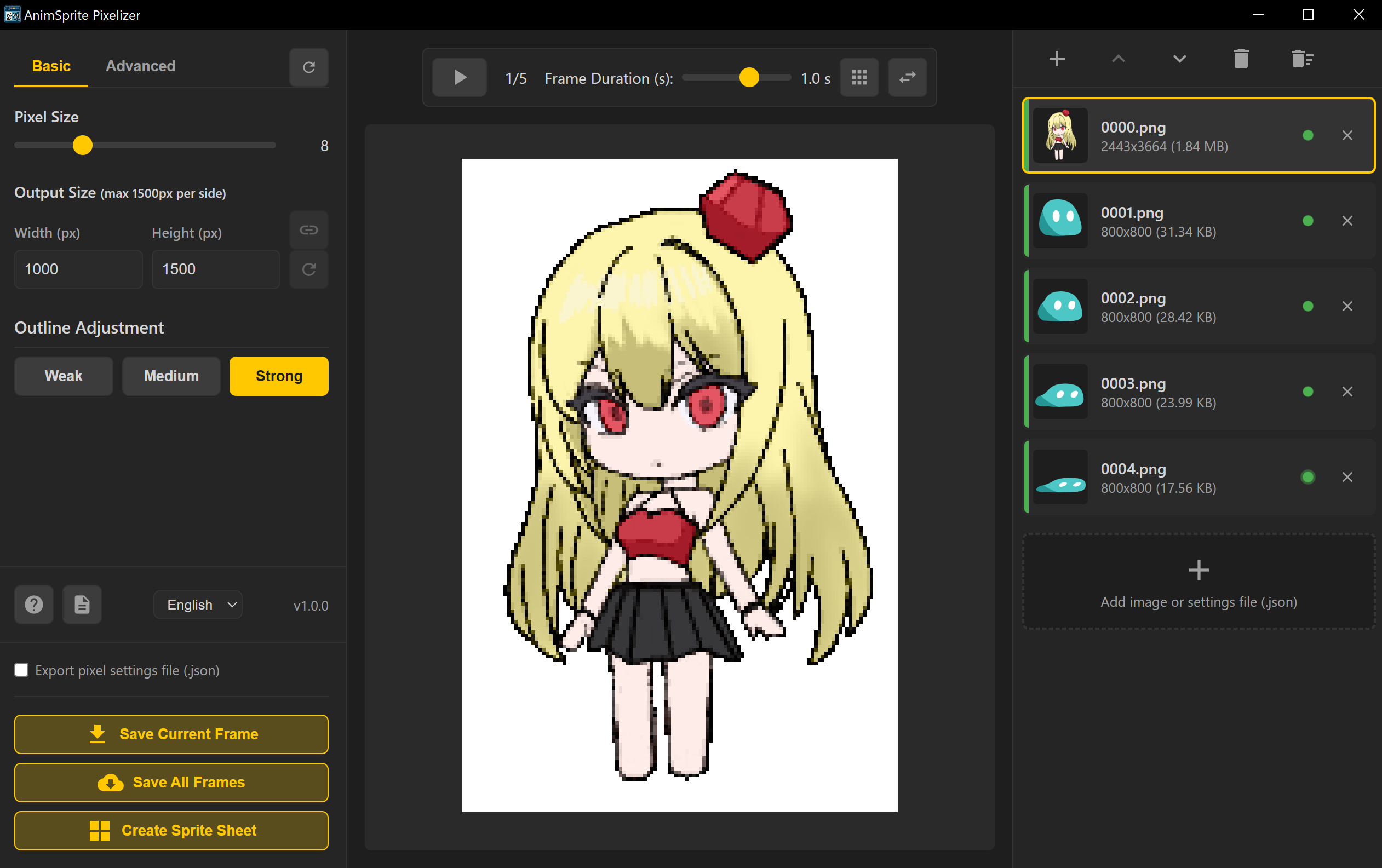


A desktop tool that converts hand-drawn animations into pixel art and exports game-ready sprite sheets. It batch-processes multiple frames with unified settings, supports animation preview and automatic sprite sheet generation. The save/share feature for settings files makes it easy to maintain quality consistency in team development and restore settings for re-conversion.
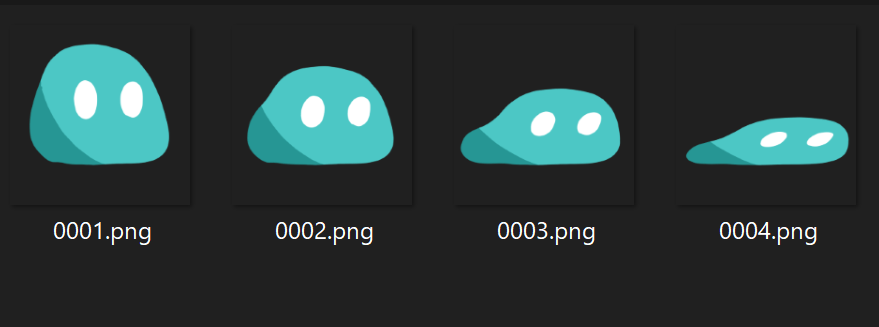
When developing 2D games that require large amounts of image assets, you could purchase from asset stores, but if you want originality, you'll want to create your own characters and environmental objects. However, creating walking animations from scratch in a dot editor pixel by pixel is extremely difficult, and corrections take considerable time.
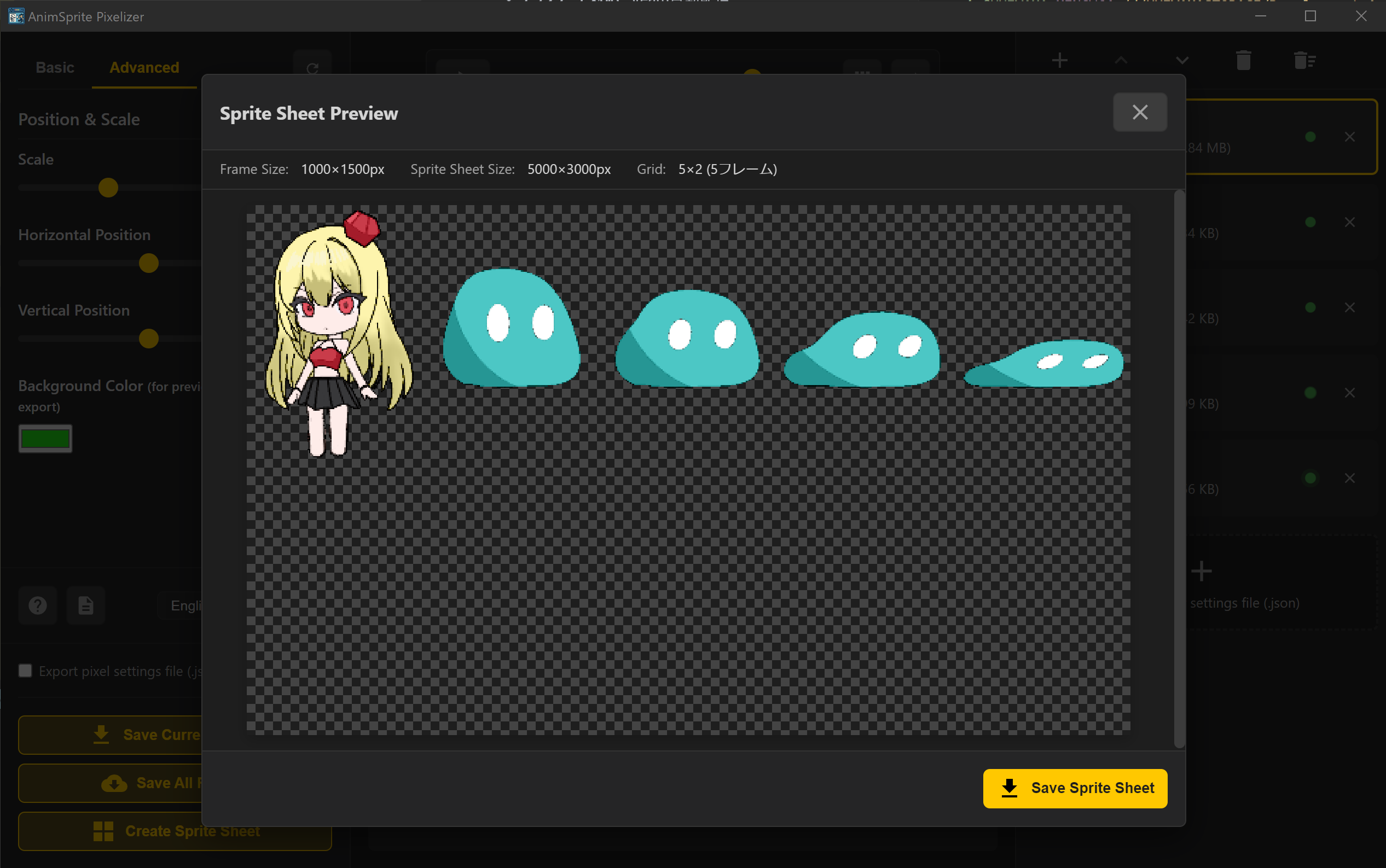
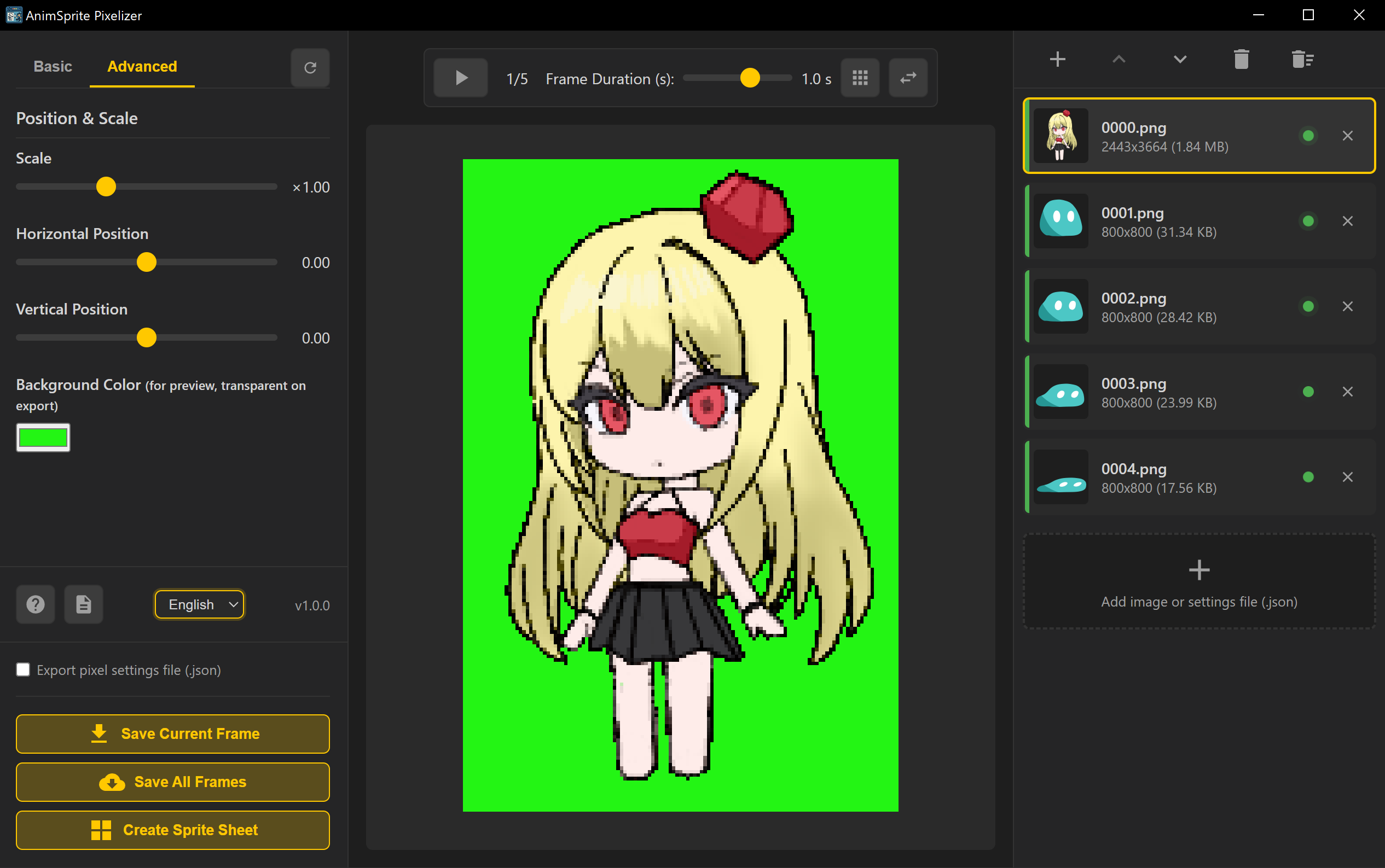
With AnimSprite Pixelizer, you can export animation frames drawn in ClipStudio or similar tools as transparent PNGs and batch convert them to pixel art. After checking the converted animation, if everything looks good, simply export as a sprite sheet and incorporate it into your game. This dramatically streamlines asset production and revision.
Key Features
Optimized for 2D Game Development
- Batch conversion of multiple frames (load all original animation frames at once)
- Animation preview in pixelated state (playback speed adjustable)
- Automatic sprite sheet generation (up to 20 frames in 5x4 layout)
- Quality maintenance with unified settings (convert all frames to specified pixel size)
- Transparent background PNG output (supports both individual and sprite sheet export)
High-Quality Conversion Matching Web Version
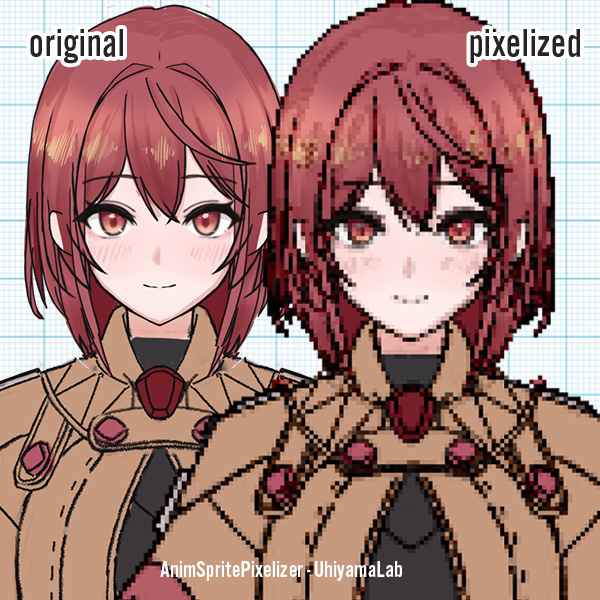
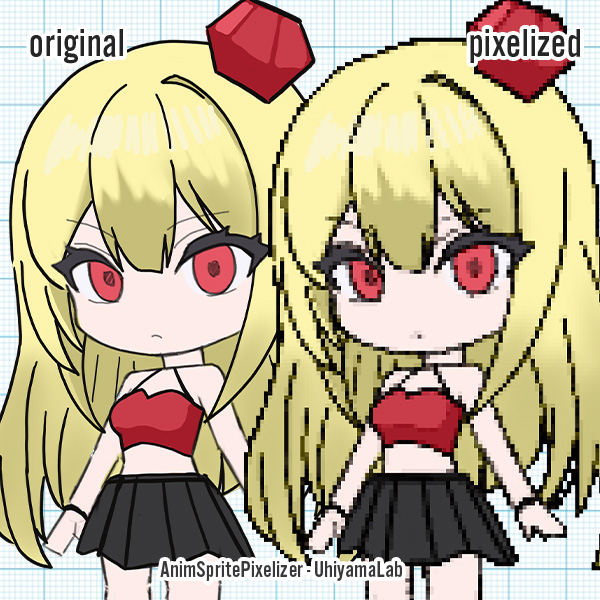
- High-performance smoothing algorithm (preserves original colors as much as possible)
- Adaptive noise reduction (beautiful results even in dark areas)

- 3-level outline adjustment (adjust contour and main line emphasis levels)
- Real-time preview (instantly confirm setting changes)
Workflow Optimization
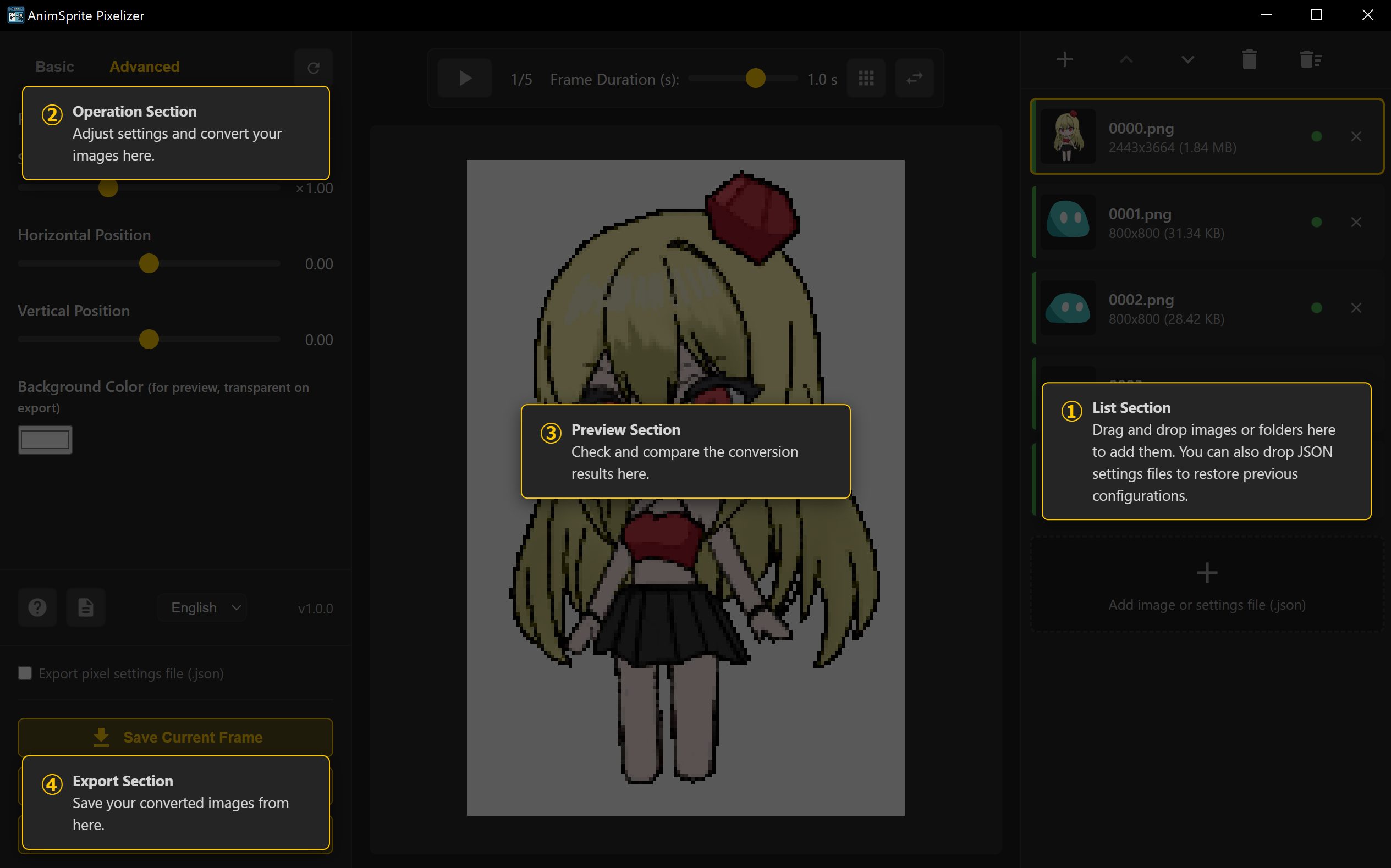
- Drag & drop support (intuitive image addition and reordering)
- Settings file save/share (quality consistency in team development)
- Batch processing function (convert multiple images at once)
- Multilingual UI (fully supports Japanese and English)
Recommended Workflow
- Draw animation in a paint tool like ClipStudio
- Export as individual transparent PNGs
- Convert to pixel art with AnimSprite Pixelizer
- Check the pixelated animation
- If satisfied, export as sprite sheet
- Incorporate into your game
Once you understand the conversion characteristics, you can reduce drawing costs by simplifying the original artwork or color palette. Even those who want to create pixel art from scratch can significantly reduce work time by using converted rough sketches as a base and refining the dots in Aseprite or similar tools.
Recommended For
- 2D Game Developers: Those who want to efficiently create animation sprites
- Indie Game Developers: Those who want to incorporate hand-drawn animations into games
- Pixel Artists: Those who want to produce multiple frames with unified quality
- Doujin Game Creators: Those who want to create high-quality assets at low cost
Supported Formats
- Input: PNG, JPG, JPEG, GIF, BMP, WebP (all major image formats)
- Output: PNG (with transparency support) + JSON settings file
- Maximum Canvas Size: 1500×1500px *Images exceeding this will be automatically resized
- Pixel Size Range: 1-30px (finely adjustable for different purposes)
- Sprite Sheet: Fixed 5-column grid, supports up to 20 frames
System Requirements
- Windows: 10 or later (64bit) - Tested
- Memory: 4GB or more (8GB recommended)
- CPU: Intel Core i3 equivalent or higher
- Disk Space: 100MB or more free space
About Conversion Quality
The conversion uses nearly the same logic as the web version. Please try Image Pixelizer (Web-based pixel art converter) first - it's free for anyone to use. If you're satisfied with the conversion quality and need to create large amounts of animation sprites for 2D game development, we recommend using AnimSprite Pixelizer.
*Images converted with this software can be used for various purposes, commercial or non-commercial. *This tool is primarily intended for converting illustrations you've drawn yourself. Converting and publishing third-party copyrighted material without permission may constitute copyright infringement.
FAQ
Is this tool free to use?
The web version is free to use. The desktop version is paid but provides more advanced features and a stable operating environment.
What image formats are supported?
Supports common image formats including PNG, JPG, GIF, and WebP. Transparent PNG output is also supported.
What is a sprite sheet?
A sprite sheet is a single image that contains all frames of an animation. It's used in game development for character animations and similar purposes.
Can I use it commercially?
Yes, images created with this tool can be freely used for both commercial and non-commercial purposes.
Can I adjust the resolution after conversion?
Yes, you can finely adjust pixel size and canvas size. You can output at the optimal resolution for your intended use.