Live2D character animations (motions) have a feature that lets you embed markers called "events" at specific frames on the timeline. After importing the model into Unity, these events can serve as triggers to call Unity-side processes (such as playing sound effects (SFX), displaying visual effects, etc.) at specific timings during motion playback.
This article walks you through the concrete steps for setting events in motions using Live2D Cubism Editor, importing them into a Unity project, and playing sound effects at the event timings, along with some efficiency tips.
Steps covered in this article
- [Live2D] Creating and setting events in motion data
- [Live2D] Exporting motion data with event information included
- [Unity] Importing the model and motion files into Unity
- [Unity] Script and settings for receiving events and playing sound effects
- [Unity] Automating function name setup by editing the SDK script (efficiency tip)
- Recommended references
[Live2D] Creating and Setting Events in Motion Data
First, open the animation creation screen (timeline) in Live2D Cubism Editor and set events at the frames (timings) where you want sound effects to play.
- On the timeline, select the parameter group where you want to set the event (e.g.,
Expression— any group will work). - Move the playhead (the red vertical line) to the frame where you want the sound effect to play.
- Right-click on that frame and select "Set Event." (Or right-click directly on the event track at the top of the timeline.)
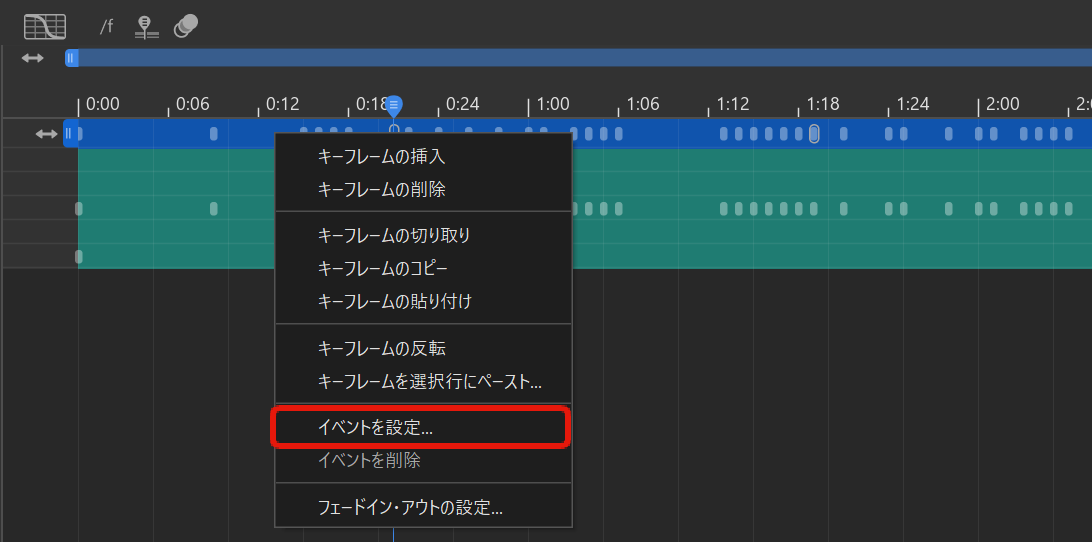
A dialog for entering the event string will appear.
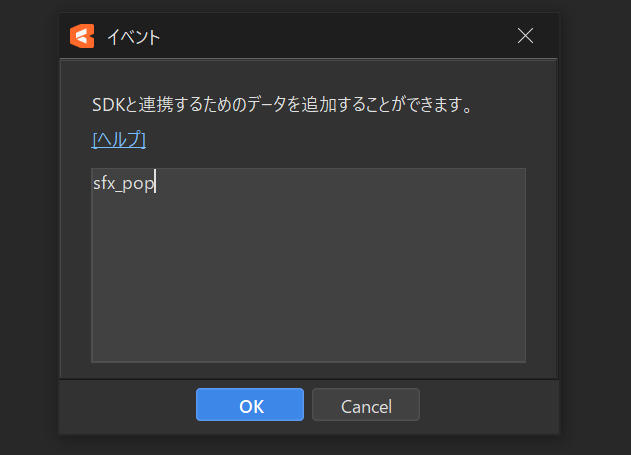
The string you enter here will be passed as the stringParameter of the AnimationEvent within the motion (AnimationClip) when imported into Unity.
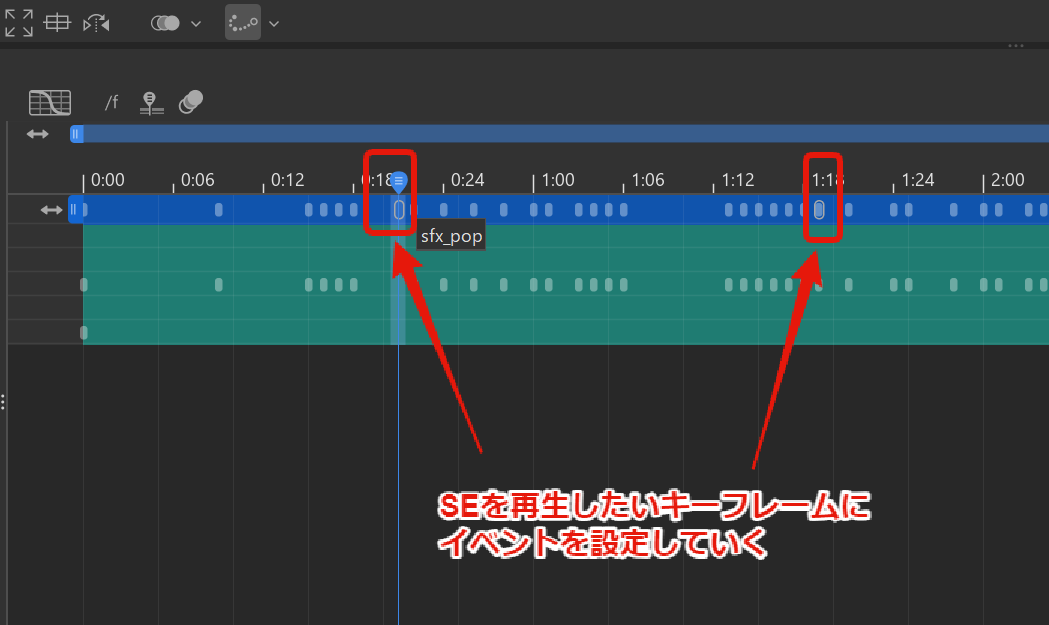
Rather than just entering something generic like "SE," it's recommended to set an ID or name that identifies the specific sound effect you want to play (e.g., Footstep, AttackSE_01, Voice_Happy). This way, your Unity script can receive this string and dynamically switch which sound effect to play, like PlaySFX(audioID).
Set events at the timings you need. They will appear as yellow markers on the timeline.
[Live2D] Exporting Motion Data with Event Information Included
Once your events are set, export the motion data in Unity-compatible format (.motion3.json).
- From the Live2D Editor menu, select "File" > "Export For Runtime" > "Export Motion File."
- The export settings dialog will appear.
- [Important] Make sure to check the "Export events" checkbox. If you forget this, the event information won't be included in the file, and Unity won't be able to receive it.
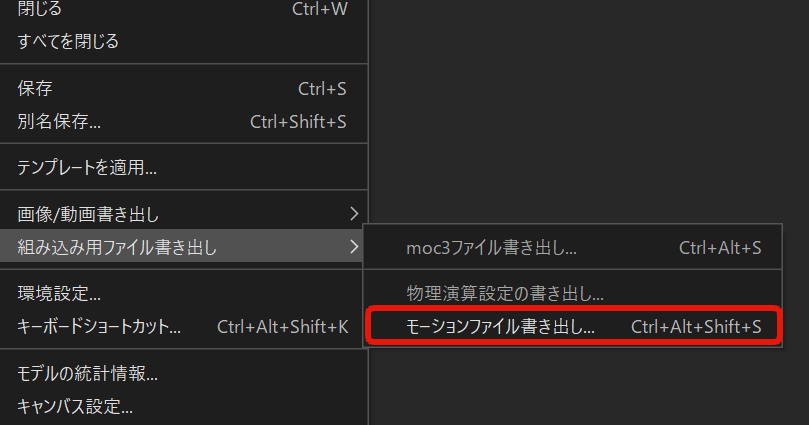
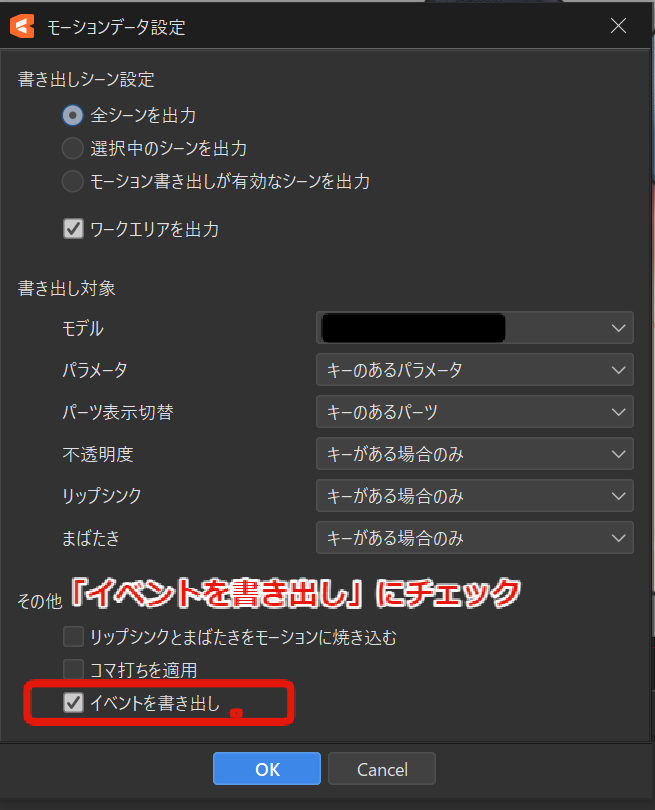
After confirming the settings, click "OK" to export the .motion3.json file.
[Unity] Importing the Model and Motion Files into Unity
Import the Live2D model data (the folder containing the .model3.json file, textures, etc.) and the motion file (.motion3.json) you just exported into your Unity project.
Typically, you just need to drag and drop these files or folders into Unity's Project window, and the Live2D Cubism SDK for Unity will automatically process them, generating the model Prefab and motion AnimationClip files.
(If the Live2D Cubism SDK for Unity hasn't been installed in your project yet, you'll need to set it up first.)
Reference: Import the SDK and display models - Live2D official documentation
[Unity] Script and Settings for Receiving Events and Playing Sound Effects
When you import a motion file into Unity, the events set in Live2D Editor are automatically converted and registered as "Animation Events" within the generated AnimationClip.
Let's verify this. Select the generated AnimationClip asset and open the Animation window (or the Events section in the Inspector).
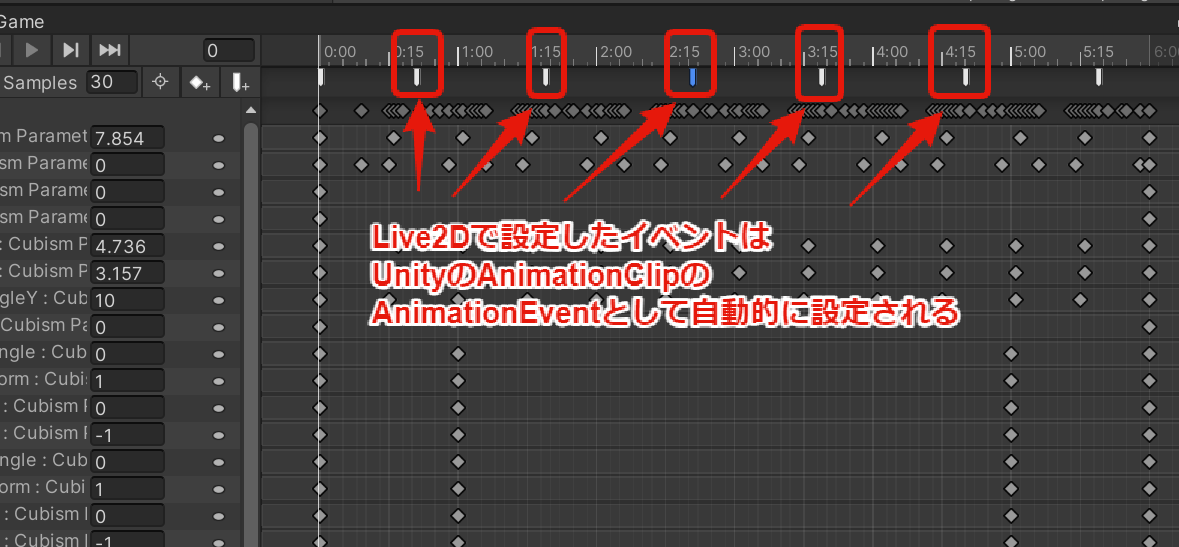
You should see event markers on the timeline at the timings you set in Live2D. Select a marker to view its details.
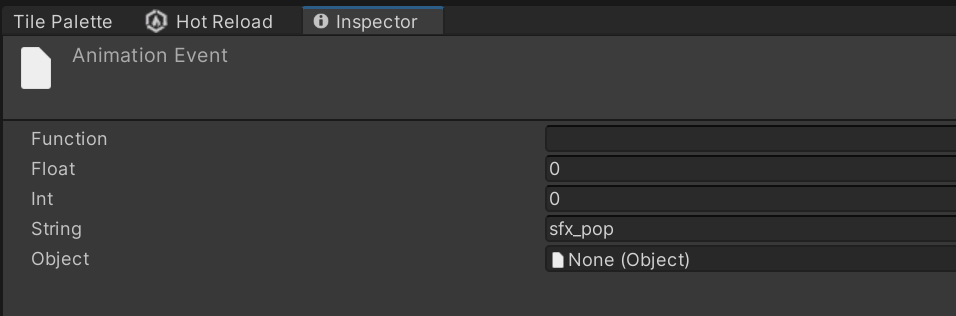
You can see that the "String" parameter correctly contains the string you set in Live2D Editor (e.g., Footstep).
However, the sound effect won't play yet. This is because the "Function" field is empty. Animation Events work by calling a specified function (Function Name) from scripts attached to the same GameObject that has the Animator component. If FunctionName is empty, Unity doesn't know which function to call, so nothing happens.
Follow these steps to create a sound playback script and configure it:
- Create a sound playback script: Create a C# script with a function that takes a string argument and plays the corresponding sound effect (the following is just an example — adapt it to your project's audio system).
using UnityEngine;

public class Live2DSoundPlayer : MonoBehaviour
{
    // Set AudioSource from the Inspector, etc.
    public AudioSource audioSource;
    // Implement your own audio clip management (e.g., Dictionary, arrays, etc.)
    // public AudioClip footstepClip;
    // public AudioClip attackClip;

    /// <summary>
    /// Called from AnimationEvent.
    /// The audioID argument receives the AnimationEvent's String parameter.
    /// </summary>
    /// <param name="audioID">Sound effect ID (the string set in the Live2D event)</param>
    public void PlaySFX(string audioID)
    {
        Debug.Log("PlaySFX called with ID: " + audioID);
        // Determine which AudioClip to play based on the audioID
        // Example:
        // if (audioID == "Footstep" && footstepClip != null)
        // {
        //     audioSource.PlayOneShot(footstepClip);
        // }
        // else if (audioID == "AttackSE_01" && attackClip != null)
        // {
        //     audioSource.PlayOneShot(attackClip);
        // }
        // ... etc.
    }
}
-
Attach the script: Add the sound playback script (e.g.,
Live2DSoundPlayer.cs) to the root GameObject of the Live2D model Prefab (the GameObject where the Animator component is attached).[Important] The script must be on the same GameObject as the Animator, or the Animation Event won't be able to find the function!
-
Manually set the FunctionName: Open the motion's
AnimationClipin the Animation window again. Select each Animation Event marker and manually enter the function name (e.g.,PlaySFX) in the "Function" field in the Inspector.
With this setup, when a motion plays and reaches a frame with an event, the specified PlaySFX function will be called with the string you set in Live2D (the sound effect ID) as the argument. Implement the function to play the appropriate sound effect based on that ID, and you're all set.
[Unity] Automating Function Name Setup by Editing the SDK Script (Efficiency Tip)
In the previous step, we manually set the FunctionName on each Animation Event. However, when you have many events or need to re-import motions after modifications in Live2D, manually re-entering function names each time is tedious.
While the Live2D Editor allows you to set event strings (parameters), it doesn't let you directly specify the function name (FunctionName) to call. However, you can customize the import process for motion files (.motion3.json) on the Unity side to automatically set the FunctionName.
To do this, edit a script file included in the Live2D Cubism SDK for Unity:
-
In Unity's Project window, find and open the following script file:
Packages/Live2D Cubism/Framework/Json/CubismMotion3Json.cs(The path may differ depending on the SDK version or installation method. If you imported it directly into theAssetsfolder, look there instead.) -
Find the
ToAnimationClipmethod in the script and locate whereAnimationEventobjects are created (look fornew AnimationEvent). -
Add or edit the
functionNameline in theAnimationEventcreation code to directly specify the function name you want to call (e.g.,"PlaySFX").
// Editing part of the ToAnimationClip method in CubismMotion3Json.cs
// (Adapt to match the original code structure)

var animationEvent = new AnimationEvent
{
    time = UserData[i].Time, // Event trigger time
    // Directly specify the function name to call here!
    functionName = "PlaySFX",
    stringParameter = UserData[i].Value, // Event string set in Live2D
};
- Save the script.
After this change, whenever you import a .motion3.json file into Unity (or right-click an existing file and select "Reimport"), the generated AnimationEvent's FunctionName field will be automatically set to the specified function name (in this example, "PlaySFX"). This eliminates the need to manually enter FunctionName and greatly streamlines the workflow when updating motions.
[Note] Directly editing SDK scripts means your changes may be overwritten when the SDK is updated. Keep a record of your modifications, or consider a safer customization approach (e.g., creating a post-import processing script).
Reference: Retrieving events set in motion3.json - Live2D official documentation
Recommended References
The following resources were very helpful for this implementation:
- Retrieving events set in motion3.json - Live2D official documentation
- How AnimationEvents are used in Project SEKAI's Live2D | Colorful Palette official note (Covers practical implementation examples from Project SEKAI)
- Unity Documentation: Animation Events