Coming up with color schemes for characters is surprisingly difficult. Have you ever found yourself thinking, "What colors should I combine?" or realized, "I keep ending up with the same palette every time"?
Even if you know the basic color rules, generating fresh ideas from them isn't easy. "What clothing color goes with this hair color?" "What should the accent color be?" -- once you start thinking about it, the time adds up.
That's why I built the "Character Color Navigator," a tool that suggests color palettes based on color theory from just a single base color.

Struggling to Find Color Palette Ideas
Whenever I'm working on character design, choosing color schemes is always a challenge. With essentially infinite color combinations, it's hard not to get stuck wondering, "Which one is best?"
I know that warm, bright colors give an "energetic" impression and cool, dark colors convey "calmness" or "mystery," but when it comes to actually putting combinations together, I always end up with similar patterns.
I wanted fresh color palette ideas, so I built this tool.
What Is This Tool?
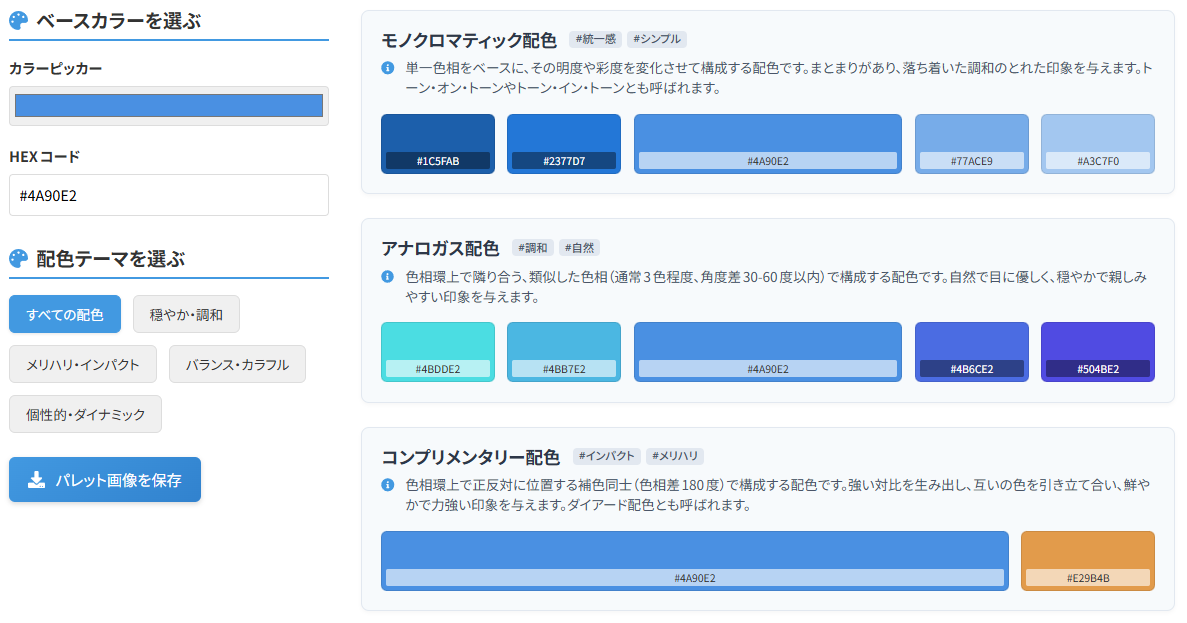
It's a tool that automatically suggests color palettes based on color theory, just by selecting a single base color.
"I've decided on the hair color, but what about the outfit?" "I want to know bolder color combinations!" "I want to try something different from my usual palette" -- this tool is for moments like these.
The suggested palettes also consider color roles (base, assort, accent), so they can be applied directly in your design work.
Features
- Generate multiple color palettes instantly by selecting just one color
- Covers a wide range of color theories: Monochromatic, Analogous, Complementary, Triadic, and more
- Filter palettes by theme: "Calm & Harmonious," "Bold & Impactful," and others
- Displays guideline ratios for each color's role as Base, Assort, or Accent color
- One-click HEX code copy for any displayed color
- Save all palettes in the current theme (up to 8) as a single PNG image
- Brief descriptions of each palette's characteristics and the impression it creates
- Suggests not only classic color theory combinations but also unexpected pairings
- Runs entirely in the browser -- no software installation required
- Simple interface that anyone can use
How to Use It
The basic workflow is 3 steps:
- Choose a base color

In the control panel on the left, select the "base color" that represents your character's image. Use the color picker to choose intuitively, or enter a HEX code directly.
- Select a color theme

From the "Choose a Color Theme" section, select a theme that matches the mood you're going for. Options include "Calm & Harmonious," "Bold & Impactful," "Balanced & Colorful," and more. When you select a theme, matching color palettes automatically appear on the right.
- Review and save palettes
Check out the generated color palettes. Hover over any color to see its HEX code, and click to copy it. When you find a scheme you like, click "Save Palette Image" to download all palettes in the current theme (up to 8) as a single image.
Types of Color Palettes
The tool suggests palettes based on various color theories:
- Monochromatic:
A palette that uses a single hue and varies only its lightness and saturation. Creates a cohesive, calm impression.
- Analogous:
Uses colors that sit next to each other on the color wheel. Produces a natural, easy-on-the-eyes look with a gentle, approachable feel.
- Complementary:
Combines colors directly opposite each other on the color wheel. Creates strong color contrast for a bold, dynamic impression.
- Split Complementary:
Pairs the base color with the two colors adjacent to its complement. Offers the vibrancy of complementary colors but with more harmony and stability.
- Triadic:
Uses three colors evenly spaced around the color wheel. Provides diverse color use while maintaining balanced stability and a lively, vibrant impression.
- Tetradic:
Uses four colors forming a rectangle or square on the color wheel. Enables rich, diverse expression, though careful attention to color proportion and area balance is important.
Beyond these, many other variations are available. Experiment and explore.
Making the Most of Palette Images
Downloaded palette images aren't just for reference -- you can integrate them directly into your illustration workflow.
Load the saved palette image as a new layer in your illustration software (CLIP STUDIO PAINT, Photoshop, Procreate, SAI, etc.). Then simply use the eyedropper tool to pick colors from that layer. This eliminates the need to manually enter HEX codes one by one, letting you apply colors to your artwork quickly.
Runs Entirely in the Browser
This tool is designed so that all processing happens entirely in the browser. No special applications need to be installed.
Color selection, palette calculations, and palette image generation all happen within the browser (primarily using JavaScript and the HTML5 Canvas API). Your base color input and generated palette data are never sent to any external server.