While working on video editing and game development, I came across several SFX files with volumes that were too low. I could adjust them one by one, but this time I decided to use Adobe Audition's batch processing to boost the volume of all of them at once.
Steps for Volume Adjustment
- Create a template for the volume boost process
- Drag and drop audio files into the batch processing panel
- Select the template created in step 1
- Configure export settings and run the batch process
Creating a Template
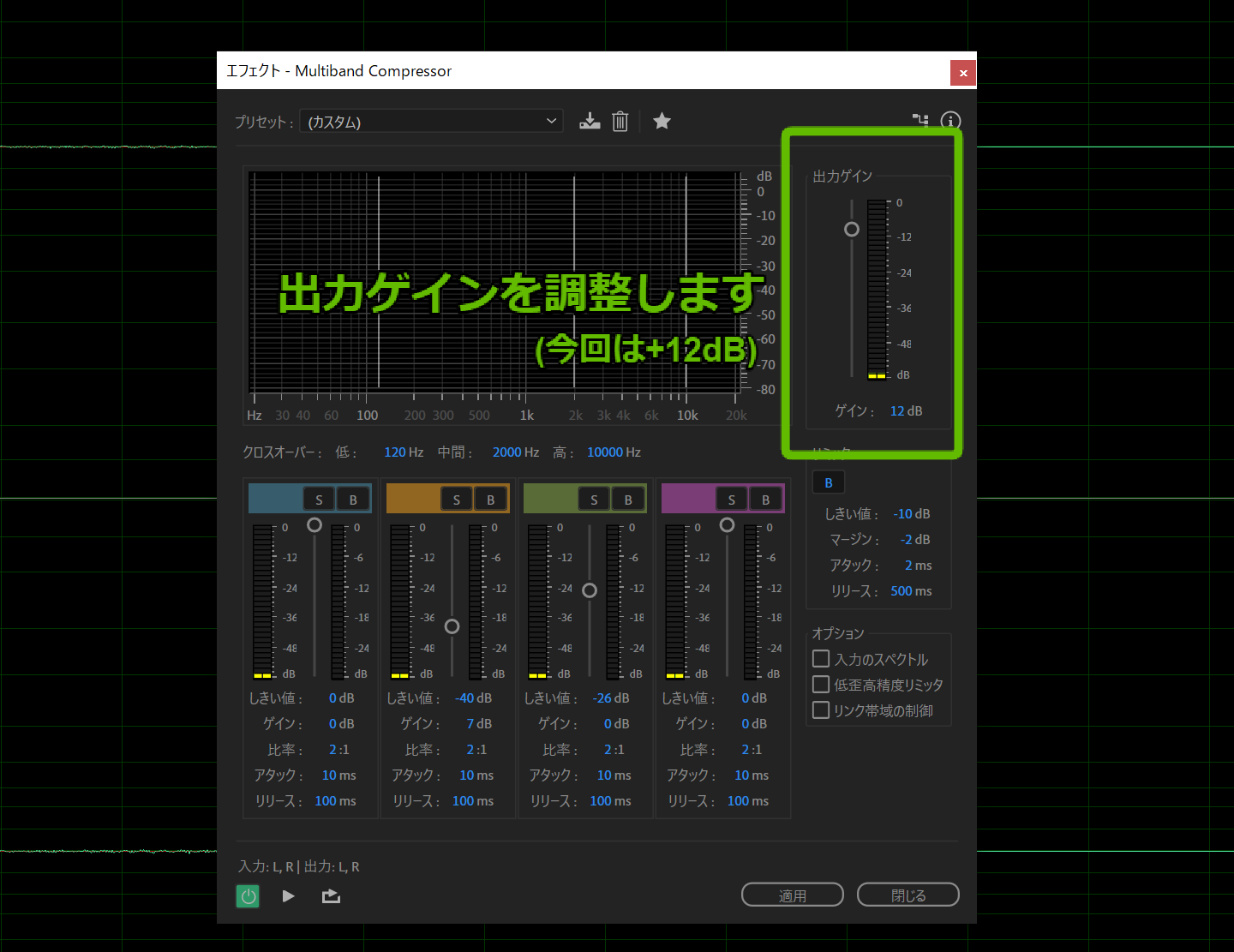
First, create a template that defines the changes you want to apply to your sound effects (in this case, a volume boost). For this example, we'll create a template that increases the multiband compressor output gain by +12dB.
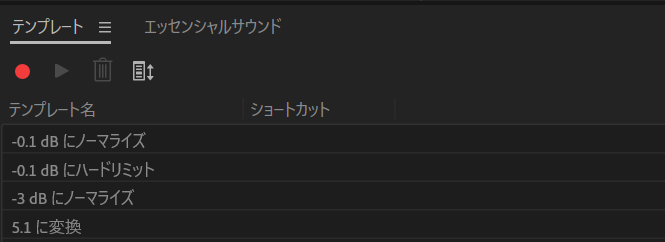
Open the template window and press the record button. Everything you do between pressing record and pressing stop will be saved as a template.
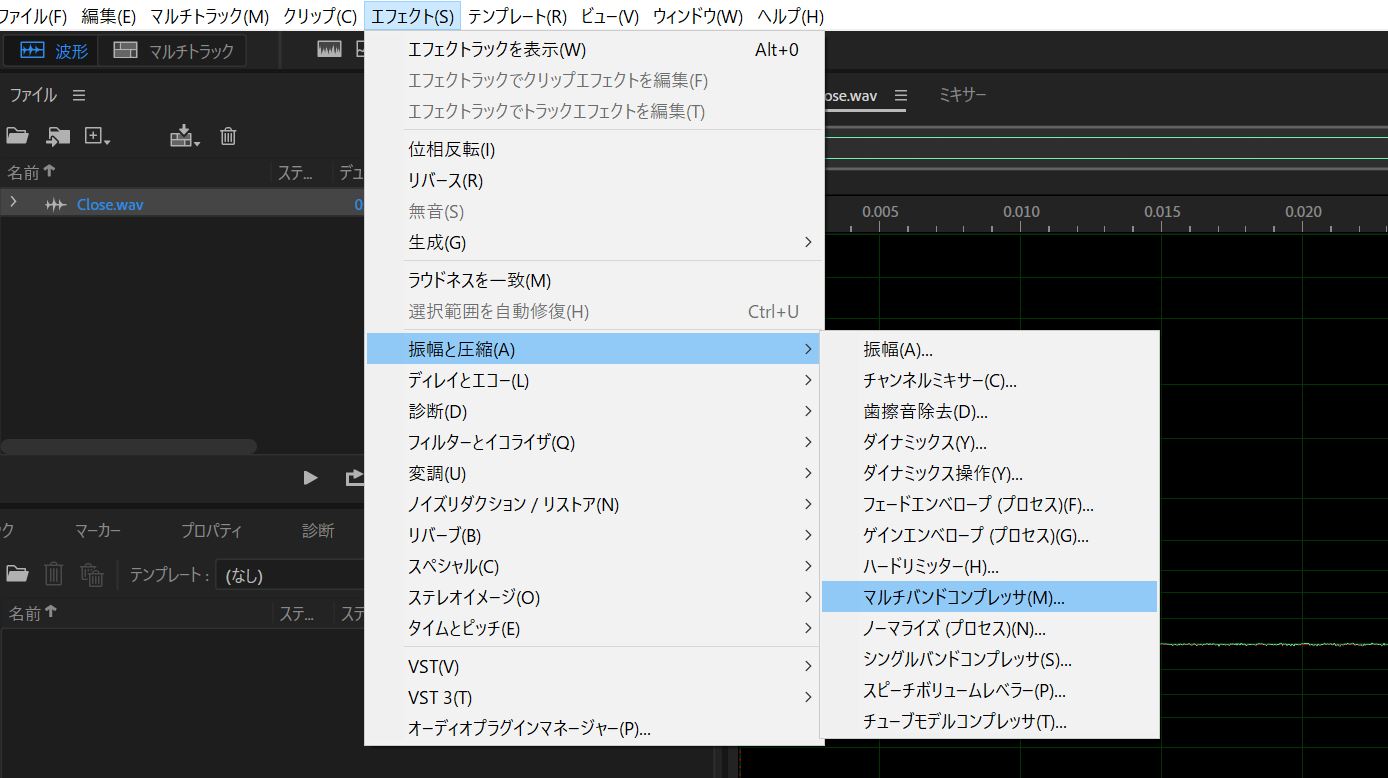
With the recording active, load any audio file and select "Effects > Amplitude and Compression > Multiband Compressor" from the top menu.
For this example, set the output gain to +12dB to boost the volume. Adjust this to your preference.
Press the stop button in the template window.
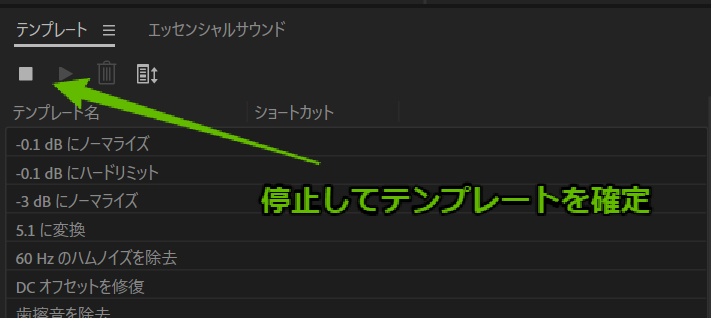
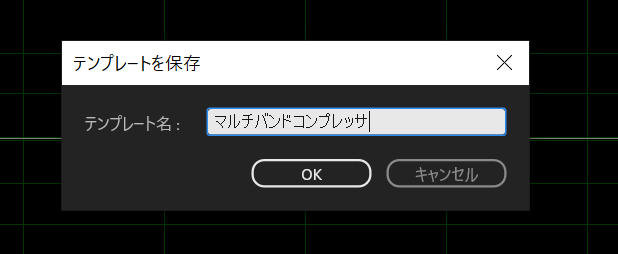
Give the template a name and save it. You're all set!
Running the Batch Process with the Template
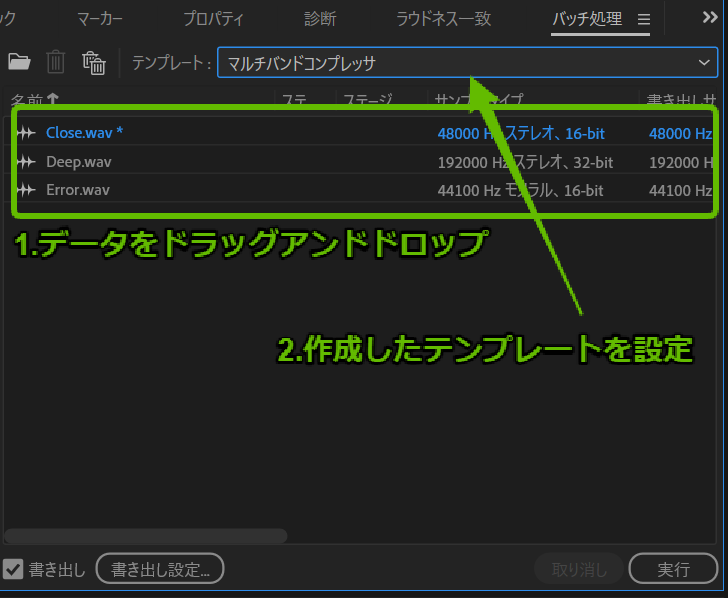
Open the batch processing panel from the top menu via "Window > Batch Process." Drag and drop your audio files into the panel. Select the template you created in step 1.
Export Settings
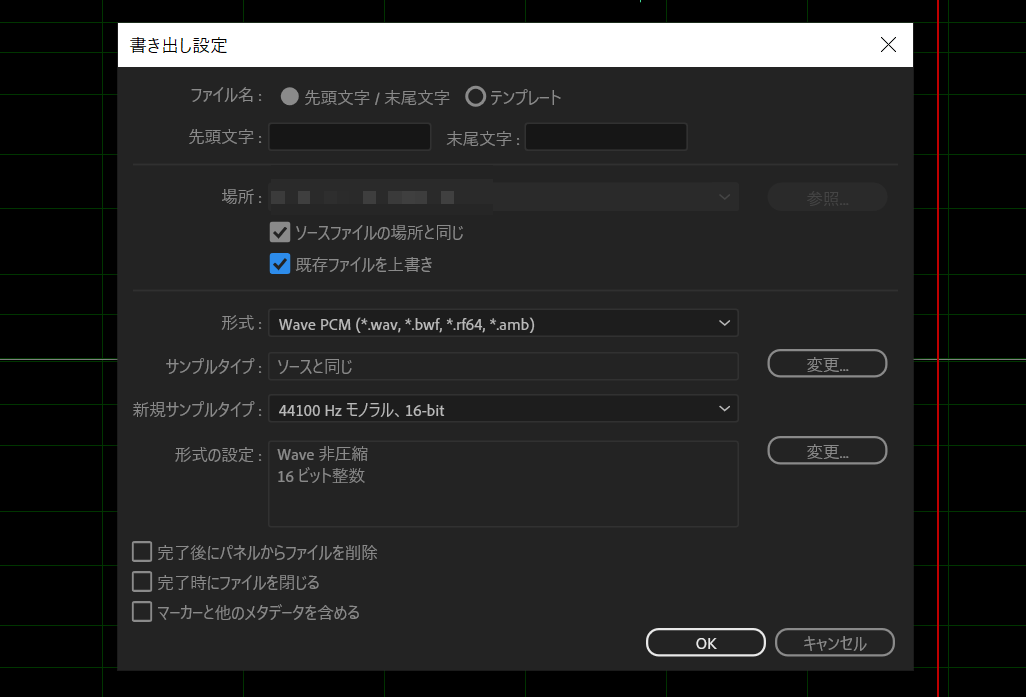
Before running, configure your export settings.
For the save location, choose either "Same as source file's location" or specify a different folder, and set the "Overwrite existing files" option as appropriate for your situation. If you don't want unnecessary extra files, uncheck "Include markers and other metadata."
Running the Batch Process
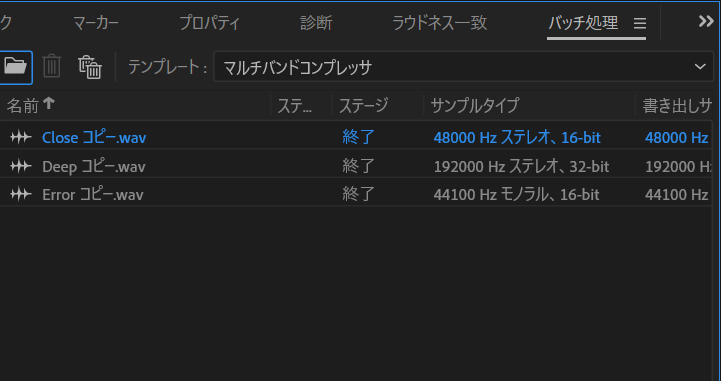
Now just press the "Run" button. When the status shows "Done" for all files, the process is complete.