Have you ever been told by a friend in VRChat that "the lining of your coat is transparent and you can see through it" when using an avatar with a long coat, cape, or similar garment?
From your own perspective everything looks fine, but from other people's viewpoint, the back side of the coat isn't rendered and the body shows through... This is a relatively common issue encountered when using avatars in VRChat.
This "see-through clothing lining" problem can actually be fixed fairly easily with a simple Unity tool. In this article, I'll explain the cause and walk you through the solution using a tool called "MeshFlipper."
Why Clothing Linings Appear See-Through
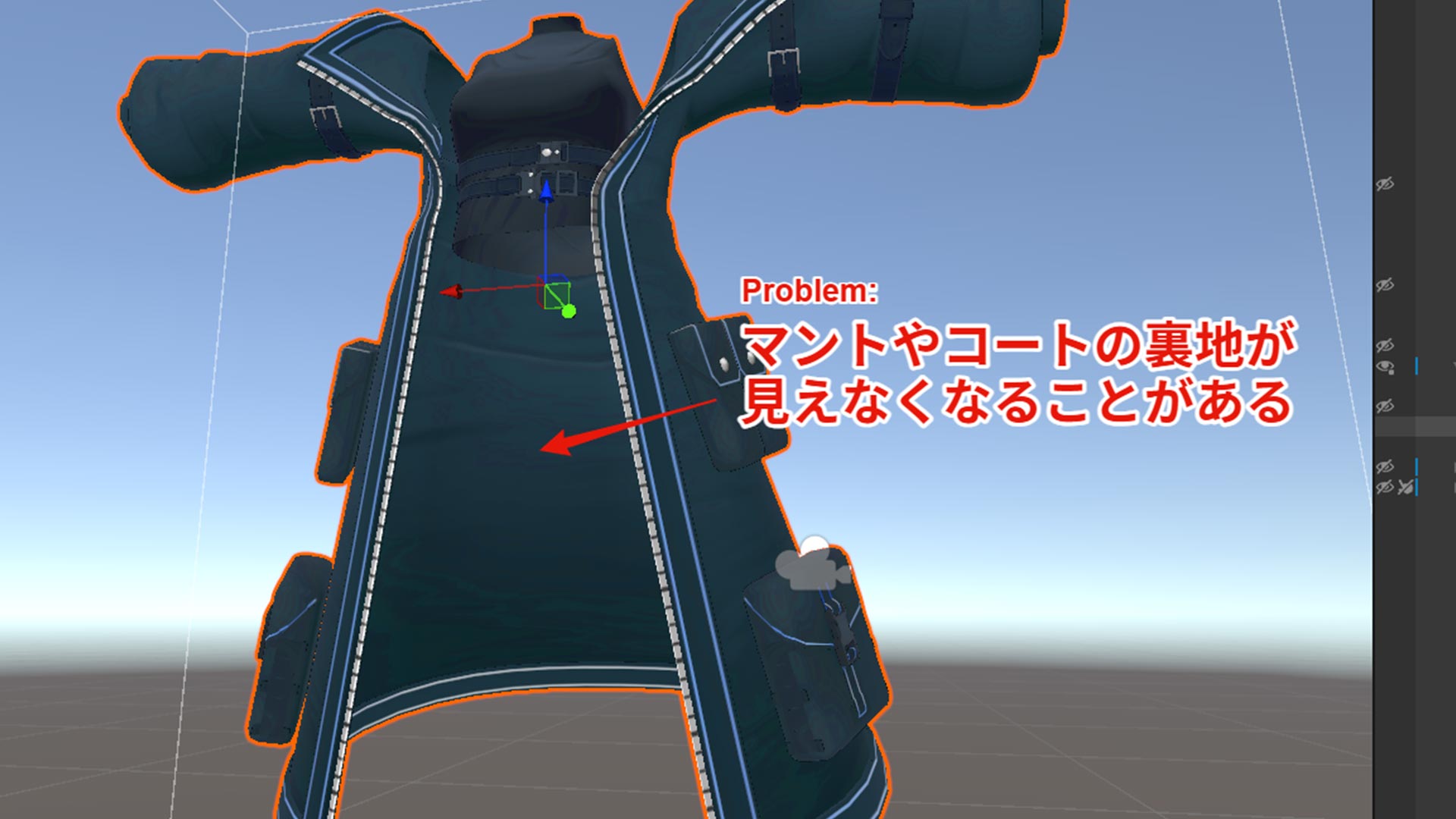
The main cause of this issue is single-sided rendering (also called backface culling), a technique used in most 3D models.
In simple terms, the polygons that make up a 3D model only render their front face by default -- the back face is not drawn. This saves computational resources. For tight-fitting clothing, this works perfectly fine since only the exterior (front face) is ever visible.
However, for garments like coats, capes, and skirts that flow freely or have long hems, the back face can become visible when the character moves or is viewed from certain angles.
With single-sided rendering, this back face is not a render target, so nothing is drawn -- the background or body shows through instead. This is why it looks like "the lining is transparent" or "there's a rendering bug" when viewed from a third-person perspective or through someone else's camera.
To fix this problem, the clothing simply needs to render its back face as well. The tool that makes this easy is "MeshFlipper," introduced next.
Installing and Using MeshFlipper
While searching for a solution to the see-through lining problem, I came across "MeshFlipper" -- a Unity editor extension tool -- through the following article. (Thank you for the information!)
MeshFlipper is an incredibly convenient tool that processes 3D model mesh data in Unity to make it double-sided, so the back face is also rendered. It's distributed for free on Booth by the developer fum1.
Installation and basic usage are very straightforward:

-
Import MeshFlipper into your Unity project Download MeshFlipper from the Booth link above. Drag and drop the
MeshFlipper.csscript file from the download into your Unity project'sAssetsfolder (for example, into anEditorfolder). -
Select the mesh with the see-through lining In Unity's Hierarchy window, select the avatar you want to fix and locate the clothing part (object) with the see-through lining. Find the
Skinned Mesh RendererorMesh Renderercomponent attached to that object. -
Open the MeshFlipper window From Unity's menu bar, select
fum1>Mesh Flipperto open the dedicated MeshFlipper window. -
Configure the options (Important: select TwoSides) With the target clothing part (the object with the Skinned Mesh Renderer, etc.) selected, configure the following options in the MeshFlipper window:
- TwoSides: Check this option -- this is the key feature. It makes the mesh double-sided so the back face is also rendered.
Flip: This reverses the direction of polygon normals. For fixing see-through linings,TwoSidesalone is usually sufficient.
In most cases, simply checking
TwoSidesis enough to solve the see-through lining problem. -
Click "Create Mesh" to apply After configuring the options, click the "Create Mesh" button. MeshFlipper will process the selected mesh to make it double-sided, generate new mesh data, and automatically replace the original mesh. (The original mesh data may be kept as a backup.)
After processing is complete, try viewing the back side of the garment in Unity's Scene view, or upload to VRChat and have a friend check. If the lining renders properly and is no longer transparent, you're all set!
How It Works Technically
On a slightly more technical level, here's what MeshFlipper does internally:
- Vertex duplication and normal inversion: It copies the original mesh's vertex data and inverts the polygon normals (facing direction) on the copy.
- Mesh merging: It combines the original mesh (front face) with the normal-inverted copy (for the back face) into a single mesh.
This effectively creates mesh data that has polygons for both the front face and the back face. As a result, the surface is rendered regardless of which direction it's viewed from, solving the see-through lining problem.
In essence, MeshFlipper creates a "virtual back side" for clothing that originally didn't have one (wasn't rendered).
Since it handles this complex processing with a single button click, it's extremely handy when working with coats, skirts, and other garments where the back side is likely to be visible.
Summary
If you encounter the issue where your VRChat avatar's clothing (especially coats, capes, skirts, etc.) appears see-through or transparent from the back, consider using the Unity editor extension tool "MeshFlipper."
With a simple process, it makes meshes double-sided, and in most cases, this alone is enough to make the lining render properly.
MeshFlipper is distributed for free on Booth by the developer fum1. If you're a VRChat user or avatar customizer dealing with the same issue, I highly recommend giving it a try!