When coding or writing documentation in Visual Studio Code (VSCode), you often need to batch edit and replace text matching a specific pattern. Doing this manually one by one is time-consuming and error-prone.
By leveraging regular expressions in VSCode's search and replace feature, you can change strings matching complex conditions all at once with precision. This is especially powerful when converting strings containing sequential numbers or specifically formatted tags to a different format in bulk.
This article walks through the specific steps for batch-converting sequential pattern strings to a different format using VSCode's regex replacement, along with useful search options to know. Mastering this technique will dramatically improve your text editing efficiency.
In This Article
- Example Strings to Replace (Sequential Pattern)
- Replacement Steps Using Regular Expressions (VSCode)
- Useful VSCode Search & Replace Options
- Summary: Streamline VSCode Text Editing with Regex
Example Strings to Replace (Sequential Pattern)
For this example, we'll convert strings in the format [A1_xxxx] (where xxxx is a 4-digit sequential number) to the format |#A1_xxxx| in bulk.
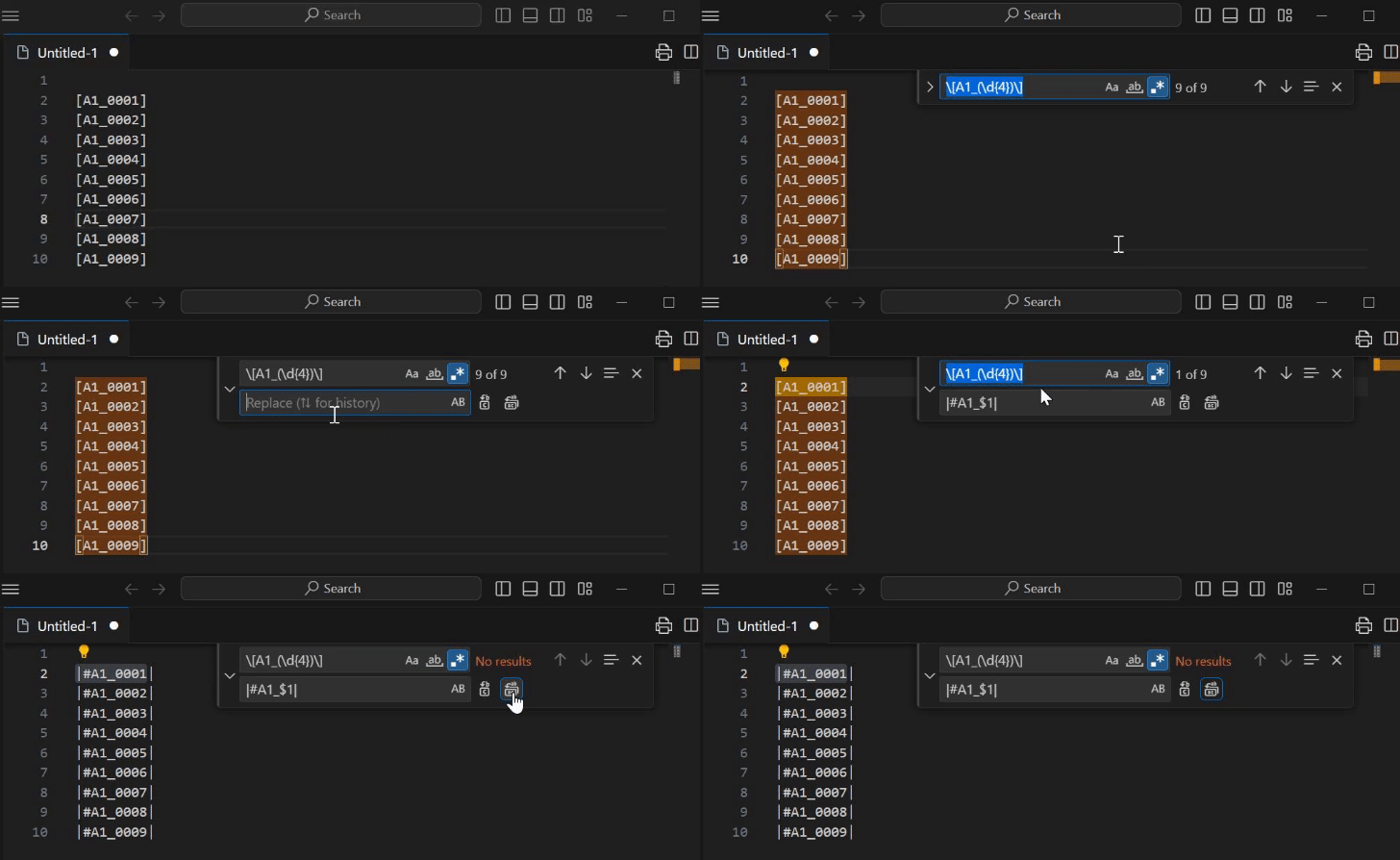
Before:
[A1_0001]
[A1_0002]
[A1_0003]
[A1_0004]
[A1_0005]
[A1_0006]
[A1_0007]
[A1_0008]
[A1_0009]
... (continues)
After (target):
|#A1_0001|
|#A1_0002|
|#A1_0003|
|#A1_0004|
|#A1_0005|
|#A1_0006|
|#A1_0007|
|#A1_0008|
|#A1_0009|
... (continues)
This is just one example, but the technique can be applied to log data format conversion, markdown syntax changes, batch editing of IDs with specific naming conventions, and many other scenarios.
Replacement Steps Using Regular Expressions (VSCode)
Here's how to perform the above replacement in VSCode:
-
Open the file: Open the file containing the text you want to replace in VSCode.
-
Open the search and replace bar:
- Windows/Linux: Press Ctrl + H. (Ctrl + F is search only)
- Mac: Press Cmd + Option + F. (Cmd + F is search only)
This displays the search and replace fields.
-
Enable regex mode: Click the
.*icon (Use Regular Expression) on the right side of the search field to toggle it on. -
Enter the search pattern (regex): In the search field (top input), enter the regex pattern for the strings you want to replace. For this example:
\[A1_(\d{4})\]\[and\]: Square brackets have special meaning in regex, so they need to be escaped with a backslash\to be treated as literal characters.A1_: Matches this exact string.(\d{4}):\d: Represents any digit (0-9).{4}: Means the preceding\drepeats exactly 4 times (i.e., a 4-digit number).(...): Parentheses create a capture group, allowing you to reference this part (the 4-digit number) later. This is what$1refers to.
This regex matches strings that start with
[A1_, followed by a 4-digit number, and end with]. -
Enter the replacement pattern: In the replace field (bottom input), enter the replacement format using capture groups:
|#A1_$1||#A1_: The beginning of the replacement string.$1: References the content matched by the first capture group(\d{4})(i.e., the original 4-digit number).|: The end of the replacement string.
This replaces the format while preserving the original 4-digit number.
-
Execute the replacement:
- Click the "Replace All" button (icon typically shows overlapping rectangles) on the right side of the replace field.
- This batch-replaces all matches in the file according to the replacement pattern. (To review each replacement individually, click the "Replace" button one at a time.)
By leveraging capture groups ($1, etc.) in regular expressions, you can perform not just simple string swaps but complex format conversions that preserve parts of the original string. This dramatically improves efficiency for repetitive, pattern-based editing tasks.
Useful VSCode Search & Replace Options
Beyond regex, VSCode's search and replace bar offers other useful options. Mastering these enables more efficient and accurate search and replace operations. (The icons are arranged to the right of the search field.)
-
Match Case (Aa icon):
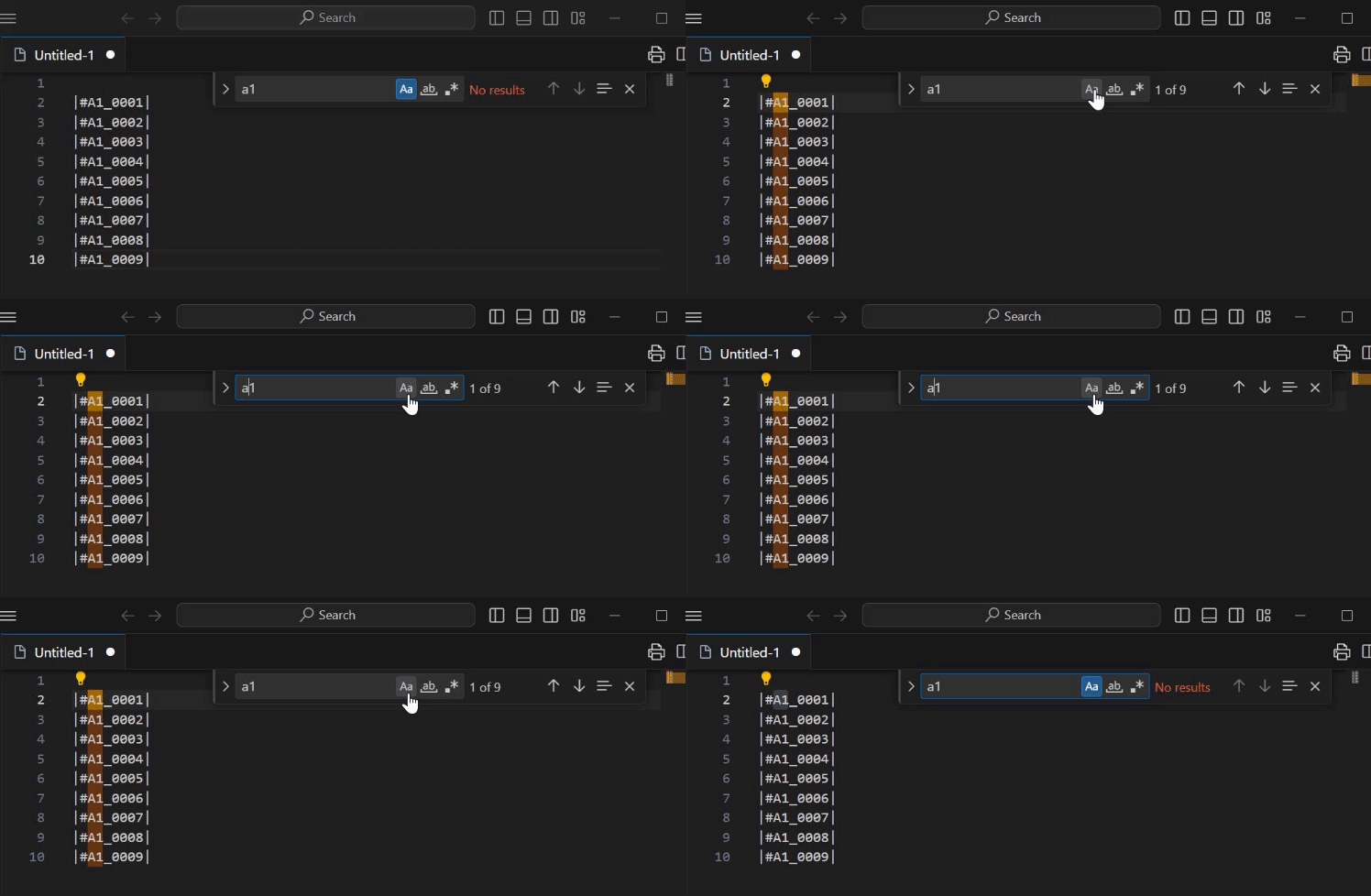
When enabled, the search strictly distinguishes uppercase and lowercase. For example, searching for "Apple" won't match "apple" or "APPLE." Useful for precisely searching/replacing specific variable names or constants.
-
Match Whole Word (ab-style icon):
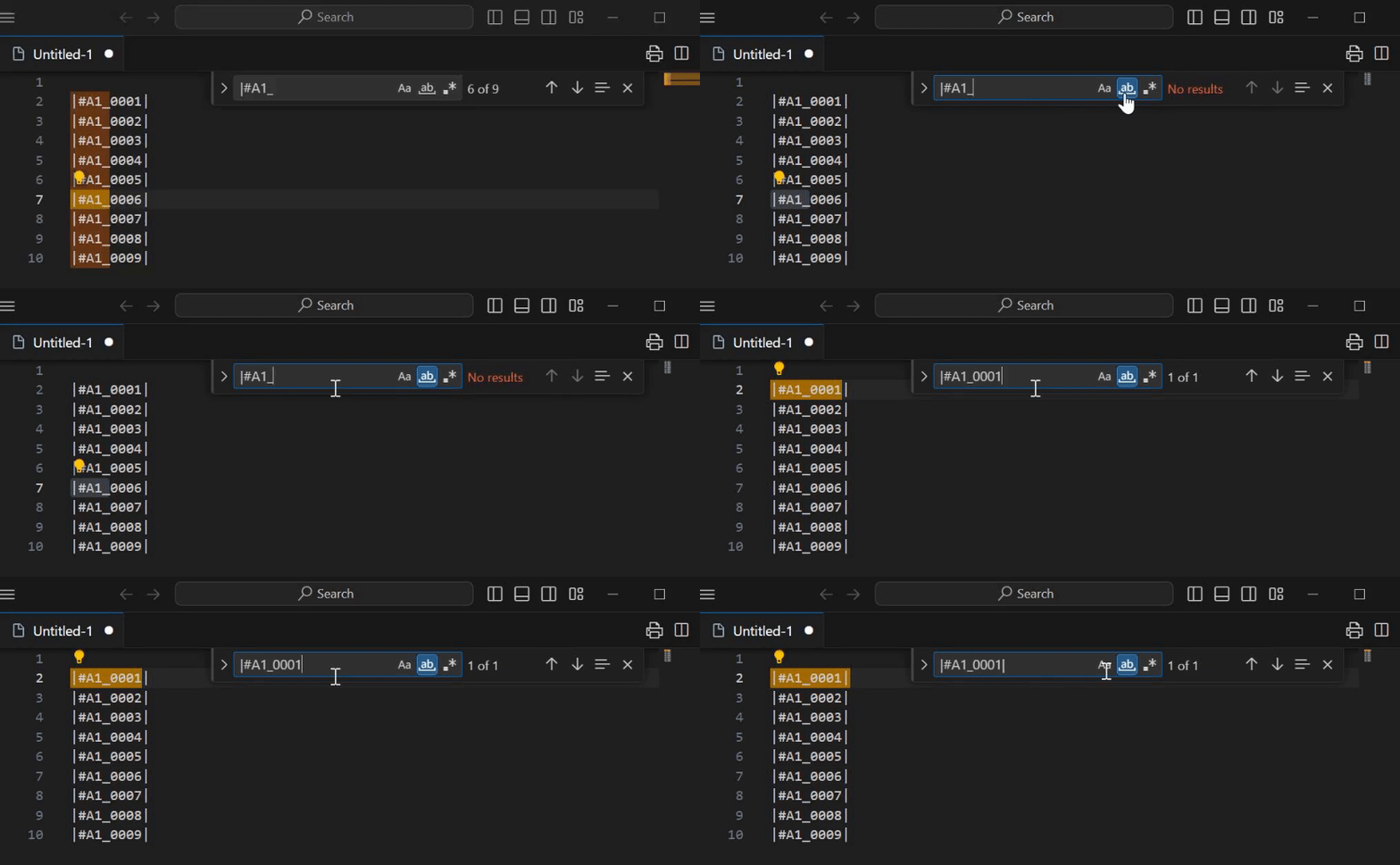
When enabled, only exact whole-word matches are found. For example, searching for "cat" won't match "category" or "concatenate" — only standalone "cat" (delimited by spaces or symbols). Useful for preventing unintended partial matches.
-
Use Regular Expression (. icon):*
As explained in this article, this option enables more complex pattern matching using regex. When active, regex-specific syntax like
\d,[],(),$1, etc. becomes available.
Combine these options as needed for more flexible and accurate text search and replacement.
Summary: Streamline VSCode Text Editing with Regex
By leveraging regular expressions in VSCode's search and replace feature, you can perform complex text editing tasks quickly and accurately that would otherwise require significant time and effort. It's especially powerful for batch-converting strings with sequential numbers or specific formats.
The capture group ($1, etc.) replacement pattern introduced here is a fundamental technique for transforming formats while preserving parts of the original data. Combined with options like "Match Case" and "Match Whole Word," you can achieve even more precise operations.
While regex syntax may seem daunting at first, learning just a few basic patterns will dramatically improve your text editing productivity in VSCode. Make the most of this powerful feature in your daily development and documentation work.