
Have you heard of Godot Engine?
It's an MIT-licensed, open-source game engine that was first released in 2014.
What brought it into the spotlight was Unity's "Runtime Fee" controversy in September 2023. Unity announced a new pricing model that would charge per game install, which sparked massive backlash from the community. While Unity eventually reversed course, the incident prompted many developers to explore Godot as an alternative, causing its popularity to surge.
I had been curious about Godot for a while, but was comfortable with Unity and Unreal Engine. However, seeing Godot's steady growth in features over recent years, I decided it was finally time to dive in.

In this article, I'll share my experience completing a beginner Udemy course on Godot, along with questions and observations from a Unity developer's perspective.
Note that I'm still a Godot beginner. I don't have deep technical expertise yet, but I believe that documenting the questions and impressions that come naturally to a newcomer can help others who are just starting their Godot journey.
Godot Engine Q&A
Below are questions I had before starting Godot, answered after my initial learning.
Q. What is Godot Engine? A. An open-source game engine released in 2014. Fully free under the MIT license. The engine itself is built in C++.
Q. First impression compared to Unity and Unreal Engine? A. It's incredibly lightweight (about 149MB as of v4.4.1). However, documentation outside English is still limited.
Q. What notable games have been made with Godot? A. "Backpack Battles," "Buckshot Roulette," and "Unrailed 2: Back on Track," among others.
Q. What is the node-based system? A. A system where you build functionality through a hierarchy of nodes. For example, a physics-enabled character would have a CharacterBody2D node containing AnimatedSprite2D (animation) and CollisionShape2D (collision detection) as children.
Q. Is the node-based system difficult? A. Not at all. It's similar to attaching components in Unity.
Q. Doesn't a node-based system limit flexibility? A. Not really — you can extend nodes with custom implementations, so the coding experience is comparable to Unity or Unreal Engine. The flexibility is high.
Q. What is GDScript? A. Godot's own Python-based scripting language. For learning the basics, GDScript is recommended over C#. The syntax is simple and easy to understand.
You can browse games made with Godot on the official Showcase page. The annual highlight videos are particularly worth watching.
Starting Godot Fundamentals
When learning a new game engine, it's essential to read the official documentation and experiment with demo projects.
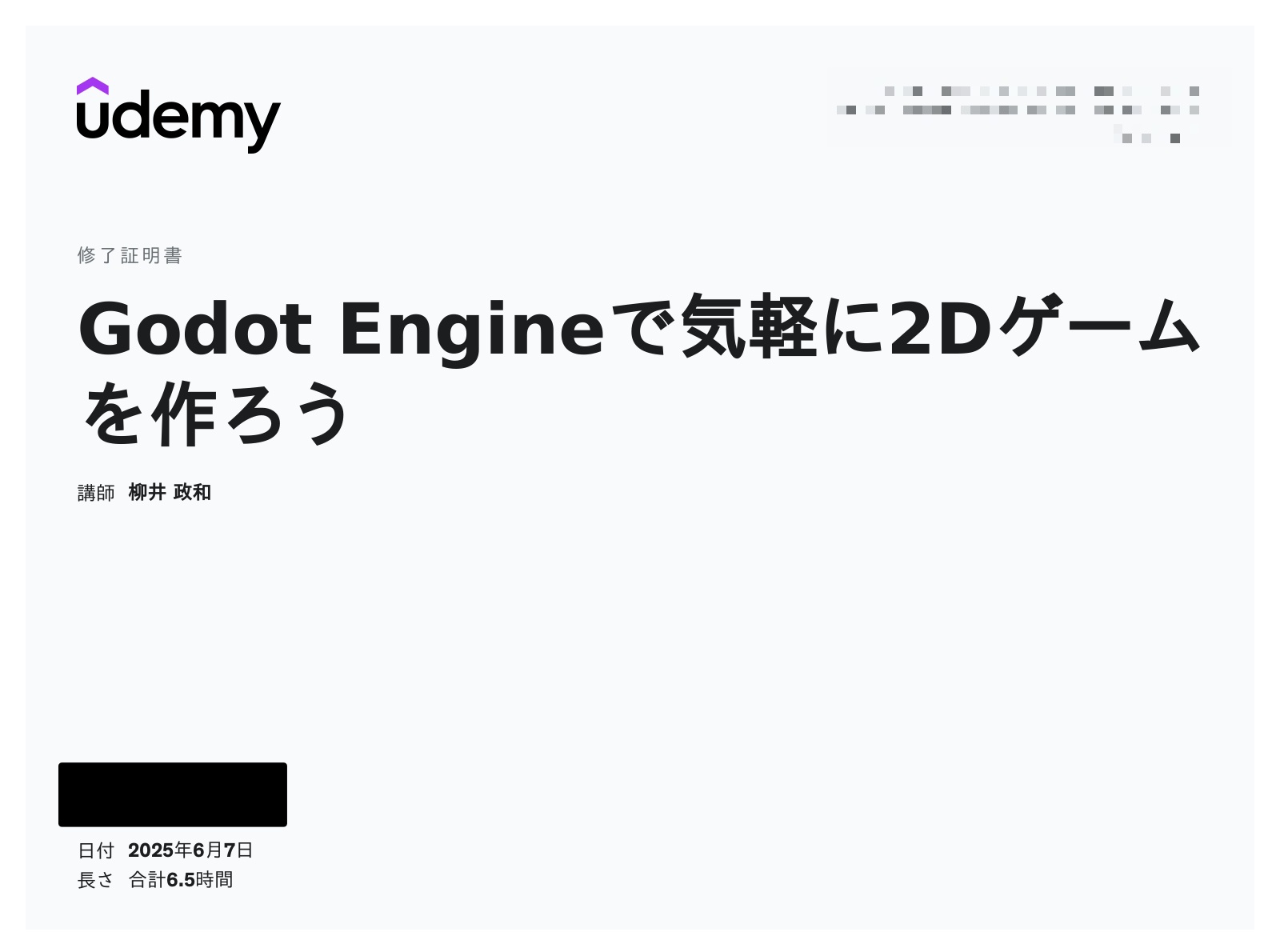
In addition to that, I like to work through multiple video tutorials on YouTube and Udemy to build a solid foundation. For this, I found a great beginner-friendly Japanese course on Udemy called "Godot Engineで気軽に2Dゲームを作ろう" and completed it in about 6.5 hours.
For Godot-specific concepts, asking AI tools like ChatGPT or Claude "What's the Unity/Unreal Engine equivalent of this?" can really accelerate learning.
For example:
@exportis similar to Unity'sSerializeFieldget_tree().change_scene_to_file()is similar to Unity'sSceneManager.LoadScene
The exact behavior may differ, but mapping concepts to another engine you already know greatly speeds up understanding.
Course Review: Beginner Godot Course on Udemy
Curriculum Overview
- Sections 1-3: Fundamentals (project settings, understanding nodes and scenes)
- Sections 4-5: Exporting (Windows and Web builds)
- Sections 6-9: 2D game basics (Player, Mob, HUD implementation)
- Section 10: GDScript in depth
- Sections 11-13: Advanced 2D features (maze generation, scene transitions)
- Sections 14-18: System features (BGM, UI, data saving, enemy AI, shooting system)
This course focuses on fundamentals, covering Godot installation, setup, editor walkthrough, official demo exploration, and building an original game. Each video is 1-5 minutes, explaining key points concisely, making it easy to progress quickly.

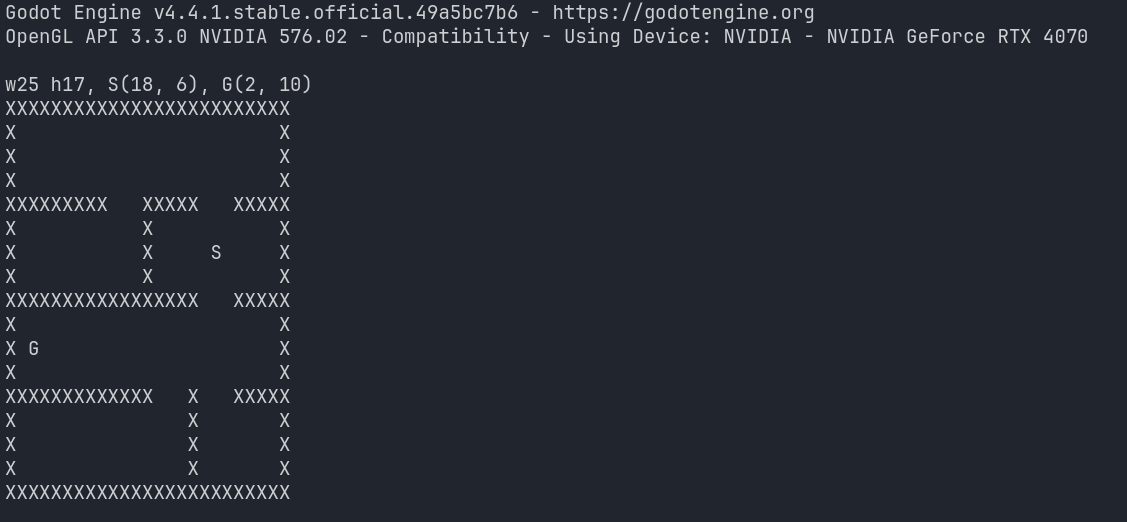
The original game project includes procedural maze generation using a recursive backtracker algorithm, UI creation, data saving, and a shooting system — very practical content that covers essential skills. This allows you to build a complete game cycle: title screen, area selection, maze, and back to title.
If you're curious about Godot but haven't tried it yet, I recommend starting with a structured course like this. Quality Japanese-language Godot content is still rare, so using a well-organized course as your first step before moving on to more advanced English courses is a solid approach.
Udemy runs sales very frequently, so I recommend adding courses to your wishlist and purchasing during sales to work through at your own pace.
From here, I'll move beyond course content and share what surprised me about the Godot engine, along with a comparison table I compiled while studying.
What Impressed Me About Godot
Through this course, I truly came to appreciate the elegance of Godot's design philosophy. Here are the most impressive aspects:
- Node system intuitiveness: Once you master "nodes" and "signals," Godot becomes incredibly comfortable. The engine is so lightweight that you never have to wait for editor loads or compile times — you can stay focused on development.
- Scene reusability: Initially confusing, but the practical development experience is similar to Unity. For instance, you can create a GameManager by attaching a script to a lightweight Marker2D node and turning it into a scene. AutoLoad lets you make it a singleton.
- Lightweight performance: The engine itself is lightweight and starts up fast. Just click the .exe downloaded from the official site and you're back to development instantly.
- Rich 2D features: Dedicated nodes like TileMap and AnimatedSprite2D are abundant.
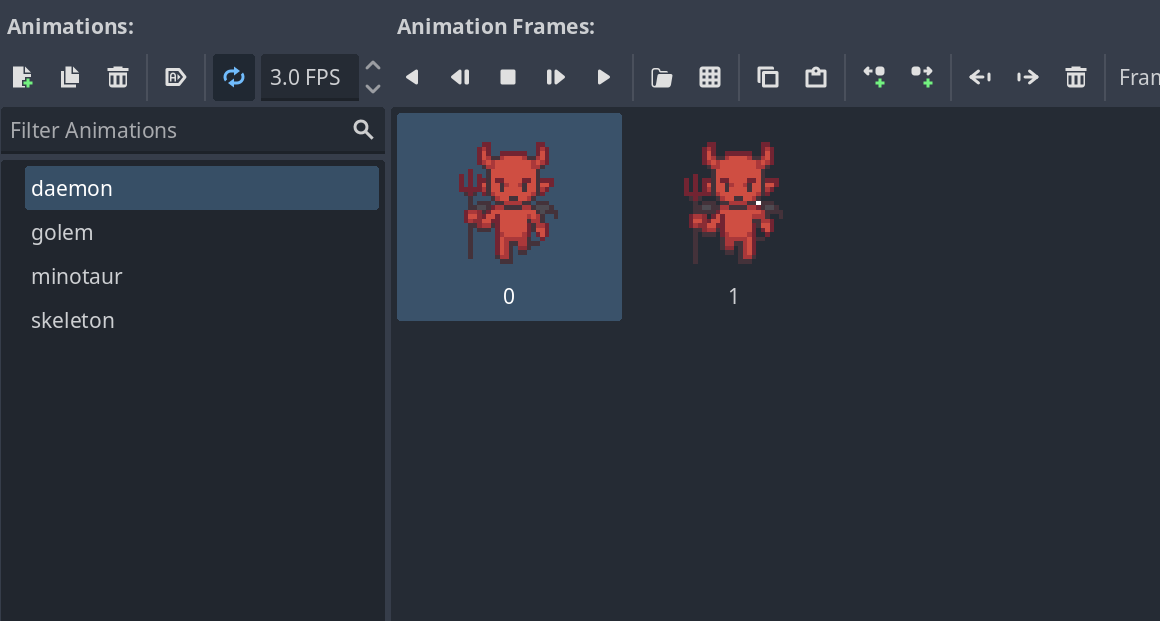
- AnimatedSprite2D workflow: In Unity, you need to slice sprite sheets and configure each frame individually. In Godot, you just select the grid icon and pick the images you need — they're instantly placed on the timeline.
- Easy tileset creation: Collision detection can be set visually, with Physics Layers for efficient per-tile collision management. More intuitive and less tedious than Unity.
For Unity Developers: Godot Comparison Table
I've created a comparison table to help Unity developers understand key Godot concepts before starting. I recommend glancing through this before beginning your studies.
Scenes & Objects
- Godot Scene ≈ Unity Prefab + Scene
- get_tree().change_scene_to_file() ≈ SceneManager.LoadScene()
- $ syntax / get_node() ≈ GameObject.Find() / FindObjectOfType()
- get_parent() ≈ transform.parent
Lifecycle
- _ready() ≈ Start()
- _process() ≈ Update()
- _physics_process() ≈ FixedUpdate()
UI & Display
- CanvasLayer ≈ Canvas (Sorting Order)
- Control ≈ UI GameObject
- Label ≈ Text (TextMeshPro)
Events & Communication
- Signal ≈ UnityEvent / C# Event
- emit_signal() ≈ event.Invoke()
Other Fundamentals
- @export ≈ [SerializeField]
- @onready ≈ Awake() / Start()
- AutoLoad ≈ DontDestroyOnLoad
- load() ≈ Resources.Load()
For Unity Developers: Code Comparison
Let's look at actual code style differences through several examples — something Unity developers are probably most curious about.
Example 1: Exposing Variables (@export vs [SerializeField])
Exposing variables in the inspector and printing their values at game start.
Godot (GDScript)
# Player.gd
extends Node2D

@export var player_name: String = "Hero"
@export var speed: int = 100

# Equivalent to Unity's Start()
func _ready():
    print("Player Name: ", player_name)
    print("Initial Speed: ", speed)
Unity (C#)
// Player.cs
using UnityEngine;

public class Player : MonoBehaviour
{
    [SerializeField] private string playerName = "Hero";
    [SerializeField] private int speed = 100;

    // Equivalent to Godot's _ready()
    void Start()
    {
        Debug.Log("Player Name: " + playerName);
        Debug.Log("Initial Speed: " + speed);
    }
}
Example 2: Per-Frame Processing (_process vs Update)
Continuously moving an object to the right. This shows how delta (Unity's Time.deltaTime) is used.
Godot (GDScript)
# Mover.gd
extends Sprite2D

@export var move_speed: float = 200.0

# Equivalent to Unity's Update()
func _process(delta):
    position.x += move_speed * delta
Unity (C#)
// Mover.cs
using UnityEngine;

public class Mover : MonoBehaviour
{
    [SerializeField] private float moveSpeed = 200.0f;

    // Equivalent to Godot's _process()
    void Update()
    {
        transform.position += new Vector3(moveSpeed * Time.deltaTime, 0, 0);
    }
}
Example 3: Physics Processing (_physics_process vs FixedUpdate)
Moving a character based on input with physics.
Godot (GDScript)
# Character.gd
extends CharacterBody2D

const SPEED = 300.0

# Equivalent to Unity's FixedUpdate()
func _physics_process(delta):
    var direction = Input.get_axis("ui_left", "ui_right")
    velocity.x = direction * SPEED
    move_and_slide()  # Godot's convenient built-in function
Unity (C#)
// Character.cs
using UnityEngine;

[RequireComponent(typeof(Rigidbody2D))]
public class Character : MonoBehaviour
{
    [SerializeField] private float speed = 300.0f;
    private Rigidbody2D rb;

    void Start()
    {
        rb = GetComponent<Rigidbody2D>();
    }

    // Equivalent to Godot's _physics_process()
    void FixedUpdate()
    {
        float moveInput = Input.GetAxis("Horizontal");
        rb.velocity = new Vector2(moveInput * speed, rb.velocity.y);
    }
}
Example 4: Getting Nodes ($ vs GetComponent/transform.Find)
Accessing child nodes (child objects) and modifying their properties.
Godot (GDScript)
# Player.gd
extends Node2D

func _ready():
    # Direct access to child node using $ syntax
    $AnimatedSprite2D.play("run")

    # Alternative using get_node()
    var collision_shape = get_node("CollisionShape2D")
    collision_shape.disabled = true
Unity (C#)
// Player.cs
using UnityEngine;

public class Player : MonoBehaviour
{
    void Start()
    {
        // Get component from child object
        Animator animator = GetComponentInChildren<Animator>();
        if (animator != null)
        {
            animator.Play("run");
        }

        // Find child object by name
        Transform collisionShape = transform.Find("CollisionShape");
        if (collisionShape != null)
        {
            collisionShape.gameObject.SetActive(false);
        }
    }
}
Example 5: Using Signals (signal vs UnityEvent)
Notifying other objects when health changes.
Godot (GDScript)
# Player.gd
extends Node2D

signal health_changed(new_health)

var health: int = 100

func take_damage(damage: int):
    health -= damage
    health_changed.emit(health)  # Emit signal
# UI.gd
extends Control

func _ready():
    var player = get_node("../Player")
    player.health_changed.connect(_on_health_changed)

func _on_health_changed(new_health: int):
    print("Health is now ", new_health)
Unity (C#)
// Player.cs
using UnityEngine;
using UnityEngine.Events;

public class Player : MonoBehaviour
{
    [SerializeField] private UnityEvent<int> onHealthChanged;

    private int health = 100;

    public void TakeDamage(int damage)
    {
        health -= damage;
        onHealthChanged?.Invoke(health);  // Invoke event
    }
}
// UI.cs
using UnityEngine;

public class UI : MonoBehaviour
{
    [SerializeField] private Player player;

    void Start()
    {
        player.onHealthChanged.AddListener(OnHealthChanged);
    }

    private void OnHealthChanged(int newHealth)
    {
        Debug.Log("Health is now " + newHealth);
    }
}
Example 6: Scene Switching (change_scene_to_file vs SceneManager.LoadScene)
Transitioning to the next level when the game is cleared.
Godot (GDScript)
# GameManager.gd
extends Node

func level_complete():
    print("Level complete!")
    get_tree().change_scene_to_file("res://scenes/Level2.tscn")
Unity (C#)
// GameManager.cs
using UnityEngine;
using UnityEngine.SceneManagement;

public class GameManager : MonoBehaviour
{
    public void LevelComplete()
    {
        Debug.Log("Level complete!");
        SceneManager.LoadScene("Level2");
    }
}
Conclusion
Through the beginner Godot course, I got to experience the true potential of Godot Engine firsthand.
My takeaway: Godot with its node-based system is a highly recommended engine, especially for 2D developers. Having experience with 2D development in both Unity and Unreal Engine, I can say Godot has significant advantages in 2D sprite and tileset management. My current thinking is: pure 2D games go to Godot, while HD-2D or lighting-intensive projects stay with Unity.
While I've highlighted Godot's strengths from a beginner's perspective, Unity and Unreal Engine are still far ahead in overall engine quality. In terms of available resources, asset store ecosystems (Unity Asset Store, Fab), and track records in commercial games, Godot is still a young engine.
That said, Godot has already reached a quality level where development is genuinely enjoyable, and its potential is clear.
Games like "Backpack Battles" and "Buckshot Roulette" are quietly growing the list of "Wait, that was made with Godot?" titles. Since Unity's Runtime Fee controversy drove a wave of developers to Godot, their finished projects should further boost Godot's visibility.
Being open-source is a truly unique advantage. Seeing how Blender gradually took over the 3D industry that was once dominated by Maya and 3ds Max, Godot might follow a similar trajectory. Unity and Unreal are free until you earn substantial revenue, so Godot may not see the same rapid growth as Blender, but it could steadily grow as a safety net every time controversies like the Runtime Fee incident occur.
That said, I'll continue working with Unity and Unreal Engine. Confirming that Godot has genuine potential as a third option was a valuable outcome in itself.
The node-based system offers a development experience distinctly different from both Unity and Unreal Engine, so if you're curious, I encourage you to give it a try.
I plan to continue sharing Godot learning notes and hope to contribute, even in a small way, to building the knowledge base for the Godot community.