
Godot Engine is an MIT-licensed, open-source game engine first released in 2014. It surged in popularity after Unity's Runtime Fee controversy in 2023, as many developers began exploring it as an alternative.

This article covers everything a Unity developer needs to get started with Godot: a Udemy course review, first impressions from hands-on experience, a Unity-to-Godot concept mapping table, and side-by-side code comparisons.
Godot Engine Q&A
Before diving into Godot, I had a bunch of questions. "What's actually special about Godot?" "Isn't the node-based system complicated?" "Is GDScript even worth learning?" — if you're asking the same things, you're not alone. Here are my answers after actually getting my hands on the engine.
Q. What is Godot Engine? An open-source game engine released in 2014. Fully free under the MIT license with zero royalties. The engine core is written in C++.
Q. First impression compared to Unity and Unreal Engine? It's incredibly light. The entire engine is about 149MB as of v4.4.1. You can start developing in Godot before Unity's installer even finishes loading. The trade-off is that community resources are still growing.
Q. What notable games were made with Godot? "Backpack Battles," "Buckshot Roulette," and "Unrailed 2: Back on Track," among others. Some surprisingly well-known titles in there. Check the official Showcase page for a full list — the annual highlight videos are especially worth watching.
Q. What is the node-based system? A system where you build functionality through a hierarchy of nodes. For example, a physics-enabled character would have a CharacterBody2D node with AnimatedSprite2D (animation) and CollisionShape2D (collision) as children. It's similar to attaching components in Unity, so Unity developers should find it familiar.
Q. Doesn't a node-based system limit flexibility? You can extend nodes with custom classes, so the coding freedom is the same as Unity or Unreal Engine.
Q. What is GDScript? Godot's own Python-based scripting language. While C# is also supported, starting with GDScript is far more efficient for learning. The syntax is simple and the engine integration runs deep.
Udemy Course Review
When learning a new engine, I like to complement official documentation with multiple video tutorials. This time I took the "Godot Engineで気軽に2Dゲームを作ろう" course on Udemy and completed it in about 6.5 hours.
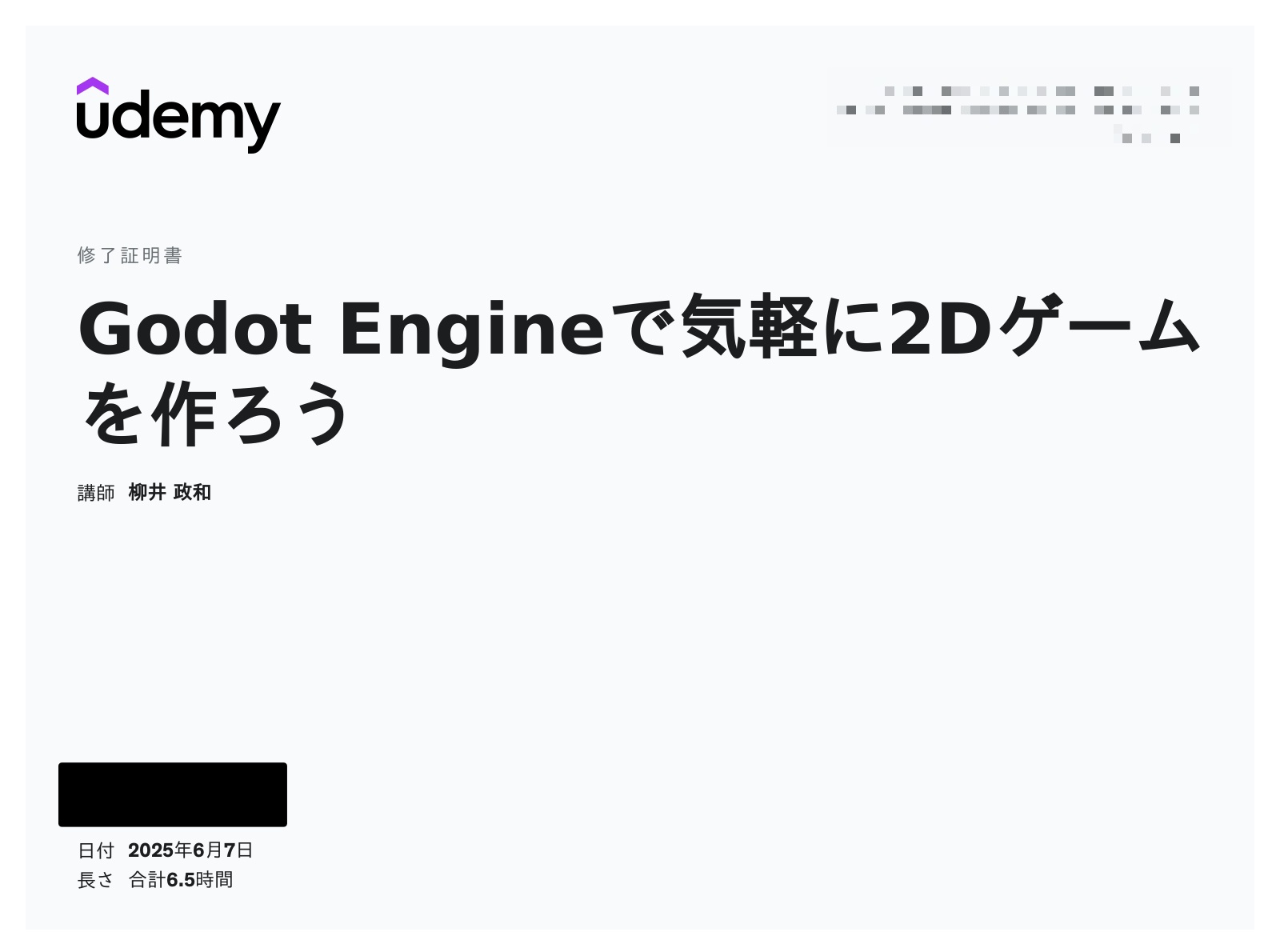
The course starts with fundamentals (project setup, understanding nodes and scenes, Windows/Web builds) then moves into building an original 2D game. Each video is 1–5 minutes, keeping things snappy and focused.

The highlight was procedural maze generation using a recursive backtracker algorithm. You also implement UI, data saving, a shooting system, and enemy AI — building a full game cycle from title screen to area selection to maze and back.
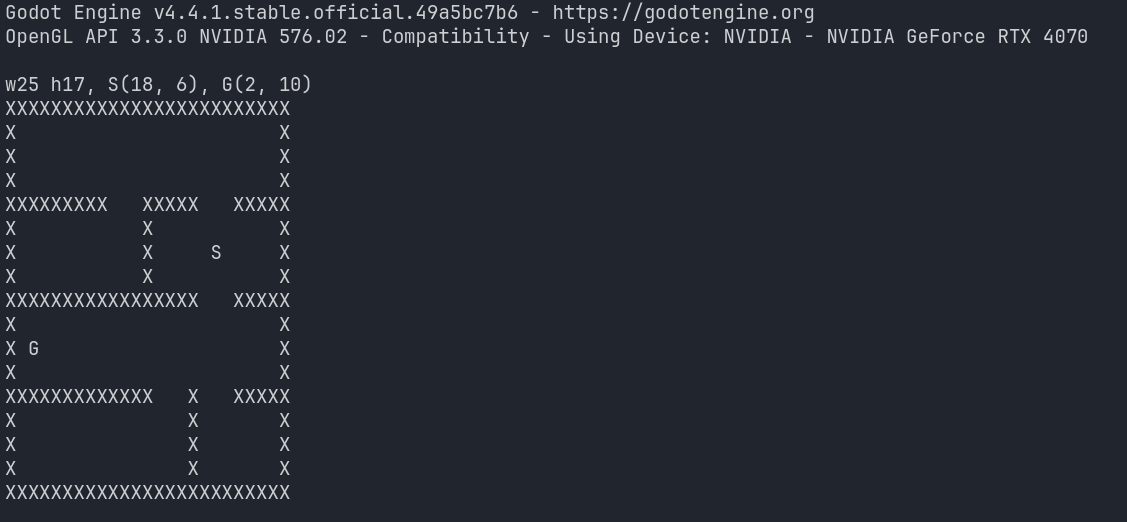
Quality Godot courses in Japanese are still rare, making this one particularly valuable. I'd recommend using it to get the big picture before tackling more advanced English courses. Udemy runs sales frequently, so add it to your wishlist.
As a learning tip: asking ChatGPT or Claude "What's the Unity/Unreal equivalent of this?" while studying Godot dramatically speeds up comprehension. Mapping @export → SerializeField or get_tree().change_scene_to_file() → SceneManager.LoadScene connects new concepts to what you already know, and the difference in learning efficiency is night and day.
What Impressed Me About Godot
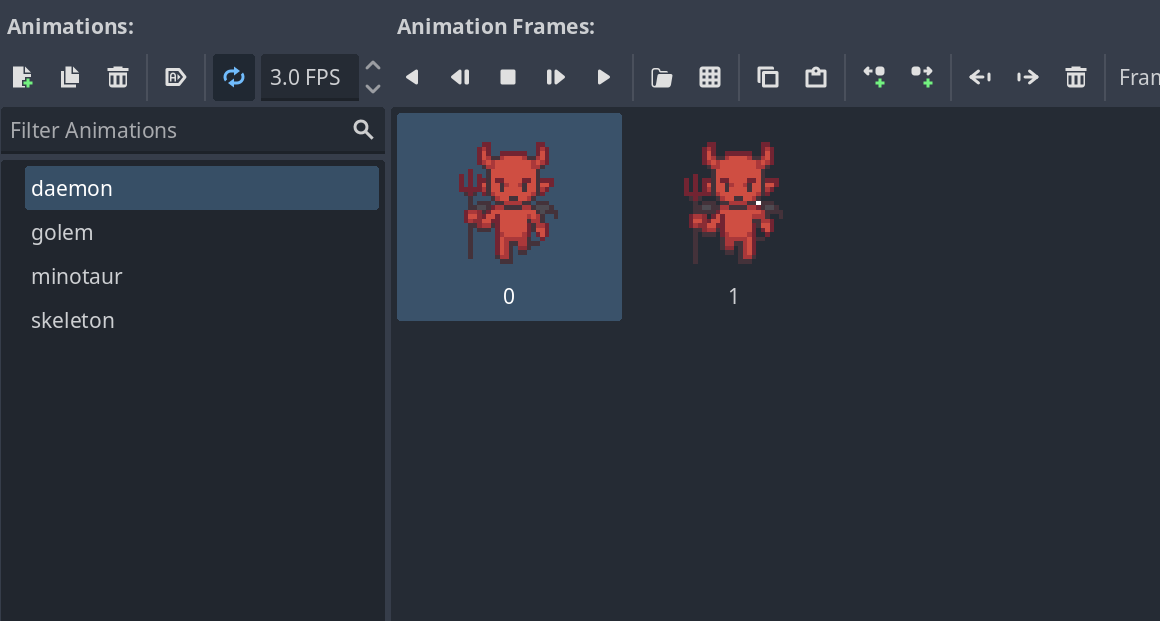
Going through this course gave me a genuine appreciation for Godot's design philosophy. It takes a distinctly different approach from Unity/Unreal Engine, and especially for 2D development, I kept thinking "this is exactly what I wanted."
- Nodes and signals feel intuitive: These are Godot's two core concepts. Nodes define structure, signals handle communication. Once you get used to the combo, it flows more naturally than Unity's GetComponent + UnityEvent pattern.
- Lightweight = comfortable: Opening a Unity project can take tens of seconds to minutes. Godot? Click the .exe, wait a few seconds, and you're back in. Compilation is near-instant too, which dramatically lowers the barrier to "just trying something."
- Scene reusability: The "scene = Prefab + Scene" concept was confusing at first, but in practice it feels just like Unity. Need a GameManager? Attach a script to a Marker2D, make it a scene, set it as AutoLoad for singleton behavior. Done.
- Native 2D support: TileMap, AnimatedSprite2D, and other 2D-specific nodes are built in from the start. Where Unity's 2D is "2D on top of a 3D engine," Godot's 2D is native.
- Sprite sheet workflow: In Unity, you slice sprites and configure each frame individually. In Godot, you pick images from a grid and they're instantly arranged on the timeline. A huge quality-of-life win for 2D developers.
- Tileset management: Collision shapes are set visually, and Physics Layers let you efficiently manage per-tile collision. Fewer steps than Unity's tilemap setup.
For Unity Developers: Comparison Table
When learning Godot as a Unity developer, the first question is always "What's the Godot equivalent of X?" Scanning through this table before you start studying will make everything click faster.
| Godot | Unity (Nearest Equivalent) |
|---|---|
| Scene (.tscn) | Prefab + Scene |
get_tree().change_scene_to_file() | SceneManager.LoadScene() |
$ syntax / get_node() | GameObject.Find() / FindObjectOfType() |
get_parent() | transform.parent |
_ready() | Start() |
_process(delta) | Update() |
_physics_process(delta) | FixedUpdate() |
CanvasLayer | Canvas (Sorting Order) |
Control | UI GameObject |
Label | Text / TextMeshPro |
| Signal | UnityEvent / C# Event |
@export | [SerializeField] |
@onready | Initialization in Awake() |
| AutoLoad | DontDestroyOnLoad |
load() / preload() | Resources.Load() |
These are approximate mappings. The exact behavior differs, so try things hands-on to feel the differences for yourself.
For Unity Developers: Code Comparison
With the concept mapping in hand, let's compare actual code. GDScript uses Python-like indentation-based syntax and tends to be more concise than C#. The areas most likely to trip up Unity developers are type declaration style, the $ syntax for node access, and the signal system.
Example 1: Exposing Variables (@export vs [SerializeField])
In game development, you constantly need to tweak values in the inspector — movement speed, jump height, spawn rates. Rather than hardcoding these, you want them editable in the editor. Unity uses [SerializeField] for this; Godot uses the @export annotation.
Initialization code that goes in Unity's Start() is written in Godot's _ready().
Godot (GDScript)
# Player.gd
extends Node2D

@export var player_name: String = "Hero"
@export var speed: int = 100

# Equivalent to Unity's Start()
func _ready():
    print("Player Name: ", player_name)
    print("Initial Speed: ", speed)
Unity (C#)
// Player.cs
using UnityEngine;

public class Player : MonoBehaviour
{
    [SerializeField] private string playerName = "Hero";
    [SerializeField] private int speed = 100;

    // Equivalent to Godot's _ready()
    void Start()
    {
        Debug.Log("Player Name: " + playerName);
        Debug.Log("Initial Speed: " + speed);
    }
}
Per-frame logic goes in _process(delta) (equivalent to Unity's Update()). The delta parameter serves the same role as Time.deltaTime — the elapsed time since the last frame, used for frame-rate-independent behavior.
Example 2: Physics Processing (_physics_process vs FixedUpdate)
Moving a character with arrow keys — the bread and butter of game development. In Unity, you attach a Rigidbody2D, call GetComponent in Start() to cache the reference, then set velocity in FixedUpdate(). That's three steps of setup.
Godot's CharacterBody2D has a built-in velocity property and move_and_slide() method, eliminating the component-fetching boilerplate entirely. Compare the two and Godot's simplicity stands out.
Godot (GDScript)
# Character.gd
extends CharacterBody2D

const SPEED = 300.0

# Equivalent to Unity's FixedUpdate()
func _physics_process(delta):
    var direction = Input.get_axis("ui_left", "ui_right")
    velocity.x = direction * SPEED
    move_and_slide()  # Godot's convenient built-in function
Unity (C#)
// Character.cs
using UnityEngine;

[RequireComponent(typeof(Rigidbody2D))]
public class Character : MonoBehaviour
{
    [SerializeField] private float speed = 300.0f;
    private Rigidbody2D rb;

    void Start()
    {
        rb = GetComponent<Rigidbody2D>();
    }

    // Equivalent to Godot's _physics_process()
    void FixedUpdate()
    {
        float moveInput = Input.GetAxis("Horizontal");
        rb.velocity = new Vector2(moveInput * speed, rb.velocity.y);
    }
}
Example 3: Getting Nodes ($ vs GetComponent)
"Play a child's animation" or "disable a collider" — these operations come up constantly in game development. In Unity, the standard pattern is fetching a reference with GetComponentInChildren<T>() or transform.Find(), then adding a null check before accessing it.
Godot's $ syntax (syntactic sugar for get_node()) lets you write node paths directly, making the code remarkably concise. Because the tree structure is explicit, it's immediately clear which node you're accessing.
Godot (GDScript)
# Player.gd
extends Node2D

func _ready():
    # Direct access to child node using $ syntax
    $AnimatedSprite2D.play("run")

    # Alternative using get_node()
    var collision_shape = get_node("CollisionShape2D")
    collision_shape.disabled = true
Unity (C#)
// Player.cs
using UnityEngine;

public class Player : MonoBehaviour
{
    void Start()
    {
        // Get component from child object
        Animator animator = GetComponentInChildren<Animator>();
        if (animator != null)
        {
            animator.Play("run");
        }

        // Find child object by name
        Transform collisionShape = transform.Find("CollisionShape");
        if (collisionShape != null)
        {
            collisionShape.gameObject.SetActive(false);
        }
    }
}
Example 4: Signals (signal vs UnityEvent)
"When the player takes damage, update the HP display in the UI" — inter-object communication is needed everywhere in games. In Unity, you use UnityEvent or C# event, but managing references between senders and receivers can get messy.
Godot's signal system solves this elegantly. Two key features set it apart: you can wire connections between nodes via the editor GUI, and the sender never needs to know about the receiver — a truly decoupled design. Even when connecting via code, it's just one .connect() call.
Godot (GDScript)
# Player.gd
extends Node2D

signal health_changed(new_health)

var health: int = 100

func take_damage(damage: int):
    health -= damage
    health_changed.emit(health)  # Emit signal
# UI.gd
extends Control

func _ready():
    var player = get_node("../Player")
    player.health_changed.connect(_on_health_changed)

func _on_health_changed(new_health: int):
    print("Health is now ", new_health)
Unity (C#)
// Player.cs
using UnityEngine;
using UnityEngine.Events;

public class Player : MonoBehaviour
{
    [SerializeField] private UnityEvent<int> onHealthChanged;

    private int health = 100;

    public void TakeDamage(int damage)
    {
        health -= damage;
        onHealthChanged?.Invoke(health);  // Invoke event
    }
}
// UI.cs
using UnityEngine;

public class UI : MonoBehaviour
{
    [SerializeField] private Player player;

    void Start()
    {
        player.onHealthChanged.AddListener(OnHealthChanged);
    }

    private void OnHealthChanged(int newHealth)
    {
        Debug.Log("Health is now " + newHealth);
    }
}
Example 5: Scene Switching (change_scene_to_file vs SceneManager.LoadScene)
Transitioning to the next stage when a level is cleared. In Unity, you pass a scene name to SceneManager.LoadScene(), but the scene must be registered in Build Settings first.
In Godot, you simply specify the path to a .tscn file directly. Without a registration step like Build Settings, prototyping feels noticeably more agile.
Godot (GDScript)
# GameManager.gd
extends Node

func level_complete():
    print("Level complete!")
    get_tree().change_scene_to_file("res://scenes/Level2.tscn")
Unity (C#)
// GameManager.cs
using UnityEngine;
using UnityEngine.SceneManagement;

public class GameManager : MonoBehaviour
{
    public void LevelComplete()
    {
        Debug.Log("Level complete!");
        SceneManager.LoadScene("Level2");
    }
}
Conclusion
Godot is a game engine I'd especially recommend to 2D developers. It has clear advantages over Unity/Unreal Engine in sprite and tileset management — pure 2D games suit Godot, while Unity remains the better choice for lighting-heavy titles.
In terms of engine maturity, Unity and Unreal Engine are still overwhelmingly ahead in community resources, store ecosystems, and commercial track records. But Godot-made titles like "Backpack Battles" and "Buckshot Roulette" are steadily growing, and as developers who migrated during the Runtime Fee controversy ship their projects, Godot's share should grow.
The open-source angle is also uniquely compelling. Looking at how Blender gradually overtook the 3D industry once dominated by Maya and 3ds Max, Godot might follow a similar trajectory. Unity and Unreal Engine are free until substantial revenue thresholds, so Blender-speed adoption may not happen — but the room to grow as an industry safety net is real.
I'll continue working with Unity and Unreal Engine, but confirming that Godot is a viable third option was a real takeaway. If you're curious, give it a try.