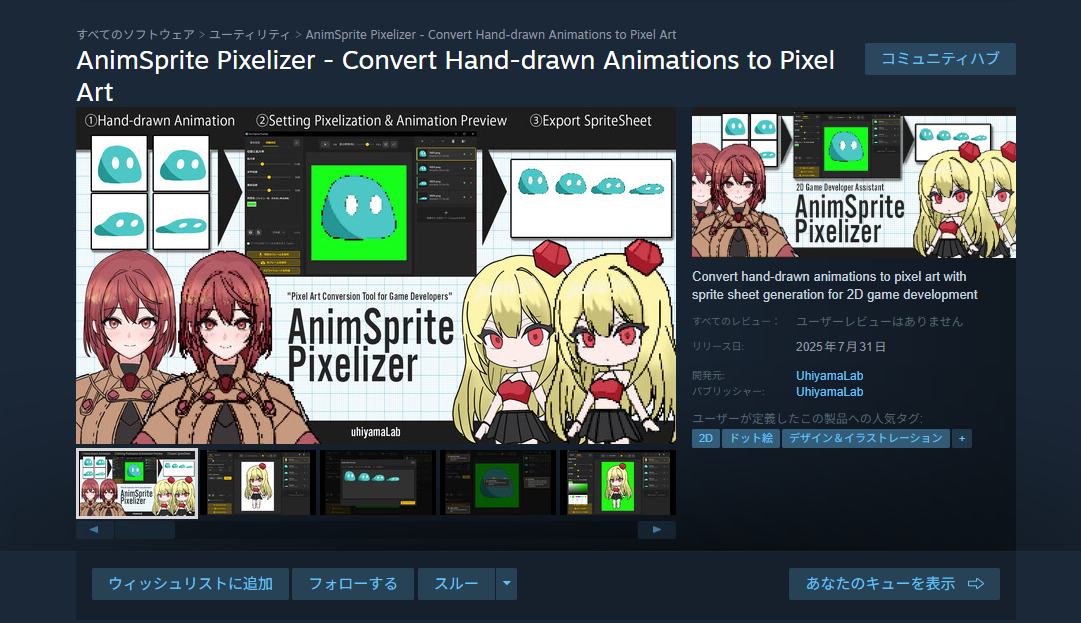
I recently released AnimSprite Pixelizer on Booth, itch.io, and Steam — a tool for 2D game development that batch-converts hand-drawn character walk animations (created in tools like CLIP Studio) to a common pixel size and exports them as sprite sheets.

With Booth and itch.io, you can start selling right after registering your product information and images. Steam, however, requires passing a review by the support team first.
For AnimSprite Pixelizer, the app itself passed review on the first try, but I was asked to make corrections to the product images several times. In this article, I'll cover the 14 images required for Steam and key design pitfalls to avoid.
Why Are 14 Images Needed?
"Preparing store images is such a pain!!"
Every creator who's sold on Steam has said this at some point. And for good reason — you need to prepare at least 14 images for Steam's review.
"Why so many?!" If you're wondering, take a closer look at Steam:
- Small images displayed in search result lists (Small Capsule)
- Featured images at the top of the front page (Main Capsule)
- Tall images displayed during seasonal sales (Vertical Capsule)
- The hero image displayed at the top when you select a game in your library, alongside play time
You need to prepare all of these.
What's more, these images have strict pixel-exact size requirements. For example, the Header Capsule is 920x430px and the Small Capsule is 462x174px. They must be exactly these dimensions. SteamWorks assigns images based on the pixel size of the dropped file, so even a slight size difference will result in rejection.

Required Image Checklist
I've created a checklist of all required images. Use this as a reference while designing in Photoshop or your preferred image editor.
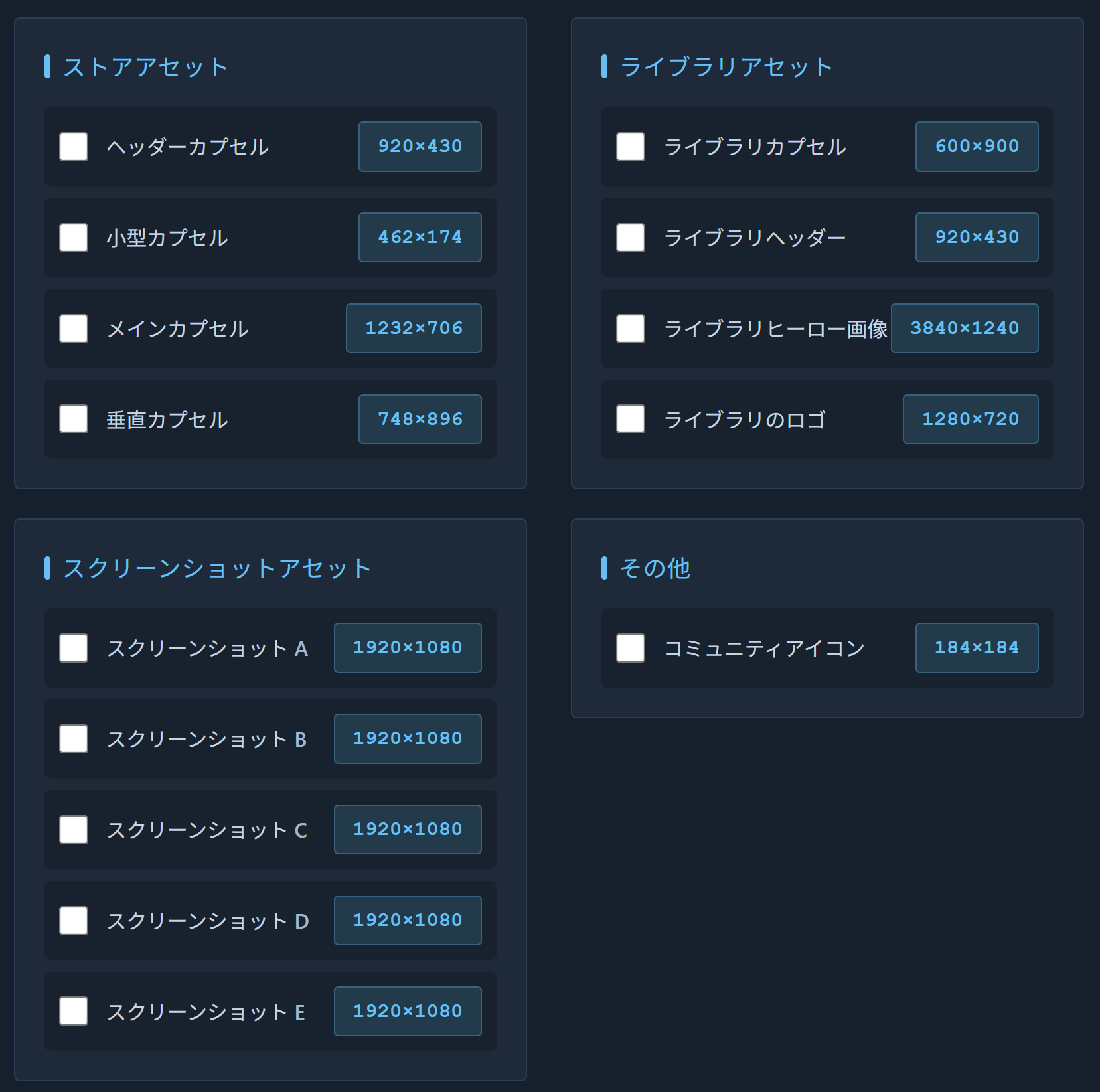
The graphic assets needed for Steam store registration fall into three categories: "Store Assets," "Screenshot Assets," and "Library Assets." Use the checklist below as your guide.
Sizes are as of July 2025.
Store Assets
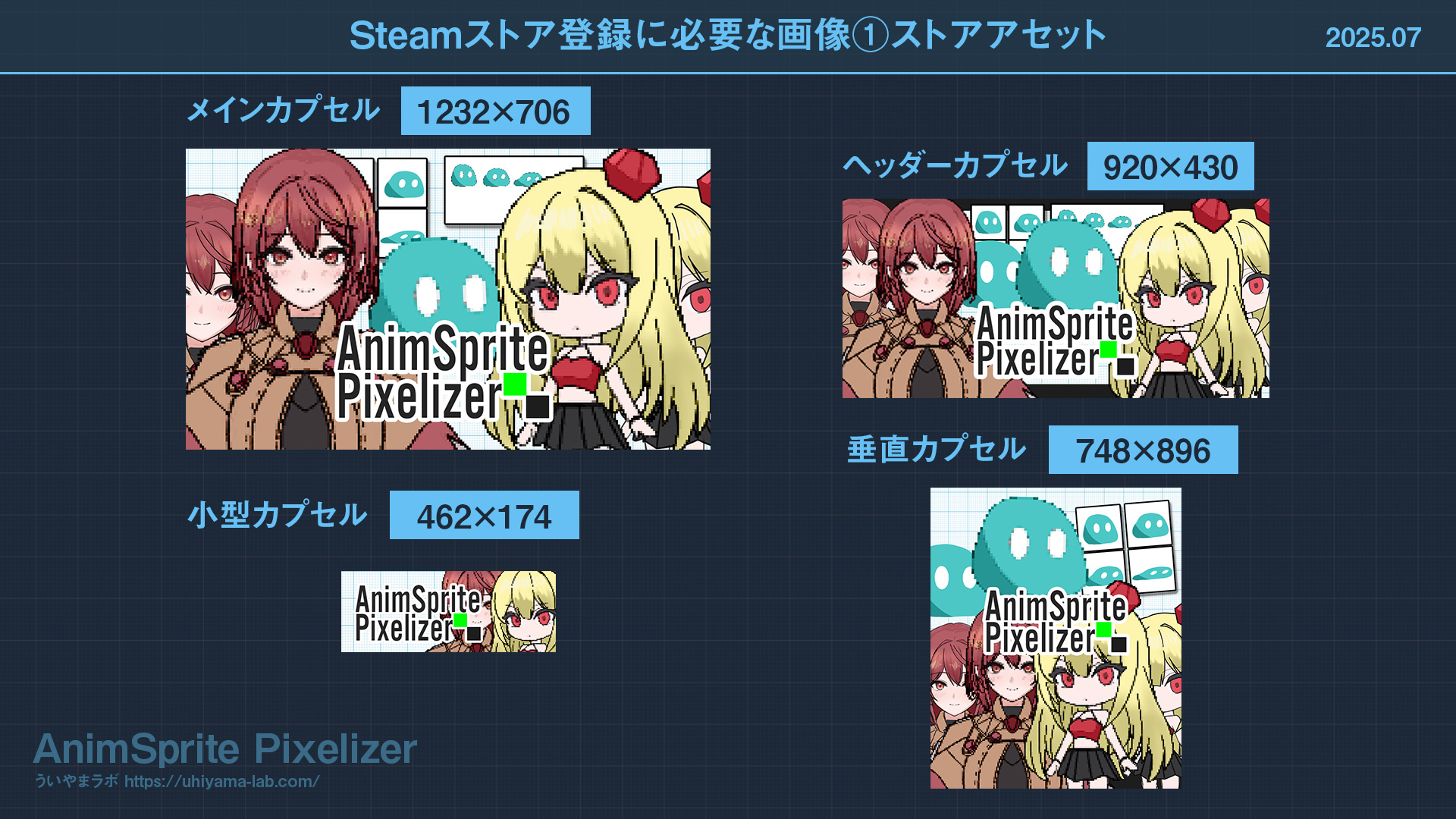
| Image Type | Size (px) | Purpose |
|---|---|---|
| Header Capsule | 920x430 | Top of store page, search results, etc. |
| Small Capsule | 462x174 | Search result list view |
| Main Capsule | 1232x706 | Front page featured section |
| Vertical Capsule | 748x896 | Tall format for sale events |
Screenshot Assets
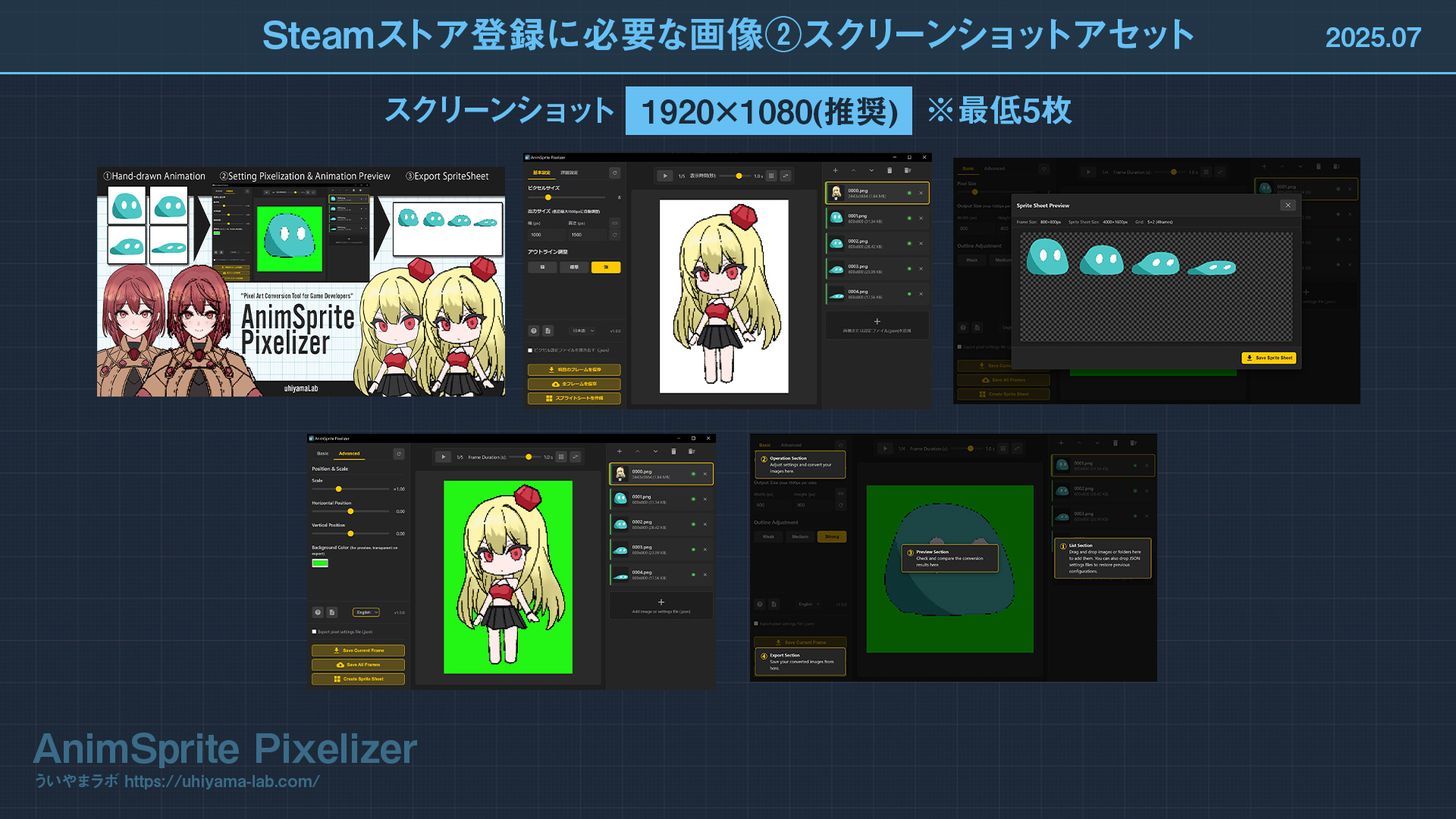
- Screenshots: 1920x1080 (recommended) x minimum 5
Library Assets
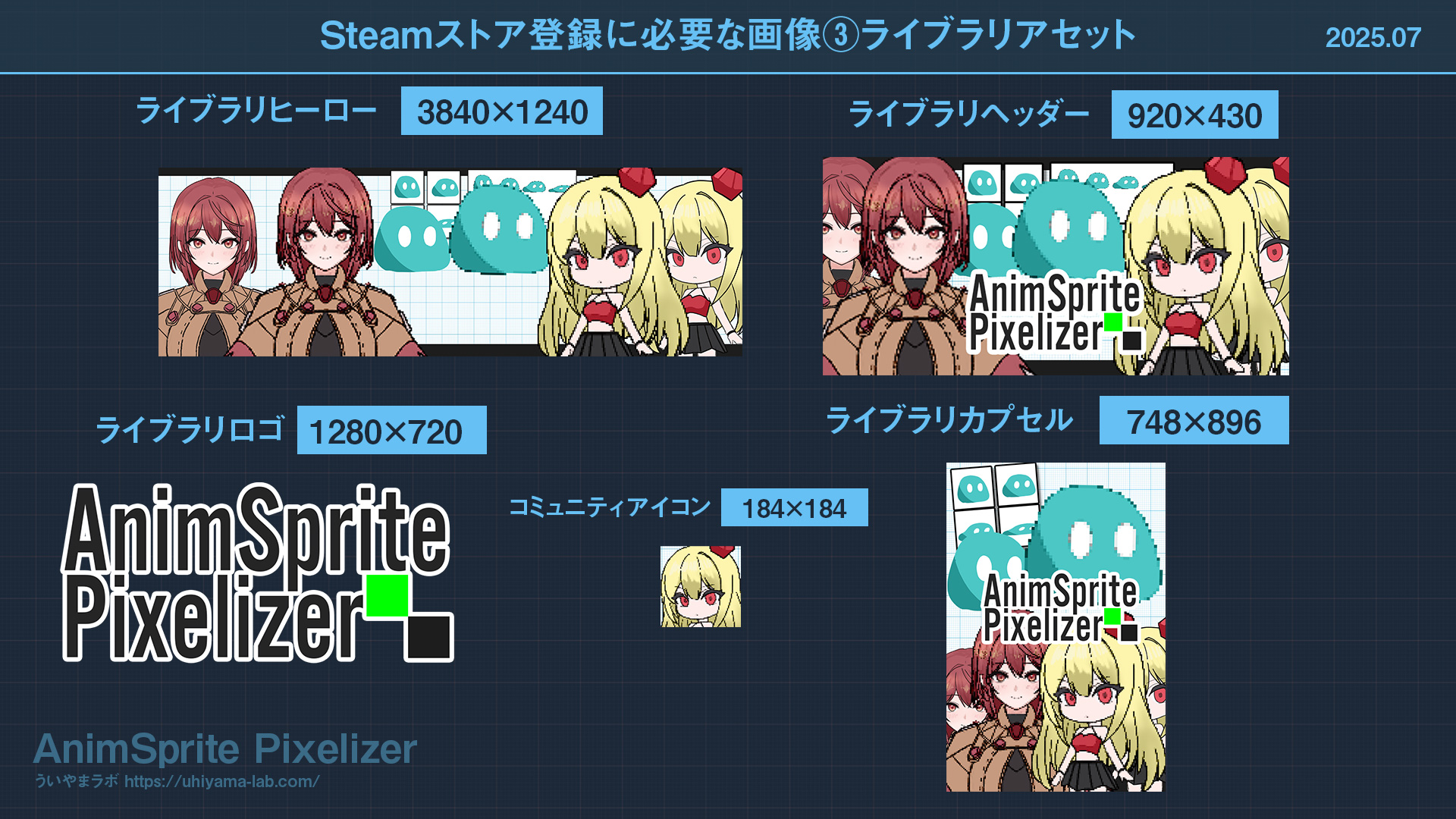
| Image Type | Size (px) | Purpose |
|---|---|---|
| Library Capsule | 600x900 | Library grid view |
| Library Header | 920x430 | Top of library detail page |
| Library Hero | 3840x1240 | Large library banner |
| Library Logo | 1280x720 | Game logo display |
Other
- Community Icon: 184x184
Design Pitfalls to Avoid
Just like image sizes, there are design-related rejection criteria to watch out for.
Warning A: "No Text Besides Your Logo!"
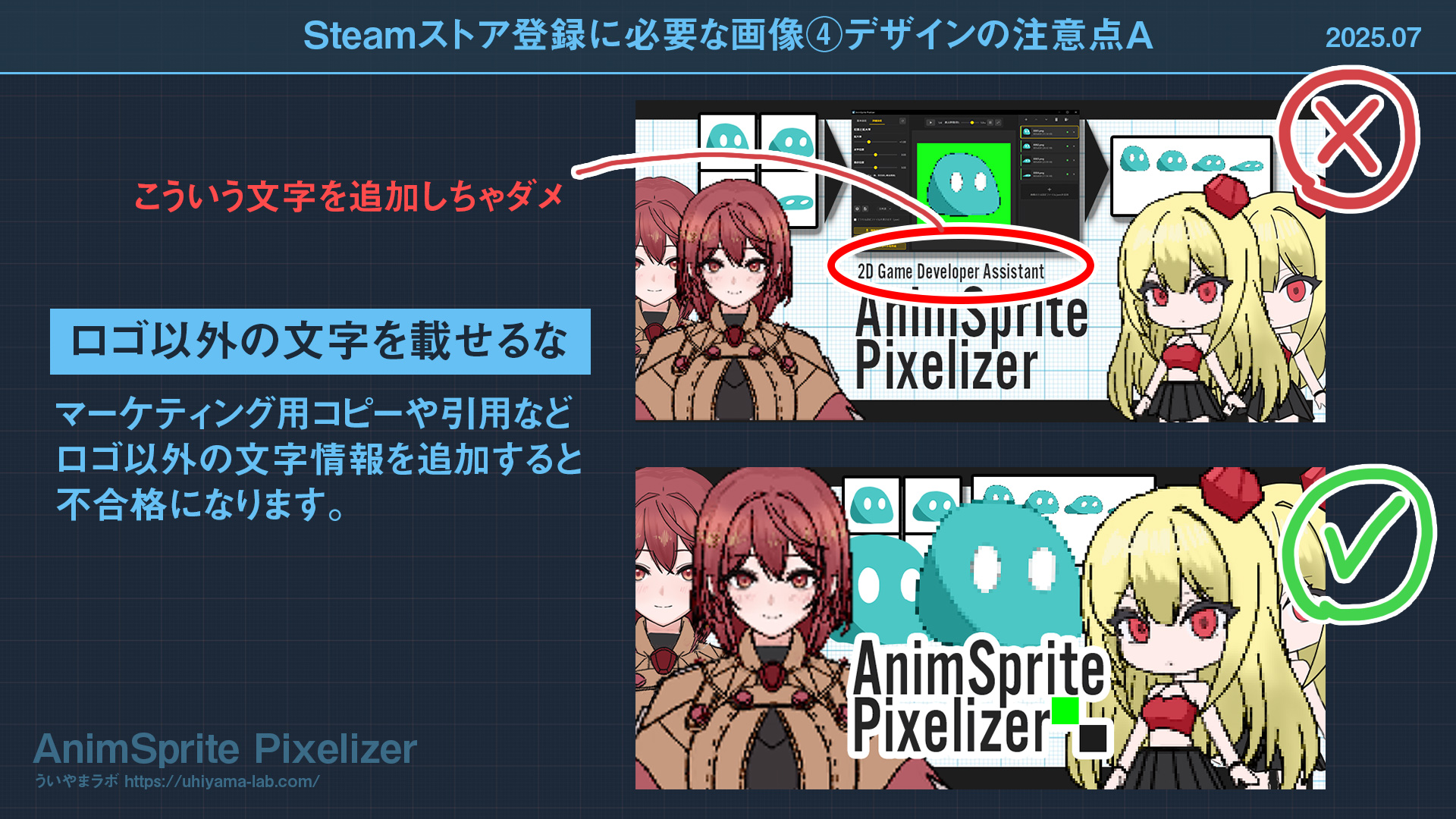
When designing, it's tempting to add descriptive text, but any text other than your logo will result in rejection. Even small text like the examples below is not allowed.
Marketing copy, quotes, or any text information beyond your logo will cause your submission to fail.
Warning B: "Maximize Legibility!"

In the case above, I embedded UI screenshots to convey the app's workflow, but this was rejected. After removing the UI images and displaying elements larger, it passed.
Looking at it objectively, the revised version clearly has better legibility. Remember that these images often appear as thumbnails, and design accordingly.
Tips for Efficient Production
Following the guidelines in this article should help you register your Steam store information smoothly.
The Steam support team provides quite specific feedback about what needs to be fixed, which was very helpful. While there are many articles explaining image sizes, there's almost no information about design rejection criteria, so I hope this serves as a useful reference.
A good workflow is to start designing with the Header Capsule (920x430), save it as a new file, change the canvas size, adjust element positions, save as another new file, and repeat. This way, you can efficiently produce multiple image variants by mainly adjusting positions.
The most tedious parts of the Steam store submission process are probably the tax information registration when creating your SteamWorks account and creating the store images. Get past these hurdles and get your game released!
Also, for guidance on which languages to localize for when selling on Steam, check out my previous article.
And give AnimSprite Pixelizer a look too. It's great for 2D game developers who also do their own art.