Overview
UdonSharp scripts don't execute just by being written. Processing is automatically called when specific "triggers" occur. These "triggers" are called events.
For example, the VRChat system generates events at various timings such as "when the world starts," "when a player clicks an object," and "when each frame updates." By defining methods corresponding to these events in our scripts, we can execute processing at the desired timing.
This article explains the roles, execution timing, and specific usage of the most basic and important lifecycle events in UdonSharp.
What is a Lifecycle?
A GameObject with an UdonSharp script attached goes through a series of state changes from when it's placed in the scene until it's destroyed. This is called the object's lifecycle. Lifecycle events are events that are automatically called at specific milestones in this lifecycle.
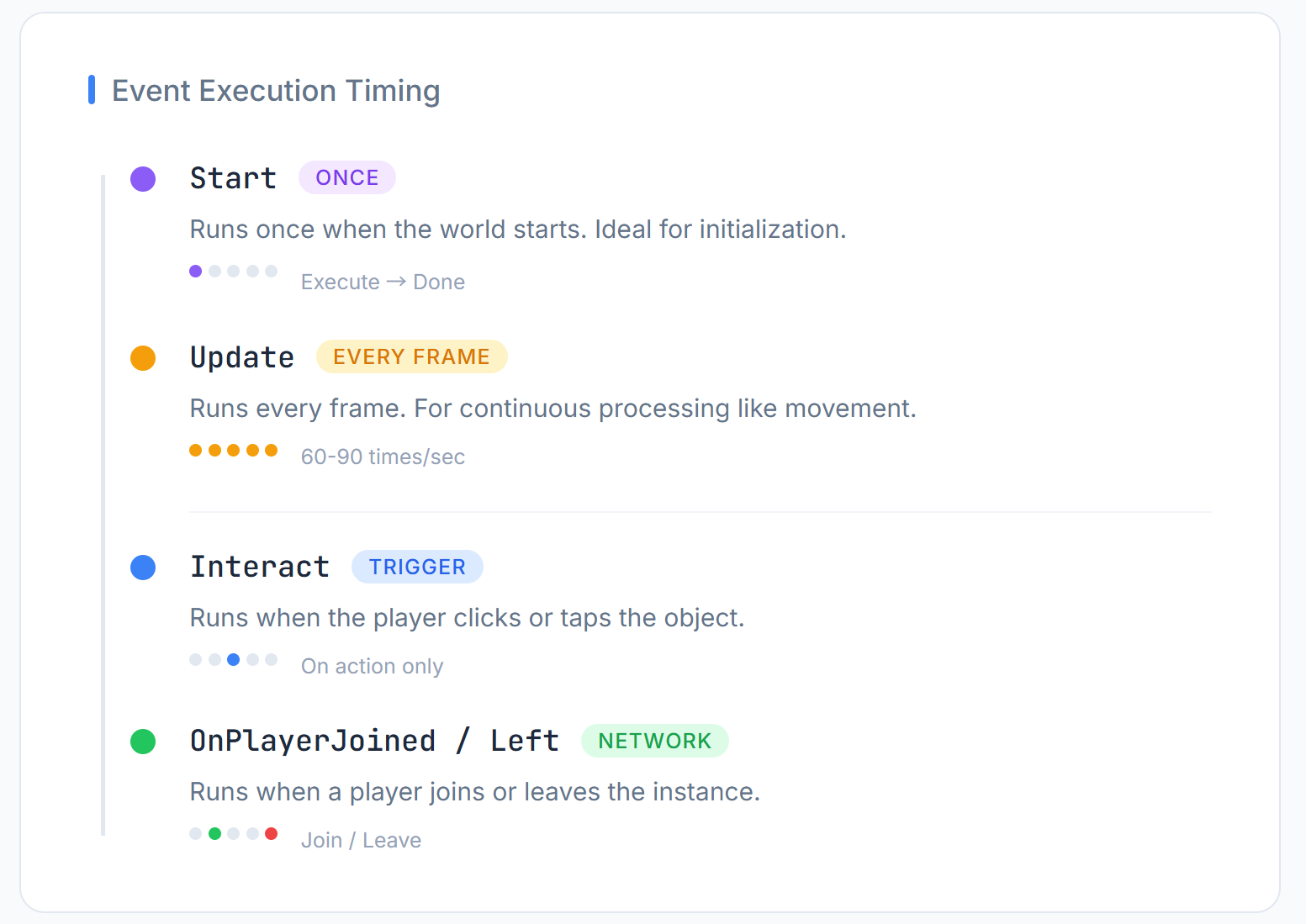
Major Lifecycle Events
Here we introduce five important events that are particularly frequently used in world creation.
1. Start
- Execution Timing: Called only once, before the first frame update after the script is enabled.
- Main Uses: Variable initialization, getting references to other components (
GetComponent), gimmick initial setup, and other preparation processing you want to perform only once when the world starts.
using UdonSharp;
using UnityEngine;

public class StartExample : UdonSharpBehaviour
{
    private Rigidbody rb;

    void Start()
    {
        // Get the Rigidbody component from the object this script is attached to and save it in a variable
        rb = GetComponent<Rigidbody>();

        // Display a message to the console only once
        Debug.Log("Game has started!");
    }
}
2. Update
- Execution Timing: Called repeatedly every frame (dozens of times per second). The interval between calls depends on PC performance (frame rate) and is not constant.
- Main Uses: Processing that needs to be executed continuously, such as object movement and rotation, monitoring player input, and state changes over time.
public class UpdateExample : UdonSharpBehaviour
{
    public float rotationSpeed = 20.0f;

    void Update()
    {
        // Rotate this object around the Y-axis every frame
        // Multiplying by Time.deltaTime ensures smooth rotation independent of frame rate
        transform.Rotate(0f, rotationSpeed * Time.deltaTime, 0f);
    }
}
Note: Since Update is called at a very high frequency, performing heavy processing inside it (especially GetComponent and similar operations) can cause world performance to degrade. The basic approach is to perform preparation processing in Start and keep Update processing to a minimum.
3. Interact
- Execution Timing: Called when a player interacts with that object (by default, PC's V key or VR controller trigger).
- Main Uses: Essential for creating gimmicks that players directly operate, such as buttons, switches, and door handles.
Prerequisites for Interact to work:
- The object needs a Collider component (Box Collider, Sphere Collider, etc.)
- In the Udon Behaviour component Inspector, you can set Interaction Text (text displayed on hover) and Interact Distance (distance at which interaction is possible)
- If these are not properly configured, the Interact event will not fire
public class InteractExample : UdonSharpBehaviour
{
    public GameObject targetLight;

    public override void Interact()
    {
        // Toggle targetLight ON/OFF
        targetLight.SetActive(!targetLight.activeSelf);
    }
}
4. OnPlayerJoined / OnPlayerLeft
- Execution Timing:
OnPlayerJoined: Called when a new player joins the world instance.OnPlayerLeft: Called when a player leaves the world instance.
- Main Uses: Displaying join/leave messages, managing player lists, counting game participants, etc. These receive a
VRCPlayerApiobject containing information about the target player as an argument.
using UdonSharp;
using UnityEngine;
using VRC.SDKBase;

public class PlayerEventExample : UdonSharpBehaviour
{
    public override void OnPlayerJoined(VRCPlayerApi player)
    {
        Debug.Log($"Welcome, {player.displayName}!");
    }

    public override void OnPlayerLeft(VRCPlayerApi player)
    {
        Debug.Log($"Goodbye, {player.displayName}.");
    }
}
Event Execution Order and Classification
| Event Name | Category | Execution Timing | Main Uses |
|---|---|---|---|
Start | Initialization | Once before first frame update | Variable initialization, component retrieval |
Update | Update | Every frame | Object movement, input monitoring |
Interact | User Input | When player interacts | Button, switch operations |
OnPlayerJoined | Network | When player joins | Join processing, player list management |
OnPlayerLeft | Network | When player leaves | Leave processing, player list management |
The Event-Driven Programming Approach
UdonSharp programming is based on an event-driven model where "when an event occurs, execute the corresponding processing." Creators build world interactions by defining what processing to associate with various events.
Rather than precisely controlling program execution order yourself, think of it as writing a set of rules like "if ~ happens, do ~." Getting comfortable with this approach is very important for mastering UdonSharp.
Summary
- Events are the "triggers" that cause UdonSharp scripts to execute.
Startis an initialization event that executes only once.Updateis a continuous processing event that executes every frame.Interactis an event that responds to player clicks.OnPlayerJoined/OnPlayerLeftare events that respond to player arrivals and departures.- UdonSharp uses an event-driven model for programming, where you write processing that responds to these events.
By combining these basic events alone, you can already create many interesting gimmicks.