A mirror for checking your avatar is a staple of social worlds. Place it wrong, though, and the whole world gets heavy at once.
A mirror isn't a photograph. It draws the world a second time behind the scenes — the entire time it's visible.
This article places a mirror and covers toggling it with a button and narrowing what it reflects.
What You'll Learn
- Why mirrors are expensive
- How to narrow the reflected layers
- Building it off by default and revealed by a switch
- What causes a mirror to show nothing
Start from having tried toggling with a button.
A mirror draws the world a second time
What you see inside a mirror isn't a prepared image.
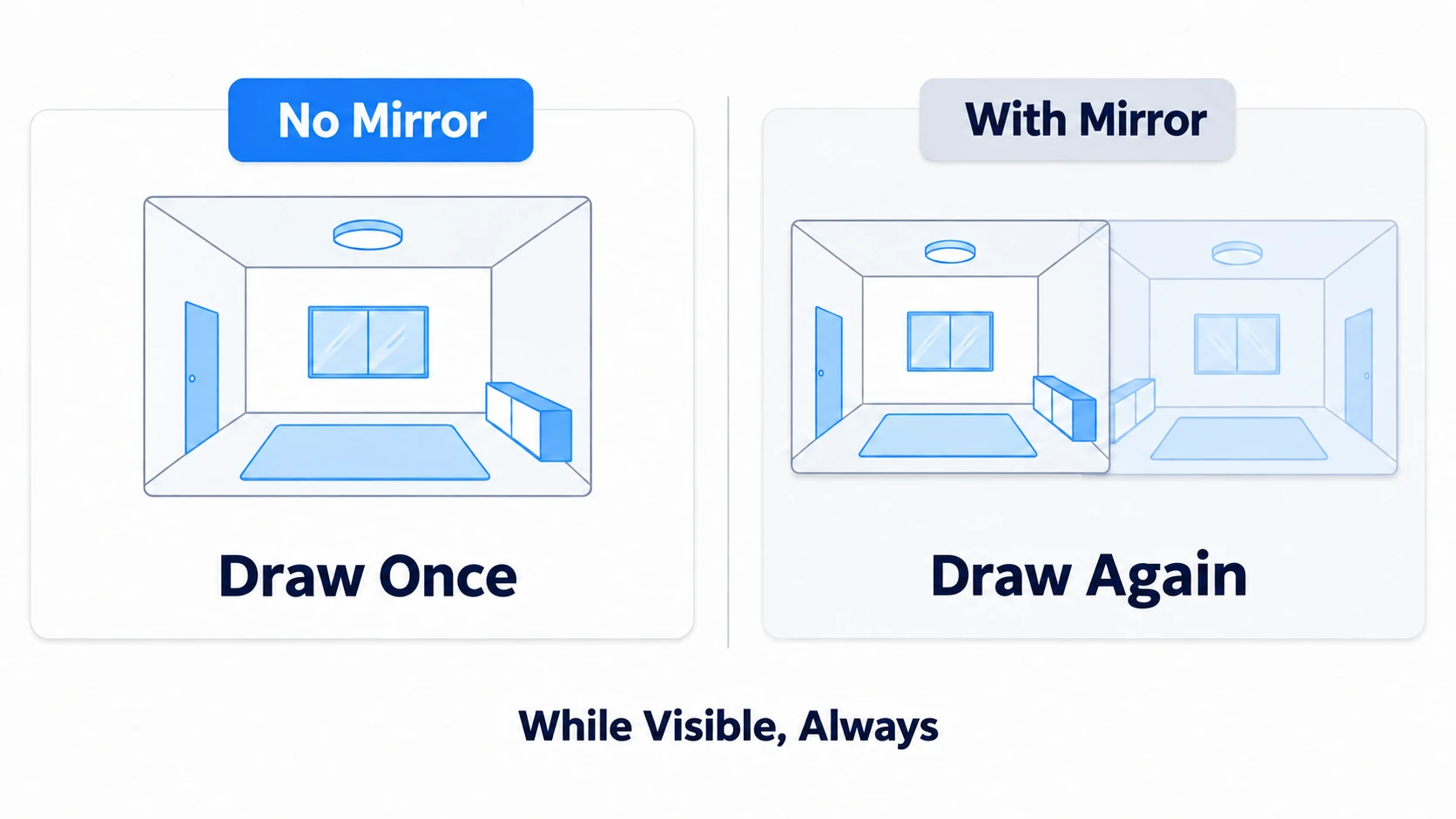
It redraws the view from the mirror's position, on the spot. So while a mirror is in view, the world is drawn twice. In VR that's calculated for each eye, adding still more.
That settles the policy for placing mirrors from the start.
- Off by default: nothing needs to be reflected from the moment someone walks in. Reveal it with a switch
- Narrow what it reflects: you don't need everything. Reflecting only people is often enough
- At most one at a time: avoid a mirror per room, all left on
Following those three keeps a world plenty light even with mirrors.
It isn't that beautiful reflections are expensive. The number of draws increases, so it gets heavy. That's why narrowing what's reflected makes it lighter.
Hands-On: Build a mirror revealed by a switch
Place a mirror by the wall and make a nearby button reveal and hide it.
1. Place the mirror
Create a "3D Object → Quad" and name it RoomMirror. A Quad is a single flat panel.
| Field | Setting |
|---|---|
| Position | (0, 1.6, 2.8) |
| Rotation | (0, 180, 0) |
| Scale | (1.6, 2.4, 1) |
That stands a 1.6m by 2.4m mirror against the back wall. Rotation Y = 180 faces it into the room.
A mirror facing the wrong way reflects the wall's interior and goes pitch black. Check in the Scene view.
Add VRC Mirror Reflection via "Add Component." That makes it a mirror.
Delete or disable the Mesh Collider on the Quad. You don't need to bump into a mirror.
2. Turn it off by default
Select RoomMirror and uncheck the box at the top left of the Inspector to disable it.
That's the base state. People entering the world stand in a room with no mirror.
3. Build the switch
Create MirrorButton as a "3D Object → Cube" at (1.2, 1, 2), Scale (0.3, 0.3, 0.3) — beside the mirror.
In Assets/Scripts, choose "Create → U# Script" and make MirrorToggle.
using UdonSharp;
using UnityEngine;

[UdonBehaviourSyncMode(BehaviourSyncMode.None)]
public class MirrorToggle : UdonSharpBehaviour
{
    [SerializeField] private GameObject mirrorObject;

    private bool isOn;

    private void Start()
    {
        // Always start hidden
        isOn = false;
        Apply();
    }

    public override void Interact()
    {
        isOn = !isOn;
        Apply();
        Debug.Log("[MirrorToggle] mirror=" + isOn);
    }

    private void Apply()
    {
        if (mirrorObject != null) mirrorObject.SetActive(isOn);
    }
}
Turning it off in Start() matters. Even if you save with it enabled in the Inspector, it starts hidden at runtime.
Add a Udon Behaviour to MirrorButton and set MirrorToggle. Drag RoomMirror into Mirror Object and set Interaction Text to Show mirror.
4. Confirm
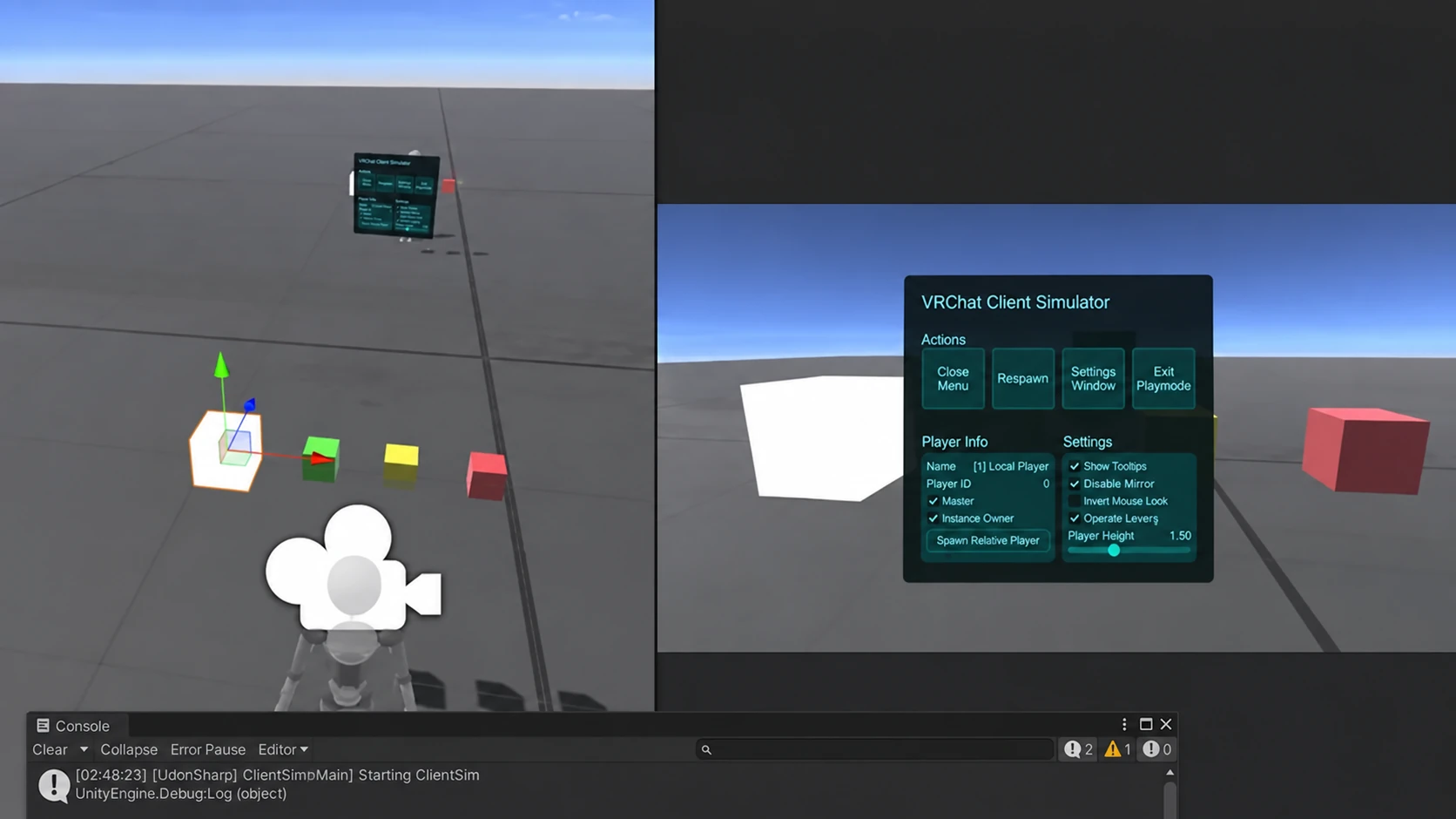
Press Play and press the button.
| Action | Expected result |
|---|---|
| Right after entering | There's no mirror |
| Press the button | The mirror appears and reflects you |
| Press again | The mirror disappears |
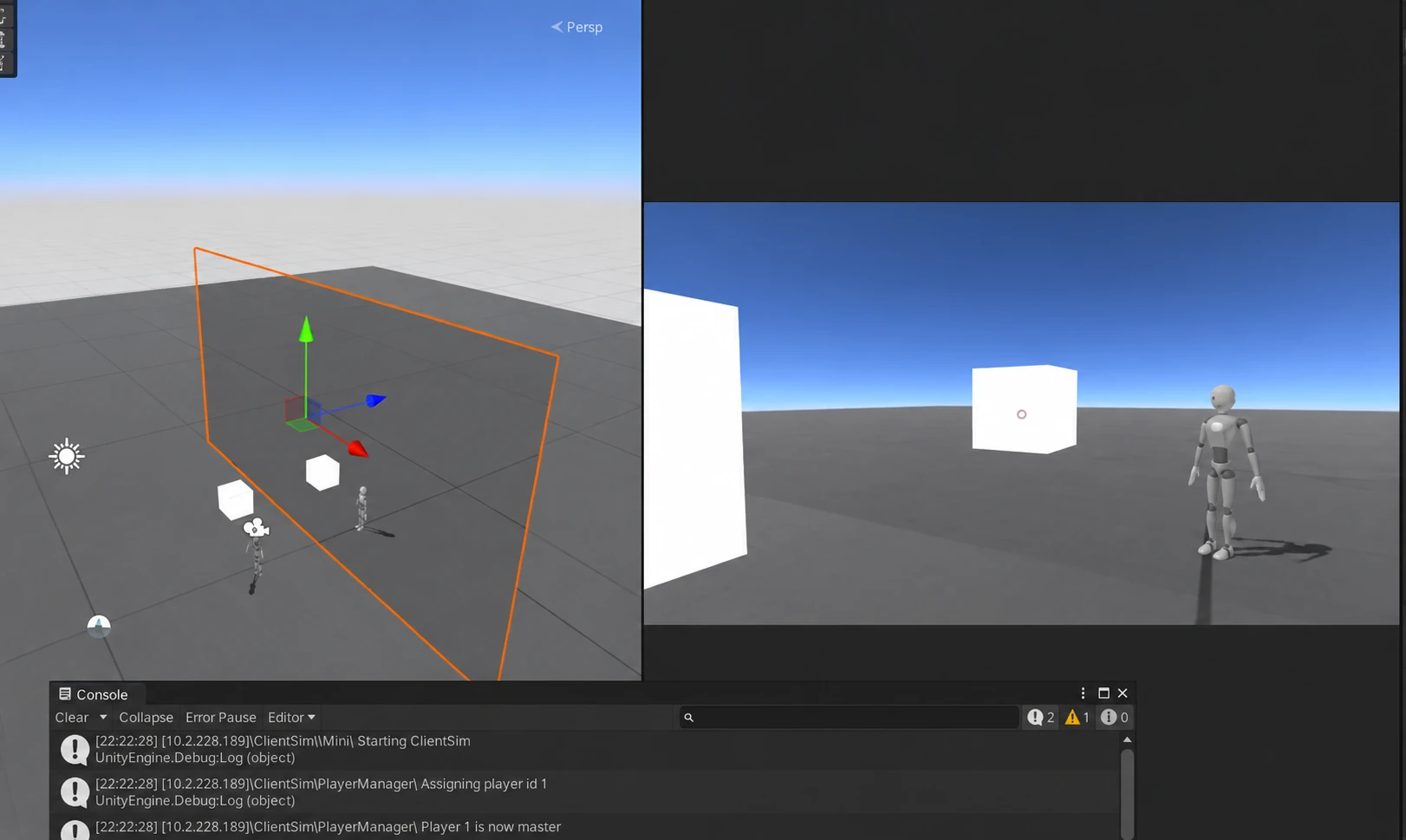
Toggle it with Stats open and the numbers change visibly (covered in making rendering lighter). It gives you a feel for what a mirror costs.
Narrowing what it reflects
What the mirror reflects is decided by Reflect Layers.
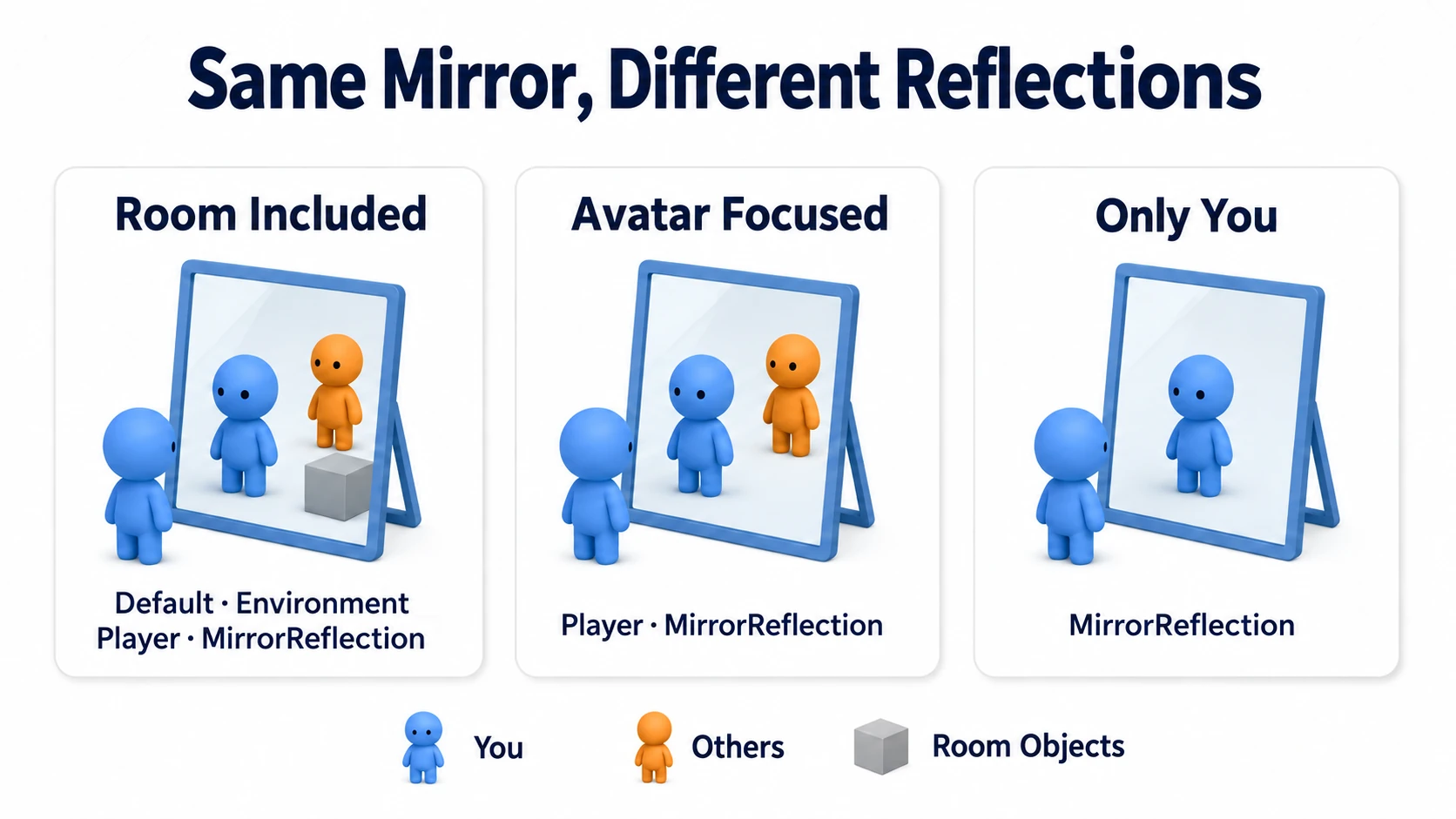
Reflect everything and the room, the furniture, and the particles all get drawn twice. Narrowing this makes a big difference.
The practical choice comes in two stages.
For a mirror that only shows people, select just Player and MirrorReflection. If checking your avatar is the goal, that's enough. The background doesn't reflect, and you see yourself clearly.
To reflect the room too, add Default. Furniture and walls start showing.
In both cases, leave the Particle, UI, and Pickup layers out. Reflecting them means nothing and only adds load.
MirrorReflection is a layer that exists purely for mirror reflection. Parts of avatars get placed on it, so include it when reflecting people.
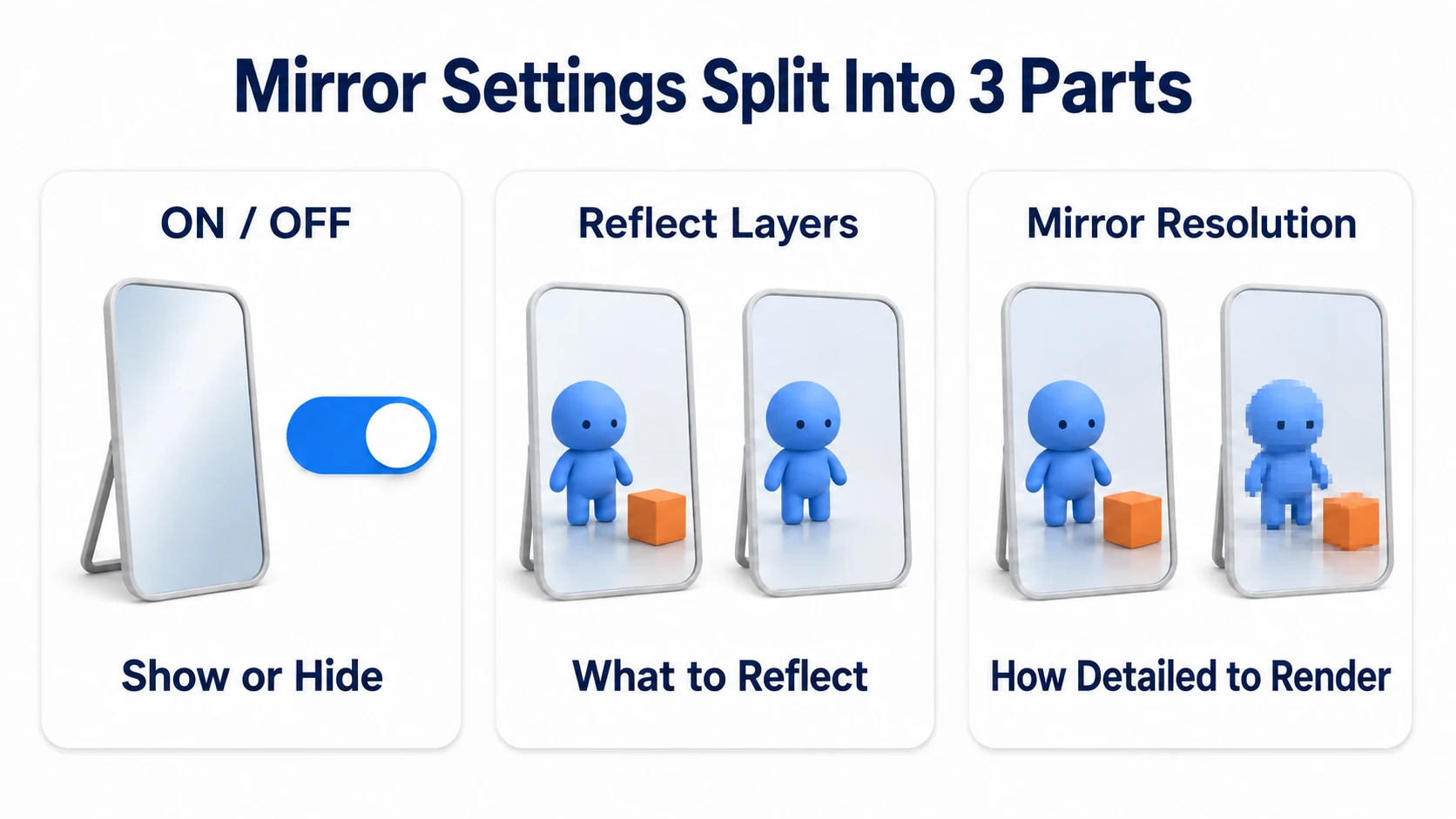
Turning on Disable Pixel Lights also skips light calculation inside the mirror. The visual difference is small and the load drops.
When placing multiple mirrors, build it so that pressing one hides the others. The easy route is reusing the same script so each button reveals only its own mirror.
Common Pitfalls
- The mirror is pitch black → Check whether Reflect Layers is empty. Or the mirror faces the wall
- Nothing reflects →
RoomMirroris still disabled, or VRC Mirror Reflection isn't attached - You don't reflect → Check that Reflect Layers includes
PlayerandMirrorReflection - It suddenly gets heavy → That's the moment the mirror enters view. Keep it off by default and reveal it when needed
- You bump into the mirror → The Quad's Mesh Collider is still there. Delete or disable it
Bonus: Good to Know Up Front
- On Quest and phones, consider not placing one: Device performance is limited, so avoid mirrors or always place them off. Covered in gathering in one room from PC and Android
- Don't put a mirror facing the entrance: Seeing a mirror on arrival makes people look at their own avatar instead of the room. Placing it at the edge reads more naturally as a space
- This is local logic: The switch here reveals the mirror only on the presser's screen. Showing it to everyone requires synchronization, though letting people reveal and hide it individually is often the kinder design
- Modest size is fine: Tall enough for a full-body reflection is enough. A wall-sized mirror looks impressive and widens the reflected area to match
- A timer that hides it automatically works too: Hiding it after a set time prevents people forgetting to. The mechanism in calling logic after a delay applies
Summary
Mirrors are useful, and placing them takes a policy.
- A mirror draws the world a second time behind the scenes. That's why it's expensive
- Keep it off by default and reveal it with a switch
- Narrow what it reflects with Reflect Layers.
PlayerandMirrorReflectionfor people only - At most one showing at a time
The question to ask before placing one is: "Does this mirror need to be reflecting at all times?" In most cases, the answer is no.
To review rendering weight overall, go to making rendering lighter. To add holdable props, go to a flashlight you can hold.