You want to show how many people are in the world on a wall. You want a welcome sound when someone arrives.
VRChat has events for receiving joins and leaves. Without understanding "whose client fires, and for whom," though, your headcount goes wrong.
This article receives joins and leaves and builds up to showing "3 people here" on a wall board.

What You'll Learn
- Whose PC fires, and for whom
- That joining fires for everyone already present
- How to count people correctly
- How to put text into TextMeshPro from Udon
Start from having tried variables and references.
Whose PC, and about whom
Player events stop being confusing once you split these two.
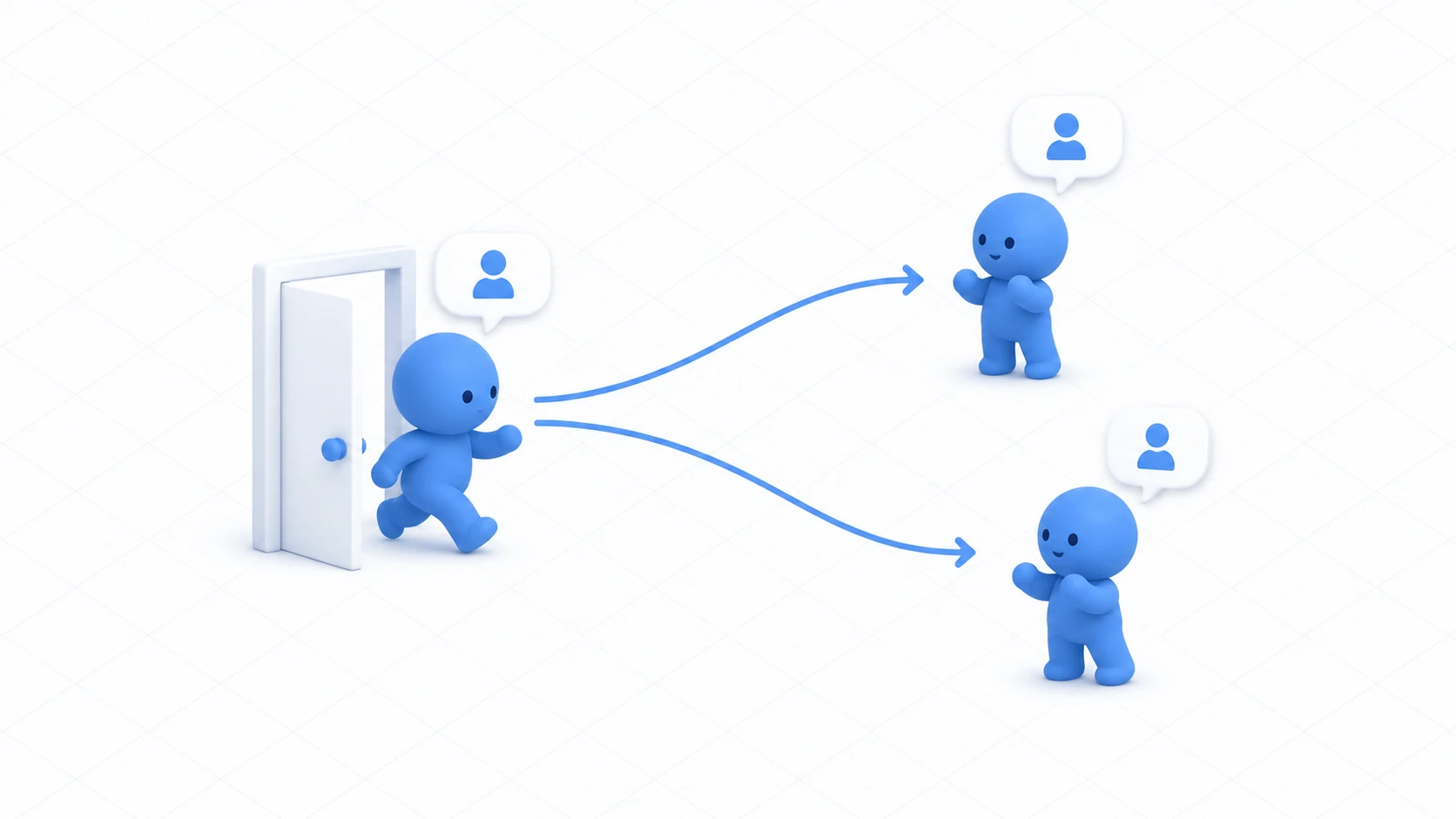
OnPlayerJoined(VRCPlayerApi player) fires on the PC of everyone in the instance. The player argument is "the person who joined."
- A joins →
OnPlayerJoined(A)fires on B's and C's clients, who are present - At the same time,
OnPlayerJoined(A)fires on A's own client too
That much probably matches intuition. Here's the important part.
When you join, it fires for everyone already present.
If B and C were present when A joined, A's client runs OnPlayerJoined(A), OnPlayerJoined(B), and OnPlayerJoined(C) in turn — once for everyone present.
Thanks to that, even a late joiner can build their own picture of who's here. Without it, you'd only know about people who arrived after you and your count would drift.
Leaving works the same. OnPlayerLeft(VRCPlayerApi player) fires on the PC of everyone remaining.
No synchronization is used. Each PC counts for itself and rewrites its own screen. Everyone still gets the same number.
Hands-On: Show the headcount on a board
Show how many people are in the world on a wall board, updating whenever someone comes or goes.

1. Build the board
Displaying text needs a World Space Canvas — think of it as a sign floating in the world.
- Create a "UI → Canvas" in the Hierarchy and name it
InfoCanvas - Set the Canvas's Render Mode to World Space
- Set the Rect Transform to Position
(0, 2, 2.8), Width400, Height200, Scale(0.005, 0.005, 0.005) - Right-click
InfoCanvas, add a "UI → Text - TextMeshPro," and name itCountText
The Canvas's Scale is small because one UI unit becomes one meter directly. At 0.005, a 400-wide Canvas becomes a 2m sign.
Set CountText's Font Size to around 72 and Alignment to center.
2. Write the code
In Assets/Scripts, choose "Create → U# Script" and make PlayerCounter.
using UdonSharp;
using UnityEngine;
using TMPro;
using VRC.SDKBase;

[UdonBehaviourSyncMode(BehaviourSyncMode.None)]
public class PlayerCounter : UdonSharpBehaviour
{
    [SerializeField] private TextMeshProUGUI countText;

    private void Start()
    {
        UpdateDisplay();
    }

    // When someone joins (fires when you join too)
    public override void OnPlayerJoined(VRCPlayerApi player)
    {
        UpdateDisplay();
        Debug.Log("[PlayerCounter] joined: " + player.displayName);
    }

    // When someone leaves
    public override void OnPlayerLeft(VRCPlayerApi player)
    {
        UpdateDisplay();
        Debug.Log("[PlayerCounter] left: " + player.displayName);
    }

    // Recount and apply to the display
    private void UpdateDisplay()
    {
        if (countText == null) return;

        int count = VRCPlayerApi.GetPlayerCount();
        countText.text = count + " here";
    }
}
It's short. The point is what's inside UpdateDisplay().
It doesn't add and subtract in a variable. It recounts with GetPlayerCount() every time an event arrives. The next section explains why.
3. Assign it and confirm
Add a Udon Behaviour to InfoCanvas and set PlayerCounter. Drag CountText into Count Text.
Play in ClientSim and it shows "1 here," because you're alone.
The real check is Build & Test. Build with Number of Clients set to 2.
| Action | Expected result |
|---|---|
| The first person enters | "1 here" |
| The second person enters | "2 here" on both screens |
| The second person leaves | "1 here" on the remaining screen |
Confirm the same number appears on both screens. Without a single line of synchronization code, they line up, because each person counts for themselves.
Re-fetch rather than count
There are two styles of counting people.
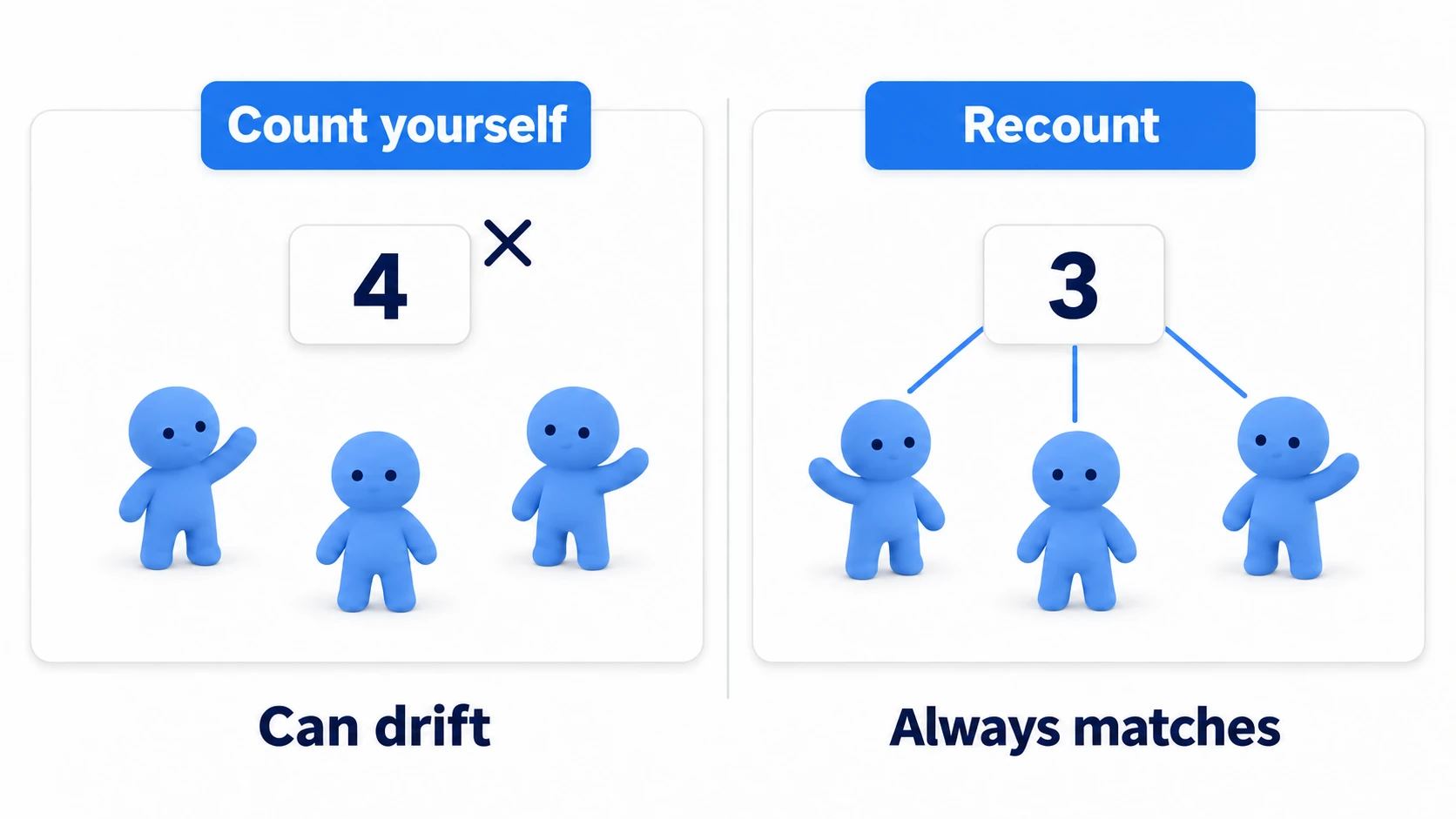
Adding and subtracting on events looks like this.
private int count;

public override void OnPlayerJoined(VRCPlayerApi player)
{
    count++;   // Increment
}

public override void OnPlayerLeft(VRCPlayerApi player)
{
    count--;   // Decrement
}
It looks fine, and once it drifts it never recovers. Miss an event for some reason, or start from a wrong initial value, and it keeps running out of step with reality.
Re-fetching every time removes that worry.
int count = VRCPlayerApi.GetPlayerCount();
GetPlayerCount() returns the actual headcount at the moment you call it. Use events as the cue that "the count just changed," and ask again for the number itself. That's the safe design.
The same idea works elsewhere. "Fetch the real value when you need it" leaves less room for drift than "count and remember it yourself."
Common Pitfalls
- No text appears → Check whether Count Text is
None, and whether the Canvas's Render Mode is World Space - The sign is enormous or microscopic → The Canvas's Scale may still be
1. Set it around0.005 - The count doesn't rise in ClientSim → Other players in ClientSim aren't real. Check with Build & Test at two clients
- The count doesn't match reality → Are you adding and subtracting in a variable? Re-fetch with
GetPlayerCount()
Bonus: Good to Know Up Front
isLocalnarrows it to you: Whenplayer.isLocalistrue, that event is about you. Use it for things like "show a greeting only when I join"displayNamegives you the name: Useful for logs and welcome messages. When displaying it, expect long names and unusual characters- You can get the full list too:
VRCPlayerApi.GetPlayers()returns an array. It allocates an array on each call, so avoid calling it every frame - A player may not be ready right after joining: Reading a player's position the instant they join can find it not yet settled. Waiting a moment is safer (calling logic after a delay)
- Check with
Utilities.IsValid(): A player may already have left, so check before using a reference you stored
Summary
Player events come down to two axes.
- Whose PC it fires on → the PC of everyone present
- Who it fires about → the
playerargument - When you join, it fires for everyone already present
- Don't count in a variable — re-fetch with
GetPlayerCount()
The question to ask while building is: "Should I remember this value, or can I ask again?" If you can ask again, that drifts less.
Next, handle several objects together. In an introduction to arrays, let's cycle three lights in order.