You've got a Cube that changes color when pressed. But VRChat has several ways to press.
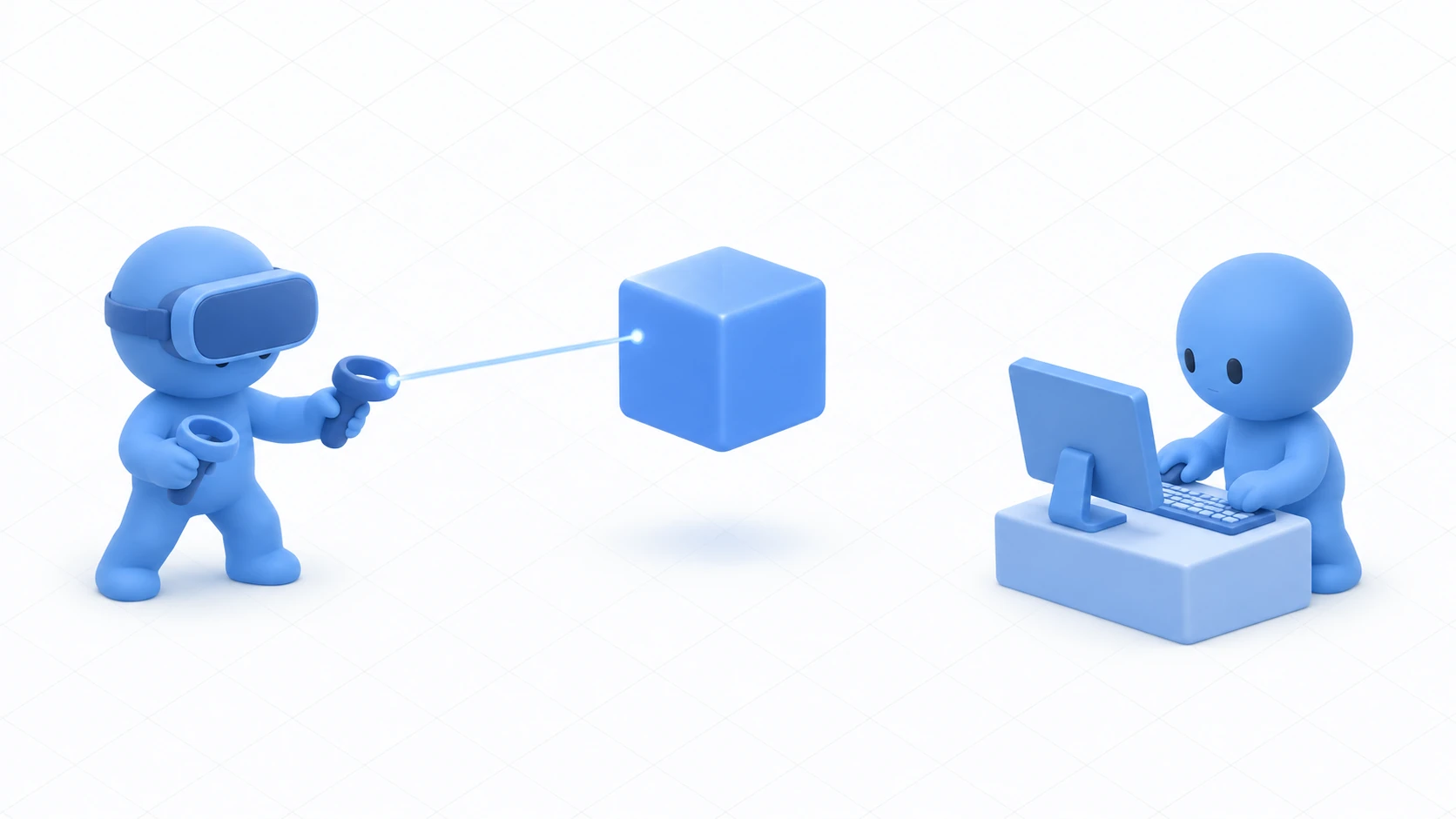
A controller trigger in VR, a left click on desktop. And you can also receive "the moment they jumped" or "how far the movement key is pushed." Similar names line up and it's unclear which to use.
This article separates action on a target (Interact) from the input itself (Input Events), and confirms it with logs.
What You'll Learn
- The difference between Interact and InputUse
- The three conditions Interact needs to fire
- How to change the usable distance
- That the same events arrive from VR and desktop
Start from having tried your first UdonSharp.
"Action on a target" and "the input itself"
They look similar and their entry points are completely different.
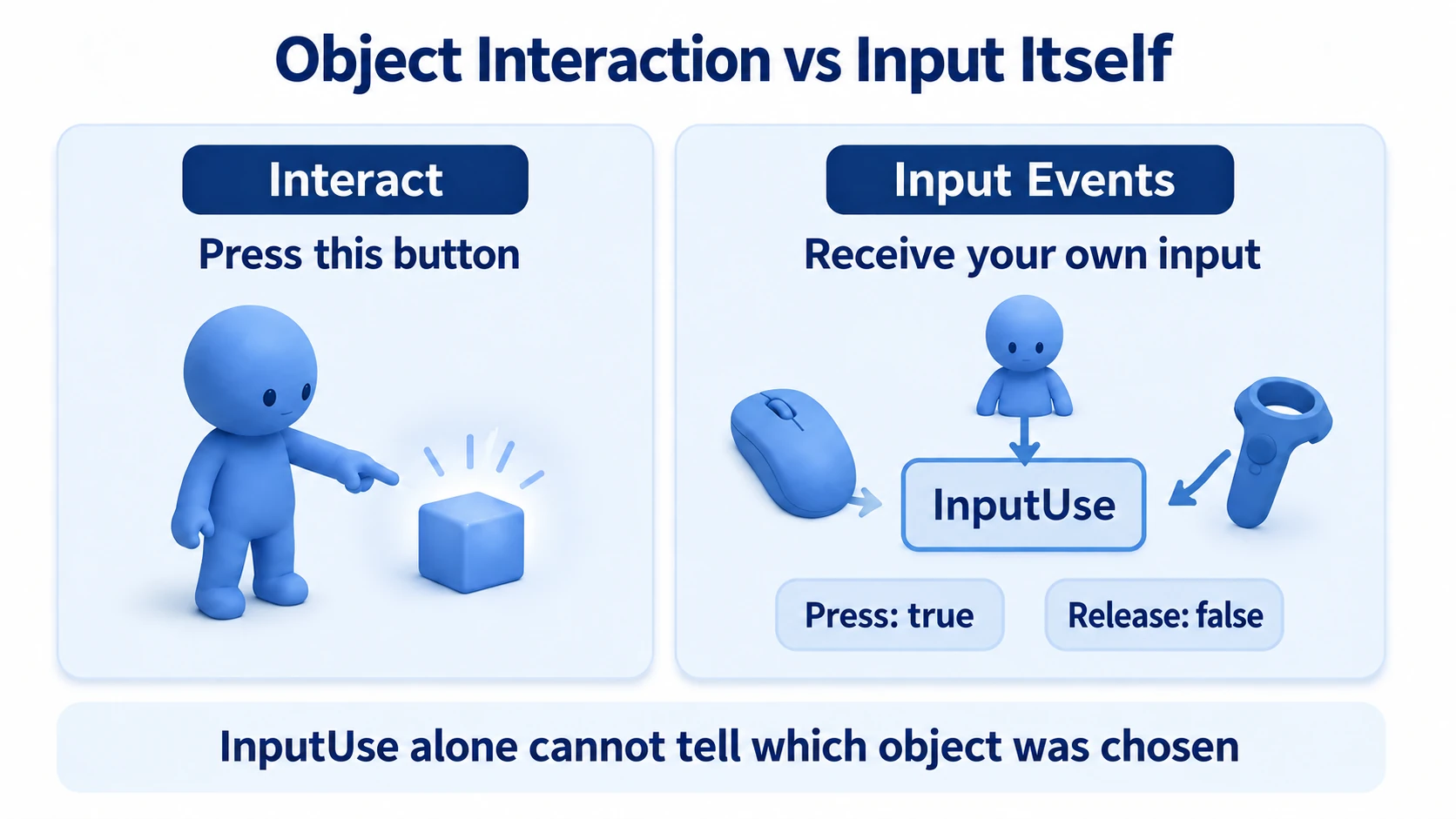
- Interact is the notification "this object was used." It fires only when the object is in front of you and within reach
- Input Events are the notification "a button was pressed." They fire on that player's PC regardless of what they're looking at
Put plainly, InputUse is "the Use button was pressed" and Interact is "the Use button successfully acted on that Cube." Press with no target and Interact doesn't fire.
The main Input Events:
| Event | What it receives |
|---|---|
InputUse | Press and release of the use action |
InputJump | Press and release of jump |
InputGrab / InputDrop | Grab and drop |
InputMoveHorizontal / InputMoveVertical | Movement magnitude (-1 to 1) |
InputLookHorizontal / InputLookVertical | Amount of look rotation |
Button events receive a bool (pressed or released); axis events receive a float (how much).
Input Events fire only on the PC of the person who pressed. To tell others, send the result with the synchronization mechanism.
Hands-On: Tell the two entry points apart with logs
Receive both Interact and Input Events on the same Cube and see the difference in the Console.
1. Place a Cube
Create a "3D Object → Cube," name it InputTestCube, and put it at (0, 1, 1). Leave the Box Collider as is and Is Trigger off.
2. Write code that receives both
In Assets/Scripts, choose "Create → U# Script" and make InputWatcher.
using UdonSharp;
using UnityEngine;
using VRC.Udon.Common;

[UdonBehaviourSyncMode(BehaviourSyncMode.None)]
public class InputWatcher : UdonSharpBehaviour
{
    // Fires only when this object is used
    public override void Interact()
    {
        Debug.Log("[InputWatcher] Interact: this Cube was used");
    }

    // Press and release of Use. Fires whatever you're looking at
    public override void InputUse(bool value, UdonInputEventArgs args)
    {
        Debug.Log("[InputWatcher] InputUse: " + (value ? "pressed" : "released"));
    }

    // Press and release of jump
    public override void InputJump(bool value, UdonInputEventArgs args)
    {
        if (value)
        {
            Debug.Log("[InputWatcher] InputJump: jumped");
        }
    }
}
Don't forget using VRC.Udon.Common;. It's required to use UdonInputEventArgs.
Add a Udon Behaviour to the Cube and set Program Source to InputWatcher. Set Interaction Text to Inspect.
3. Confirm the difference
Press Play, click the Game view, and operate while watching the Console.
| Action | Logs produced |
|---|---|
| Left-click facing nothing, away from the Cube | InputUse: pressed and InputUse: released only |
| Aim at the Cube and left-click | InputUse: pressed plus Interact |
| Jump with the space key | InputJump: jumped |
| Left-click from 10m away from the Cube | InputUse only. No Interact |
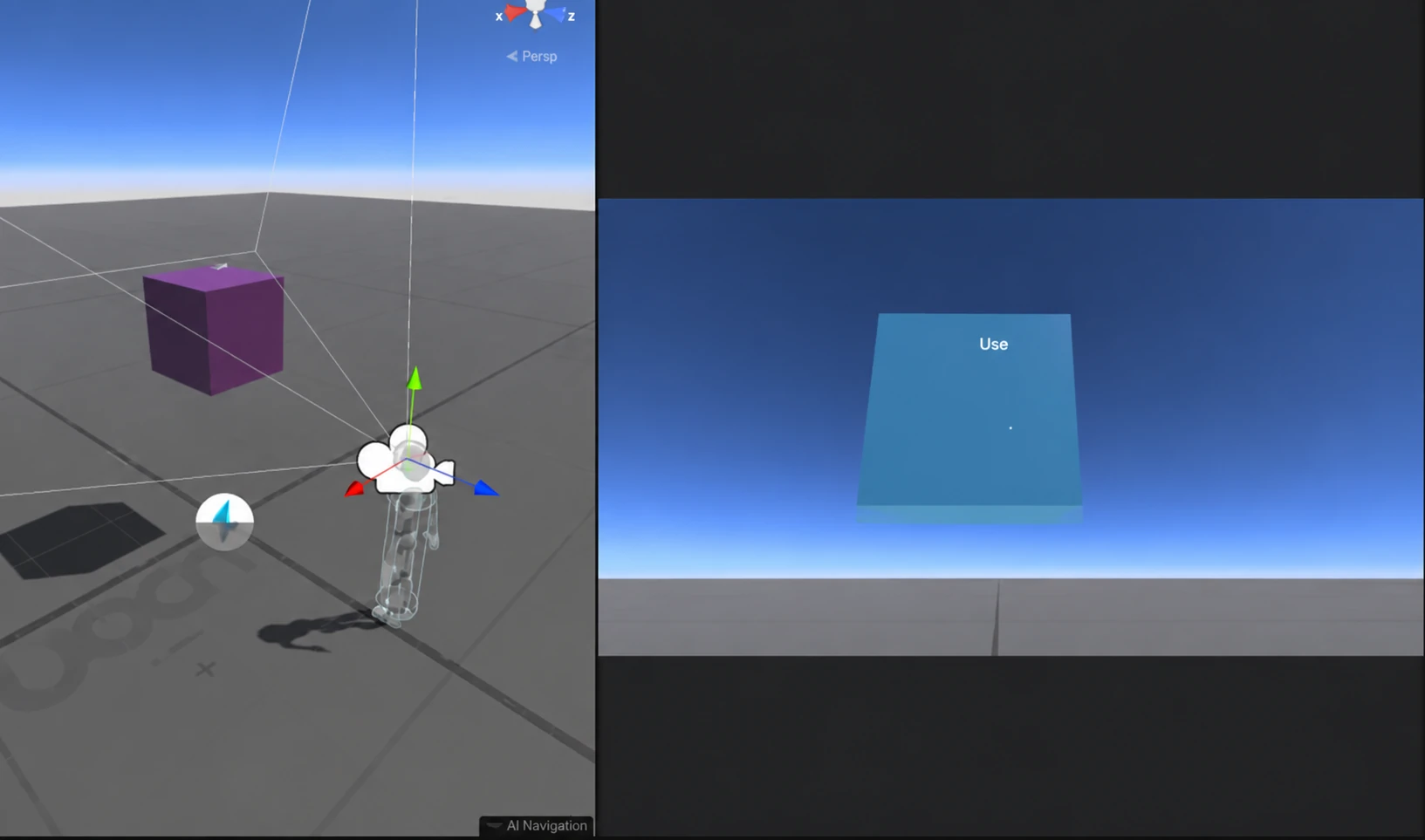
The difference between the first and second rows is the point of this article. Same button, same person pressing. The only difference is whether it reached a target.
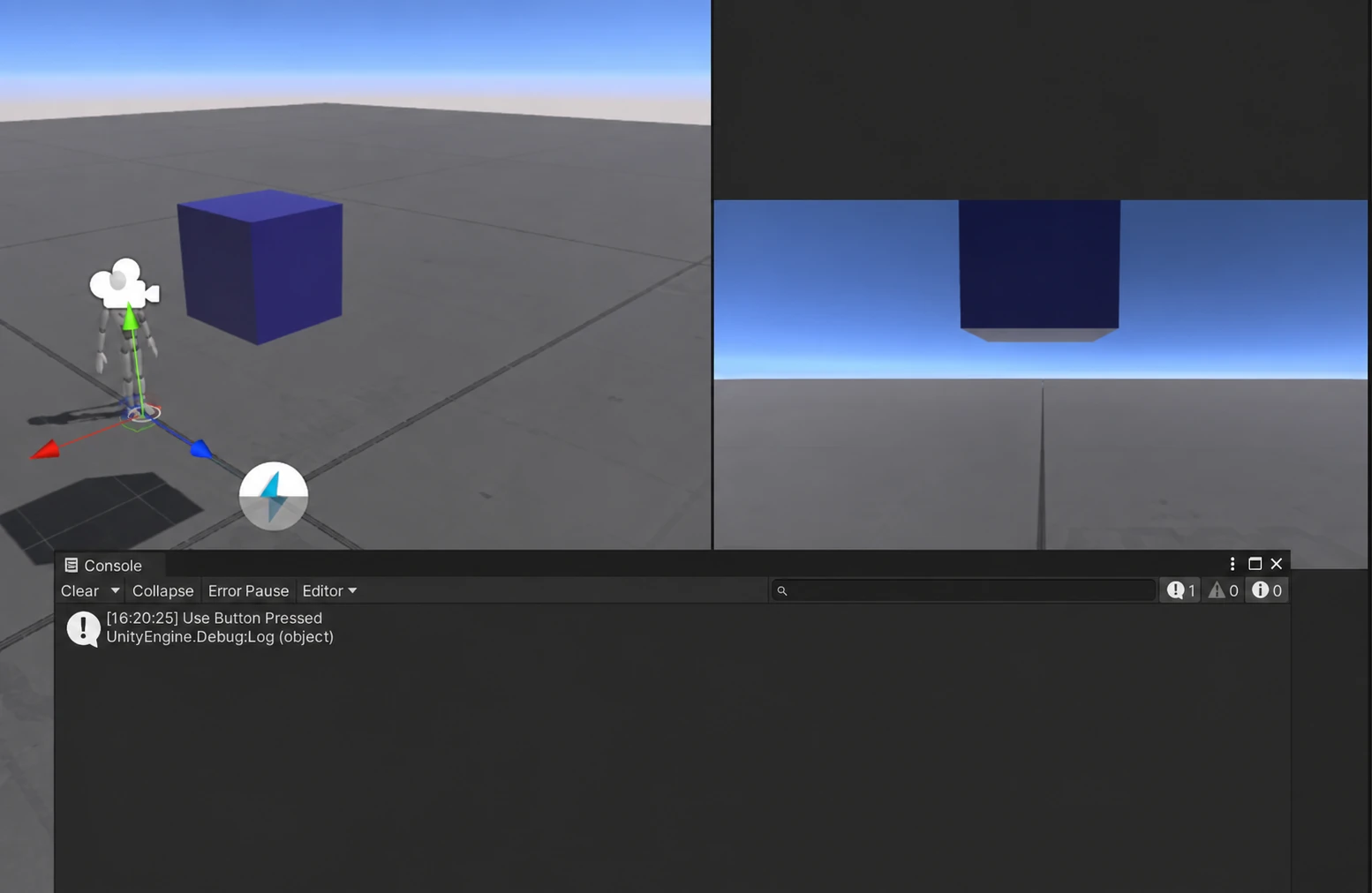
InputUse fires twice: on press and on release. value is true for press and false for release. Logic like "move something only while held" is built from those two.
Three conditions Interact needs
When Interact doesn't fire, it's almost always one of these three.
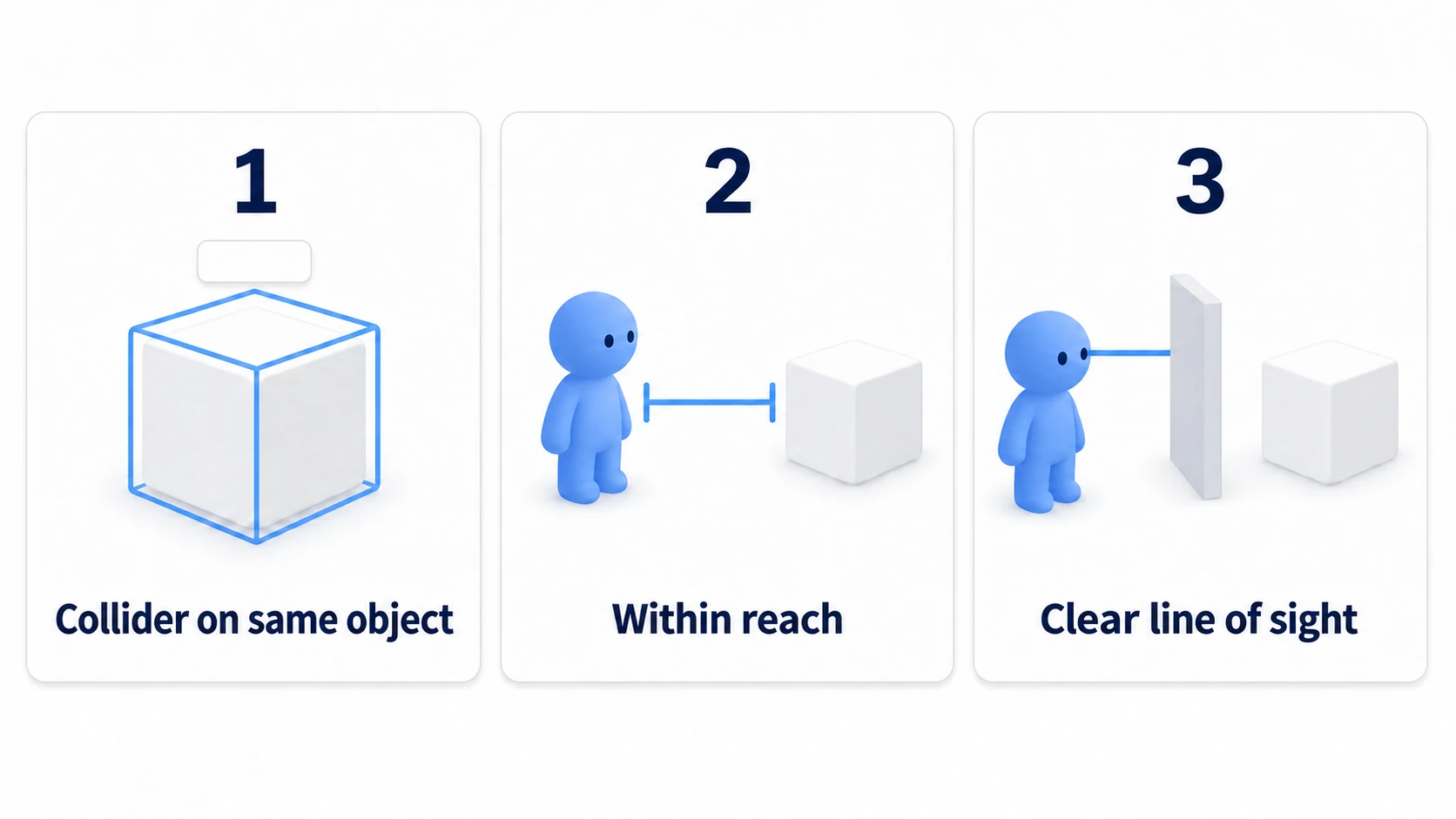
- A Collider on the same object: A setup with the program on an empty parent and the Collider on a child Cube won't work
- Being within reach: The default is around 2m. Too far and nothing appears even when you aim
- A clear line of sight: Another Collider in front takes priority
To change the distance, raise Proximity on the Udon Behaviour. Making it pressable from far away also increases accidental presses in passing. Keep it to the range you need.
Interaction Text is the prompt shown when you aim at it. Interact works when it's empty too; you just get default text. Use short wording that says what will happen.
Note that a Rigidbody isn't needed. Interact requires only a Collider and a program.
VR versus desktop
The same event names arrive from either environment. Udon absorbs that difference.
The bindings and the nature of the values differ, though.
| Desktop | VR | |
|---|---|---|
| Use | Left click | Trigger |
| Jump | Space | A controller button |
| Movement values | Mostly -1 / 0 / 1 | Continuous, by stick deflection |
That difference matters when you use the movement axes. Desktop is close to a two-way pressed-or-not, while VR sends intermediate values.
Another important point: input events don't arrive while the menu is open. And the moment the menu opens, a held button is treated as released. Logic that assumes a held button gets cut off here.
When building a "moves only while held" mechanism, writing it so that release always stops it is the safe approach.
Bonus: Good to Know Up Front
argscarries left/right information: Which hand in VR, keyboard or mouse on desktop. Useful when you want different behavior per side- Input Events run on everyone's PC: They only reach the person who pressed, so telling others requires synchronization. Covered in networking basics
- Interact can be disabled: Turning on
DisableInteractiveon the Udon Behaviour keeps the program running while refusing interaction. Useful for buttons that are conditionally pressable - Don't combine it with VRC Pickup: Grabbing takes priority and Interact stops working
- Don't do heavy work in the movement axes:
InputMoveHorizontalfires repeatedly while you move. Rather than writing heavy logic directly, store the value in a variable and use it when needed
Summary
Input has two entry points.
- Interact means "this object was used." It needs a target, distance, and line of sight
- Input Events mean "a button was pressed." They fire whatever you're looking at
- Input Events reach only the presser's PC. They don't reach other people
- VR and desktop share event names. Only the nature of the values differs
The question to ask when you're unsure where to write something is: "Is this action on a specific object, or the button itself?" The former is Interact, the latter Input Events.
Next, call the same logic from multiple buttons. Go to methods and custom events, or if you want to build out what a press does, toggling with a button is the practical route.