Running your own code in a VRChat world for the first time. That first step is a Cube that reacts when you touch it.
Going straight for the color change causes trouble when it doesn't work, though. Was the press not registering, was the code wrong, or was the color specified incorrectly? There's no way to tell.
This article confirms that the press lands with a log first, then adds the color change. We build it so you can isolate problems in order.
What You'll Learn
- The roles of the C# file, the Program Asset, and the Udon Behaviour
- How to confirm Interact ran with a log, before touching color
- The order to check when nothing responds
- The feel of changing a value exposed in the Inspector without touching code
Start from a scene with a floor. If you don't have one, build it in your first world. UdonSharp is included in the current Worlds SDK, so it is already there once you create a Worlds project in VCC (or ALCOM). You don't need to find and install it separately (see project setup).
Three things get made: a notebook, a translated card, and a nameplate
Creating a U# Script produces two files, and a third appears in the Inspector. That's a common point of confusion, so let's sort it out first.
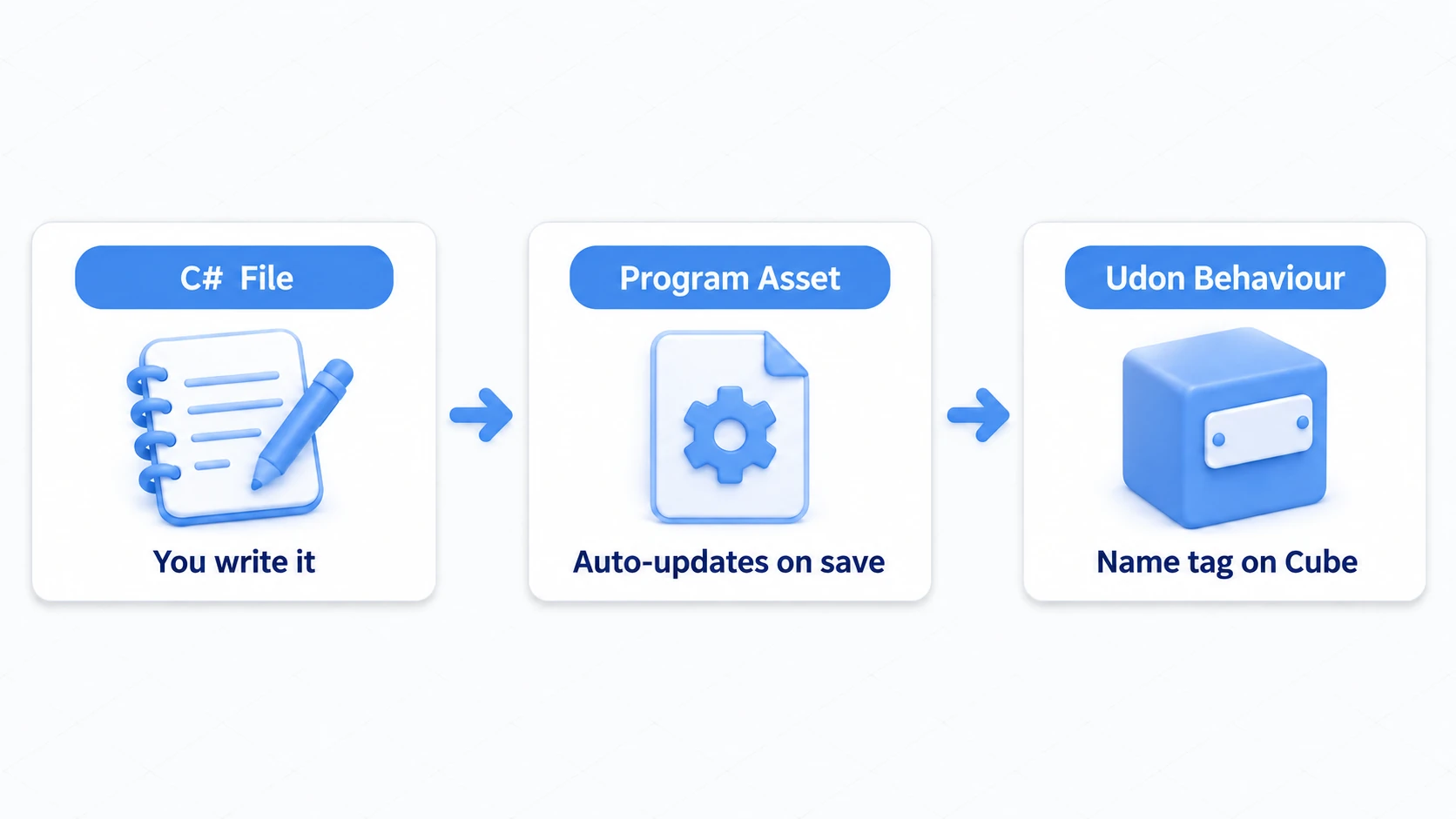
- The C# file (
.cs) is the notebook you write in. "Change color when pressed" goes here - The Udon Sharp Program Asset is a card translating that notebook into a form VRChat can read. It updates automatically on save, so there's no need to open it. Don't delete it
- The Udon Behaviour is the nameplate attached to the Cube. It means "this Cube behaves according to that card"
You only edit the notebook. Saving updates the card, and the nameplate merely looks at that card.
So attaching the same notebook to any number of Cubes gives them identical logic. But state like "what color is it right now" is held separately per Cube.
Hands-On: Build a Cube that changes color when pressed
When you're done, approaching and using the Cube alternates it between blue and orange.
1. Place a Cube and a material
Work with Play stopped. Settings changed during Play revert when you stop.
Create a "3D Object → Cube" in the Hierarchy and name it ColorCube.
| Transform | X | Y | Z |
|---|---|---|---|
| Position | 0 | 1 | 1 |
| Rotation | 0 | 0 | 0 |
| Scale | 1 | 1 | 1 |
The floor's top surface is at Y=0, so a center at Y=1 puts the bottom at 0.5 — clear of the floor and at a comfortable height to use. Leave the Box Collider as is and Is Trigger off. Don't add a Rigidbody. Interact needs only a Collider and a program.
Next, prepare a vessel for the color. Create a Materials folder under Assets, make ColorCubeMaterial with "Create → Material," and set its Shader to Standard. Drag the material onto ColorCube.
2. Create a U# Script
Create a Scripts folder under Assets and right-click to choose "Create → U# Script."
Here's the first fork in the road. Pick "U# Script," not "C# Script." Picking C# Script gives you an ordinary Unity script that won't run as Udon even when attached to the Cube. You can spot it because no Program Asset appears beside it.
Name it ColorChanger. The file name and the class name in the code must match. They won't compile if they differ. Avoid names with spaces too.
3. Log first
Don't change color yet — confirm only whether the press lands. Open ColorChanger.cs, set it to this, and save.
using UdonSharp;
using UnityEngine;

[UdonBehaviourSyncMode(BehaviourSyncMode.None)]
public class ColorChanger : UdonSharpBehaviour
{
    // The entry point receiving the "use" action. Drop public override and it never fires
    public override void Interact()
    {
        Debug.Log("[ColorChanger] Pressed");
    }
}
Watch the public override void Interact() spelling. Writing just void Interact() still compiles, but it will never be called, with no error either. It's the classic failure that's hard to trace.
Return to Unity and wait for compilation. Then attach it to the Cube.
- Select
ColorCubein the Hierarchy - Add Udon Behaviour via "Add Component"
- Drag
ColorChanger's Program Asset from Project into Program Source
Press Play once here. Click the Game view to hand over control and aim at the Cube. When the prompt appears, left-click on desktop.
Seeing "Pressed" in the Console means it worked. Add the color logic only after that passes.
4. Add the color change
Stop Play and replace the code with this.
using UdonSharp;
using UnityEngine;

[UdonBehaviourSyncMode(BehaviourSyncMode.None)]
public class ColorChanger : UdonSharpBehaviour
{
    [SerializeField] private MeshRenderer targetRenderer;  // What to recolor
    [SerializeField] private Color startColor = Color.blue;
    [SerializeField] private Color changedColor = new Color(1f, 0.5f, 0f);

    private Material instanceMaterial;  // A material just for this Cube
    private bool isChanged;             // Whether it's currently switched

    private void Start()
    {
        if (targetRenderer == null)
        {
            Debug.LogWarning("[ColorChanger] Target Renderer is not set.");
            return;
        }

        instanceMaterial = targetRenderer.material;
        instanceMaterial.color = startColor;
    }

    public override void Interact()
    {
        if (instanceMaterial == null) return;

        isChanged = !isChanged;                                        // Flip the boolean
        instanceMaterial.color = isChanged ? changedColor : startColor; // Pick by condition
    }
}
The code splits into three parts.
Values you configure are the first three lines. [SerializeField] makes them settable from the Inspector even though they're private.
Initial setup is Start(). If the target isn't set, it prints the reason to the Console and stops. If it is, it takes the material and applies the starting color.
What happens on press is Interact(). isChanged holds true or false, and ! flips it. condition ? A : B picks A when the condition is true and B when it's false.
| Action | isChanged | Color shown |
|---|---|---|
| Just started | false | Blue |
| First press | true | Orange |
| Second press | false | Blue |
There's no Update() running every frame. The logic runs only at the moment of a press.
There's a reason for using targetRenderer.material. It takes a material belonging to that Renderer alone. Rewriting sharedMaterial would recolor every other Cube using the same material along with it.
5. Assign the reference
Back in Unity, new fields have appeared on the Udon Behaviour.
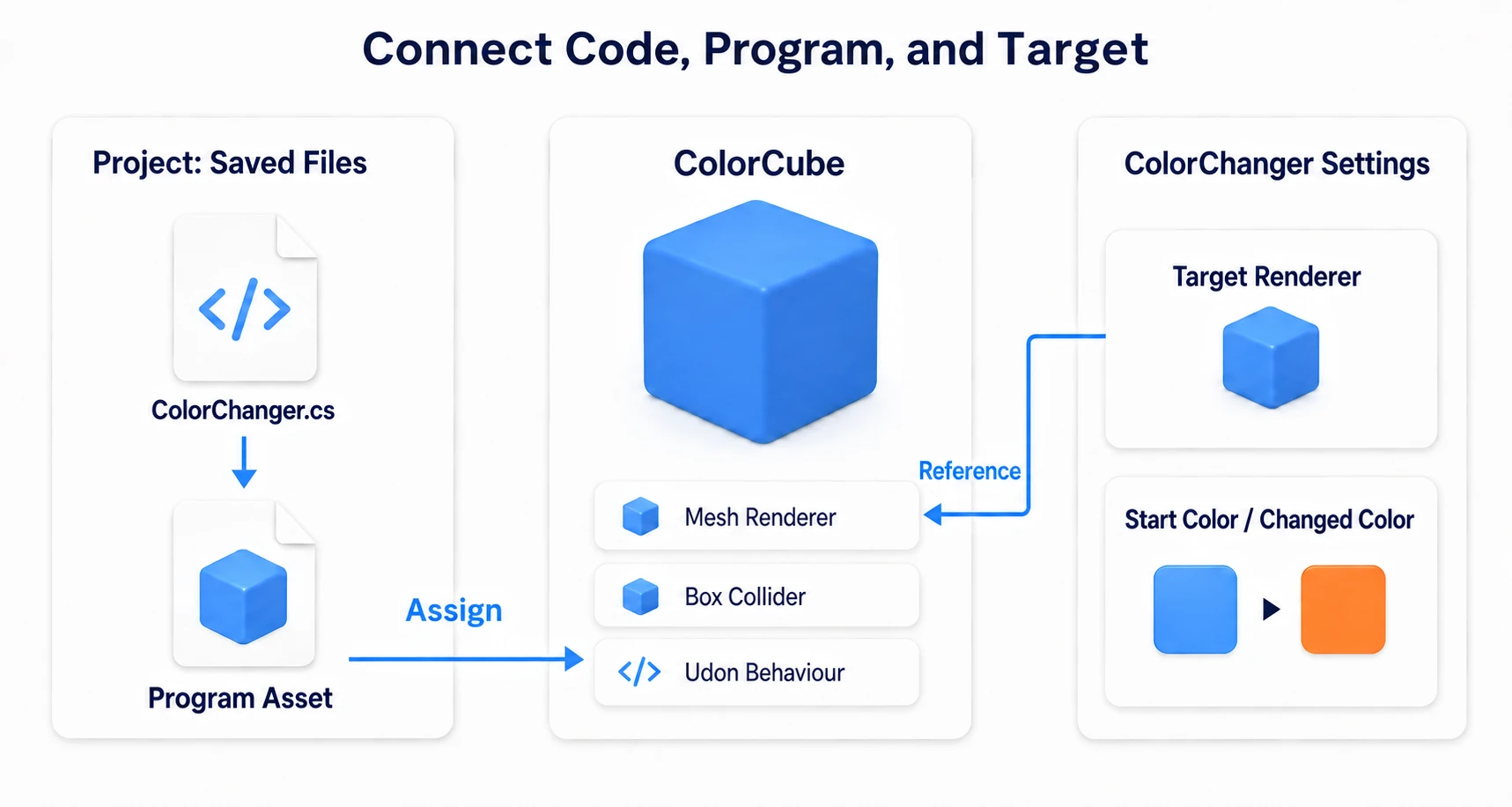
- Drag
ColorCubefrom the Hierarchy into Target Renderer (its Mesh Renderer goes in) - Confirm Start Color is blue and Changed Color is orange
- Set Interaction Text to
Change color - Save the scene
Interaction Text is the prompt shown when you get close. It works when empty too. It exists to make interaction easy, so use short wording that says what will happen.
6. Confirm with ClientSim
Press Play, click the Game view, and approach the Cube.
| Action | Expected result |
|---|---|
| Aim at the Cube | The "Change color" prompt appears |
| Use it (left-click) | It goes from blue to orange |
| Use it again | It returns to blue |
| Stop Play and start again | It starts from blue |
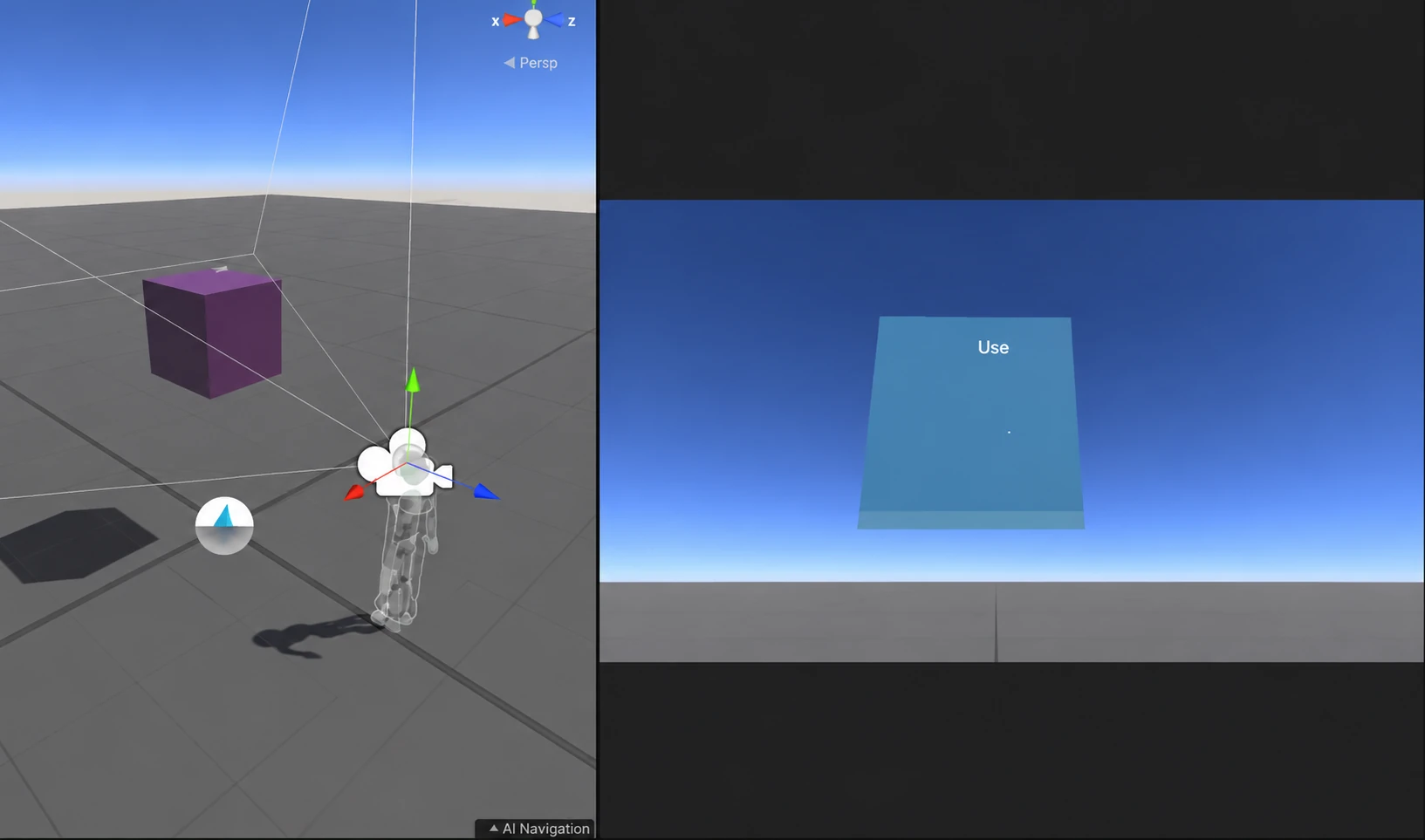
This shows an earlier version of the example. The code in this article alternates between blue and orange.
Clicking the Cube in the Scene view is not the same as using it as a player in the Game view. If clicking only outlines it, you're touching the editing view.
The order to check when nothing responds
Working down this list tells you where it stopped.
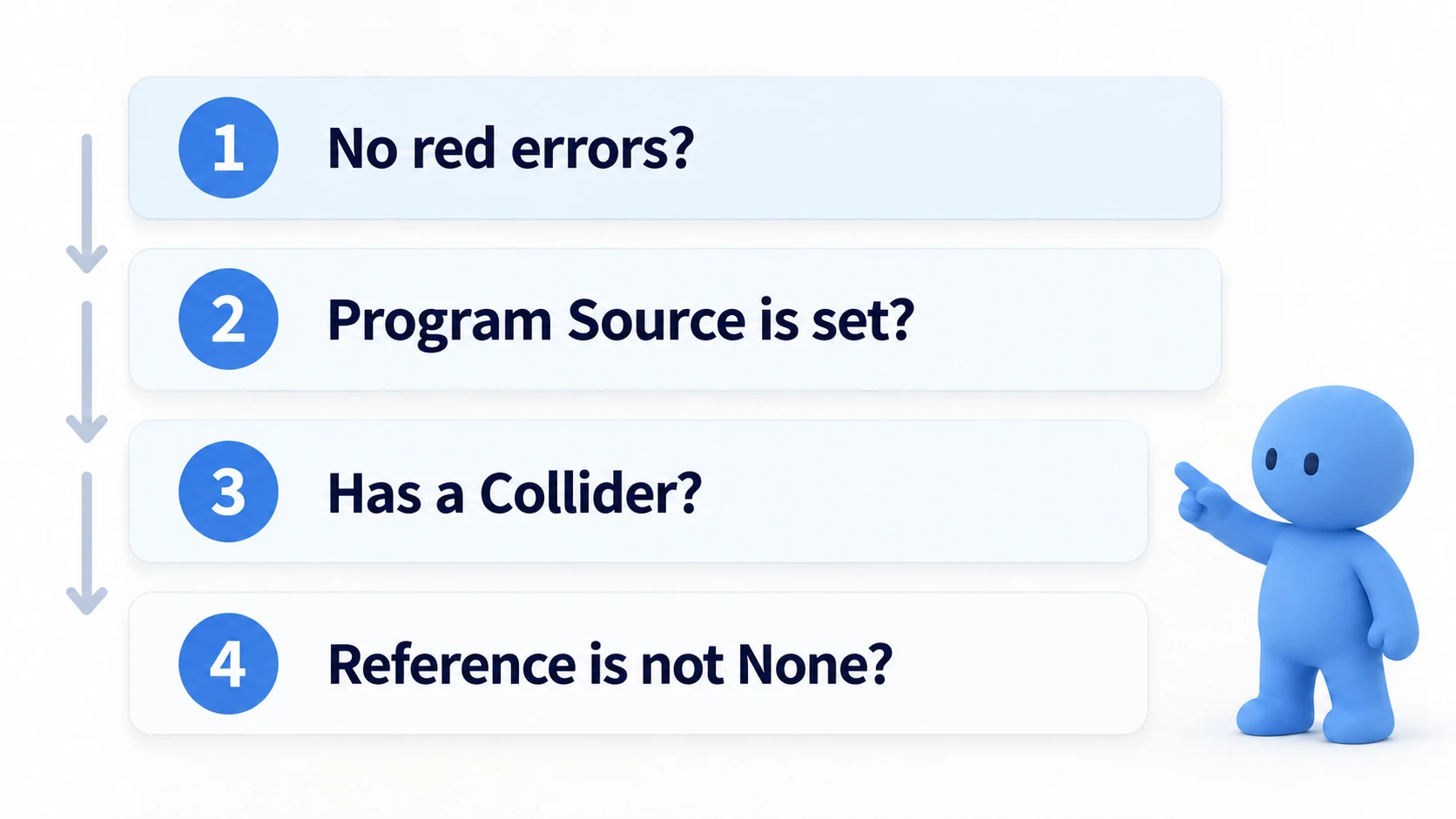
- Does the prompt appear when you aim at it? → If not, check for a Collider, whether you're too far away, and whether another object is in front
- Does a press log appear in the Console? → If not, check the
public override void Interact()spelling, or whether Program Source is empty - Are there red errors in the Console? → If so, read the file name and line number of the topmost error
- Is Target Renderer set to
None? → A warning should have appeared at startup - If the color doesn't change, are the two colors the same value?
Two more common failures. Attaching the program to an empty parent while the Collider is on a child Cube means Interact won't fire. Both must be on the same object. The other is editing the Inspector during Play and losing it on stop. Enter settings with Play stopped, and save.
Change values and confirm
Once it works, try two things. You'll feel how results change without touching code.
Change only Changed Color to green. Without altering a single character of code, the second color changes. That shows Inspector values passing straight into the logic.
Place another Cube and set the second one as Target Renderer. Pressing the first changes the second one's color. The place that receives the action and the place where the result appears can be different — a concept you'll use over and over.
That covers three things: events, state, and references.
Bonus: Good to Know Up Front
- Debug.Log is your first companion: When something doesn't work, it tells you whether execution got that far. One line at the entry of a routine cuts the possible causes in half
- Interact needs you close: The default distance is around 2m. When a distant object doesn't respond, walk up to it first
- Don't combine it with VRC Pickup: Grabbing takes priority and Interact stops working
- Don't think about synchronization yet: This code changes color only on the presser's screen. Reaching everyone is the subject of networking basics
- Changes during Play aren't saved: If you tune colors or positions during Play, note the values, stop, and enter them again
Summary
Your first UdonSharp is three things connected.
- Writing the notebook (the C# file) produces the translated card (the Program Asset) automatically
- That card goes into the Cube's nameplate (the Udon Behaviour)
- Confirm the press lands with a log before touching color
- Dropping the
public override void Interact()spelling gives silence with no error
The question to ask when it doesn't work is: "Does the prompt appear, and does the log appear?" Those two split the cause between input and code.
If programming is new to you, go next to the four parts of a program for variables, if, for, and functions in one pass. If you already know how to write, head to variables and references or methods and custom events.