Overview
An interactive world is one that provides some response to player actions (interactions). Providing input methods for players to operate gimmicks is fundamental to world creation.
This article explains the main methods for receiving input from players in UdonSharp. We'll learn from the simplest and most versatile Interact event to methods for detecting specific keyboard and VR controller button inputs.
The Most Basic Input: Interact Event

Interact is the most basic interaction built into VRChat. Players can trigger the Interact event by performing the following actions toward a tooltip (operation description) that appears when they approach an object and aim at it:
- Desktop Mode: Press the
Vkey - VR Mode: Pull the controller trigger (index finger button)
To handle this event, override the Interact method in your UdonSharp script.
using UdonSharp;
using UnityEngine;

public class SimpleInteract : UdonSharpBehaviour
{
    public override void Interact()
    {
        Debug.Log("Object was clicked!");
    }
}
Requirements for Interact to Work
For the Interact event to fire, the target GameObject must meet the following conditions:
- Collider Component: The object needs a Collider component such as
Box ColliderorSphere Colliderattached. This allows VRChat's system to recognize "where can be clicked." - Udon Behaviour Component: An Udon Behaviour component with an UdonSharp script containing the
Interactmethod is required. - Interaction Text: Some text (e.g., "Press") must be entered in the
Interaction Textfield of the Udon Behaviour component. This becomes the tooltip displayed to players. - Distance: The player must be within a certain distance from the object (default is about 2 meters). This distance can be adjusted with the
Proximityfield.
If any of these conditions is missing, Interact won't function. If there's no response, first check these settings in the Inspector.
Advanced Input Detection: The Input Class
Interact is convenient but can only detect a single "click" action. To handle more diverse inputs like jumping, dashing, or opening a menu, use Unity's Input class. Input class methods are mainly used within the Update event to monitor input every frame.
1. Detecting Keyboard Input (Desktop)
To detect when a specific key is pressed, use Input.GetKeyDown().
Input.GetKeyDown(KeyCode.Space): Returnstrueat the moment the Space key is pressed.Input.GetKey(KeyCode.W): Returnstruecontinuously while the W key is held down.Input.GetKeyUp(KeyCode.LeftShift): Returnstrueat the moment the left Shift key is released.
void Update()
{
    // Call reset processing the moment the R key is pressed
    if (Input.GetKeyDown(KeyCode.R))
    {
        ResetGimmick();
    }
}

void ResetGimmick()
{
    Debug.Log("Resetting gimmick.");
}
2. VRChat Input Events (Recommended)

Directly specifying keyboard keys is often inappropriate since VR users won't be able to use that functionality. To implement input that works for both VR and desktop, the best practice is to use VRChat-provided Input Events.
Input Events are events that you override, similar to Interact.
using UdonSharp;
using UnityEngine;
using VRC.Udon.Common;

public class InputEventExample : UdonSharpBehaviour
{
    // Called when jump button is pressed/released
    public override void InputJump(bool value, UdonInputEventArgs args)
    {
        if (value) // true = pressed, false = released
        {
            Debug.Log("Jump button was pressed!");
        }
    }

    // Called when use button is pressed/released
    public override void InputUse(bool value, UdonInputEventArgs args)
    {
        if (value)
        {
            Debug.Log("Use button was pressed!");
        }
    }
}
Major Input Events
| Event Name | Trigger Condition |
|---|---|
InputJump | Jump button (Space / A・X button) |
InputUse | Use button |
InputGrab | Grab button |
InputDrop | Drop button |
InputMoveHorizontal | Horizontal movement input |
InputMoveVertical | Forward/backward movement input |
InputLookHorizontal | Horizontal look input |
InputLookVertical | Vertical look input |
3. Unity Input Manager (Auxiliary Method)
Using "logical button names" defined in Unity's standard Input Manager is also possible. However, the above Input Events work more reliably in VRChat environments.
Use Input.GetButtonDown("ButtonName") to request input by button name.
Input.GetButtonDown("Jump"): Returnstrueat the moment the button assigned to "Jump" (default: keyboard Space key, VR controller A/X button, etc.) is pressed.Input.GetAxis("Horizontal"): Returns the input value (-1.0 to 1.0) of the axis assigned to "Horizontal movement." Corresponds to keyboard A/D keys or VR controller stick left/right input.
void Update()
{
    // If jump button is pressed, launch the player upward
    if (Input.GetButtonDown("Jump"))
    {
        // Get your own information with Networking.LocalPlayer
        Networking.LocalPlayer.SetVelocity(new Vector3(0, 5f, 0));
    }
}
Major Logical Button Names
| Button Name | Default Key (Desktop) | Default Button (VR) | Use |
|---|---|---|---|
Jump | Space | A / X Button | Jump |
Grab | G | Grip Button | Grab objects (separate from VRChat standard grab) |
Use | E | Use Button | Use objects (separate from VRChat standard use) |
Fire1 | Left Click | Trigger | Attack, confirm |
Horizontal | A / D Keys | Left Stick left/right | Horizontal movement |
Vertical | W / S Keys | Left Stick up/down | Forward/backward movement |
These logical names can be checked and customized in Unity's menu [Edit] > [Project Settings] > [Input Manager].
Choosing Between Interact and Input
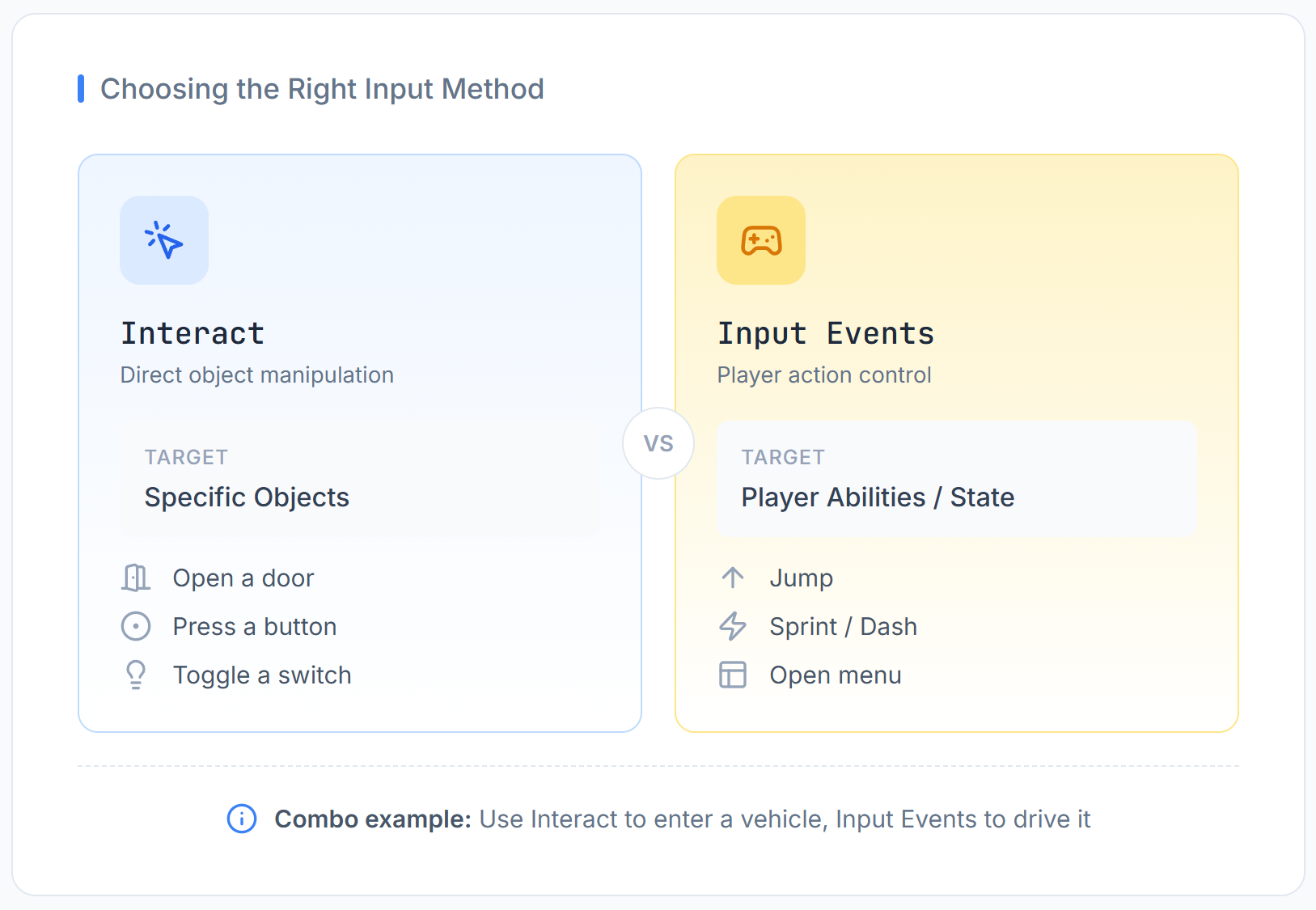
-
When to use
Interact:- Gimmicks that directly operate specific objects (buttons, door handles, levers, etc.).
- When the intuitive "click" operation is appropriate.
- When you want to provide the most basic operation without worrying about VR/desktop differences.
-
When to use
Input:- When implementing player abilities (jump, dash, etc.).
- When implementing global operations not dependent on specific objects (opening menus, switching viewpoints, etc.).
- When you want to handle complex input that
Interactcan't express, such as holding buttons or analog input (stick tilt).
In most cases, you'll combine these two to build gimmicks. For example, you might implement "enter a vehicle with Interact, and while inside, control it with Input."
Summary
- The simplest way to receive input from players is using the
Interactevent. - Collider and Interaction Text settings are essential for
Interactto work. - To support both VR and desktop, using VRChat-provided Input Events (
InputJump,InputUse, etc.) is the best practice. - Use
Inputclass methods inUpdatewhen finer control is needed. - The basic distinction is:
Interactfor operations on objects, Input Events /Inputclass for operations on the player themselves.
Designing how players interact with the world is at the heart of what makes world creation fun.