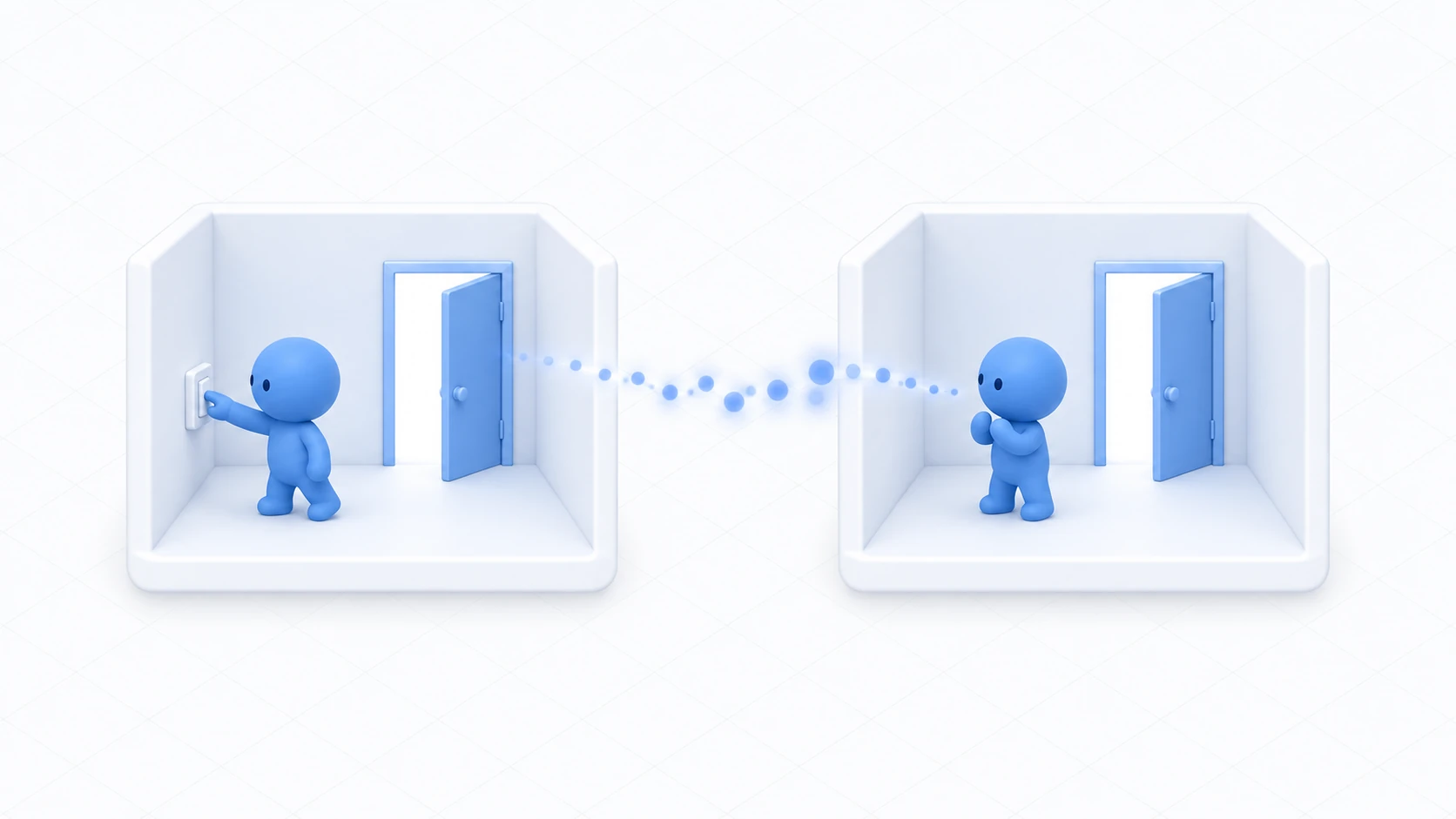
You want the door to open when a button is pressed. Not jumping instantly to a new position — opening slowly.
You could move the position bit by bit in Udon, but adjusting the opening speed and the motion in between gets painful. Repetitive fixed motion like this is easier left to Unity's animation features.
This article covers building two door poses and switching between them from Udon.

What You'll Learn
- Building the parent-child setup that swings a door on its edge
- How Animation Clips and Controllers relate
- The minimal setup for switching two poses with a Bool
- Driving it from Udon in one line
Start from having tried methods and custom events.
A door swings on its edge
This is the first stumble when building a door.

Unity objects rotate about their center. Rotate the door Cube directly and the door's middle spins in place while both ends punch through the walls.
A real door swings on the edge with the hinges. To do the same, make an empty object the parent as the pivot.

The structure looks like this.
DoorPivot (empty object, placed at the door's edge)
└─ DoorPanel (the door panel, offset to the right of the parent)
Rotate DoorPivot and its child DoorPanel swings around the pivot. That gives you a door-like opening.
This "make the pivot the parent" idea works beyond doors — for anything that rotates: swaying signs, spinning fans, opening box lids.
Hands-On: Build an opening door
Press a button and the door opens; press again and it closes. The motion is smooth.
1. Build the pivot and the door
Create DoorPivot with "Create Empty" at (-0.8, 1, 2.8), Rotation (0, 0, 0).
Create DoorPanel as a child, from "3D Object → Cube."
| Field | Value (local, relative to the parent) |
|---|---|
| Position | (0.8, 0, 0) |
| Rotation | (0, 0, 0) |
| Scale | (1.6, 2, 0.1) |
The door panel is offset 0.8m to the right of the pivot. The panel is 1.6m wide, so its left edge lands exactly at the pivot's position.
Try dragging DoorPivot's Y rotation in the Scene view. The door swings on its edge. Set it back to 0 once you've confirmed.
2. Build two poses
With DoorPivot selected, open "Window → Animation → Animation."
- Press "Create" and save it as
DoorClosed - Close it without recording anything (the Y rotation of 0 is recorded)
That's the closed pose. Build the open pose the same way.
- Choose "Create New Clip" from the clip name field in the Animation window and save it as
DoorOpen - Press the record button (the red circle)
- Set
DoorPivot's Rotation Y to90 - Stop recording
Now a Y rotation of 90 degrees is recorded.
An animation containing one pose is fine. Unity fills in the motion between them with the next setting.
3. Build the switching mechanism
Look at the Animator component automatically added to DoorPivot. The Controller field holds the Animator Controller that was just created.
Double-click to open it.

Three terms come up, and their relationship is simple.
| Name | Role |
|---|---|
| Animation Clip | One pose or motion (DoorClosed and DoorOpen) |
| Animator Controller | A map of which clip plays when |
| Animator (the component) | The part that holds that map and drives it |
In the Controller window, set the following.
- Press
+in the Parameters tab on the left, choose Bool, and name itIsOpen - Right-click
DoorClosed, choose "Make Transition," and draw an arrow toDoorOpen - Select that arrow and add
IsOpentrueto Conditions - Uncheck Has Exit Time
- Draw an arrow from
DoorOpenback toDoorClosed, set Conditions toIsOpenfalse, and uncheck Has Exit Time there too
Unchecking Has Exit Time is the important part. Left on, the state doesn't change until the animation finishes playing. Wanting to close mid-opening means waiting for the open to complete.
Confirm that DoorClosed is the initial state (it has an orange outline). If not, right-click it and choose "Set as Layer Default State."
4. Drive it from Udon
Create DoorButton as a "3D Object → Cube" near the door.
In Assets/Scripts, choose "Create → U# Script" and make DoorSwitch.
using UdonSharp;
using UnityEngine;

[UdonBehaviourSyncMode(BehaviourSyncMode.None)]
public class DoorSwitch : UdonSharpBehaviour
{
    [SerializeField] private Animator doorAnimator;

    private bool isOpen;

    public override void Interact()
    {
        if (doorAnimator == null) return;

        isOpen = !isOpen;
        doorAnimator.SetBool("IsOpen", isOpen);   // Just this
        Debug.Log("[DoorSwitch] open=" + isOpen);
    }
}
The driving logic is one line of SetBool. The opening speed and the motion in between all live on the Animator side.
The string "IsOpen" must exactly match the parameter name you made in the Controller. Case matters.
5. Confirm
Add a Udon Behaviour to DoorButton and set DoorSwitch. Drag DoorPivot into Door Animator.
Press Play and try it.
| Action | Expected result |
|---|---|
| Press the button | The door opens smoothly |
| Press again | It closes |
| Press mid-opening | It starts closing immediately (the effect of unchecking Has Exit Time) |
| Walk through the doorway | You pass through while it's open |
That last check also tells you whether the door's Collider is moving. The collision rotates along with it.
Animator, or moving it directly in Udon
Either builds a door. Here's how to choose.

| Animator | Directly in Udon | |
|---|---|---|
| What it suits | A fixed motion you repeat | Motion that varies, or is computed |
| Adjusting motion | Visually, on a timeline | By numbers in code |
| Code | One line | Needs position math |
| Stopping partway | Good at it | You write it |
Doors, drawers, swaying signs, machinery operating. Anything repeating the same motion is easier with an Animator.
Conversely, motion like "advances a little per press" or "faces the player's position" gets written directly in Udon.
Common Pitfalls
- The door rotates about its middle → You haven't made the pivot the parent. Put an empty object at the edge and put the door under it
- Pressing does nothing → Check that the parameter name matches, case included
- You can't close it until it finishes opening → Has Exit Time is still checked
- It starts open →
DoorClosedisn't the default state. Set it with a right-click - You can't pass through → The door's Collider is still in the way where it opened to. Check in the Scene view
Bonus: Good to Know Up Front
- This is local logic: The door opens only on the presser's screen. Putting everyone in the same state needs the mechanism in a synchronized door
- The same shape drives other things: Drawers, drawbridges, shutters, spinning signs. Only the pivot placement and the axis change
- Adjust the opening speed on the transition: Selecting the arrow shows a timeline where you can change the switching duration. Slower for a heavy door
- Sound makes it natural: A creak while opening goes a long way. The sound handling in toggling with a button applies
- Different from avatar Animators: The Animator discussion in avatar customization targets something else. For moving world objects, what's in this article is enough
Summary
An Animator-driven door takes three steps.
- Put an empty object at the door's edge and make it the parent
- Build the closed pose and the open pose as two clips
- Move between them with a Bool parameter. Uncheck Has Exit Time
- From Udon, it's one line of
SetBool
The question to ask before building is: "Is this motion the same every time, or does it vary?" The same means leaving it to the Animator.
To open the same door for everyone, go to a synchronized door. To close it automatically after a delay, go to calling logic after a delay.