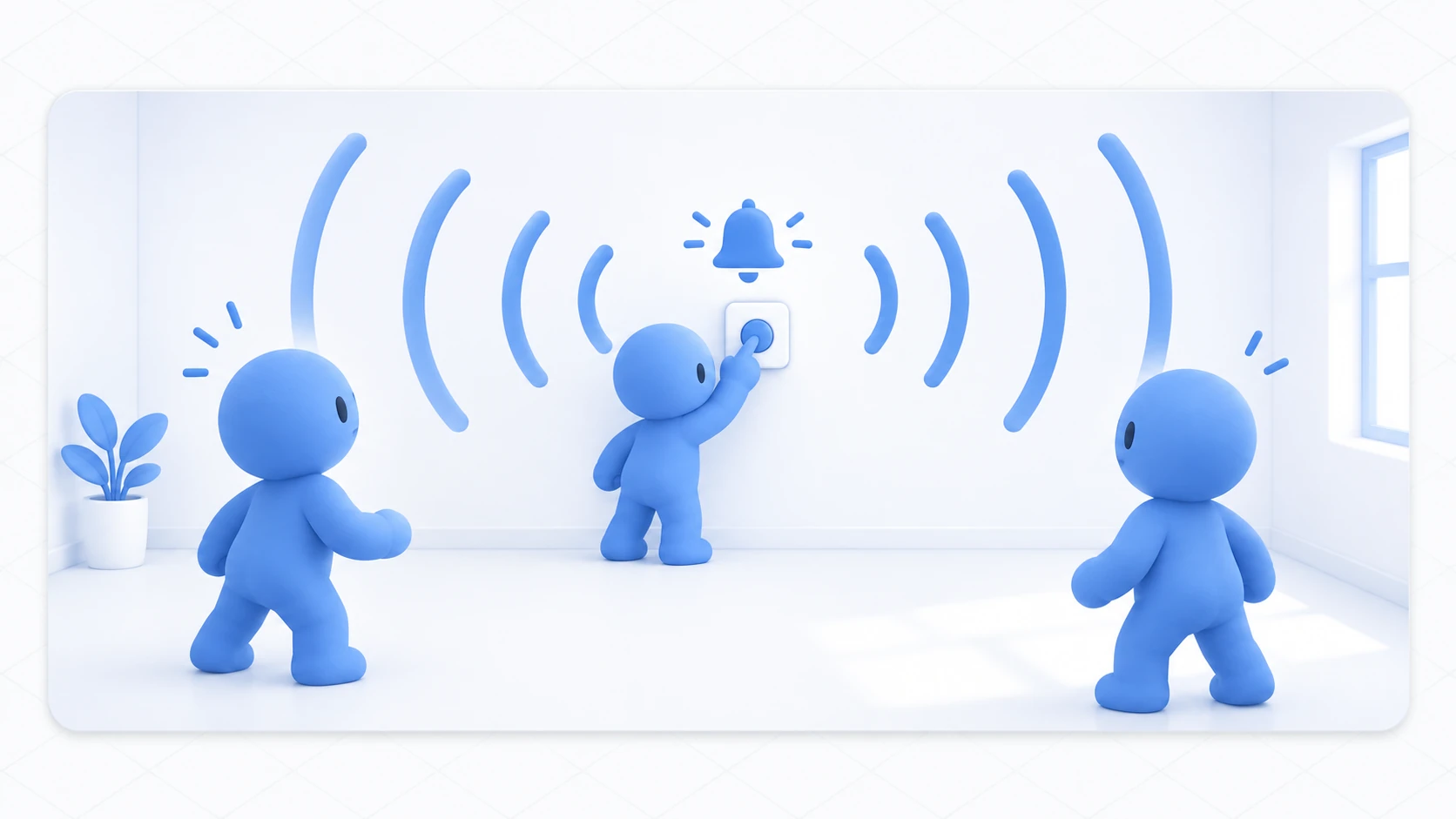
The light switch built in the networking introduction had this line.
Networking.SetOwner(Networking.LocalPlayer, gameObject);
That's "the presser takes ownership." Without it, pressing doesn't reach anyone else. And no error appears. Only your screen changes, and you stall with no idea why.
This article makes ownership visible on screen while looking at when it transfers and what happens when someone leaves.

What You'll Learn
- That ownership is one person per object
- The difference between Master and Owner
- When ownership transfers automatically
- How handover works when the owner leaves
Start from having tried networking basics.
One microphone per object
Ownership is the right to write that object's synced variables. The karaoke microphone analogy makes it easy.

The important part is that there's one microphone per object.
- A is the light switch's Owner
- B is the cup's (Pickup's) Owner
- Nobody has touched the door, so it stays with whoever entered first
All at once. There's no such thing as "A is the Owner of the whole world."
There's also the Master role — the whole instance's host, usually the person who opened the room.
Master and Owner are different. The manager may happen to be holding the microphone, but being the manager isn't what lets them sing.
Since the Master is often the Owner of everything at first, it's easy to conclude "the Master can synchronize." That's coincidence, not mechanism. Write it so the presser takes the microphone and it works whoever presses.
Ownership transfers in these situations.
| Situation | How it transfers |
|---|---|
You called Networking.SetOwner() | You transferred it yourself |
| Someone grabbed a Pickup | Transfers automatically |
| The Owner left | VRChat assigns it to someone else |
Automatic transfer on Pickups is convenient, and it's worth remembering that it's built on "whoever grabs it becomes the Owner."
Hands-On: Make ownership visible
Place separate buttons for claiming control and toggling the light. Show the owner's name on a board so you can see who holds it.
1. Place the objects
Place the following in a scene with a floor.
| Name | How to make it, and settings |
|---|---|
OwnerLight | Point Light. (0, 2.5, 0), Range 6, Intensity 2, Mode "Realtime" |
ClaimButton | Cube. (-1, 1, 1), Scale (0.4, 0.4, 0.4) |
LightButton | Cube. (1, 1, 1), Scale (0.4, 0.4, 0.4) |
OwnerCanvas | UI Canvas (World Space). (0, 2, 2.8), Scale (0.005, 0.005, 0.005) |

Create a TextMeshPro as a child of OwnerCanvas and name it OwnerText. The owner's name goes here.
The buttons are split in two so you can experience "taking ownership" and "changing the value" separately.
2. Write the code
Create OwnerDemo with "Create Empty" at (0, 0, 0).
Create OwnershipDemo in Assets/Scripts.
using UdonSharp;
using UnityEngine;
using TMPro;
using VRC.SDKBase;

[UdonBehaviourSyncMode(BehaviourSyncMode.Manual)]
public class OwnershipDemo : UdonSharpBehaviour
{
    [SerializeField] private Light targetLight;
    [SerializeField] private TextMeshProUGUI ownerText;

    [UdonSynced] private bool isOn;

    private void Start()
    {
        ApplyState();
        UpdateOwnerText();
    }

    // Called from the "claim control" button
    public void ClaimOwnership()
    {
        if (!Networking.IsOwner(gameObject))
        {
            Networking.SetOwner(Networking.LocalPlayer, gameObject);
        }
        UpdateOwnerText();
    }

    // Called from the "toggle lighting" button
    public void ToggleLight()
    {
        // Without ownership, sending goes nowhere
        if (!Networking.IsOwner(gameObject))
        {
            Debug.LogWarning("[Ownership] No ownership. Claim control first.");
            return;
        }

        isOn = !isOn;
        ApplyState();
        RequestSerialization();
    }

    public override void OnDeserialization()
    {
        ApplyState();
        UpdateOwnerText();
    }

    // Called when ownership transfers
    public override void OnOwnershipTransferred(VRCPlayerApi player)
    {
        UpdateOwnerText();
    }

    private void ApplyState()
    {
        if (targetLight != null) targetLight.enabled = isOn;
    }

    private void UpdateOwnerText()
    {
        if (ownerText == null) return;

        VRCPlayerApi owner = Networking.GetOwner(gameObject);
        string name = Utilities.IsValid(owner) ? owner.displayName : "(unknown)";
        bool mine = Networking.IsOwner(gameObject);
        ownerText.text = "Owner: " + name + (mine ? "\n(you)" : "");
    }
}
ToggleLight() deliberately blocks when you don't have ownership. In a real world, going and taking it automatically is the kinder design, but here it's separated so you experience "without it, nothing reaches anyone."
OnOwnershipTransferred() is the event fired when ownership transfers. It's used here to refresh the display.
3. Call it from the buttons
Add a Udon Behaviour to OwnerDemo, set OwnershipDemo, and assign Target Light and Owner Text.
Add Udon Behaviours to ClaimButton and LightButton too, with a simple relay script on each.
using UdonSharp;
using UnityEngine;

[UdonBehaviourSyncMode(BehaviourSyncMode.None)]
public class OwnerDemoButton : UdonSharpBehaviour
{
    [SerializeField] private OwnershipDemo demo;
    [SerializeField] private bool claimMode;   // true claims ownership, false toggles the light

    public override void Interact()
    {
        if (demo == null) return;
        if (claimMode) demo.ClaimOwnership();
        else demo.ToggleLight();
    }
}
Turn Claim Mode on for ClaimButton and off for LightButton.
Check with two people
Launch Build & Test with Number of Clients set to 2.
| Order | Action | Expected result |
|---|---|---|
| 1 | A and B enter | The board shows the name of whoever entered first |
| 2 | B presses only the light button | Nothing happens. The Console says "No ownership" |
| 3 | B presses the claim button | The board's name changes to B, on A's screen too |
| 4 | B presses the light button | The light comes on for both |
| 5 | B leaves | On A's screen, the owner becomes A |
The second row is the most important experience in this article. The code is correct, and nothing happens purely because of ownership. No error either.
When synchronization isn't working, whether you can suspect this changes how fast you solve it.

Check the fifth row too. The world doesn't break when the owner is gone. VRChat assigns it to someone else automatically.
Common Pitfalls
- Pressing does nothing → You don't have ownership. Take it first. In production code, you'd take it automatically
- No name appears → Owner Text is
None, or check the Canvas settings - The owner display doesn't refresh → Check that you refresh from both
OnOwnershipTransferredandOnDeserialization - Only your screen changes → You haven't taken ownership, or you aren't calling
RequestSerialization()
Bonus: Good to Know Up Front
- Production code takes it automatically: It's split here for the experience, but in practice you write "when pressed, take ownership first." The code in networking basics has that shape

- Don't get the object wrong: The
gameObjectinNetworking.SetOwner(player, gameObject)is the object the script is attached to. To touch another object's synced variables, you need that object's ownership - Pickups transfer automatically: Whoever grabs it becomes the Owner. The mechanism for syncing a held object's position builds on this. Covered in VRC Object Sync
- Ownership requests can be refused:
OnOwnershipRequestlets you control things like "in use, not handing it over." Useful for pinning a game's host, though unnecessary at the introductory level - Don't design around the Master: Something built as "only the Master can operate this" causes trouble when the Master leaves. Build it so it works whoever the Owner is
Summary
Ownership is "who can write right now," per object.
- One microphone per object. There's no concept of an Owner of the whole world
- Master and Owner are different. Being Master isn't what lets you write
- Without ownership, a rewrite isn't sent. And there's no error
- When the owner leaves, it hands over automatically
The question to ask when synchronization doesn't arrive is: "Am I the Owner of that object right now?" Checking just that finds half of all causes.
To convey a momentary effect, go to network events. To share a held object's position, go to VRC Object Sync.