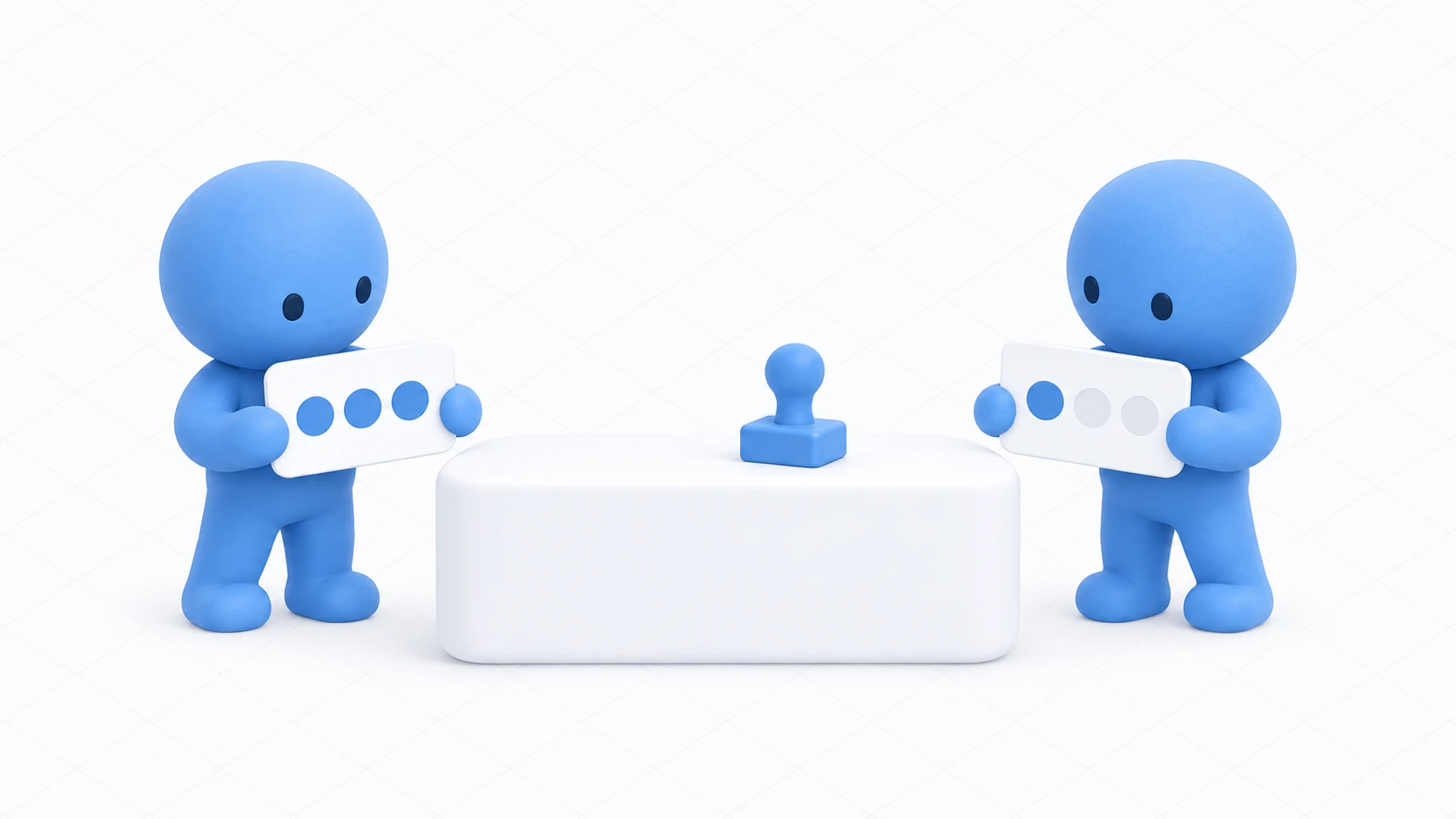
The BGM was a bit loud, so you turned the world's slider down and played. You enjoyed it, so you visit again the next day and get greeted at full volume.
Volume, subtitles on or off, whether you've seen the tutorial. Settings that are yours alone can't be kept in synced variables. Synchronization exists to tell people in this room right now, and it's gone once you leave.
This article makes the volume you set on a slider persist to next time.

What You'll Learn
- When to use synced variables versus PlayerData
- Why you wait for restoration before reading
- That you write only your own, and pass whose data when reading
- How to avoid hammering the save
Start from having tried networking basics and building world-space UI.
The blackboard is wiped; the locker stays
In the networking article we used the analogy of synced variables as a blackboard — a place readable by whoever is in the room. Leave the room and you part with that board.
PlayerData is your own locker, placed in that world. Its contents are yours alone and they're still there next time you come.

Lining them up on volume makes the difference clear.
| What you want | What to use |
|---|---|
| Stop the room's BGM for everyone present at once | Synced variable |
| Lower BGM for yourself alone, still lowered next time | PlayerData |
What can be saved is values. Booleans, numbers, and strings are the basics, and Vector3 and Color work too.
What can't be saved is equally clear. AudioSources and GameObjects themselves, materials, references to things in the scene. None of those get saved.

What you save is the number "the volume was 0.2," not the slider or the AudioSource. Next time, you write that number back into whatever is in the scene then.
Saves are per world, per player. The same account can't see it from a different world. Conversely, the same world in a different instance reads the same data.
Reading before restoration wipes your save
Here's the most common accident with PlayerData.
Right after entering, the saved data hasn't arrived yet. Reading in that state returns the default value (0 for a float), not what you saved.

The problem is putting that 0 into the slider. Moving the slider counts as "the volume changed" and triggers a save. That's how a real 0.2 gets overwritten with 0 and lost.
Reading early isn't harmful by itself. The danger is writing back a default value you mistook for the real one.
The signal for avoiding this is OnPlayerRestored.
public override void OnPlayerRestored(VRCPlayerApi player)
It means "this player's saved data has been retrieved, so you can read it now." Read after it fires and you get the correct value.
Two cautions about this event.
It fires for other people too. It fires on every join, for that person's restoration. So your BGM volume doesn't get rewritten by someone else's arrival, filter to your own with player.isLocal.
Writing and reading have different shapes. That's confusing at first.
PlayerData.SetFloat("bgm_volume", 0.2f);                          // Write: only your own
PlayerData.TryGetFloat(player, "bgm_volume", out float saved);    // Read: pass whose data
You can only write your own locker, so the writing side takes no player. The reading side can peek into other people's lockers, so you pass whose. Leaderboard displays are built on that reading form.
Hands-On: A slider that remembers the volume
Build a mechanism where a slider sets the BGM volume and the next visit starts at that volume.
1. Place the BGM and slider
Place the following in a scene with a floor.
| Name | How to make it, and settings |
|---|---|
Bgm | Create Empty with an Audio Source added. Play On Awake and Loop on, Spatial Blend 0 |
SettingCanvas | UI Canvas (World Space). (0, 1.5, 2), Scale (0.003, 0.003, 0.003) |
VolumeSlider | UI Slider as a child of SettingCanvas |
PersistenceRoot | Create Empty. (0, 0, 0) |

Put a loopable track in Bgm's Audio Source.
As in building world-space UI, add VRC Ui Shape to the Canvas and confirm the Graphic Raycaster is present. Without it, you can't touch the slider inside VRChat.
Set VolumeSlider to Min Value 0, Max Value 1, Value 0.5.
2. Write the code
Create BgmVolumeSetting in Assets/Scripts.
using UdonSharp;
using UnityEngine;
using UnityEngine.UI;
using VRC.SDK3.Persistence;
using VRC.SDKBase;

[UdonBehaviourSyncMode(BehaviourSyncMode.None)]
public class BgmVolumeSetting : UdonSharpBehaviour
{
    [SerializeField] private AudioSource bgm;
    [SerializeField] private Slider volumeSlider;
    [SerializeField] private float defaultVolume = 0.5f;

    private const string VolumeKey = "bgm_volume";

    private bool restored;      // Don't save until restoration finishes
    private bool savePending;   // Whether a save is already booked

    private void Start()
    {
        // Until restoration arrives, play at the volume the author chose
        Apply(defaultVolume);
    }

    // Fires once your saved data is readable
    public override void OnPlayerRestored(VRCPlayerApi player)
    {
        if (!player.isLocal) return;   // Do nothing on other people's restoration

        float volume = defaultVolume;
        if (PlayerData.TryGetFloat(player, VolumeKey, out float saved))
        {
            volume = saved;            // There was a previous value
        }
        Apply(volume);

        restored = true;               // Saving is allowed from here
    }

    // Wire this to the slider's On Value Changed
    public void OnVolumeChanged()
    {
        if (volumeSlider == null) return;

        // Change the sound immediately, so it can be judged by ear
        if (bgm != null) bgm.volume = volumeSlider.value;

        if (!restored) return;

        // While dragging, keep one booking and save it all at once 0.5 seconds later
        if (!savePending)
        {
            savePending = true;
            SendCustomEventDelayedSeconds(nameof(SaveVolume), 0.5f);
        }
    }

    public void SaveVolume()
    {
        savePending = false;
        if (volumeSlider == null) return;

        PlayerData.SetFloat(VolumeKey, volumeSlider.value);
        Debug.Log("[BgmVolume] saved: " + volumeSlider.value);
    }

    private void Apply(float volume)
    {
        if (bgm != null) bgm.volume = volume;
        if (volumeSlider != null) volumeSlider.value = volume;
    }
}
Three points when reading it.
restored is set after Apply(). Apply() moves the slider, which calls OnVolumeChanged(), and at that moment restored is still false so nothing saves. That avoids pointlessly re-saving the value you just restored.
Saving is capped at once per 0.5 seconds. Dragging the slider calls OnVolumeChanged() every frame. Saving each time would mean hundreds of cloud writes. Keeping one booking writes once, 0.5 seconds after you finish moving. That waiting uses the same mechanism as calling logic after a delay.
You choose the key string yourself. Use a recognizable name like "bgm_volume" and keep it in one place with const to cut typos. Match the type you write with the type you read.
3. Wire it up
Add a Udon Behaviour to PersistenceRoot and set BgmVolumeSetting. Drag in Bgm and Volume Slider.
In VolumeSlider's Inspector, press + on On Value Changed (Single) at the bottom.
| Field | What to set |
|---|---|
| Object | PersistenceRoot |
| Function | UdonBehaviour → SendCustomEvent |
| Argument | OnVolumeChanged |

What you pick from the function list is SendCustomEvent, and the method name you want called is typed as a string. A misspelling here silently does nothing.
4. Confirm it actually persists
First check the behavior with Build & Test.
| Order | Action | Expected result |
|---|---|---|
| 1 | Enter | The slider is at 0.5 and the BGM plays at that volume |
| 2 | Lower it to 0.2 | The sound gets quieter immediately |
| 3 | Let go and wait a second | The Console shows "saved: 0.2" exactly once |
| 4 | Keep dragging | Logs appear at intervals, not every frame |
Rows 3 and 4 confirm saving isn't being hammered.
Whether it survives to next time gets confirmed in the uploaded world, because test save data lives only inside the client and disappears when it closes.
Even before submitting to Community Labs, you can confirm by uploading in a state only you can enter, leaving, and re-entering. The slider starting at 0.2 means it worked.
Common Pitfalls
- It always starts at the default → You're reading in
Start(). Wait forOnPlayerRestored - Settings don't save → Check that the key's spelling matches between writing and reading
- Your volume changes when someone else joins → The
player.isLocalcheck is missing - Moving the slider does nothing → Check the On Value Changed setup, or the Canvas's VRC Ui Shape
- It's gone in Build & Test → Test data disappears when the client closes. Confirm by uploading
- Save logs flood the Console → The booking mechanism isn't working. Check the
savePendingcheck
Bonus: Good to Know Up Front
- Tell a first visit from zero:
TryGetFloatreturningfalseis a first visit. A returned0means "they saved it muted." Don't conflate the two - Don't add too many keys: Ten settings can use ten keys, and without a naming convention you'll lose track. Line them up as
bgm_volume,subtitle_on, and so on - It's independent of synchronization: This script's sync mode is
Noneand PlayerData works fine. It's a separate mechanism from any individual Udon Behaviour's sync setting - You can read other people's too: Since reading takes a player, you can gather everyone's records onto a board. Worlds with leaderboards use this
- It's useful all over: BGM volume, a mirror's initial state, subtitle language, whether they've seen the tutorial, which room they were in last. Anything that doesn't need to match other people
Summary
PlayerData is your own locker, placed in that world.
- Synced variables are wiped when you leave. PlayerData persists to next time
- Wait for
OnPlayerRestoredbefore reading. Writing back a default read too early wipes the save - You write only your own. Reading takes whose data
- Don't hammer the save. Write once after the movement finishes
The question to ask before saving is: "Is this a value that has to match other people, or is it mine alone?" Yours alone means PlayerData.
For a mechanism where everyone holds their own state, go to per-player state with PlayerObject. To lend out a fixed number of objects, go to VRCObjectPool.