
Overview
In game development, pause functionality is essential for letting players take a break or change settings. Godot provides get_tree().paused = true, a simple way to pause the entire game. However, you may encounter issues like "the UI can't be controlled after pausing" or "some characters keep moving."
The cause is often a lack of understanding of Process Mode. This article explains Godot's pause functionality basics, the Process Mode concept for mastering it, and advanced implementation techniques.
Basics of Pause Functionality in Godot
To stop most of the game loop in Godot, you manipulate the scene tree's paused property.
# Get scene tree and toggle pause state
func toggle_pause():
    get_tree().paused = !get_tree().paused

    if get_tree().paused:
        print("Game paused.")
    else:
        print("Game resumed.")
When you execute get_tree().paused = true, Godot stops the following:
_process(delta)and_physics_process(delta)calls- Physics calculations (collision, gravity, etc.)
InputEventprocessing (with some exceptions)
However, this alone doesn't stop "all nodes." Process Mode is what individually controls which nodes are affected by pause.
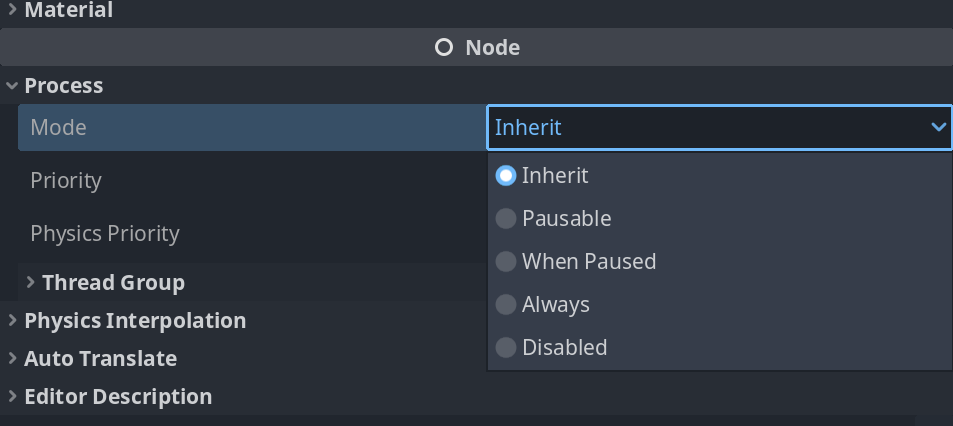
Process Mode: Five Modes for Controlling Pause
Process Mode is a setting that determines how each node responds to the scene tree's pause state (get_tree().paused). You can set it from the Node > Process category in the inspector.
| Mode | Behavior | Primary Use |
|---|---|---|
| Inherit | Inherits the parent node's setting. This is the default. | Most nodes in a scene. When no special control is needed. |
| Pausable | Stops processing when get_tree().paused = true. | Players, enemies, moving backgrounds—core gameplay elements. |
| WhenPaused | Processes only while get_tree().paused = true. | Pause menus, settings screens, dialogues—UI you want interactive during pause. |
| Always | Continues processing regardless of get_tree().paused state. | Singletons (autoloads), BGM management, online communication, etc. |
| Disabled | Never performs any processing (_process, _physics_process, _input). | Objects to temporarily disable, debugging nodes. |
Important Point: Since Inherit is the default, changing a root node's Process Mode affects all its children.
Practical Use Cases and Code Examples
Use Case 1: Implementing a Robust Pause Menu
You need to stop the game while keeping the menu UI interactive.
Step 1: Create a Pause Management Singleton (PauseManager.gd)
# PauseManager.gd
extends Node

const PAUSE_MENU_SCENE = preload("res://ui/pause_menu.tscn")

var is_paused: bool = false
var pause_menu_instance: Control = null

func _unhandled_input(event: InputEvent) -> void:
    if event.is_action_pressed("pause"):
        is_paused = !is_paused
        get_tree().paused = is_paused

        if is_paused and pause_menu_instance == null:
            pause_menu_instance = PAUSE_MENU_SCENE.instantiate()
            get_tree().root.add_child(pause_menu_instance)
        elif not is_paused and pause_menu_instance != null:
            pause_menu_instance.queue_free()
            pause_menu_instance = null
Register this script as a singleton in "Project Settings > AutoLoad."
Step 2: Configure the Pause Menu Scene (pause_menu.tscn)
- Create a scene with a
Controlnode as root. - In the root node's inspector, change
Node > Process > ModetoWhenPaused. - Add
Buttonnodes like "Resume Game" and "Return to Title" to this scene.
Use Case 2: Implementing Cutscenes
During cutscenes, you want to disable player control while continuing specific character and camera animations.
# CutsceneTrigger.gd (Attach to Area3D, etc.)

@export var animated_characters: Array[Node]
@export var animated_camera: Camera3D

func _on_body_entered(body: Node) -> void:
    if body.is_in_group("player"):
        start_cutscene()

func start_cutscene() -> void:
    get_tree().paused = true

    # Temporarily change Process Mode for nodes to animate during cutscene
    for character in animated_characters:
        character.process_mode = Node.PROCESS_MODE_ALWAYS
    if animated_camera:
        animated_camera.process_mode = Node.PROCESS_MODE_ALWAYS

    $AnimationPlayer.play("cutscene_animation")

func _on_animation_player_animation_finished(anim_name: StringName) -> void:
    if anim_name == "cutscene_animation":
        end_cutscene()

func end_cutscene() -> void:
    get_tree().paused = false

    # Restore Process Mode (Important!)
    for character in animated_characters:
        character.process_mode = Node.PROCESS_MODE_PAUSABLE
    if animated_camera:
        animated_camera.process_mode = Node.PROCESS_MODE_PAUSABLE
Common Mistakes and Best Practices
| Common Mistake | Best Practice |
|---|---|
Calling get_tree().paused everywhere | Centralize pause state management in a singleton (autoload) and avoid direct manipulation from other scripts. |
| UI freezes during pause | Verify that the Process Mode of UI root nodes you want interactive during pause is set to WhenPaused. |
Overusing Always mode | Limit Always mode to truly necessary nodes (BGM, singletons, etc.). Overuse degrades performance during pause. |
AnimationPlayer doesn't stop | If AnimationPlayer doesn't sync with pause, check its Process Mode setting. Change to Pausable to make it stop with the game pause. |
Performance and Alternative Patterns
Performance Considerations
Alwaysis a last resort:Alwaysmode can degrade performance during pause.- Smart savings with
Disabled: For temporarily unnecessary nodes, settingProcess ModetoDisabledreduces CPU load.
Alternative Pattern: Pause Management Without get_tree().paused
Since get_tree().paused affects the entire scene, for more localized control, you can have a singleton maintain its own pause state flag.
# Player.gd
extends CharacterBody3D

func _process(delta: float) -> void:
    if GameStateManager.is_gameplay_paused:
        return
    # ...normal processing...
Since Godot's standard get_tree().paused and Process Mode handle most cases, consider this alternative only for specific advanced requirements.
Summary
get_tree().paused and Process Mode are powerful Godot features. Understanding and properly using these two enables elegant implementation of various essential game situations: pause menus, cutscenes, dialogue displays, and more.
- Pause Basics:
get_tree().paused = truestops most of the game. - Key to Control:
Process Modeallows fine-grained per-node behavior settings. - Best Practice: Centralize pause management in a singleton and set UI
Process ModetoWhenPaused. - Performance: Avoid overusing
Alwaysmode and useDisabledmode wisely.