Overview
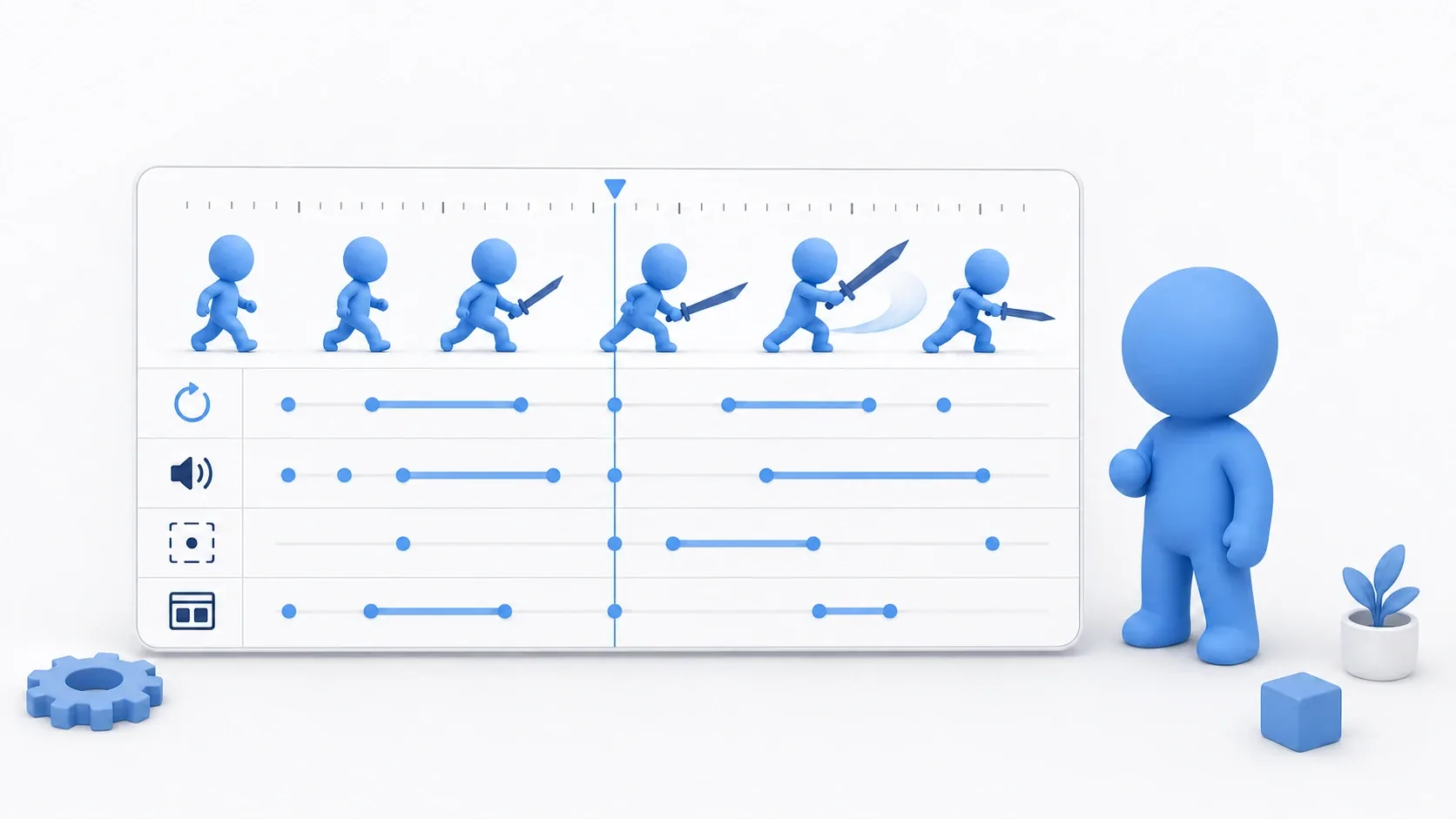
Thinking of AnimationPlayer as just "the node that moves sprites and UI" sells it short. In real production, you will often use it as a sequencer that lines up visuals, hitboxes, sound, camera, and UI on the same timeline .
Take an attack in an action game. It is not just the visible frames. All of these happen on a shared schedule:
- Switch to the sword swing visuals
- Enable the
Area2Dhitbox only at the moment of impact - Play a sound effect at that same instant
- Start hitstop or camera shake
- Return to the normal state afterward
Trying to line all of that up with _process() and Timer nodes scatters your timings, flags, and state recovery. Moving it into AnimationPlayer lets you see "what happens when" as one timeline.
What You'll Learn
- Track design : how to split position, color, functions, and sound
- Method call tracks : how to fire hitboxes, sound, and shake at the right moment
- The RESET animation : why you leave a baseline to return to
- When to use
AnimationPlayervsTweenvsAnimationTree
Tested with: Godot 4.7
Split Tracks by Role
An AnimationPlayer animation is made of multiple tracks . A track represents "what changes over time."
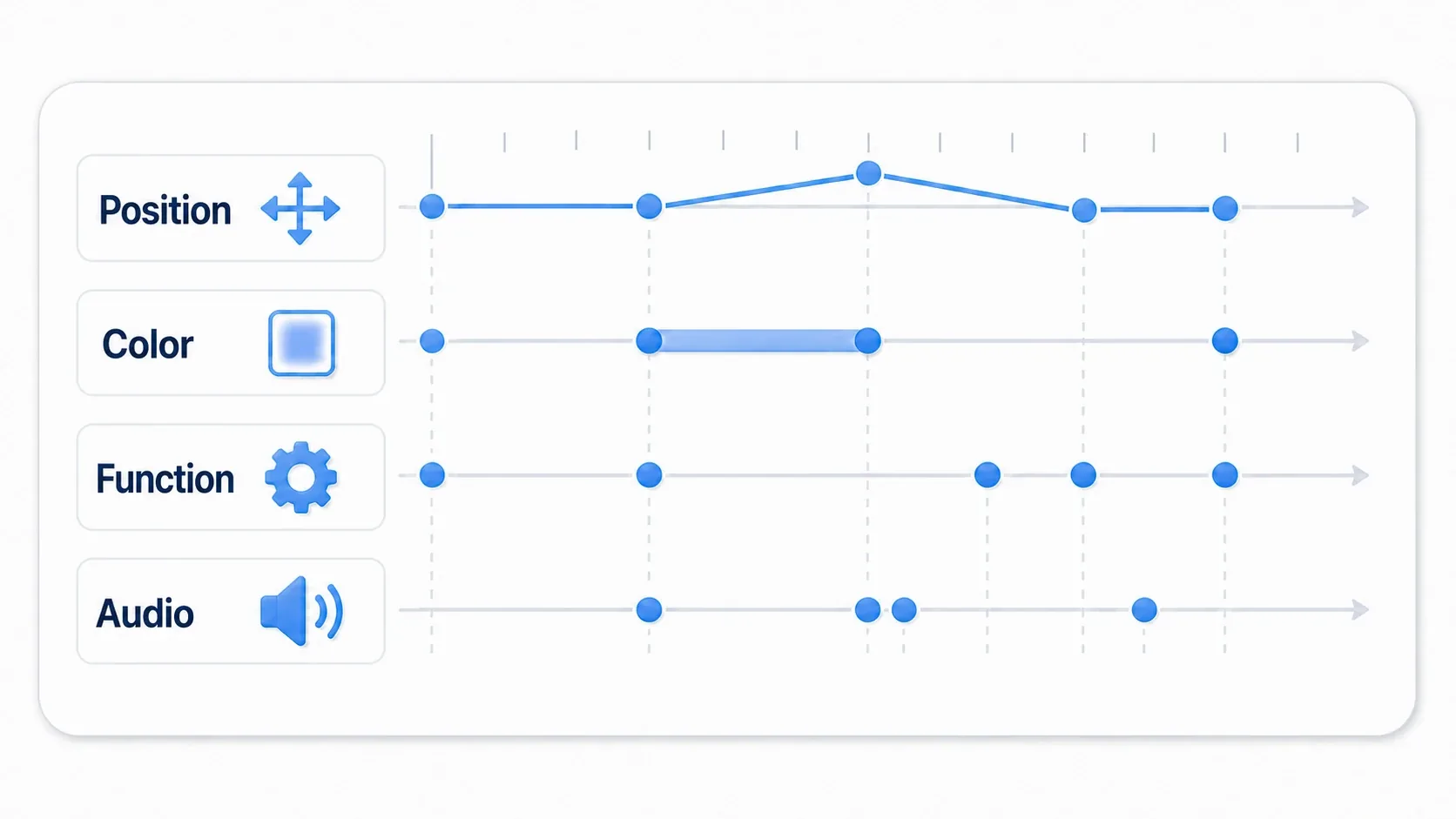
Here are the tracks you will use most.
| Track | What it does | Production examples |
|---|---|---|
| Property | Changes a node's value | position, scale, modulate, CollisionShape2D.disabled |
| Method call | Calls a function at a specific time | Playing a sound, screen shake, spawning a projectile, changing state |
| Audio | Places sound on the timeline | Attack sounds, confirm sounds, effect SFX |
| Animation playback | Plays another animation | Effects on child nodes, linked UI parts |
A common beginner mistake is cramming "visual changes" and "game logic" into a single animation with no structure. Make the intent readable from track names and function names, and adjusting timing later becomes much easier.
A good split of responsibilities looks like this.
- Visible changes go on property tracks
- Anything that only needs its timing aligned goes on method call tracks
- Heavy decisions and calculations stay in the script
- Reusable chunks get split into separate animations or functions
AnimationPlayer is convenient, but it is not a universal dumping ground for logic. Keep the timeline for "when it happens" and the script for "what gets decided," and you move one step beyond the basic split covered in AnimatedSprite2D vs AnimationPlayer: When to Use Which.
Sync with Logic Using Method Call Tracks
A method call track calls a node's function at a specific frame of the animation. It pairs well with anything that needs to happen at one precise moment: attack hitboxes, sound effects, camera shake.
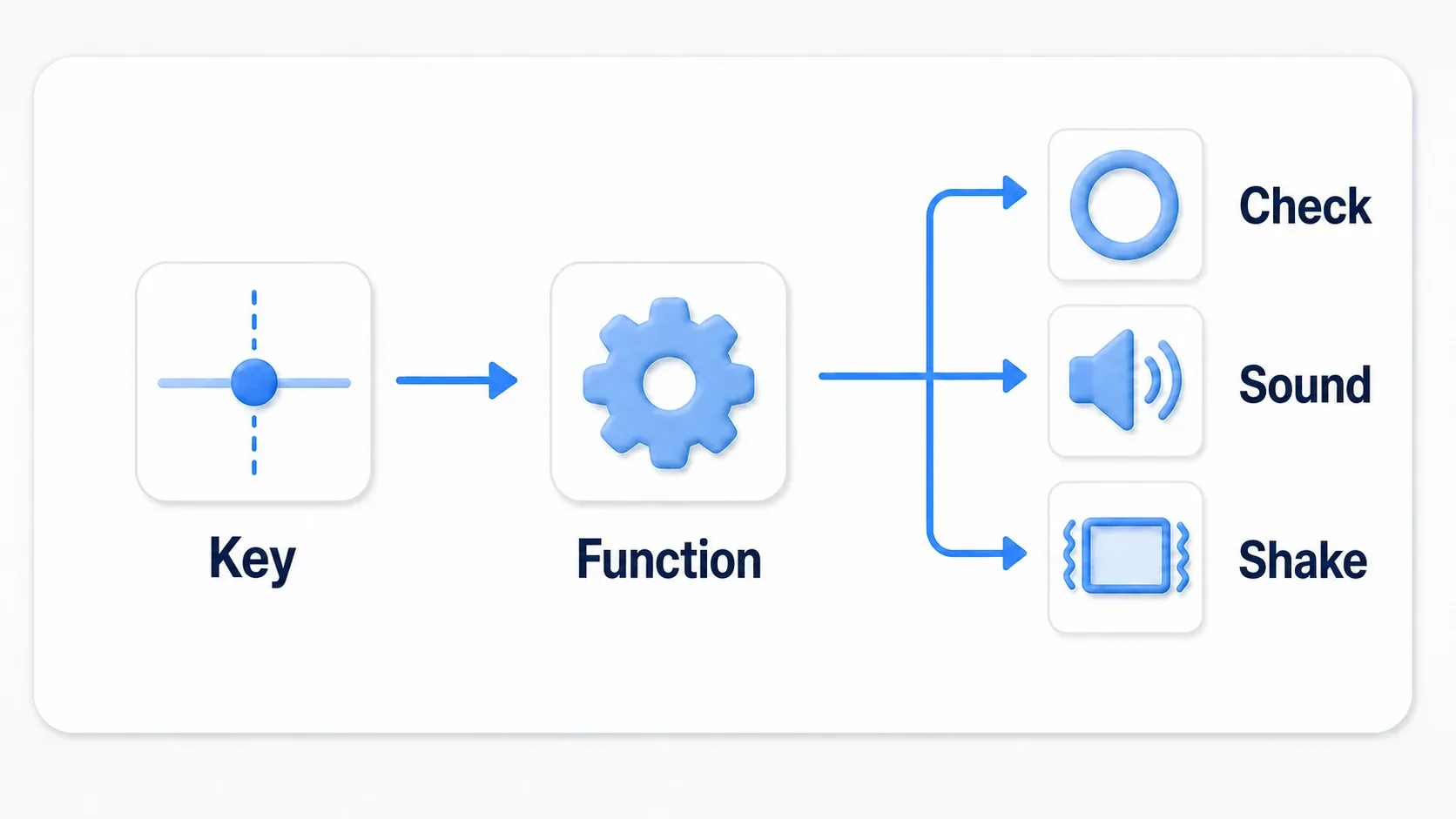
For an attack, you prepare small functions in the script.
extends CharacterBody2D

@onready var attack_collision: CollisionShape2D = $AttackArea/AttackCollision
@onready var attack_sound: AudioStreamPlayer2D = $AttackSound
@onready var camera: Camera2D = $Camera2D

func enable_hitbox() -> void:
    attack_collision.disabled = false

func disable_hitbox() -> void:
    attack_collision.disabled = true

func play_attack_sound() -> void:
    attack_sound.play()

func shake_camera() -> void:
    # The actual shake logic can live in a function on Camera2D instead
    camera.offset = Vector2(4, 0)
In the attack animation, you call enable_hitbox(), play_attack_sound(), and shake_camera() at the instant the sword connects, then disable_hitbox() at the end of the swing.
The important thing here is not to cram too much work into method call tracks.
Good uses:
- Toggling a hitbox on and off
- Playing a sound effect
- Starting a screen shake
- Spawning a single projectile
- Changing state from
ATTACKINGtoRECOVER
Uses to avoid:
- Searching through every enemy and running all your damage math
- Directly calling save file updates or loading routines
- Piling a lot of heavy instantiation onto the same frame
- Hiding "which state do we go to next" entirely inside the timeline
Keep the functions you call small, and make the purpose obvious from the name. enable_hitbox(), play_attack_sound(), and spawn_slash_effect() are far easier to follow at a glance than do_event().
Bundle an Attack into a Single Timeline
For a real attack animation, splitting the tracks like this keeps things organized.
attack
├─ Sprite2D: frame
├─ AttackCollision: disabled
├─ Method: play_attack_sound()
├─ Method: shake_camera()
└─ Method: enter_recover()
The script handles starting the attack and the state transition afterward.
extends CharacterBody2D

enum State { MOVE, ATTACK, RECOVER }

@onready var animation_player: AnimationPlayer = $AnimationPlayer
@onready var attack_collision: CollisionShape2D = $AttackArea/AttackCollision

var state: State = State.MOVE

func _ready() -> void:
    attack_collision.disabled = true
    animation_player.animation_finished.connect(_on_animation_finished)

func _unhandled_input(event: InputEvent) -> void:
    if event.is_action_pressed("attack") and state == State.MOVE:
        state = State.ATTACK
        animation_player.play("attack")

func enable_hitbox() -> void:
    attack_collision.disabled = false

func disable_hitbox() -> void:
    attack_collision.disabled = true

# Put play_attack_sound() and shake_camera() from the section above in this script too

func enter_recover() -> void:
    # Move into the post-attack recovery. Its length can be managed by a separate animation
    state = State.RECOVER

func _on_animation_finished(anim_name: StringName) -> void:
    if anim_name == "attack":
        attack_collision.disabled = true
        state = State.MOVE
The key point in this code is that AnimationPlayer does not decide everything. The timeline owns "which frame of the attack enables the hitbox," while the rules for state transitions stay in the script.
With that split, these adjustments become easy.
- Delay when the attack starts connecting
- Shorten only the window where the hitbox is active
- Move the sound effect to match the visuals
- Line the camera shake up with the hit frame
- Extend post-attack recovery as a separate animation
The same thinking applies to RPG skill effects, turret fire in a tower defense game, and chain reactions in a puzzle game. The value of AnimationPlayer is that the order of events becomes visible as a timeline instead of something you have to read out of a script .
Protect the Initial State with a RESET Animation
The more properties you animate with AnimationPlayer, the more you run into leftover state after playback.
- Forgetting to turn the attack hitbox back off
- A character flashed white with
modulatethat never returns to normal - UI opacity stuck at 0
- A camera or panel left in the wrong position
- Half-applied state left behind when an animation is interrupted
The stable answer is to keep a RESET animation that records the initial state. RESET is your baseline for restoring the default look, normal color, hitboxes off, UI starting positions, and so on.
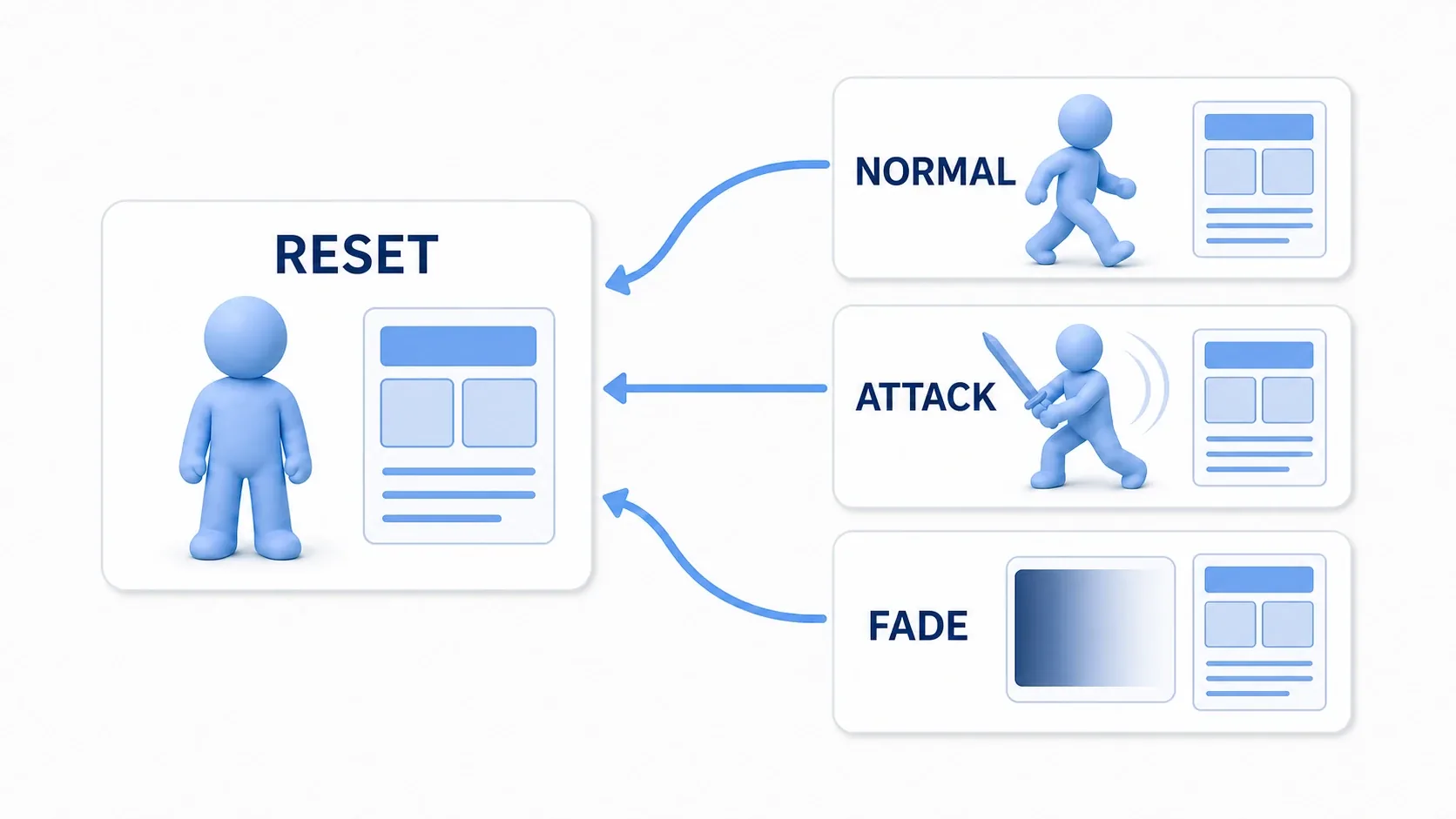
For a player, you might put these values in RESET.
| Target | Example initial value |
|---|---|
Sprite2D.modulate | Color.WHITE |
AttackCollision.disabled | true |
Camera2D.offset | Vector2.ZERO |
UI panel position | Starting position |
UI panel modulate.a | 1.0 |
You do not need to play RESET constantly during gameplay. What matters is keeping the baseline to return to inside AnimationPlayer itself . As your animation count grows, it makes it much easier to check what should return to its default after a given effect ends.
Note that just having a RESET animation doesn't restore anything during gameplay. If you want values back after, say, interrupting an attack, call animation_player.play("RESET"), or also write the restoring code (like turning the hitbox off) in your script.
RESET becomes even more valuable when several effects touch the same property. On a character who changes color on attack, flashes when hurt, and glows under a buff, a forgotten reset shows up immediately as a visual bug.
The Boundaries Between AnimationPlayer, Tween, and AnimationTree
Godot gives you several animation systems, so leaning too hard on AnimationPlayer can actually make things more complicated.
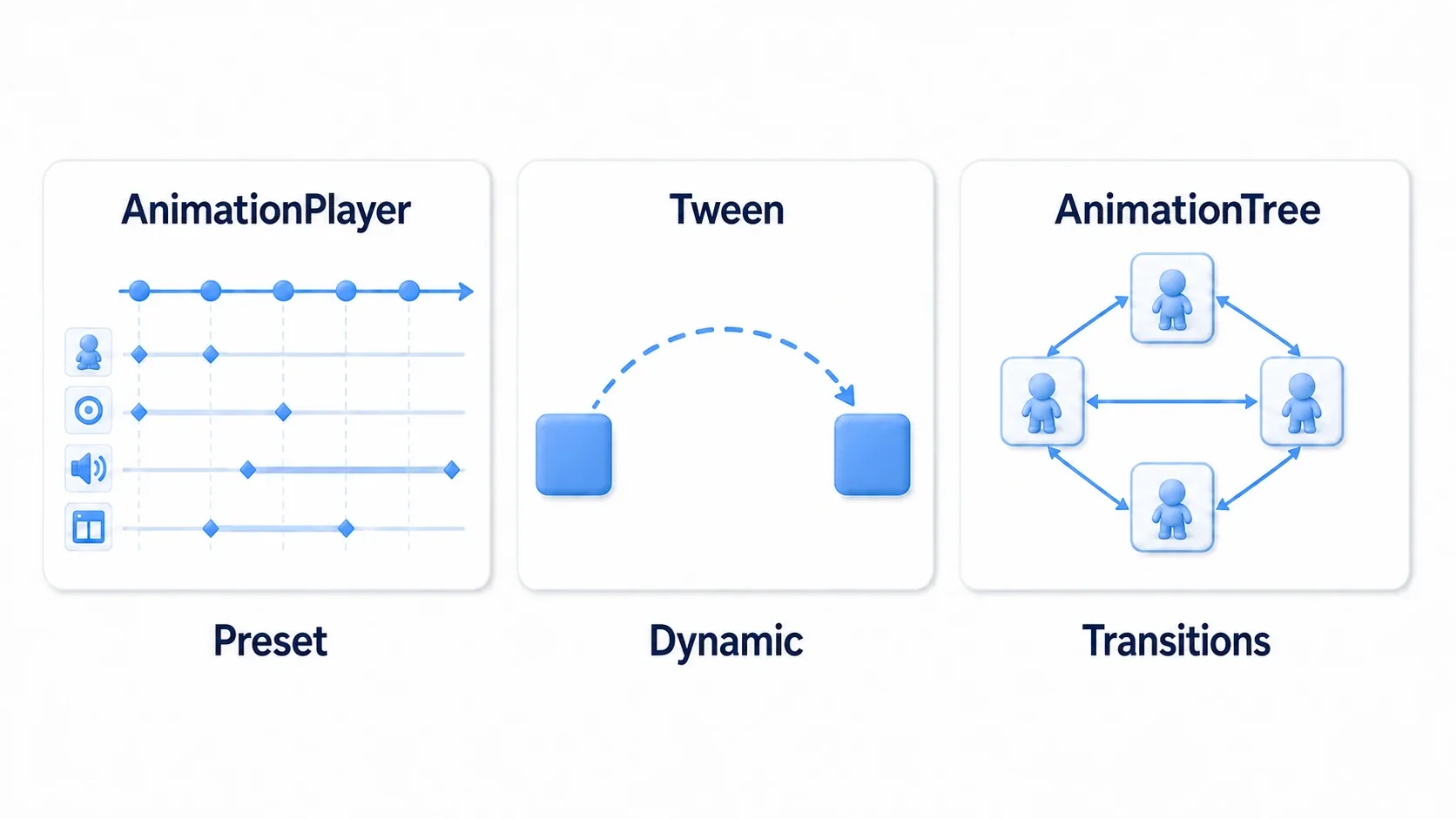
Here is the guideline.
| Tool | Best for | Examples |
|---|---|---|
AnimationPlayer | Prebuilt, reusable time control | Attacks, cutscenes, UI reveals, syncing effect SFX |
Tween | One-off dynamic interpolation built from code | Floating a damage number upward, moving to a clicked position |
AnimationTree | Transitioning and blending multiple animations | Managing idle, walk, run, jump, and attack states |
Opening a treasure chest, for example, suits AnimationPlayer. The timing of the lid rotating, the glow, the sound effect, and the item reveal is all fixed in advance.
Coins flying from a defeated enemy to random positions, on the other hand, suits Tween. The start and end positions change every time, so building the interpolation from current values in code is more natural.
Once your player's movement animations grow to include idle, walk, run, jump, fall, land, and dodge, start thinking about AnimationTree. That does not mean AnimationPlayer becomes unnecessary. The relationship is that AnimationPlayer holds the individual animations while AnimationTree controls which one plays.
Bonus: Good to Know for Later
Organizing with AnimationLibrary
As your animation count grows, you can use AnimationLibrary to organize them into groups. Splitting them into move, attack, ui, and cutscene, for example, makes it much easier to find things when a single AnimationPlayer holds a long list of names.
That said, splitting too finely from the start just adds management overhead. Start by keeping animation names consistent, like attack_light, attack_heavy, and ui_open_menu, and consider library splits once the numbers grow.
Look Carefully at Anything Synced with Physics
When you toggle attack hitboxes from AnimationPlayer, the visual timing and the physics timing can look slightly out of sync. Be especially careful when mixing a character that moves on the physics frame with animation that updates on the render frame.
Start by checking in game whether it looks natural and whether the hitboxes feel fair. If you do need strict sync, revisit AnimationPlayer's process callback setting and where you enable the hitbox. Finding the mismatch through actual play feel is easier to judge than chasing settings early on.
Don't Hide Too Much in the Timeline
Using AnimationPlayer means things happen in places your code doesn't show. That is convenient, but it can also make "where did this hitbox get enabled?" hard to trace during debugging.
The fix is to make function names and animation names specific.
enable_hitbox()instead ofevent_1()play_slash_sound()instead ofcall_sound()attack_lightinstead ofanim1return_to_move_state()instead offinish()
When you click a key on the timeline, the function name alone should tell you the intent. Future you will appreciate it.
Summary
AnimationPlayer is not just a node that moves things around. It is a tool for aligning in-game events along a timeline.
- Split tracks by role
- Use method call tracks to call small functions
- It suits reusable sequences like attacks, UI, and cutscenes (for cutscenes, see Cutscene Basics)
- Keep a baseline to return to with RESET
- Consider
Tweenfor dynamic interpolation andAnimationTreefor complex state transitions
When you're unsure, settle it with this question.
"Is this an effect that plays out the same way every time, or motion built dynamically from values in the moment?"