"I turned on V-Sync but it still isn't smooth." "It only stutters the moment I spawn a lot of enemies." "I'm never sure whether to use _process or _physics_process." Frame rate problems clear up remarkably fast once you understand that in Godot, rendering and physics run on separate cycles.
This article starts with the root cause of stutter (jitter), then covers frame rate control via V-Sync and max_fps, physics interpolation that kills jitter for good, and the "measure before you optimize" mindset, all with diagrams and code.
What You'll Learn
- What stutter really is: the mismatch between physics ticks and rendering frames
- Frame rate control with V-Sync and
Engine.max_fps- Killing jitter with physics interpolation (one setting, plus manual interpolation)
- "Don't guess, measure": the order of optimization based on the profiler
Tested with: Godot 4.7
Why It Stutters: Physics Ticks vs. Rendering Frames
The key to understanding Godot's performance is separating two independent cycles: the physics tick and the rendering frame. The fact that these two run at different speeds is the direct cause of jitter.
| Physics tick | Rendering frame | |
|---|---|---|
| Role | Physics and collision (_physics_process) | Drawing and input (_process) |
| Rate | Fixed (60Hz by default) | Variable (depends on performance and V-Sync) |
delta | Fixed value (1 / physics rate) | Variable value (time since the last frame) |
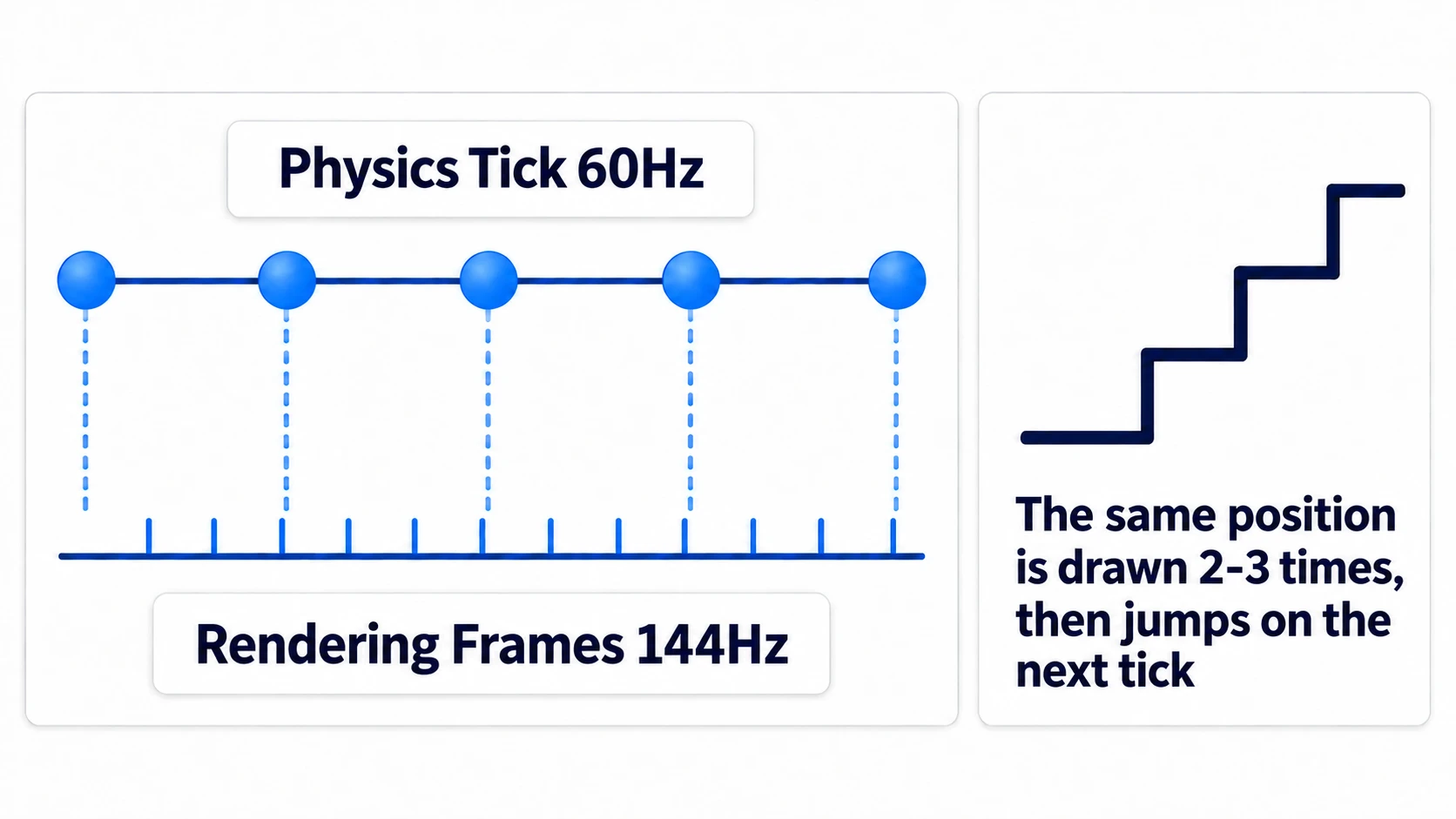
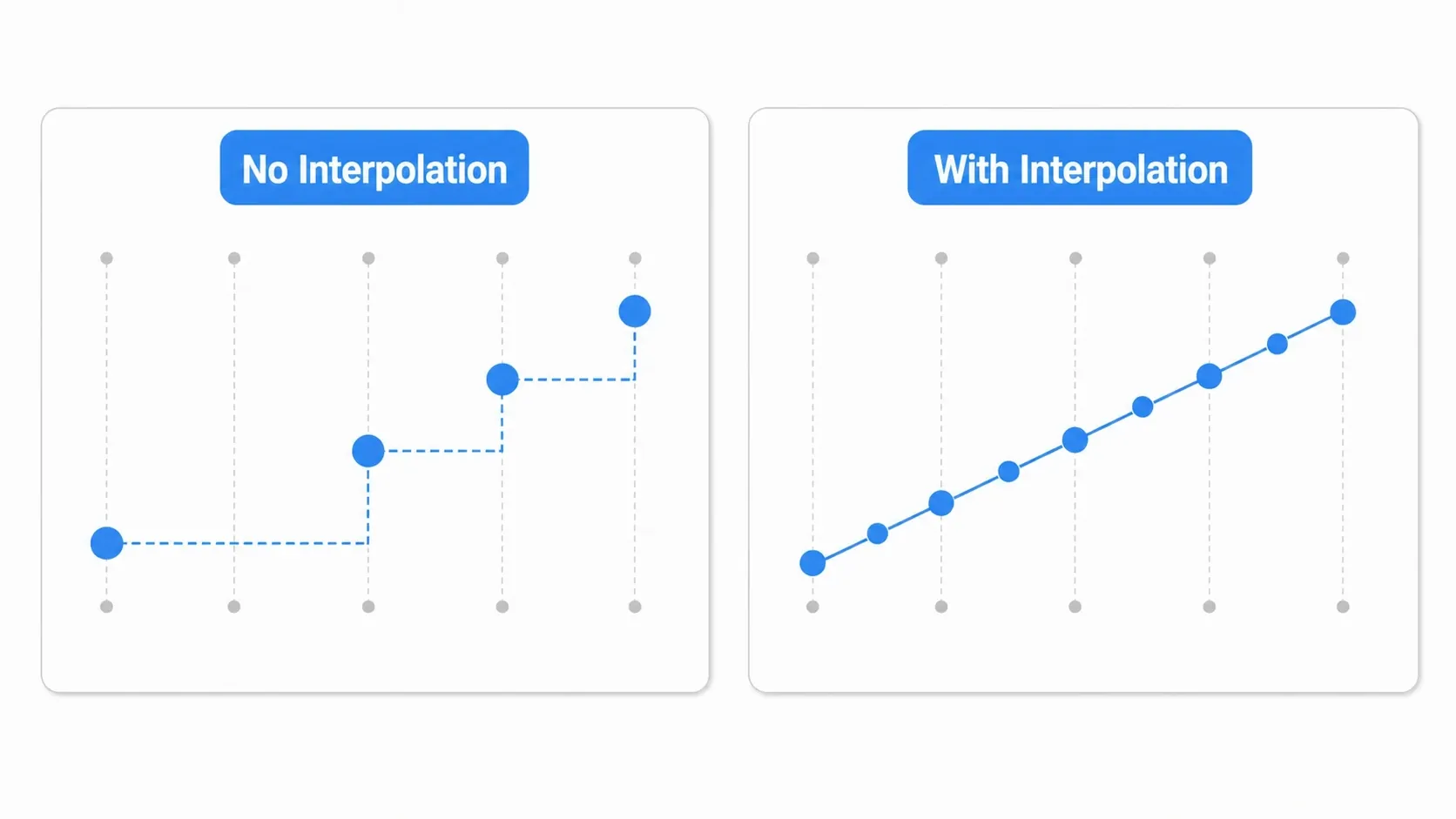
Suppose physics runs at 60Hz and your monitor at 144Hz. The physics engine only updates positions once every 1/60 second, while the screen tries to draw every 1/144 second, so an object stays at the same position across several drawn frames and then suddenly jumps at the next physics tick. That stair-stepped motion is what jitter is. This is why "input and drawing in _process, physical movement in _physics_process" is the basic rule.
Frame Rate Control: V-Sync and max_fps
First, let's control the frame rate on the rendering side. There are two tools: V-Sync (vertical synchronization) and Engine.max_fps.
Choosing a V-Sync Mode
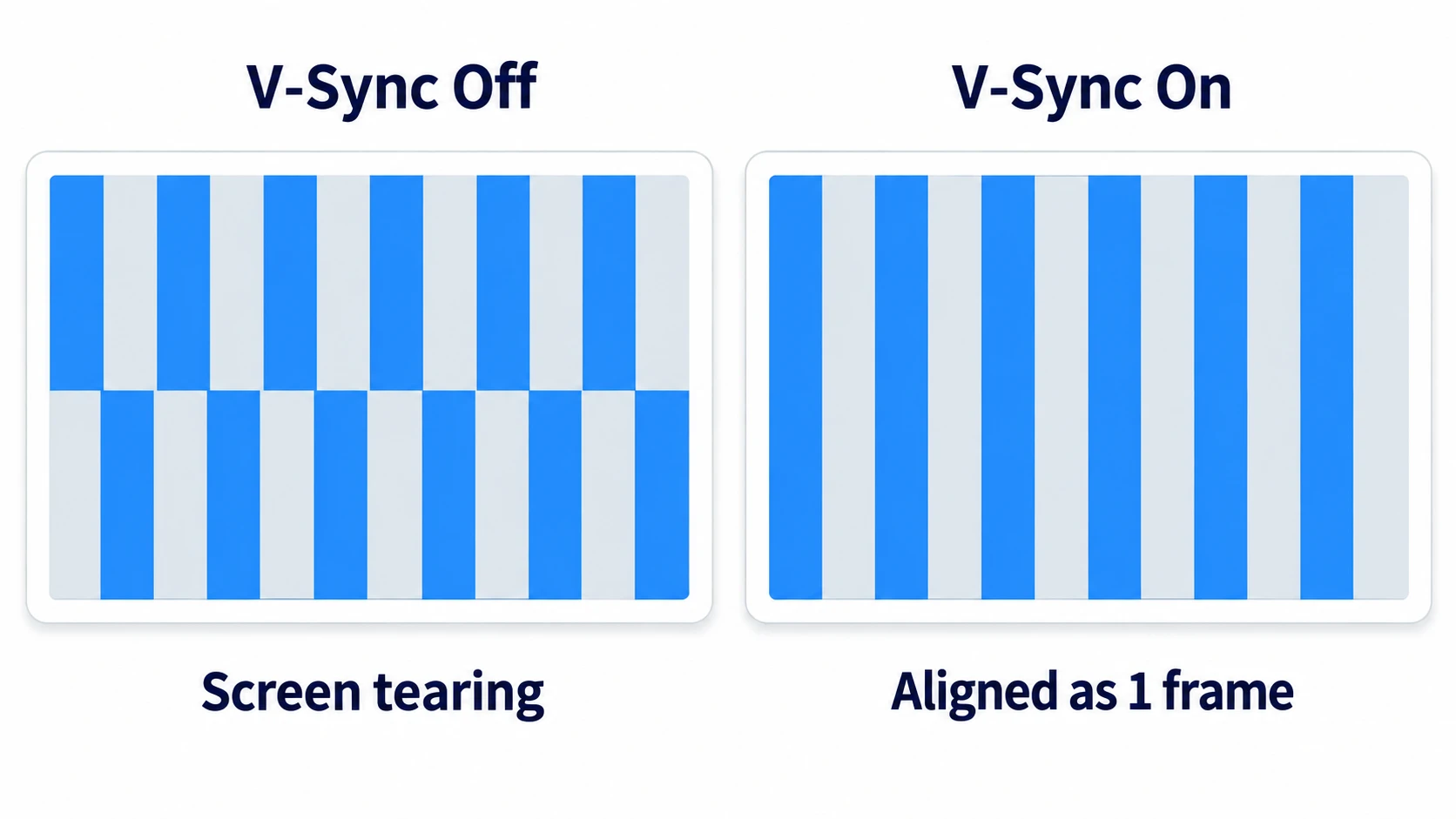
V-Sync synchronizes drawing with the monitor's refresh rate, preventing tearing where the screen switches mid-draw. Configure it under Display > Window > Vsync > Vsync Mode.
| Mode | Overview | Good for |
|---|---|---|
| Disabled | No sync. No FPS cap | Minimizing input latency (tearing will appear) |
| Enabled | Always synced | Completely preventing tearing (more latency when FPS drops) |
| Adaptive | Syncs only at high FPS | Preventing tearing while avoiding latency on FPS drops |
| Mailbox | Keeps and displays the newest frame | Limiting both tearing and latency (uses more VRAM) |
Note that the Compatibility renderer doesn't support Adaptive or Mailbox; they behave the same as Enabled.
Warning: If your Godot setting seems to have no effect, NVIDIA/AMD driver settings may be overriding it. Set the driver to "controlled by application."
Locking with Engine.max_fps
When you want to lock to a specific FPS (a retro look, power saving on mobile, and so on), use Engine.max_fps.
func _ready() -> void:
    Engine.max_fps = 60   # Cap the FPS at 60 (works alongside V-Sync; the lower one wins)
Set it once and it applies to the whole game. When combined with V-Sync, both apply and the lower FPS wins (for example, max_fps = 30 on a 60Hz monitor gives about 30 FPS).
Killing Jitter with Physics Interpolation
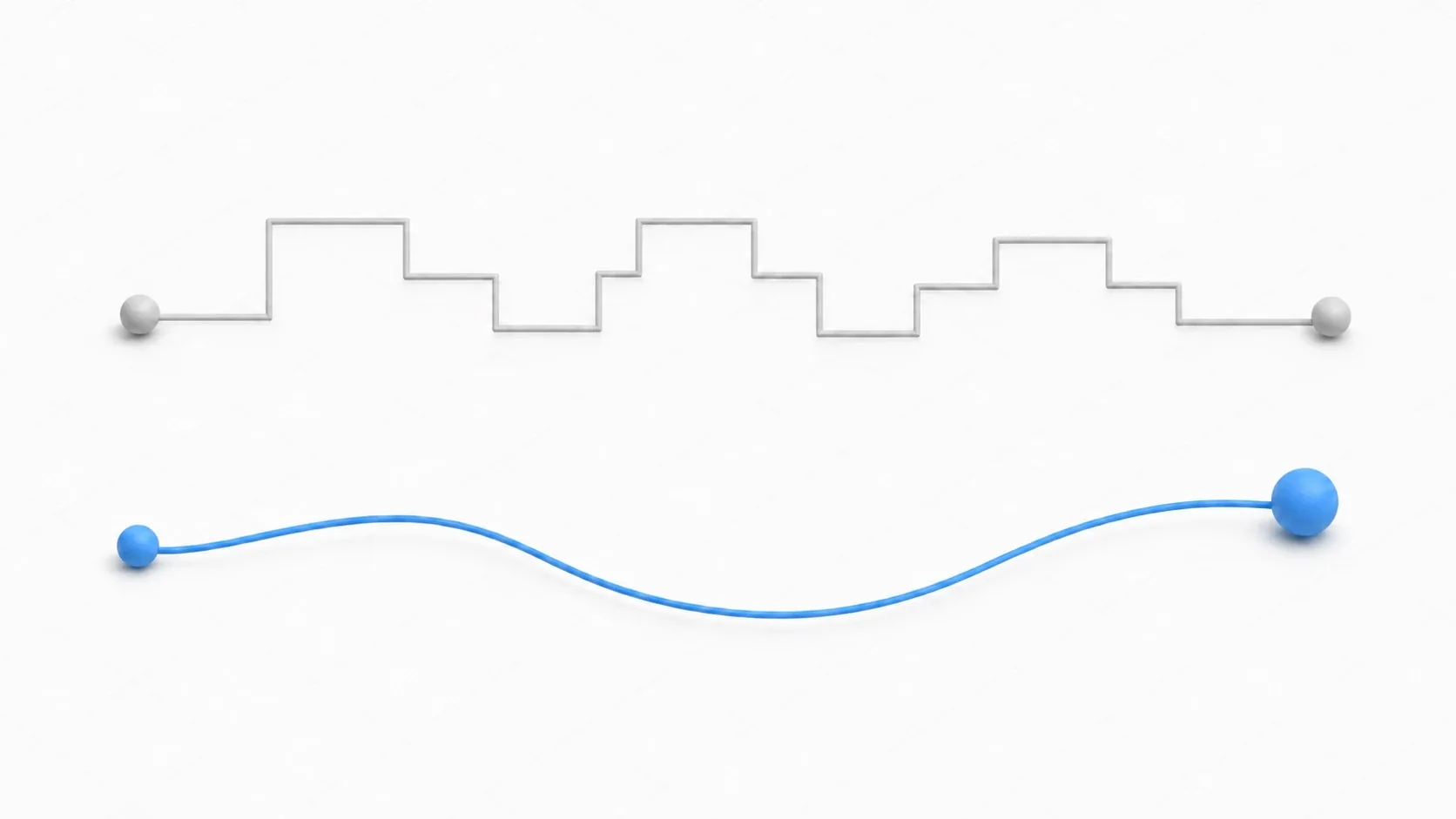
Even with the frame rate under control, the mismatch itself between physics and rendering remains. Physics interpolation is what fills that gap. It smoothly interpolates positions between fixed physics ticks at draw time, erasing the stair-stepped motion. It's the single most effective fix for jitter.
Enabling It in Project Settings (Recommended)
Physics interpolation is built in for 2D since Godot 4.3 and for 3D since 4.4. In most cases, this setting alone solves the problem.
- Open Project Settings
- Set Physics > Common > Physics Interpolation to
On
Nodes you move in _physics_process, such as CharacterBody2D/3D and RigidBody2D/3D, are now interpolated automatically and move smoothly.
Warning: With physics interpolation enabled, node positions are drawn at their interpolated visual position. Touching
global_positiondirectly between physics ticks conflicts with interpolation, so do your movement inside_physics_process. When you teleport a node (a respawn, say), callreset_physics_interpolation()right after setting the position so it doesn't visibly slide from the old spot.
Hands-On: Building Stutter-Free Camera Follow
With physics interpolation On, nodes moved in _physics_process are interpolated automatically, so a camera placed as a child of the player moves smoothly along with it. You need manual interpolation when the camera sits apart from the player and trails it slightly (since this camera computes its own position, set Physics Interpolation > Mode to Off in its Inspector so it doesn't overlap with the automatic interpolation). Following the hero in an action game, an in-car camera in a racer, the viewpoint in a top-down ARPG: all of them want a camera that tracks the player smoothly.
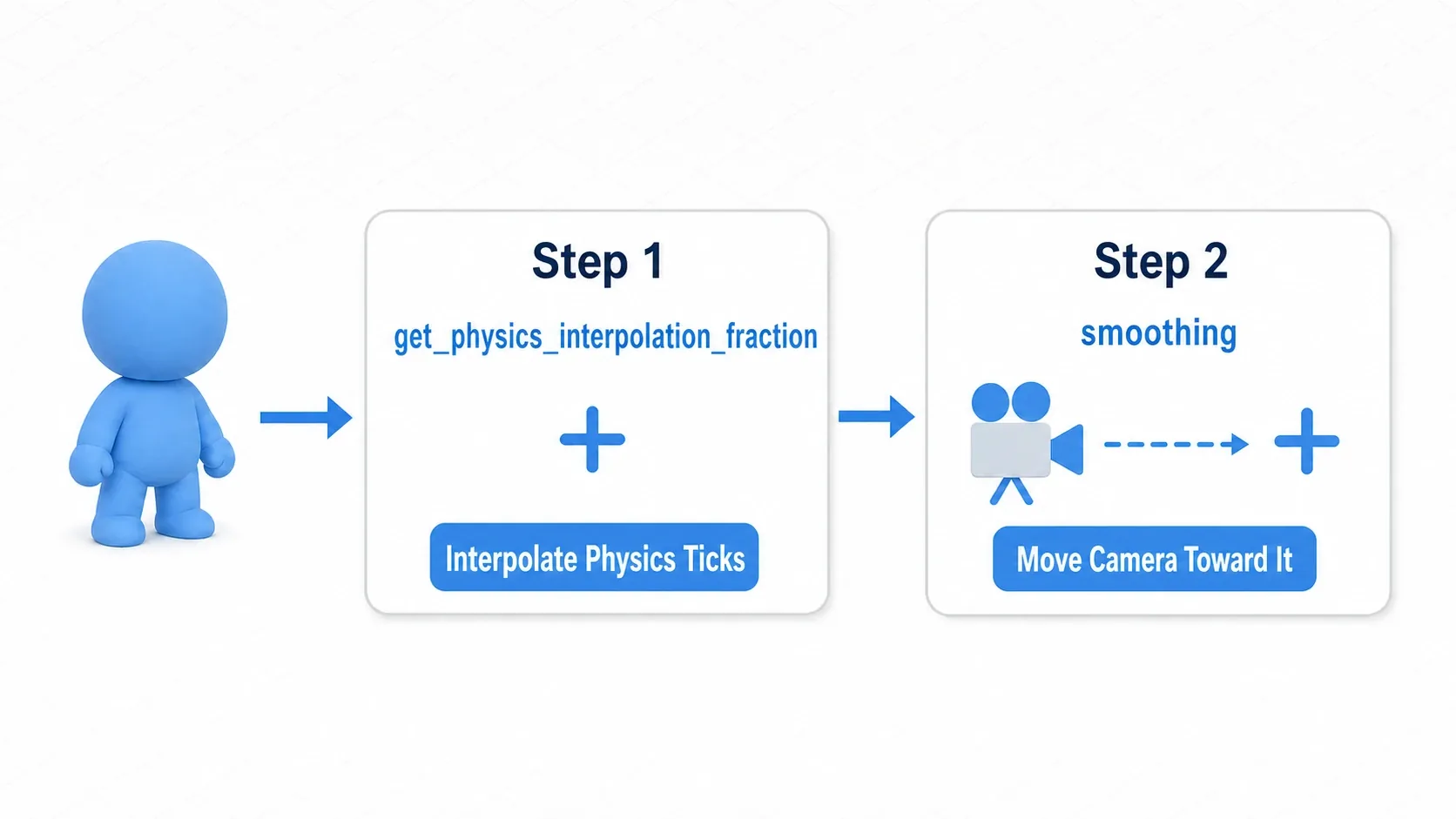
The key is Engine.get_physics_interpolation_fraction(). It returns where the current rendering frame sits between physics ticks, from 0.0 to 1.0. Use it to compute the target's true position at draw time.
# smooth_camera_2d.gd (attach to a Camera2D; set Physics Interpolation Mode to Off)
extends Camera2D

@export var target: Node2D
@export var smoothing: float = 0.1     # Smaller means a lazier follow

var _previous_target_position: Vector2
var _current_target_position: Vector2

func _ready() -> void:
    if target:
        global_position = target.global_position
        _previous_target_position = target.global_position
        _current_target_position = target.global_position

func _process(delta: float) -> void:
    if not target:
        return
    # Stage 1: interpolate between physics ticks to find the target's true current position
    var fraction := Engine.get_physics_interpolation_fraction()
    var interpolated := _previous_target_position.lerp(_current_target_position, fraction)
    # Stage 2: ease the camera itself toward that position (same speed at any FPS)
    global_position = global_position.lerp(interpolated, 1.0 - pow(1.0 - smoothing, delta * 60.0))

func _physics_process(_delta: float) -> void:
    if target:
        # Each physics tick, shift the previous and current positions along by one
        _previous_target_position = _current_target_position
        _current_target_position = target.global_position
There are two key points.
- Two lerps create the smoothness: stage one interpolates between physics ticks to find the target's true current position, and stage two eases the camera toward it. Without stage one you keep the physics-rate choppiness; without stage two you keep the target's abrupt movements.
- Draw in
_process, record in_physics_process: the interpolation math runs every frame (_process), while recording the previous position runs on the physics tick (_physics_process). Splitting those roles is the trick.
For camera setup in general, Practical Camera2D Techniques is also worth a look.
Measure Before You Optimize
When FPS drops with lots of objects on screen, it's tempting to jump straight to "there are too many bullets, time for object pooling." But the iron rule of optimization is "don't guess, measure."
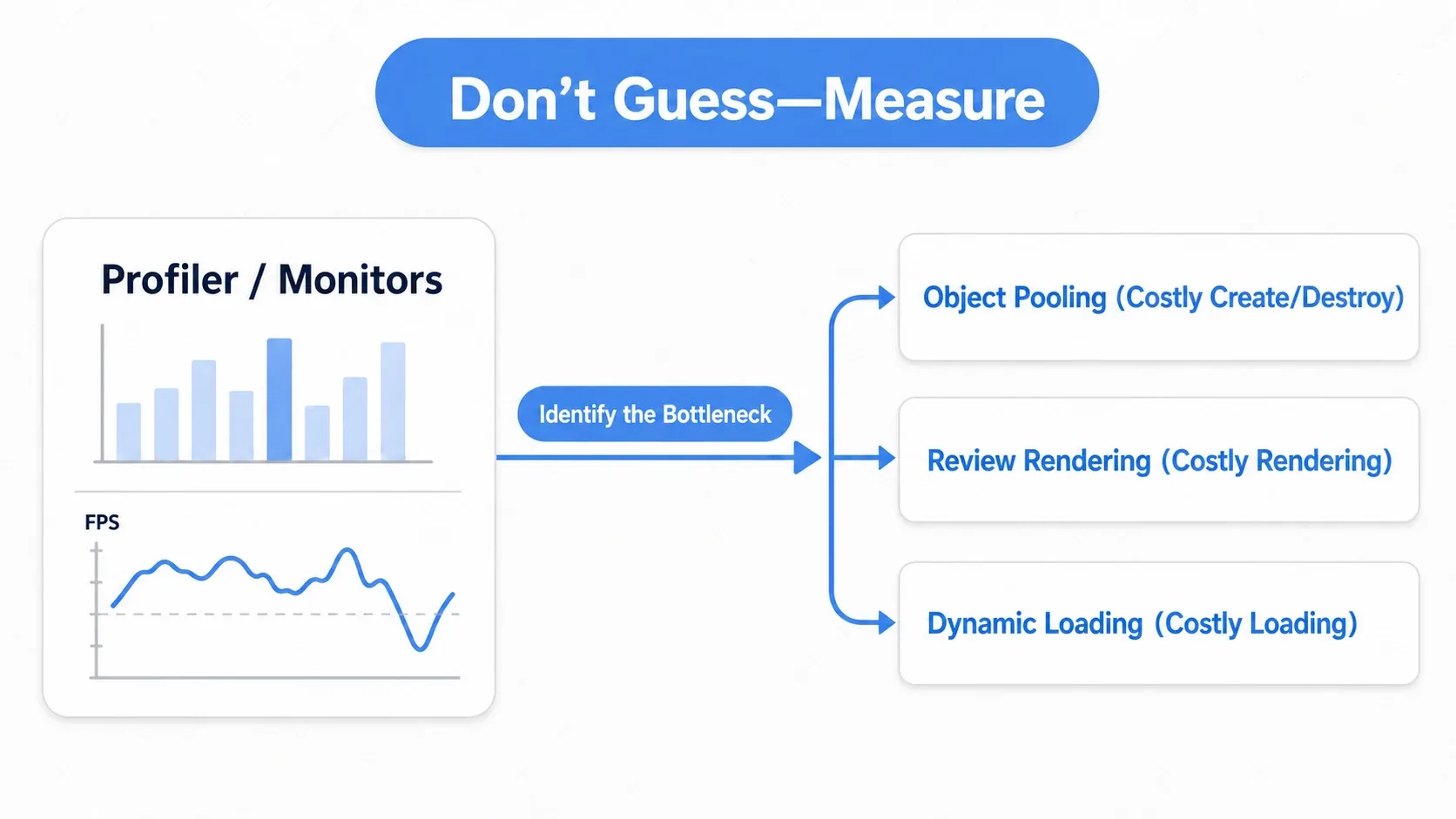
Godot ships with Monitors in the debugger (FPS and memory over time) and a Profiler (per-function timings). Use them to pinpoint what's actually slow first, then pick a fix that matches the cause. If the bottleneck is node creation and destruction, look at object pooling. If it's rendering cost, revisit your shaders and draw counts. If it's load times, see dynamic loading and resource management. The measurements tell you which move to make.
Object pooling in particular should only be introduced once measurement shows that short-lived, frequently spawned objects like bullets and effects are the bottleneck. Applying it to low-frequency things like bosses or UI just complicates the code with no benefit (for the full implementation, see the Complete Guide to Object Pooling).
Common Mistakes and Best Practices
| Common mistake | Best practice |
|---|---|
Putting movement and all logic in _process | Physical movement in _physics_process, drawing and input in _process. Understand what delta means in each |
| Introducing object pooling on a hunch | Pinpoint the bottleneck with the profiler, then optimize |
Deleting with free() right in the middle of collision handling | Use queue_free(). It deletes safely at the end of the frame (no need to wrap it in call_deferred()) |
| Raising the physics tick rate to fight jitter | Keep the tick rate fixed at 60Hz and leave jitter to physics interpolation |
Deleting during a physics step is an especially common source of accidents. Deleting a node immediately with free() in the middle of collision handling can raise errors. queue_free() already waits until the end of the frame to delete, so you can use it as is without wrapping it in call_deferred().
Bonus: Good to Know for Later
- Always multiply by
delta:_processis called a different number of times depending on the frame rate. If you don't multiply movement bydelta, speed changes on PCs with different FPS. Separately from physics interpolation, treat this as a fundamental. - Balance power use on mobile: high FPS drains battery. On mobile it's common to keep
Engine.max_fpsmodest (30 to 60). - Profile the scene that feels heavy: you don't need to profile constantly. Measuring while reproducing the stuttering scene finds the cause fastest.
Summary
- Stutter (jitter) is the mismatch between fixed physics ticks and variable rendering frames
- V-Sync fights tearing,
Engine.max_fpslocks FPS. With both, the lower one wins - The best fix for jitter is physics interpolation (Physics Interpolation set to On)
- For non-physics nodes like cameras, follow with manual interpolation using
get_physics_interpolation_fraction() - Optimize only after measuring. Use object pooling only when measurement shows short-lived, high-frequency objects are the bottleneck
Start by turning Physics Interpolation On in Project Settings and feeling the motion smooth out. That one change resolves most stutter.
Further Reading
- Using _process and _physics_process Correctly: the basics of delta and the two update cycles
- Complete Guide to Object Pooling: a concrete implementation for cutting creation and destruction cost
- Profiler Basics: pulling the name of the heavy function out with the Profiler
- Practical Camera2D Techniques: how to set up a follow camera
- Godot Official Docs: Physics interpolation: the primary source on physics interpolation