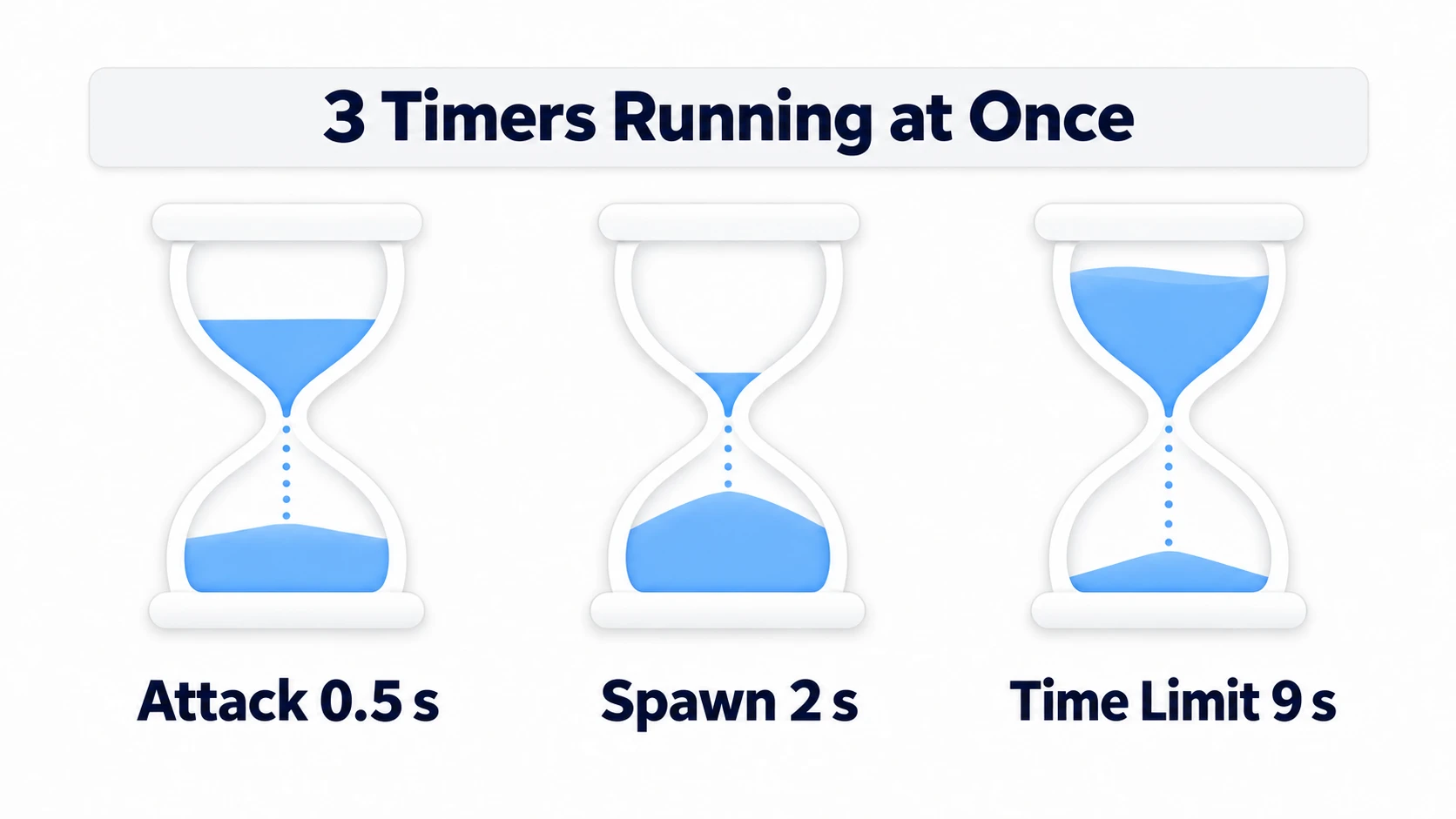
"Wait three seconds, then spawn the enemy." "Deal damage after the attack animation finishes." "Wait for a button press before showing the next line of dialogue." Write all of that with timer variables inside _process() and things get hard to follow fast.
Godot 4's await is the tool for making waits in the middle of a sequence readable. Instead of stopping the whole game, it pauses just that one function and resumes it once the condition is met.

What You'll Learn
- What
awaitstops, and what it doesn't- Practical examples with timers, animations, and dialogue
- When to use
connect()and when to useawait- How to translate Godot 3's
yieldinto Godot 4'sawait
Tested with: Godot 4.7
await Waits Only Inside This Function
await pauses the rest of the current function until whatever it's waiting on completes. Meanwhile Godot's rendering, input, physics, and every other node's _process() keep running.
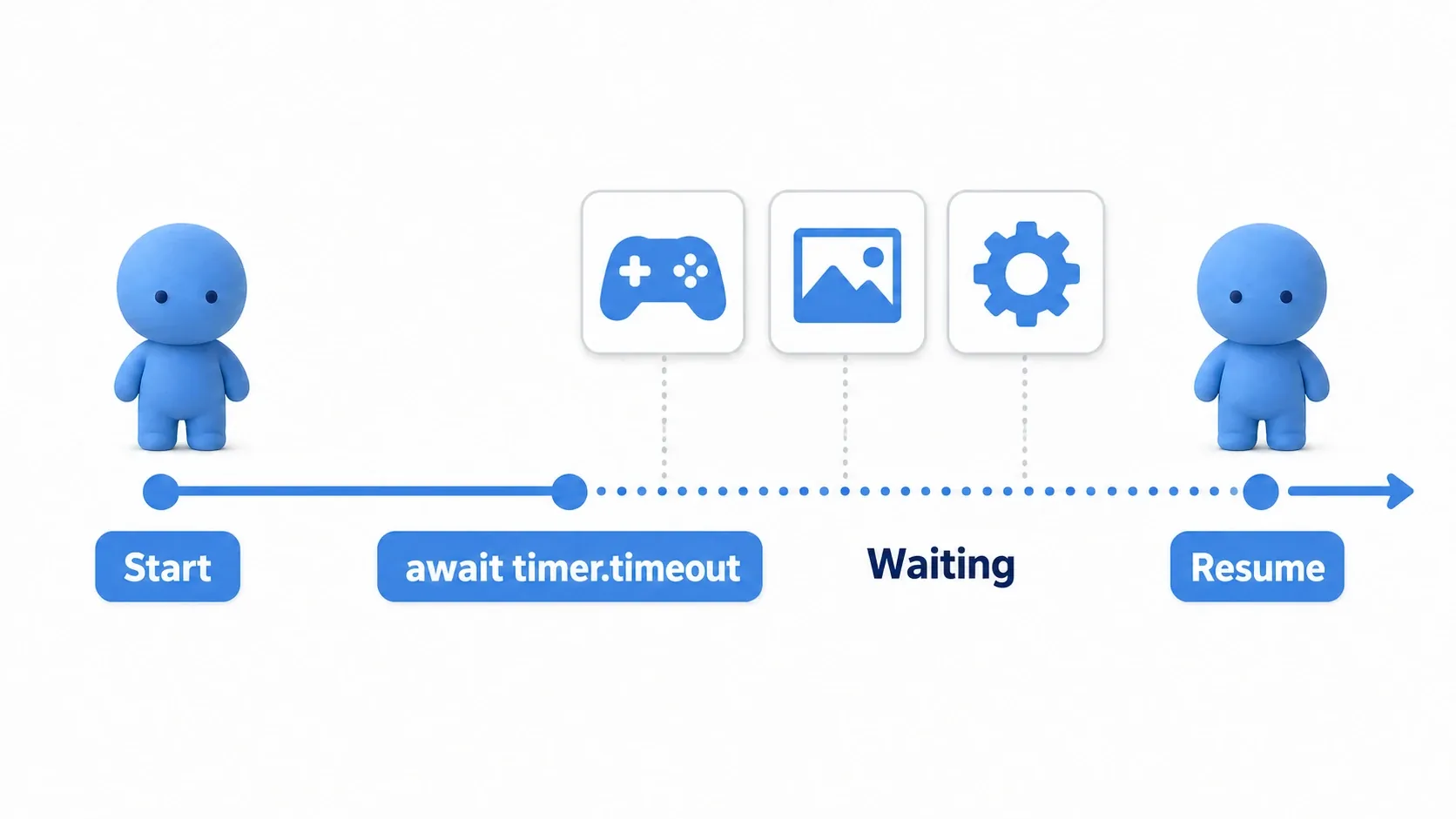
Here's a function that waits three seconds and then spawns an enemy.
func spawn_enemy_after_countdown() -> void:
    print("An enemy will appear in 3 seconds")

    # Wait only for the rest of this function until the timeout signal fires
    await get_tree().create_timer(3.0).timeout

    spawn_enemy()
The function stops at the await line, but the game doesn't. Player input, screen drawing, and other enemies' movement all continue.
A function that can pause partway through and resume later is called a coroutine. That sounds heavy, but in Godot you can just think of it as "a function containing await."
Where You'll Use It in Game Development
await suits work that has an order in time or presentation.
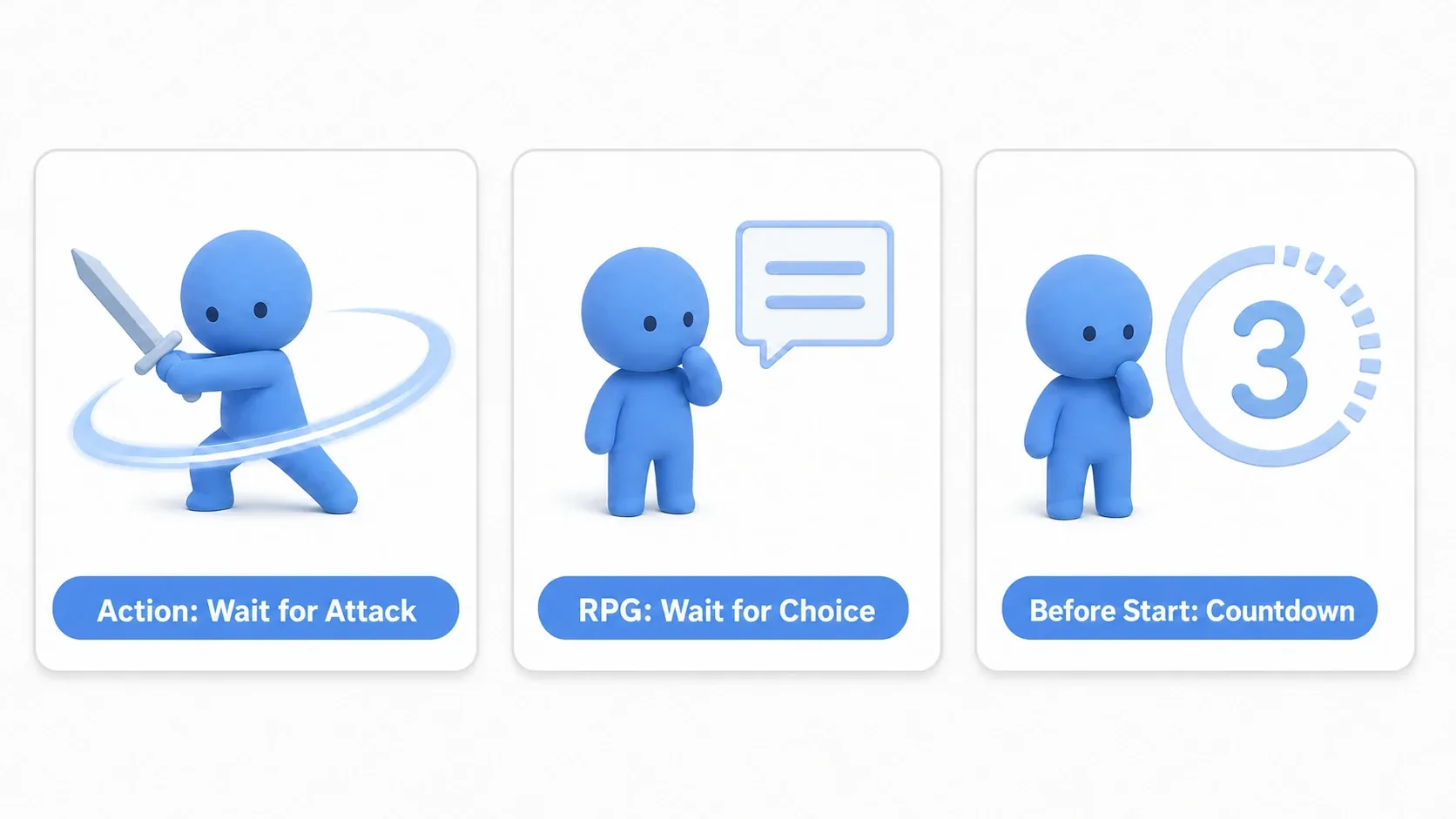
- Action: attack button → wait for the attack animation to finish → hit detection → cooldown.
- RPG: show a line → wait for the confirm button → show the next line.
- Stage start: countdown → wait three seconds → enable player controls.
None of these are really "monitor this every frame." They're sequences you want to read top to bottom. In cases like these, await makes the code feel a lot more natural.
Waiting on a Timer
To wait a fixed amount of time, create a temporary timer with get_tree().create_timer() and wait on its timeout signal.
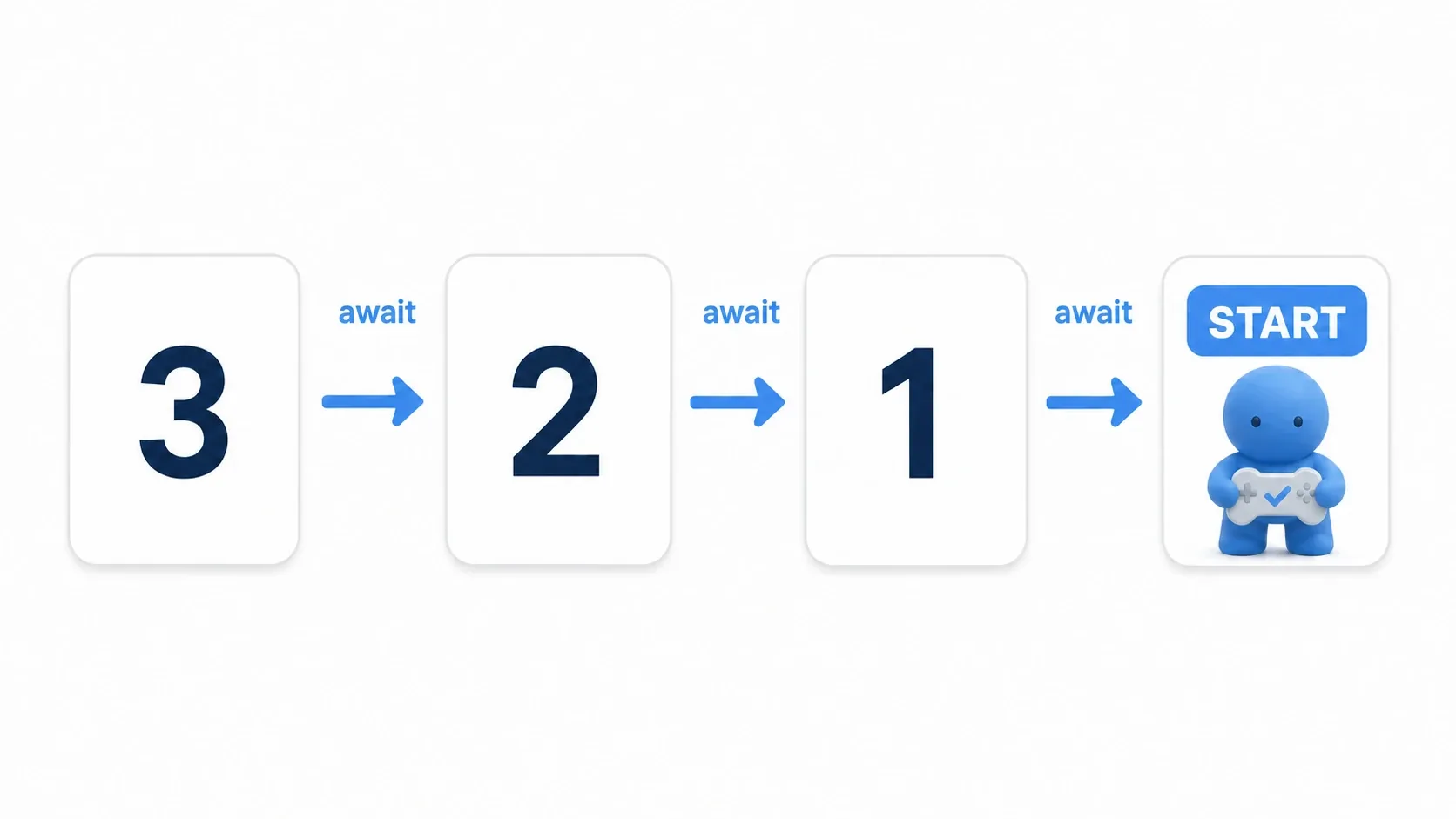
func start_stage() -> void:
    # The display changes every second, so the countdown reads top to bottom
    $CountdownLabel.text = "3"
    await get_tree().create_timer(1.0).timeout

    $CountdownLabel.text = "2"
    await get_tree().create_timer(1.0).timeout

    $CountdownLabel.text = "1"
    await get_tree().create_timer(1.0).timeout

    $CountdownLabel.text = "START"

    # Enable controls once the waiting is over
    player.can_control = true
You don't need a Timer node in your scene; for short waits this style is plenty. It works well for stage starts, respawn delays, and post-attack cooldowns.
That said, avoid designs where hundreds of enemies each spawn a pile of create_timer() calls. When managing large numbers of instances, a shared cooldown manager or a state machine is easier to follow.
Waiting on Animations and Signals
await pairs naturally with waiting on signals. For example, you can move on only after an attack animation finishes.
func perform_slash_attack() -> void:
    # Prevent double input during the attack
    can_input = false

    $AnimationPlayer.play("slash")

    # Don't move on until the attack animation ends
    await $AnimationPlayer.animation_finished

    apply_slash_damage()

    # Restore input after the animation
    can_input = true
This reads top to bottom: block input → play slash → wait for it to end → apply damage → restore input. Note that a looping animation never emits animation_finished, so wait on a clip that doesn't loop.
The same idea works for dialogue. Emit a signal when the button is pressed, and await that signal.
signal next_requested

func show_dialogue(lines: Array[String]) -> void:
    for line in lines:
        $DialogueBox.text = line

        # Don't show the next line until the player confirms
        await next_requested

    $DialogueBox.hide()

func _unhandled_input(event: InputEvent) -> void:
    if event.is_action_pressed("ui_accept"):
        next_requested.emit()
The important thing here is that await is for "wait once, then continue." If you want to handle every button press, connect() is the better fit, as we'll see next.
Examples: Building await into Different Genres
So far we've seen how to wait on time with create_timer() and how to wait on animation_finished or a custom signal. Now let's look at how to build those basics into actual game features.
await isn't just about being able to wait. Its real strength is letting you turn "these things should happen in this order" directly into implementation steps.
An action RPG attack sequence
Take a sword attack in an action RPG. What you want is not "deal damage the instant the button is pressed."
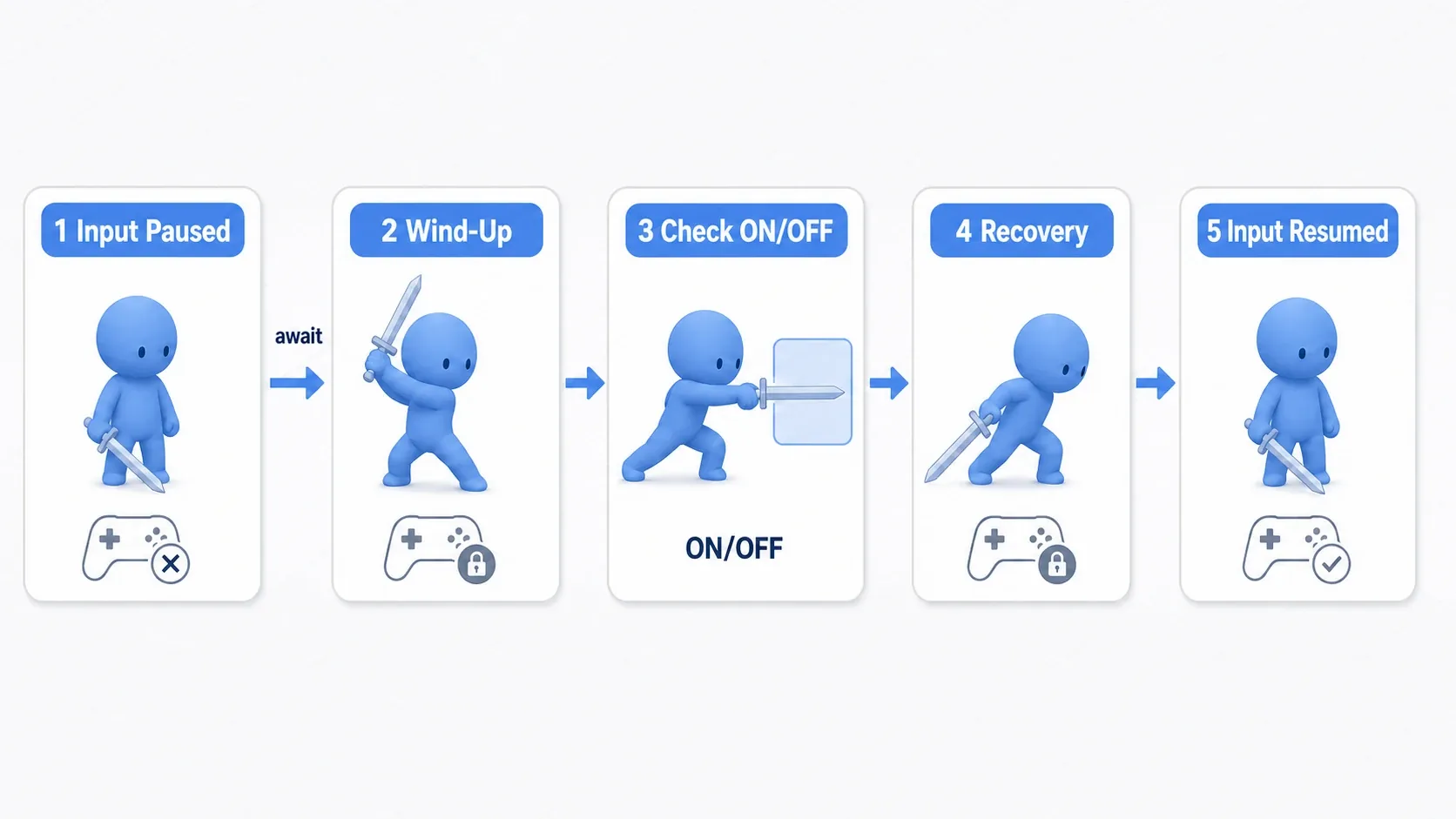
To make it feel like an attack, you need this order:
- Block mashing and movement during the attack.
- Show a bit of wind-up animation.
- Enable the hitbox for a short window.
- Add recovery time after the swing.
- Restore input.
With await, you can write those steps in order.
func perform_sword_attack() -> void:
    if not can_input:
        return

    # No movement or re-attacking while the attack is in progress
    can_input = false
    $AnimationPlayer.play("sword_attack")

    # Let the wind-up play a bit before enabling the hitbox
    await get_tree().create_timer(0.12).timeout
    $SwordHitbox.monitoring = true

    # Keep the hitbox active only briefly
    await get_tree().create_timer(0.08).timeout
    $SwordHitbox.monitoring = false

    # Restore input only after the whole attack animation ends
    await $AnimationPlayer.animation_finished
    can_input = true
One thing to watch: await only catches a signal emitted after it starts waiting. In this code, if the animation ends during the first 0.2 seconds (0.12 + 0.08), animation_finished is missed and can_input never comes back. Make the attack animation longer than the waits before it.
This order exists to protect both game feel and game rules. Without the input lock, a second attack starts mid-swing and animations and hitboxes overlap. Leave the hitbox on permanently and you'll hit enemies while the sword isn't even moving. Restore input before the recovery finishes and attacks can be mashed, which drains the animation of its weight.
To change the feel, start with the wait durations. A light dagger gets a shorter wind-up and recovery; a heavy axe gets longer ones. If you're building combos, don't set can_input = true right at the end. Instead, use a separate flag for "a short window that accepts the next attack input," which is easier to manage.
A tower defense wave start
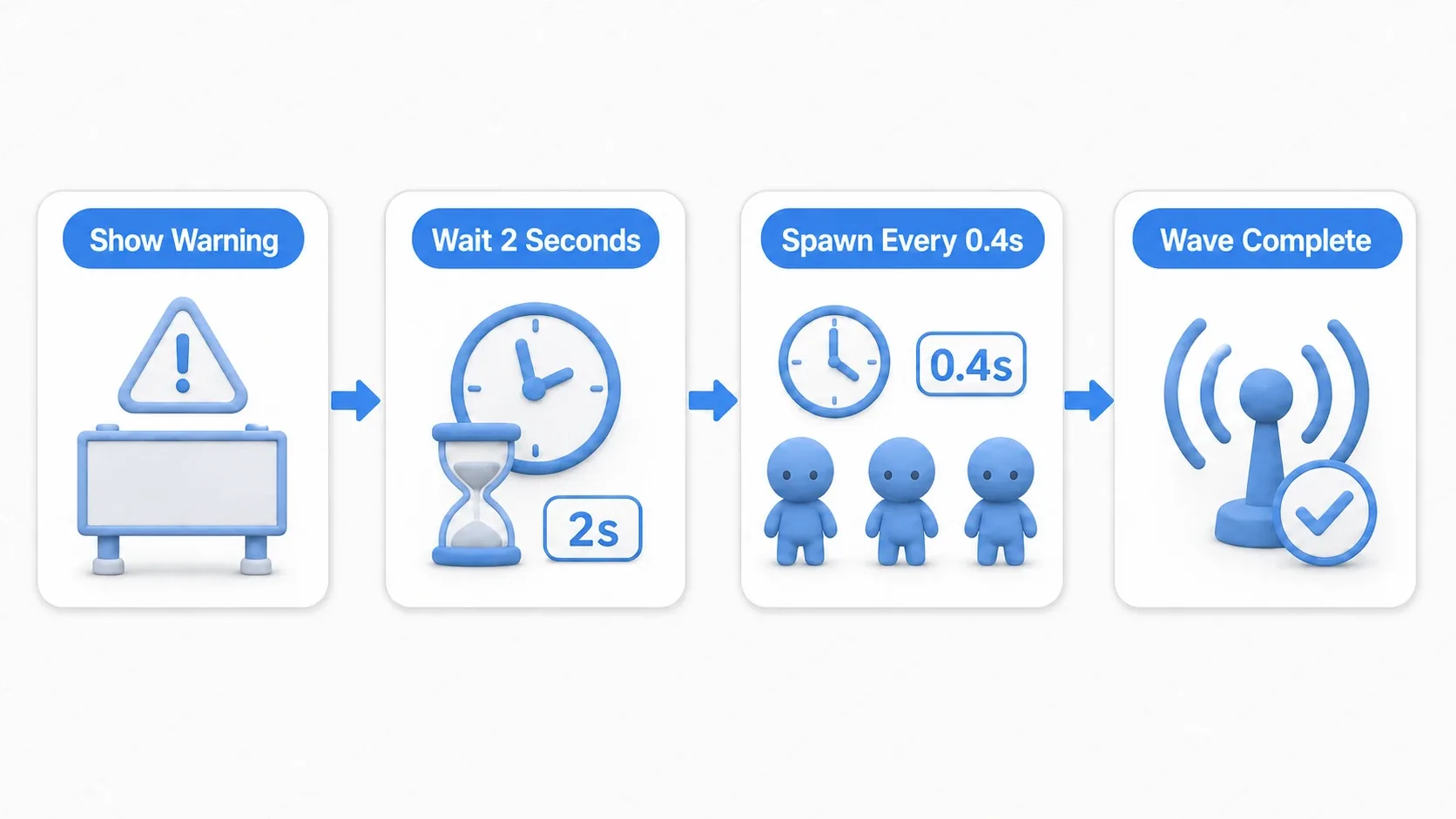
In tower defense, "enemies suddenly appear" is worse for the player than a warning, a countdown, and spaced-out spawns that give them room to prepare.
signal wave_finished

func run_wave(wave_data: Array[PackedScene]) -> void:
    # First, tell the player the next wave is starting
    $WaveLabel.text = "WAVE INCOMING"
    $WaveLabel.show()

    # Give them prep time before enemies start appearing
    await get_tree().create_timer(2.0).timeout
    $WaveLabel.hide()

    # Spawn enemies one at a time with gaps instead of all at once
    for enemy_scene in wave_data:
        spawn_enemy(enemy_scene)
        await get_tree().create_timer(0.4).timeout

    # Tell the UI and flow manager that the wave is over
    wave_finished.emit()
What await buys you here is that the whole progression, showing the warning, waiting two seconds, spawning every 0.4 seconds, and notifying at the end, reads as a single event. Compared to scattering timer variables through _process(), the design intent of the wave stays visible in the code.
That said, if you want fast-forward, pause, or skip during a wave, plain await isn't enough. Keep an is_wave_running flag or a state machine to hold interrupt conditions, and check "are we still in the wave?" after each wait.
An RPG dialogue scene
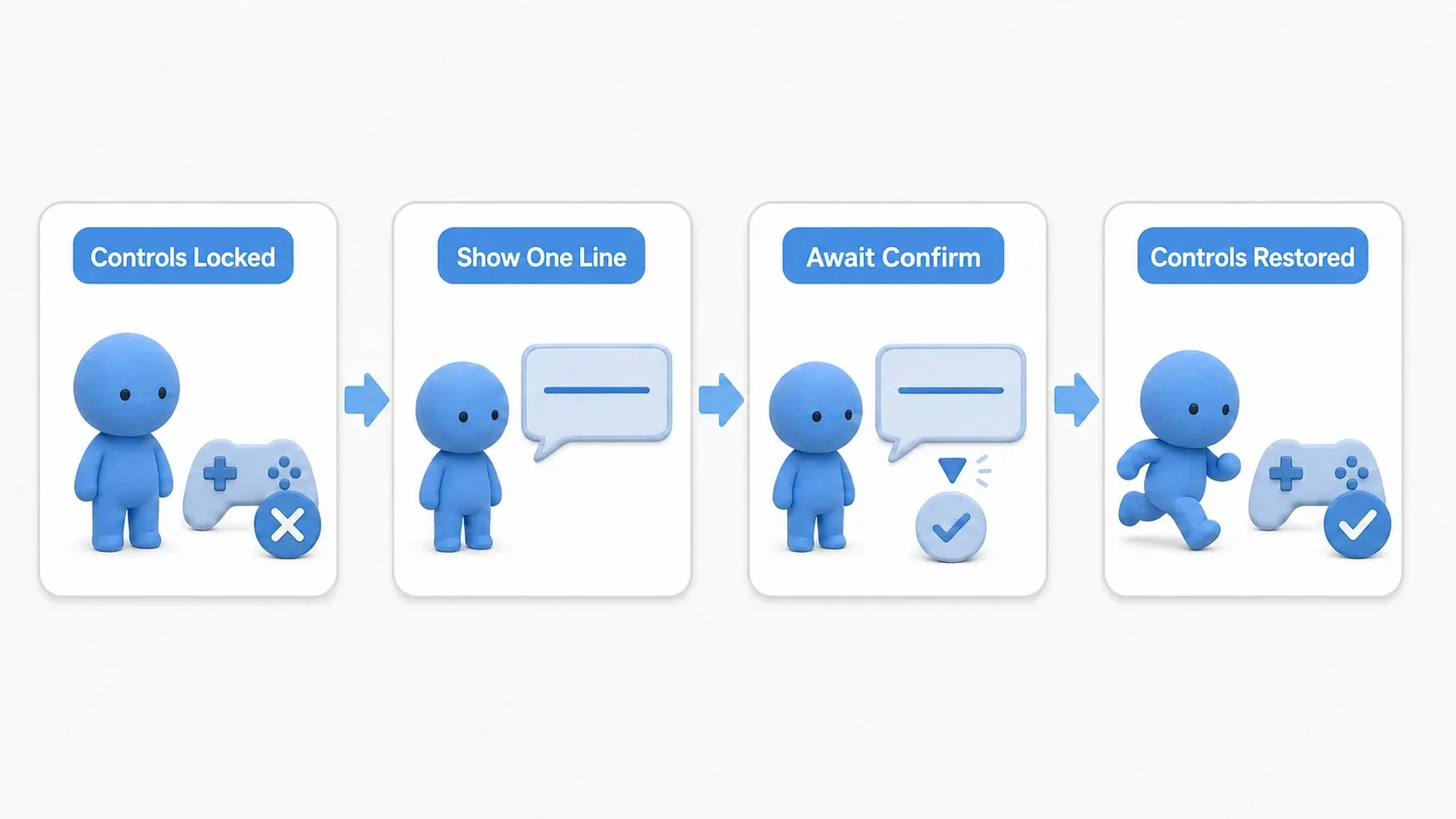
RPG dialogue is a great match for the await mindset, since it shows a line, waits for the player's confirm input, and moves to the next line.
signal next_line_requested

func show_event_dialogue(lines: Array[String]) -> void:
    # Keep the player from moving during the conversation
    player.can_control = false
    $DialogueBox.show()

    for line in lines:
        $DialogueBox.text = line

        # Don't advance until the confirm signal arrives
        await next_line_requested

    # Close the UI and restore control once every line has shown
    $DialogueBox.hide()
    player.can_control = true
With this shape, an event like "open the chest → read the dialogue → receive the item → restore control" stays in order in the code as well.
connect vs. await
connect() and await both involve signals, but they serve different purposes.
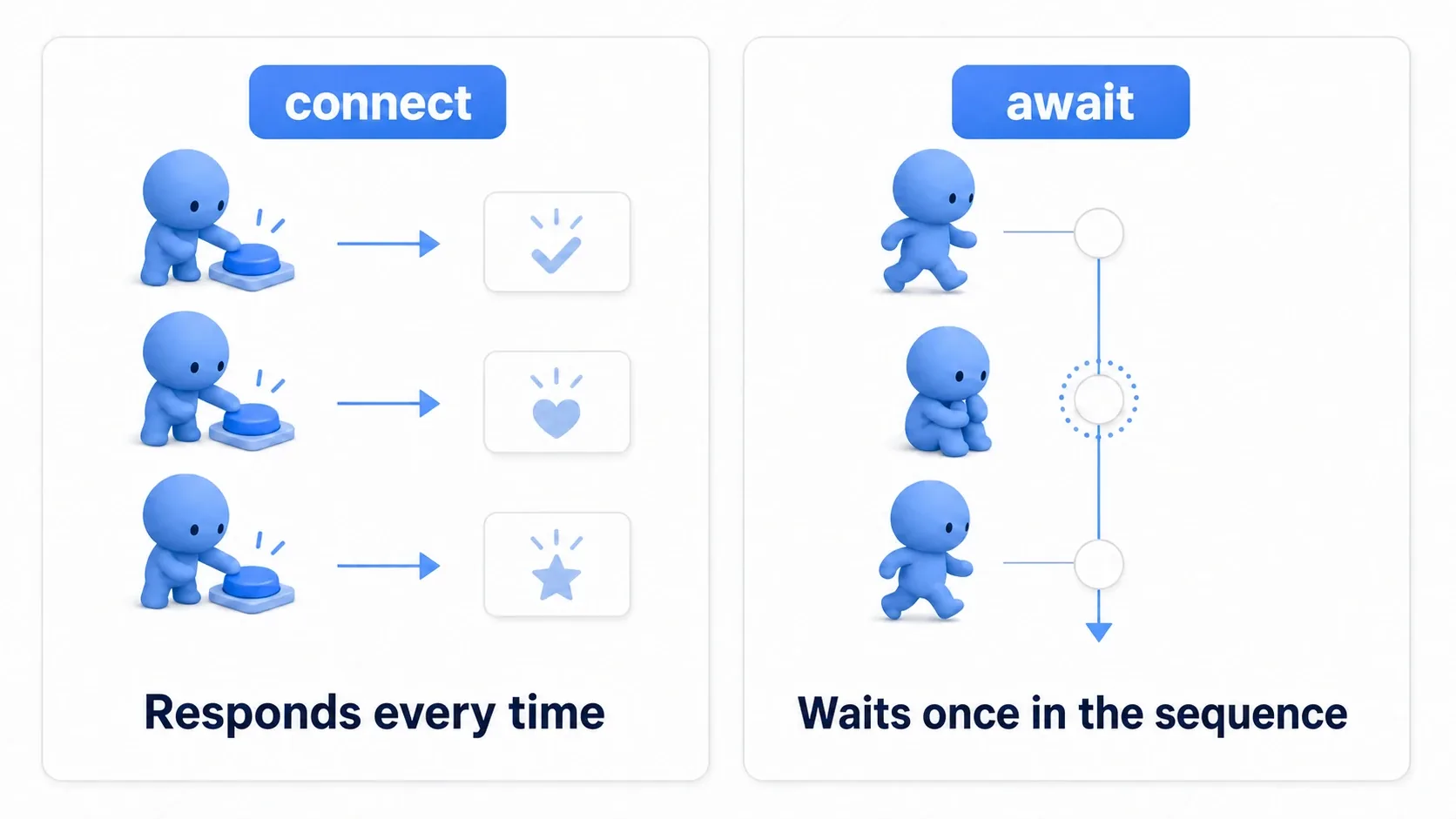
connect(): buttons, health changes, enemy defeats. Things you want to react to every time they happen.await: the next dialogue line, the end of an attack, a three-second wait. Waiting once inside a sequence.
A menu's "Start" button, for example, is an event you react to every time it's pressed.
func _ready() -> void:
    # We want to react every time the button is pressed, so register with connect
    $StartButton.pressed.connect(_on_start_button_pressed)

func _on_start_button_pressed() -> void:
    get_tree().change_scene_to_file("res://stages/stage_01.tscn")
A stage-start countdown, on the other hand, is one single "3, 2, 1, START" flow.
func run_start_sequence() -> void:
    # Controls are locked during the countdown
    player.can_control = false

    # Wait exactly once for show_countdown() to finish
    await show_countdown()

    player.can_control = true
When you're unsure, ask: "is this a repeating event, or a one-time wait?"
Migrating from Godot 3's yield
Code that used yield() in Godot 3 becomes await in Godot 4.
| Godot 3 | Godot 4 |
|---|---|
yield(get_tree().create_timer(1.0), "timeout") | await get_tree().create_timer(1.0).timeout |
yield($AnimationPlayer, "animation_finished") | await $AnimationPlayer.animation_finished |
yield(button, "pressed") | await button.pressed |
Godot 4 lets you wait in the form object.signal_name instead of writing signal names as strings, which reads much better.
Common Pitfalls
Starting an await every frame inside _process()
This one is genuinely dangerous. You create a new wait every frame, so starting about a second later, one of those continuations runs every frame, over and over (an enemy spawns every frame).
# Bad: a new wait starts every single frame
func _process(delta: float) -> void:
    # _process() runs every frame, so the pending waits pile up fast
    await get_tree().create_timer(1.0).timeout
    spawn_enemy()
For repeating work, use a Timer node or a state variable instead. How to use Timer is covered in Timer Node Basics.
func _ready() -> void:
    # Leave repeating spawns to a Timer
    $SpawnTimer.timeout.connect(_on_spawn_timer_timeout)
    $SpawnTimer.start()

func _on_spawn_timer_timeout() -> void:
    spawn_enemy()
The node disappears while you're waiting
If the target node gets queue_free()d during an await, the code after the wait may not behave as expected. This happens when a scene transitions mid-cutscene, an enemy dies, or a UI closes.
func play_hit_flash(target: Node2D) -> void:
    # Check that the target still exists before waiting
    if not is_instance_valid(target):
        return

    target.modulate = Color(2, 2, 2)  # Flash white (values above 1 brighten)
    await get_tree().create_timer(0.1).timeout

    # Enemies and UI can disappear mid-wait, so check again after resuming
    if not is_instance_valid(target):
        return

    target.modulate = Color.WHITE  # Back to the normal color
If you touch the target after a wait, checking is_instance_valid() again on resume is the safe move.
Writing everything as one long await chain
await reads well, but cramming a long cutscene into a single function makes mid-sequence cancellation and skipping hard. If you need dialogue skipping, cutscene cancellation, or interruption on death, combine it with state variables or a state machine.
Bonus: Good to Know for Later
Once you have the basics of await, these are worth knowing. At this stage, treat them less as fine-grained optimization techniques and more as notes on where not to misapply it.
awaitdoesn't make heavy work lighter:awaitexists to wait on a timer or signal and continue later. If mass spawning or heavy calculation is freezing the screen, revisit load timing, object pooling, or only building what's on screen, rather than trying to fix it withawait.- There's a way to wait a single frame: Godot also has
await get_tree().process_frame, which waits until the next frame. It shows up in situations like revealing reward icons one by one on a results screen, or waiting a frame for a UI update to apply. It isn't something you'll reach for often in typical beginner-to-intermediate work; it's enough to remember it exists when you need it. - Long sequences need a cancellation plan: writing dialogue, cutscenes, and attack sequences top to bottom with
awaitreads well. But if you need to end them early because of a skip, a death, or a scene change, combine them with flags or a state machine.
What matters going forward isn't memorizing every waiting mechanism in Godot. It's being able to separate "is this something to wait on, or something whose design needs rethinking?"
If you want to organize state management next, Managing AI and Player States with State Machines follows on naturally.
Summary
await makes "wait a moment, then continue" logic readable in Godot.
- For timer waits, use
await get_tree().create_timer(seconds).timeout. - It also works for signal waits, like animations and buttons.
- Repeating events are a better fit for
connect(). - Don't start an
awaitevery frame in_process(). - It isn't a feature that makes heavy work itself lighter.
The deciding question is: "is this a one-time wait, or a repeating event?" One-time waits mean await; repeating events mean connect(). Just that distinction makes async logic far easier to follow.