Idle, walk, run, jump, attack. The more your character can do, the more _physics_process fills up with a mountain of if-elif checks: if speed is above this, play run; if not on the floor, play jump. Eventually you can't even trace which animation plays when.
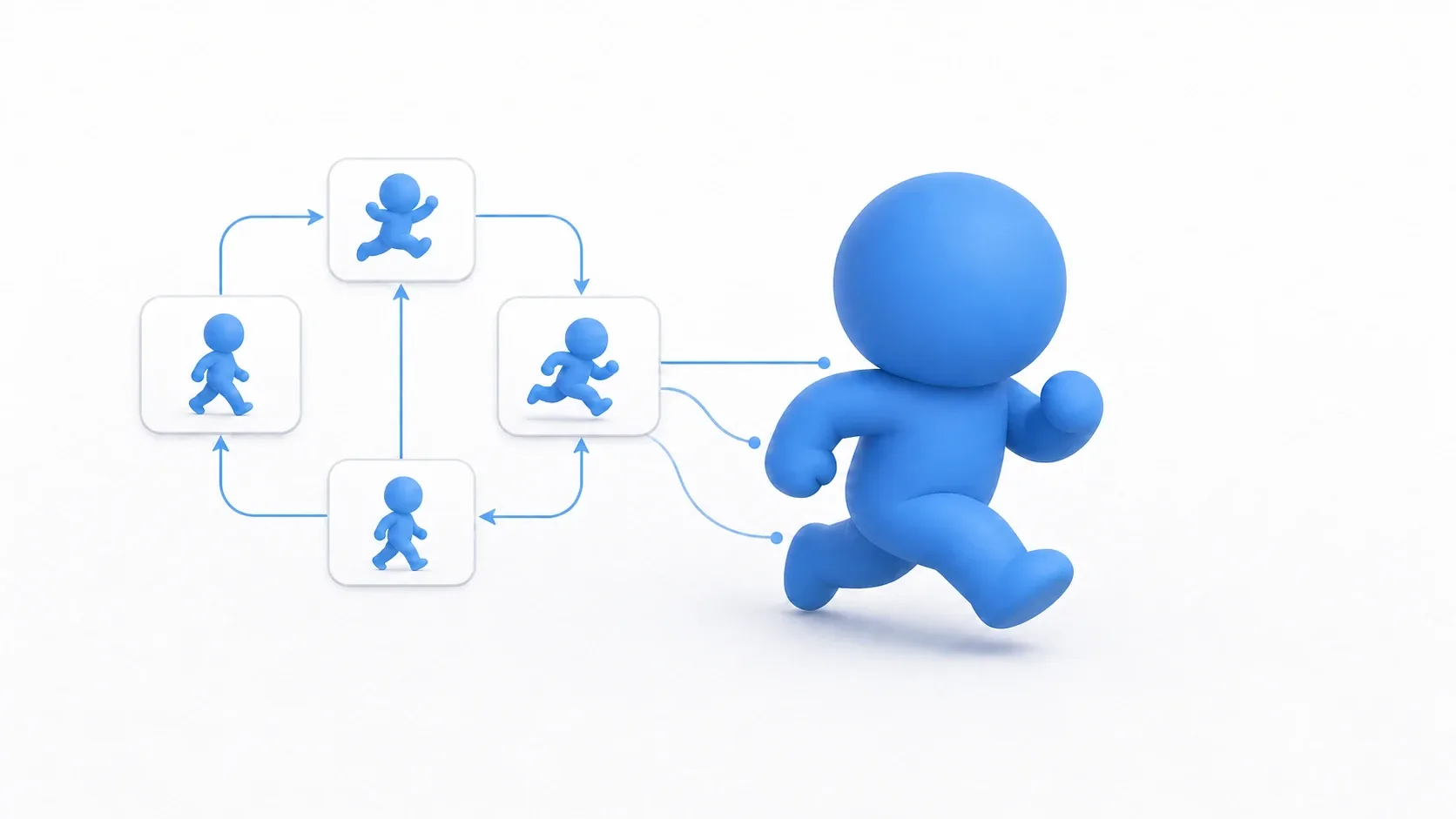
Godot's AnimationTree and the state machine inside it (AnimationNodeStateMachine) let you pull that switching logic out of code and into a visible graph . Your code just reports "here's the current state." The graph handles which animation to play and how to connect them.
What You'll Learn
- How to replace a mountain of
if-elifwith a visible state graph- The split between
AnimationPlayer(warehouse) andAnimationTree(conductor)- The basic implementation: reporting the current state with
travel()- Smooth transitions with X-Fade, and when code-only is still the better choice
Tested with: Godot 4.7
- Why You Need AnimationTree and State Machines
- How AnimationPlayer and AnimationTree Divide Responsibilities
- State Machine Thinking: States and Transitions
- Hands-On: Implementing Idle, Walk, Run, and Jump
- Common Mistakes and Best Practices
- When Code-Only Is Still the Better Choice
- Bonus: Good to Know Next
- Summary
Why You Need AnimationTree and State Machines
When your character only has idle and walk, switching animations with if statements is fine. But add run, jump, fall, attack, hurt, and a giant nest of if-elif-else grows inside _physics_process. Conditions tangle together and it becomes real work to trace which condition plays which animation.
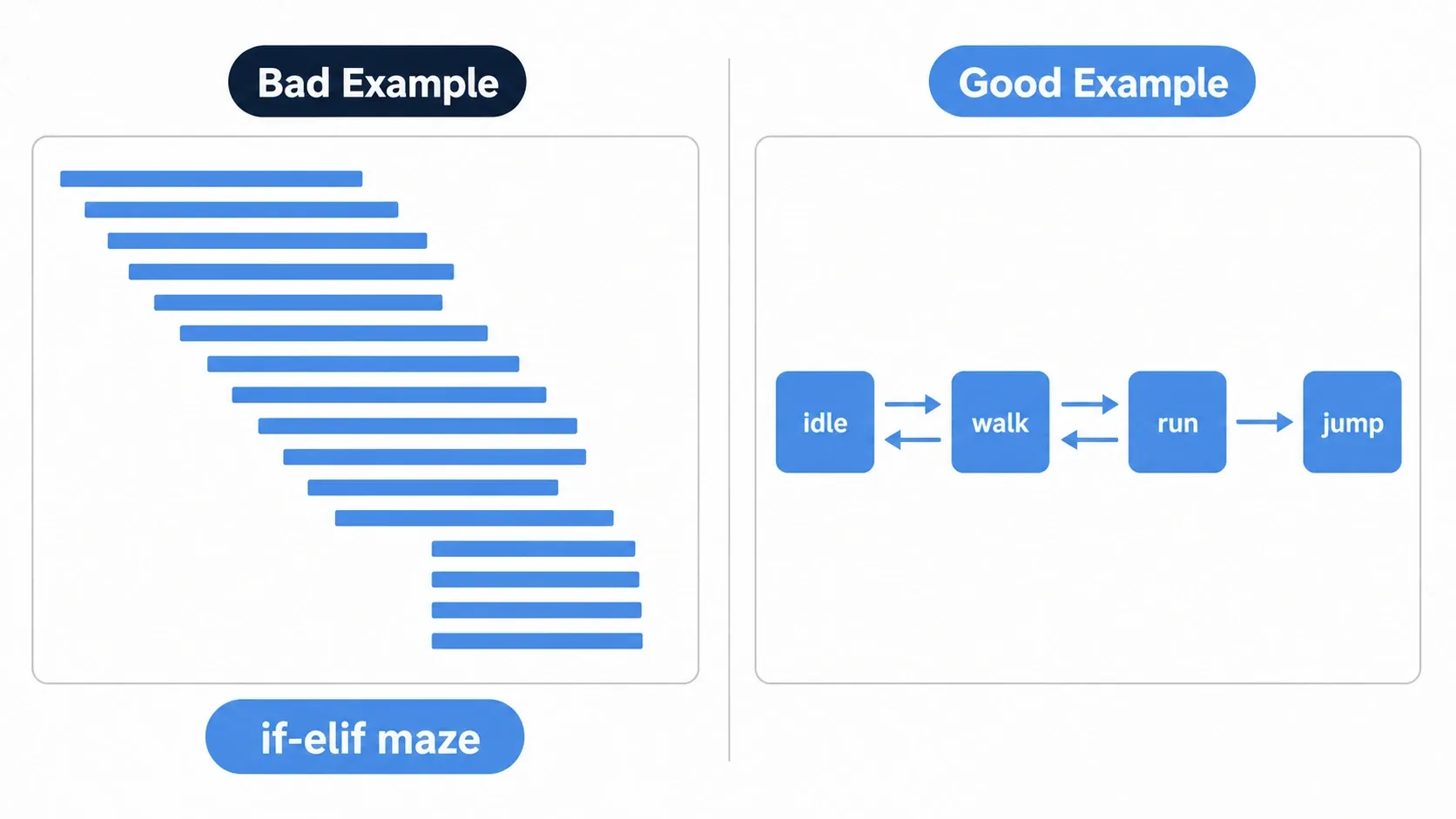
A state machine lets you redraw that switching as a graph of states (nodes) and transitions (arrows) . The logic moves from code to a diagram, so the whole picture is visible at a glance, and adding one state means adding one node and one arrow.
How AnimationPlayer and AnimationTree Divide Responsibilities
First, let's sort out the three players involved.
AnimationPlayer(the animation warehouse) : where individual animation clips likeidle,walk,run, andjumpare stored. For building them out, see Advanced AnimationPlayer Techniques.AnimationTree(the conductor) : the engine that pulls clips out of the warehouse and controls which plays in what order and how smoothly they connect.AnimationNodeStateMachinePlayback(the code-facing interface) : the object you use from GDScript to say "move to this state now."
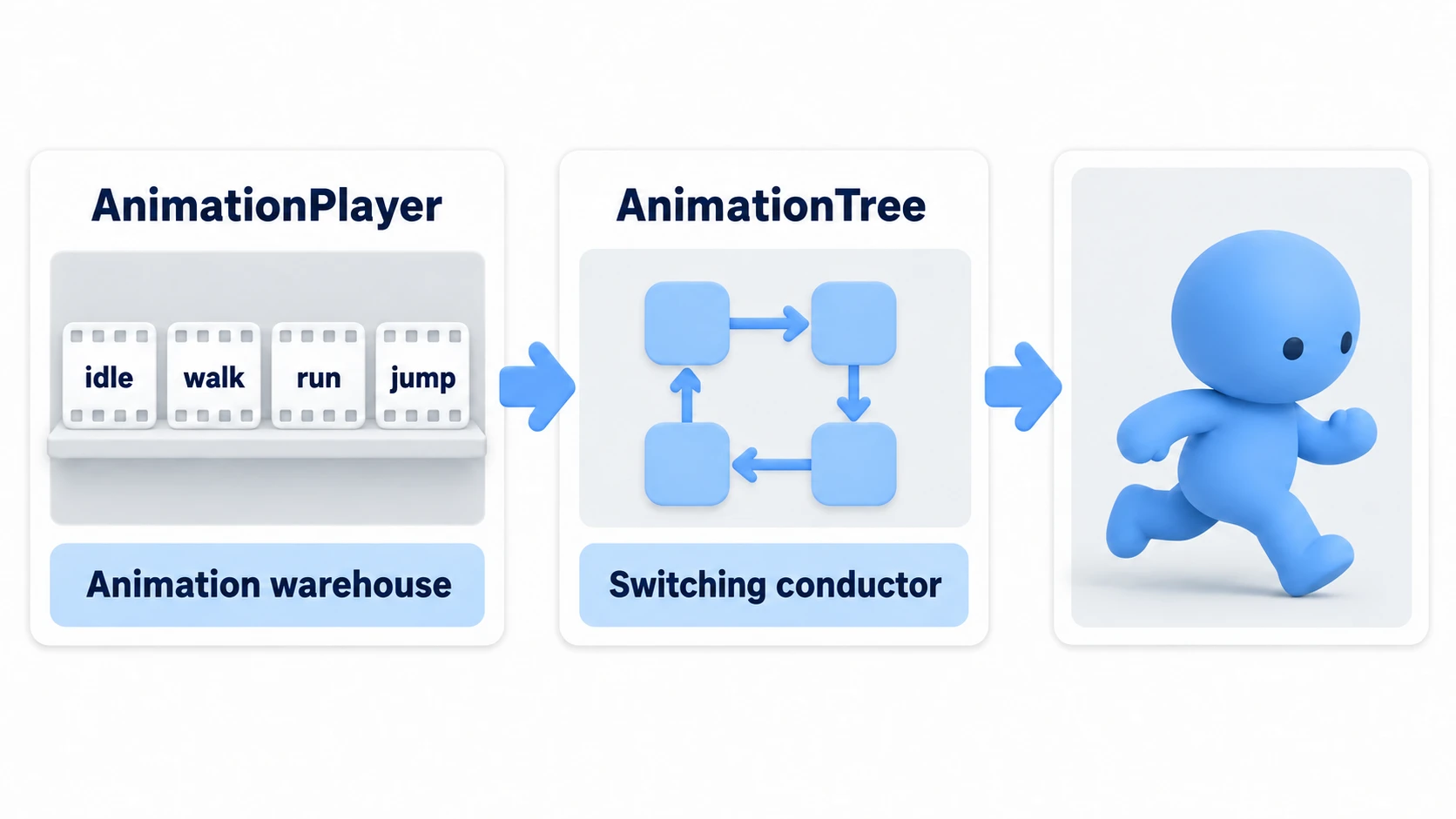
The key point is to manage state through AnimationTree instead of calling AnimationPlayer directly from code . With that in place, changing how animations connect means editing the graph while your game logic code stays untouched.
State Machine Thinking: States and Transitions
A state machine is a graph made of states and the transitions that connect them.
- State : a single animation playing at a given moment, like
idle,walk, orrun. - Transition : an arrow from one state to another. It defines the direction and the condition, such as "go from
walktorunonce speed exceeds 180."
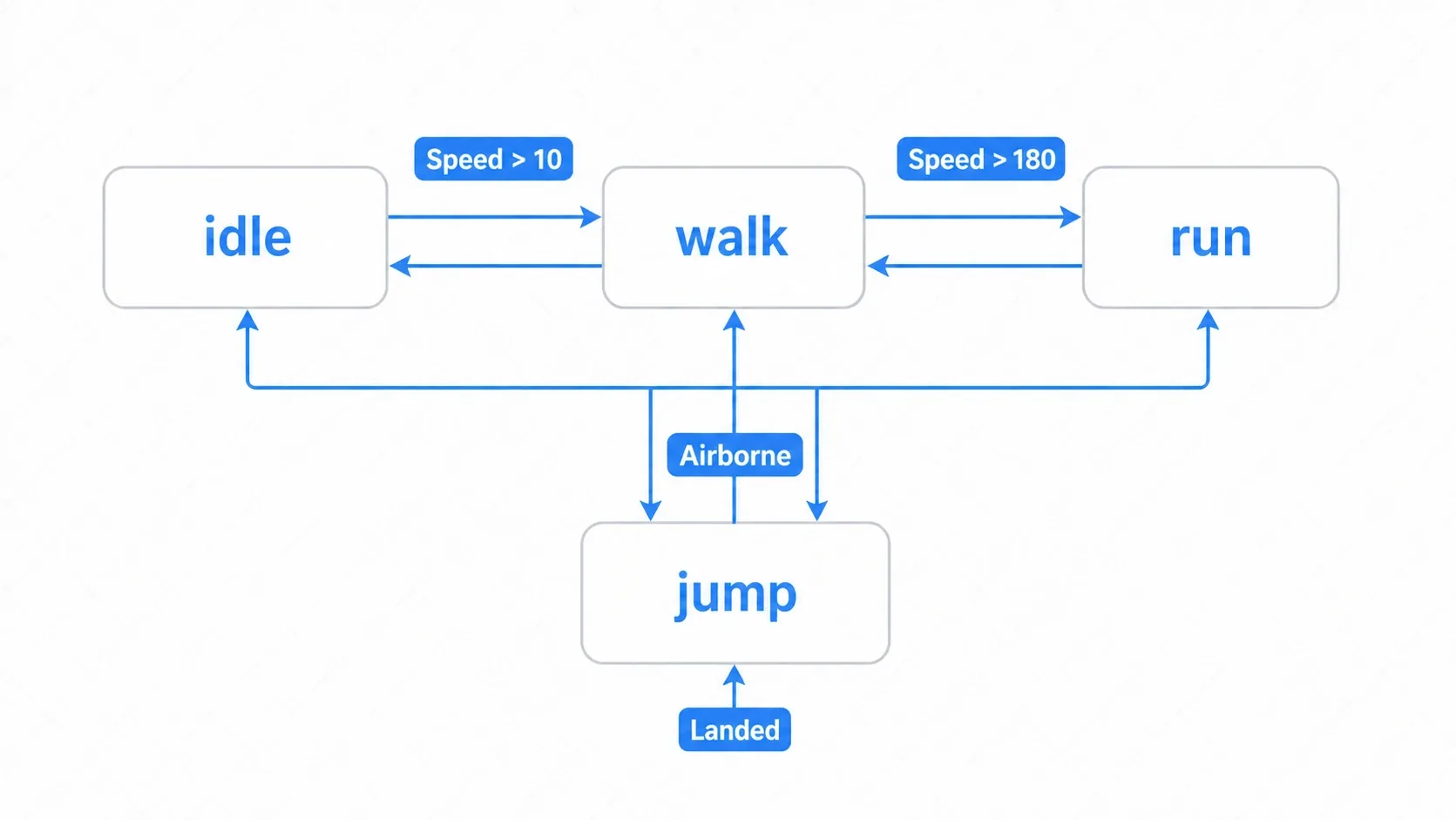
In the AnimationTree panel at the bottom of the editor, right-click an empty spot in the graph and pick a clip (idle, walk, run, jump) from Add Animation; that creates a state with that name. Connect them with arrows and that's the graph. Before drawing arrows, turn off New Transitions Should Auto Advance in the toolbar. If it's left on, new arrows advance automatically, and states switch on their own without waiting for travel(). From there, your code reports the current state and AnimationTree follows the arrows to switch animations.
Hands-On: Implementing Idle, Walk, Run, and Jump
Let's build this using a side-scrolling action player as the example. Whether it's a top-down ARPG or a Metroidvania, the skeleton is the same: decide the animation from movement speed and ground contact.
Preparing Nodes and Animations
Use the following node setup and create four animations in AnimationPlayer: idle, walk, run, and jump.
- CharacterBody2D
  - Sprite2D
  - CollisionShape2D
  - AnimationPlayer
  - AnimationTree
Assign the AnimationPlayer to AnimationTree's Anim Player, set Tree Root to New AnimationNodeStateMachine, and build the graph from the previous section.
Reporting State from Code
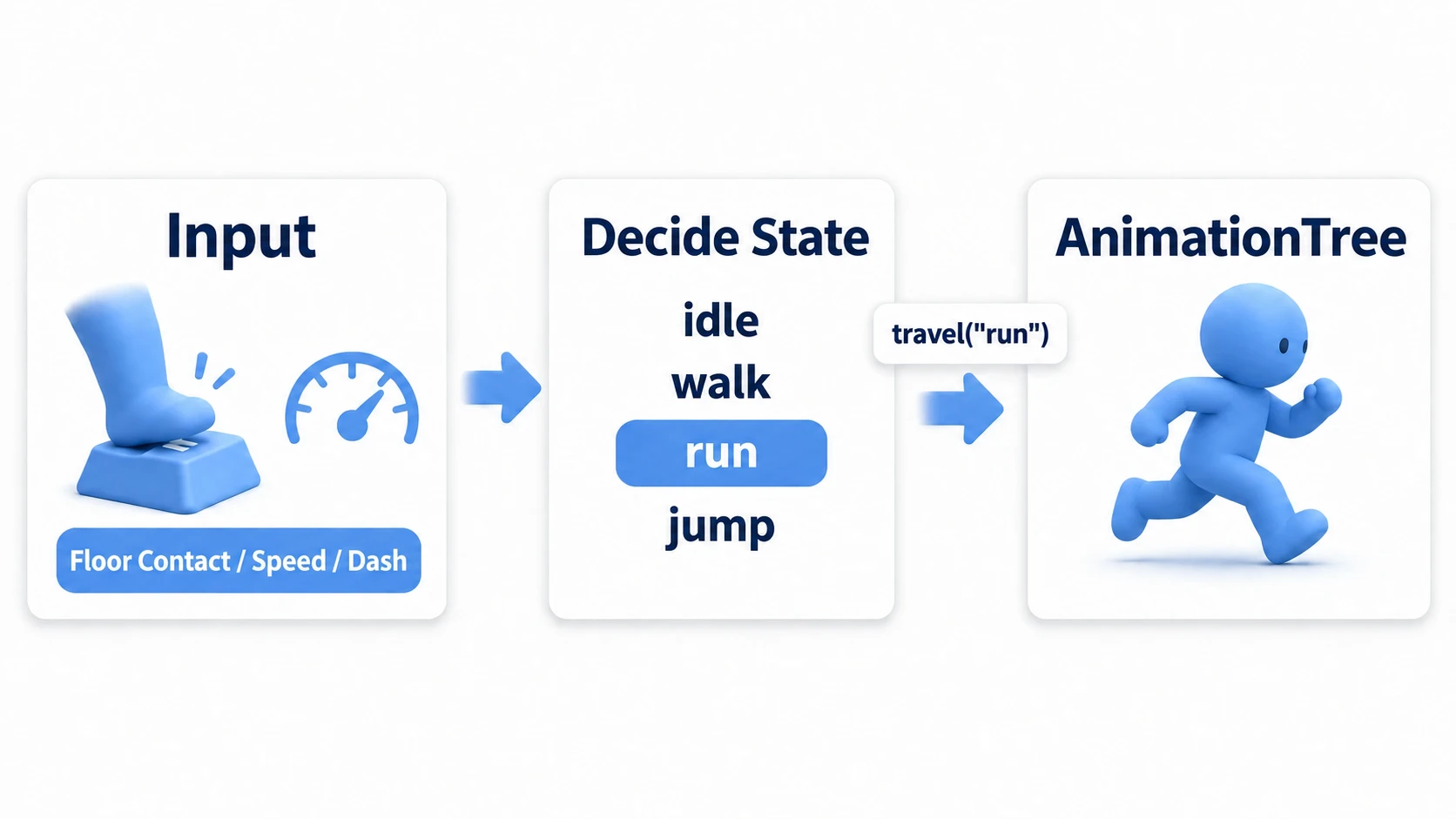
The code's only job is to decide the current state from speed and ground contact, then report it to AnimationTree.
extends CharacterBody2D

const WALK_SPEED := 100.0
const RUN_SPEED := 250.0
const JUMP_VELOCITY := -400.0

@onready var animation_tree: AnimationTree = $AnimationTree
# The interface for driving the state machine from code
@onready var state_machine: AnimationNodeStateMachinePlayback = animation_tree.get("parameters/playback")

var gravity: float = ProjectSettings.get_setting("physics/2d/default_gravity")

func _ready() -> void:
    animation_tree.active = true

func _physics_process(delta: float) -> void:
    if not is_on_floor():
        velocity.y += gravity * delta
    if Input.is_action_just_pressed("ui_accept") and is_on_floor():
        velocity.y = JUMP_VELOCITY

    var direction := Input.get_axis("ui_left", "ui_right")
    var target_speed := 0.0
    if direction:
        # dash is an action you register yourself in Project Settings > Input Map
        target_speed = RUN_SPEED if Input.is_action_pressed("dash") else WALK_SPEED
    velocity.x = move_toward(velocity.x, direction * target_speed, 20.0)

    move_and_slide()
    _update_animation()

func _update_animation() -> void:
    var target_state := "jump"
    if is_on_floor():
        var speed := absf(velocity.x)
        if speed > 180.0:
            target_state = "run"
        elif speed > 10.0:
            target_state = "walk"
        else:
            target_state = "idle"

    # Only travel() when the state actually changes (not every frame)
    if state_machine.get_current_node() != target_state:
        state_machine.travel(target_state)
_update_animation() picks one state name from speed and ground contact, then calls travel() only when it differs from the current state. The animation content itself (which frame the foot lands on, and so on) stays with AnimationPlayer, while the code only passes a state name. That division is what keeps things from falling apart as states multiply.
Common Mistakes and Best Practices
| Common mistake | Best practice |
|---|---|
Calling travel() unconditionally every frame | Call travel() only when the state differs (the get_current_node() check above) |
| One giant state machine | Group related states into nested sub-state machines (ground / air, for example) |
| Hardcoding speeds as magic numbers | Use constants or @export, like const RUN_SPEED := 250.0, so they're easy to tune |
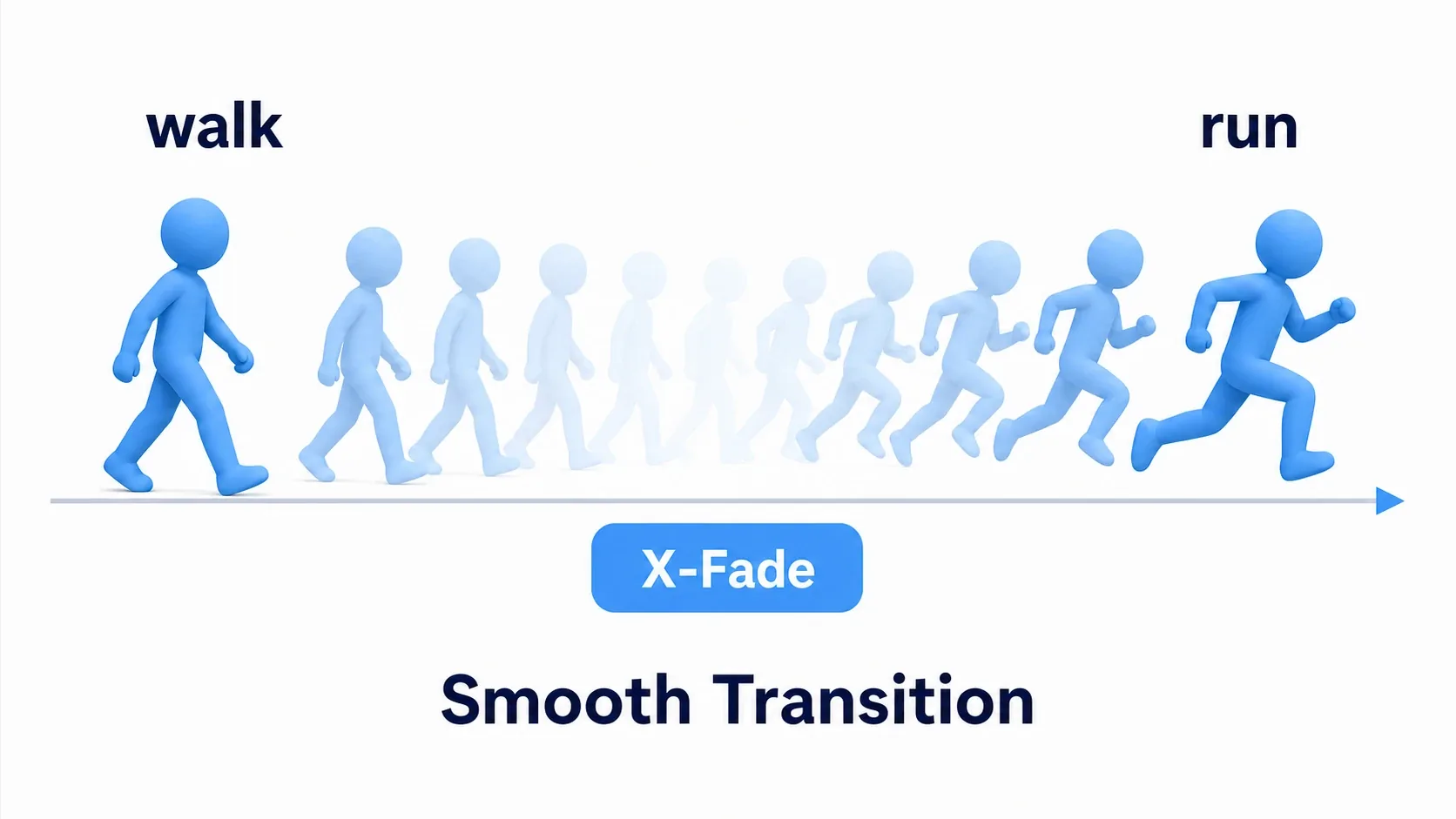
| Leaving transition X-Fade Time at 0 | Set a crossfade of 0.1 to 0.3 seconds to interpolate smoothly between animations |
The one with the biggest payoff is transition X-Fade Time . At 0, animations snap between each other, but a little fade makes the walk-to-run connection look dramatically more natural.
When Code-Only Is Still the Better Choice
You can absolutely switch animations by calling play() on AnimationPlayer directly, without AnimationTree.
func _physics_process(_delta: float) -> void:
    if not is_on_floor():
        $AnimationPlayer.play("jump")
    elif absf(velocity.x) > 180.0:
        $AnimationPlayer.play("run")
    elif absf(velocity.x) > 10.0:
        $AnimationPlayer.play("walk")
    else:
        $AnimationPlayer.play("idle")
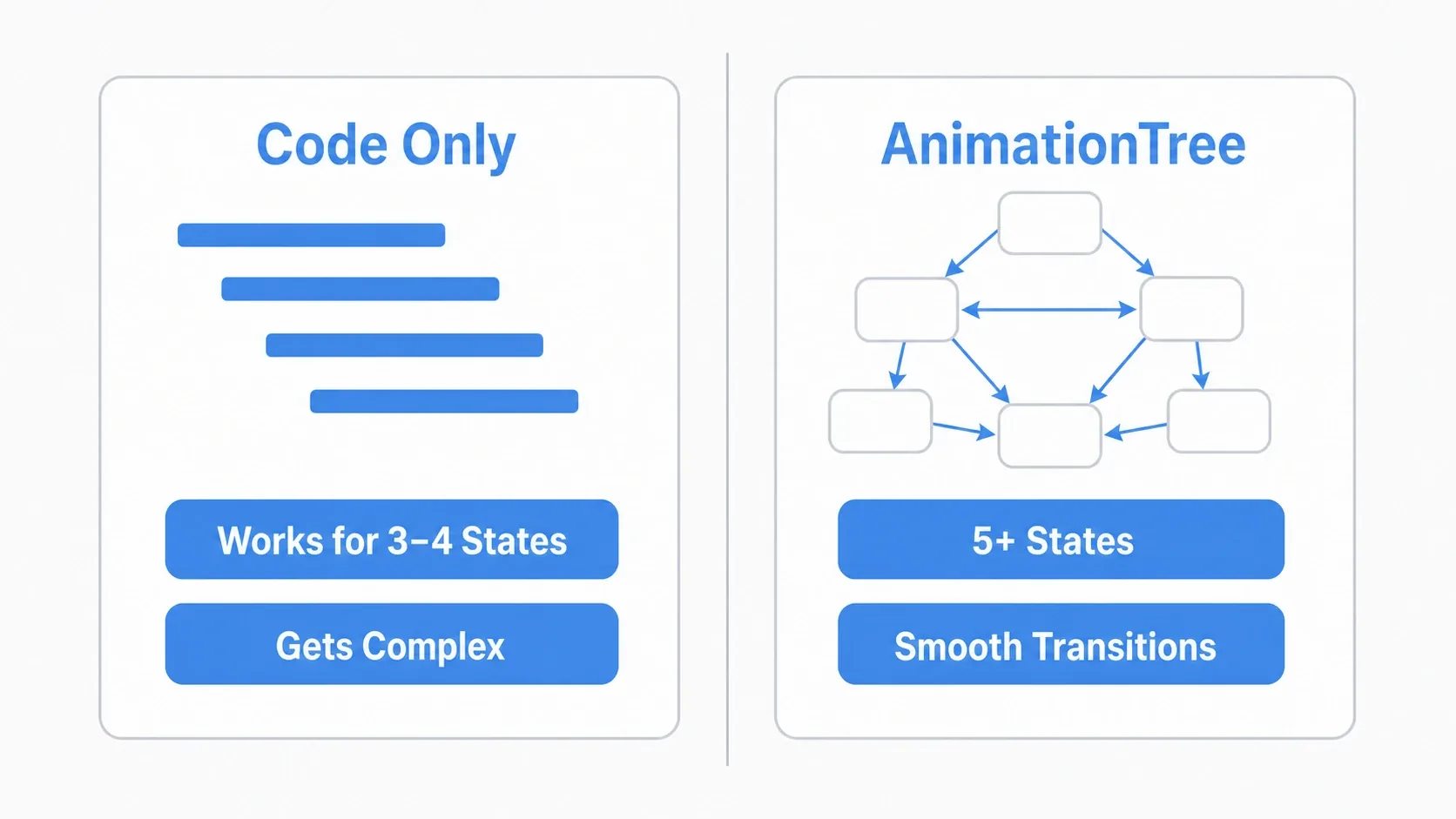
For a simple character with three or four states, this can be perfectly clear. But as states grow, the if statements nest and transition conditions and fades all become hand-managed, which tends toward spaghetti (you can blend with a second argument like play("run", 0.2), but you end up writing a time for every combination). A good rule: once you hit five or more states, or you want smooth transitions, move to AnimationTree. For thinking about state management itself, state machines for AI and player states is also a useful reference.
Bonus: Good to Know Next
Once you're comfortable with AnimationTree, these nodes widen your range. For now, just knowing the options exist is enough.
BlendSpace2D/BlendSpace1D: blends several animations smoothly based on a speed or direction vector. Ideal for eight-direction walk animations.AnimationNodeOneShot: handy for motions that play once and return, like attacks or item use. It layers an attack on top of movement animation.- Nested state machines : as states grow, split broadly into ground and air, then create idle/walk and jump/fall sub-states inside each.
- One-off color effects belong to Tween : one-shot effects like a damage flash are easier to add with Tween than to put on the state machine.
Summary
AnimationTree: the conductor that pulls clips fromAnimationPlayer(the animation warehouse) and controls transitions- State machines : turn animation switching into a visible graph of states (nodes) and transitions (arrows)
- The code's job : decide the current state from speed and ground contact and report it with
travel(). Leave the animation content to the warehouse - Choosing : hand-written code for few states,
AnimationTreeas they grow. Add smoothness with X-Fade
Replacing a mountain of if-elif with a graph makes adding and fixing character motion far easier. Start by building the four states of idle, walk, run, and jump, then layer on directional blending and attacks with BlendSpace and OneShot once you're comfortable. Pairing this with AnimatedSprite2D vs AnimationPlayer will also help you sort out your 2D animation options.