Introduction: Why This Distinction Matters
Everyone who starts building with Godot Engine meets _process and _physics_process early on. And most people run into problems like "the character moves faster on a beefier PC," "movement looks choppy," or "sometimes objects pass through walls."
Almost all of these come from not understanding the roles of _process and _physics_process and putting logic in the wrong place. This article breaks down the difference between the two functions at the heart of Godot's game loop.
What You'll Learn
- The difference in how they're called:
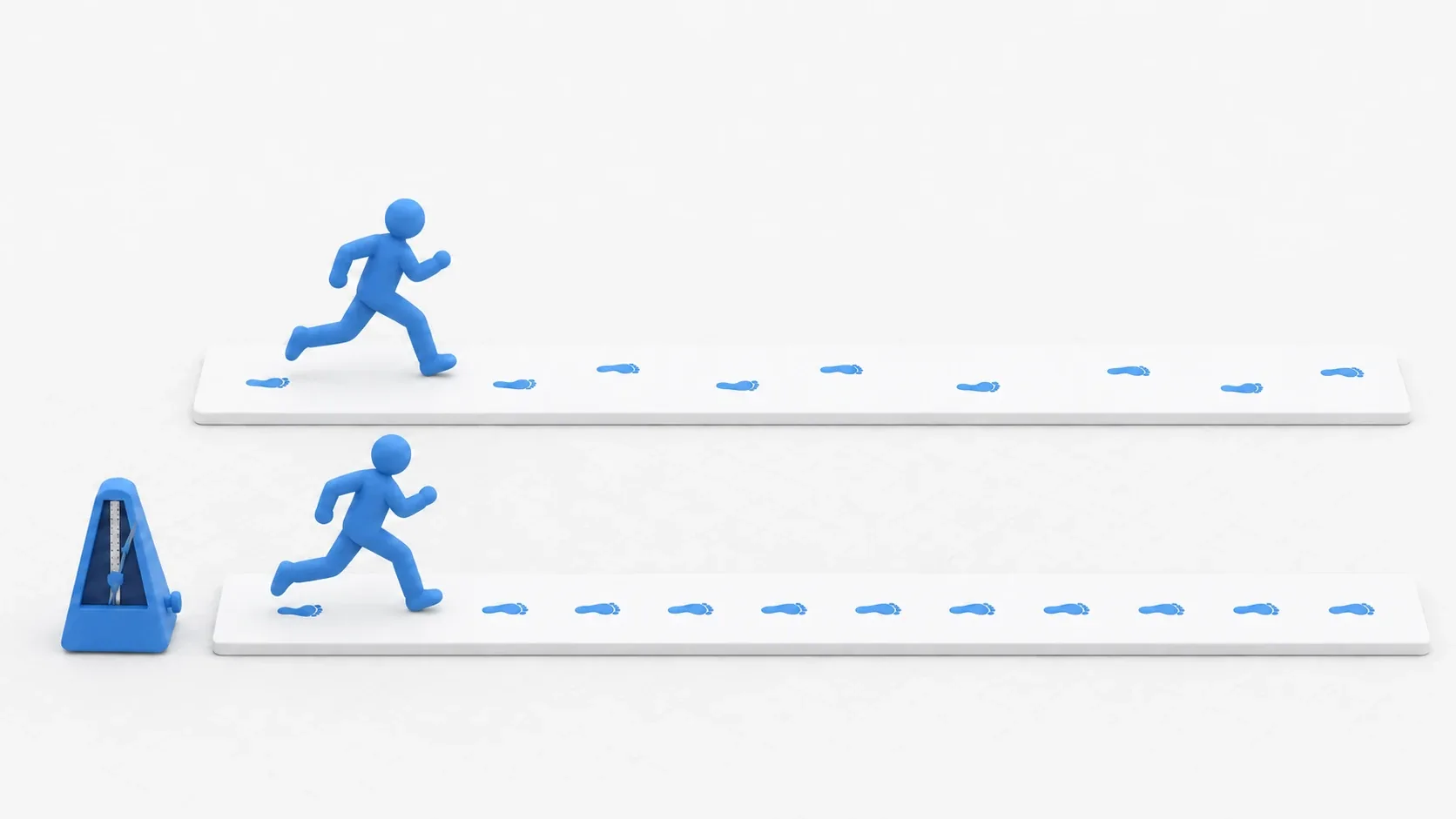
_process(variable) vs_physics_process(fixed)- Using delta correctly so game speed doesn't change with PC performance
- A character movement pattern that separates input, physics, and visuals
- The physics interpolation setting that eliminates jitter
Tested with: Godot 4.7
_process vs _physics_process: The Core Differences
The most important difference between the two functions is when and how often they're called. This maps directly onto the game development concepts of "variable timestep" and "fixed timestep."
| Aspect | _process(delta) | _physics_process(delta) |
|---|---|---|
| When it's called | Every frame (every draw) | At a fixed interval (every physics step) |
| Timestep | Variable | Fixed |
| Call frequency | Depends on PC performance and load (e.g. 60 FPS, 144 FPS) | Depends on project settings (default: 60 times/second) |
The delta argument | Elapsed time since the previous frame (varies) | Time between physics steps (constant) |
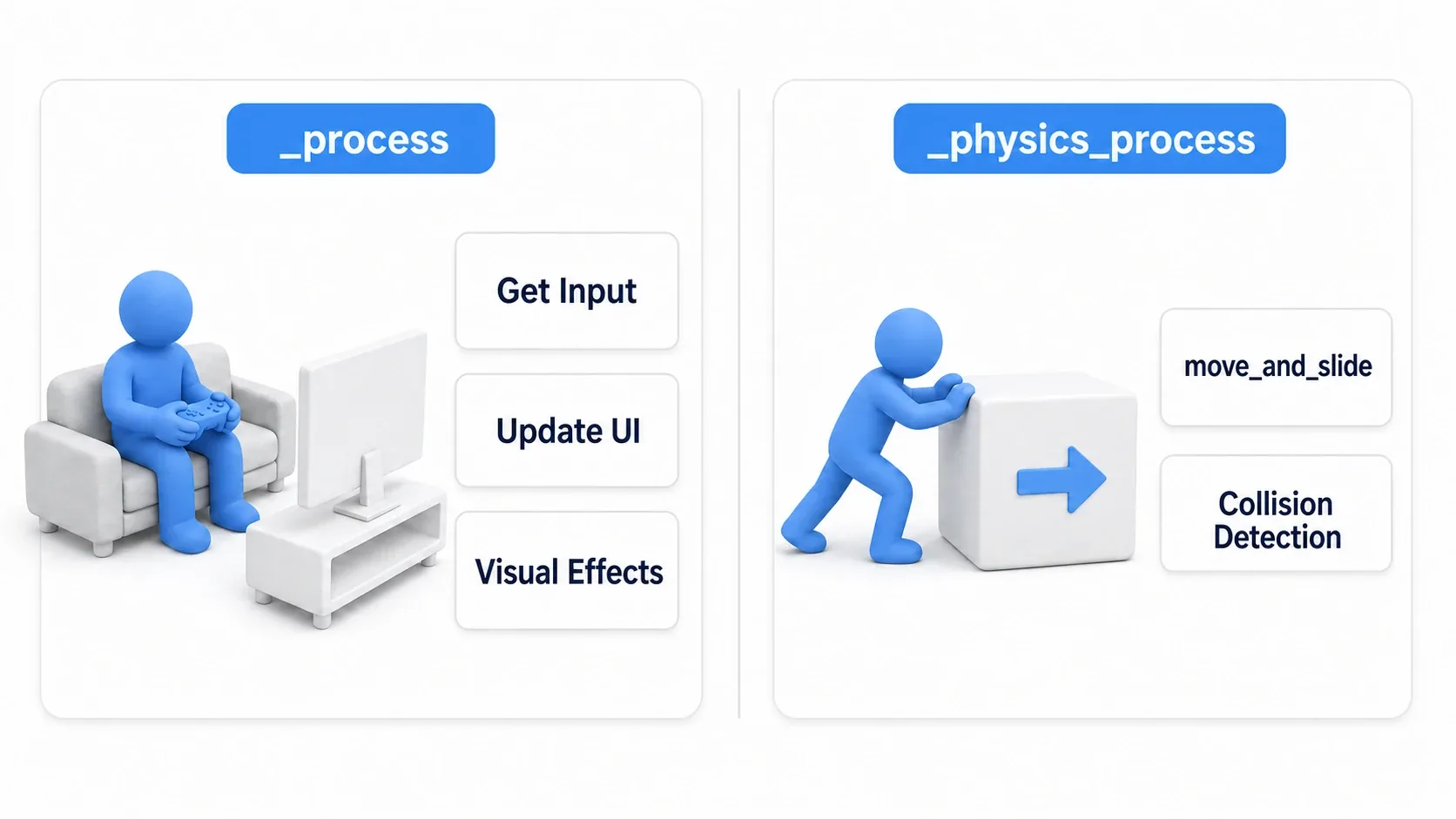
| Main uses | UI updates, input polling, visual effects, non-physics animation | Physics, collision detection, timing-critical logic |
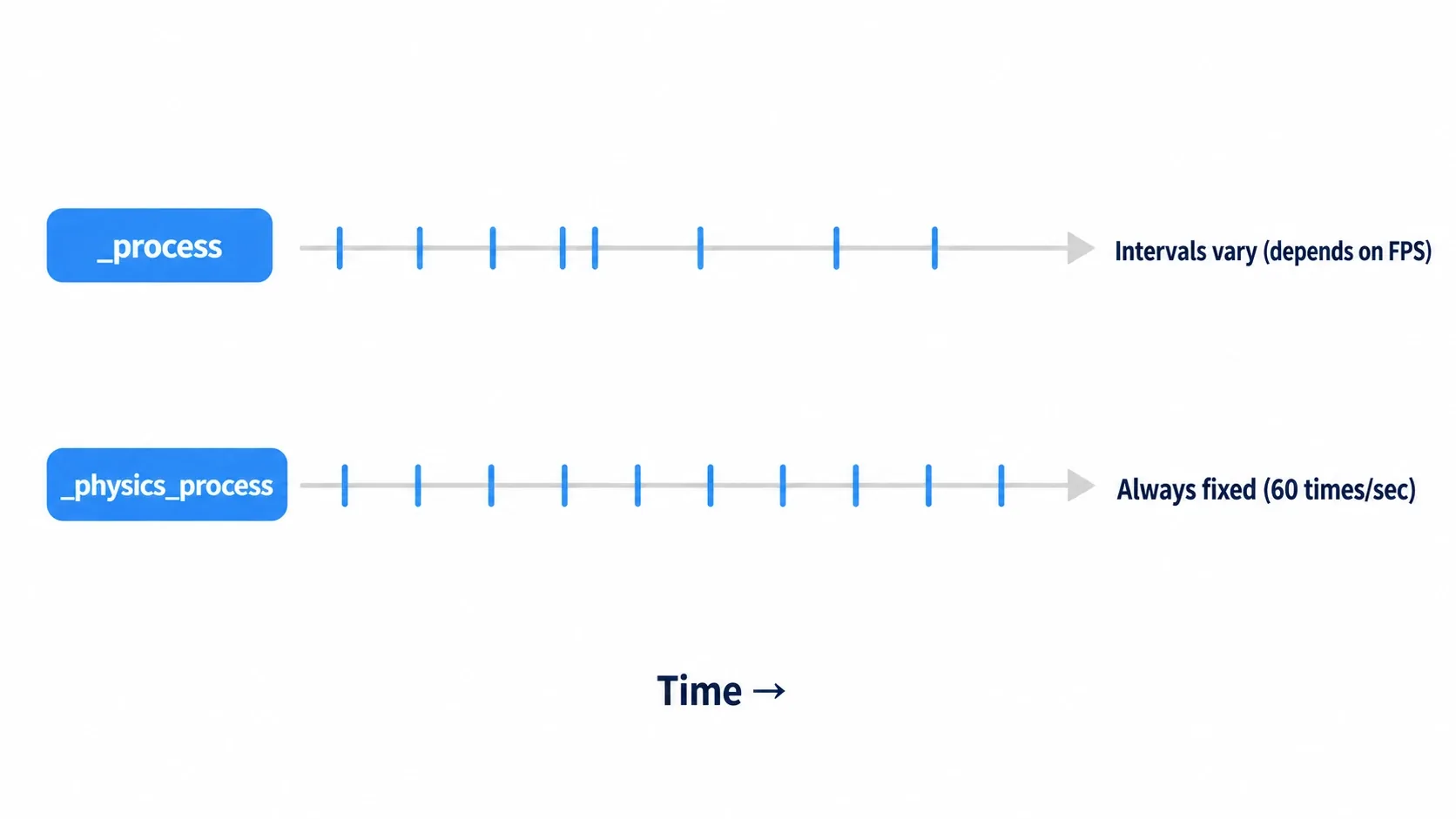
_process: called every time the screen updates, so it suits anything visual. Its interval is unstable, though, which makes it unsuitable for precise work like physics._physics_process: called at a constant interval regardless of frame rate, which guarantees reproducible physics-based movement (the same result no matter when or on whose machine it runs).
Here's the mental model: the parts players see and touch belong in _process, and the physical laws of the game world belong in _physics_process. When in doubt, come back to that mapping.
Common Mistakes and Best Practices
Understanding the theory doesn't stop you from slipping up in practice. Here are specific mistakes paired with the best practices that fix them.
| Common Mistake | Best Practice |
|---|---|
Running physics (move_and_slide) in _process.→ Behavior becomes frame-rate dependent and unstable. | Always run physics in _physics_process.→ You get reproducible, stable physics behavior. |
Adding values in _process without using delta.→ Game speed changes with PC performance. | Always multiply by delta for time-based work in _process.→ You get a uniform speed independent of frame rate. |
Assigning jump = Input.is_action_just_pressed("jump") every time in _process and reading it in physics.→ The next draw can overwrite it with false before physics reads it, dropping the jump. | It's fine to read movement and jump input inside _physics_process.→ In Godot 4, is_action_just_pressed() called inside physics is judged per physics tick (the CharacterBody2D template the editor generates does exactly this). |
Updating visuals (UI, effects) in _physics_process.→ It doesn't sync with rendering, which causes jitter. | Do visual work in _process.→ It syncs with the draw frame for smooth visuals. |
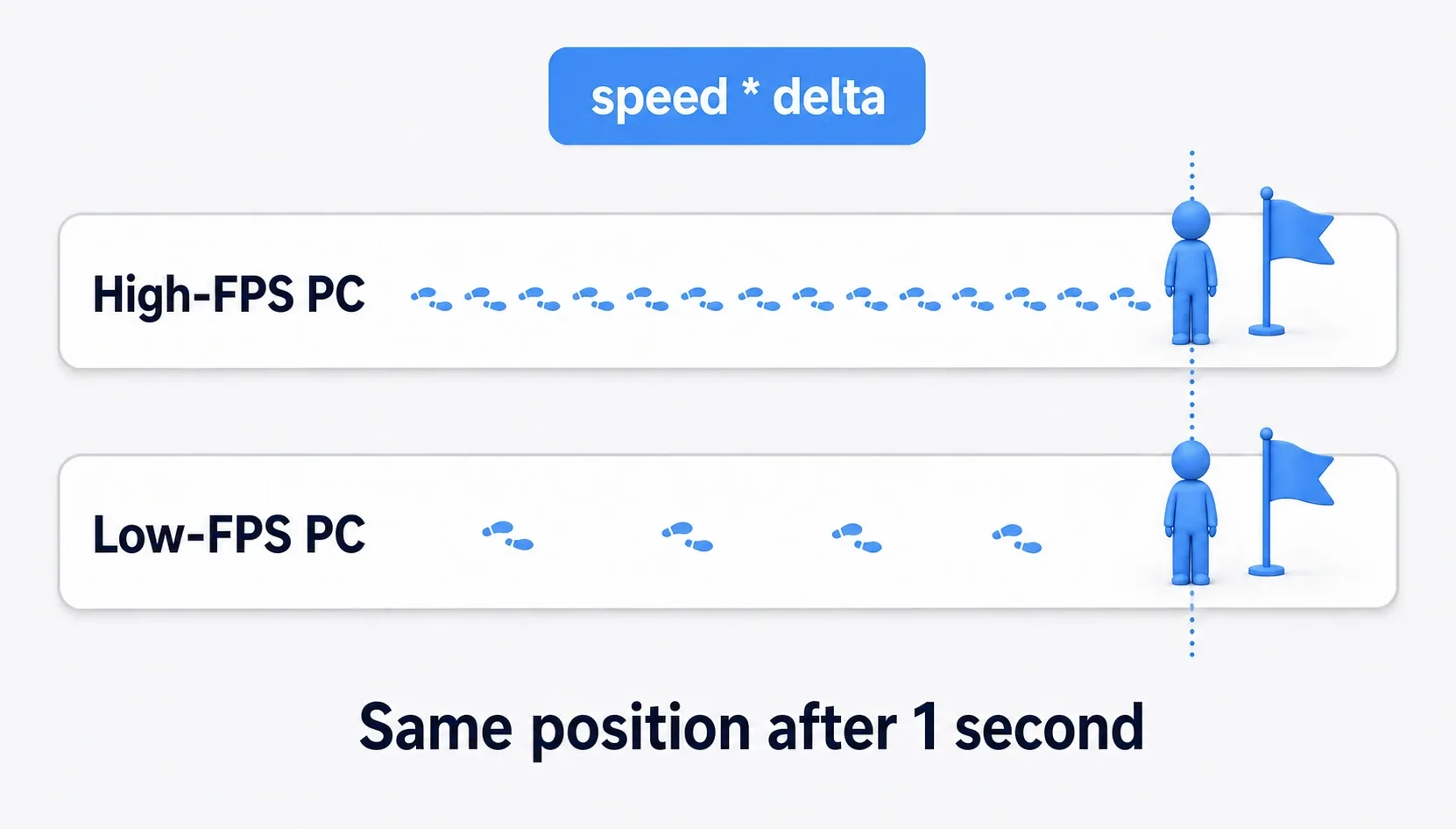
Here's what delta does, as a diagram. Because per-frame movement is automatically scaled by speed * delta, the distance covered in one second is the same at high FPS and low FPS.
Practical Code: Character Movement
Let's look at character movement code that follows these best practices. The key is properly separating input, physics, and animation.
extends CharacterBody2D

const SPEED = 300.0
const JUMP_VELOCITY = -400.0

# Gravity as computed by the physics engine
var gravity = ProjectSettings.get_setting("physics/2d/default_gravity")
var input_direction = Vector2.ZERO
var jump_requested = false

# 1. Input: runs every frame and only stores input into variables
# _input() works too, but _process is more intuitive for continuous input
func _process(delta):
    # Read horizontal input
    input_direction.x = Input.get_axis("move_left", "move_right")

    # Jump input is only recorded as a flag (physics applies it in _physics_process)
    if Input.is_action_just_pressed("jump"):
        jump_requested = true

    # Visual work (e.g. updating animation)
    update_animation()

# 2. Physics: runs on a fixed timestep
func _physics_process(delta):
    # Apply gravity
    if not is_on_floor():
        velocity.y += gravity * delta

    # Consume the stored jump input here
    if jump_requested and is_on_floor():
        velocity.y = JUMP_VELOCITY
    jump_requested = false

    # Set horizontal velocity from the input direction
    velocity.x = input_direction.x * SPEED

    # Run the physics
    move_and_slide()

func update_animation():
    # Put visual code here, such as updating the animation tree
    pass
In this code, _process handles smooth input detection and animation updates, while _physics_process focuses on stable physics (gravity and movement). The key point is that jump input is "recorded" in _process and "consumed" in _physics_process. Physics state like velocity is only modified inside physics steps. Keep that separation and you avoid unstable physics. _process only ever sets jump_requested to true, and only the physics side sets it back to false, so jumps don't get dropped either. As the table above notes, reading input directly inside _physics_process works fine too.
Performance and Advanced Topics
Smoother Motion with Physics Interpolation
When physics runs at 60 times per second but rendering runs at 144, the difference in frequency makes objects look choppy. That's jitter, and physics interpolation solves it.
Enable this feature and the engine automatically interpolates positions between physics steps, drawing them smoothly on render frames.
- How to enable: turn on
Project Settings > Physics > Common > Physics Interpolation.
For games where the camera follows a character, this setting is essentially mandatory.
Input in _input() vs _process()
Besides using Input.get_axis() inside _process(), you can handle input through the _input(event) callback.
_input(event): called the moment an event occurs, such as a mouse click or key press. It suits one-shot actions (opening an inventory, firing a weapon)._process(): better for checking continuous state. Movement code that checks "is the key still held down" withis_action_pressed()is more intuitive here.
Both are valid; using each for its intended role makes your code's intent clearer. How to tell apart the moment a key is pressed, while it's held, and the moment it's released is covered in Choosing the Right Input Check Method.
Summary and Next Steps
Choosing correctly between _process and _physics_process is one of the first and most important steps in Godot development. Get into the habit of asking yourself: "does this need physical reproducibility, or visual smoothness?"
Now that you've got the basics, here's what to tackle next.
- Signals: a powerful system for keeping nodes loosely coupled.
AnimationTree: blends multiple animations and manages complex character states.- Custom resources: create reusable data sets like weapon stats and character parameters.
Learning these concepts will make your Godot projects considerably more scalable and easier to manage.