Music and sound effects transform how a game feels. But the moment you try to play them in Godot, you tend to hit walls: rapid-fire sound effects cut each other off, you want to lower only the music but can't find how, and sounds get played from scripts scattered all over until nothing is manageable.
All of these are solved once you understand the two pillars of Godot audio: AudioStreamPlayer (the node that plays sound) and Audio Buses (the routes that group sound together) . This article builds from the basics up to practical centralized control with an AudioManager singleton.
What You'll Learn
- The three core elements of Godot audio (AudioStream / AudioStreamPlayer / Audio Bus)
- How to choose among the three kinds of
AudioStreamPlayer(plain / 2D / 3D)- How to play sound effects without cutting out (dynamic creation,
max_polyphony)- Centralized control with an
AudioManagersingleton, plus slider volume control- Applying effects to Audio Buses (reverb and more)
Tested with: Godot 4.7
- The Three Core Elements of Godot Audio
- The Three Kinds of AudioStreamPlayer
- Grouped Control with Audio Buses
- Playing Sound Effects Without Cutting Out
- Hands-On: Centralizing Everything in an AudioManager
- Performance and Alternative Patterns
- Applying Effects to Audio Buses
- Bonus: Good to Know for Later
- Summary
The Three Core Elements of Godot Audio
Playing sound in Godot comes down to three players. Comparing their roles to music equipment makes it click.
| Element | Role | Think of it as |
|---|---|---|
| AudioStream | The audio data itself | A CD or MP3 file |
| AudioStreamPlayer | The node that plays the sound | A CD player |
| Audio Bus | The route that bundles and controls signals | A mixing console |
The path to your ears runs one way. Sound data (AudioStream) is played by a player (AudioStreamPlayer) , that sound travels through a bus (Audio Bus) , and finally comes out of the Master bus where all audio converges.
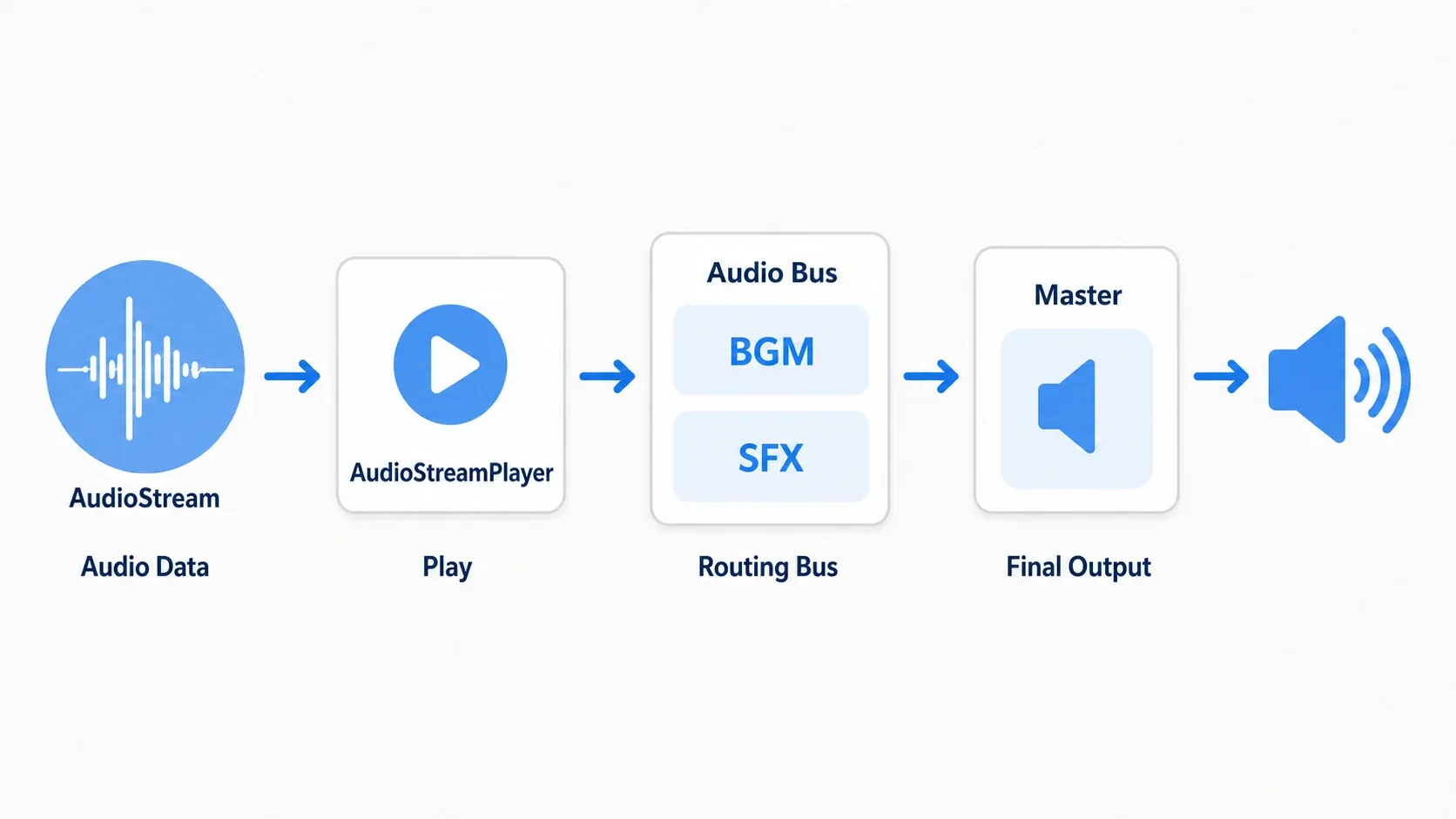
Keep this "data to player to bus to Master" flow in mind and everything below is an explanation of some part of that diagram.
The Three Kinds of AudioStreamPlayer
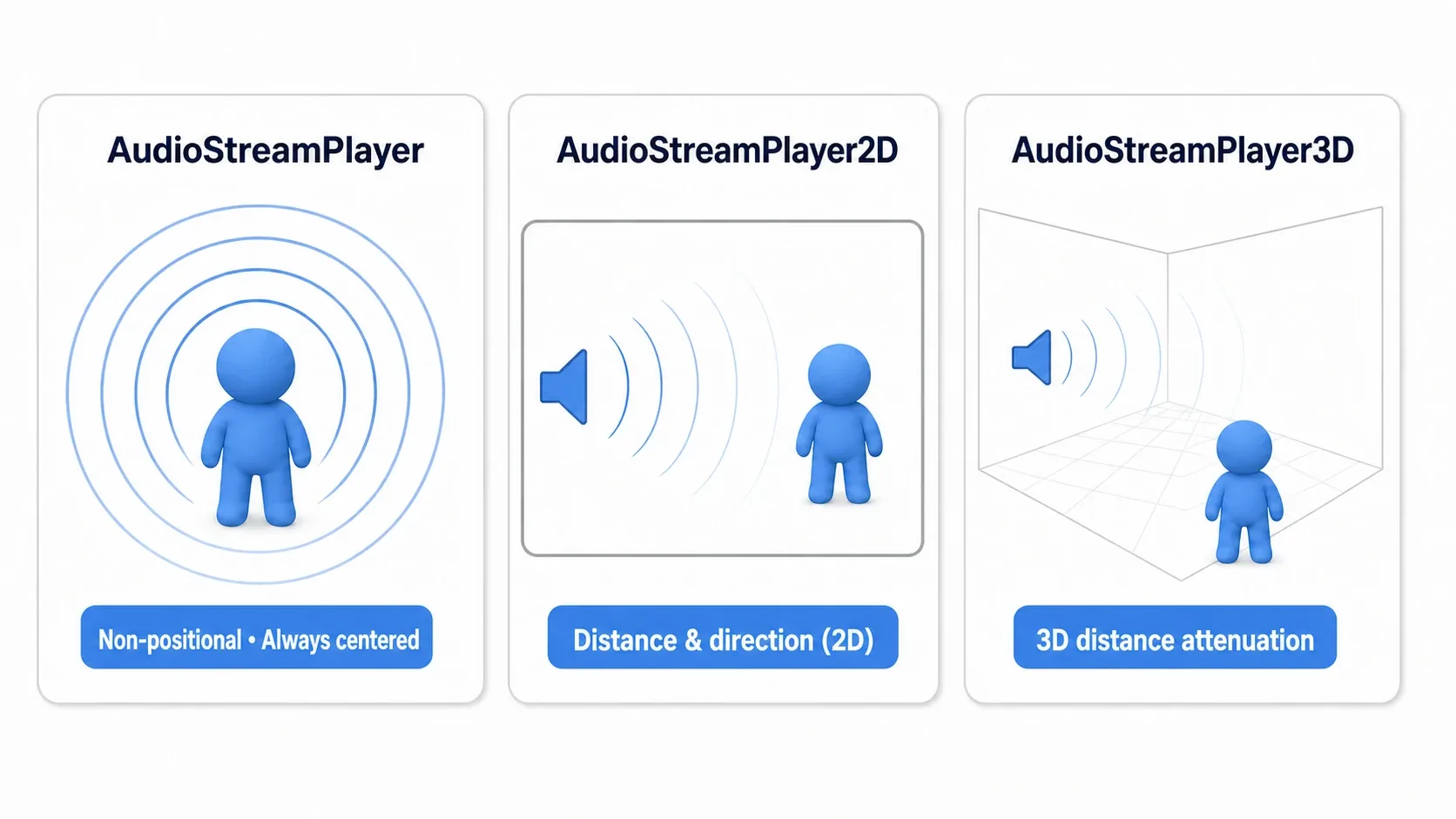
There are three nodes for playing sound, and you choose based on whether the sound has a position .
| Node | Main use | Characteristics |
|---|---|---|
AudioStreamPlayer | Music, UI sounds | No positional data. Always heard evenly from the center |
AudioStreamPlayer2D | Sound effects in 2D games | Volume and panning vary with distance and direction from the camera |
AudioStreamPlayer3D | Sound effects in 3D games | Supports distance attenuation and the Doppler effect in 3D space |
The rule of thumb is simple. Sounds that should be identical no matter where they happen on screen (music, UI clicks) use the plain node. Sounds that should convey space, like a distant enemy's quiet footsteps or an explosion on the right coming from the right, use 2D or 3D.
Grouped Control with Audio Buses
An Audio Bus is a path for sound, playing the role of a mixing console. All sound eventually converges on the Master bus , but before it gets there you can set up your own buses such as BGM, SFX, and Voice and group sounds by type.
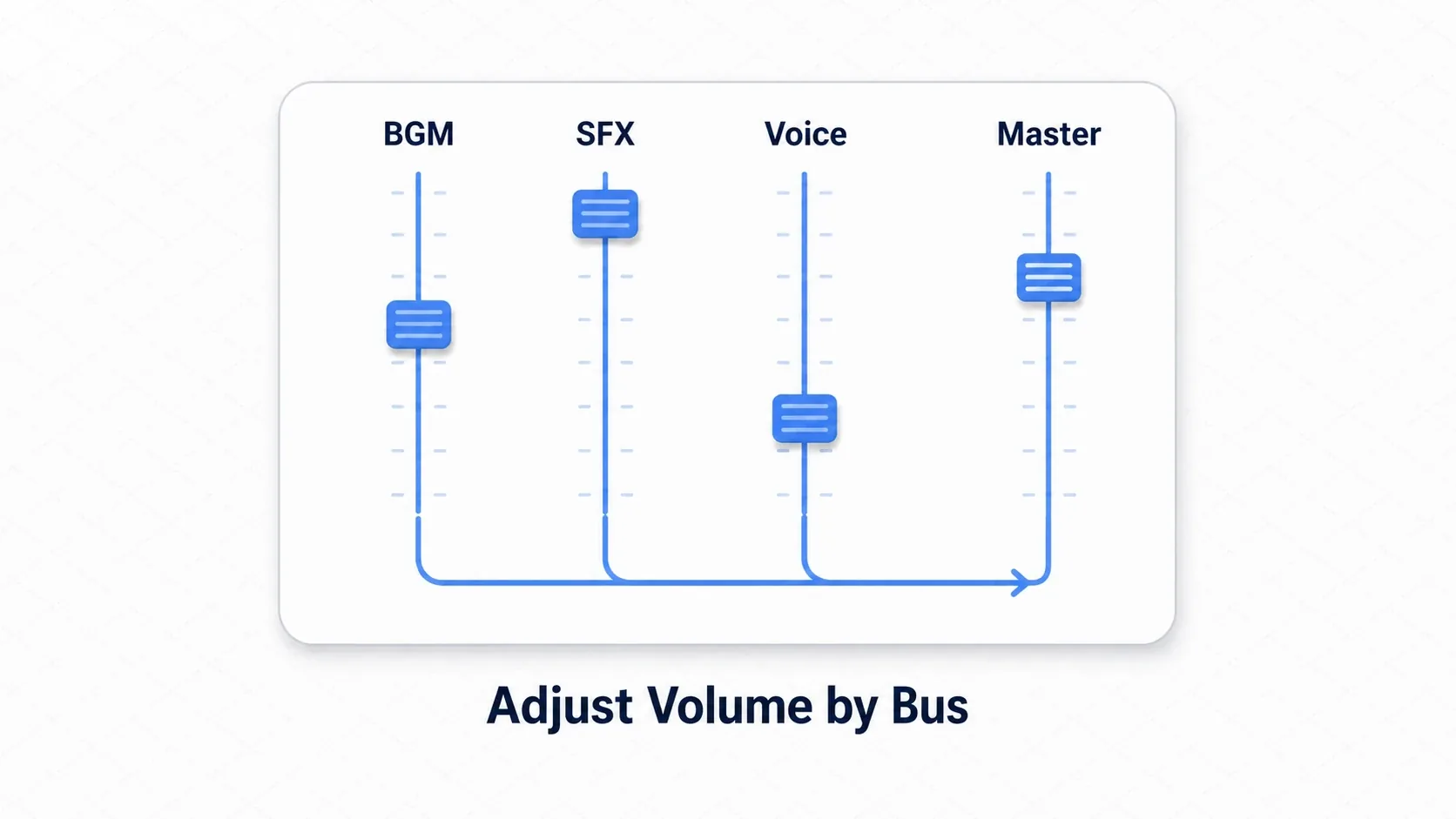
The biggest benefit of separate buses is controlling each type as a group .
- Grouped volume control : lowering only the music or muting only sound effects takes one bus operation. Volume sliders in your settings screen are built on this
- Grouped effect application : reverb or compression can be applied to every sound passing through that bus at once (covered below)
Add buses from the "Audio" tab at the bottom of the editor. Set each AudioStreamPlayer's bus property to a bus name such as "SFX" and that sound routes through it. When working with buses from code, the golden rule is to look up the index by name instead of hardcoding it .
# Bad: a hardcoded index breaks when buses get reordered
AudioServer.set_bus_volume_db(1, -10.0)

# Good: get the index from the bus name
var sfx_index := AudioServer.get_bus_index("SFX")
AudioServer.set_bus_volume_db(sfx_index, -10.0)
Playing Sound Effects Without Cutting Out
The first thing beginners trip over is sound effects cutting out. The cause is clear: playing a new sound on the same AudioStreamPlayer while it is already playing overwrites the previous sound and cuts it off. It's why rapid sword swings turn from "shing... shing" into "shi, shi".
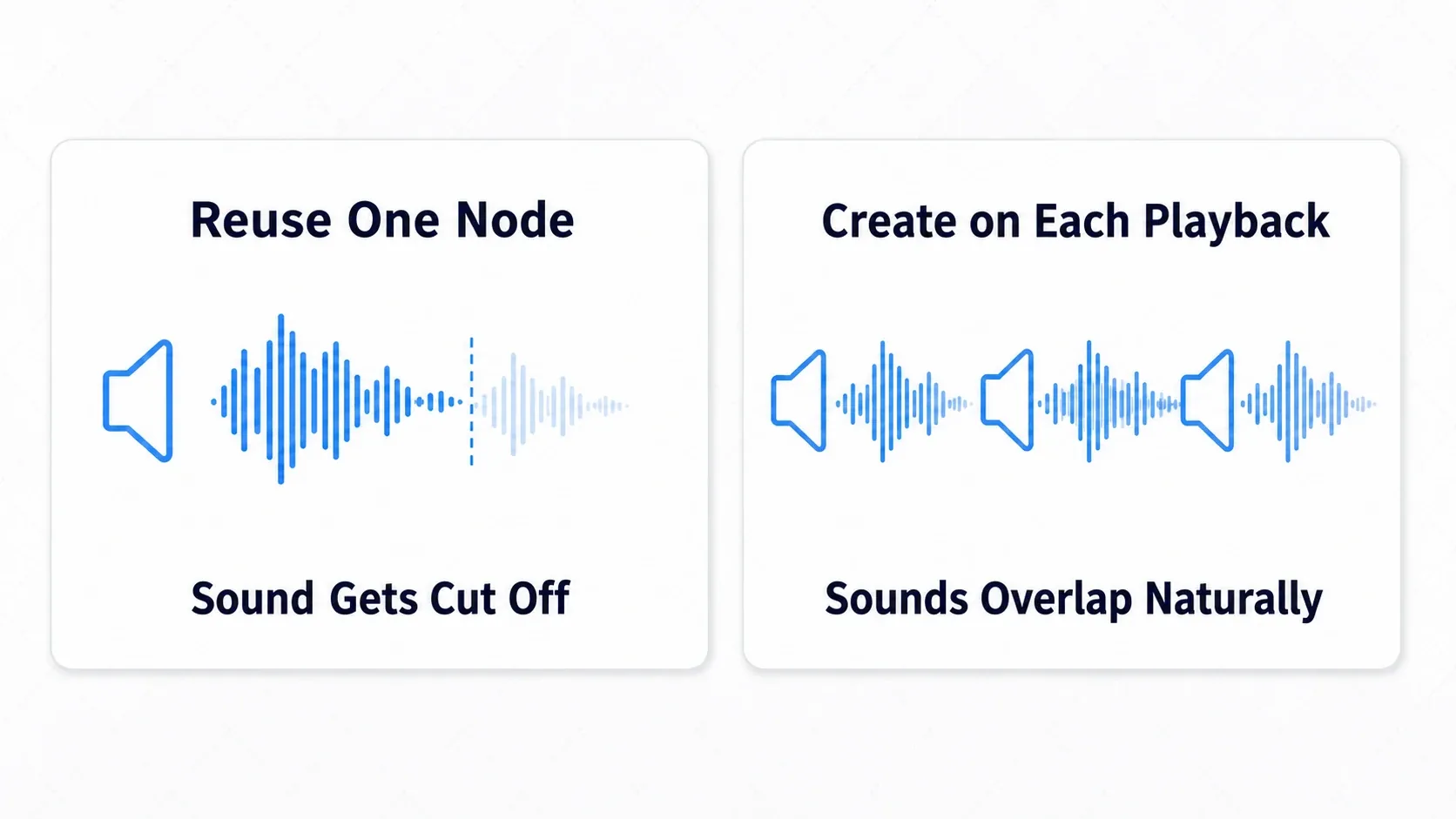
There are two solutions. The standard one is to create a player dynamically per playback and have it delete itself when done .
# Create a node per playback and discard it when finished
func play_sfx(stream: AudioStream) -> void:
    var player := AudioStreamPlayer.new()
    player.stream = stream
    player.bus = "SFX"                       # Route through the SFX bus
    add_child(player)
    player.play()
    player.finished.connect(player.queue_free) # Delete itself when playback ends
The finished signal fires the moment playback ends, so calling queue_free() there cleans up finished sound nodes automatically. Rapid input creates a separate node per hit, so sounds overlap and play naturally. One catch: a sound set to loop never finishes, so finished never arrives and the node stays forever. Pass only non-looping sound effects to this function.
The other approach is to raise max_polyphony (simultaneous voices) . This property sets how many sounds one node can play at once (the default is 1). Setting it to 4 through 8 lets the same sound overlap when triggered repeatedly, without adding nodes (switching stream to a different sound stops the previous one). For something like a UI click that only occasionally overlaps, this is simpler.
For 2D/3D sound effects : when a sound needs a position, dynamically create an
AudioStreamPlayer2D(or 3D) and setglobal_positionto the source's coordinates.
Hands-On: Centralizing Everything in an AudioManager
Let's assemble the pieces so far into the form that pays off most in a real game: an audio control tower where any scene can play sound with a single line like AudioManager.play_bgm(...) or AudioManager.play_sfx(...) .
Title screens, battles, UI, there are countless places you want to play sound. If each of them builds its own player, management falls apart, so we consolidate into one AudioManager via Autoload (singleton) .
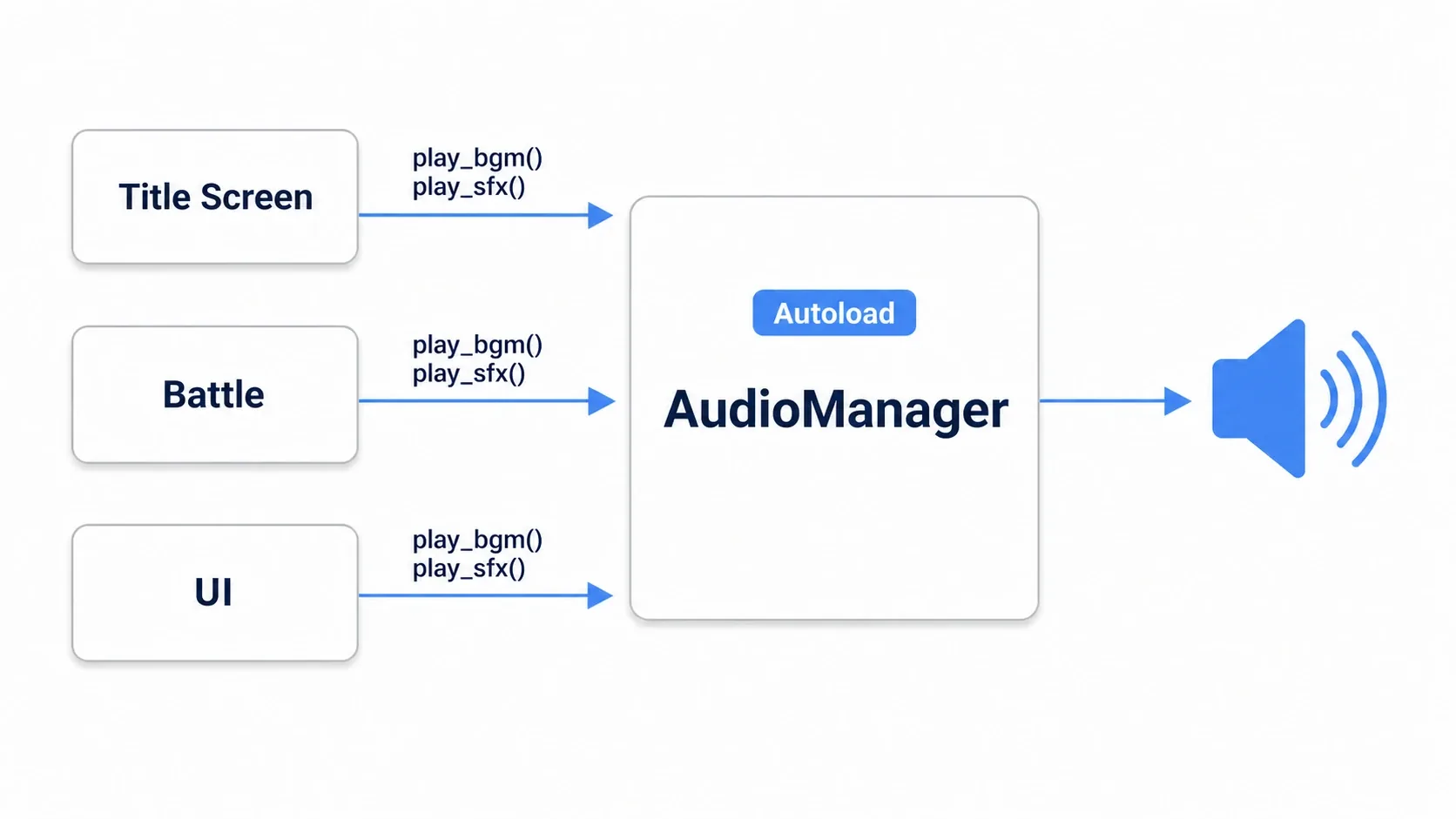
Register AudioManager.gd under Project Settings > Globals > Autoload and every scene can reach it by the name AudioManager.
extends Node

const BGM_BUS = "BGM"
const SFX_BUS = "SFX"

var bgm_player: AudioStreamPlayer
var bgm_tween: Tween

func _ready() -> void:
    # Check up front so a missing bus is noticed early
    if AudioServer.get_bus_index(BGM_BUS) == -1:
        push_error("Audio Bus '%s' not found" % BGM_BUS)

# Play music (with fade-in)
func play_bgm(stream: AudioStream, fade_in := 0.5) -> void:
    if not bgm_player:                       # Reuse a single player for music
        bgm_player = AudioStreamPlayer.new()
        bgm_player.bus = BGM_BUS
        add_child(bgm_player)
    if bgm_player.stream == stream and bgm_player.playing:
        return                               # If the same song is already playing, don't restart it
    bgm_player.stream = stream
    bgm_player.volume_db = -80.0             # Start from near silence
    bgm_player.play()
    if bgm_tween:
        bgm_tween.kill()                     # Stop any fade still running
    # Bring volume up to 0 dB (unity gain) with a Tween for a gradual rise
    bgm_tween = create_tween()
    bgm_tween.tween_property(bgm_player, "volume_db", 0.0, fade_in)

# Play a sound effect (create and discard a node each time)
func play_sfx(stream: AudioStream) -> void:
    var player := AudioStreamPlayer.new()
    player.stream = stream
    player.bus = SFX_BUS
    add_child(player)
    player.play()
    player.finished.connect(player.queue_free)

# Set bus volume from a slider (0.0 to 1.0)
func set_bus_volume(bus_name: String, linear: float) -> void:
    var index := AudioServer.get_bus_index(bus_name)
    if index == -1:
        return
    # set_bus_volume_db() takes decibels. linear_to_db() converts the 0.0-1.0 multiplier to decibels
    AudioServer.set_bus_volume_db(index, linear_to_db(clampf(linear, 0.0, 1.0)))
On the calling side, playing a sound is one line wherever you need it.
const JUMP_SFX = preload("res://assets/sfx/jump.ogg")

func _on_jump() -> void:
    AudioManager.play_sfx(JUMP_SFX) # One line, from any scene
There are two points to take away.
- Music and sound effects use different strategies : only one music track plays at a time, so we reuse a single player and fade
volume_dbwith Tween. Sound effects overlap, so we create and discard one each time . Different roles get different handling. - Volume moves through the bus : passing a bus name and slider value to
set_bus_volume()is all you need for "Music Volume" and "SFX Volume" sliders in a settings screen.linear_to_db()is in there to convert the slider value (a 0.0 to 1.0 multiplier) into the decibels the bus expects. 1.0 becomes 0 dB (the original volume) and 0.0 becomes silence.
Performance and Alternative Patterns
In games where huge numbers of sound effects fire at once, your playback options change.
| Approach | Pros | Cons | Best for |
|---|---|---|---|
| Dynamic creation (this article's approach) | Simple to implement | Node creation cost at high volume | Most games |
| Object pooling | Stable creation and disposal cost | More complex to implement | Bullet hell and heavy-effect games with dozens to hundreds of sounds per second |
The default is to build with dynamic creation first, and only consider pooling once the profiler shows audio is a bottleneck . Instead of calling new() / queue_free() on players every time, reusing a prepared set of players is object pooling.
Applying Effects to Audio Buses
Adding an effect to a bus applies it to every sound passing through that bus. Add a single reverb to the SFX bus and every sound effect picks up cave echo at once. That's the payoff of grouping with buses.
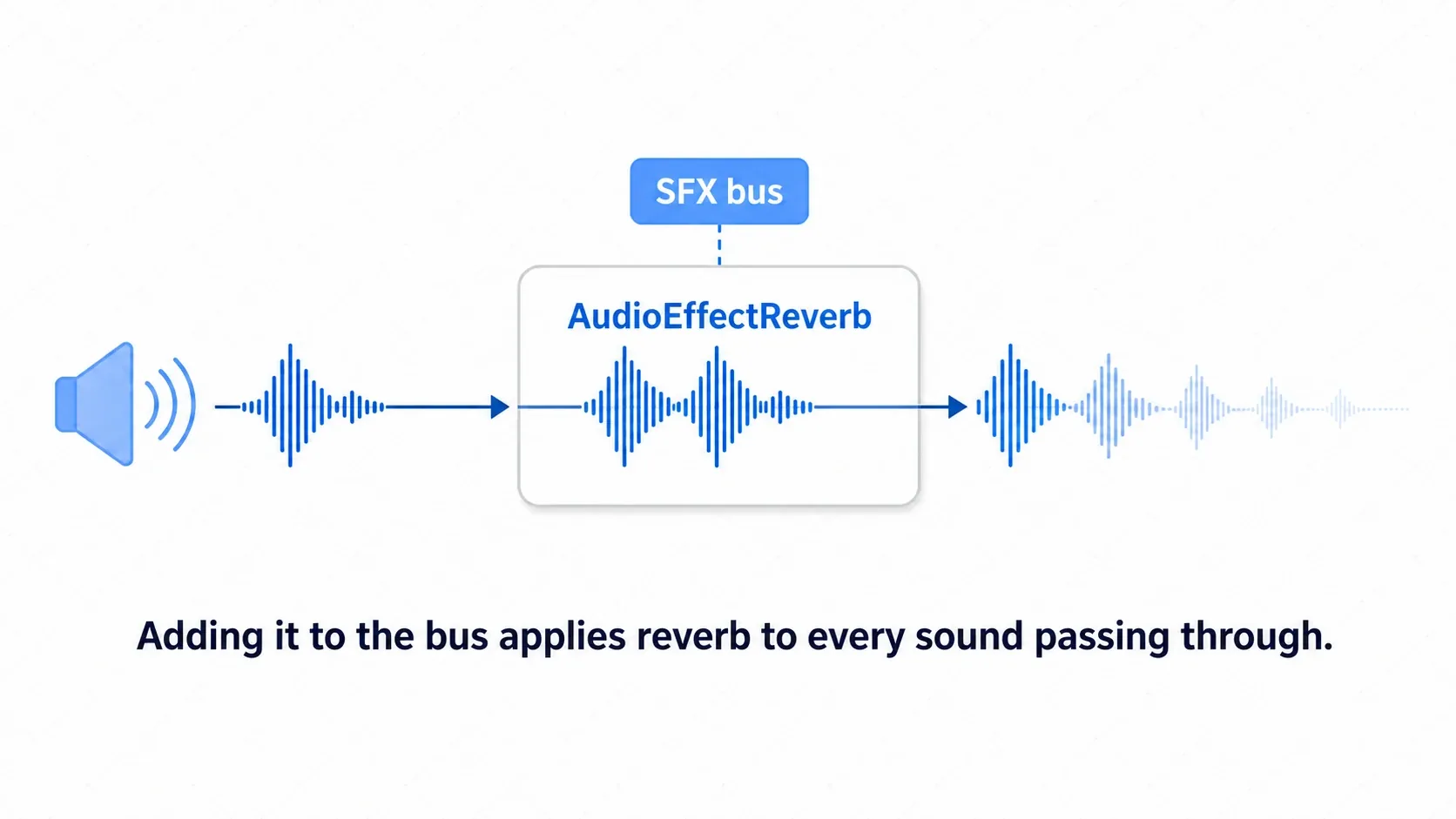
- Open the "Audio" tab at the bottom of the editor
- Select the bus you want to affect (for example,
SFX) - Choose
AudioEffectReverbfrom "Add Effect" - Adjust
Room SizeandWet(how strongly the effect applies)
Effects like "stronger echo in cave areas, weaker outdoors" switch dynamically by animating Wet from code. Beyond reverb, you get compressors, EQ, low-pass, and more, all following the same ideas as real hardware effects units. Note that in a game exported for the Web, bus effects aren't applied with the default settings.
Bonus: Good to Know for Later
Once the basics are in place, these are what's waiting next. You don't need to learn them all right now.
- Where your bus setup is saved : the bus layout you build is saved automatically to
res://default_bus_layout.tresand loaded at startup (Project Settings > Audio > Buses > Default Bus Layout points to this file from the start). If you delete or rename this file, your buses go back to just Master. - Loop your music : enable "Loop" in the import settings for
.oggand similar files so music repeats seamlessly. Import settings are also where you go for precise loop points. - Keep music playing while paused : pausing the game with
get_tree().paused = truepauses the music player too. To keep it playing on the pause screen, setbgm_player.process_mode = Node.PROCESS_MODE_ALWAYSwhere you create the music player. - Go deeper on effects : effect chains that stack EQ, Compressor, and Limiter on a bus are covered in Sound design with Audio Bus effects.
- Master spatial audio : distance cues for footsteps, Doppler, and the rest of 3D sound design live in 3D audio and spatial sound.
- Change music by situation : switching music with combat intensity starts with adaptive music.
Summary
| Concept | Role | Best practice |
|---|---|---|
| AudioStreamPlayer | The node that plays sound | Create sound effects dynamically to avoid cutoff, reuse one player for music and fade it |
| Audio Bus | The route and mixer that groups sound | Split into BGM/SFX/Voice and look up the index by name |
| AudioManager | The overall control tower | Centralize with Autoload and play in one line |
- Sound cutting out comes from reusing a single node. Fix it with dynamic creation plus
finishedtoqueue_free(), or withmax_polyphony - Volume control goes through buses. Convert slider values to decibels with
linear_to_db()and apply withset_bus_volume_db() - Effects added to a bus apply to every sound passing through it
Start by creating two buses, "BGM" and "SFX", and playing sound through play_bgm() / play_sfx() on an AudioManager. Once audio lives in one place, adding volume settings and effects later becomes dramatically easier.
Further Reading
- Managing data across scenes with Autoload : how to build the singleton that AudioManager sits on
- Smooth animation with Tween : used for music fade-in and fade-out
- Connecting nodes with signals : how signals like
finishedwork - The complete guide to object pooling : optimization for playing large numbers of sound effects
- Sound design with Audio Bus effects : effect chains beyond basic reverb
- Godot official docs: Audio streams : primary source on AudioStreamPlayer and buses