When you use a 3D model brought in from an asset site or Blender, the first milestone is matching its scale and front-facing direction, then attaching an existing animation, like a walk from Mixamo (a free animation asset site), to make it move.
Place it as-is, and the model may be huge or facing backward. Attach another model's walk, and it stays in a T-pose or its arms twist. An animation is a set of instructions addressed to bone names, so it can't arrive unless the bone names and the reference for their directions match.
This article covers fixing scale and facing, matching bone names with BoneMap, and moving a walk onto a different model.
What You'll Learn
- Fixing things in import settings and adding things in an inherited scene, and where to fix scale and front-facing direction
- That an animation is instructions addressed to bone names, and why models stay in a T-pose or twist their arms
- Steps to match bone names to common humanoid names with BoneMap
- How to play a Mixamo walk on a different humanoid model
Tested with: Godot 4.7
- Import settings and inherited scenes
- Scale (Root Scale) and front-facing direction
- How animations relate to bone names
- Matching bone names with BoneMap
- Handing over animations with AnimationLibrary
- Hands-On: Make a Different Humanoid Model Walk With a Mixamo Walk
- Troubleshooting
- Bonus: Good to Know First
- Summary
Import settings and inherited scenes
Put a 3D model file (.glb or .fbx) in your project, and by default Godot makes a scene from that file. This scene is a copy made from the original file, and it's rebuilt every time you change settings and reimport.
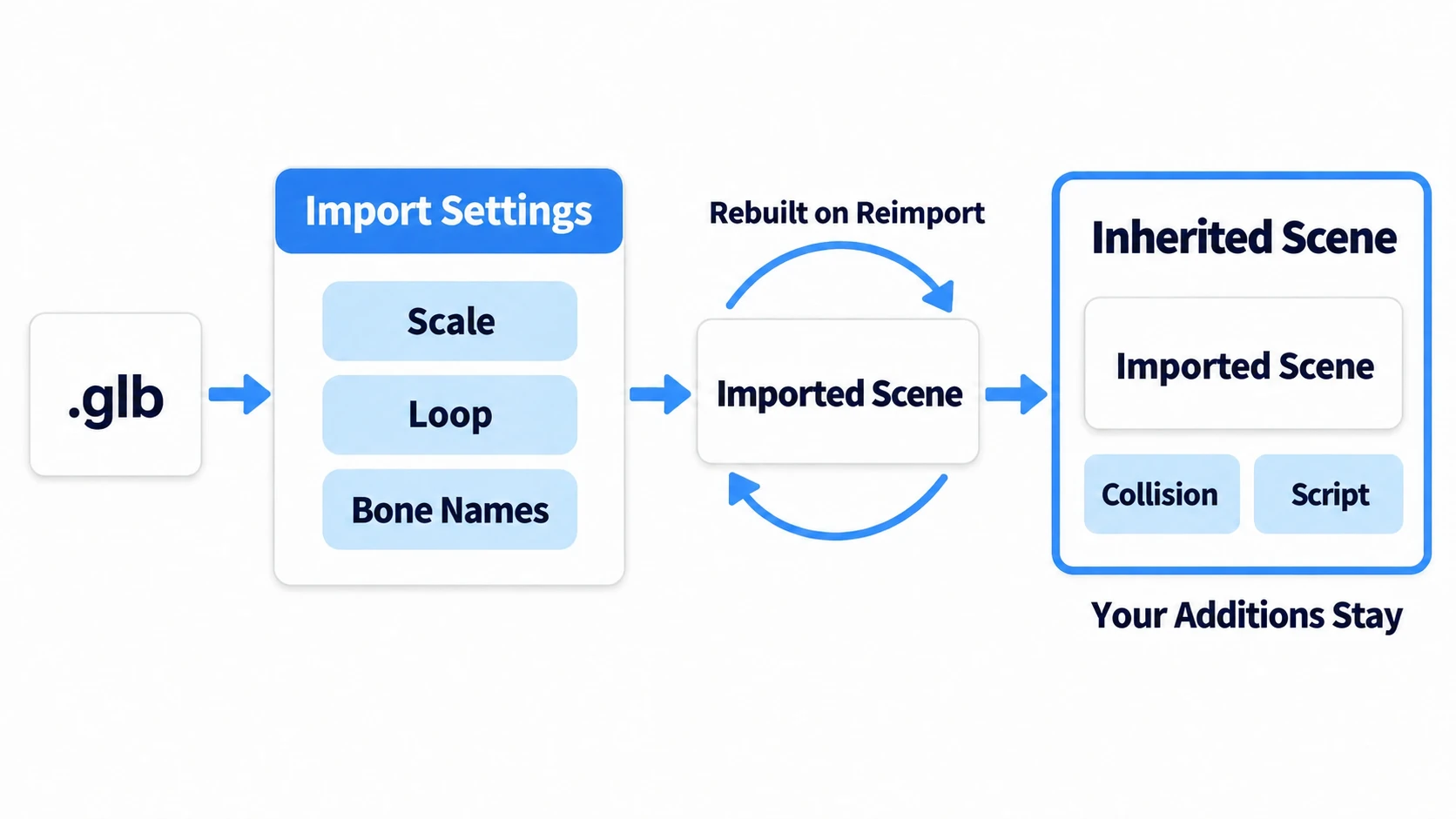
There are two places to fix things.
- Import settings: the rules for making a scene from the file, such as scale, animation looping, and how bone names are matched. Select the file in the FileSystem dock and they appear in the Import dock
- Inherited scene: where nodes you add yourself go. Collision, scripts, the AnimationPlayer that plays animations, and so on
Make an inherited scene by right-clicking the file and choosing New Inherited Scene. It's a separate .tscn built on the original model, and nodes added here don't disappear when the original file is reimported.
Fix scale, looping, and bone names in the import settings, and if nodes you added disappear on reimport, move them to an inherited scene.
Scale (Root Scale) and front-facing direction
When a model is huge, or tiny like a dot, change Root Scale (the scale multiplier) in the Import dock. After changing it, press Reimport. Fixing it in the import settings makes it come out the same size in every scene you place it.
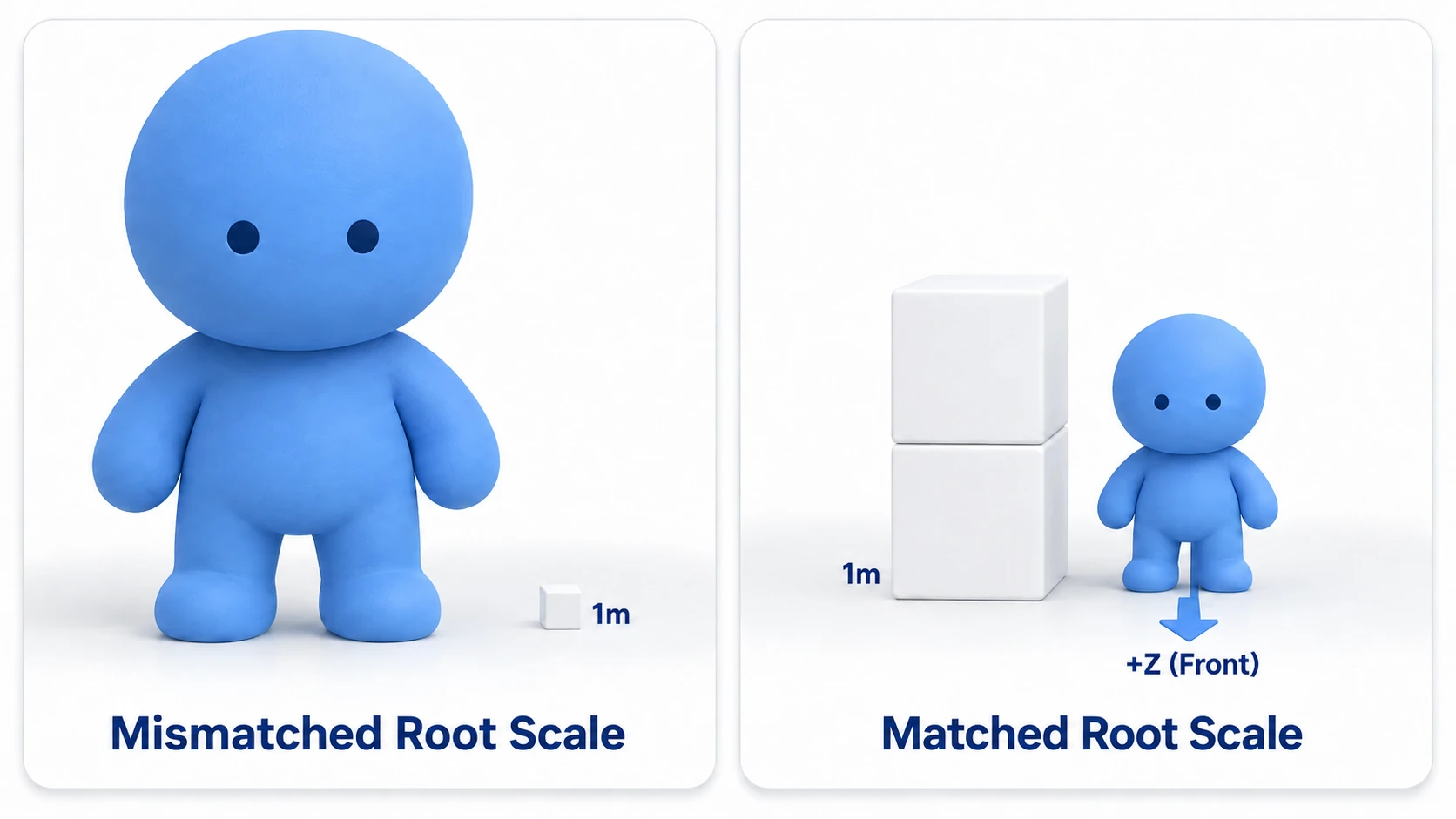
Check the size by placing it next to a 1-meter box. A humanoid should be about 1.7 boxes tall.
There's a rule for the front-facing direction too. In Godot, 3D assets such as characters have their front aligned to +Z. That's the opposite of -Z, which the camera treats as forward. If the face of a model placed with rotation 0 points the same way as the blue arrow (+Z) of the move gizmo (the arrows that appear when you select a node, for moving it), it's aligned.
For a model that's off, place it as a child of a parent Node3D and rotate that child around Y. 180 degrees if it faces backward, 90 or -90 if it faces sideways. Turn the character by turning the parent. Rotate the model directly, and the correction gets overwritten and lost when you change its direction during the game.
Starting with glTF (.glb), which holds the shape, bones, animations, and textures in one file and uses meters, keeps things simple. Assets distributed as FBX, like Mixamo's, can also be brought in as-is in Godot 4.3 and later.
How animations relate to bone names
A humanoid model has bones (Skeleton3D) inside its body. An animation is a sequence of instructions telling each bone, one by one, "at this time, rotate to this direction." The hip bone also carries instructions that move the body's position. Mixamo's In Place is an animation with only the forward movement removed, keeping the hips' up-and-down bob.
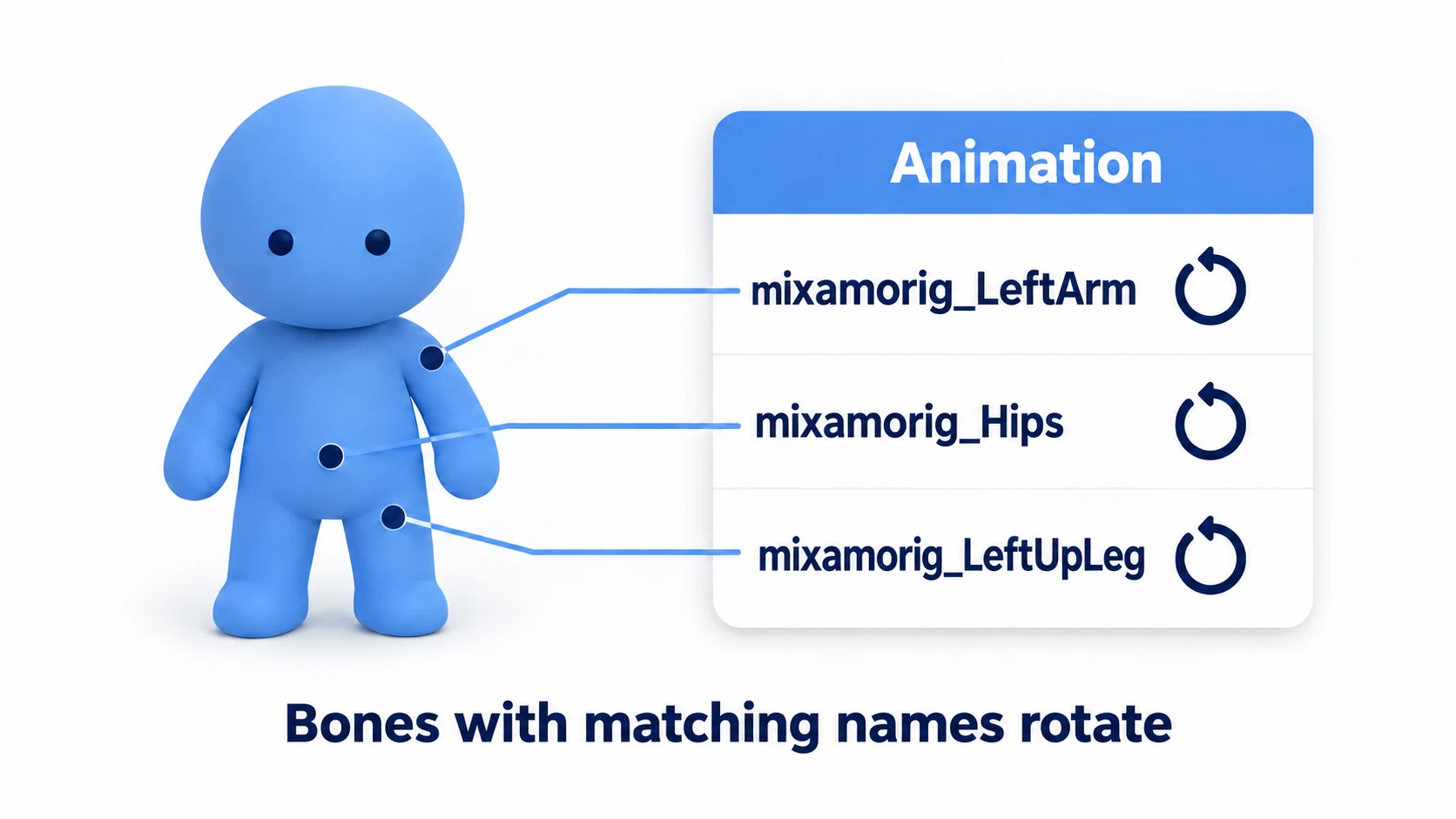
Each instruction has the Skeleton3D's location and a bone name written as its address. For example, in Mixamo's walk, the instruction for the left arm is addressed to mixamorig_LeftArm. If the same bone is named upperarm.l in another model, this instruction doesn't arrive.
When an animation doesn't move on another model, one of these two is happening.
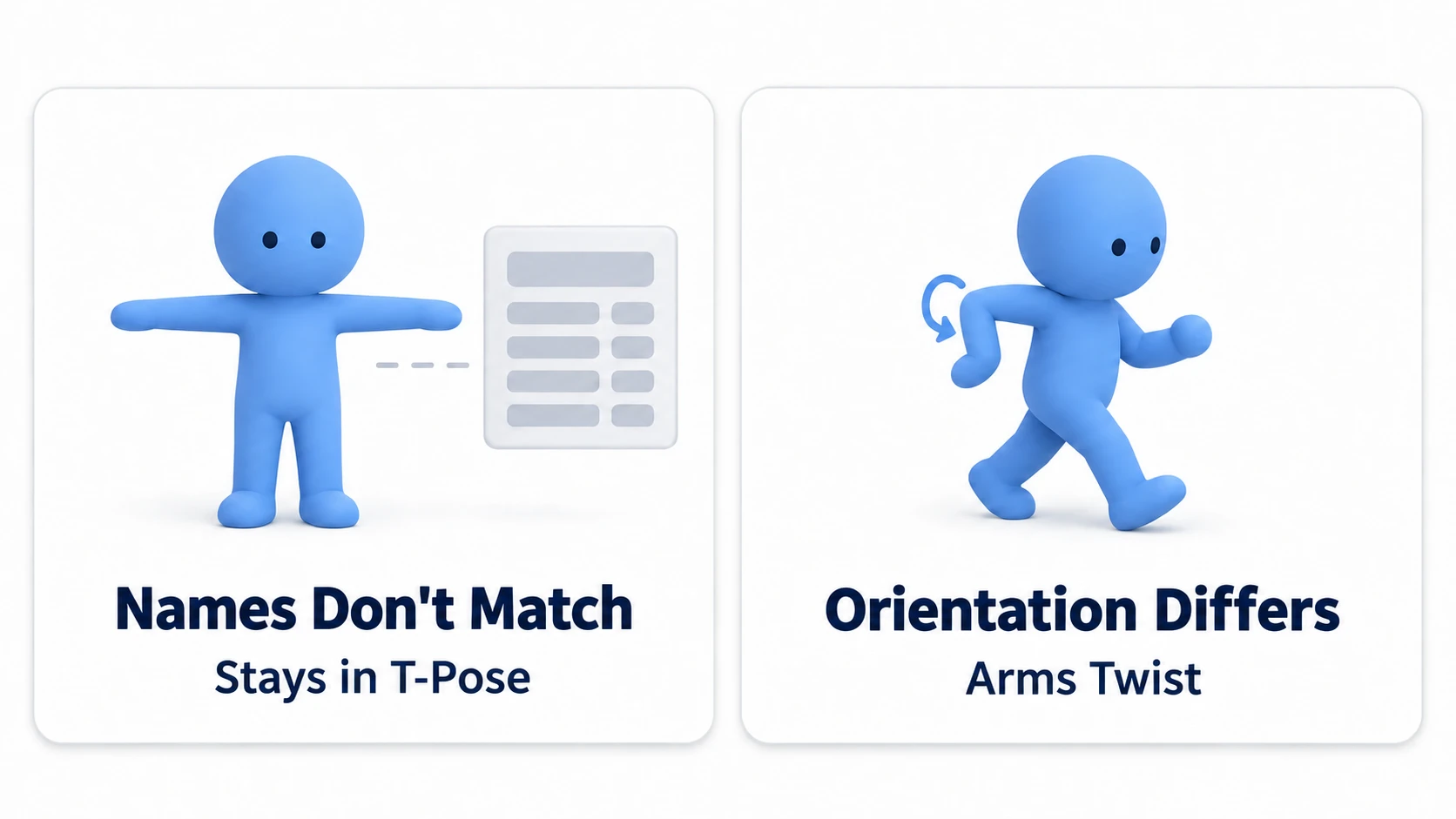
- It stays in a T-pose and doesn't move: the instructions' addresses can't be found. Either the bone names or the location of the Skeleton3D holding the bones doesn't match. The animation's time advances, but the body stays in its initial pose
- Arms twist, knees bend backward: the addresses match, but the bones' direction reference or initial pose differs. Initial poses include the T-pose, with arms stretched out sideways, and the A-pose, with arms lowered
Matching names is the first stage, and matching the direction reference is the second. In Godot, you match bone names with the BoneMap below and the direction reference with Rest Fixer on the same screen, at import time.
Matching bone names with BoneMap
BoneMap is a table that maps each model's differing bone names to common humanoid names. The common names are things like Hips and LeftUpperArm. The list lives in SkeletonProfileHumanoid.
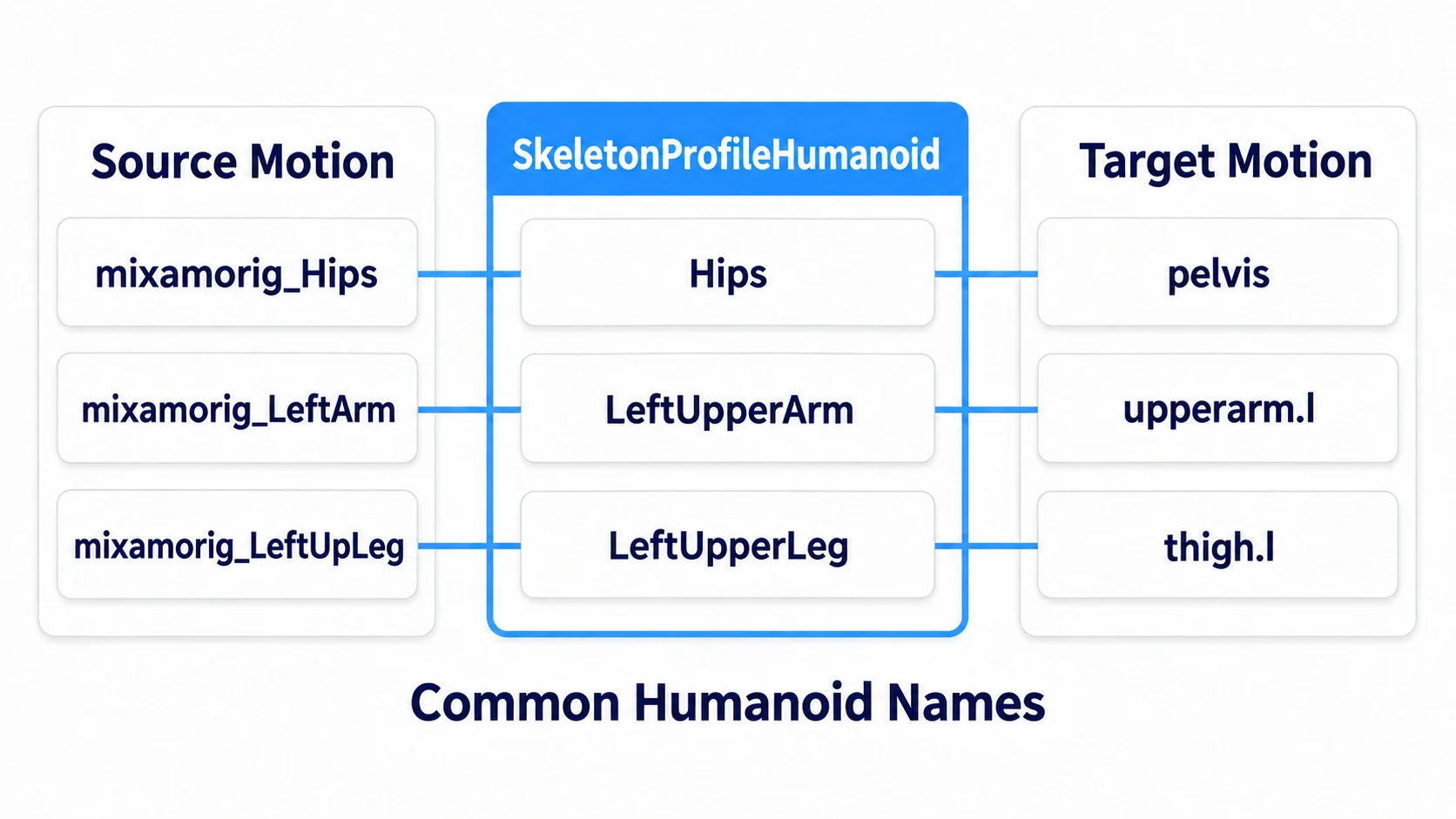
You set it up on the import screen.
- Select the model file in the FileSystem dock and press Advanced... in the Import dock
- Select Skeleton3D in the tree on the left
- Under Retarget on the right, create a New BoneMap in Bone Map
- Put a New SkeletonProfileHumanoid in the BoneMap's Profile
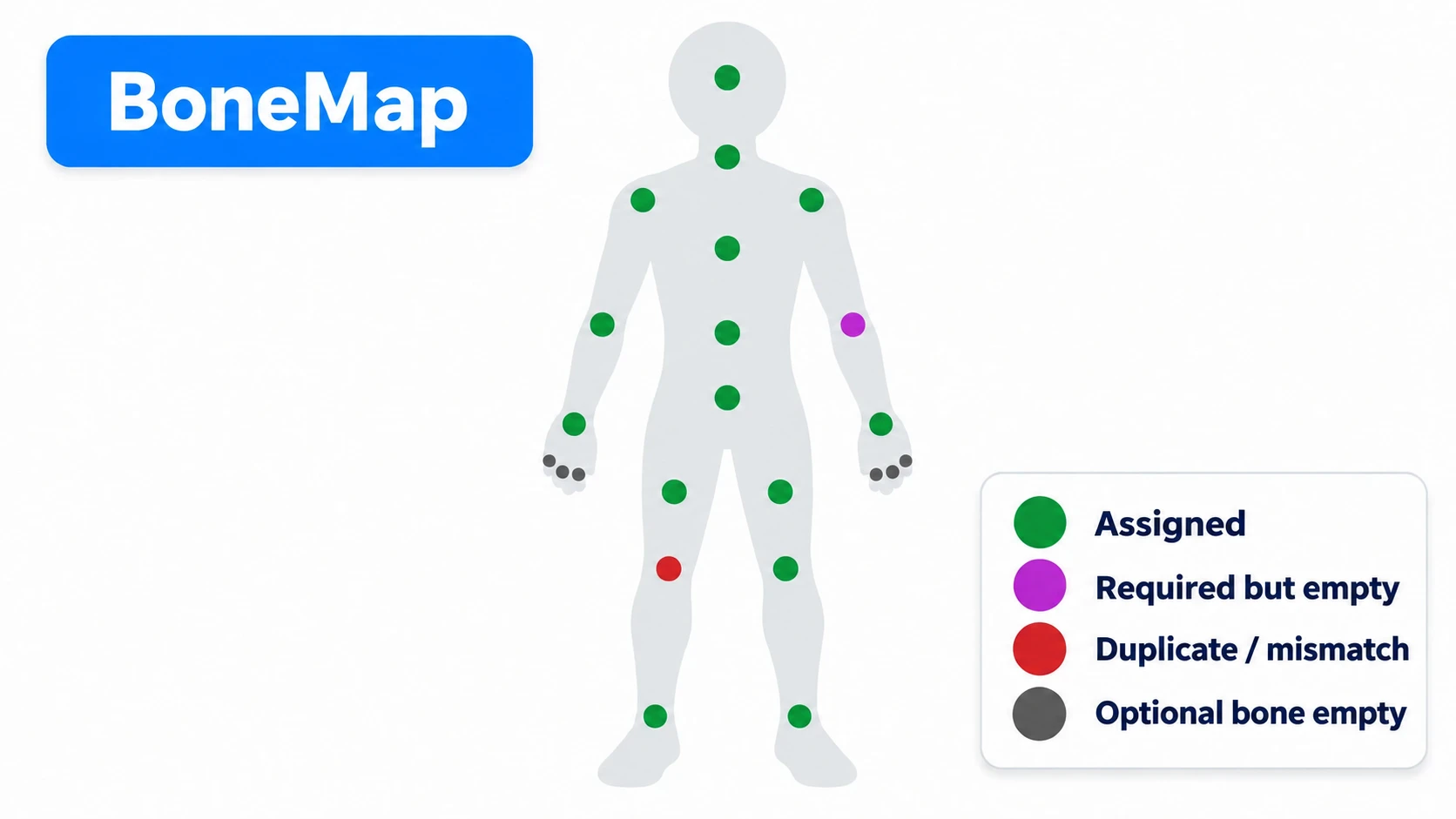
- Look at the colors of the dots on the humanoid figure. Green is assigned, magenta is a required bone left empty, red is a duplicate assignment to the same bone or a mismatch in parent-child order, and gray is an empty bone that isn't required (fingers and so on)
- If there are magenta or red dots, click that dot. That bone's field appears below the figure, so pick the model's bone with the select button on the right
- Press Reimport
Make a BoneMap for both the source and the target. Each table holds that model's own bone names.
Renaming is done by Bone Renamer on the same screen. With Rename Bones on, reimporting changes the bone names to the common names. With Make Unique on, animations refer to the Skeleton3D not by its location but by a name that's unique within the scene. That name is Skeleton Name; set it to GeneralSkeleton on both models. Then the addresses match even if the node order differs, and one model's animations reach the other.
Misaligned direction references are handled by Rest Fixer on the same screen. It's a group of settings that correct the skeleton's reference pose (the rest) and the bones' directions. First try it at its defaults. If the assignments are right but the way the arms open doesn't match, turn on Fix Silhouette on the model that's in the A-pose, with arms lowered. It's a setting that brings an A-pose silhouette closer to a T-pose.
In other engines: like Unity's Humanoid Avatar and Unreal Engine's IK Retargeter, it's a mechanism for moving motion onto a different humanoid model. In Godot, the approach is to match bone names with BoneMap at import time.
Handing over animations with AnimationLibrary
Once the bone names match, hand the source's animations over to the target's AnimationPlayer. Have the source file imported not as a model but as a bundle of animations only (an AnimationLibrary). That way, any AnimationPlayer can load it.
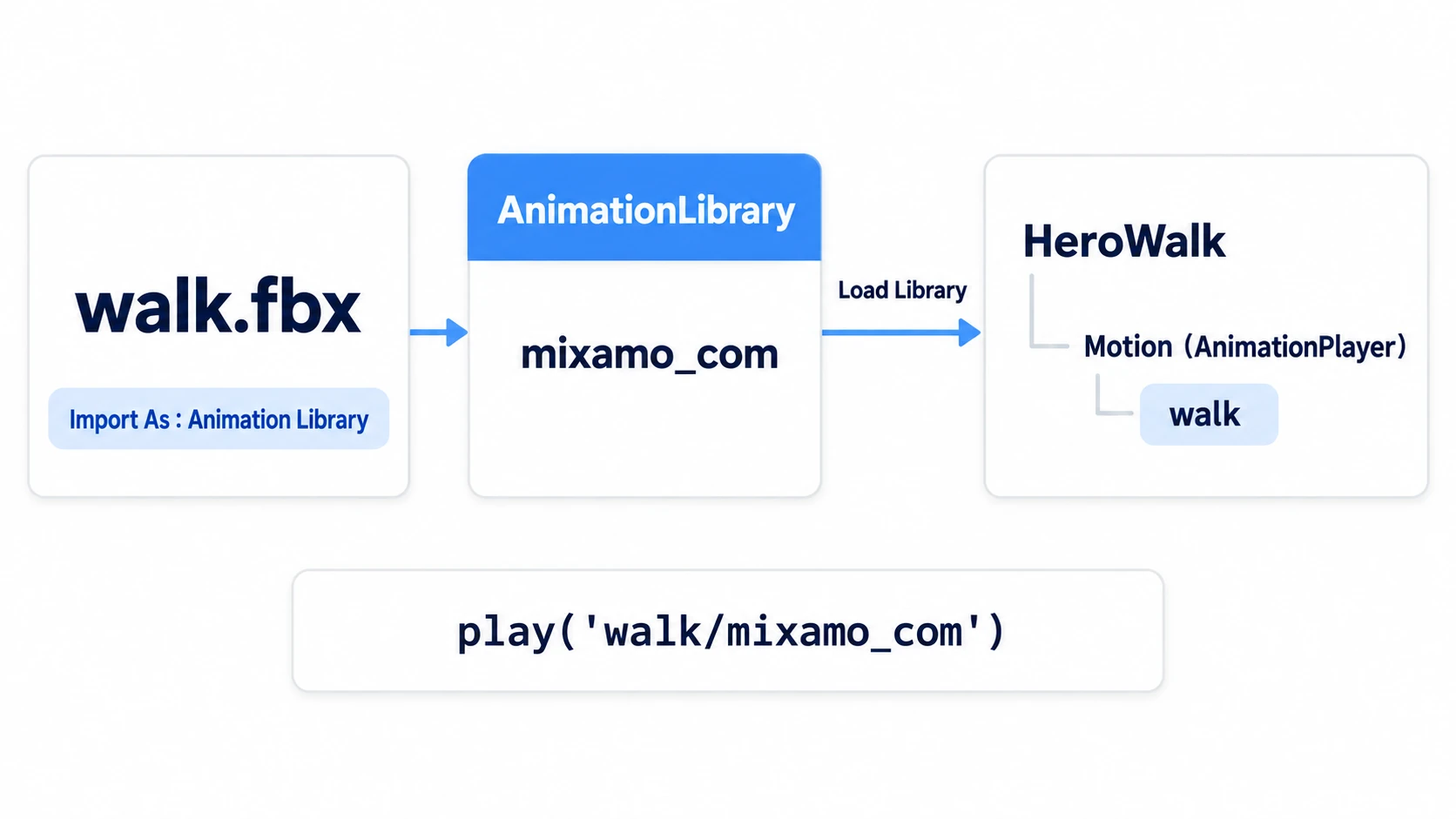
- In the Import dock, set the source file's Import As to Animation Library. Press Reimport (if asked to restart the editor, restart it)
- After that, open Advanced... and set up the BoneMap and looping. Press Reimport again
- Add an AnimationPlayer to the target's inherited scene. Open Manage Animations... from Animation in the bottom panel
- Choose the source file with Load Library
For looping, select the animation in the tree on the left and set Loop Mode to Linear (go back to the start after playing to the end).
Animations in an AnimationPlayer are called by joining the library name and the animation name. If the library name is walk and the animation is mixamo_com, it's play("walk/mixamo_com"). Both names change depending on the asset and file name, so use the names shown in the Manage Animations... list.
Hands-On: Make a Different Humanoid Model Walk With a Mixamo Walk
The hero of an action RPG, a resident in a horror game, a participant in a party game—humanoid characters can move with the same walk. Prepare one walk, and everyone can reuse it. You'll play a Mixamo walk on a humanoid model made somewhere other than Mixamo.
① What to prepare
Start with a new project. There are two assets.
- Source: a walk from Mixamo. It's free, but requires an Adobe account. Pick one humanoid character and open the Walking animation. Check In Place. Download with Format set to FBX Binary(.fbx) and Skin set to With Skin. Put it in the project as
walk.fbx - Target: one
.glbof a humanoid model made somewhere other than Mixamo. It must be "rigged," with bones (Skeleton3D) inside that move the body. For example, the humanoid characters from CC0 (a license that lets anyone use it freely) Quaternius or KayKit. Put it in the project ashero.glb
First, confirm that the source can walk on its own. Open walk.fbx's Advanced..., and you can play the walk in the preview. If it doesn't walk here, redo it from the download settings.
② Match the bones and hand over the walk
- Set
walk.fbx's Import As to Animation Library and reimport - Open
walk.fbx's Advanced... and create a BoneMap on Skeleton3D. Profile is SkeletonProfileHumanoid. Check the assignments on the humanoid figure, that Bone Renamer's Rename Bones and Make Unique are on (the defaults), and that Skeleton Name is GeneralSkeleton - In the tree on the left of the same screen, select the walk animation and set Loop Mode to Linear. Press Reimport
- Make a BoneMap for
hero.glbtoo, with the same steps as 2. Press Reimport - Right-click
hero.glband choose New Inherited Scene. Save it ashero_walk.tscn, and name the root HeroWalk - Add an AnimationPlayer directly under HeroWalk as Motion. Leave Root Node at the default
..(pointing to the parent HeroWalk) - Select Motion and open Manage Animations.... Load
walk.fbxwith Load Library, and note the library name and animation name shown in the list - Attach the following script to HeroWalk. Match the string to the names you noted in 7
The code below is for when the list shows the library name walk and the animation name mixamo_com.
# hero_walk.gd (the root of HeroWalk)
extends Node3D

@onready var motion: AnimationPlayer = $Motion

func _ready() -> void:
	motion.play("walk/mixamo_com")   # "library name/animation name". Match the names in the list
Finally, make a new 3D scene, Main, set it as the Main Scene, and place these four.
hero_walk.tscn(drag it from the FileSystem dock; leave its position at the origin)- A floor MeshInstance3D (PlaneMesh, Size
(10, 10)) - A DirectionalLight3D (Rotation
(-45, 30, 0)) - A Camera3D (Position
(2, 1, 2.5), Rotation(0, 39, 0); it shows HeroWalk from diagonally in front)
③ Run it and check
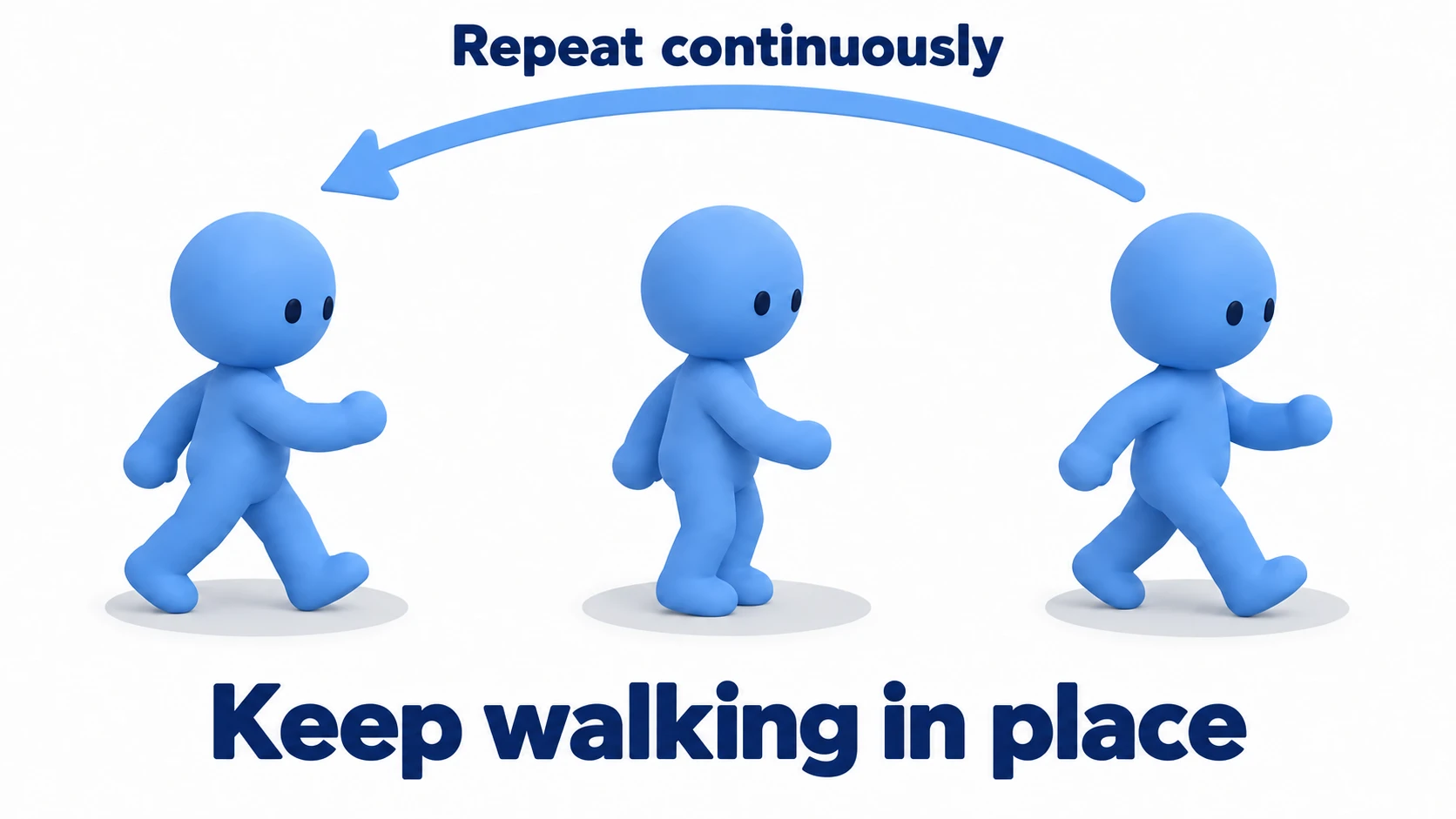
Play and check three things.
The target model steps its feet forward alternately and walks in place. If the body stays still, the instructions aren't arriving. If "Animation not found" appears in the Debugger at the bottom, the name in play() is wrong. If the name matches, look at both models' Skeleton Name. After that, the bone assignments.
The arms and legs swing alternately in the same order as Mixamo's preview. The builds differ, so even the stride won't be the same. If the arms twist or the knees bend backward, recheck the left and right arm and leg assignments on the humanoid figure. If the assignments are right but the way the arms open doesn't match, try Fix Silhouette.
To finish, watch what happens after one cycle ends. If the whole body heads off screen, recheck Mixamo's In Place. If it stops after one cycle, it's the walk's Loop Mode. If it flows into the next step without stopping and keeps walking in the same spot, it's done.
Two points.
- Match both models to the same humanoid names: an animation is instructions addressed to bone names. Make a BoneMap for both the source and the target, and the address names match
- Put what you add in the inherited scene: Motion and the script are in
hero_walk.tscn. Reimportinghero.glbdoesn't make them disappear
Once you've moved the walk over, you can move on to 3D Skeletal Animation Basics, which smoothly blends idle, walk, and run by speed.
Troubleshooting
| Symptom | Cause | Fix |
|---|---|---|
Load Library can't load walk.fbx | Import As is still Scene, so it isn't imported as a bundle of animations | Set Import As to Animation Library and Reimport |
| Only some bones don't move (the arms swing but the head is frozen, and so on) | That bone isn't assigned in the BoneMap | Find that bone's dot on the humanoid figure, and if it's magenta or gray, assign it by hand and reimport |
Turning toward an enemy or the camera with look_at() makes it show its back | look_at() rotates treating -Z as forward, so a model aligned with its front to +Z faces the opposite way | Set look_at()'s third argument, use_model_front, to true |
| After setting up the BoneMap later, references from nodes added to the inherited scene broke | Bone names changed to common names like Hips, and the Skeleton3D's node name changed to GeneralSkeleton | Set up the BoneMap before making the inherited scene. If you've already made it, update the added nodes' parents and references to the new names |
Bonus: Good to Know First
- Same rigs work without a BoneMap: if the bone names and node order are the same, the addresses arrive as-is. For a model and animations from the same pack, try it as-is first
- Make Local cuts the connection: a model placed in the scene becomes just a collection of nodes. Adding or removing nodes in the original file no longer reaches it. Use an inherited scene for characters
- Change the material's look in the inherited scene too: rewrite materials inside the imported scene, and they revert on reimport. Put your own material in Surface Material Override on the inherited scene's MeshInstance3D. See StandardMaterial3D Basics
Summary
- Fix in import settings, add in an inherited scene: the imported scene is rebuilt on every reimport
- Scale is Root Scale, front is +Z: fix scale in the import settings. Place a backward-facing model as a child of a parent and turn it
- An animation is rotation instructions addressed to bone names: if the addresses can't be found it stays in a T-pose; if the direction reference differs, the arms twist
- Make a BoneMap for both the source and target: match them to the common humanoid names
- Hand over animations as a bundle: import as Animation Library and load with Load Library. The name to call is the
library name/animation nameshown in the list
Start by making a BoneMap on the Skeleton3D of a humanoid model you have. Watching bones get assigned on the humanoid figure makes it clear what matching bone names means. Which character in your game do you want to make walk first?