When you finish a tutorial and start your own game, the question is what to learn and in what order. A game becomes playable only once four things come full circle: you move, you touch something, it gets counted, and the game ends. Build that loop first, and you can play and check every time you add art or sound.
Start without an order, and you either stall on what to build first, or you keep redrawing the character's art and stop before it's ever playable.
This article covers the order for adding features to one small room in seven stages, and which article to read at each stage.
What You'll Learn
- The loop that makes a game playable: move, touch, count, finish
- The five nodes whose roles to learn first
- The seven stages you add to one room, and where each stage ends
- What can wait, and when to move to 3D
Tested with: Godot 4.7
What Makes a Game Playable: Move, Touch, Count, Finish
What turns a square on the screen into a game isn't art or sound. You move, you touch something, what you touched gets counted, and at a set point it ends. When it ends, you can play again from the start. Once those four come full circle, squares and a number are already a game.
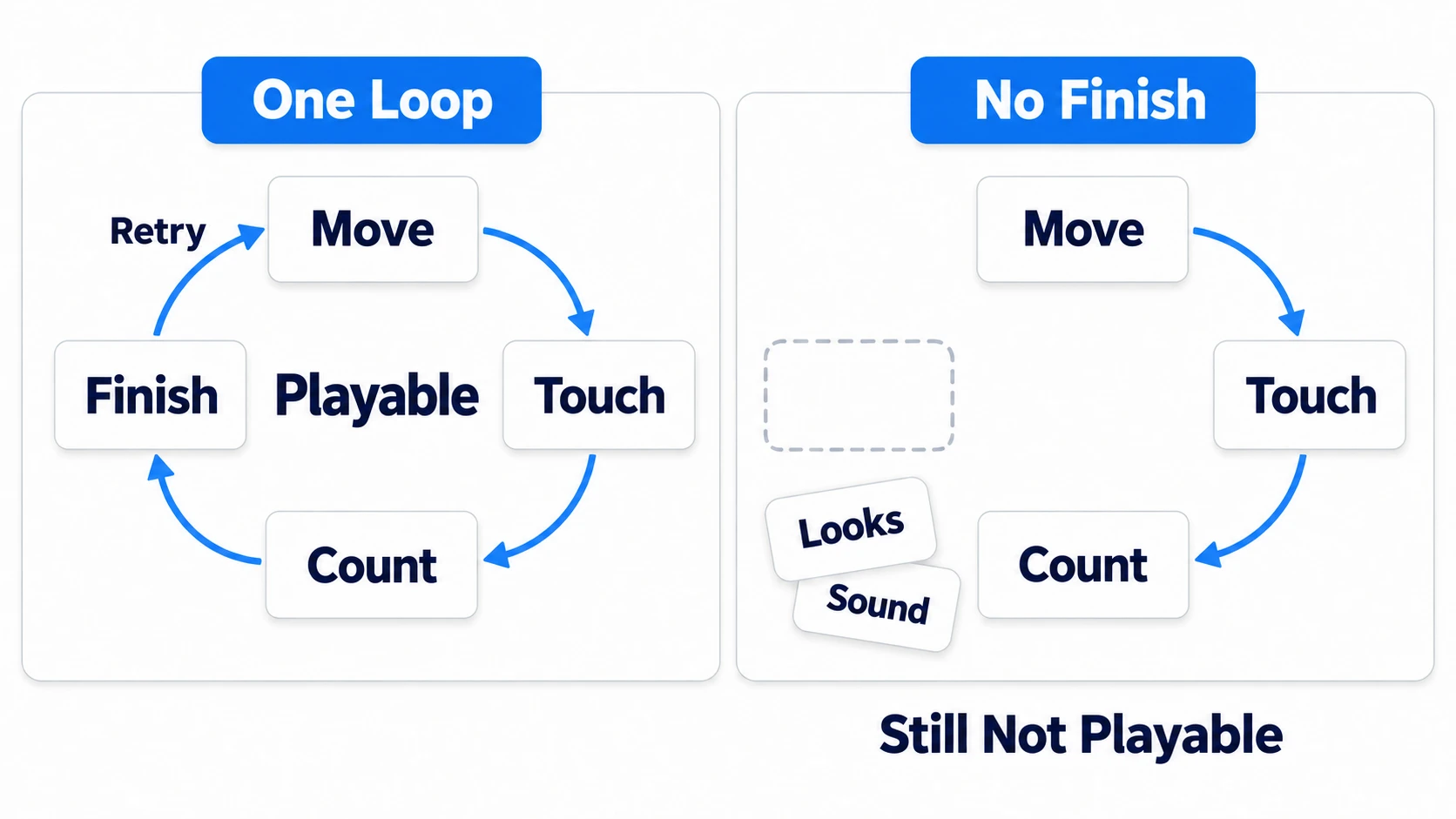
What to build first is decided by the smallest set of things the loop needs: a floor, a square, and coins. Art and sound come after the loop.
Building Up One Small Room
What you'll build is a small room with nothing but one rectangular floor. On the floor are you, one enemy that doesn't move, and three coins. You add features to it in seven stages.
The important part is not rebuilding the game every time. You keep the floor you placed today, add collision tomorrow, and show a number the day after. What you learned before becomes the foundation for what comes next.
Splitting scenes also has an order. Many tutorials have you pull out Player.tscn, Enemy.tscn, and Coin.tscn right away. When you start on your own, it's the other way around: keeping everything in one scene at first means you'll stumble less.
Pull something out when you want to change several copies of it at once. For three coins in a row, duplicating is enough. Once you want to change how all three look at once, that's the moment to pull them out into Coin.tscn.
The First Five Nodes to Learn
Godot has hundreds of nodes. You don't need to know them all. Grasping the roles of five is enough to start. If you're unsure where things are on screen, read Godot Editor Basics first and you won't get lost.
- Node2D: a container that groups the room and the things in it. It has a position
- CharacterBody2D: what you control and move. It stops when it hits a wall
- StaticBody2D: something that doesn't move. It blocks the way
- CollisionShape2D: sets the shape that gets hit. Attach it as a child to moving things, still things, and areas alike
- Area2D: notices whoever comes in. It doesn't stop them
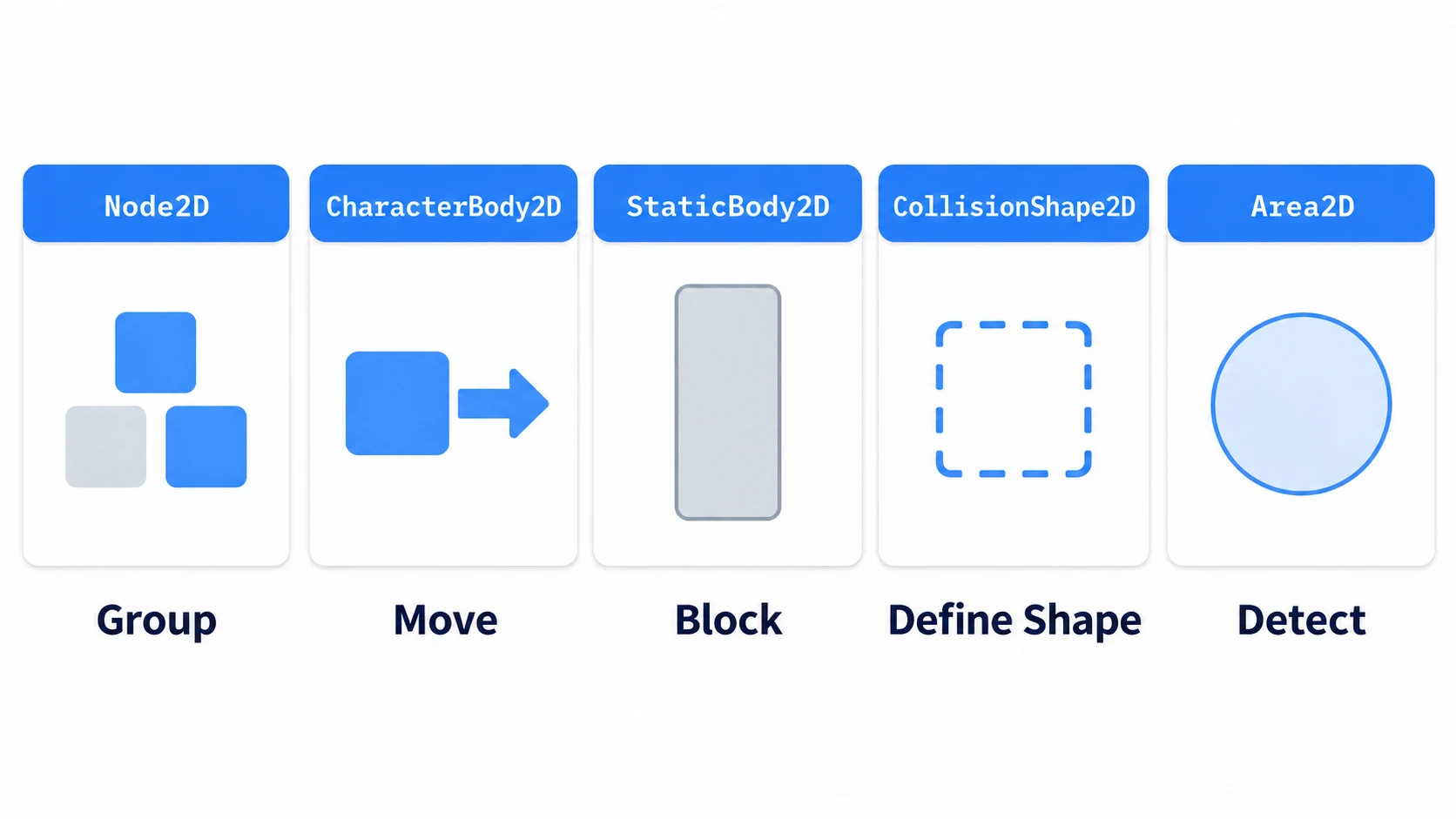
You'll also use ColorRect to draw the floor and squares and Label to show numbers, but these five are the ones whose roles to grasp first.
The easiest thing to mix up here is how the last two relate. Blocking with a body and noticing with an area are different jobs. A wall keeps you from passing through. A coin tells you that you touched it. Both are "a hit," but they're handled by different things.
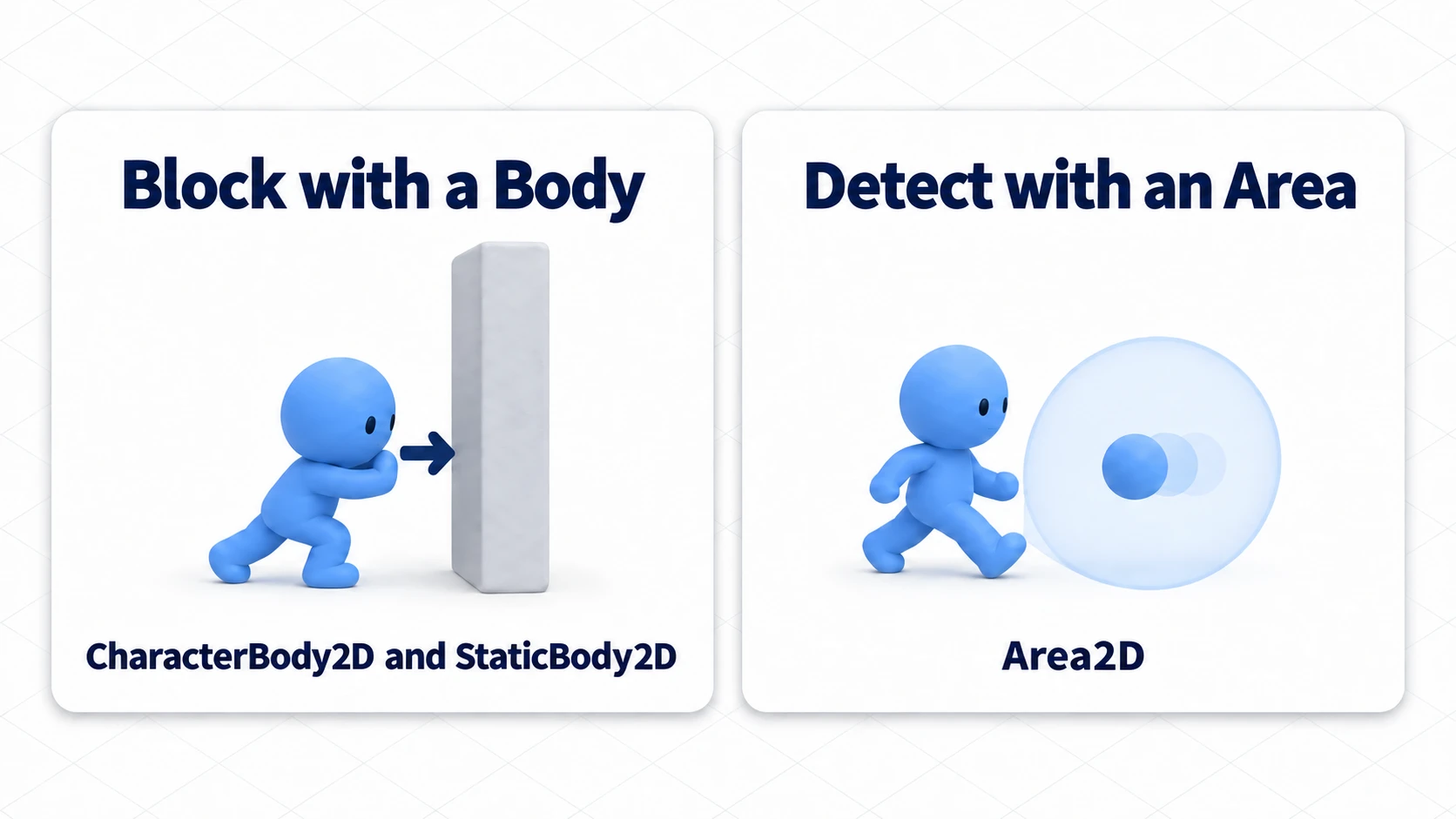
Stopping at walls is CharacterBody2D and StaticBody2D. Noticing coins and enemies is Area2D. Keep these two families apart from the start and you won't get stuck on "it's touching but it won't disappear."
In other engines: Area2D is close to a Unity
Collider2Dwith "Is Trigger" turned on (noticed throughOnTriggerEnter2D), or Unreal Engine's Overlap events. Godot splits blocking from noticing by the type of node.
Collision Layer and Mask, which decide who hits whom, can stay at a new project's defaults, and this article's hands-on works as is.
Seven Stages in Order
You add to the same room in this order. Each stage has a finish line where it's fine to stop. Once that's happening on screen, move on to the next.
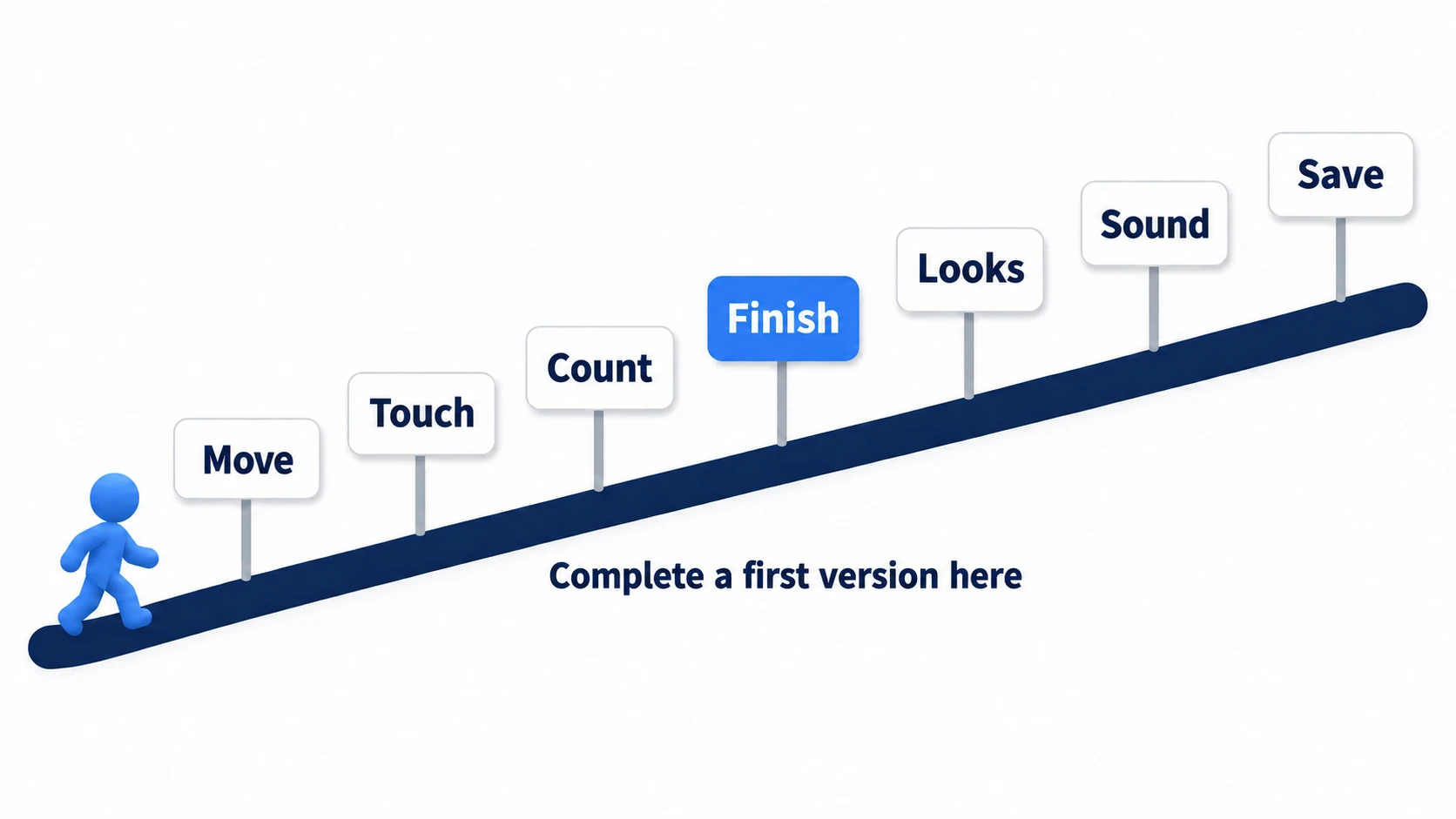
Stage 1: Move
Put walls around the floor and move up, down, left, and right with the arrow keys. Stopping at the walls is the whole first stage. Even for a side-scroller, you don't need jumping yet.
Finish line: the character moves across the floor with the arrow keys and stops at the walls.
For top-down movement, set the CharacterBody2D's Motion Mode to Floating (Motion Mode). Where to write movement is in the game loop article. When you also want WASD to work, build your own controls with the Input Map.
Stage 2: Touch
Place coins and an enemy. Both are Area2D. A coin disappears when touched, and touching the enemy makes something happen. The enemy doesn't need to move.
Finish line: touching a coin makes it disappear, and touching the enemy gets a reaction.
Area2D is the star of this stage. How it differs from the things that stop you is covered in 2D Physics Bodies.
Stage 3: Count
Show how many coins you've collected on screen. It's just adding one variable and writing it to a Label.
Finish line: the number in the corner of the screen goes up each time you pick one up.
How to hold a number is in GDScript Basics. If you later split the coin into its own scene, the way to tell the number that a coin was taken is a signal.
Stage 4: Finish
Make collecting three coins a clear and touching the enemy a failure, and let one key start the game over. This is the stage where move, touch, count, and finish connect into one loop.
Finish line: a clear message appears at the target count, and after a failure you can retry without going back to the editor.
Put off the one retry key and every playthrough sends you back to the editor to press F5. Once that hassle piles up, the person making the game stops playing it.
If you want a title screen and a game over screen, Game Flow Basics is the next step. To add pausing, see Pause.
Stage 5: Looks
Swap the squares for art, turn to face the direction you move, and make something flash the moment you pick something up. This is where Sprite2D finally appears.
Finish line: the art faces left and right, and you can see that you picked up a coin.
For switching art, see AnimatedSprite2D vs AnimationPlayer. For a white flash on taking damage, see modulate. For a follow camera, see Camera2D. When you want the floor made of tiles, move on to TileMapLayer.
Don't start by redrawing. Keep the character that moves right now and add only effects. Once you start redrawing art, what grows is your asset folder, not your game.
Stage 6: Sound
Add sounds for picking up, getting hit, and clearing. It's easier than stage 5.
Finish line: sounds play in those three moments, and the game still works with the sound off.
Going as far as separating music and sound effect volumes in Audio Basics is enough.
A common stumble here is giving the coin its own sound and playing it right before queue_free(), which deletes the node. The whole node goes away, so the sound cuts off too. Put the thing that plays the sound on what stays, not on what disappears (in this article's hands-on, that's Main).
Stage 7: Save
This stage is optional. Write just one best score to a file so it's still there the next time you launch.
Finish line: close the game and open it again, and the previous record still shows.
Write it to user://, the save folder set aside for each game. Full save systems are in Save and Load, but for playing in one room, a single number is plenty.
Hands-On: Build One Room That Moves and Ends
One room of a top-down action RPG, one level of a maze, one screen of dodging bullets: the genres differ, but the first playable version of each is made of the same four things. Here you'll build stages 1 through 4 with one scene and one script.
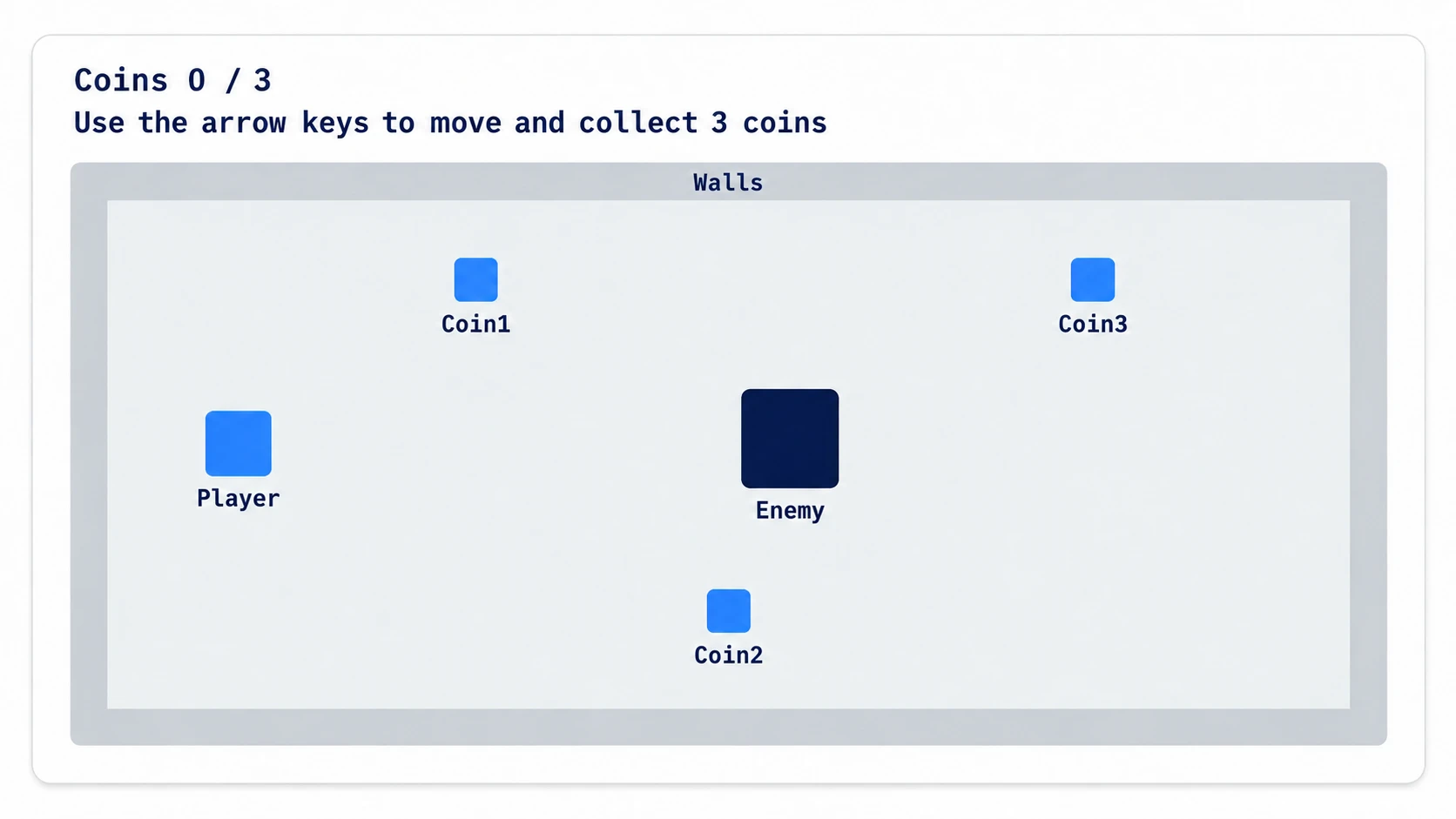
① What to Place
In a new project, create a 2D scene, save it as main.tscn, and set it as the main scene that opens first on F5.
Main (Node2D)            ← main.gd
├── Floor (ColorRect)
├── Walls (StaticBody2D)
│   └── CollisionShape2D × 4
├── Player (CharacterBody2D)
│   ├── ColorRect
│   └── CollisionShape2D
├── Coins (Node2D)
│   └── Coin1 / Coin2 / Coin3 (Area2D, each with a ColorRect and a CollisionShape2D)
├── Enemy (Area2D)
│   ├── ColorRect
│   └── CollisionShape2D
└── Hud (CanvasLayer)    ← a layer that stays pinned to the screen even when the camera moves
    ├── ScoreLabel (Label)
    └── MessageLabel (Label)
Set the values like this. Each CollisionShape2D's Shape starts out empty, so choose New RectangleShape2D on every one to create a shape, then match its Size to the sizes below.
- Floor: Position (88, 108), Size (976, 432), Color #CCCCCC (light gray)
- Walls itself stays at (0, 0). Its four shapes: top (576, 96) 1000 × 24, bottom (576, 552) 1000 × 24, left (76, 324) 24 × 456, right (1076, 324) 24 × 456
- Player: (200, 324), 32 × 32, light blue. Set Motion Mode to Floating
- Coin1 (400, 200) / Coin2 (576, 460) / Coin3 (880, 200): 24 × 24, bright blue
- Enemy: (640, 324), 48 × 48, navy
- ScoreLabel at (88, 24), MessageLabel at (88, 56)
The ColorRect you see and the CollisionShape2D that gets hit have their origins in different places. A ColorRect's origin is its top-left corner, so make it the same size and then shift it up and left by half its size.
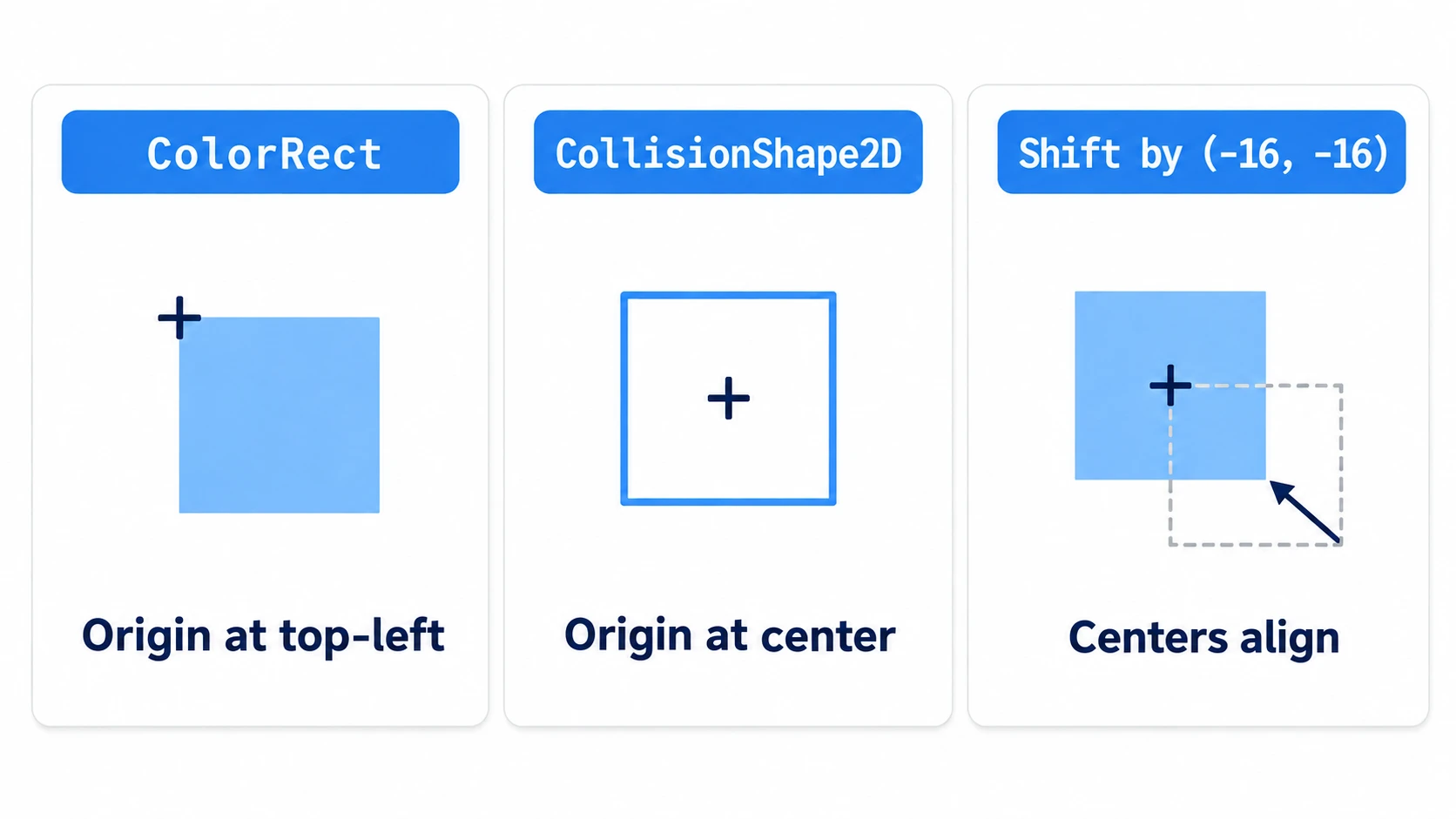
The shift is (-16, -16) for Player, (-12, -12) for the coins, and (-24, -24) for Enemy. The CollisionShape2D on the player, coins, and enemy can stay at (0, 0). The only shapes you move are the four walls.
The floor is just a ColorRect with no collision. What stops you is the four shapes on Walls. When you add wall shapes by duplicating, choose Make Unique from the menu on the Shape field before changing Size. Duplicated shapes all share one shape, so resizing one resizes them all.
② Write the Script
Attach just one script, to Main. The player needs no script.
# main.gd (attached to Main)
extends Node2D

const SPEED := 240.0   # pixels moved per second
const TARGET := 3

var score := 0
var finished := false

@onready var player: CharacterBody2D = $Player
@onready var score_label: Label = $Hud/ScoreLabel
@onready var message_label: Label = $Hud/MessageLabel

func _ready() -> void:
	for child in $Coins.get_children():
		var coin := child as Area2D
		coin.body_entered.connect(_on_coin_touched.bind(coin))
	$Enemy.body_entered.connect(_on_enemy_touched)
	_update_score()
	message_label.text = "Use the arrow keys to move and collect 3 coins"

func _physics_process(_delta: float) -> void:
	if finished:
		return
	# Build a direction of length up to 1 from the arrow keys being held
	var direction := Input.get_vector("ui_left", "ui_right", "ui_up", "ui_down")
	player.velocity = direction * SPEED
	player.move_and_slide()          # this one line is what stops you at walls

func _on_coin_touched(body: Node2D, coin: Area2D) -> void:
	if finished or body != player:
		return
	coin.queue_free()
	score += 1
	_update_score()
	if score == TARGET:
		_finish("Clear!")

func _on_enemy_touched(body: Node2D) -> void:
	if finished or body != player:
		return
	_finish("Hit by the enemy!")

func _update_score() -> void:
	score_label.text = "Coins %d / %d" % [score, TARGET]   # each %d is filled in order from the array on the right

func _finish(text: String) -> void:
	finished = true
	player.velocity = Vector2.ZERO
	message_label.text = text + "  Enter to restart"

# Only input that UI such as buttons didn't use arrives here
func _unhandled_input(event: InputEvent) -> void:
	if finished and event.is_action_pressed("ui_accept"):
		get_tree().reload_current_scene.call_deferred()   # after this frame's work finishes, reload the scene from the start
ui_left and ui_accept come built into Godot, so there's nothing to set up in the Input Map. You don't multiply move_and_slide() by delta (the seconds since the previous frame) because the function accounts for time itself.
Instead of connecting the three coins' signals one by one in the editor, _ready() connects them all at once. bind(coin) appends the coin itself after the argument the signal passes (the body that touched it). Even with all three connected to the same function, you can tell which coin was touched.
The body != player check is there because Collision Layer and Mask are left at their defaults (Collision Layers and Masks).
③ Run It and Check
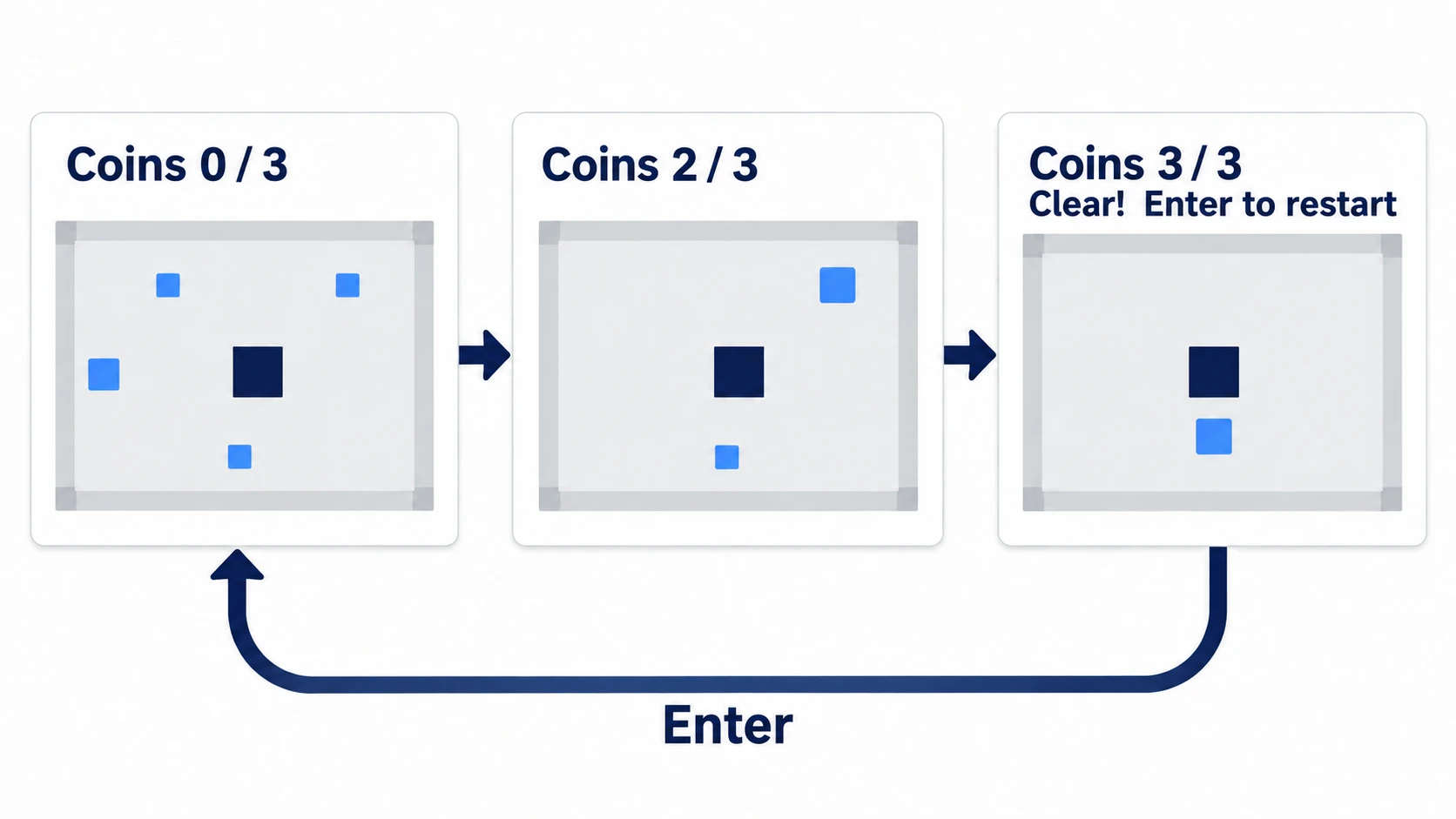
Press F5 and move with the arrow keys. Check three things.
First, you stop at the edge of the floor. If you walk off the floor, turn on Visible Collision Shapes in the Debug menu, run again, and check the position and size of the wall shapes. It's common for all four shapes to still be bunched up at (0, 0).
Next, touching a coin makes it disappear and the number in the top left changes to "Coins 1 / 3". If the coin doesn't disappear, check that coin's Shape first. If you can't read the number, check the positions of the two labels first.
Finally, pick up all three. Grab the top two, then circle around the right side and head down, and you can collect them without touching the enemy. On the third coin, "Clear! Enter to restart" appears and the player stops. Press Enter and you can play again from a room with all three coins back. If you touch the enemy along the way, "Hit by the enemy!" appears and Enter brings you back the same way. You can play as many times as you like without going back to the editor.
Two points.
- Keep the stopper and the noticer separate: what stops you at walls is the StaticBody2D on Walls plus
player.move_and_slide(). What makes the coins and enemy react is Area2D'sbody_entered. Both are "hits" but they travel different paths, so when something doesn't work, decide first which one you're dealing with - Put retry in from the start: the single
reload_current_scene()line is what lets you play your own game. If you plan to add it later, you'll usually lose interest before you ever do
What Can Wait, and When to Move to 3D
Autoload, tile maps, animation trees, shaders: they all look like things you should learn first, but most of them can wait. You'll be fine learning the following the moment you need them. It doesn't mean "you never need to learn these." It means "in the order your current room needs them."
- Autoload: when you want the score or music to carry across scenes
- TileMapLayer: when you want the floor made of tiles instead of a rectangle
- AnimationTree: when switching between walking and running gets out of hand
- Custom resources: when you have more enemy types and want their numbers in one place
- NavigationAgent2D: when you want enemies to go around obstacles
- UI layout: when you need a layout that holds up as the screen size changes. Placing a single Label is doable in stage 3
- Shaders: when you need an effect you can't make with art
When to move to 3D is decided the same way: not after finishing everything in 2D, but once you've closed the loop at stage 4.
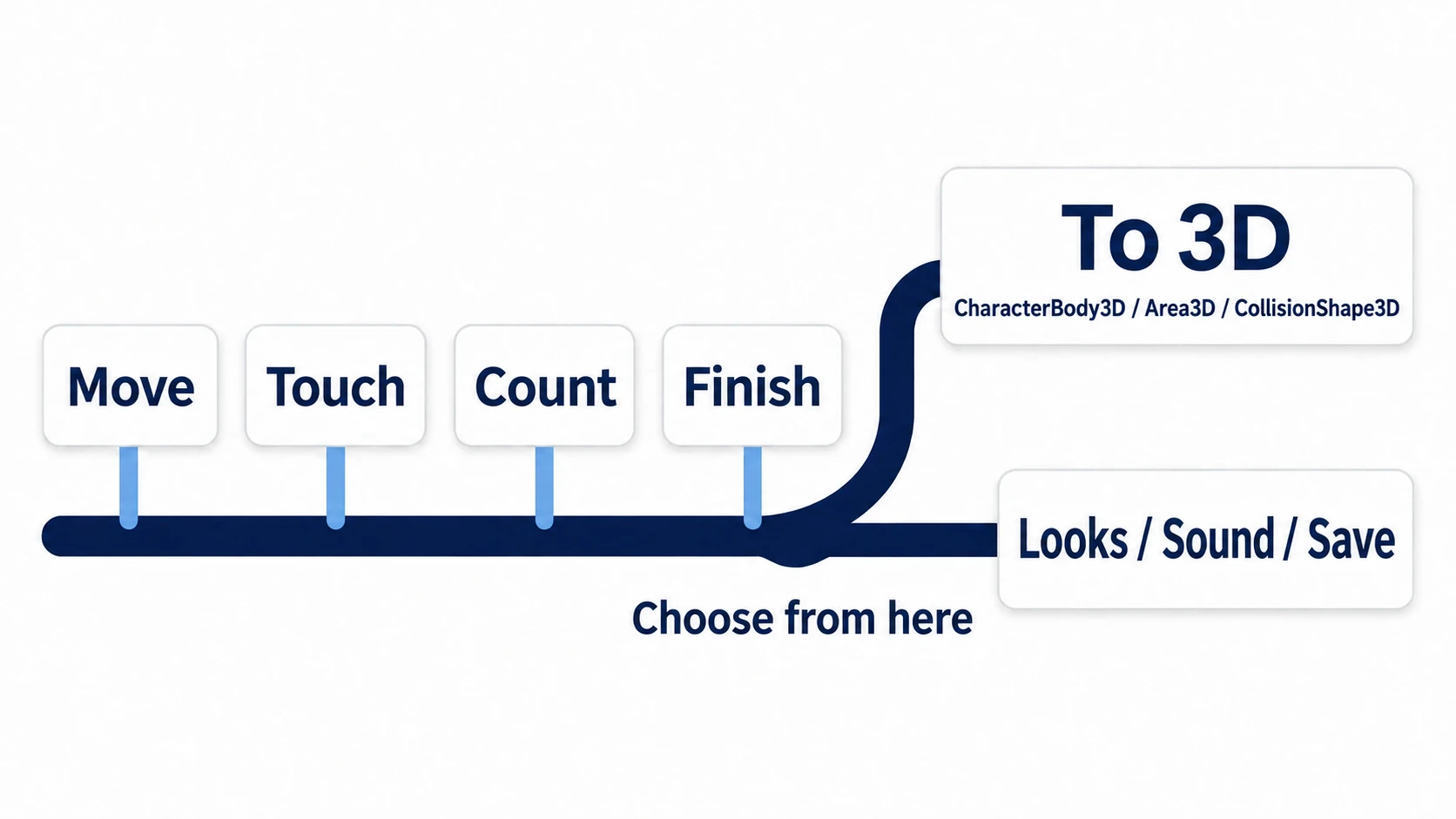
Moving to 3D is the one time you make a new room instead of adding to the same one. Even so, the ideas you've learned carry straight over. CharacterBody2D becomes CharacterBody3D, Area2D becomes Area3D, CollisionShape2D becomes CollisionShape3D, and neither how you count the score nor how the game ends changes.
What's new is direction (in 3D, y points to the sky), the camera, and how you make things visible. Start with Node3D Basics and CharacterBody3D Basics.
On the other hand, if you try to finish stage 5's looks in 2D before moving, you usually never move. Art, tiles, and animation never end.
Troubleshooting
| Symptom | Cause | Fix |
|---|---|---|
| A "Node not found" error right after running | The script's $Player or $Hud/ScoreLabel doesn't match the node names or parent-child structure in the tree | Match the names character by character. Case matters too |
| After swapping the square for art, the look and the collision are out of line | Sprite2D's origin is its center, but the shift meant for the ColorRect is still there | Set the art Sprite2D's Position to (0, 0). Don't move Player itself |
You built the player as an Area2D and the coins' body_entered never fires | Overlaps between two Area2Ds arrive through area_entered, not body_entered | Build a player that should stop at walls as a CharacterBody2D |
| Only coins you added later can't be picked up | _ready() connected only the coins that existed at startup. The new coins' body_entered isn't connected to anything | Call coin.body_entered.connect(_on_coin_touched.bind(coin)) when you add one |
Bonus: Good to Know First
- It's built differently from the official tutorial: the official "Your first 2D game" builds the player as an Area2D and polishes the look early. What you learn overlaps, but this article picks an order that cuts down on rebuilding
- When stuck, check with
print(): the reason something doesn't move is usually somewhere other than where you think. The tool-switching steps in Debugging Basics are the fast route - Exporting and sharing keeps you going: once it's playable, you get feedback. Export Basics is worth reading as soon as you've closed the loop at stage 4
Summary
- It's playable once the loop closes: move, touch, count, finish. Art and sound come after
- You build one small room: don't rebuild each time. Add to the same room
- The first five roles: blocking with a body and noticing with an area are different jobs
- The order: move → touch → count → finish → looks → sound → save
- When to split, when to move on: split scenes when you want to change several copies of the same thing at once. Move to 3D once you've closed the loop in 2D
Start with just a floor and a square, and build up to where it moves and ends. Even without art, once the loop closes, it's already a game. In your first room, what will you have the player collect?