When building a 3D stage, deciding the dimensions the character can pass through before you work on the visuals cuts down on rebuilding. With Godot's CSG, you can add and subtract boxes to make just the shape of a room inside the editor, and walk through it to check the same day.
Build the visuals first and add the character later, and you find it can't fit through the door or gets stopped by a step, and you end up rebuilding the whole room. The further you've worked on the models, the bigger the fix becomes.
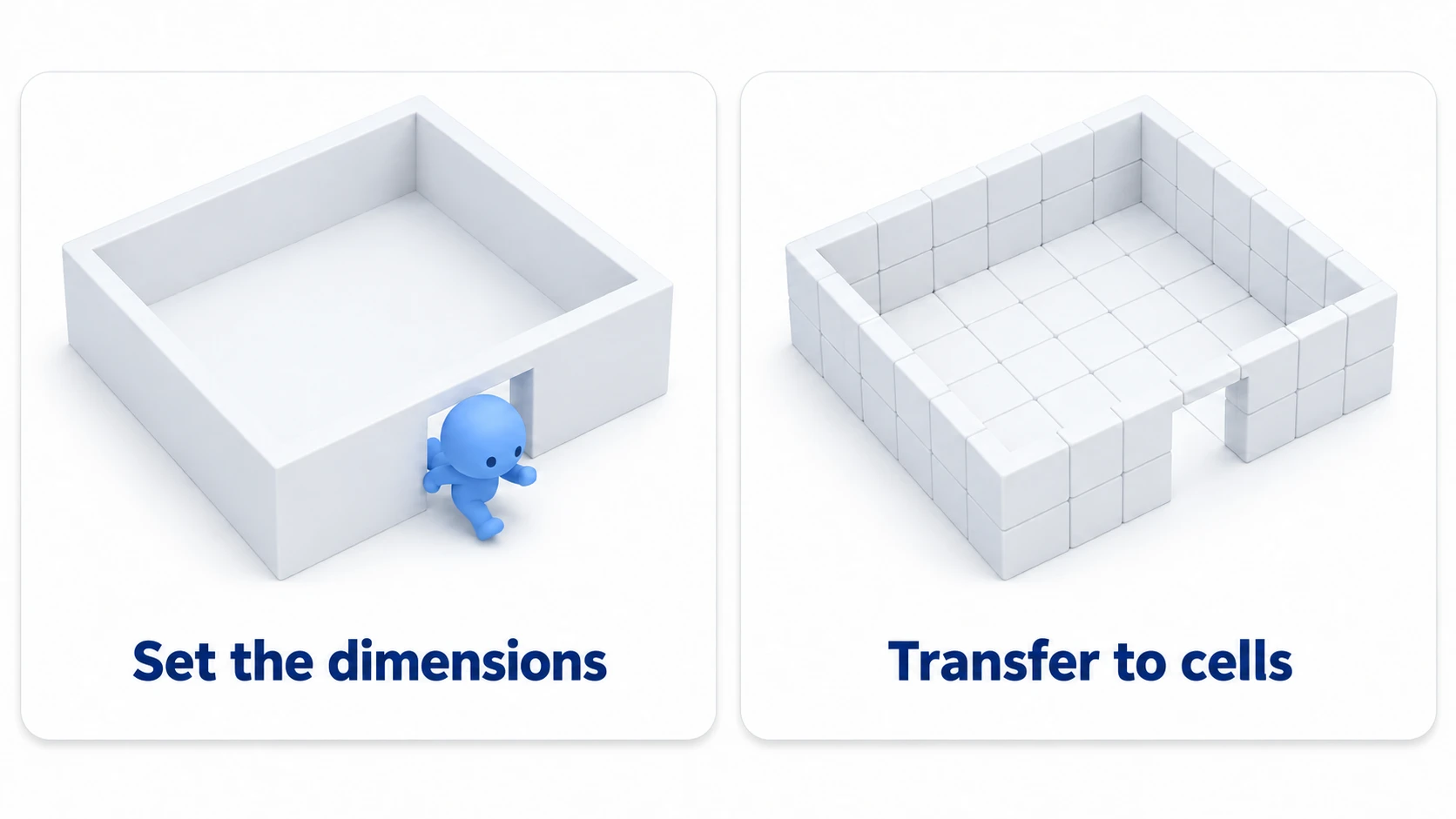
This article covers carving a doorway with CSG to make a walkable room, and transferring the settled dimensions to GridMap cells.
What You'll Learn
- What you decide first in a prototype is the dimensions the character can pass through, not the look
- How to add and subtract boxes to open a doorway, and make it walkable with Use Collision
- Why steps can't be climbed but slopes can
- Steps for transferring settled dimensions to GridMap cells
Tested with: Godot 4.7
- Deciding the dimensions the character can pass through
- Adding and subtracting with CSG (Operation)
- Making collision with Use Collision
- How to carve a doorway
- Steps and slopes
- Transferring to cells with GridMap
- Baking CSG into fixed meshes (Bake)
- Hands-On: Build One Walkable Room
- Troubleshooting
- Bonus: Good to Know First
- Summary
Deciding the dimensions the character can pass through
In Godot's 3D, one unit is one meter. Because of this, a room's size can be decided in meters rather than as "a vaguely big box."
The reference is the character's thickness and height. A 3D character's collision is usually a tall, rounded tube (a capsule). Until that's decided, neither the door width nor the ceiling height can be.
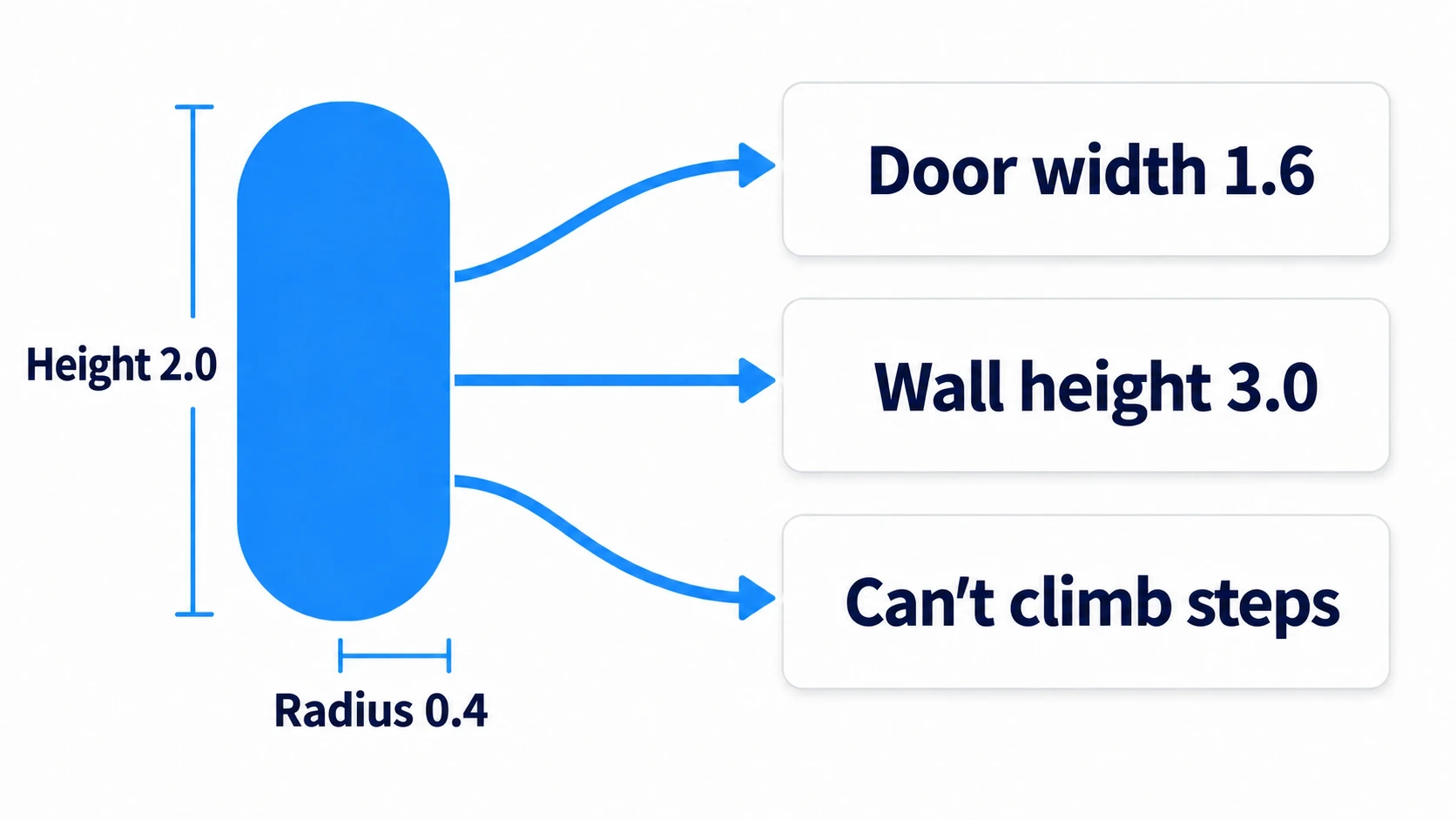
This article uses the following numbers throughout. They're decided from the capsule, not from how the room looks.
- The character's capsule has radius 0.4 and height 2.0 (the height is the full length including the rounded ends). Its origin is at the center, so to stand it on the floor, use
y = 1.0 - The room's interior is 8 × 8. Wide enough to take a few seconds to cross
- The floor is 1.0 thick. Center it at
y = -0.5so its top surface is aty = 0 - Walls are 0.4 thick and 3.0 high. Their center is at
y = 1.5 - The doorway is 1.6 wide. That leaves 0.4 of room on each side of the capsule
- An unclimbable step is 0.5 high. It's placed to confirm that the character stops
- A climbable slope rises 0.6 over 3 m, about 12 degrees. Up to 45 degrees is treated as floor
A CSGBox3D's origin is the center of the box. To align the top of a floor 1 thick with y = 0, put its center at y = -0.5. Get this wrong, and the character is half buried in the floor the moment you play.
Adding and subtracting with CSG (Operation)
CSG is a system for making shapes by adding and subtracting boxes, cylinders, and so on. You can make a room's shape entirely inside the editor without opening modeling software.
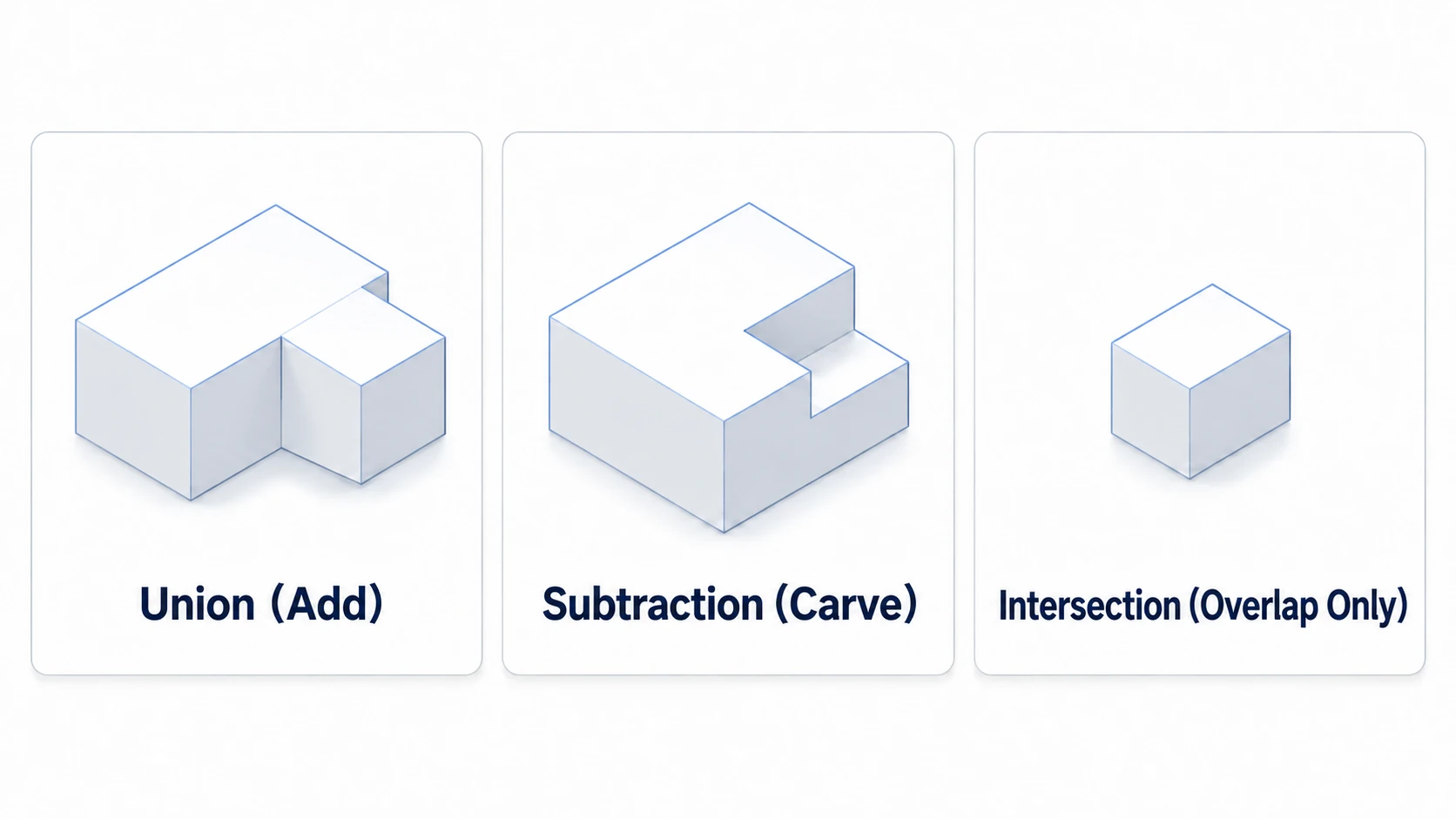
How shapes are combined is chosen in a field called Operation.
- Union: adds to the parent's shape. Floors and walls use this
- Subtraction: carves from the parent's shape. Doorways use this
- Intersection: keeps only the overlapping part. Not used in this article
In other engines: prototyping levels inside the editor sits in the same place as Unity's ProBuilder or Unreal Engine's Modeling Mode.
The important thing is that this adding and subtracting only works within a chain of connected CSG nodes. Put an ordinary Node3D in between, and the chain breaks there, making a separate shape.
The other thing is order. Children lined up under the same parent are combined from the top of the tree down. Put a Union after carving with Subtraction, and the overlapping area comes back. When something you thought you carved is filled in, look at this order.
Making collision with Use Collision
Just placing boxes, the character passes right through them. The visible shape and the collision are separate things.
CSG has a field called Use Collision that makes collision from the shape after the adding and subtracting are done. Turn it on, and without placing a single CollisionShape3D, the collision includes the carved hole.
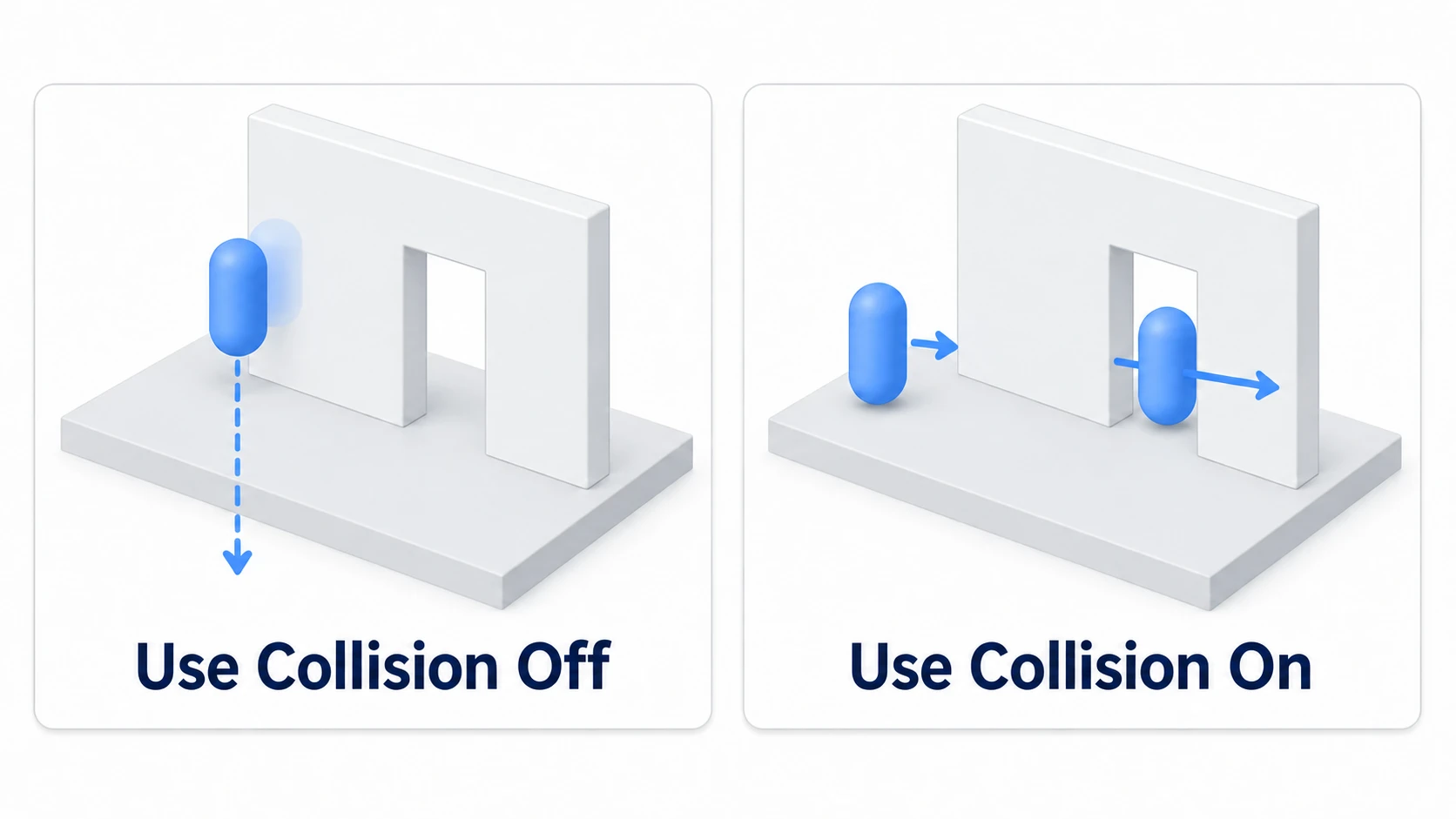
Put it on the topmost node of the CSG tree. Putting it on the floor box or a wall box doesn't make separate collision for just that box. Put one on the CSGCombiner3D that groups the room (a node with no shape of its own that only combines its children), and everything under it becomes solid.
Conversely, siblings that aren't in the same tree aren't included. For a box placed apart from the room, like the slope that comes later, turn on that box's own Use Collision.
The Collision Layer and Mask, which decide what collides with what, mesh with CharacterBody3D at their initial values (Organizing Collision Layers and Masks).
How to carve a doorway
The most common stumble in prototyping is that the hole is visible but the character stops there. The cause usually lies in how the cutting box is placed.
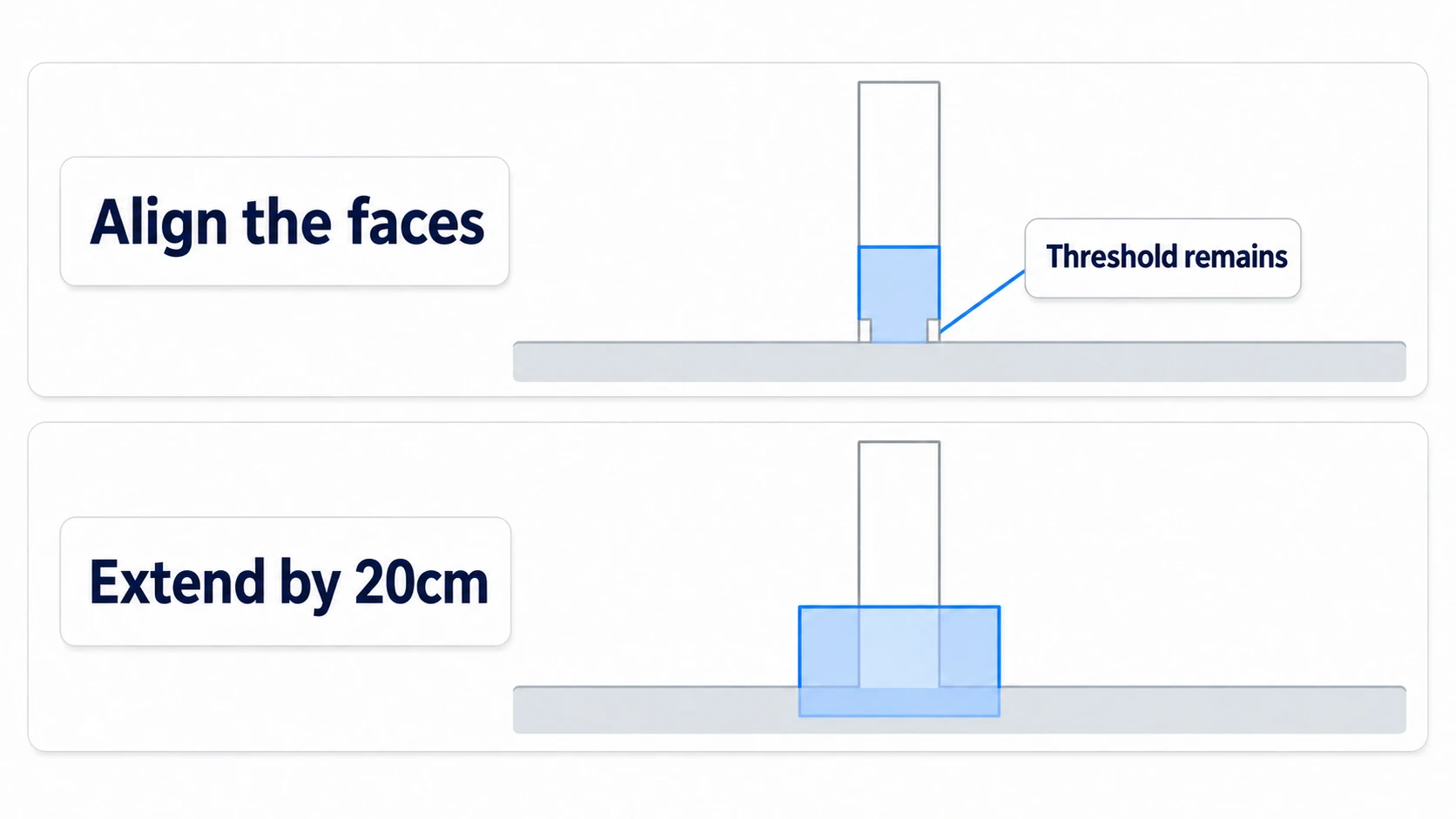
Make the cutting box stick out about 20 cm past both the inside and outside of the wall. Line the faces up exactly, and you're adding and subtracting on the same plane, which can leave thin plates or triangles behind. It looks open, but that one spot is solid.
The bottom is the same. Stop it level with the floor's top surface and a threshold can be left, so sink it about 5 cm into the floor. That leaves a shallow groove in the floor, but adding the outside floor after carving fills it in. This is where order matters.
Steps and slopes
Put a 0.5-high box on the floor and try to get onto it, and the character stops. CharacterBody3D doesn't come with a feature that climbs steps automatically.
What's confusing is Floor Snap Length. Its initial value is 0.1, but it's the length the character is pulled downward to keep from leaving the floor, which is a different thing from the height of a step it can climb.
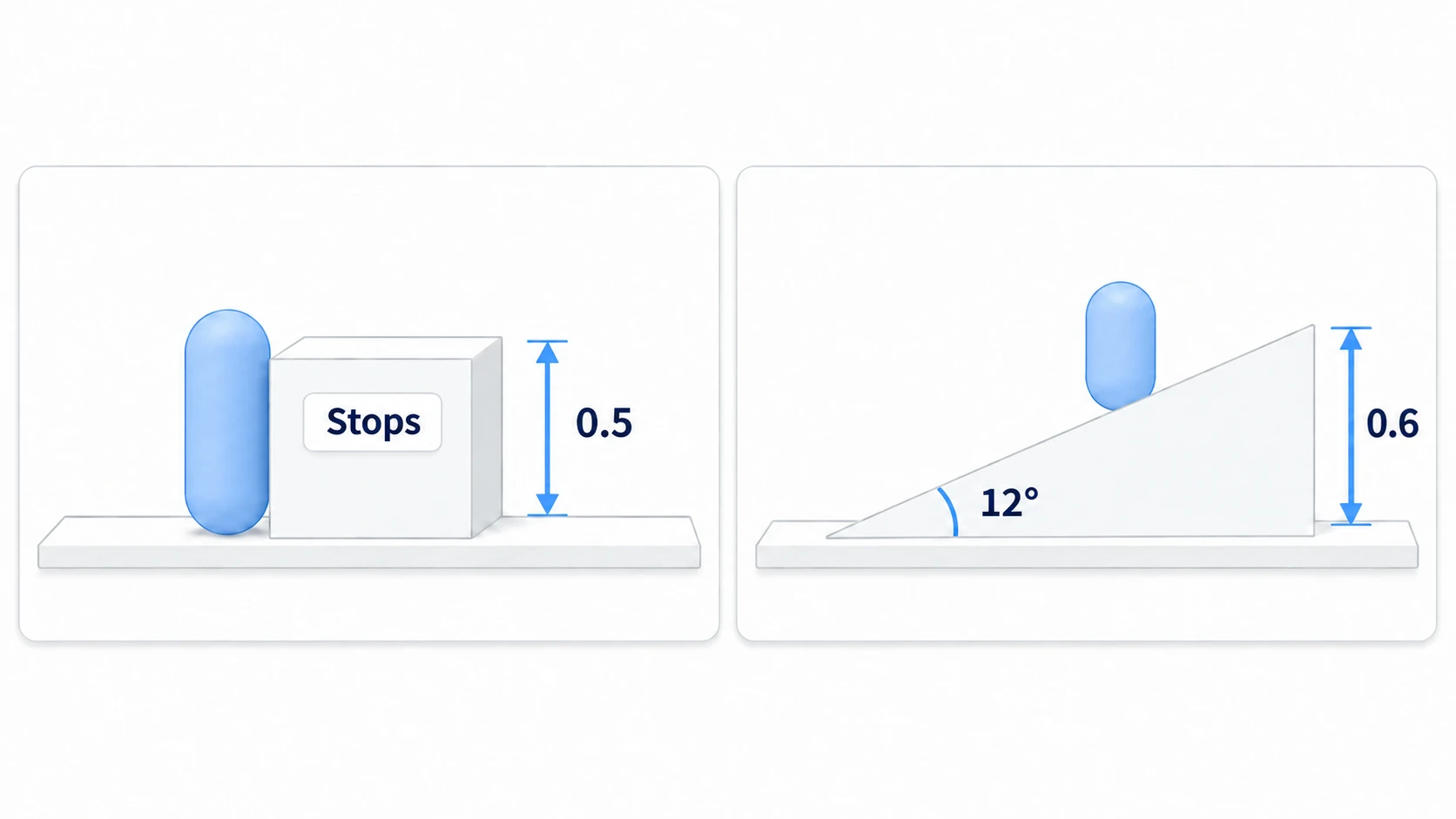
Slopes, on the other hand, can be climbed. Floor Max Angle's initial value is 45 degrees, and surfaces shallower than that are treated as floor. The character stops at a vertical 0.5-meter step, but can climb a 12-degree slope that rises 0.6 meters over 3 meters.
To make sure the character can climb stairs, keep the visible steps as they are and make only the collision a single slope. If the vertical faces of the steps remain in the collision, the character stops there.
Transferring to cells with GridMap
Once the dimensions are settled, you'll want to line up the same room over and over. That's where GridMap comes in.
GridMap is a node that places pre-registered meshes along a grid of cells. Its roles are split the same way as 2D's TileMapLayer: MeshLibrary is the paint box, and GridMap is the side that places things.
Coming from 2D, there's one place you're sure to get caught.
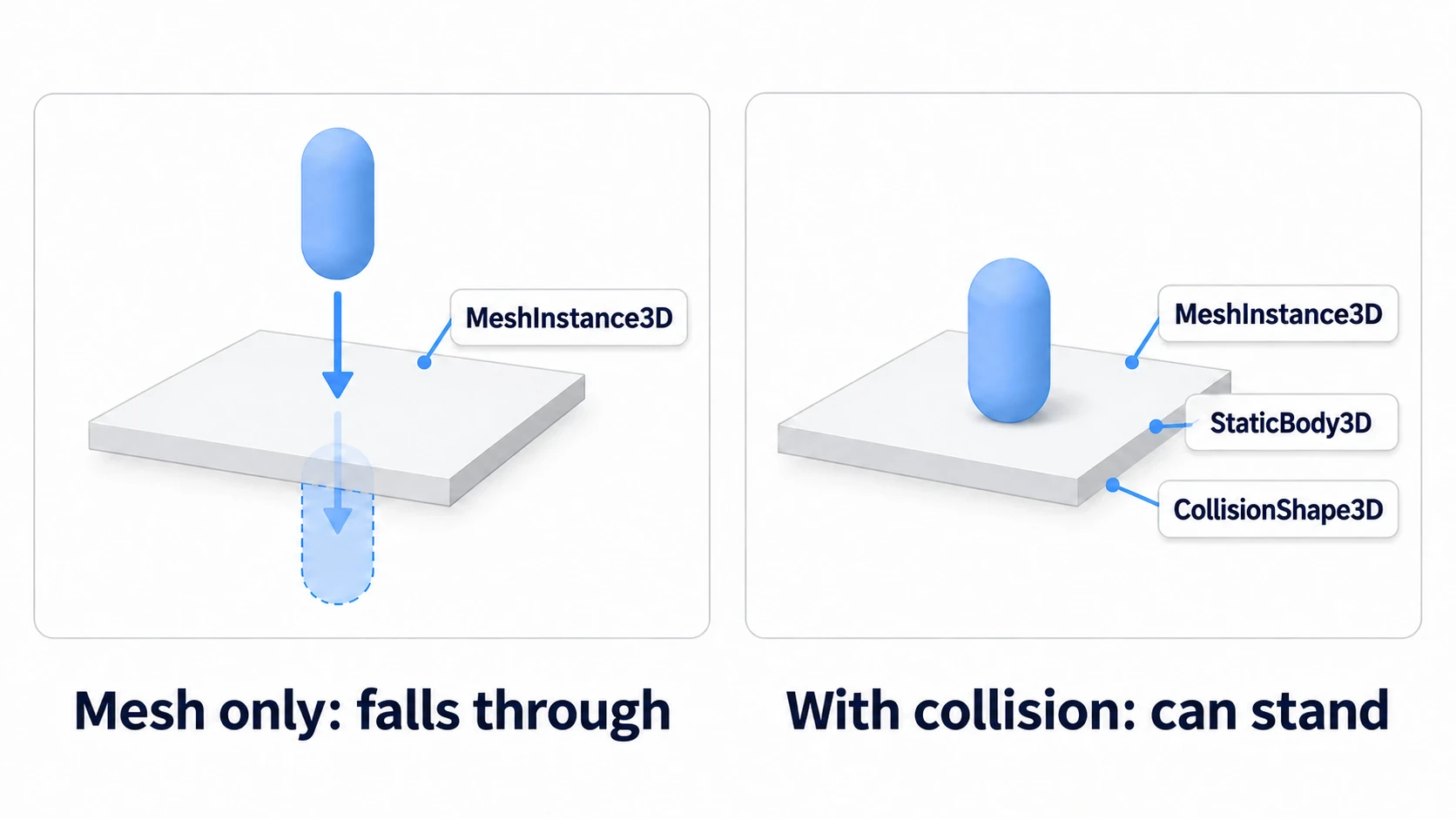
MeshLibrary items have no collision with the mesh alone. Put a Node3D at the root of the source scene, and line up a MeshInstance3D for each item under it. Under each MeshInstance3D, stack a StaticBody3D (the body of an unmoving collision), then under that a CollisionShape3D (its shape), assign a shape to the CollisionShape3D, and then export. For a floor tile, the shape is a BoxShape3D. Export with Scene → Export As... → MeshLibrary..., saving as .meshlib or .tres. Exporting the CSG room as-is doesn't become an item, so use a mesh baked with the method in the next section, or a separately made mesh.
On the placing side, add a GridMap node and assign the exported file to Mesh Library in the Inspector. Select the GridMap, and a list of items appears in the GridMap dock at the bottom of the editor. Choose an item, enable Paint in the dock, and click a cell in the 3D view to place it.
Two more things to know up front so you don't get lost.
- Cell Size: its initial value is (2, 2, 2). Place a 1-meter box as-is, and gaps open between cells. Match it to the size of the mesh you're making into tiles (for a 2-meter-square floor tile, the initial value works as-is)
- Make openings with tiles: GridMap has no Subtraction. For a door, prepare a wall mesh with an opening cut in it as one item and place it. Just leaving a cell empty makes the opening as wide as a cell
Baking CSG into fixed meshes (Bake)
CSG recalculates its adding and subtracting every time something is placed. With a few rooms it's not noticeable, but place dozens and the editor hitches every time you move something.
When you want to fix it in place, select the CSG root and open the CSG menu at the top of the 3D view. Bake Mesh Instance makes a MeshInstance3D for the visuals, and Bake Collision Shape makes a CollisionShape3D for the collision shape. Move the baked CollisionShape3D under a StaticBody3D, and remove the original CSG. Leave it, and the collision is doubled.
When moving from prototype to production, what you keep are numbers: the door width, the ceiling height, and the angle of slopes that can be walked. The boxes themselves can be thrown away.
Hands-On: Build One Walkable Room
A top-down dungeon, third-person action, first-person exploration—in any genre, the first two things to check are "can it pass?" and "does it stop?" You'll make just one room and check both on screen.
① What to place
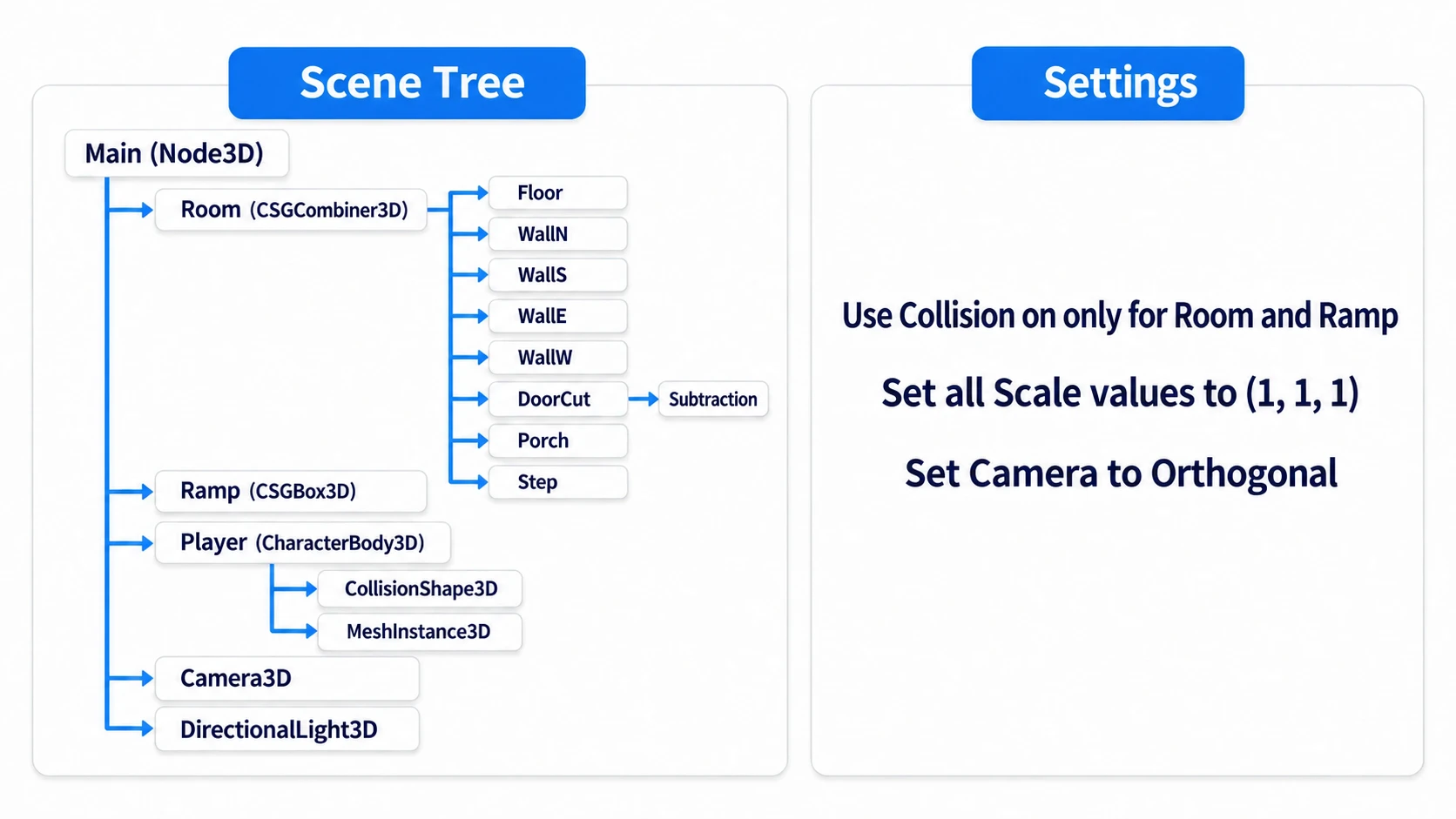
Create one new 3D scene. Enter angles in degrees in the Inspector's Rotation, and leave every node's Scale at (1, 1, 1).
- Put a Node3D at the root as Main, and set it as the Main Scene (if asked when you play with F5, choose this scene)
- Under Main, place a CSGCombiner3D as Room. Turn on Use Collision
- Under Room, place eight CSGBox3Ds, in this order
| Name | Size | Position | Operation |
|---|---|---|---|
| Floor | (8, 1, 8) | (0, -0.5, 0) | Union |
| WallN | (8.8, 3, 0.4) | (0, 1.5, -4.2) | Union |
| WallS | (8.8, 3, 0.4) | (0, 1.5, 4.2) | Union |
| WallE | (0.4, 3, 8.8) | (4.2, 1.5, 0) | Union |
| WallW | (0.4, 3, 8.8) | (-4.2, 1.5, 0) | Union |
| DoorCut | (1.6, 3.2, 0.8) | (0, 1.55, -4.2) | Subtraction |
| Porch | (3, 1, 4) | (0, -0.5, -5.6) | Union |
| Step | (1, 0.5, 1) | (2.5, 0.25, 2.5) | Union |
- Under Main, place one CSGBox3D as Ramp. Size (2, 0.4, 3), Position (-2.5, 0.11, 1.5), and -12 for X in Rotation. Turn on Use Collision. Its lower end is on the -Z side (the top of the screen with this camera)
- Under Main, place a CharacterBody3D as Player, Position (0, 1, 0). Under it, place a CollisionShape3D (CapsuleShape3D, radius 0.4, height 2.0) and a MeshInstance3D (CapsuleMesh, radius 0.35, height 1.9)
- Under Main, place a Camera3D, with Projection set to Orthogonal (parallel projection without perspective), Size 14 (14 meters visible vertically), Position (0, 18, -1.6), and -90 for X in Rotation
- Under Main, place a DirectionalLight3D, set its Rotation to (-60, -30, 0), and turn on Shadow's Enabled
- Assign single-color materials of different brightness to Floor, the four walls, Step, and Ramp (create a New StandardMaterial3D in the Inspector's Material and change Albedo's Color; see StandardMaterial3D Basics). Looking straight down, they're all faces pointing the same way, so without different colors you can't tell them apart
The walls' length of 8.8 and centers at ±4.2 come from adding the wall thickness of 0.4 on both sides of the interior's 8. The corners overlap so that no gaps form. DoorCut sticks out 20 cm past both sides of the wall, and its bottom goes 5 cm below the floor's top surface. That leaves a shallow groove in the floor, but Porch is added after it, so it gets filled in. Swap the order and it doesn't. The top is cut all the way past the top of the wall, so seen from directly above it's a gap.
The Camera3D faces straight down from above. The walls are 3 high, so seen at an angle, what's beyond the door is hidden by the wall.
② Put it together
The script on Player exists only to check whether the room can be walked.
# player.gd (Player's CharacterBody3D)
extends CharacterBody3D

const SPEED := 4.0

func _physics_process(delta: float) -> void:
	if not is_on_floor():
		velocity += get_gravity() * delta        # fall when in the air
	var input := Input.get_vector("ui_left", "ui_right", "ui_up", "ui_down")
	velocity.x = input.x * SPEED                 # left and right on screen
	velocity.z = input.y * SPEED                 # the up key is -Z = the top of the screen
	move_and_slide()
get_gravity() returns the gravity currently acting as a vector. Input uses the built-in ui_left and the others as-is, so you don't touch the Input Map. It moves with the arrow keys.
There's no jump and no camera follow. Walking relative to the camera's direction is in CharacterBody3D Basics.
③ Run it and check
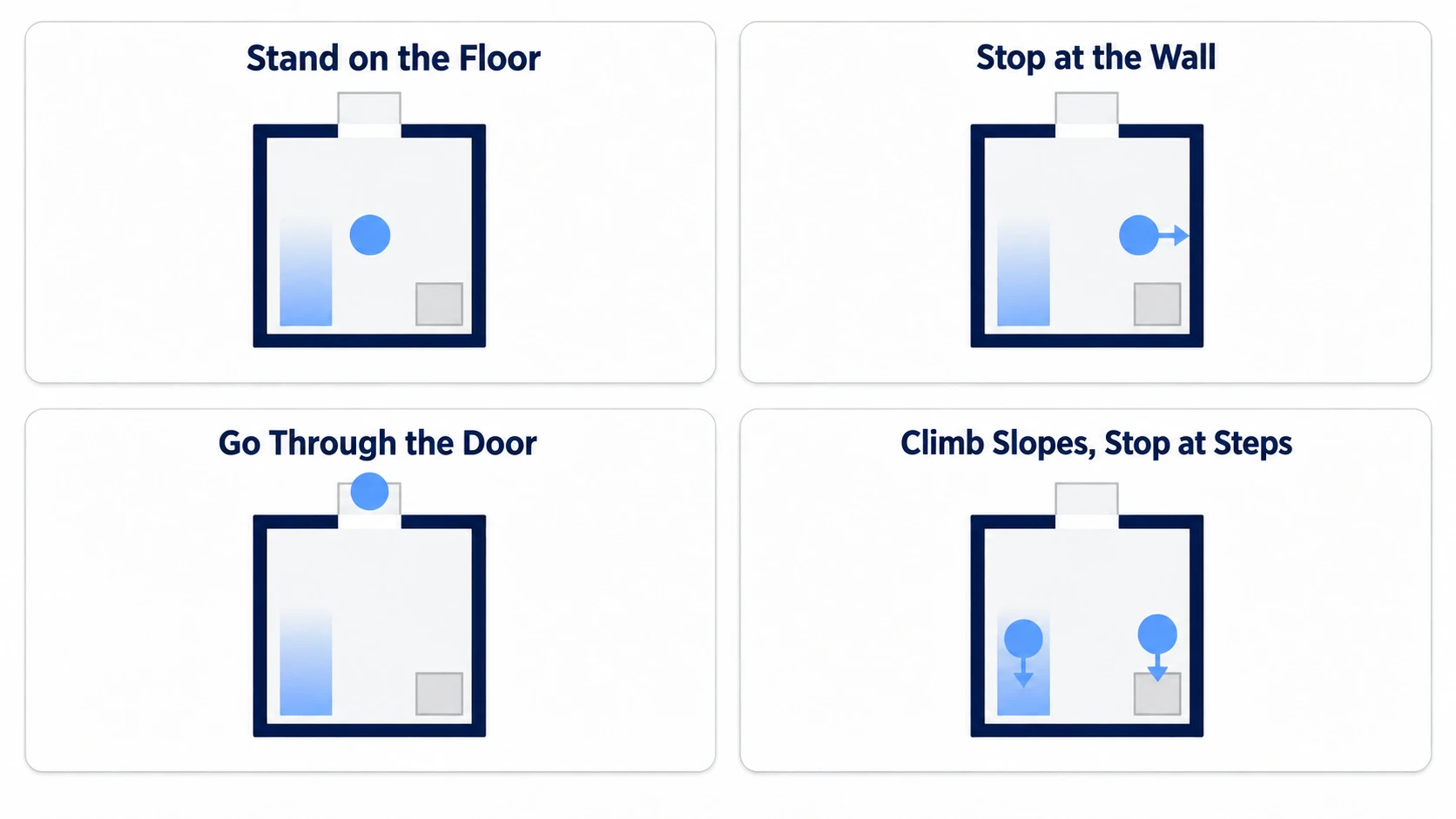
Play, and the screen looks straight down on the room, with the character standing in the middle of it. If it sinks into the floor or bounces upward here, compare Floor's and Player's Position, and the capsule's height, against the values in ①.
Walk toward a wall with the arrow keys, and at all four walls it stops where the edge of the capsule touches the wall. Head up with the up key toward the gap in the top wall, and it passes through without catching on a threshold and onto the outside floor. If it stops in front of the gap, compare DoorCut's Size and Position against the table.
Next, move about 2.5 meters left from the middle, then press the down key. The character climbs the slope on the left and drops off the end onto the floor. Go back to the middle, move about 2.5 meters right this time, and press the down key, and it stops in front of the step at the bottom right. If it stops here, that confirms a vertical face 0.5 high can't be climbed.
Two points.
- One collision at the root: Room's Use Collision makes collision from the result of adding and subtracting the eight boxes. Ramp is in a separate tree, so it holds its own
- Dimensions are decided by whether the character can pass: the door width of 1.6 is the capsule's diameter of 0.8 plus 0.4 of room on each side. If you want to narrow it, take it from that room
Once this room's dimensions are settled and you're up to a second room, transfer it to GridMap. With 2-meter cells, make one 2-meter-wide wall tile with a 1.6-wide opening cut in it, and place that.
Troubleshooting
| Symptom | Cause | Fix |
|---|---|---|
The top of a floor placed with GridMap ends up above y = 0 | Cell Center Y is on by default, placing the mesh at the middle of the cell's height (with a Cell Size of 2, the center is at 1.0) | Turn off Cell Center Y, and lower the GridMap by half the floor's thickness (0.5 for a thickness of 1) |
| After reordering the tree, the shape of the cutting box shows up instead of a hole | The topmost child becomes the base regardless of its Operation | Order cutting boxes below the floor and walls |
| Choosing an item and clicking the 3D view doesn't place it in a cell | The GridMap dock is still on Selection | Enable Paint in the dock before clicking |
| After baking, you hid the original CSG, but collision is doubled | Even hidden, the collision from the CSG's Use Collision remains | Turn off Use Collision on the original CSG, or remove the node entirely |
Bonus: Good to Know First
- Lower the walls if viewing at an angle: when you want to look at an angle rather than from directly above, lower just the near wall to about 1 meter high and you can see inside
- Refine the lighting after the dimensions: the sun's direction, placing street lamps and flashlights, and the brightness on the shadow side are covered in 3D Lighting Basics
Summary
- What you decide is the dimensions: decide the character's capsule first, and derive the door width and ceiling height from it. A box's origin is its center
- Adding and subtracting is decided by order: under the same parent they combine from the top down, and a Union after carving fills things back in
- One Use Collision at the root: collision is made from the shape after adding and subtracting. Don't put it on the cutting boxes
- Steps can't be climbed: there's no feature that climbs steps automatically. To let the character up, add a slope or a jump
- Transfer to GridMap once the dimensions are settled: give MeshLibrary items collision yourself before exporting
Start by placing just one floor and one wall, turn on Use Collision, and walk around. How many meters square will the first room in your game be?