When you add a gamepad to a game that already runs on the keyboard, it becomes playable once three things are in place: walking with the stick, rumbling on hits, and operating the pause screen with only the gamepad. In Godot, you build these with the action's deadzone, the vibration functions, and button focus.
Plug in a gamepad without any of this, and the character keeps creeping along after you take your finger off the stick, or you open the pause screen and can't select any button.
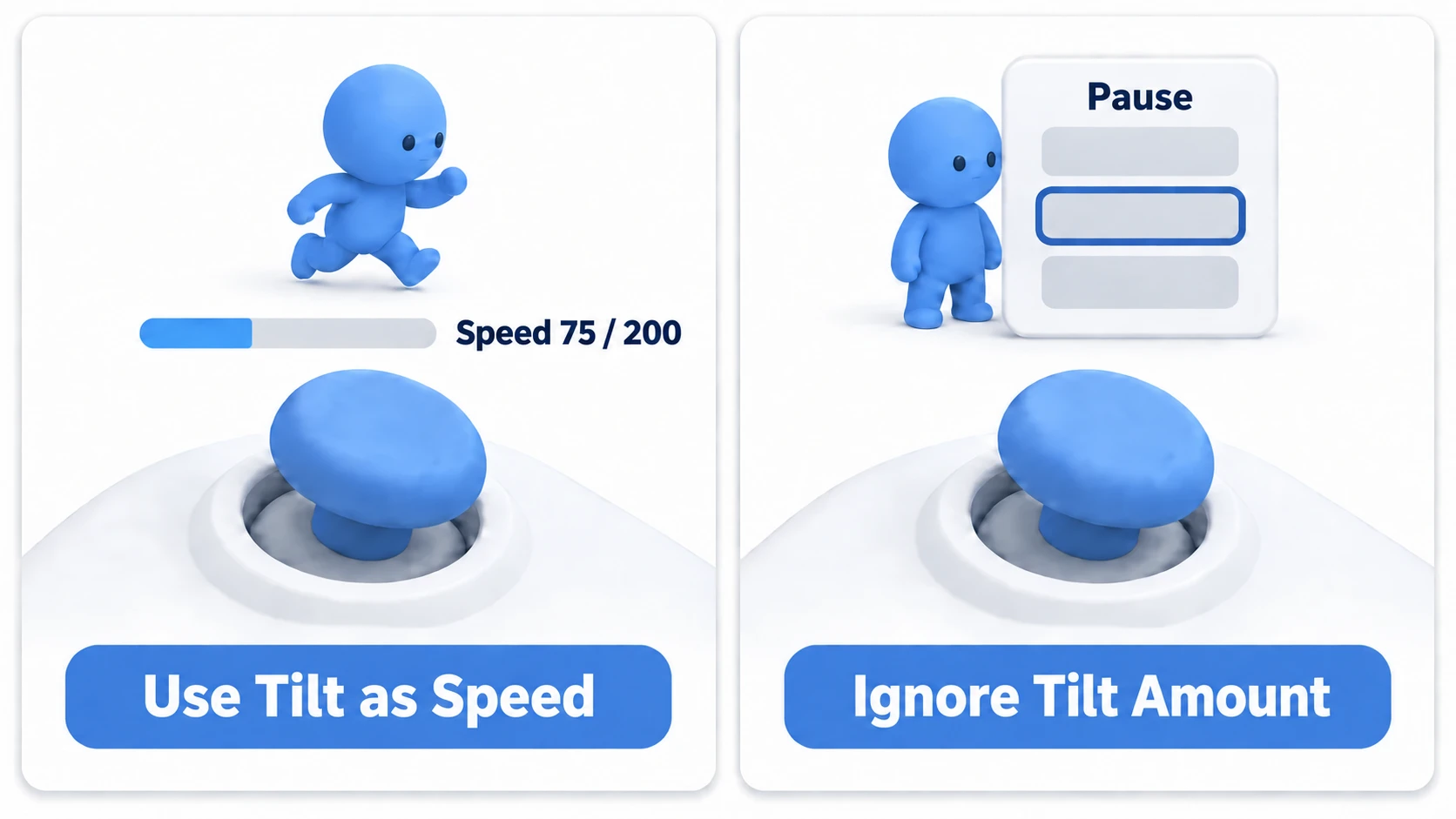
This article covers using how far the stick is tilted as speed, making a short rumble on hits, and operating the pause screen with only a gamepad.
What You'll Learn
- Why the character moves even after you let go of the stick, and how to fix it
- Where to set the deadzone, and how the values for walking and for menus differ
- The one line you write yourself to operate the pause screen with only a gamepad
- How to trigger vibration just once, and cleaning up when pausing or unplugging the gamepad
Tested with: Godot 4.7 (Windows)
Stick input and the deadzone
A keyboard key has two states: pressed or released. A stick is different. The amount it's tilted keeps being sent every frame.
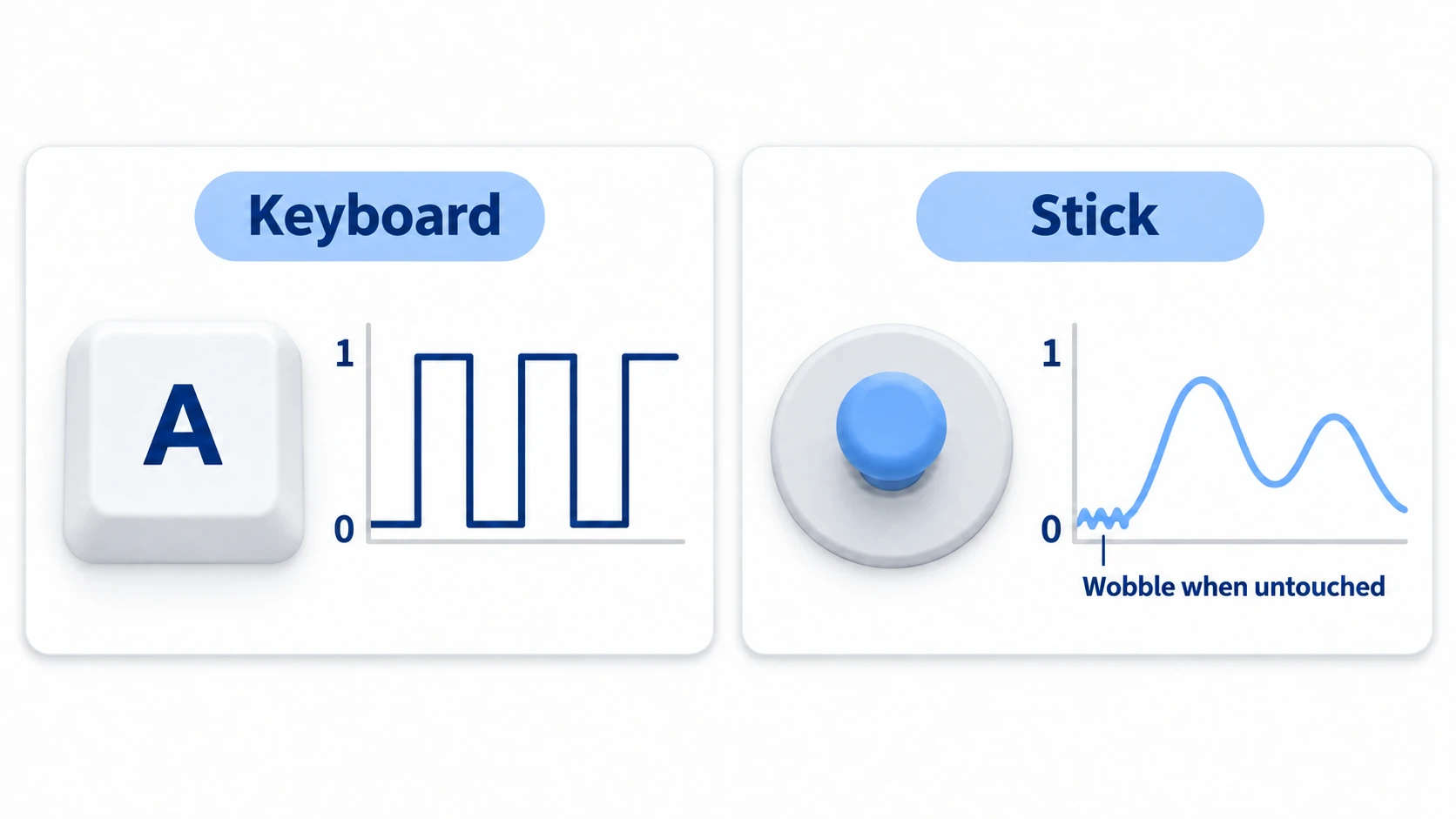
For walking, use that amount as speed directly. Tilt it a little for slow, tilt it far for fast. It's movement a keyboard can't produce, and it's half the reason to plug in a gamepad at all.
The problem is around 0. A well-used gamepad can keep sending values around 0.05 to 0.15 even with your finger off. Use that as speed as-is, and the character walks with nobody touching it.
So you throw away amounts smaller than a certain size and treat them as "not tilted." That range you throw away is the deadzone.
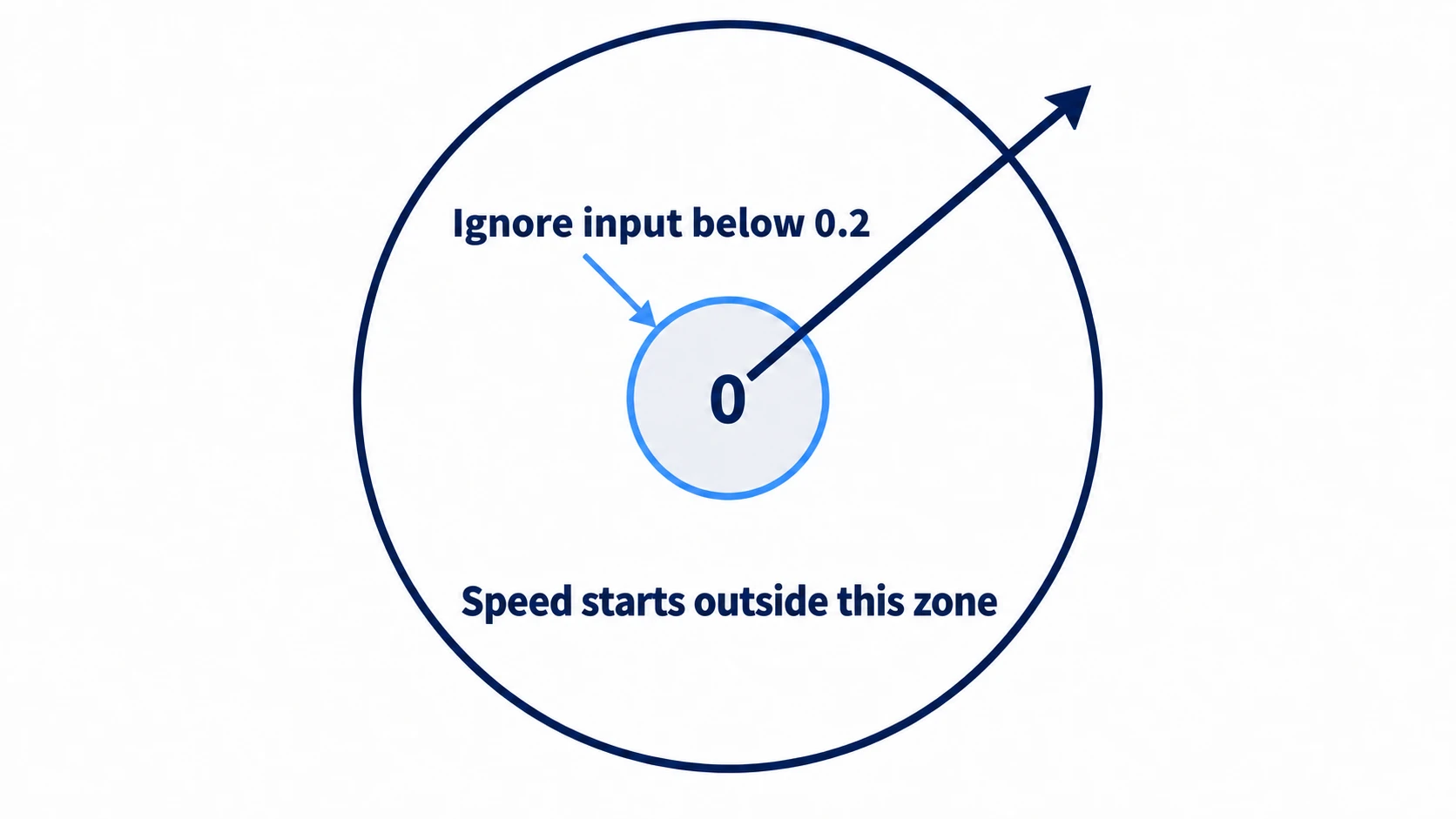
There's one place to set it. In Input Map in the project settings, every action (a name you give to a group of keys or stick directions, like move_left) row has a Deadzone. The registered events themselves don't have this setting.
Newly created actions start at 0.2. That value suits walking. Lower it to 0.1 and the wobble gets through. Raise it to 0.5 and you don't start walking until you tilt quite far.
Reading movement takes one line.
var direction := Input.get_vector("move_left", "move_right", "move_up", "move_down")
The vector get_vector() returns has a length of at most 1. Tilt diagonally and it tops out at the same speed as tilting straight sideways. Read left-right and up-down separately and add them, and only diagonals get about 1.4 times faster.
This function also takes care of the deadzone. Leave out the argument, and it uses the average of the values set on the four actions.
The part thrown away is removed and the rest is rescaled from 0 to 1. With a 0.2 deadzone, tilting the stick halfway (0.5) returns 0.375.
Menu controls and focus
On the pause screen, the same stick is handled the other way around. You don't read the amount yourself. You receive what Godot has turned into "move to the next item, once."
The thing that currently has the highlight and receives confirmation is called focus. It marks where on screen you're paying attention, and it's what moves when you operate with a gamepad or keyboard.
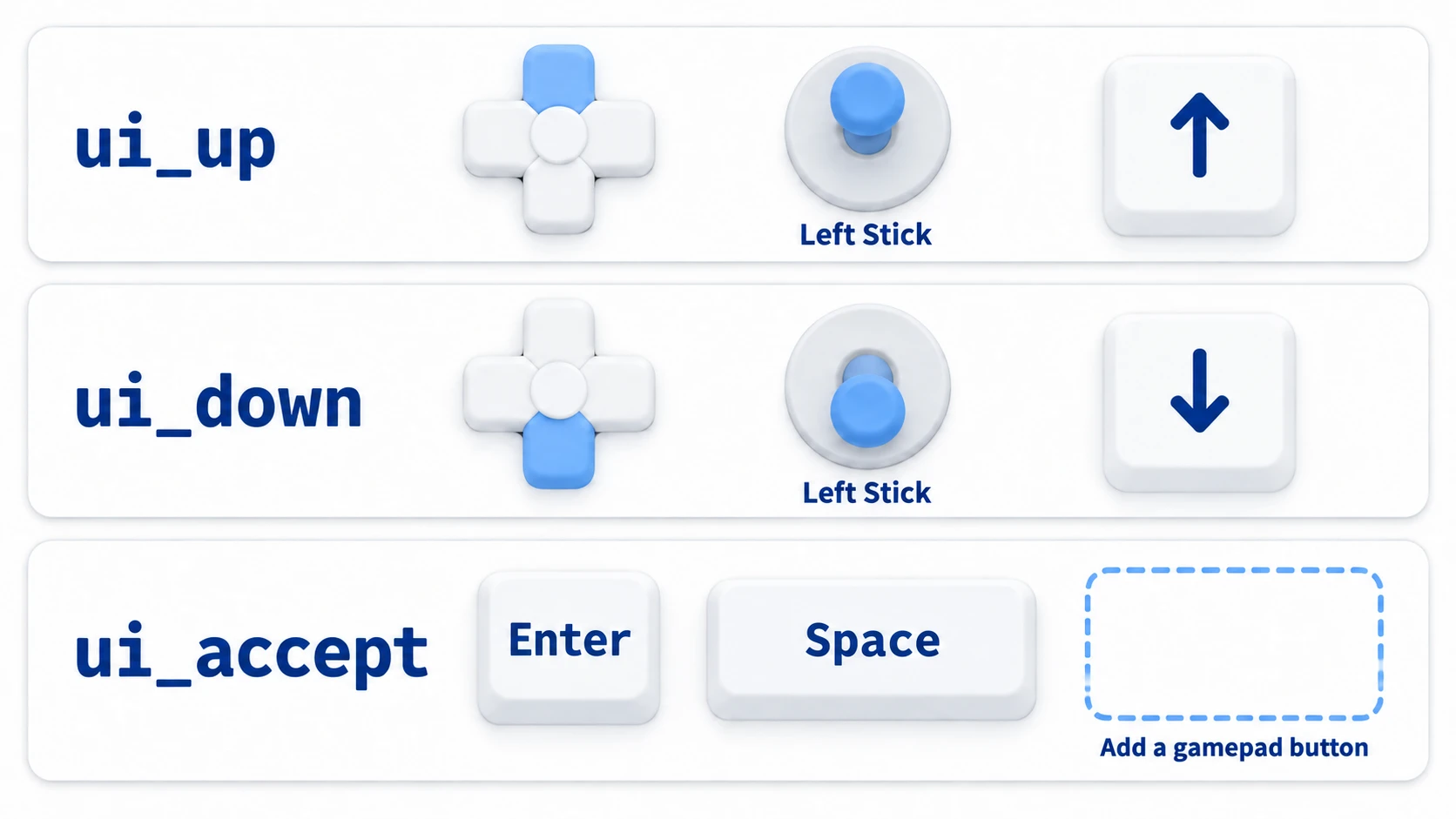
ui_up and ui_down contain the D-pad and the left stick from the start. Their Deadzone is 0.5, less sensitive than the 0.2 for walking. That's so resting a finger on the stick doesn't move through items.
Confirming uses ui_accept. At first, it contains only keyboard keys (Enter and Space). Turn on Show Built-in Actions in Input Map in the project settings, and the ui_accept row becomes visible. From the row's +, open "Joypad Buttons" and add "Joypad Button 0 (Bottom Action, Sony Cross, Xbox A, Nintendo B)". That's the gamepad's bottom button. Add "Joypad Button 1" (the right button) to ui_cancel, and the right button can close things.
There's only one line to write yourself.
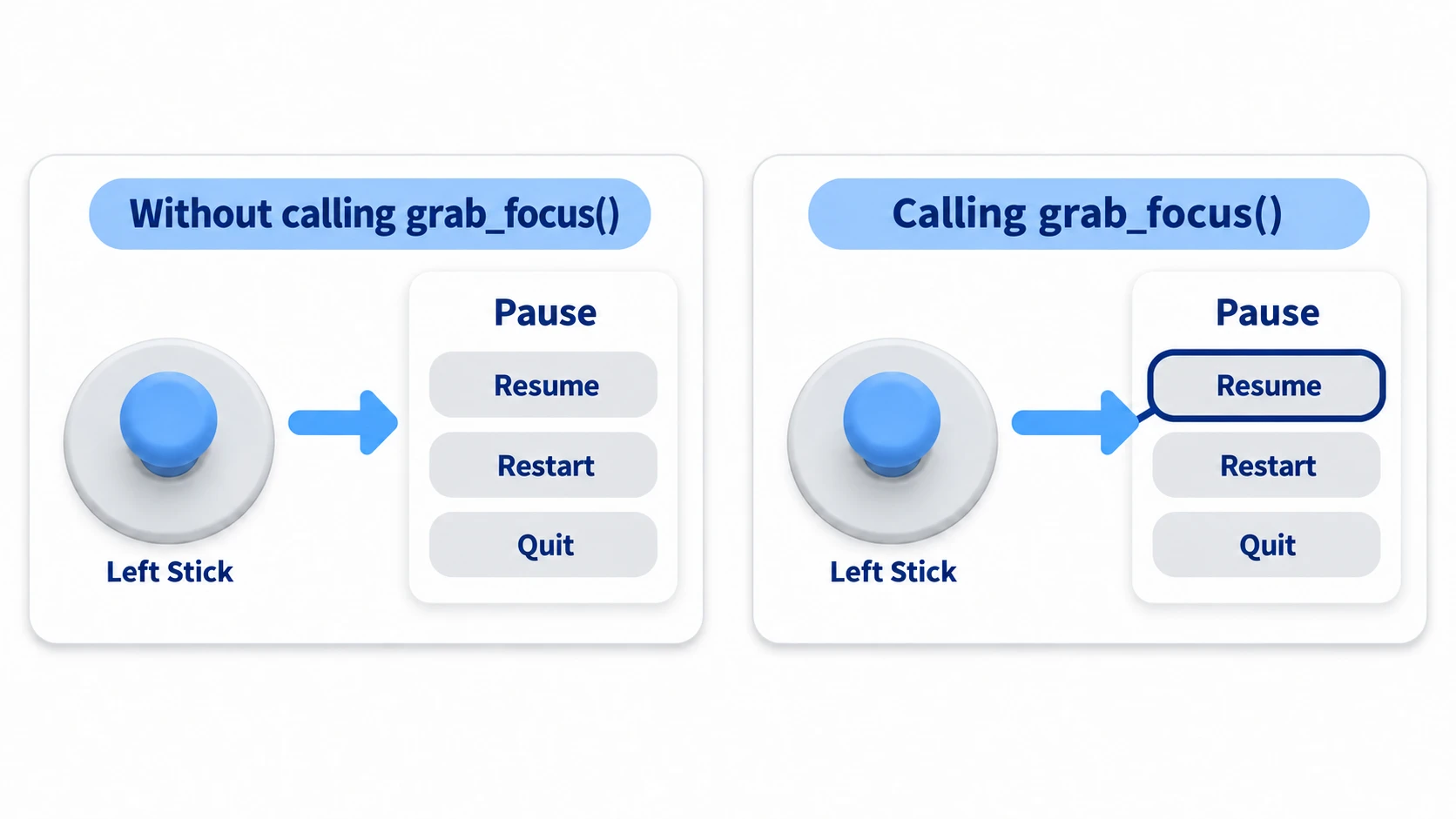
Right after showing the pause screen, call grab_focus() on the first button. Without it, no button has focus, so tilting the stick shows no highlight.
There's also a focus_neighbor setting, but if you just line up three buttons vertically, you don't need to touch it. Leave it empty and Godot finds the neighbor from the positions.
Unlike the keyboard, holding the stick tilted moves only one item. Return the stick to center each time you move one item.
How to rumble
The feedback of taking a hit fits in one line.
Input.start_joy_vibration(device, 0.3, 0.7, 0.25)
The second argument is the strength of the fine motor, and the third is the heavy motor, both from 0 to 1. The fourth is the length in seconds. For a hit, start by trying 0.3 for the weak side, 0.7 for the strong side, and around 0.25 seconds for the length.
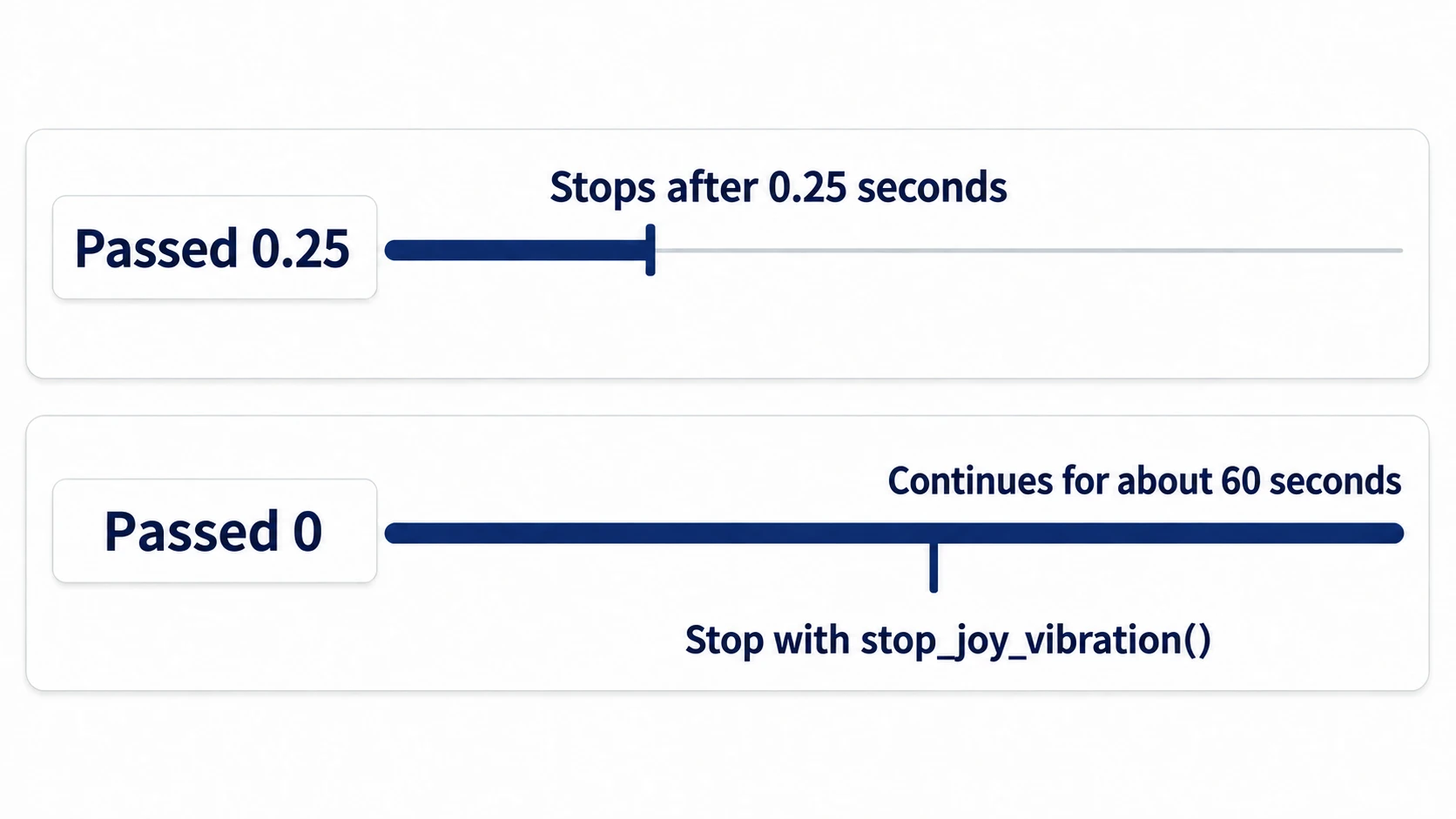
Pass 0 as the length and it doesn't stop right away. On Windows, it keeps rumbling for about a minute before stopping. It carries over even when you switch scenes, so call Input.stop_joy_vibration(device) where you want it to stop. Stopping it when you open the pause screen keeps it from rumbling the whole time you're choosing from the menu.
You also need to be careful how many times you call it. Every call of start_joy_vibration() restarts the vibration for the given length from that moment. Call it the whole time the bodies overlap, and it never ends. Call it only at the moment the damage is applied, once.
For the destination device number (the number assigned from 0 to each connected gamepad), get the currently connected numbers with Input.get_connected_joypads() and send to all of them. The numbers change when gamepads are unplugged and plugged back in, so hardcoding 0 can leave a connected gamepad not rumbling.
Some gamepads have no vibration. Calling start_joy_vibration() on one that can't rumble isn't an error. It's enough to make the game playable without rumble.
Plugging and unplugging the gamepad
When the gamepad is unplugged during play, there's less you need to write than you might think.
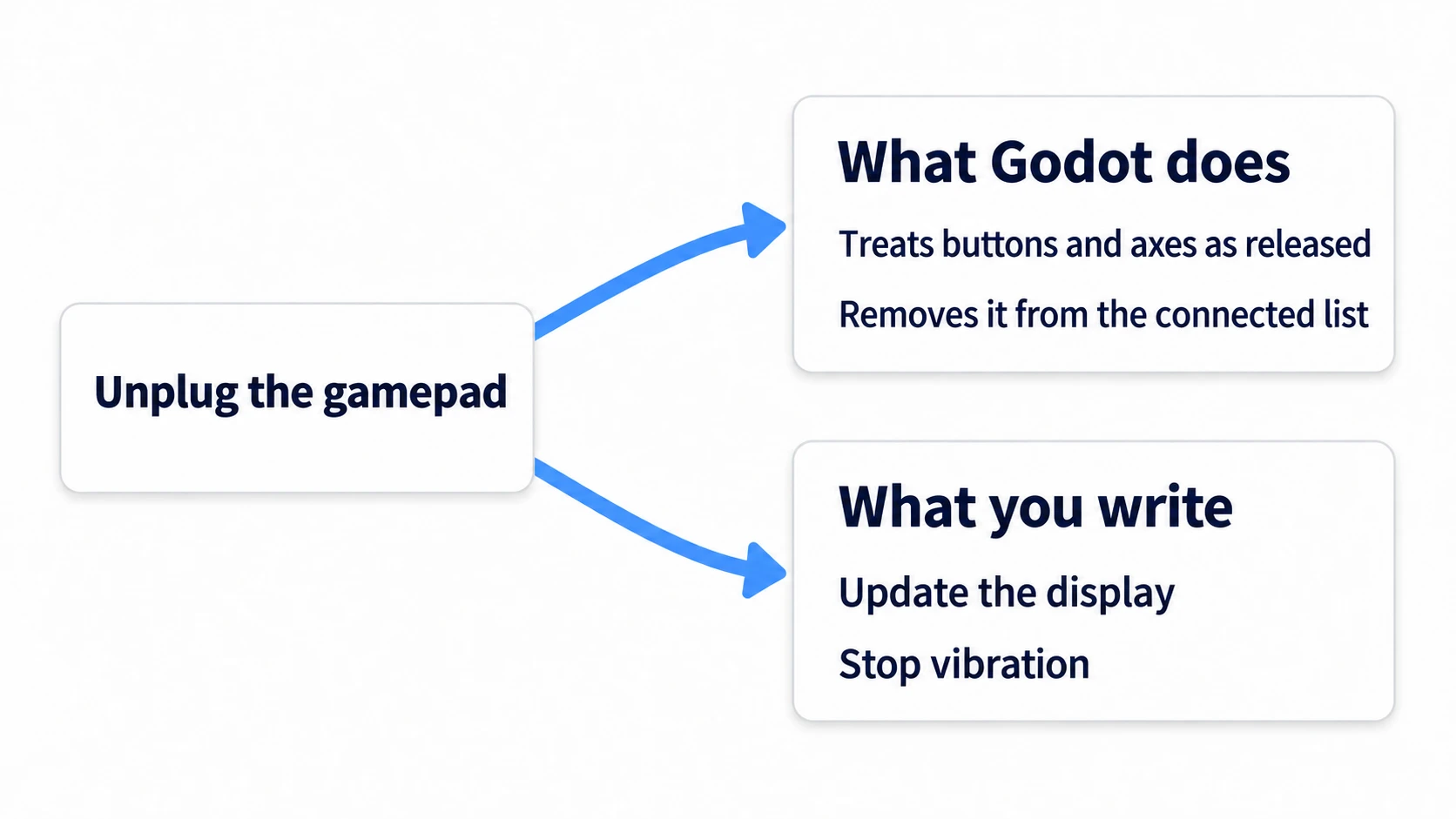
Godot 4.7, the moment it detects the disconnect, resets that device's buttons and axes (amounts from sticks and triggers) to released. If you rebuild the velocity from input every frame, the character stops on the spot. You don't need to write code that resets the velocity to 0 yourself.
There are two things you write yourself. One is the on-screen display, which you rewrite by receiving a signal called Input.joy_connection_changed.
func _ready() -> void:
	Input.joy_connection_changed.connect(_on_joy_changed)
	_update_pad_label()          # at startup, look at the current list without waiting for the signal
For gamepads already plugged in at startup, the notification may have happened before you connect to this signal. Build only the first display by looking at Input.get_connected_joypads() directly.
The other is vibration. Call Input.stop_joy_vibration(device) on the unplugged number.
Hands-On: Walk, Rumble, and Open the Pause Screen
Top-down action, puzzles, a minigame selection screen—the first three things you need for gamepad support are usually these. You'll place just one character, one spike, and one pause screen.
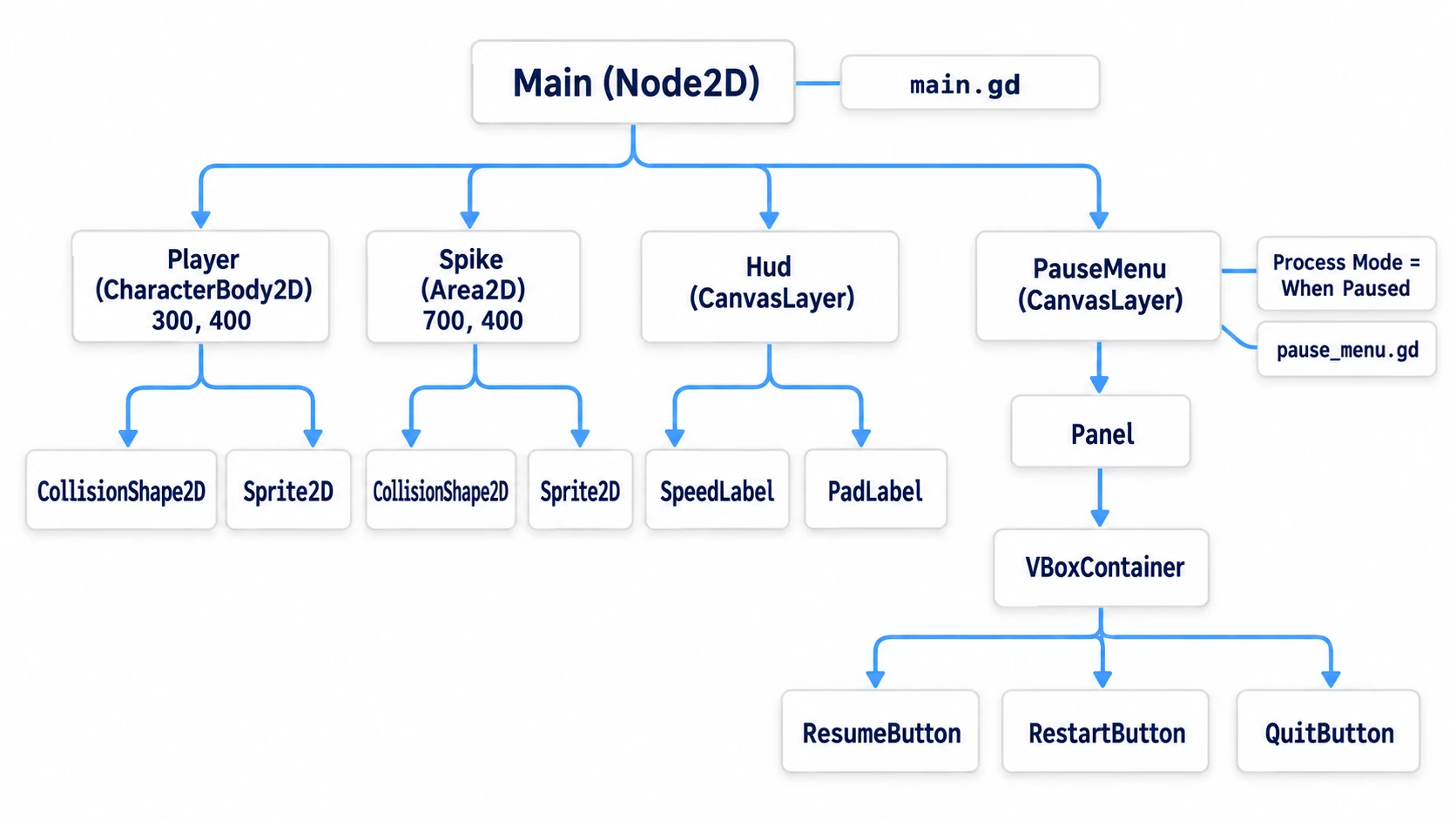
① What to place
Create one new scene. The only art is the icon.svg that comes with every project.
First, Input Map in the project settings. Gamepad buttons appear under "Joypad Buttons" in the list opened from +, named with the number and each maker's labels.
- Create
move_left/move_right/move_up/move_down. Register the arrow key and the matching left stick direction to each - Check that all four have Deadzone at
0.2(the value they had when created) - Create
pause. Register Esc and "Joypad Button 6 (Start, Xbox Menu, Nintendo +)" - Turn on Show Built-in Actions, and add "Joypad Button 0 (Bottom Action, Sony Cross, Xbox A, Nintendo B)" to the
ui_acceptrow - In the same way, add "Joypad Button 1 (Right Action, Sony Circle, Xbox B, Nintendo A)" to
ui_cancel
Next, the scene. Put a Node2D at the root as Main and attach main.gd. Leave Process Mode (the setting for whether it runs during a pause) at its default, Inherit.
- Add a CharacterBody2D under Main as Player. Position
(300, 400), Motion Mode Floating (top-down, so it doesn't look for a floor) - Under Player, a CollisionShape2D (CircleShape2D, radius
32) - Under Player, a Sprite2D. Put in
icon.svgand set Scale to(0.5, 0.5) - Add an Area2D under Main as Spike. Position
(700, 400) - Under Spike, a CollisionShape2D (CircleShape2D, radius
48) and a Sprite2D (icon.svg, Scale(0.75, 0.75)) - Add a CanvasLayer, a layer that stays pinned to the screen even when the camera moves, under Main as Hud. Give it two Label children: SpeedLabel (16, 16) and PadLabel (16, 48)
- Add another CanvasLayer under Main as PauseMenu. Set Process Mode to When Paused (runs only during a pause), and attach
pause_menu.gd - A Panel under PauseMenu. Position
(416, 214), Size(320, 220) - Under Panel, a VBoxContainer, which stacks its children vertically. Set Anchors Preset to Full Rect (stretch to fill the parent)
- Three Buttons under VBoxContainer. From the top: ResumeButton ("Resume"), RestartButton ("Restart"), QuitButton ("Quit")
- Turn on Access as Unique Name for Player, Spike, SpeedLabel, PadLabel, PauseMenu, Panel, ResumeButton, RestartButton, and QuitButton. From code, get them with a
%, as in%Player
It rumbles the moment Player's radius 32 circle and Spike's radius 48 circle overlap, that is, the moment the centers come within 80 of each other.
② Two scripts
Main gets walking, vibration, the gamepad display, and opening the pause screen.
# main.gd (attach to Main. Leave Process Mode at Inherit)
extends Node2D

const SPEED := 200.0

@onready var player: CharacterBody2D = %Player
@onready var speed_label: Label = %SpeedLabel
@onready var pad_label: Label = %PadLabel
@onready var pause_menu: CanvasLayer = %PauseMenu

func _ready() -> void:
	Input.joy_connection_changed.connect(_on_joy_changed)
	%Spike.body_entered.connect(_on_spike_entered)
	_update_pad_label()

func _physics_process(_delta: float) -> void:
	var direction := Input.get_vector("move_left", "move_right", "move_up", "move_down")
	player.velocity = direction * SPEED
	player.move_and_slide()
	speed_label.text = "Speed %d / 200" % player.velocity.length()

func _unhandled_input(event: InputEvent) -> void:
	if event.is_action_pressed("pause"):          # during a pause, this whole function stops
		pause_menu.open()
		get_viewport().set_input_as_handled()

func _on_spike_entered(body: Node2D) -> void:
	if body != player:
		return
	for device in Input.get_connected_joypads():
		Input.start_joy_vibration(device, 0.3, 0.7, 0.25)

func _on_joy_changed(device: int, connected: bool) -> void:
	if not connected:
		Input.stop_joy_vibration(device)
	_update_pad_label()

func _update_pad_label() -> void:
	var pads := Input.get_connected_joypads()
	pad_label.text = "Gamepad: %s" % ("none" if pads.is_empty() else Input.get_joy_name(pads[0]))
PauseMenu gets the preparation for opening and the logic for closing.
# pause_menu.gd (attach to PauseMenu. Process Mode is When Paused)
extends CanvasLayer

@onready var panel: Panel = %Panel
@onready var resume_button: Button = %ResumeButton

func _ready() -> void:
	panel.hide()
	resume_button.pressed.connect(close)
	%RestartButton.pressed.connect(_on_restart)
	%QuitButton.pressed.connect(get_tree().quit)

func open() -> void:
	for device in Input.get_connected_joypads():
		Input.stop_joy_vibration(device)          # don't enter the menu still rumbling
	get_tree().paused = true      # pause the whole game
	panel.show()
	resume_button.grab_focus()                    # without this one line, no highlight appears

func close() -> void:
	panel.hide()
	get_tree().paused = false

func _unhandled_input(event: InputEvent) -> void:
	if event.is_action_pressed("pause") or event.is_action_pressed("ui_cancel"):
		close()                                   # only called during a pause
		get_viewport().set_input_as_handled()

func _on_restart() -> void:
	get_tree().paused = false
	get_tree().reload_current_scene()
The opening side and the closing side are split so that no Always (always runs) node is needed. Set Main to Always, and its Inherit children like Player, plus any enemies or timers you add later, keep running during the pause (Pause and Process Mode). Here, Main stops during the pause, and the only one whose _unhandled_input() (the function that receives input the UI didn't use) is called during the pause is PauseMenu.
There's no code anywhere that reads ui_up or moves focus. Operating the menu works with just the registered actions and the one line of grab_focus().
③ Try it and check
Plug in a gamepad and play. If you don't have one, you can check the same screen with the arrow keys and Enter. Check three things.
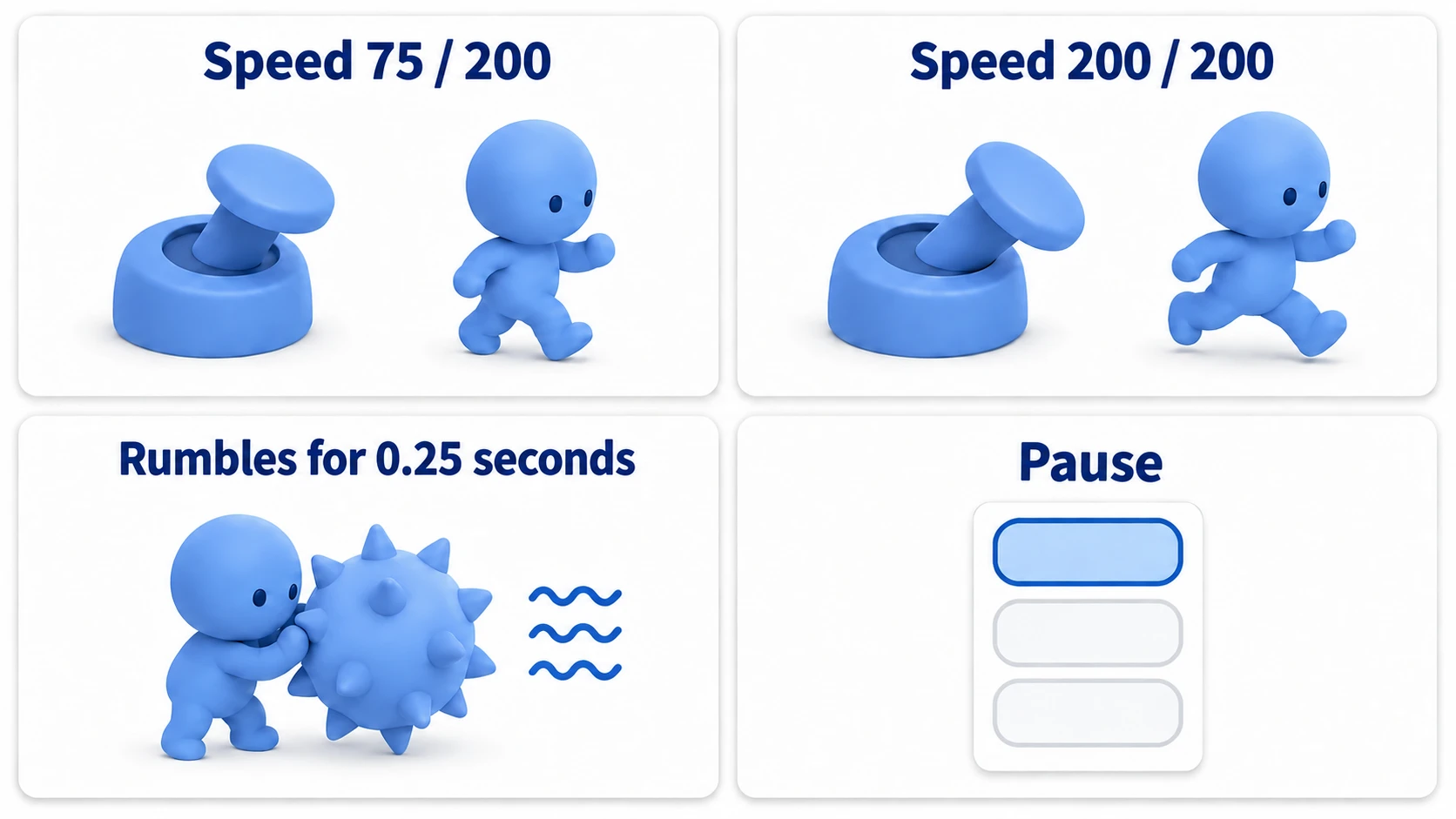
The first is walking. Tilt the stick about halfway, and the display in the top left reads around "Speed 75 / 200". If the axis value is exactly 0.5, that's 0.375 after throwing away 0.2 and rescaling, times 200, which is 75. The amount you tilt by hand is a bit off, so don't change the settings if the number wobbles around. Tilting fully diagonally still tops out at 200, and letting go returns it to 0. With only the arrow keys it's always either 0 or 200, so if you see values in between, the stick's amount is getting through.
The second is the spike. Touch the spike at (700, 400), and it rumbles for just 0.25 seconds. Back off to around (800, 400) and come back, and it rumbles again. It doesn't keep rumbling while touching because the call happens only once, at the moment of touching.
The third is the pause screen. Open it with Esc or Start, and the character stops on the spot while "Resume" gets the highlight. Tilt the stick down and the highlight moves to "Restart," and holding it tilted doesn't go any further. Tilt up to go back to "Resume," press the gamepad's bottom button, and it closes. The right button or Esc also closes it. Without touching the mouse once, you can open it, choose, and close it.
Finally, unplug the only gamepad you have plugged in. The "Gamepad:" display changes to "none", and the character you were steering with the stick stops on the spot.
Two points.
- Walking uses the amount as-is, menus don't read the amount: multiplying
Input.get_vector()'s return value by speed completes walking. The menu side is left to actions, and code never touches the stick values - All you write yourself is focus and cleaning up vibration: one line to put the highlight on the first item, and code to stop vibration on pausing or disconnecting. Godot already has the mechanism for moving between items
Troubleshooting
| Symptom | Cause | Fix |
|---|---|---|
| You have to tilt quite far before it starts walking | It's an action created in 4.3 or earlier, still saved with Deadzone at 0.5 | Lower it to 0.2. From 4.4, the default for newly created actions became 0.2 |
| Even with a higher Deadzone, it moves a little when you let go | You're reading the stick directly with Input.get_joy_axis() | get_joy_axis() doesn't go through the deadzone. Read with Input.get_vector() |
| Tilting up walks down | You registered the left stick's downward direction to move_up | Register it again. On the left stick's vertical axis, down is positive |
| The highlight moves, but even Enter can't confirm | The menu's buttons are stopped by the pause (following Process Mode's Inherit up the parents ends at Pausable, which stops during a pause) | Set the menu's Process Mode to When Paused. The highlight still moves while stopped, so it's easy to miss |
Bonus: Good to Know First
- Don't rely on the labels printed on buttons: confirm uses "the gamepad's bottom button." On Xbox that's A, on PlayStation it's ×, and on Nintendo gamepads it's the button labeled B. Register it by number
0and it's the button in the same position on any gamepad - Triggers are axes: L2 and R2 aren't buttons. They send an amount from
0to1. If you use them, register them to an action just like walking and read them through the deadzone - When assigning multiple gamepads to separate players: this article's code sends the same vibration to every connected gamepad. In two-player games, send it only to the device number of the one who got hit. How to hold the assignments is covered in Split Screen Basics
Summary
- The stick sends an amount: a keyboard is two states, a stick is how far it's tilted. For walking, use
Input.get_vector()directly as speed and diagonals don't get faster - The deadzone lives in one place on the action: walking stays at the
0.2it had when created, and the built-inui_*stay at0.5 - Leave menus to actions: all you write is
grab_focus()on the first item and adding a gamepad button toui_accept - Split pausing into an opening side and a closing side: put opening on the side that stops during a pause, and closing on the When Paused side
- Call vibration only once: a length of
0doesn't stop quickly, so callstop_joy_vibration()on pause and disconnect
A screen you can't get past without the mouse is a place to add grab_focus(). Can the game you're building now be played from start to finish without touching the mouse?