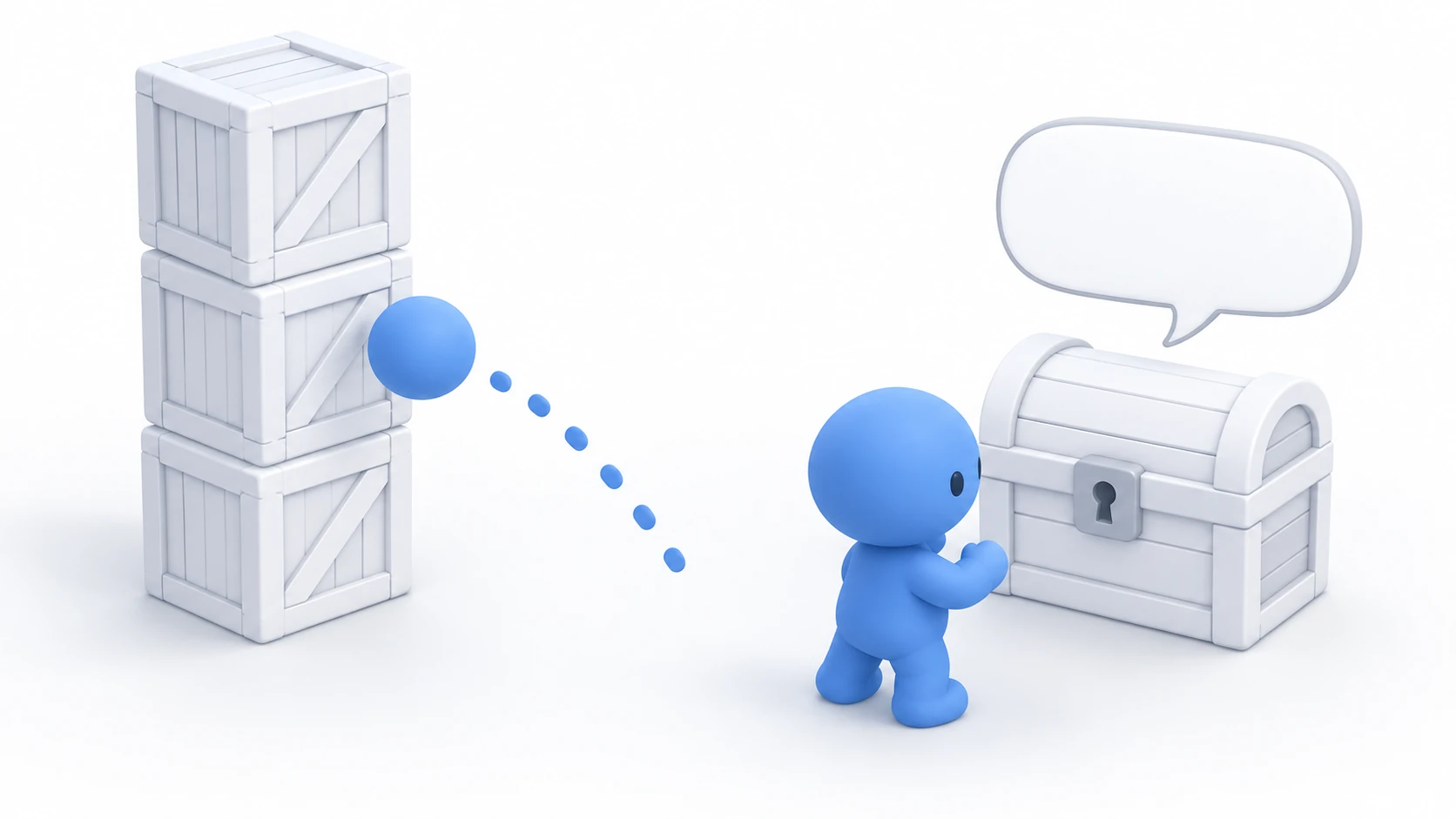
In a 3D game, to knock down a stack of crates with a ball, or show "Open" when you stand in front of a chest, you use RigidBody3D and Area3D. Both are built by giving them a collision shape separate from their look.
Place them without a shape, and the crate falls through the floor and the ball passes right through the crates. What physics looks at isn't the visible mesh but the collision shape layered on it.
This article explains how to choose collision shapes, knock down a stack of crates with RigidBody3D, and detect the front of a chest with Area3D.
What You'll Learn
- What physics looks at is the collision shape, not the visible mesh
- How to choose collision shapes by whether things move, and change size with the shape's size rather than Scale
- How to move a RigidBody3D with force, and how weight comes into play
- How to detect "standing in front" with Area3D and make it react only to the player
Tested with: Godot 4.7
- The visible mesh and the collision shape
- How to choose a collision shape
- How to change the collision size
- RigidBody3D and force (impulse)
- Area3D (a range that reports overlaps)
- Hands-On: Knock down crates with a ball, and show "Open" in front of a chest
- Troubleshooting
- Bonus: Good to Know First
- Summary
The visible mesh and the collision shape
3D objects hold their look and their collision separately. For a wooden crate, MeshInstance3D is the visible picture, and CollisionShape3D is the collision shape. Both go side by side as direct children of the physics body that decides how it moves.
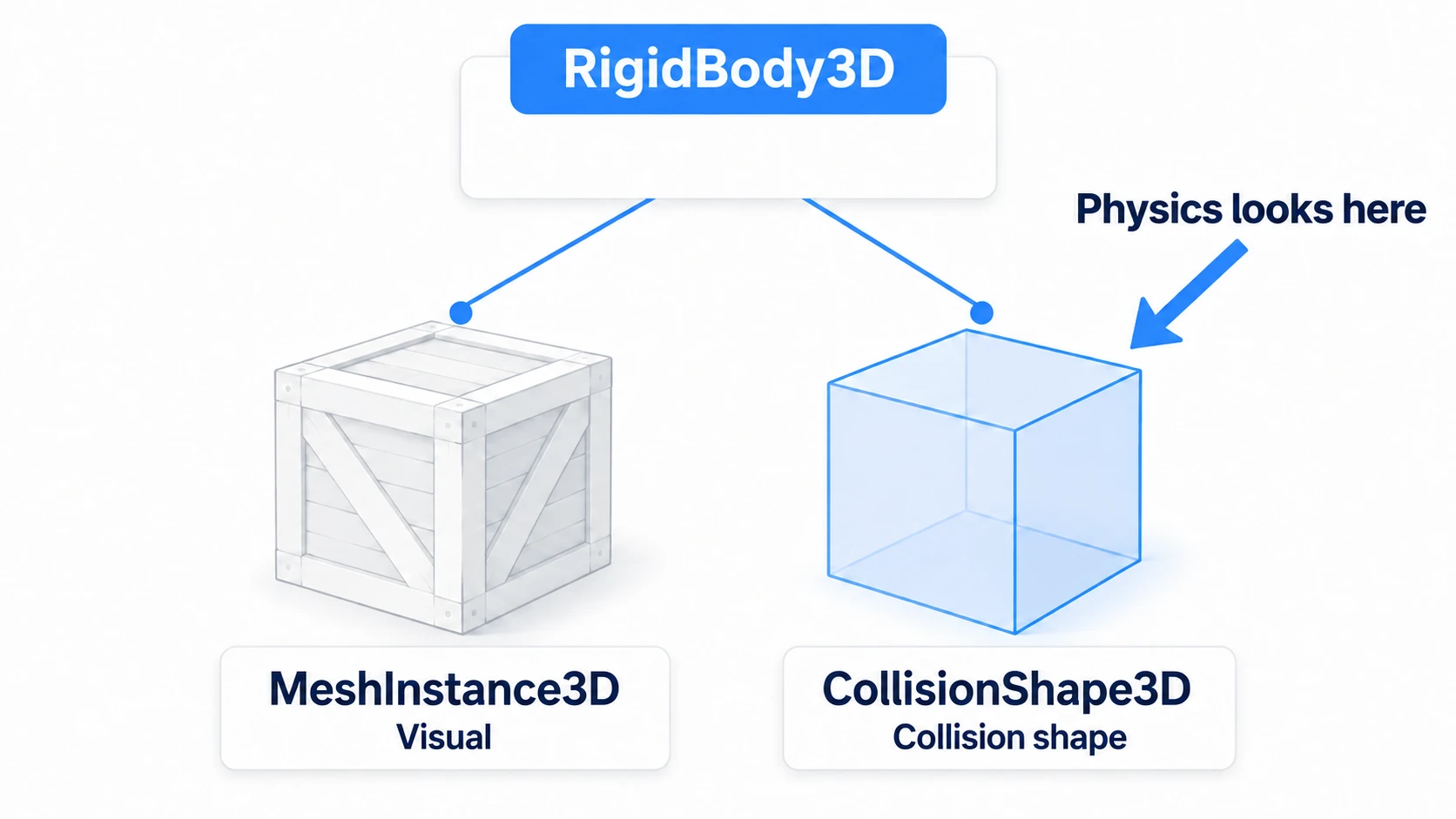
Physics only looks at the collision shape. Whether it stacks, falls, or reacts is all decided by the shape. A crate with only a look falls through the floor, and if the shape is smaller than the look, the crate appears to sink into the floor.
Collision shapes can be displayed at runtime. Turn on Visible Collision Shapes in the Debug menu at the top of the editor. When you have trouble with 3D collision, first use this to check where the shapes are.
Choosing a physics body works the same as in 2D, split by who decides the movement. Area3D, which only reports without colliding, is listed too.
- StaticBody3D: Nobody moves it. Floors, walls, chests
- RigidBody3D: The physics engine moves it. Crates, balls, falling rocks
- CharacterBody3D: Your own code moves it. The player, enemies
- Area3D: Reports overlaps without colliding. The front of a chest, a pitfall, a healing spring
How to think about each one is covered in 2D Physics Bodies Basics. What's new to decide in 3D is the collision shape.
In other engines: RigidBody3D corresponds to Unity's Rigidbody, or a component with Simulate Physics enabled in UE. Area3D is close to a Collider with Is Trigger enabled in Unity, or collision that detects Overlaps in UE.
How to choose a collision shape
A collision shape doesn't copy the look as-is; it approximates it with simple shapes. How to choose splits by whether the object moves.
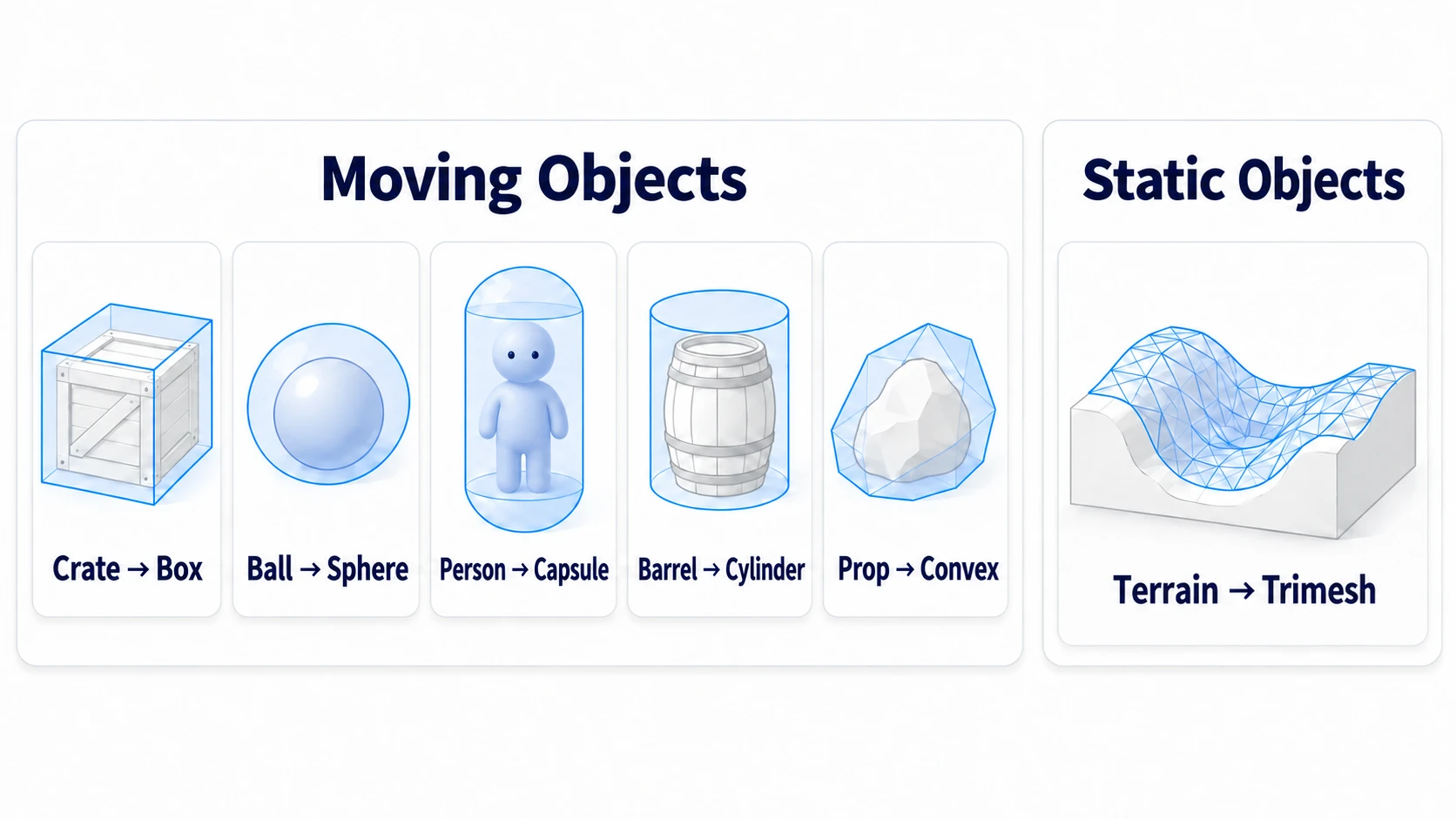
- Things that move: Approximate with box, sphere, capsule, or cylinder shapes (BoxShape3D and so on). For small items that simple shapes can't represent, use Convex (a shape that wraps around, filling in dents)
- Things that don't move: Simple shapes are enough for floors and walls too. Only for terrain or buildings with hollows, use Trimesh, which uses the mesh's triangles as-is
Trimesh (ConcavePolygonShape3D) is a shape for static stages. Put it on crates or rocks that move under physics, and they won't collide correctly. You can also make collision from a mesh. Select a MeshInstance3D, and in the Mesh menu that appears at the top, choose the kind of shape (Trimesh or Convex) and where to put it. For a mesh that's a child of a physics body, like a crate, put it as a sibling (Sibling).
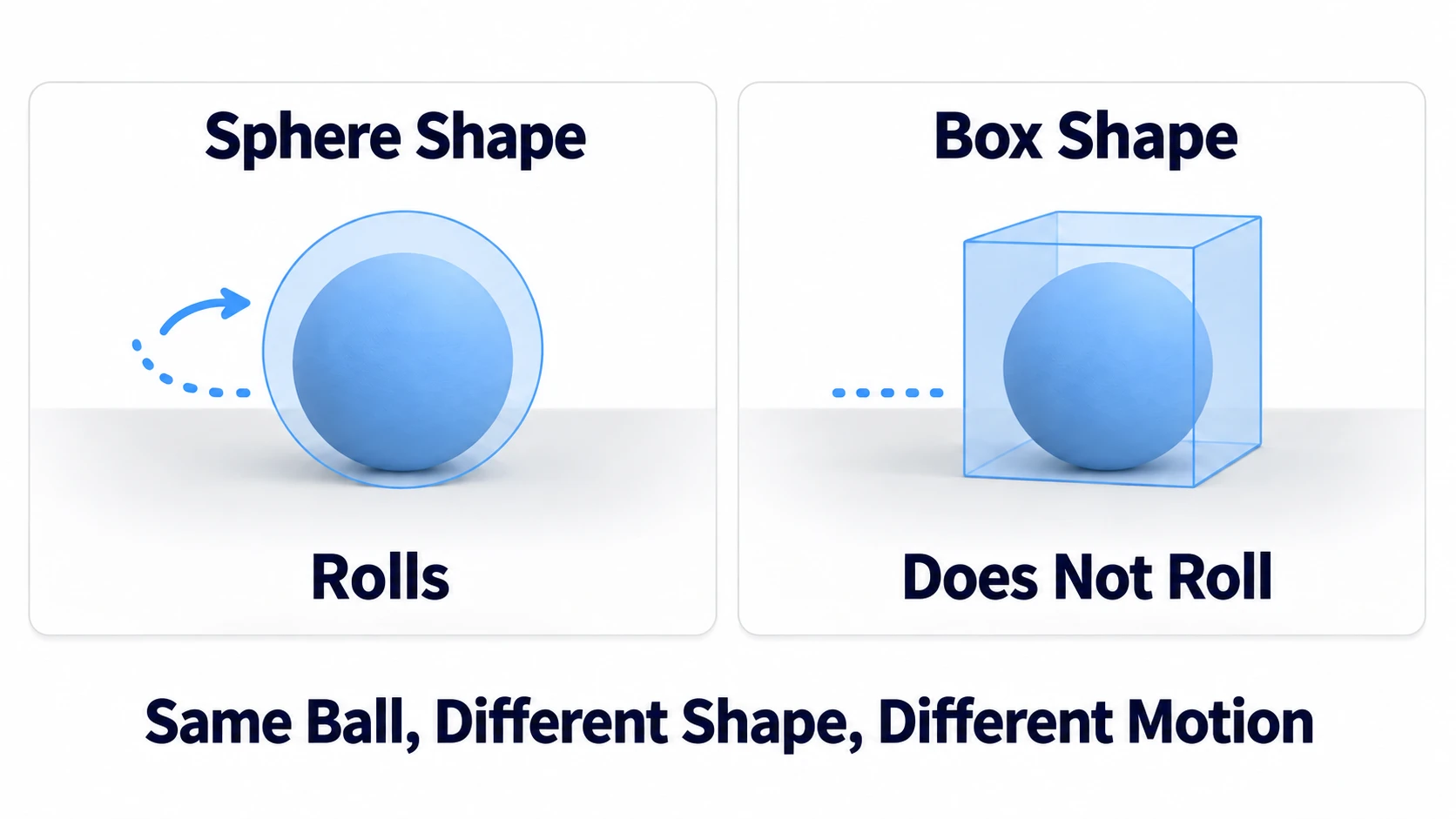
Change the shape, and the same object moves differently. Give a ball a box shape, and it slides or tips over on its corners instead of rolling like a sphere. Give a crate a sphere shape, and even though it looks flat, stacking becomes unstable. When movement looks wrong, suspect the shape before the script.
How to change the collision size
When you want a bigger crate, you'll be tempted to double the node's Scale. Avoid this on physics bodies and CollisionShape3Ds.
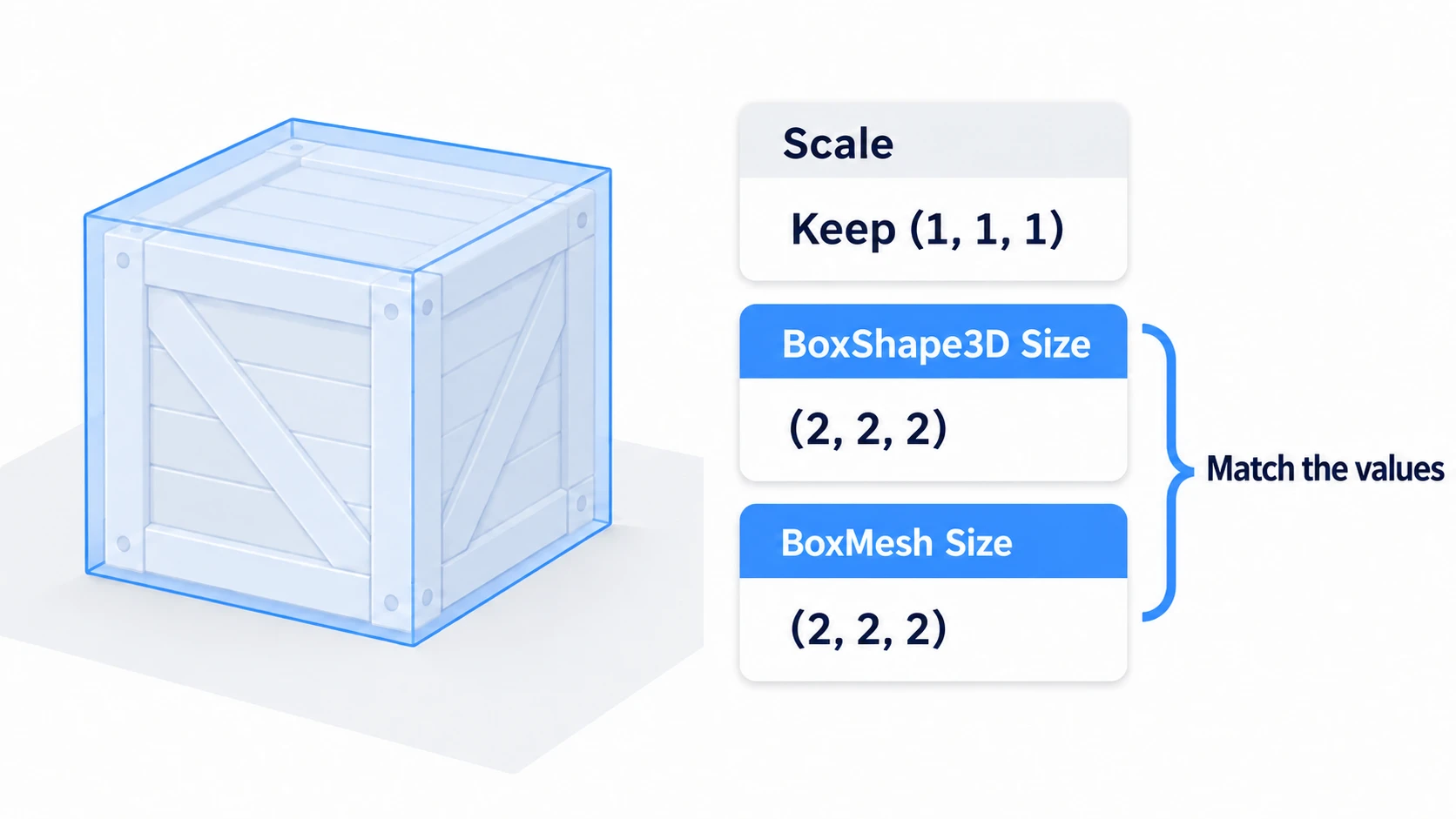
Change the Scale of a physics body or CollisionShape3D, and you may not get the size or movement you expected. Especially avoid Scale with different multipliers per axis, like stretching only vertically. Change the size on the shape instead. The unit is meters. For boxes it's BoxShape3D's Size, and for spheres it's SphereShape3D's Radius. Capsules and cylinders change with Radius and Height. Match the visible mesh to the same size too. Duplicated crates share the same Shape (reusable data, a resource), so when changing just one, choose Make Unique from the ▼ to the right of the Shape field first.
In Unity, Colliders follow the Transform's Scale, so habits work against you here. Leave the Scale of physics bodies and their collision at (1, 1, 1).
RigidBody3D and force (impulse)
RigidBody3D is a physics body whose movement is left to the physics engine. It falls with gravity and gets pushed back when it collides. From code, you give it force, not a position.
ball.apply_central_impulse(Vector3(0, 3, -12)) # push it out for just an instant
An impulse is momentum applied for just an instant. The change in speed is decided by "impulse ÷ Mass (weight)." Mass defaults to 1, so with the line above, the ball launches at a speed of (0, 3, -12). Give the same impulse to something with a Mass of 4, and its speed is a quarter of that.
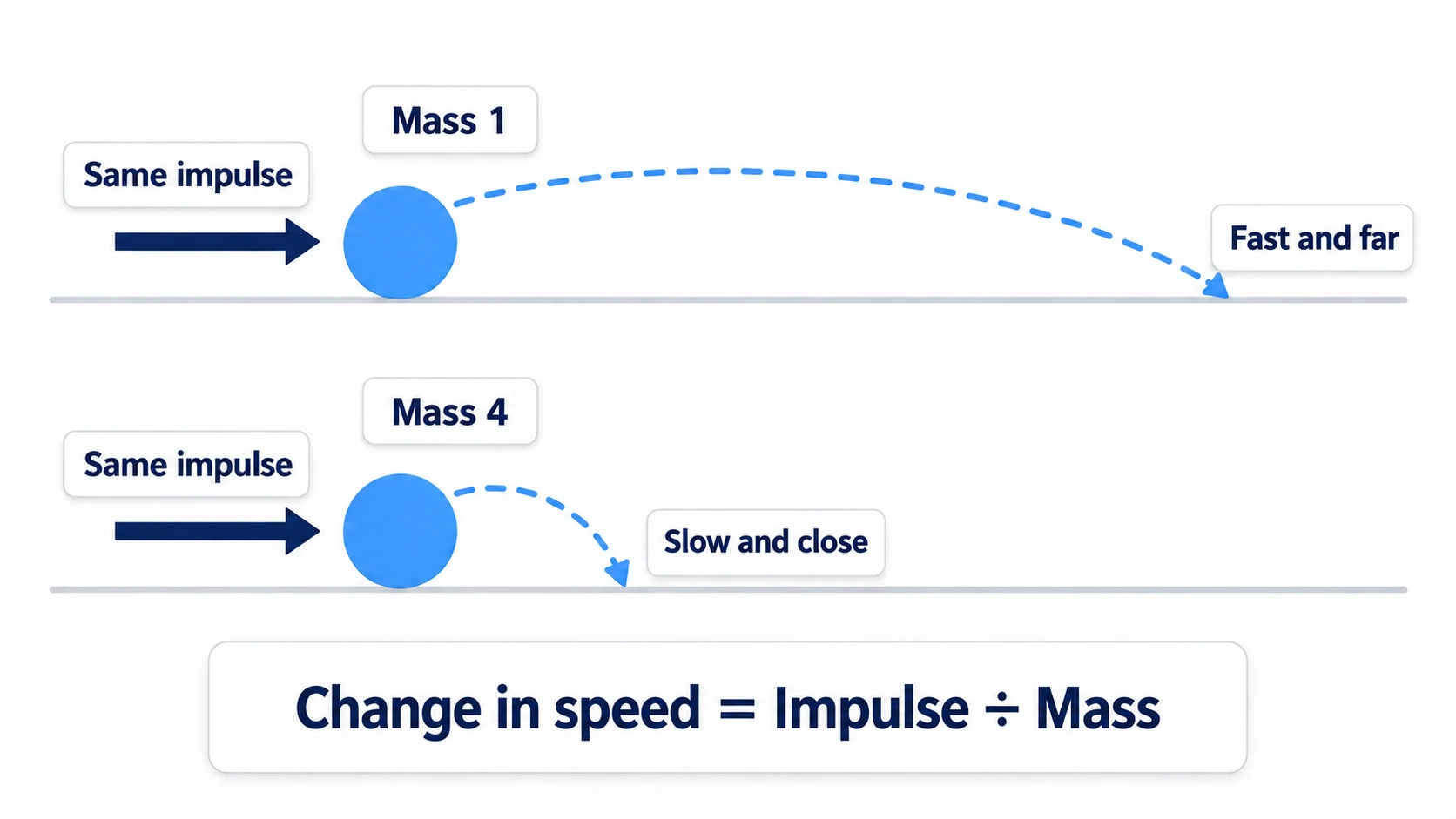
Call an impulse only once. Call it every frame, and it accelerates every time. When you want to keep pushing, call apply_central_force(), which applies a force, on every physics update while pushing.
Also avoid rewriting a RigidBody3D's position every frame. The position decided by physics and the position from the script fight each other, and it shakes or sinks into walls. When you want it held still until it's thrown, turn on Freeze. Forces don't work while it's frozen, so turn it off the moment you throw, and then give it the impulse.
A RigidBody3D that has settled goes to sleep by itself (Sleeping) after a while and pauses its calculations. It wakes up and starts moving when, for example, something moving hits it, so you usually don't need to worry about it.
Area3D (a range that reports overlaps)
An Area3D doesn't stop things even if it has a collision shape. It only reports with signals when something enters or leaves its shape. Place it where you want to know "did something enter here," like the front of a chest, a pitfall, or a healing spring.
When something enters, body_entered arrives, and when it leaves, body_exited, with the thing that entered as the argument.
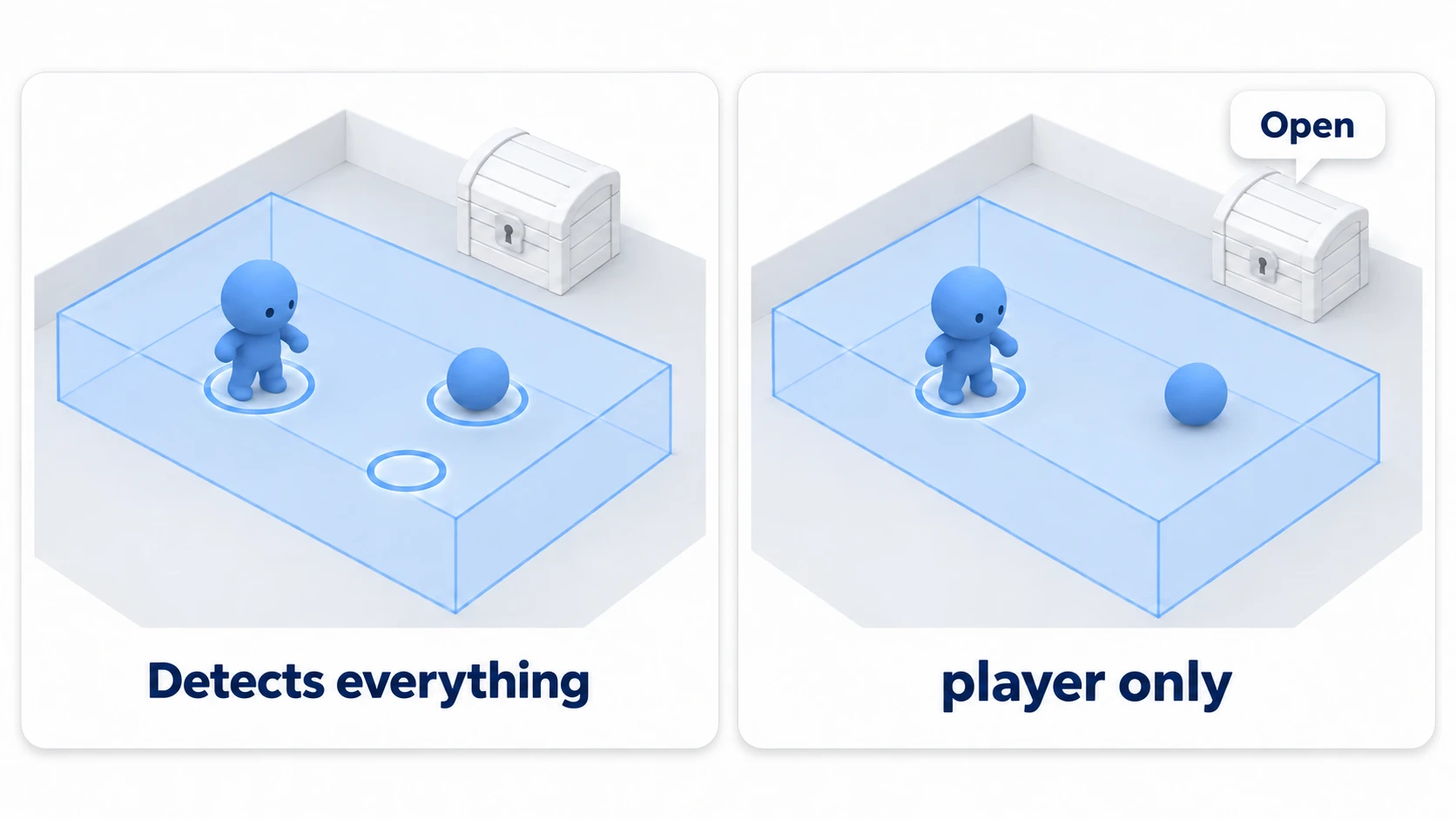
What catches people here is what it reacts to. An Area3D reacts to any physics body matching its Collision Mask (the layers of targets it looks for). The player, a ball rolling in, the floor it overlaps. The defaults are all layer 1, so as-is, everything is a target.
To make it react only to the player, check inside the function connected to body_entered whether what arrived is the player. You tell them apart with a group. A group is a category name you put on a node: put Player in the player group, and check whether what arrived is in that group.
func _on_front_area_body_entered(body: Node3D) -> void:
	if body.is_in_group("player"):      # only when it's the player
		open_label.visible = true
You can also split them with layers. Move the player's Collision Layer to 2, and set the Area3D's Collision Mask to only 2. Change only the Mask and leave the player on 1, and it reacts to nobody. If there are enemies or bullets that hit the player, put 2 in their Collision Mask too. How to think about layers is in Collision Layers and Masks Basics.
Hands-On: Knock down crates with a ball, and show "Open" in front of a chest
Barrels in action games, building blocks in puzzles, treasure chests in exploration games: things that collapse and places that react when you stand in front of them are staples of 3D games. You'll knock down a stack of crates with a ball and get "Open" to appear when you stand in front of a chest.
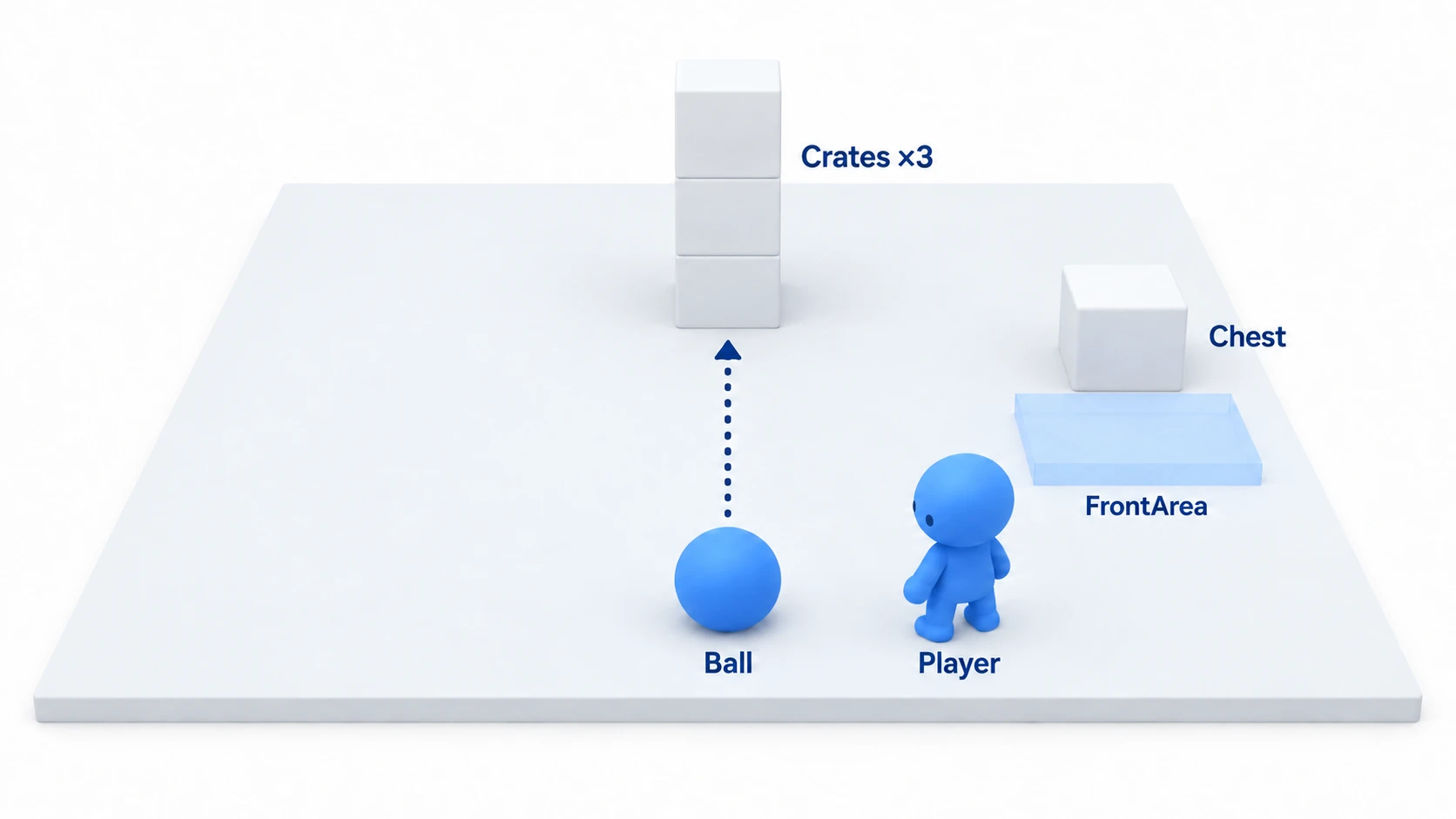
① What to place
Create a new 3D scene, make the root a Node3D, and name it Main. Place the sky and sun from the "⋮" to the right of the sun and environment preview buttons in the toolbar above the 3D view, pressing "Add Sun to Scene" and "Add Environment to Scene" once each.
The rest is as in the table below. Under each physics body, put a CollisionShape3D and a MeshInstance3D side by side, and put the table's shape in Shape. For the look, put a BoxMesh, SphereMesh, or CapsuleMesh of the same size in the MeshInstance3D's Mesh.
| Node | Type | Position | Shape and settings |
|---|---|---|---|
| Ground | StaticBody3D | (0, -0.5, 0) | BoxShape3D (20, 1, 20) |
| Crate1 to Crate3 | RigidBody3D | (0, 0.5, -4), (0, 1.51, -4), (0, 2.52, -4) | BoxShape3D (1, 1, 1). Mass at the default 1 |
| Ball | RigidBody3D | (0, 1.5, 2) | SphereShape3D (Radius 0.25). Freeze on |
| Chest | StaticBody3D | (4, 0.5, -2) | BoxShape3D (1, 1, 1) |
Chest/FrontArea | Area3D | (0, 0.5, 1.3) | Child: a CollisionShape3D with BoxShape3D (2, 2, 1.5). Covers the area in front of the chest |
Chest/OpenLabel | Label3D | (0, 1.2, 0) | A node that shows text in 3D space. Text "Open". Billboard Enabled (always faces the camera). Visible off |
| Player | CharacterBody3D | (2, 1, 1) | CapsuleShape3D (height 2, radius 0.4). Select the Player itself and add it to the player group in the Groups dock (the tab next to the Inspector) |
| Camera3D | Camera3D | (1, 7, 8) | Rotation (-35, 0, 0). FOV at the default 75 |
Stack the crates with a 1-centimeter gap so they don't dig into each other. When you play, they drop a little and settle into a stack.
In Project Settings' "Input Map," register move_forward (W), move_back (S), move_left (A), move_right (D), plus throw (Space) and reset (R).
② Put it together
Attach a script to Player that just walks.
# player.gd (attach to Player)
extends CharacterBody3D

const SPEED := 4.0

func _physics_process(delta: float) -> void:
	if not is_on_floor():
		velocity += get_gravity() * delta
	var input := Input.get_vector("move_left", "move_right", "move_forward", "move_back")
	velocity.x = input.x * SPEED
	velocity.z = input.y * SPEED
	move_and_slide()
How to add gravity and read input is the same as in CharacterBody3D Basics.
Attach a script to Main that throws the ball and watches the front of the chest.
# main.gd (attach to Main)
extends Node3D

const THROW := Vector3(0, 3, -12)  # throw momentum. A Mass 1 ball launches at this speed

@onready var ball: RigidBody3D = $Ball
@onready var front_area: Area3D = $Chest/FrontArea
@onready var open_label: Label3D = $Chest/OpenLabel

func _ready() -> void:
	front_area.body_entered.connect(_on_front_area_body_entered)
	front_area.body_exited.connect(_on_front_area_body_exited)

func _unhandled_input(event: InputEvent) -> void:
	if event.is_action_pressed("throw") and ball.freeze:
		ball.freeze = false                 # from here on, leave it to physics
		ball.apply_central_impulse(THROW)   # push it out just once
	elif event.is_action_pressed("reset"):
		get_tree().reload_current_scene()   # restack the crates

func _on_front_area_body_entered(body: Node3D) -> void:
	if body.is_in_group("player"):          # doesn't react to the floor or ball
		open_label.visible = true

func _on_front_area_body_exited(body: Node3D) -> void:
	if body.is_in_group("player"):
		open_label.visible = false
③ Run it and check
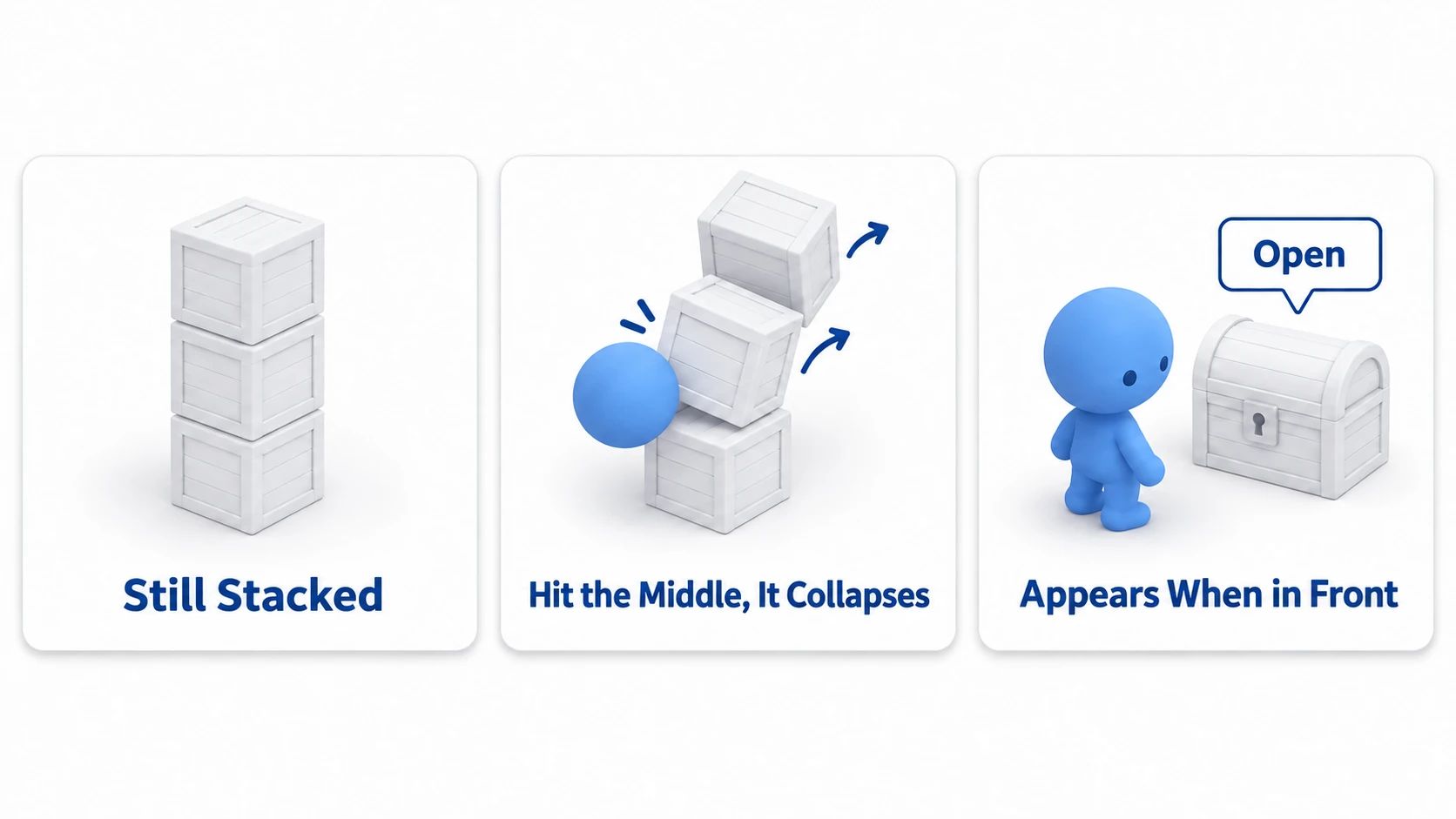
Turn on Visible Collision Shapes under Debug and run with F6 (run the scene currently open). There are three things to look at.
First, the crates drop just a little and stay standing in a stack. If one falls through the floor, first check that the crate and floor have collision shapes. If they collapse the moment you play, check that the crates weren't placed digging into each other.
Next, press Space, and the ball flies in a slight arc, hitting the upper part of the middle crate in a little over 0.4 seconds. The middle and top crates get pushed out, and the stack collapses. How it collapses isn't necessarily the same every time. If the ball passes through the crates, first check that the ball's shape is a child of the physics body. Press R to try again as many times as you like from the restacked state.
To finish, walk right with D and forward with W, and stand the player in front of the chest. Enter the range, and "Open" appears above the chest; step away, and it disappears. It doesn't appear even when the ball rolls in.
There are two key points.
- What collides is the shape: Falling, stacking, and collapsing are decided by the CollisionShape3D's shape and its size
- Area3D doesn't pick who it reacts to: The floor, the ball, the player: it reacts to all of them if the Mask matches. Narrow down what it reacts to with groups or layers
To make the player walk toward where the camera faces, CharacterBody3D Basics continues from here.
Troubleshooting
| Symptom | Cause | Fix |
|---|---|---|
| A fast ball passes right through thin walls or crates | It passes the wall within a single physics update | Turn on the ball's Continuous CD (a setting that also checks along the path). Don't make walls too thin either |
| After making the chest a RigidBody3D, the ball moves the whole chest, and the detection range moves with it | The chest is on the side that moves under physics | Make the chest a StaticBody3D and put the Area3D under it |
Connecting the crate's (RigidBody3D's) own body_entered doesn't fire when the ball hits it | Physics body contacts aren't reported by default, and the limit on counted contacts is 0 | Turn on that crate's Contact Monitor and give Max Contacts Reported plenty. Face-to-face contact can use 4 points per partner, and a stacked crate uses 8 points on the crates above and below alone, so around 16 |
| Right after startup, "Open" appears even though you're not in front of the chest | The range overlaps the player's starting position | Shift the Area3D's range or the player's starting position |
Bonus: Good to Know First
- There are two physics engines: Jolt and Godot Physics. Projects created in 4.6 or later default to Jolt. Projects made earlier with Godot Physics don't switch automatically; choose it under Physics > 3D in Project Settings and restart the editor. How stacked crates settle and how cylinders roll differ, so check this when things collapse differently from the article
- Slipperiness and bounce: Change them with a PhysicsMaterial. Create a new one in Physics Material Override, and adjust Friction and Bounce
- Moving floors are AnimatableBody3D: Use it for floors moved by code or animation. The thinking is the same as in 2D Physics Bodies Basics
Summary
- What collides is the shape: Separate from the visible mesh, place a CollisionShape3D under the physics body. Check with Visible Collision Shapes
- Choose shapes by whether things move: Moving things use box, sphere, capsule, cylinder, or Convex. Trimesh is only for static stages
- Size comes from the shape's size: Leave Scale at
(1, 1, 1)and change Size or Radius - Give a RigidBody3D force:
apply_central_impulse()once. The change in speed is impulse ÷ Mass - Area3D doesn't pick who it reacts to: Narrow down who arrives in
body_enteredwith groups or layers
Start by turning on Visible Collision Shapes in your current scene. Anything whose look and collision shape don't line up is what to fix. In your game, what do you want to react when someone stands in front of it?