To make boxes and spheres placed in a 3D scene look like wood, metal, or rubber, decide two numbers in StandardMaterial3D: Metallic and Roughness. Textures go on after that.
Without any settings, everything looks like the same white clay. Set Metallic to 1 to make metal, and with Roughness still at 1 there's no shine, and with no sky or light it sinks to black.
This article covers making a wooden crate, a metal barrel, and a rubber ball from StandardMaterial3D values alone, and applying a texture.
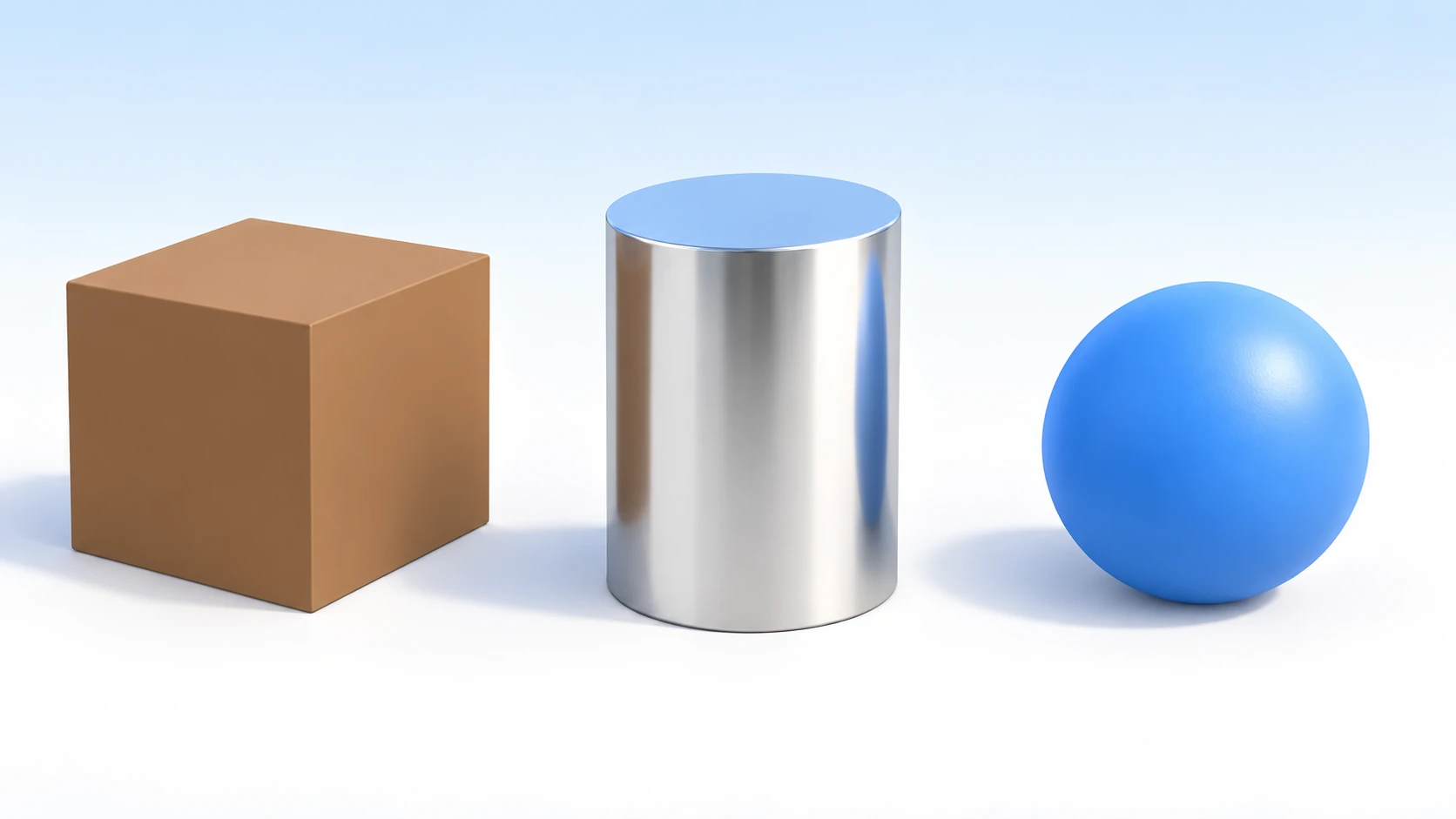
What You'll Learn
- The color you see is made of "painted color" and "reflection"
- Why Metallic is set to
0or1, and that Roughness decides how polished it is- Where to put the material, and how to apply a texture
- How to change the color of just one duplicate
Tested with: Godot 4.7 (renderer: Forward+)
- Painted color and reflection
- Where to put the material
- Metallic (whether it's metal)
- Roughness (surface roughness)
- Albedo color and textures
- Duplicates and shared materials
- Hands-On: Make a Wooden Crate, Metal Barrel, and Rubber Ball From Values Alone
- Troubleshooting
- Bonus: Good to Know First
- Summary
Painted color and reflection
The color you see on a 3D face is made by mixing two colors.
- Painted color: the color returned when light hits and scatters in all directions. It looks the same from any angle. The color of wood or rubber is almost all this
- Reflection: the surroundings and lights reflected as in a mirror. It changes with the viewing angle
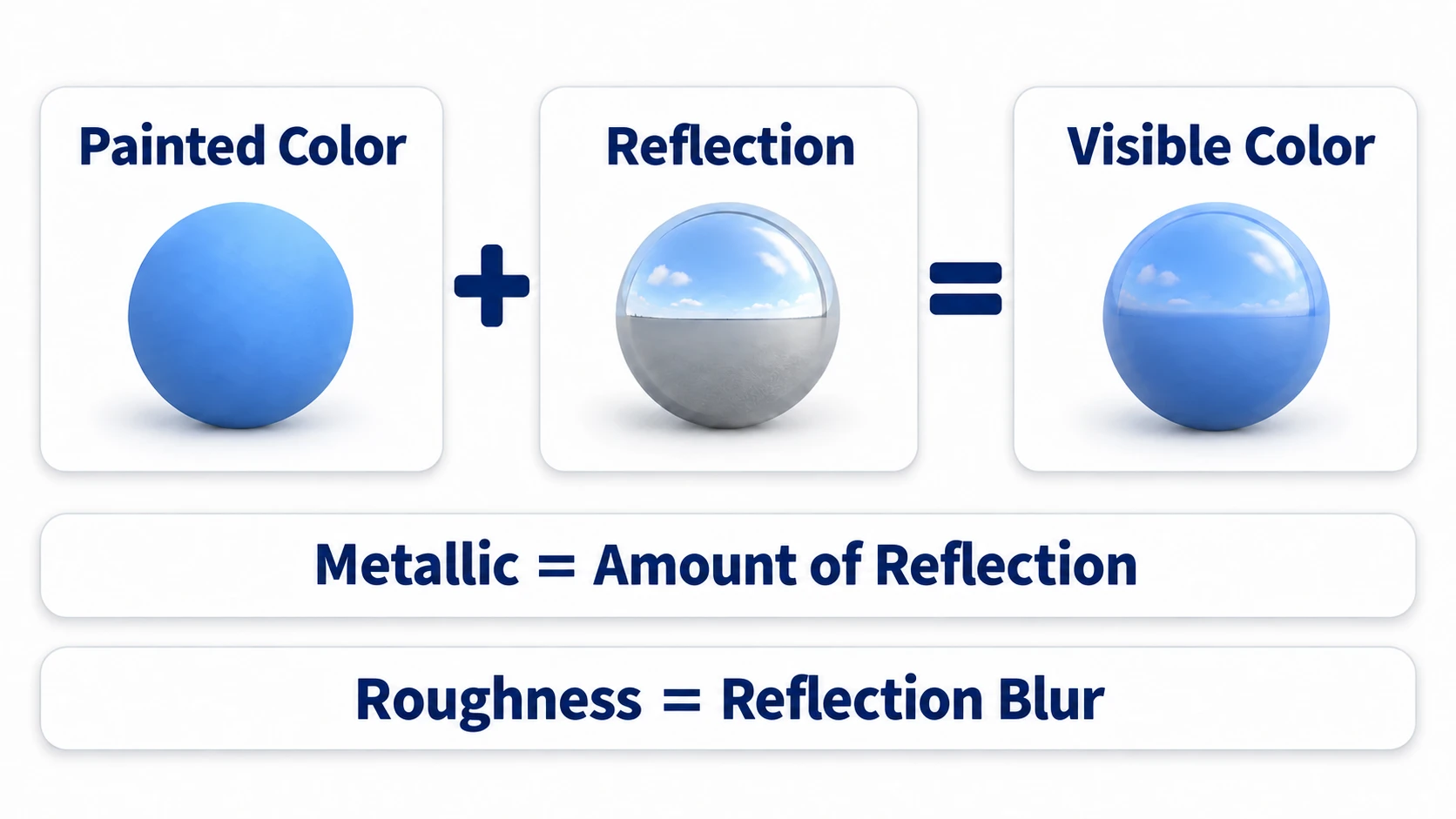
Metallic decides the proportion of these two. At 0, painted color is the star, and reflection only sits faintly on top. At 1, painted color almost disappears, and all you see is reflection.
Roughness is how blurry the reflection is. The closer to 0, the sharper the reflection, like a mirror; the closer to 1, the blurrier, until you can't tell what's being reflected.
A newly made material looks like white clay because its defaults are "white, Metallic 0, Roughness 1." The painted color is white, and the reflection is completely blurred so no shapes show. Even set to metal, there's no shine because Roughness is still 1 and the reflection is completely blurred. Running it with no sky or light and seeing it sink to black is because the face is seen only through reflection, and there's nothing (sky or light) to reflect.
Where to put the material
StandardMaterial3D is a ready-made material (settings for how a face looks). You can use it without writing a small program that decides pixel colors (a shader). Just entering values makes it wood, metal, or rubber.
There are three places to put it, and higher ones take priority.
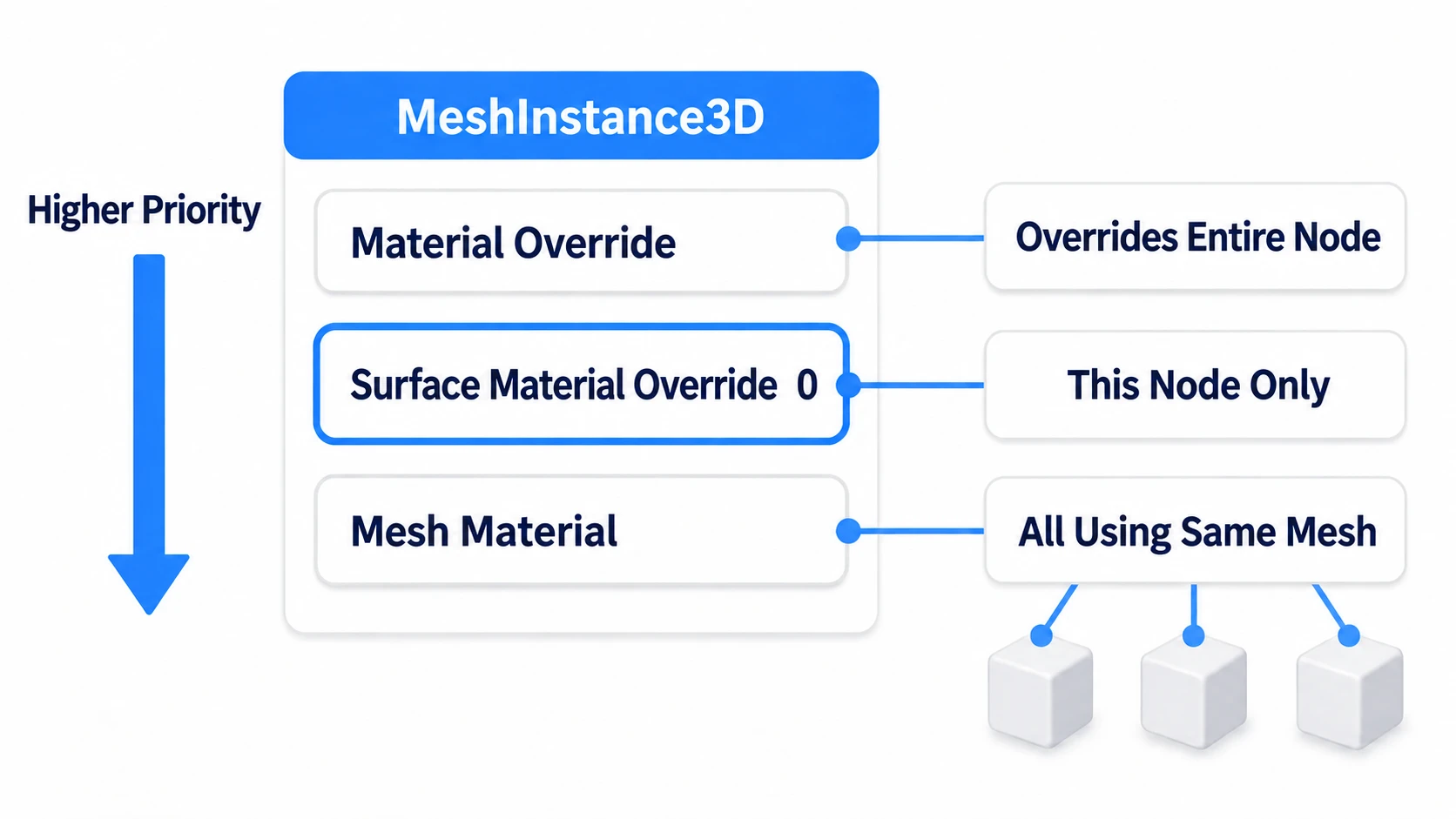
- Material Override: overrides every face of that node. If this is filled in, changing the other two doesn't change the look
- Slot
0of Surface Material Override: affects only that node. As a beginner, put it here - The mesh's own Material: a field inside BoxMesh and the like. It affects everyone using that mesh
Select the MeshInstance3D and open Surface Material Override in the Inspector. In slot 0, choose New StandardMaterial3D. Click the material you made to open its contents. 0 is the number of the group a material is assigned to; boxes and spheres have all their faces in one group, so there's only 0.
Metallic (whether it's metal)
Metallic decides "whether it's metal." Wood, stone, rubber, plastic, and paint are 0; bare metal is 1.
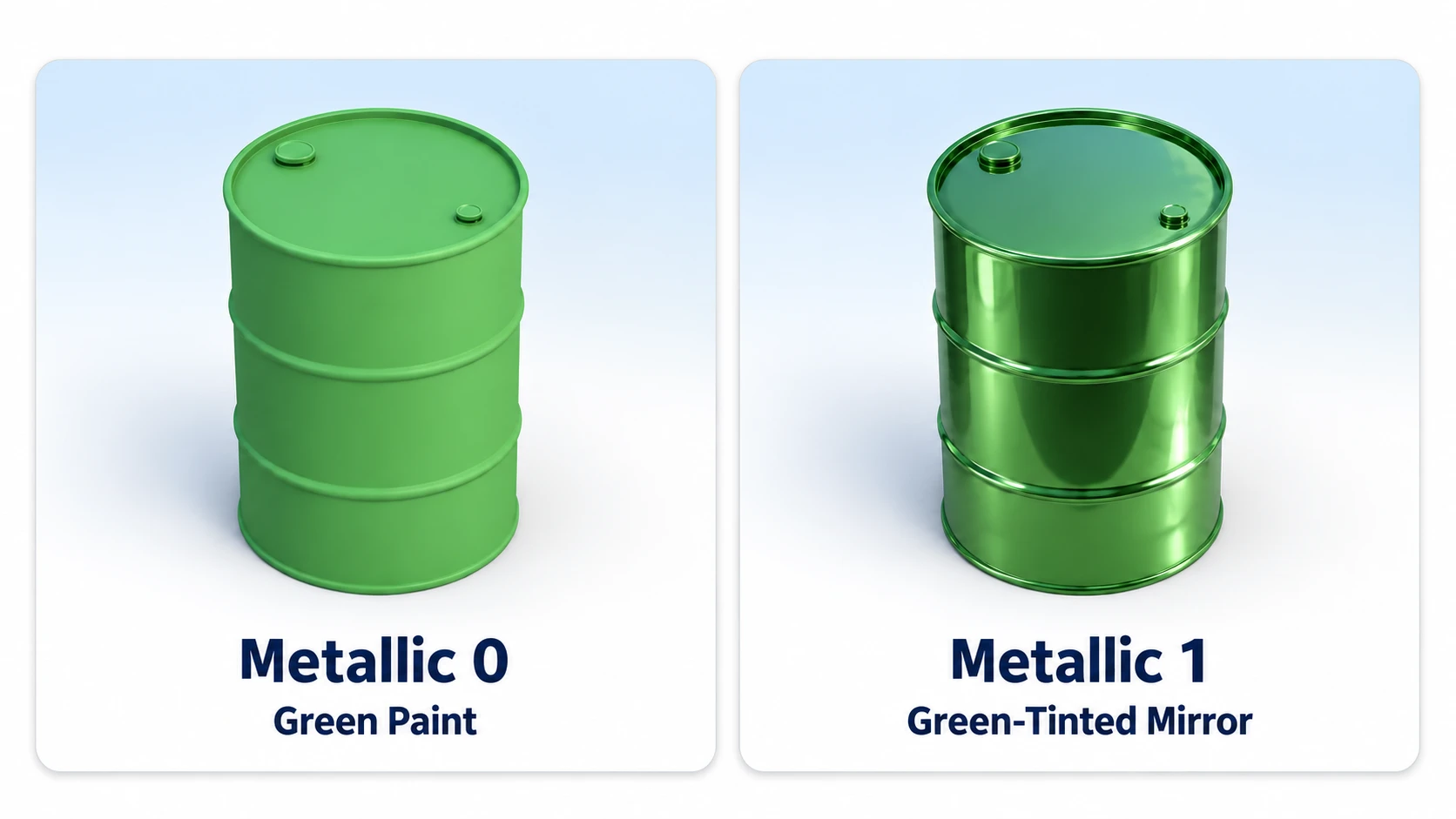
Even with the same green painted on, at Metallic 0 it's a can painted green. Set it to 1 and lower Roughness, and it becomes a greenish mirror. With metal, the Albedo (the painted color setting) color works not as "painted color" but as the color tinting the reflection. A green oil drum is painted, so its Metallic is 0.
If it sinks to blackish after setting Metallic to 1, check two things.
- Is there something to reflect? With no sky, or a dark ground side of the sky, the reflection is dark too. The sky is WorldEnvironment's Background set to Sky. The ground side is the part drawn below the horizon
- Is Albedo dark? A dark color makes the reflection dark too. Even for iron or silver, put in a light gray
If it isn't black but you can't see a metallic shine, Roughness is too high. The reflection has spread out, and the shapes of what's reflected have disappeared.
Roughness (surface roughness)
Roughness is how rough the surface is. The lower it goes, the more polished it is and the sharper the reflection.
Without changing the color or texture, lower stone's Roughness from 0.9 to 0.3, and it looks wet and glossy. Take a wooden crate from 0.8 to 0.35, and it becomes varnished wood.
Start from around these values and adjust while watching the screen.
- Unfinished wood and stone:
0.8to0.9 - A rubber ball: around
0.5. Matte rubber like a tire is0.85 - Plastic: around
0.3 - Polished metal:
0.2to0.3. Bring it close to0for a chrome mirror
Lining up combinations of the two numbers gives this.
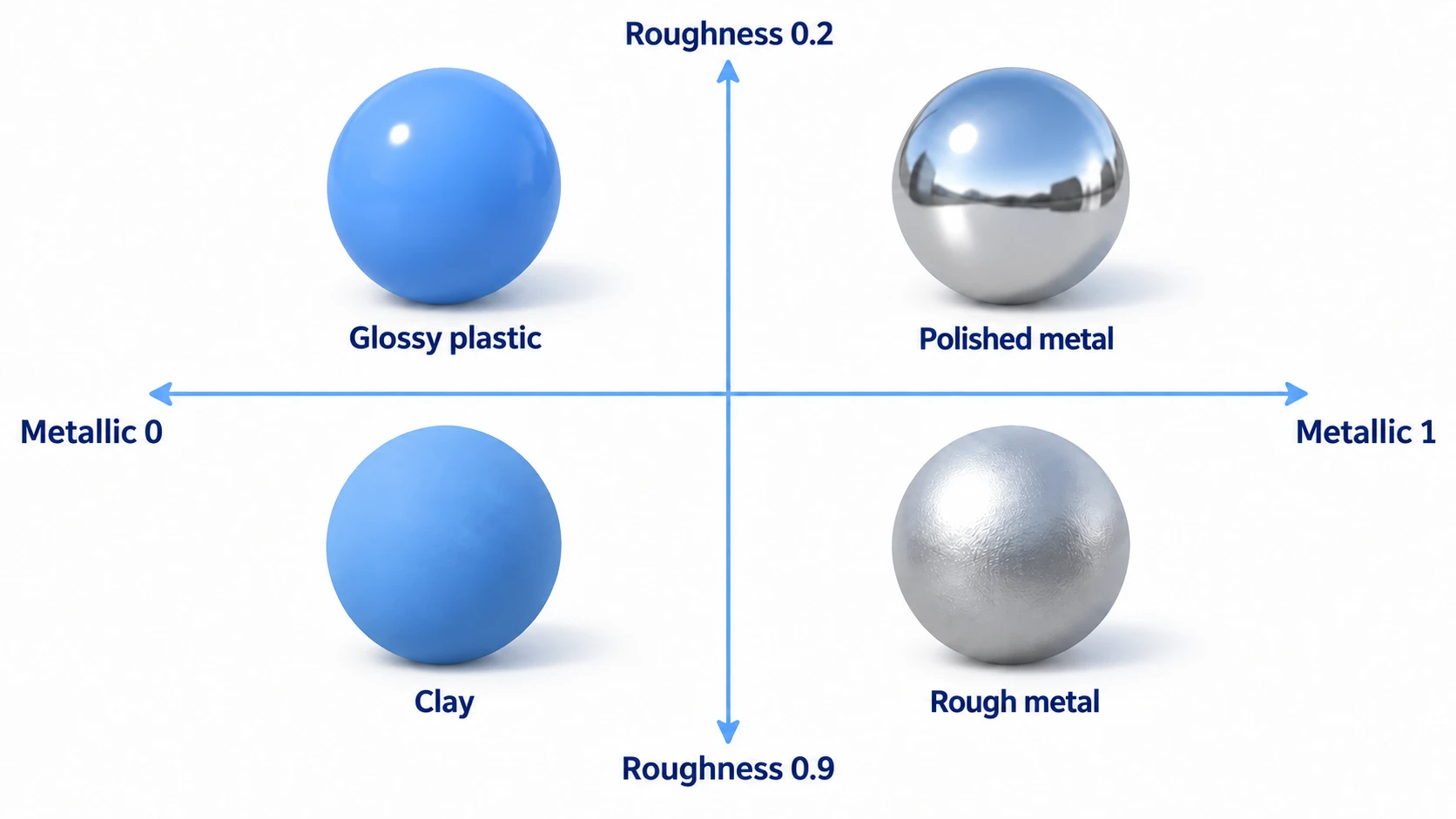
In other engines: these correspond to Metallic and Smoothness on a Lit material in Unity (URP). Smoothness runs opposite to Roughness: Smoothness
0.7is Roughness0.3. Metallic and Roughness on an Unreal Engine Material run the same way as Godot's.
Albedo color and textures
Albedo is the painted color setting. Put a color in Color, or an image in Texture. Put in both, and Color is multiplied onto the image's colors.
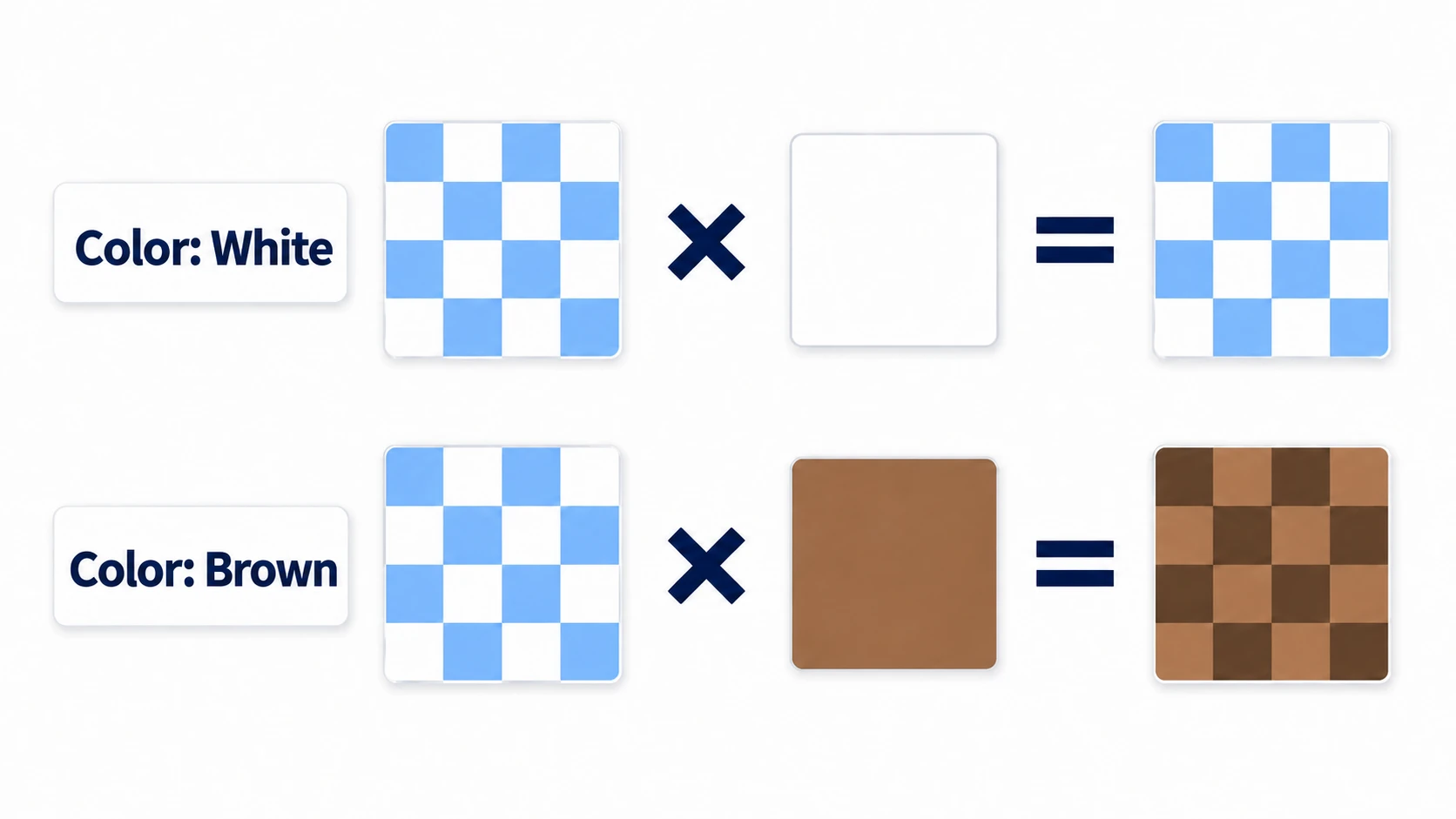
With Color white, the image comes out in its original colors. Make it brown, and white parts turn brown while blue parts turn dark. If a photo texture you applied looks muddy, Color has been left at something other than white.
There's one thing to watch when putting an image on a box. BoxMesh splits one image into 3 across and 2 down and assigns the pieces to its 6 faces.
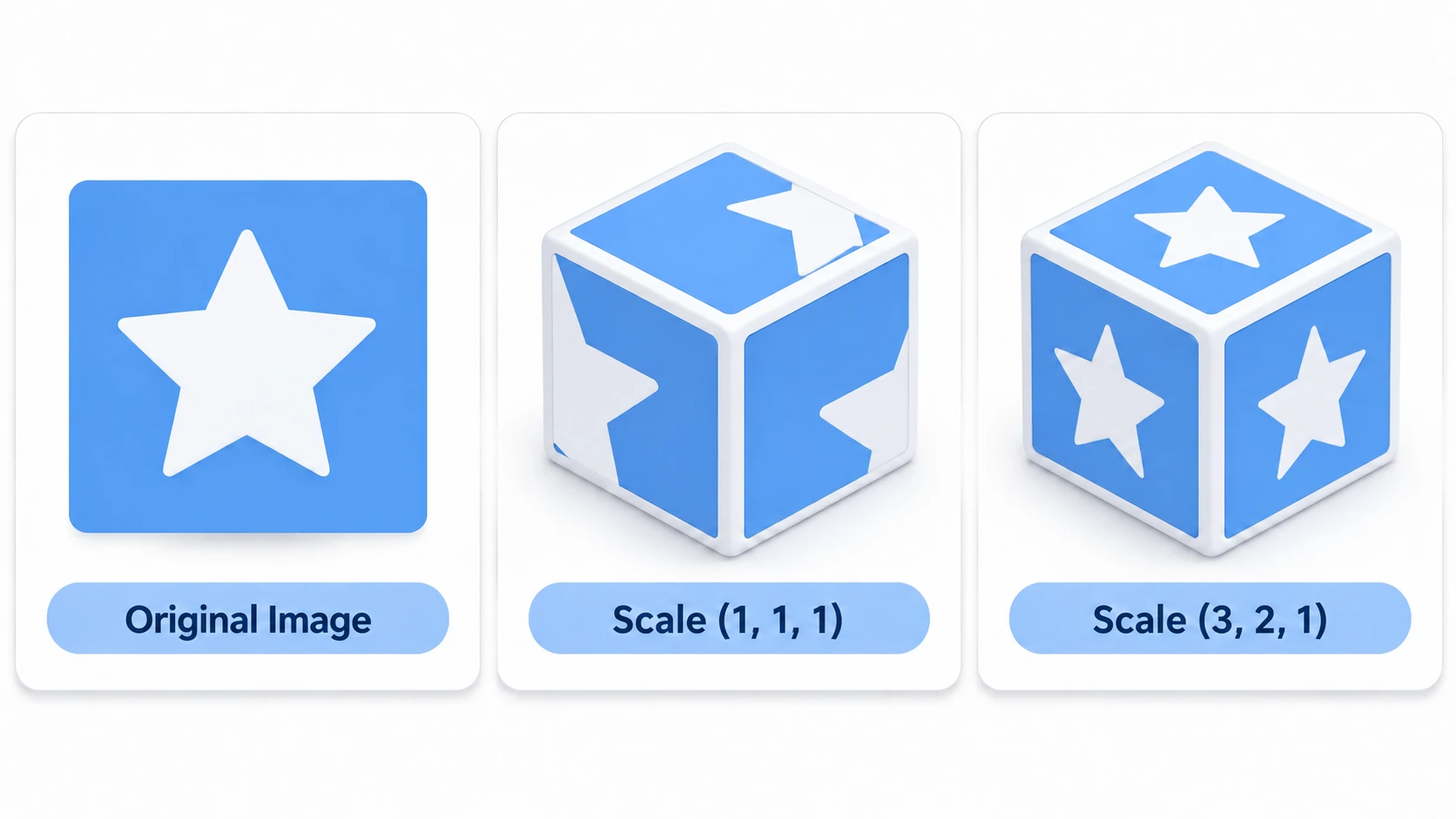
To put the whole image on every face, set the material's UV1 Scale to (3, 2, 1). UV1 is the setting for how an image is applied to faces. To fill Texture, drag an image from the FileSystem onto the field.
Duplicates and shared materials
Make one wooden crate, duplicate it with Ctrl+D, and change one's color, and the other changes too.
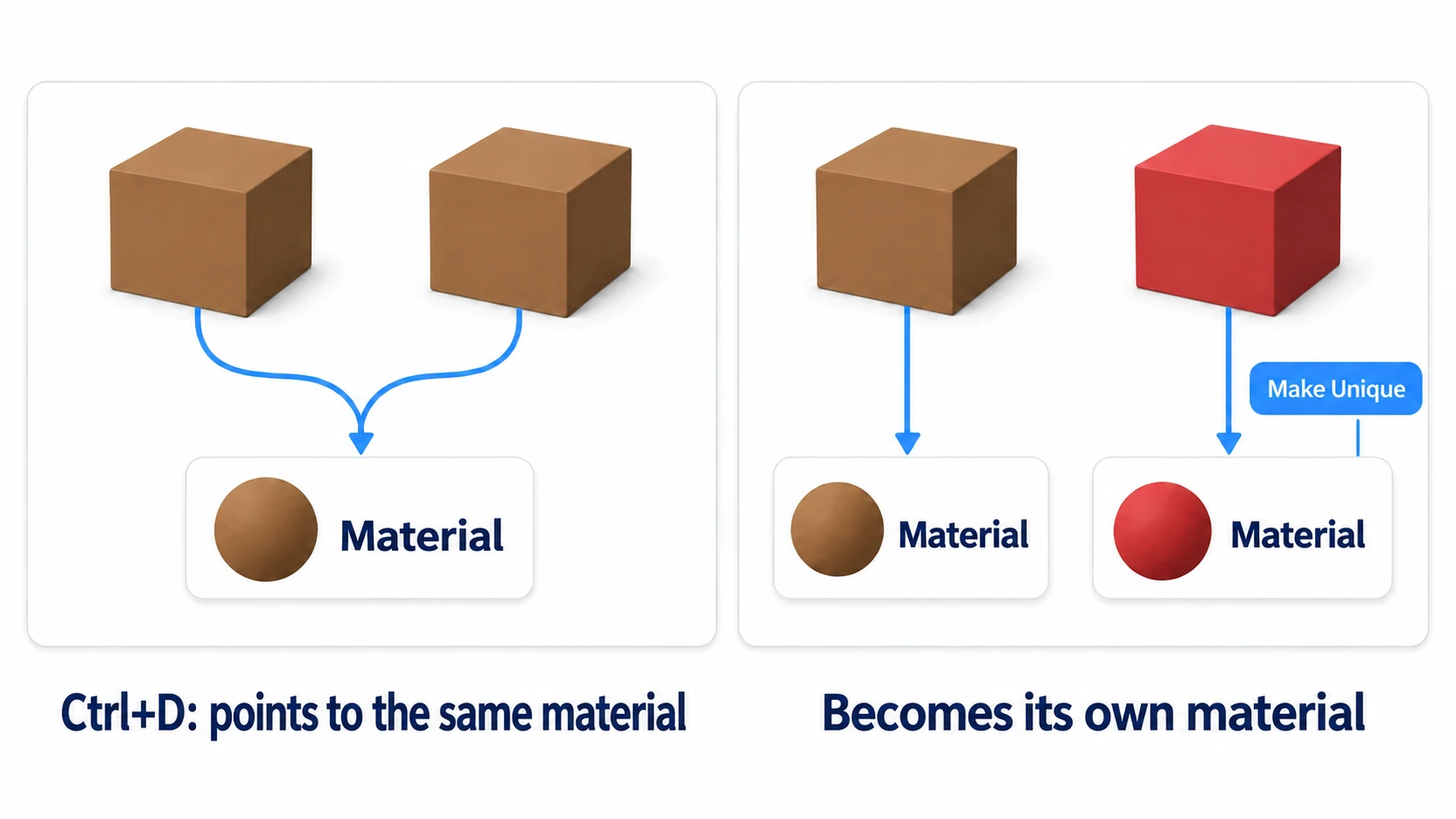
Only the node was duplicated, and both boxes point to the same material. What you changed wasn't the box but the shared material. The mesh (BoxMesh) is shared the same way, so changing one's Size changes both.
To change just one, choose Make Unique from the field's menu on the one you're changing. Only that box then has its own material. To split the size too, choose Make Unique in the Mesh field as well.
To change the color of just one at runtime, duplicate it in code and reassign it. Use this on a box with a StandardMaterial3D in slot 0 of Surface Material Override.
# make just one red (put inside _ready() or similar; mesh_instance is the target MeshInstance3D)
var mat := mesh_instance.get_surface_override_material(0).duplicate() as StandardMaterial3D
mesh_instance.set_surface_override_material(0, mat)   # put the copy back into its own slot
mat.albedo_color = Color.RED
Unity's renderer.material creates a copy just for that object the moment you get it. Godot doesn't copy just because you got it.
Hands-On: Make a Wooden Crate, Metal Barrel, and Rubber Ball From Values Alone
A dungeon treasure vault, a harbor warehouse, a child's toy box—the props you place in a 3D stage are all combinations of materials like wood, metal, and rubber. First make the three materials from values alone, then put one texture on the wooden crate.
① What to place
Create one new 3D scene. Enter angles in degrees in the Inspector's Rotation, and leave every node's Scale at (1, 1, 1).
- Put a Node3D at the root as Main
- Under Main, place a WorldEnvironment and create a New Environment in Environment. Set Background's Mode to Sky. Create a New Sky in Sky, and put a New ProceduralSkyMaterial in its Sky Material. Tonemap's Mode is AgX (a setting that keeps bright parts from blowing out to white)
- Open the ProceduralSkyMaterial you made, and set Ground's Bottom Color to
#A0A0A0 - Under Main, place a DirectionalLight3D with Rotation
(-45, -30, 0), and turn on Shadow's Enabled - Under Main, place a MeshInstance3D as Floor. Create a New PlaneMesh in Mesh and set Size to
(10, 10) - Under Main, place three MeshInstance3Ds
| Name | Mesh | Shape settings | Position |
|---|---|---|---|
| WoodBox | BoxMesh | Default (1×1×1) | (-2, 0.5, 0) |
| MetalBarrel | CylinderMesh | Height 1.2 (radius at the default 0.5) | (0, 0.6, 0) |
| RubberBall | SphereMesh | Default (radius 0.5) | (2, 0.5, 0) |
- Under Main, place a Camera3D at Position
(0, 2, 5), Rotation(-15, 0, 0)
The ground side of the sky is light gray to make the color reflected in the barrel easy to see. The default ground is dark brown, and the barrel's sides reflect that color. With a sky and light placed in the scene, the 3D view reflects the same sky and light too. From here on, values change on the spot as you move them, without running.
② Make the three materials
On each of the three MeshInstance3Ds, create a New StandardMaterial3D in slot 0 of Surface Material Override. The values are as follows. Specular is the strength of a non-metal's reflection; normally leave it at the default 0.5.
| Name | Albedo Color | Metallic | Roughness |
|---|---|---|---|
| WoodBox | #A0703C (brown) | 0 | 0.8 |
| MetalBarrel | #D8D8D8 (light gray) | 1 | 0.3 |
| RubberBall | #3050A0 (blue) | 0 | 0.5 |
③ Run it and check
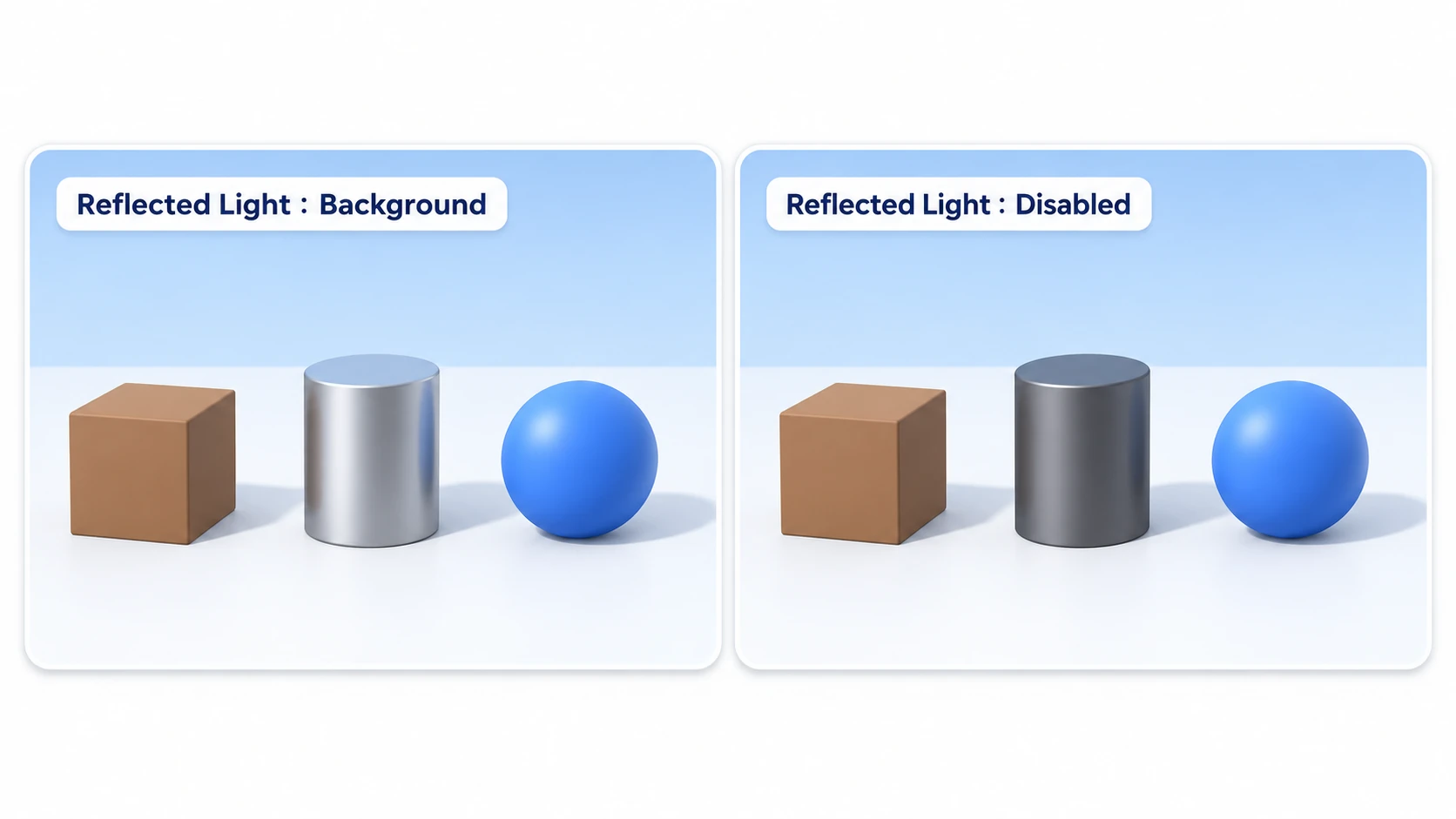
Select the Camera3D and check Preview at the top left of the 3D view, and you can compare through the camera's view. Check three things.
The wooden crate is a matte brown, and the ball is blue with a soft, spreading shine on the sun's side. The barrel is a calm gray metal. Its top reflects the sky's bluish color, and its sides reflect the gray you put in the sky's ground side. If the barrel is blackish, either Albedo is dark or the sky's Bottom Color is still the default dark brown.
Next, set the Environment's Reflected Light Source to Disabled. It's the reflection setting, not Ambient Light (ambient light) just above it. Only the reflection from the sky disappears; ambient light and light from lights remain. The barrel gets much darker, while the crate and ball keep their colors. Set Source back to Background, and the barrel comes back.
To finish, put a texture on the wooden crate. In WoodBox's material, set Albedo's Color back to white. Drag res://icon.svg onto Texture, and set UV1's Scale to (3, 2, 1). It's the Godot icon included in every project from the start, and it's applied once to every visible face. On some faces it's sideways or upside down, and outside the icon's corners the color shows instead of being transparent, but with this setting that's normal. If the image looks cut up on each face, Scale is still (1, 1, 1). Set Color back to brown, and the icon's white parts turn brown while its blue parts turn a dark, dull color. The brown is multiplied onto the image's colors.
Two points.
- Metal is seen by reflecting its surroundings: stop reflections, and the Metallic
1barrel gets much darker. The crate and ball, seen through their painted color, keep their colors - The material's feel comes down to two numbers: whether it's metal is Metallic
0or1, and how polished it is is Roughness. Color and textures go on after that
How to decide the sky and lights is in 3D Lighting Basics. Switch to a night sky, and since what it reflects gets darker, the barrel changes the most.
Troubleshooting
| Symptom | Cause | Fix |
|---|---|---|
| Putting in a texture showed a bluish-purple pattern | You put a normal map (an image recording the surface's fine directions as colors) in Albedo | Remove it from Albedo, turn on Normal Map, and put it in that Texture |
| You used Make Unique, but a duplicated box still changes along with it | The material is inside the BoxMesh, so it's shared along with the mesh | Put the material in slot 0 of Surface Material Override on the box you want to change, and choose Make Unique in that field |
| The cut-out parts of leaves or wire mesh flicker when made translucent | The front-to-back drawing order between translucent faces can break | For an image with transparent parts, set Transparency to Alpha Scissor (a mode that cuts out transparent parts without drawing them). For a plate seen from behind, set Cull Mode (the setting that doesn't draw back-facing faces) to Disabled |
Bonus: Good to Know First
- Emission, which glows on its own: turn on the Emission item and decide its color (black by default) and Energy Multiplier, and the face glows on its own. It only looks like it's glowing and doesn't light its surroundings, so to brighten the surroundings too, put a light in the same place. Blurring the glow outward is WorldEnvironment's Glow (3D Lighting Basics)
- Transparency, which lets things show through: set Transparency to Alpha and lower the A (opacity) of Albedo's Color, and it becomes see-through. Objects in this mode don't cast shadows
- Materials can be files too: save to
.treswith Save As... from the material field's menu, and you can reuse the same wood in other scenes. Change it, and everything using it changes, just as with duplicates - To change how it's drawn itself, use ShaderMaterial: for looks values can't make, like a rippling water surface or a melting-away effect, write a shader. Start with the ideas in Fragment Shader Basics
Summary
- The color you see is a mix of two: painted color and the reflection of the surroundings
- The material's feel is two numbers: whether it's metal is Metallic
0or1, and how polished it is is Roughness. With metal, Albedo becomes the reflection's color, and it sinks to black when what it reflects is dark - Put it in Surface Material Override: if Material Override is filled in, that wins
- Albedo is color × texture: to show a photo's colors as-is, Color is white. For boxes, set UV1's Scale to
(3, 2, 1) - Duplicates share materials: to change just one, Make Unique; at runtime,
duplicate()
Start by placing one sphere, setting Metallic to 1, and slowly moving Roughness from 1 to 0. Partway through, as the reflection sharpens, there's a moment where it starts to look like metal. Which material will you start the props in your game with?