When you place the same enemy several times with different stats, expose its speed and max HP in the Inspector with @export so you can change them without opening the code. Give numbers a range and things you choose a list of choices, and input mistakes go down too.
But sometimes you set an enemy's HP to 30 in the Inspector, and when it runs, it goes down at 10. That's because the value the game uses was built before the value saved in the scene arrived.
This article covers how to constrain numbers with a range, how to make choices, the order Inspector values arrive in, and when to use setters.
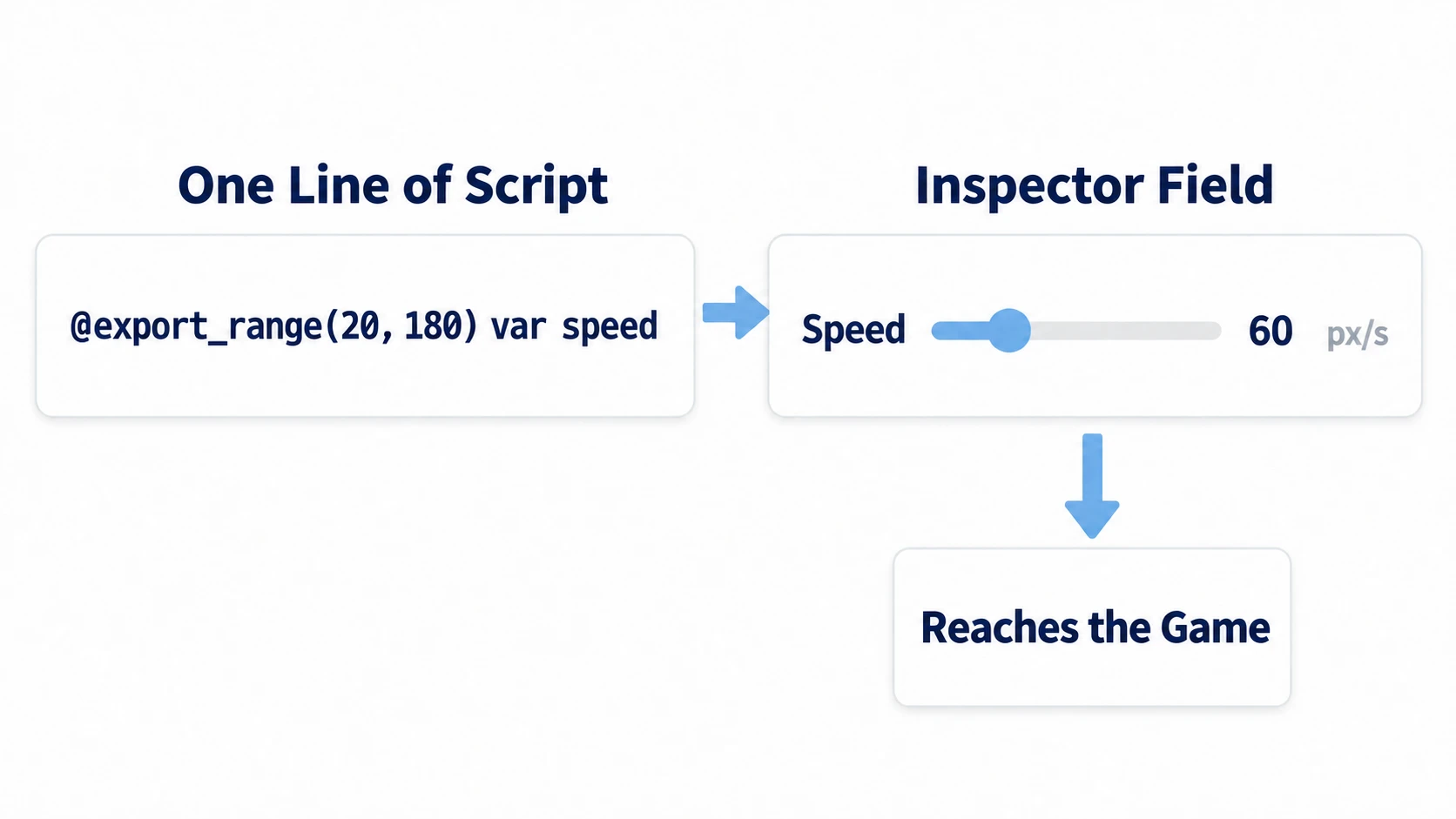
What You'll Learn
@export_range's arguments go in the ordermin,max,step, with hints after them- Making choices a code-side
enumlets you compare them by name- A range limits the input field, and doesn't protect the value while the game runs
- On the declaration line, the Inspector values haven't arrived yet
Tested with: Godot 4.7
Number ranges (@export_range)
Expose a number as-is and anything can go in. Use @export_range and you get a slider with upper and lower limits.
@export_range(20, 180, 1, "suffix:px/s") var speed: float = 60.0
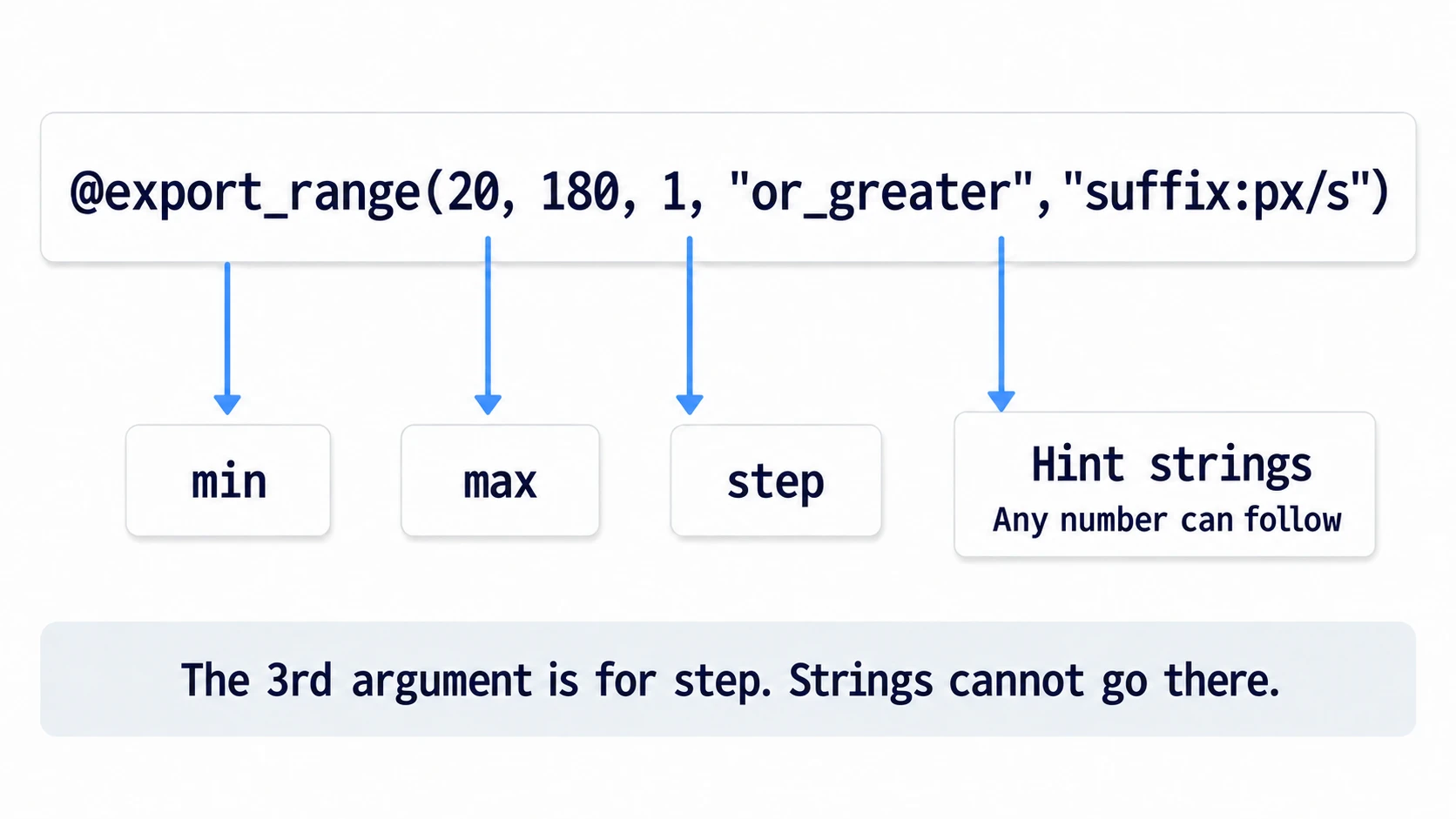
The argument positions are fixed. From the front: min, max, step, with hint strings after them. Write "or_greater" straight into the third position and it doesn't work, because that's where step goes.
These are the hints you can use:
"or_greater"and"or_less": allow values outside the slider to be entered"hide_slider": hide the slider and show only the input box"suffix:px/s": show a unit after the field
There's one more thing that's easy to miss. Don't write both @export and @export_range. @export_range alone already exports it. Stack them and you get a parse error (an error that appears before running, when the editor reads the script), and every field from that script vanishes from the Inspector.
Write the type explicitly too. Write @export_range(0, 10, 0.1) var speed = 3, and the initial value 3 makes it an integer field, so you don't get a slider in steps of 0.1. Write var speed: float = 3.0 and it steps in decimals.
In other engines:
@export_rangecorresponds to Unity's[SerializeField]with[Range]added, or Unreal Engine'sUPROPERTY(EditAnywhere, meta=(ClampMin, ClampMax)).
Choices (enum)
For values you choose, like "walk" or "hop," use choices instead of a number field. Define an enum (a sequence of named integers) in code and expose it as-is. That's the easiest form to work with.
enum Motion { WALK, HOP }

@export var motion: Motion = Motion.WALK
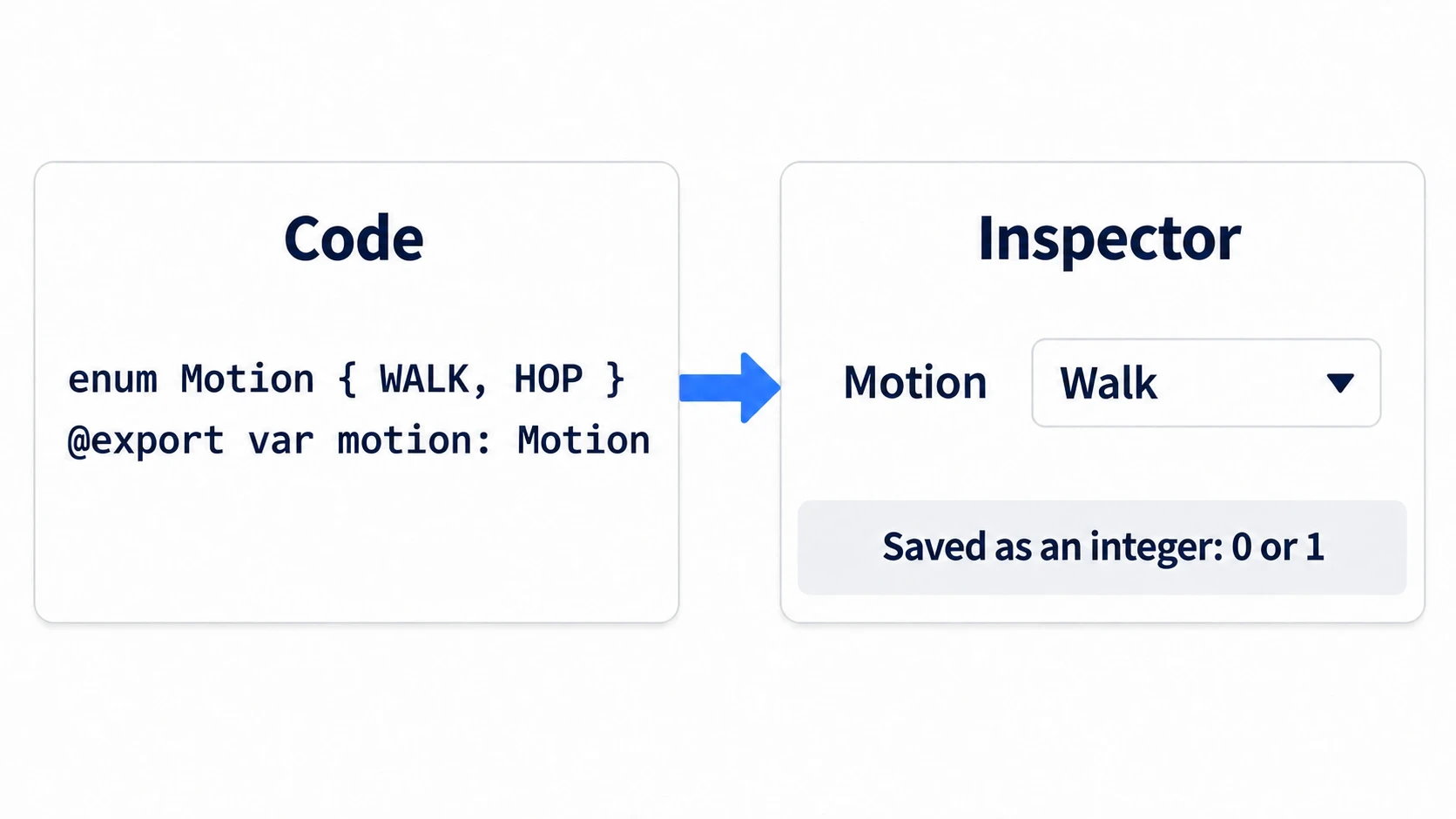
A dropdown appears in the Inspector, displayed readably as Walk and Hop. In code you can compare by name: motion == Motion.HOP.
There's also @export_enum("Walk", "Hop"), which lists only strings. With this one, if the variable's type is int, what goes in is 0 or 1, so you can't compare it with motion == "Hop". The types differ, so that line is a parse error as soon as you write it.
The fact that what's saved is an integer matters later. Add a choice in the middle of the list, and the meaning of numbers already saved shifts. Insert IDLE between WALK and HOP, and nodes that had HOP selected become IDLE. If you plan to add things in the middle, fix the numbers as in enum Motion { WALK = 0, HOP = 1 }, and give new ones new numbers when you add them, like IDLE = 2. Write it between WALK and HOP without a number, and it gets 1, the next number after WALK, colliding with HOP.
Where a range applies
Adding @export_range doesn't protect the value inside the game.
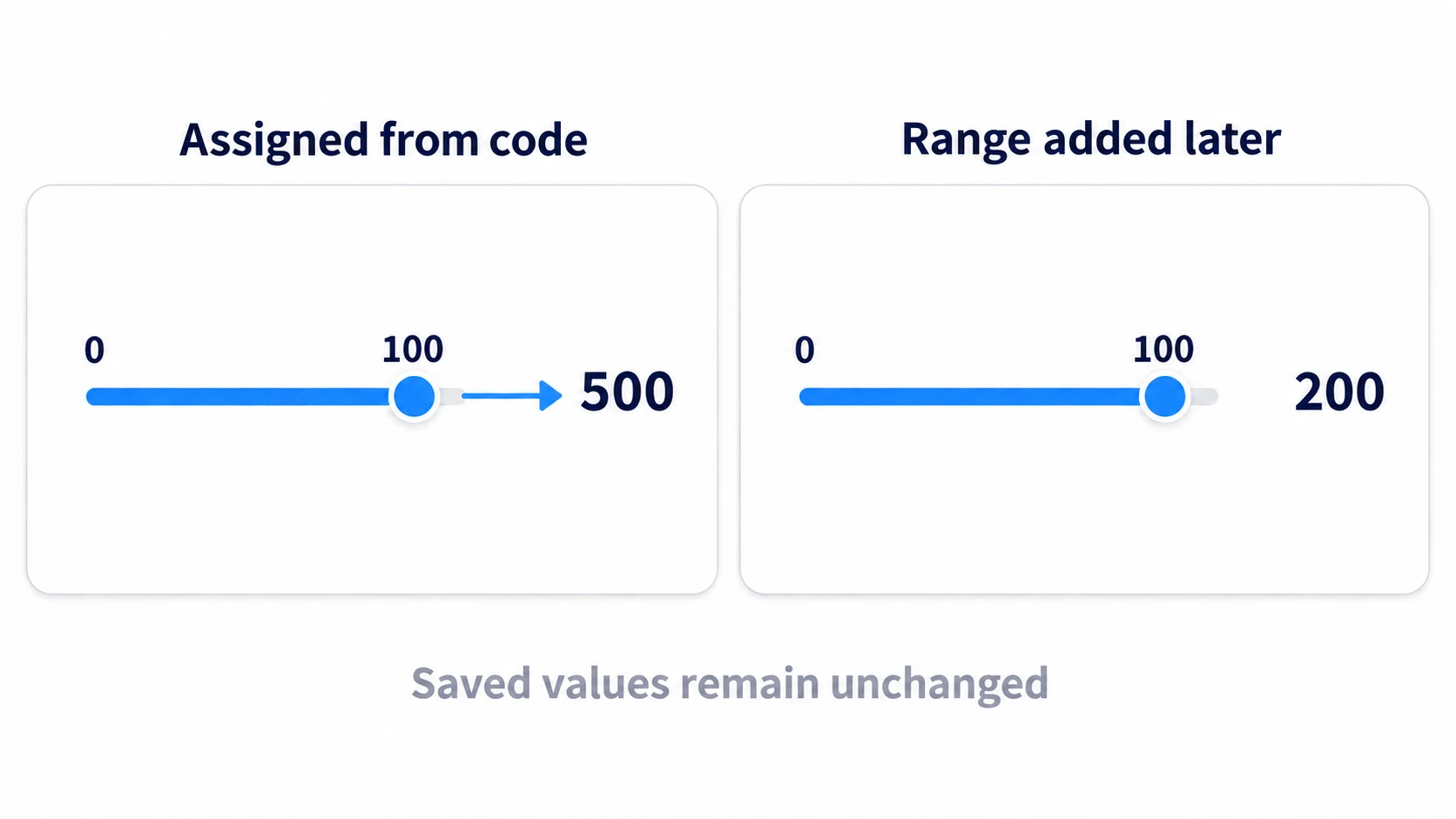
@export_range(0, 100) var speed: float = 50.0

func _ready() -> void:
	speed = 500.0    # goes in as-is
It also doesn't affect nodes already placed. If you saved 200 into speed and then add @export_range(0, 100), the 200 saved on that node remains.
A range is a limit that keeps you or your team from making input mistakes when you touch it later. If you want to protect the value itself, write a line that passes it through clampf() (a function that fits a decimal into a range; for integers, clampi()) yourself.
The order Inspector values arrive in
This is where accidents happen most in this article.
@export var max_hp := 10
var hp := max_hp        # even if you set it to 30 in the Inspector, this is 10
You set max_hp to 30 in the Inspector, yet hp stays at 10. The value isn't going back. You're copying a value that hasn't arrived yet.
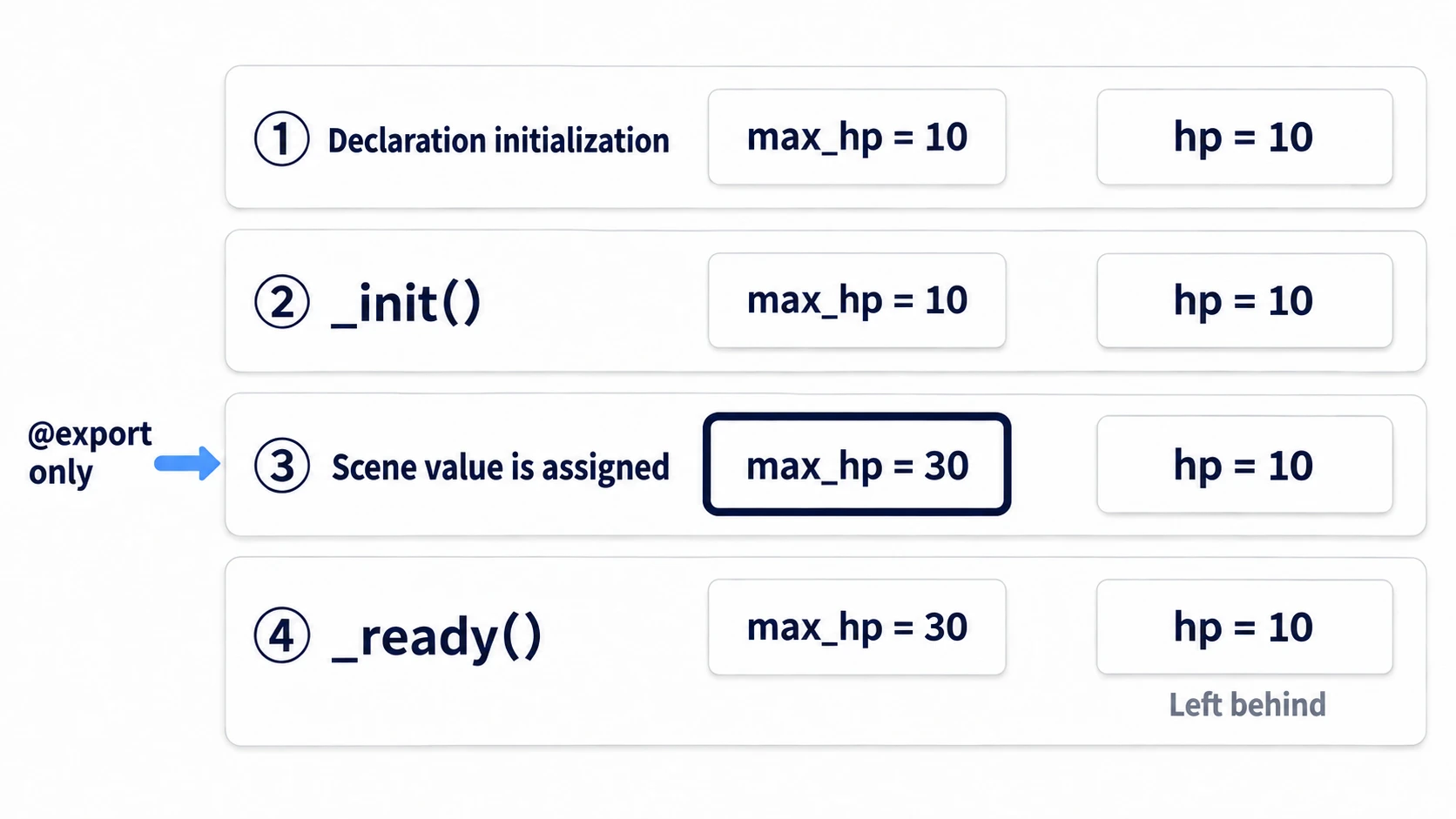
The order goes like this:
- When the instance is created, declaration initializers run from top to bottom. At this point
max_hpis the10written in the script, andhpcopies that10 _init()(a function called once when the instance is born) is called. It's still10here- The values saved in the scene are assigned. Of the script's variables, only those marked
@exportare saved, so what arrives ismax_hp, which becomes30.hpisn't saved, so it isn't touched and stays at10 - By the time of
@onreadyand_ready(),max_hpis already30
The fix is one word. Add @onready to delay the assignment until right before _ready().
@export var max_hp := 10
@onready var hp := max_hp    # 30 goes in here
Writing hp = max_hp inside _ready() does the same. It's enough to remember: don't build values from other @export values on the declaration line. When values arrive is collected in Node Lifecycle.
When to use setters (set)
If you want to do something when a value changes, write a setter (code that cuts in and runs on assignment). Put : at the end of the declaration and write set(value): below it, and the inside runs on every assignment. Unless you write motion = value inside yourself, the value doesn't get stored. But when it gets called has quirks.
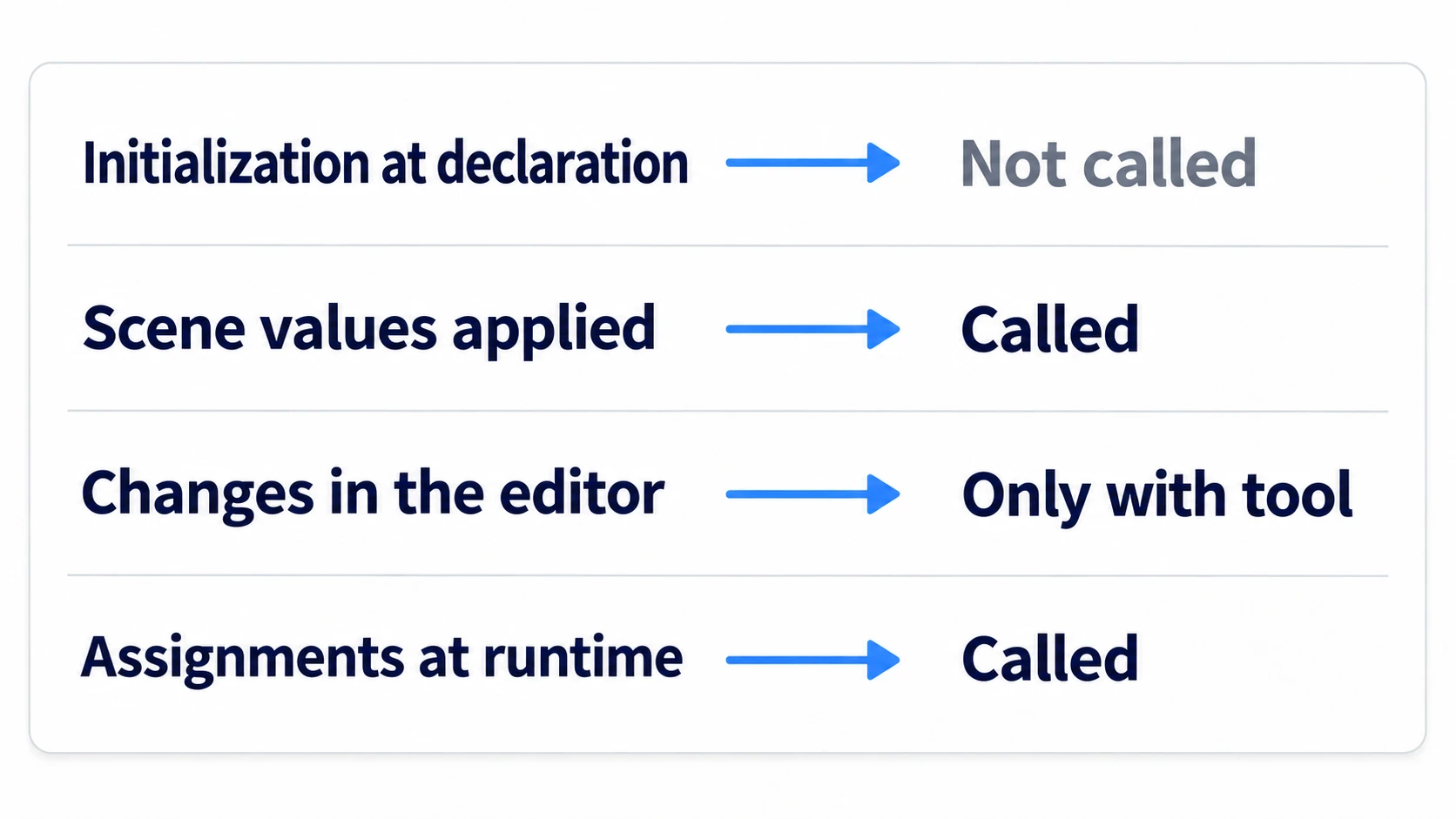
| Timing | Called? |
|---|---|
| Assigning the initial value at declaration | No (same for @onready) |
| Applying values saved in the scene | Yes (only for values changed from the default and saved) |
| Changing it in the editor's Inspector | Only in scripts with @tool (the marker that runs them in the editor too) |
| Assigning from code while running | Yes |
@export var motion: Motion = Motion.WALK:
	set(value):
		motion = value
		if is_node_ready():
			_apply_motion()
is_node_ready() returns whether this node's own setup (_ready()) is done. It guards the call because when the scene's saved values arrive, the child nodes aren't guaranteed to be in place yet. Guarding alone skips the first application, though. For nodes still at the default, the setter isn't even called, so call _apply_motion() once more from _ready().
What setters suit is values you calculate from the original value: deciding animation playback speed from movement speed, or computing the left and right turnaround points from a patrol's half-width. Use one to copy current HP from max HP every time, and changing max HP mid-battle fully heals the character.
Hands-On: Change Three Copies of the Same Slime Using Only the Inspector
Grunts in a top-down ARPG, patrolling enemies in a side-scroller, waves in tower defense—lining up the same enemy with different stats shows up in every genre. You'll place one scene three times and make all three behave differently without opening the code.
① What to place
First, make the enemy scene. The root is a Node2D named Slime. Put a Sprite2D (res://icon.svg as its Texture, Scale (0.3, 0.3)) and a Label named HpLabel under it, and save it as res://slime.tscn.
# slime.gd (attach to the root of slime.tscn)
class_name Slime
extends Node2D

enum Motion { WALK, HOP }

@export_range(20, 180, 1, "suffix:px/s") var speed: float = 60.0
@export var motion: Motion = Motion.WALK
@export_range(20, 200, 10, "suffix:px") var patrol_half_width: float = 60.0
@export var max_hp: int = 10

var hp := max_hp                       # this line will matter later

@onready var label: Label = $HpLabel
@onready var origin := position

var direction := 1.0
var bob := 0.0

func _ready() -> void:
	_update_label()

func _physics_process(delta: float) -> void:
	position.x += direction * speed * delta
	if absf(position.x - origin.x) >= patrol_half_width:
		direction = -direction
	if motion == Motion.HOP:
		bob += delta * 8.0
		position.y = origin.y - absf(sin(bob)) * 24.0
	else:
		position.y = origin.y

func take_damage(amount: int) -> void:
	hp = maxi(hp - amount, 0)
	_update_label()

func _update_label() -> void:
	label.text = "%d / %d" % [hp, max_hp]
Next, the stage. Save a new scene as main.tscn and set it under Project Settings → Application → Run → Main Scene. Then place slime.tscn in it three times.
Main (Node2D)            main.gd
└── Slimes (Node2D)
    ├── Slime (instance of slime.tscn)   position (200, 150)
    ├── Slime2 (same)                    position (200, 300)
    └── Slime3 (same)                    position (200, 450)
# main.gd
extends Node2D

func _unhandled_input(event: InputEvent) -> void:
	if event.is_action_pressed("ui_accept"):
		for child in $Slimes.get_children():
			var slime := child as Slime   # receive it as the class_name Slime type. null if it isn't one
			slime.take_damage(10)
② Change the three using only the Inspector
Select the three one at a time and change the values in the Inspector. Don't touch the code.
| Node | Speed | Motion | Patrol Half Width | Max Hp |
|---|---|---|---|---|
| Slime | 40 | Walk | 40 | 10 |
| Slime2 | 150 | Hop | 180 | 10 |
| Slime3 | 60 | Walk | 60 | 30 |
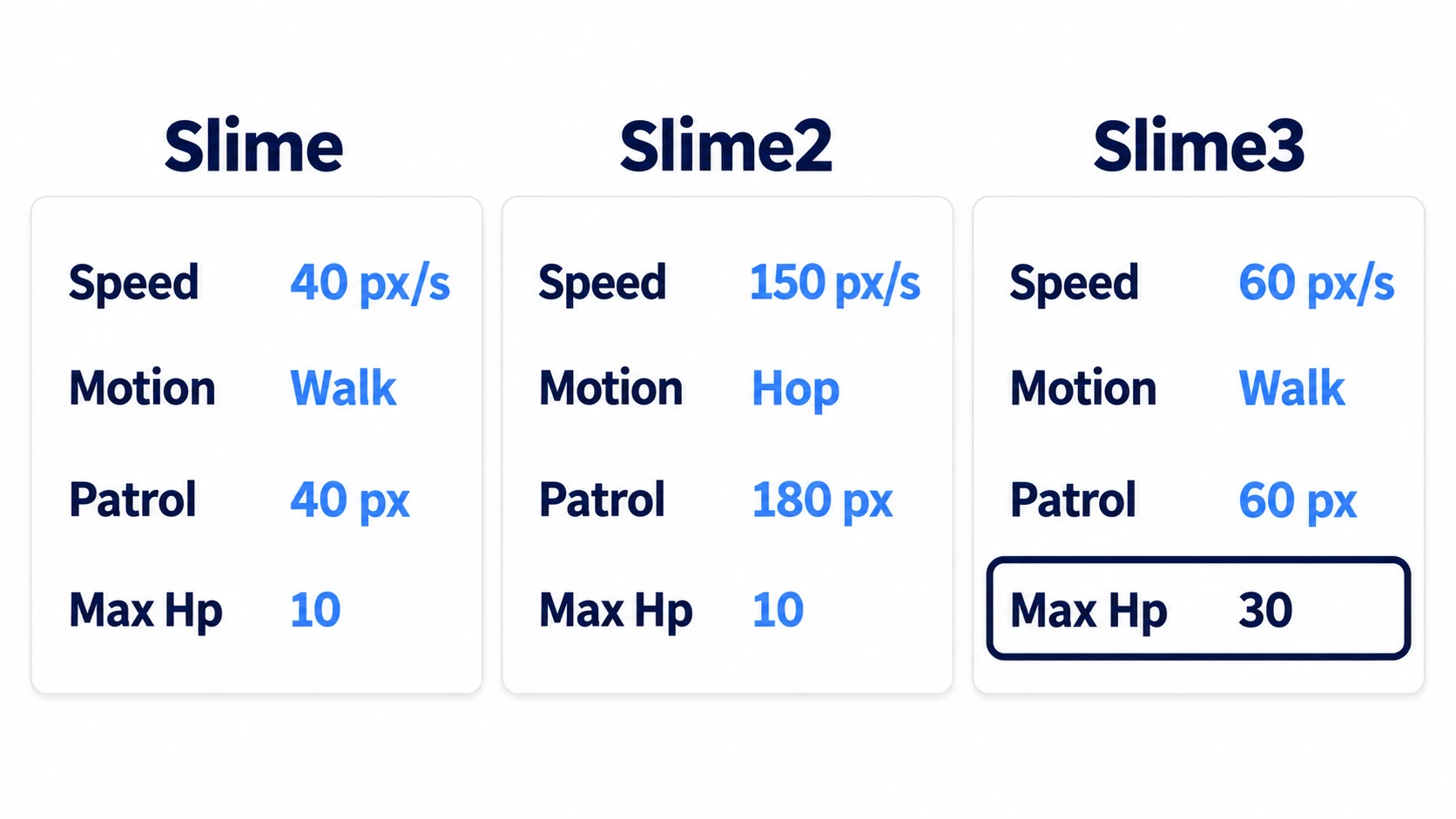
Notice that the Speed field has a slider and px/s, and that Motion is a dropdown. That much is the work of @export_range and enum.
③ Run it and check
Run with F5. Check three things.
The first is movement. The three move left and right at different speeds, and only the second one hops. The code is the same. Only the Inspector values differ.
The second is the labels.
Slime    10 / 10
Slime2   10 / 10
Slime3   10 / 30
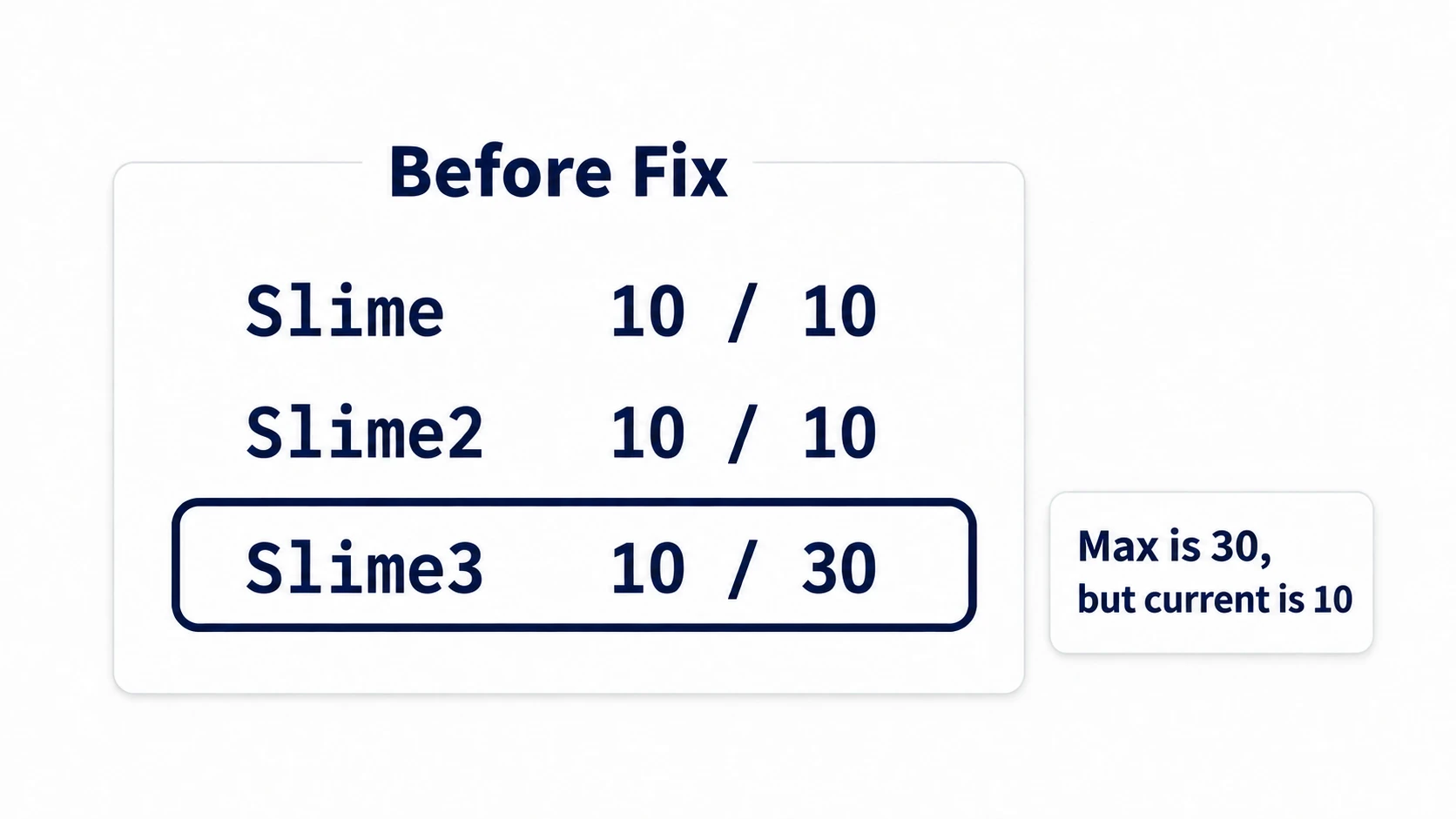
The third one is off. Max Hp shows 30, yet current HP is 10. The declaration line var hp := max_hp copied 10, before the 30 arrived.
Press the space key and all three go to 0. The third one, which was supposed to have more max HP, hits 0 in one hit like the others. If space doesn't respond, click the game screen once.
The third is after the fix.
Now add @onready to one line in slime.gd.
@onready var hp := max_hp
Save, stop the running game, and press F5 again.
Slime    10 / 10
Slime2   10 / 10
Slime3   30 / 30
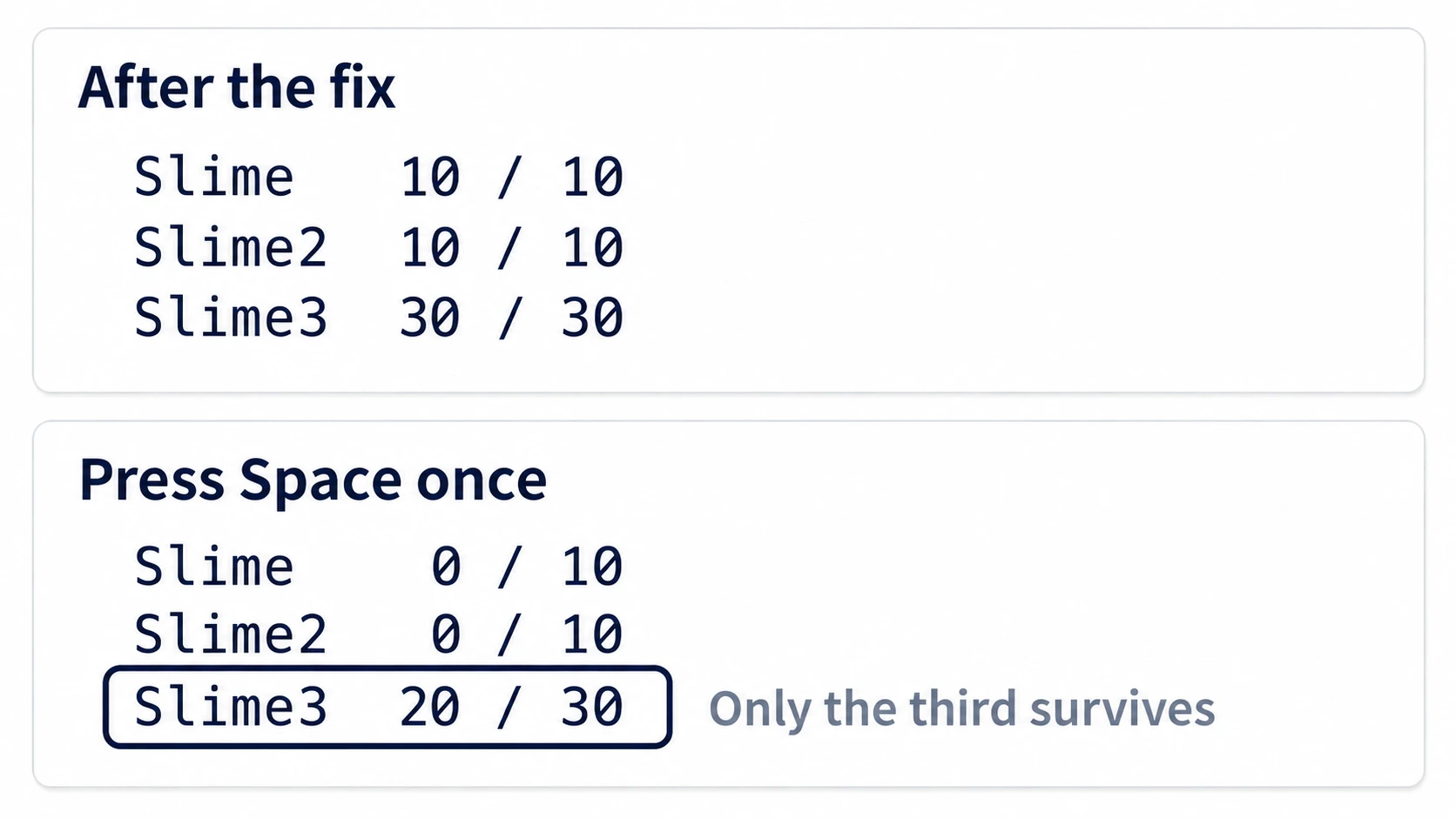
The third one starts at 30 / 30. Press space once and they become 0 / 10, 0 / 10, and 20 / 30, with only the third one keeping 20. You changed just one word.
Two points.
- Don't build values from other
@exportvalues on the declaration line: declaration initialization runs before the scene's values. Add@onready, or copy it inside_ready() - The shape of the field helps you later: if Speed shows
px/s, you won't wonder about the unit. If Motion is a dropdown, typos can't happen. Once you have more fields that group together by kind, it's time to split them out into a custom Resource
Troubleshooting
| Symptom | Cause | Fix |
|---|---|---|
| Only enemies spawned in code ignore the max HP you passed | Inside add_child(), the child runs all the way through _ready(), and the @onready copy happens first | Set the value before add_child() |
Touching a child node inside a setter gives a null error | When the scene's values arrive, the children aren't in place yet | Exit with is_node_ready(), and call it again from _ready() |
Every time you add an element to @export var items: Array, you're asked to pick a type | You didn't write the array's element type | Write the element type, as in Array[Texture2D] |
An image chosen with @export_file doesn't display | The contents are a path string, not the image itself | Load it with load(), or receive it with @export var tex: Texture2D |
Bonus: Good to Know First
- For multiple choices, use
@export_flags:@export_flags("Fire", "Ice", "Wind")holds what you chose as a row of on/off bits packed into one integer. It's a different thing fromenum, which picks only one - File fields are strings: the contents of
@export_file("*.png") var path: String = ""are a path, not the image itself. If you want to hold it as a texture, use@export var tex: Texture2D - How to write filters: an
@export_filefilter takes the form"*.png".".png"or"png"won't filter the way you intend - You can place buttons too: use
@export_tool_buttonin a@toolscript and a pressable button appears in the Inspector. It's available from Godot 4.4 @export_subgroupis for nesting: it goes inside an@export_group, which groups fields under a heading, if one comes before it. If you're not nesting,@export_groupalone is enough- What to read next: the basics of
@export, and how a script's defaults relate to the values saved in a scene, are in Custom Nodes
Summary
@export_rangegoesmin,max,step: hint strings come after. Stack it with@exportand the fields disappear- Things you choose become an
enum: you can compare by name, as inMotion.HOP. What's saved is an integer, so adding one in the middle shifts the meaning - A range only limits the input field: it doesn't protect against assignments from code or values already saved
- On the declaration line, values haven't arrived yet: values saved in the scene go in after the declarations
- A setter is where you rebuild calculated values: it isn't called on initialization at declaration
A line of the form var something = another_exported_variable hasn't received the Inspector's value yet. Is there a line like that in the script you're writing now?