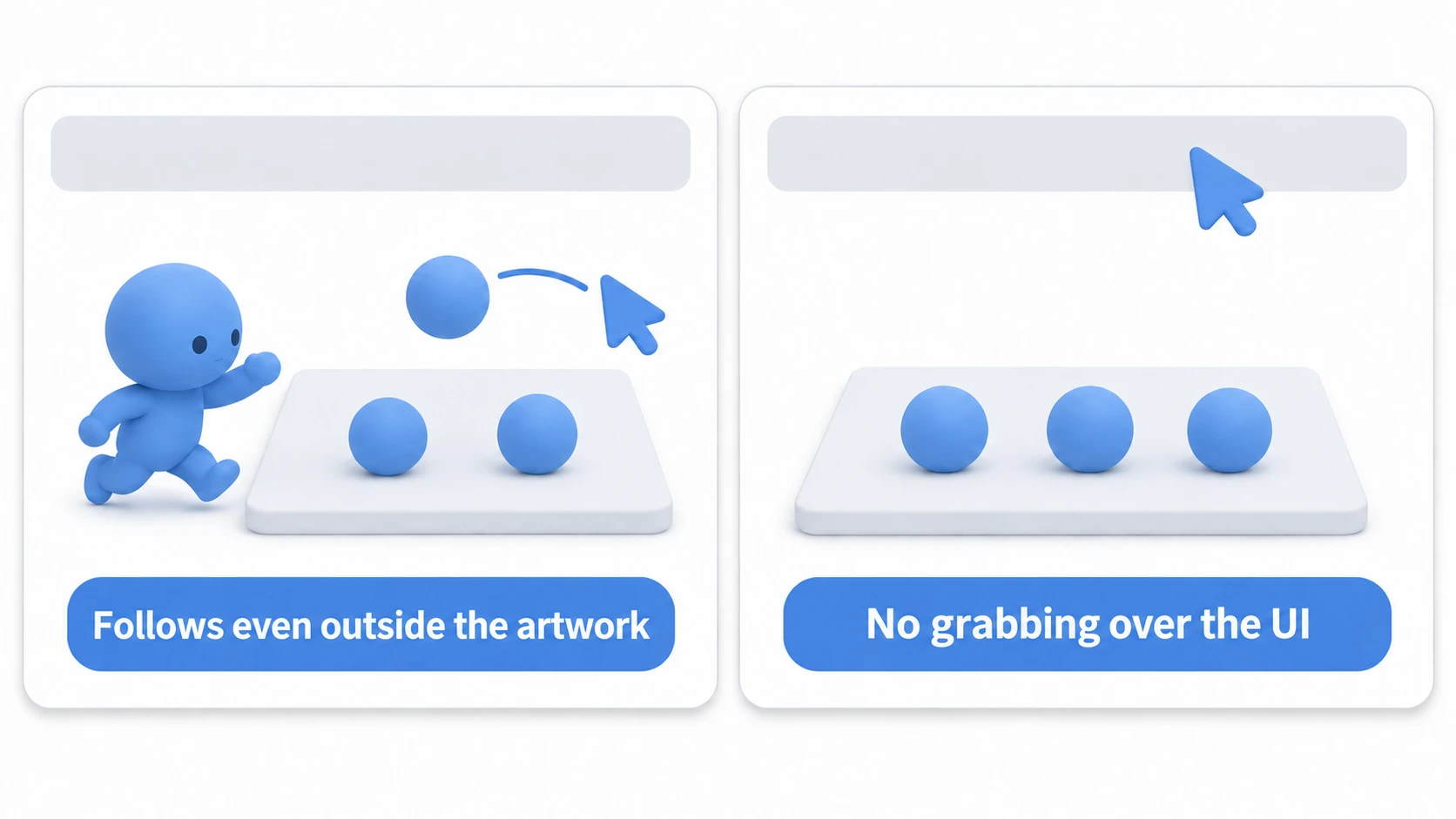
Selecting a piece on a board with a click, carrying it by dragging, and putting it down is the same shape in games where you play cards to the field or place buildings. If there's UI such as buttons on the screen, don't grab pieces over the UI, and keep the two kinds of operation separate.
Put an Area2D on a piece and build dragging with input_event, and the piece gets left behind when you swing fast. Change how you receive it, and now every press of a UI button also selects the piece behind it.
This article sorts out who mouse events are handed to, and covers building a drag that doesn't start grabbing over the UI and keeps up however fast you swing.
What You'll Learn
- Who a click is handed to, and where it stops
- Three reasons a drag written directly on the piece leaves it behind
- How to remember the grabbed piece and make it follow every frame
- What each of
mouse_filter's three values does
Tested with: Godot 4.7 (Windows)
- The order mouse events are handed out in
- Dragging with the piece's input_event
- Receiving on the board and choosing a piece (intersect_point)
- Following and releasing the grabbed piece
- mouse_filter and clicks over the UI
- Hands-On: Grab the Topmost of Overlapping Pieces
- Troubleshooting
- Bonus: Good to Know First
- Summary
The order mouse events are handed out in
Press the left mouse button, and one event is created for that single press and handed out in a set order. If someone marks it "handled" along the way, it isn't handed any further.
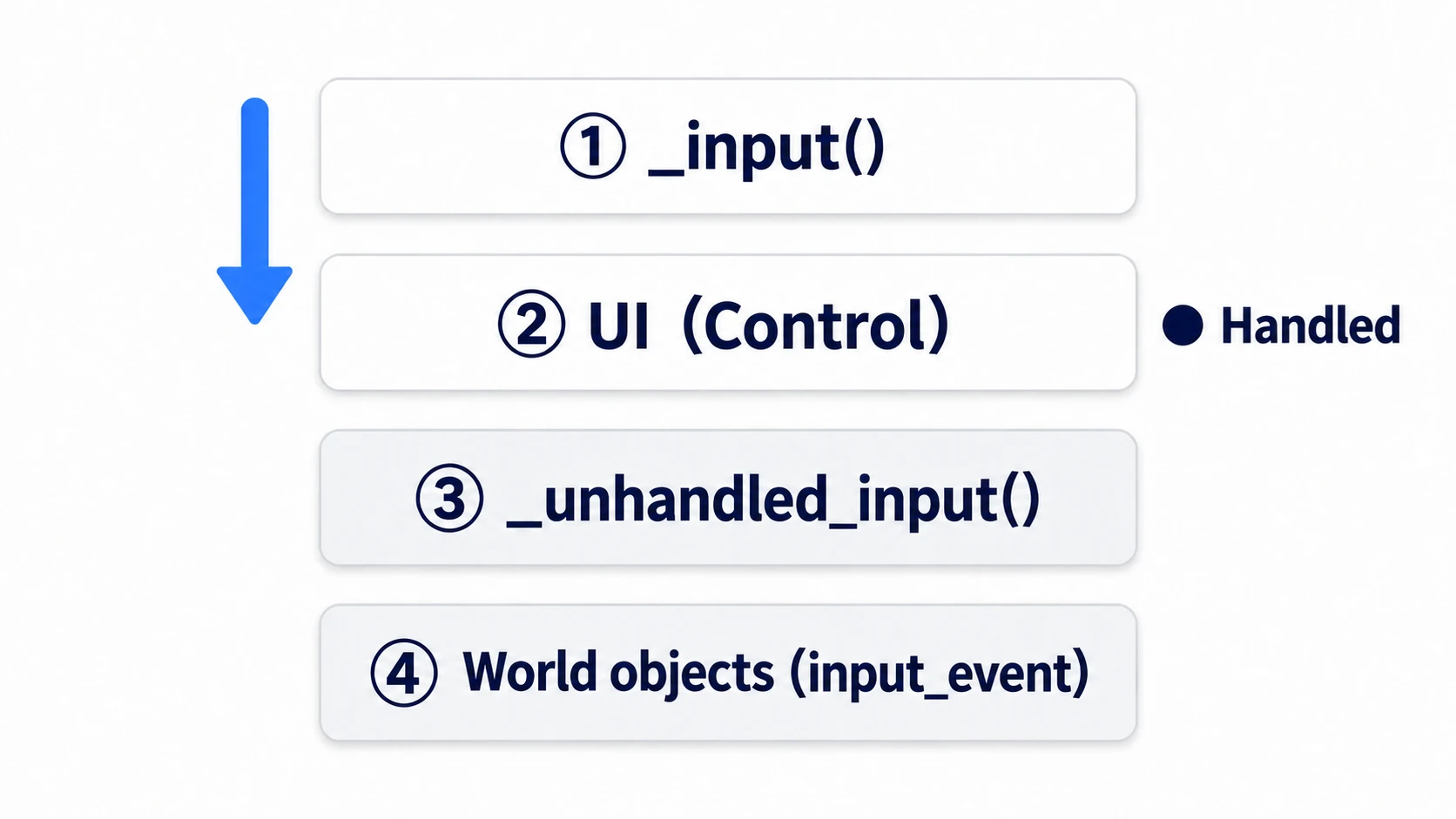
_input(). Called first of all, for every node- UI. The Control under the cursor receives it
_unhandled_input(). Only what's left by this point arrives- World objects. The
input_eventof CollisionObject2D (the shared parent class of Area2D and physics bodies) comes last. It reaches every overlapping object under the cursor until it gets marked
If someone along the way marks it "I handled this," it isn't handed out any further. From inside a Control, accept_event() is the call that marks it. From anywhere else, it's get_viewport().set_input_as_handled().
A Button marks the event itself when pressed. That's why code written in _unhandled_input() doesn't run over the button's art. This property turns directly into "don't grab pieces over the UI."
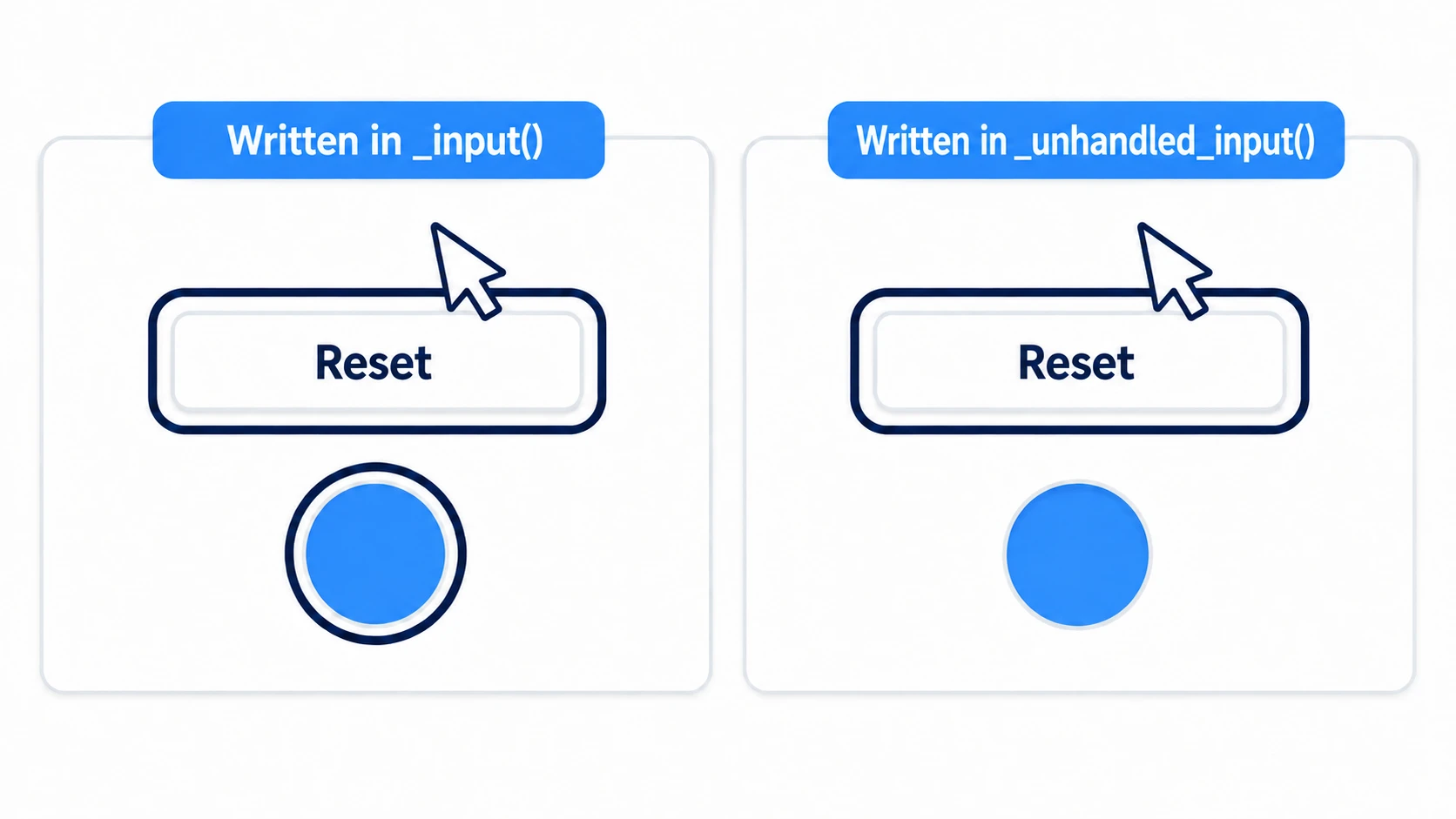
Conversely, write the grabbing code in _input(), and since it comes before the UI, pieces get selected even over buttons. Checking Input.is_mouse_button_pressed() inside _process() is the same, and that one ignores the mark entirely. It only reads the button's physical state directly.
Decide on one place to start grabbing: _unhandled_input().
Dragging with the piece's input_event
The shortest way to write it is to put it on the piece itself. Area2D has _input_event(), which receives mouse events that happen over its own collision shape. It's the same event as the input_event signal, received as a function.
# piece.gd (you won't use this later)
extends Area2D

var dragging := false

func _input_event(_viewport: Node, event: InputEvent, _shape_idx: int) -> void:
	if event is InputEventMouseButton and event.button_index == MOUSE_BUTTON_LEFT:
		dragging = event.pressed
	elif event is InputEventMouseMotion and dragging:
		global_position = get_global_mouse_position()
This moves the piece. InputEventMouseButton is the event of pressing or releasing a button, and InputEventMouseMotion is the event of the mouse moving. input_pickable, which decides whether the mouse can pick it up, is true from the start. Enable Object Picking in the project settings is also on from the start, so adding a CollisionShape2D is all it takes for events to arrive.
As long as you move slowly, no problems show up. The three holes open the moment your hand gets fast.
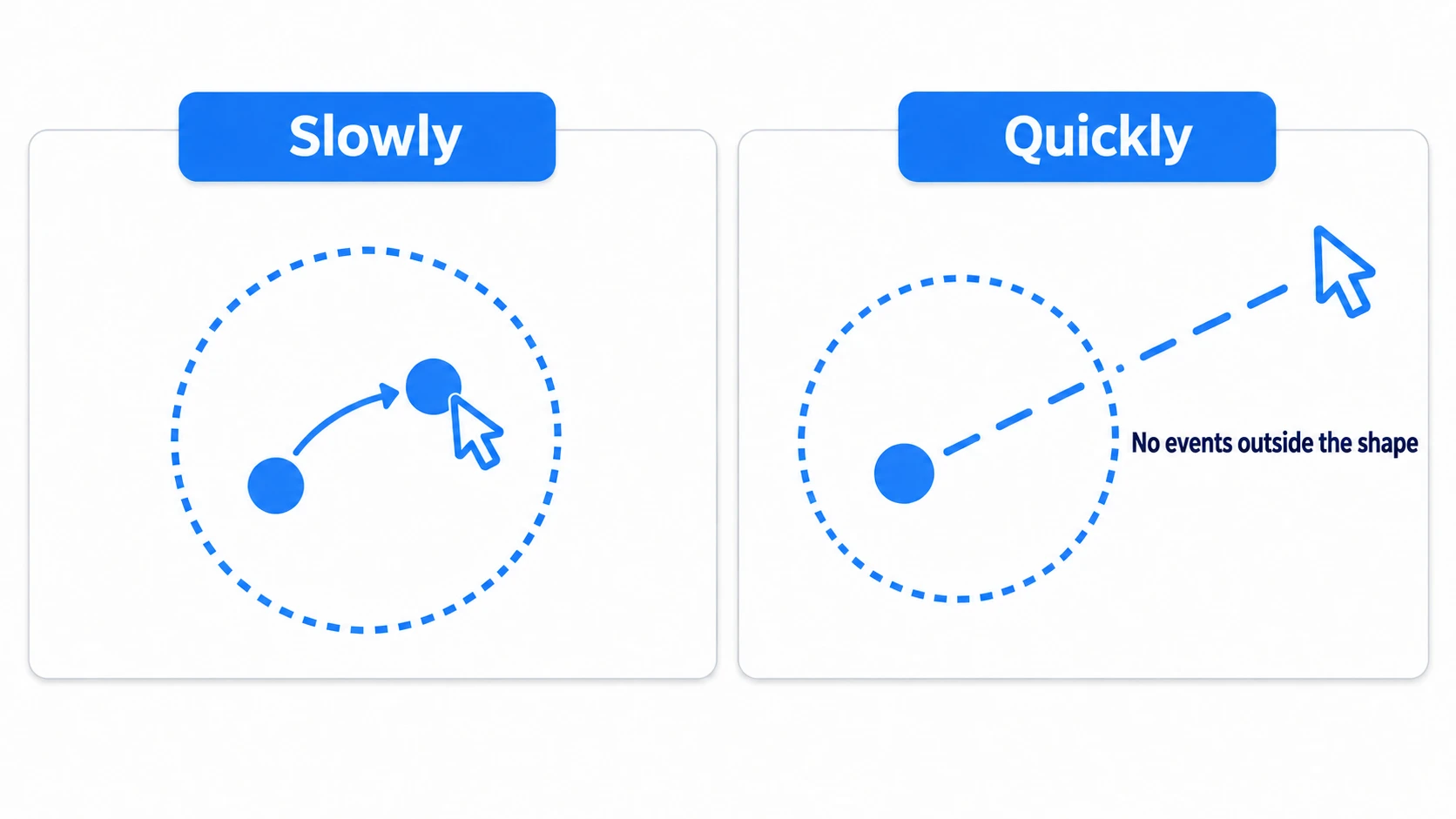
The first is getting left behind when you swing fast. InputEventMouseMotion reaching _input_event() only arrives while the cursor is over that shape. Jump past the shape in one frame, and further movement never arrives.
The second is releasing the button outside the shape. The release event also only arrives over the shape, so dragging stays true.
After that, when the cursor returns to the piece without the button pressed, it snaps on again. You end up with a piece that moves without anything being pressed.
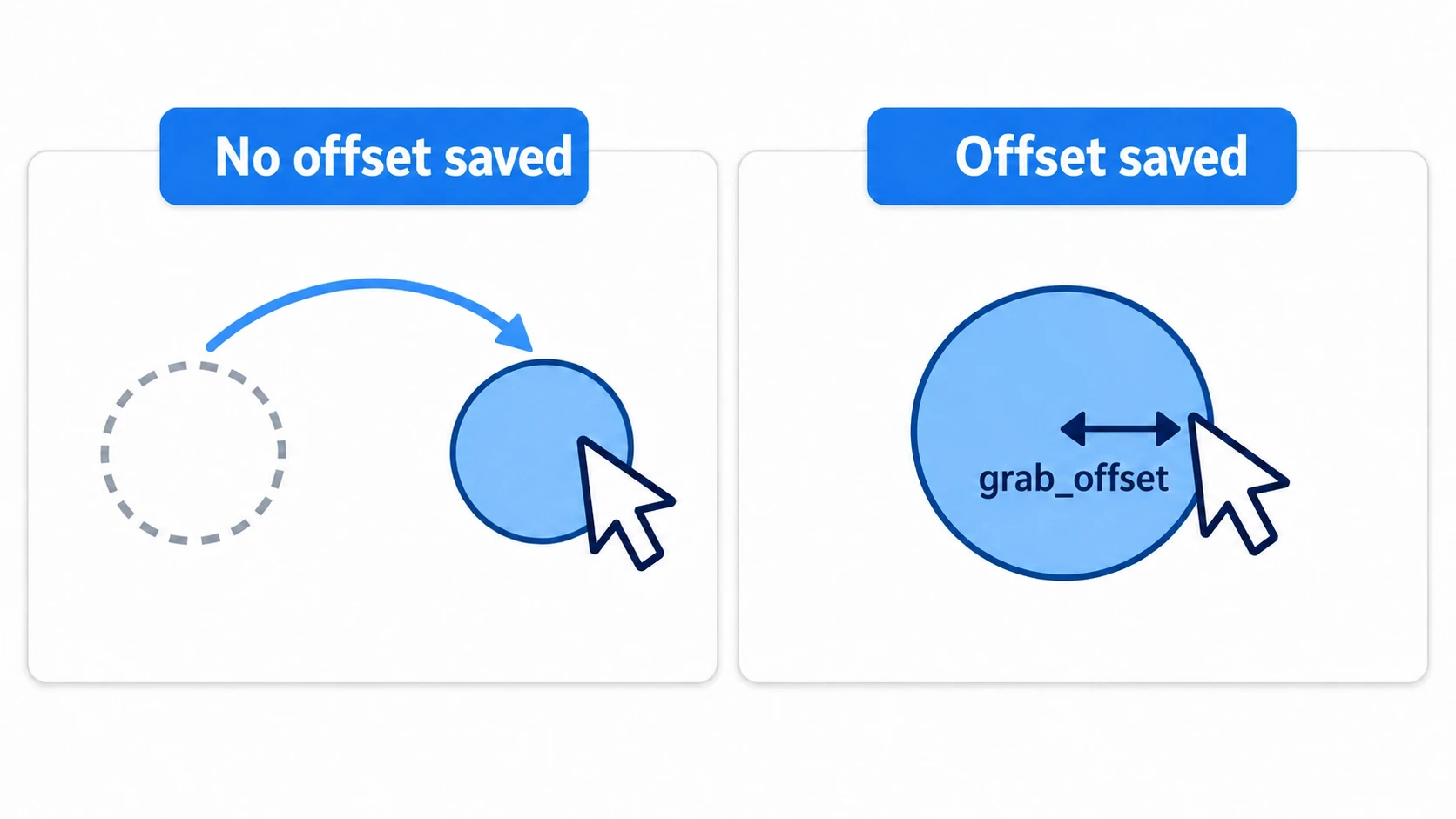
The third is ignoring where you grabbed it. You put the cursor position straight into global_position (the position in the world; the Inspector's Position is the position relative to the parent), so even if you pinch the edge of the piece, its center jumps to the cursor on the first move.
The first two share a cause: the piece is looking at "whether the cursor is over me." Only the third is different, caused by not remembering where it was grabbed.
Receiving on the board and choosing a piece (intersect_point)
So move where the input is received from the piece to the board. Receive the press in the board's _unhandled_input(), and check for yourself whether there's a piece at that position (_pick_top_piece() in the hands-on).
To check, you ask the physics world directly "what's at this point." The place to ask is get_world_2d().direct_space_state. Put the conditions in a PhysicsPointQueryParameters2D and pass it to intersect_point(), and you get back an array of the collision shapes overlapping that point. The condition collide_with_areas defaults to false, so Area2Ds aren't counted. Without turning it on, no pieces are ever found and nothing happens.
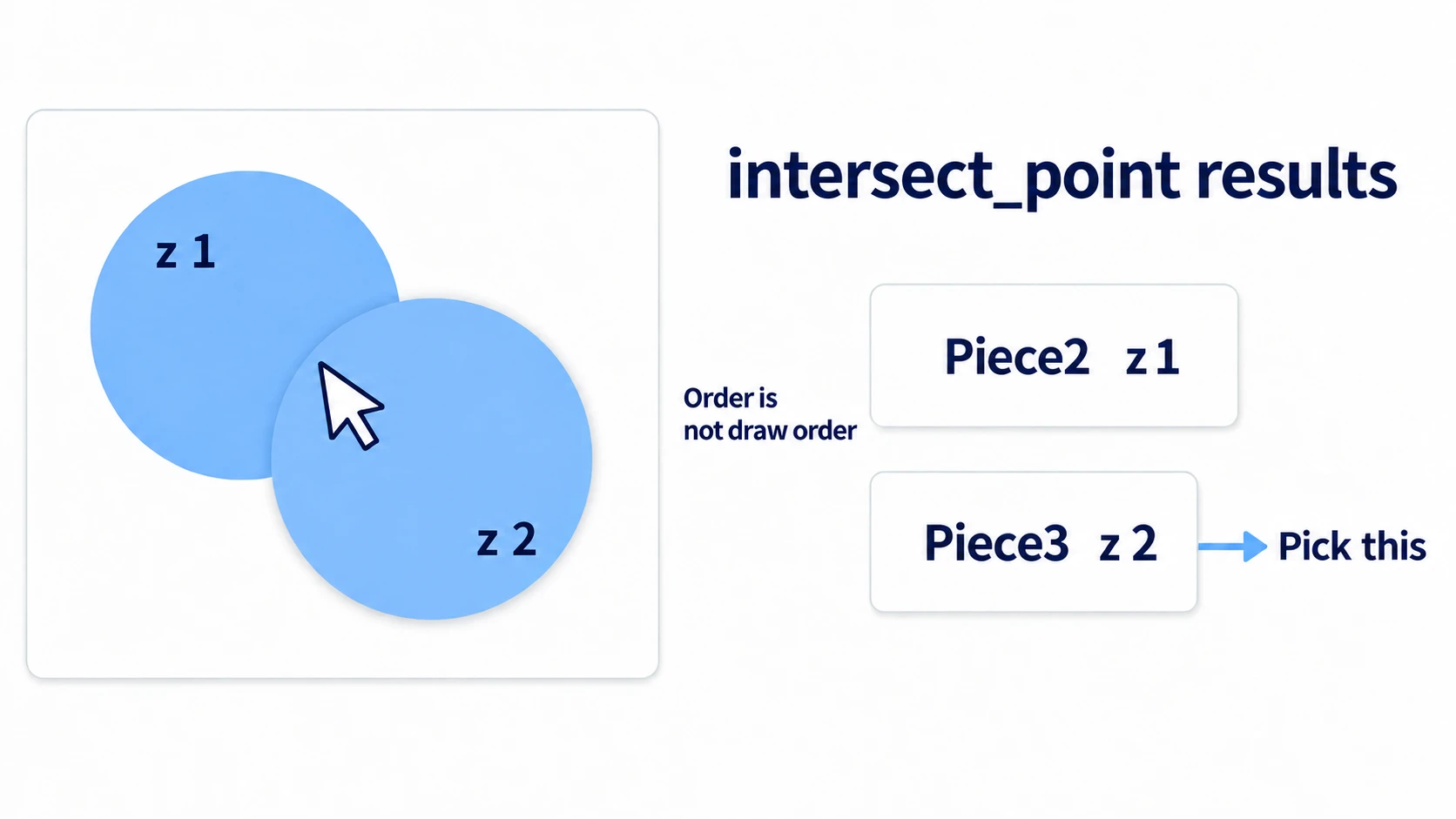
What comes back is an array, and its order isn't the draw order. With the per-piece approach, the same event reaches two overlapping pieces and both get grabbed. Receiving on the board and choosing one is partly for this reason too. Use the first result as-is, and the piece that looks underneath moves. From the candidates, choose the one with the largest z_index (the number that decides draw order; larger is in front). When the pieces share the same parent and each has a different z_index, this gets you the one visually on top.
Then, once you've grabbed a piece, mark the event.
func _unhandled_input(event: InputEvent) -> void:
	if event is InputEventMouseButton and event.button_index == MOUSE_BUTTON_LEFT and event.pressed:
		held = _pick_top_piece(get_global_mouse_position())
		if held != null:
			grab_offset = held.global_position - get_global_mouse_position()
			get_viewport().set_input_as_handled()   # don't pass it on to the pieces' input_event
grab_offset gets rid of the third hole. It just remembers "the difference between the piece's position and the cursor's position" at the moment of grabbing. Pinch the edge and it moves holding the edge.
Following and releasing the grabbed piece
The remaining two go away once you move following and releasing to _process().
func _process(_delta: float) -> void:
	if held == null:
		return
	held.global_position = get_global_mouse_position() + grab_offset
	if not Input.is_mouse_button_pressed(MOUSE_BUTTON_LEFT):
		held = null                                    # released. Doesn't matter where
		_update_label()
Nothing anywhere looks at whether the cursor is over the piece. All it looks at is two things: "which piece is grabbed" and "is the left button still down."
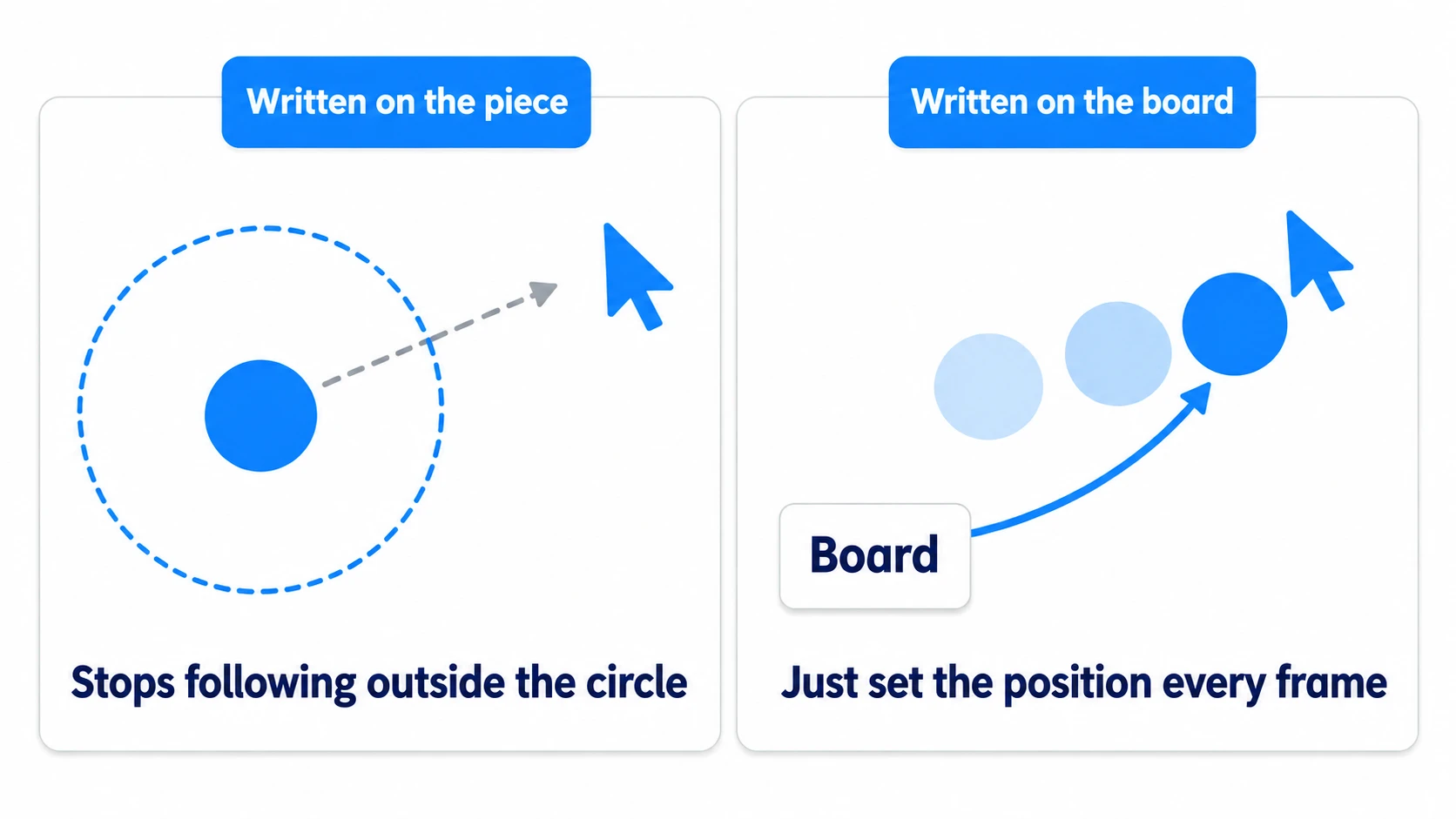
Input.is_mouse_button_pressed() returns the button's state regardless of the event's mark. The same property that made it wrong for starting a grab, as noted at the start of this article, becomes a strength for checking release. Release over a panel or over a button's art, and you still know it isn't pressed.
mouse_filter and clicks over the UI
mouse_filter is a Control property with three values. Pieces aren't Controls, so they don't have this property.
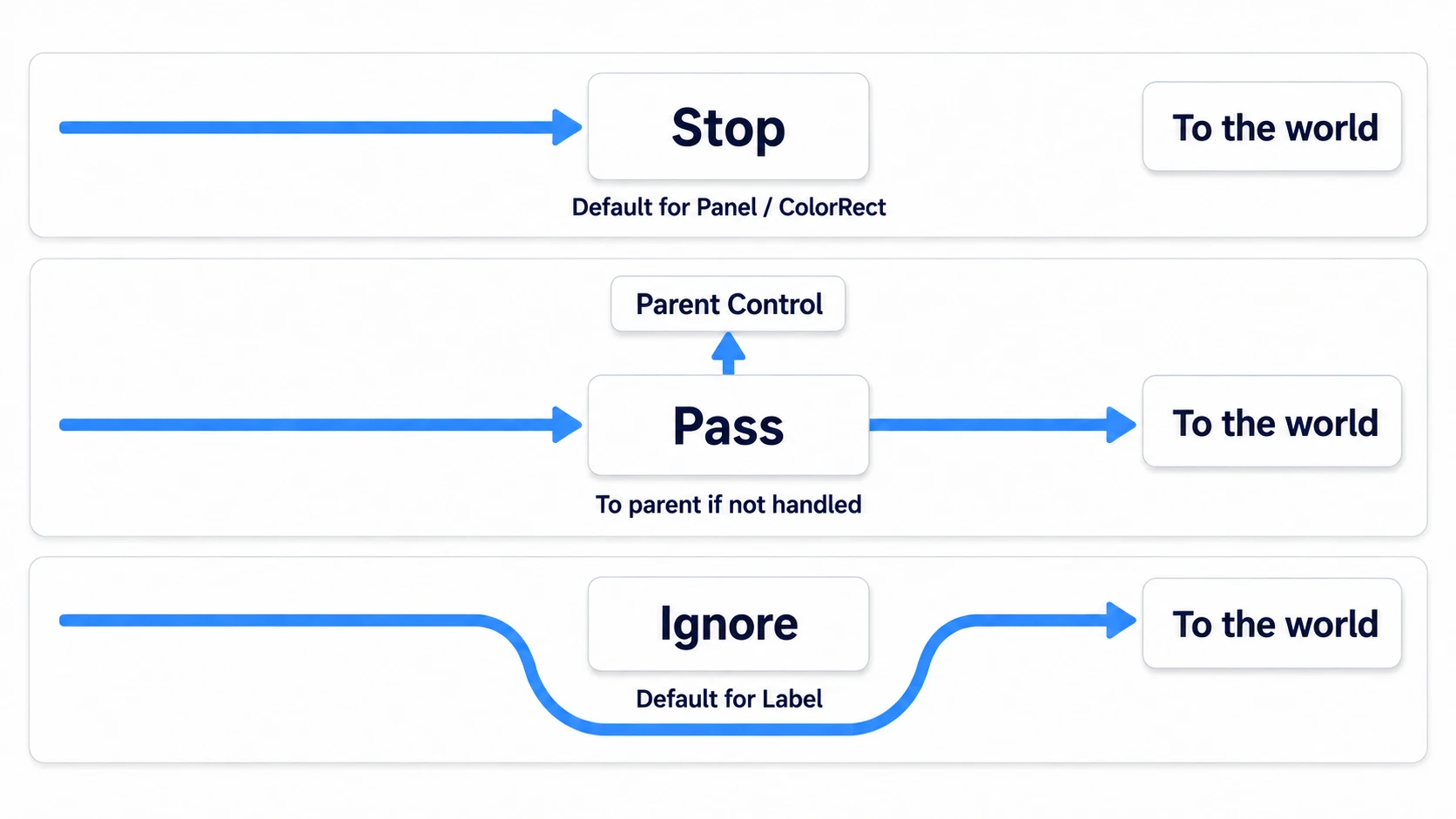
- Stop: receives it, marks it, and stops it. The default for Panel and ColorRect
- Pass: receives it, and if it doesn't mark it with
accept_event(), hands it to the parent Control. If nobody marks it, it reaches_unhandled_input() - Ignore: doesn't receive it. It doesn't mark it either, so it reaches whatever is behind
Stop marks events not just over a button's art, but in the empty space of the panel too. The same goes for a translucent panel, or an invisible one whose Modulate (the color multiplied into the node's color) alpha (opacity) is 0. So if you surround the HUD with a Panel, pressing inside that rectangle won't start grabbing a new piece. You don't need to write _gui_input(), which lets a Control receive input over itself, and call accept_event().
Only starting a grab is stopped. A piece you're already holding keeps following even when the cursor goes over the panel, because _process() sets its position every frame.
On the other hand, if a ColorRect you placed as decoration covers the screen, every click on the world stops there (Post-Processing Basics). The same story applies when text or icons stop clicks (Inventory Basics). Only Label defaults to Ignore, so it lets clicks through to what's behind as-is.
Hands-On: Grab the Topmost of Overlapping Pieces
Pieces in a board game, playing cards to the field, a building placement mode—they all have the shape "select, carry, place." Here you'll place three pieces, with two of them overlapping from the start.
① What to place
Create one new scene. The only art is the icon.svg that comes with every project.
Put a Node2D at the root as Board, and attach board.gd.
- Add two Node2Ds under Board: Marks and Pieces
- Add an Area2D under Pieces as Piece1. Position
(300, 420), Z Index0 - Add a CollisionShape2D under Piece1. The shape is a CircleShape2D with radius
40 - Add a Sprite2D under Piece1. Put in
icon.svgand set Scale to(0.6, 0.6) - Duplicate Piece1, children included, twice to make Piece2 (
(560, 420), Z Index1) and Piece3 ((600, 450), Z Index2) - Add three Sprite2Ds under Marks as Mark1 to Mark3. Place them at the same positions as the pieces
- All three get
icon.svg, Scale(0.6, 0.6), Z Index-1, and a Modulate alpha of0.25 - Add a CanvasLayer (a node that draws on a layer separate from other art) under Board as Hud. Under it, a Panel at position
(0, 0)with Size(1152, 96) - Add a Button under Panel as ResetButton. Position
(16, 24), text "Reset" - Add a Label under Panel as StateLabel. Position
(200, 30) - Turn on Access as Unique Name for Pieces, ResetButton, and StateLabel. From code, get them with a
%, as in%Pieces
The centers of Piece2 and Piece3 are only 50 apart, so their radius-40 circles overlap. Press around (580, 435) and intersect_point() returns two results.
The art is 76.8 on a side. The corners are about 54 from the center, outside the circle, so pinch around the middle of an edge.
The Marks are faint art with lowered alpha, left at the starting positions. When a piece moves, you can see where it came from without any text. The pieces' Collision Layer can stay at the default 1.
② The board script
# board.gd
extends Node2D

var held: Area2D = null
var grab_offset := Vector2.ZERO

var _start := {}

@onready var pieces: Node2D = %Pieces
@onready var state_label: Label = %StateLabel

func _ready() -> void:
	for piece in pieces.get_children():
		_start[piece] = piece.global_position      # remember where to put it back
	%ResetButton.pressed.connect(_on_reset_pressed)
	_update_label()

func _unhandled_input(event: InputEvent) -> void:
	if event is InputEventMouseButton and event.button_index == MOUSE_BUTTON_LEFT and event.pressed:
		held = _pick_top_piece(get_global_mouse_position())
		if held != null:
			grab_offset = held.global_position - get_global_mouse_position()
			get_viewport().set_input_as_handled()
		_update_label()

func _process(_delta: float) -> void:
	if held == null:
		return
	held.global_position = get_global_mouse_position() + grab_offset
	if not Input.is_mouse_button_pressed(MOUSE_BUTTON_LEFT):
		held = null
		_update_label()

func _pick_top_piece(point: Vector2) -> Area2D:
	var params := PhysicsPointQueryParameters2D.new()
	params.position = point
	params.collide_with_areas = true                # the default is false, which doesn't pick up Area2Ds
	params.collide_with_bodies = false
	var hits := get_world_2d().direct_space_state.intersect_point(params, 8)   # returns up to 8 results
	var top: Area2D = null
	for hit in hits:
		var piece := hit["collider"] as Area2D
		if piece != null and (top == null or piece.z_index > top.z_index):
			top = piece
	return top

func _on_reset_pressed() -> void:
	held = null
	for piece in pieces.get_children():
		piece.global_position = _start[piece]
	_update_label()

func _update_label() -> void:
	state_label.text = "Holding: %s" % ("none" if held == null else held.name)
The pieces get no script. They're just the side whose position gets rewritten, and they don't even know they were selected.
_start is a dictionary keyed by the piece nodes themselves. Remember them by name or number, and adding pieces means extra work keeping things in sync.
③ Try it and check
Play and drag the pieces. The label at the top shows the name of the piece you're holding right now. Check three things.
The first is how it's grabbed. Pinch the edge of a piece and the center doesn't jump to the cursor. Swing it fast and it doesn't get left behind, and when your hand stops, the pinched point comes to rest under the cursor. The label stays at Holding: Piece1.
The second is overlapping. Press around (580, 435), and only Piece3 moves, while Piece2 underneath stays put. If the bottom one moves, you're using the first result of intersect_point() as-is.
The third is the UI. Clicking over the panel at the top doesn't select any piece. Neither over the button nor over the panel's empty space does a grab start. Pressing "Reset" just puts the pieces back at their starting positions.
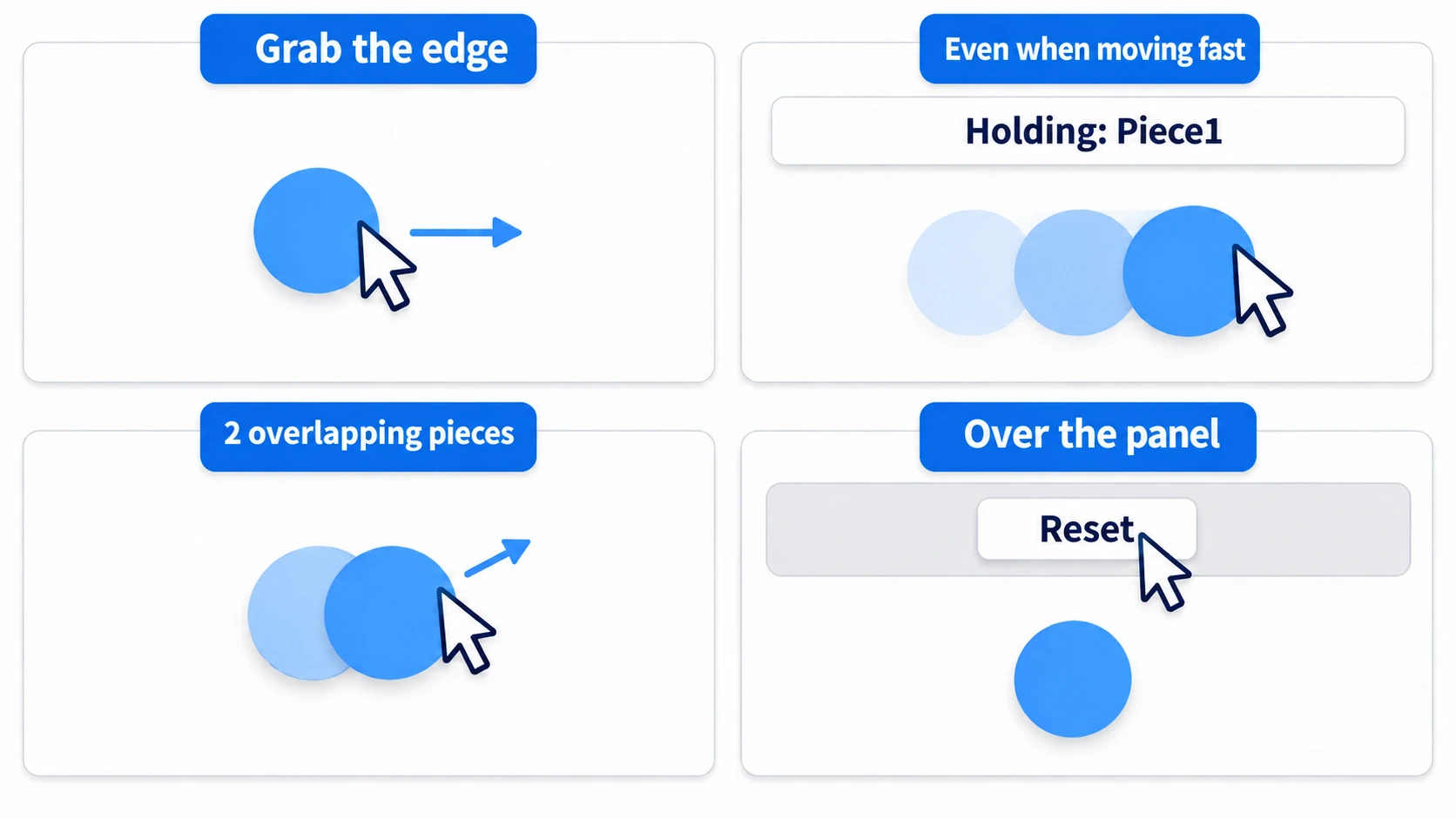
Next, carry a piece under the panel. Hud is a CanvasLayer, so whatever you set a piece's z_index to, it goes behind the panel and shows through darkly under the translucent panel. Let go over the panel, and a piece whose whole circle is inside the panel can't be grabbed anymore. "Reset" is the way back from this state.
Two points.
- Start grabbing only inside
_unhandled_input(): the UI marks events first, so you don't have to write your own checks for buttons or the panel's empty space - Once grabbed, don't look at whether the cursor is over the piece: all you remember is the piece and the offset. Following and releasing both happen in
_process(), and the piece's shape doesn't matter
If you want placed pieces to snap to squares, round the coordinates right before clearing held. The following formula can stay as-is.
Troubleshooting
| Symptom | Cause | Fix |
|---|---|---|
| Clicking a piece does nothing | The piece has no CollisionShape2D, or its Shape is empty | Add a shape. Art alone can't be picked up |
| After adding a HUD, you can't grab pieces anywhere on the board | The screen-filling Control at the root of the HUD is still at the default Stop | Set the root Control to Ignore. Buttons and panels on top of it stay at Stop and still stop clicks |
| Moving or zooming the camera picks up a different piece than where you pressed | You're passing event.position (screen pixels) to intersect_point() | Pass get_global_mouse_position(). The kinds of coordinates are summarized in Vector2 Basics |
| The piece underneath moves instead of the one visually on top | The pieces share the same z_index, or the parent's Y Sort Enabled (a setting that draws larger y further in front) decides the draw order, so z_index doesn't match what you see | Give each piece a different z_index. On a Y Sort board, among pieces with the same z_index, choose the one with the larger y |
Bonus: Good to Know First
- When you want to tell clicks from drags: record how far the cursor moves while pressed, and treat it as a drag once it exceeds a threshold (a few pixels) even once. Look only at the distance at release, and an operation that moved far and came back to the start counts as a click
- When you want the grabbed piece brought to the very front: raise its
z_indexthe moment it's grabbed and put it back when released. Forget to put it back, and the stacking changes the next time pieces overlap - Don't follow with InputEventMouseMotion's
relative:relativeis the difference since the previous mouse event. Add only that difference to the press point each time, and the piece keeps returning to near where you pressed. Useget_global_mouse_position()for following - Dragging between Controls is a separate system: there's a mechanism of
_get_drag_data(),_can_drop_data(), and_drop_data(). It's for handing things from one Control to another, and doesn't reach Node2Ds. Because it's called dragging, it's easy to mix up
Summary
- The hand-out order is fixed:
_input()→ UI →_unhandled_input()→ world objects. Once marked, it isn't handed any further - It doesn't run over the UI: Buttons and Stop Panels mark events, so code in
_unhandled_input()doesn't run Input.is_mouse_button_pressed()ignores the mark: don't use it to start a grab. Use it only to check for release- Follow in
_process():input_eventonly arrives over the shape. Remember the piece and the offset, and set the position every frame - Choose the top one yourself:
intersect_point()'s order isn't the draw order. Choose the one with the largestz_index
If you check mouse presses inside _process(), the day you add UI, things behind it start reacting too. In the game you're writing now, which function is your mouse handling in?