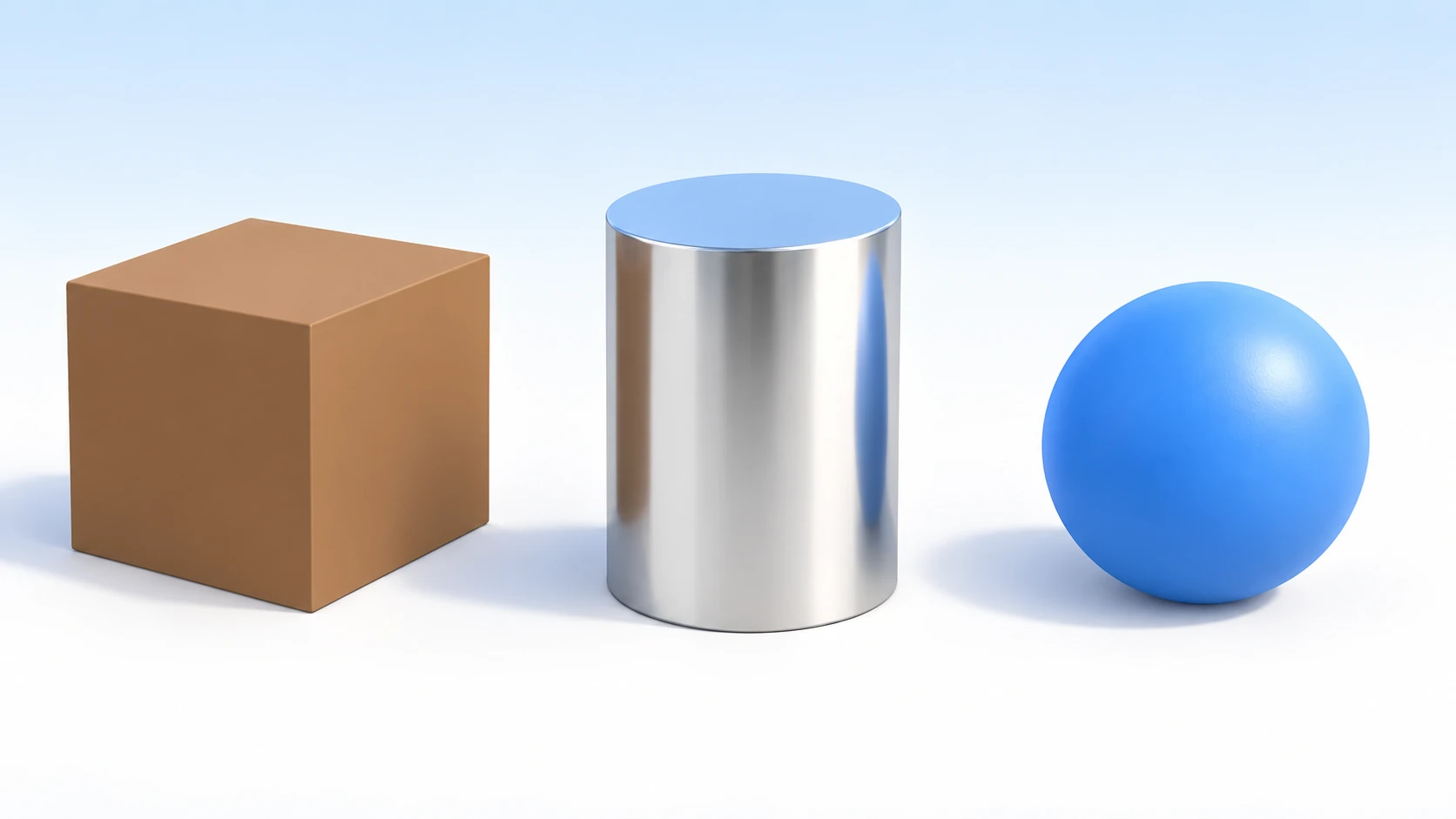
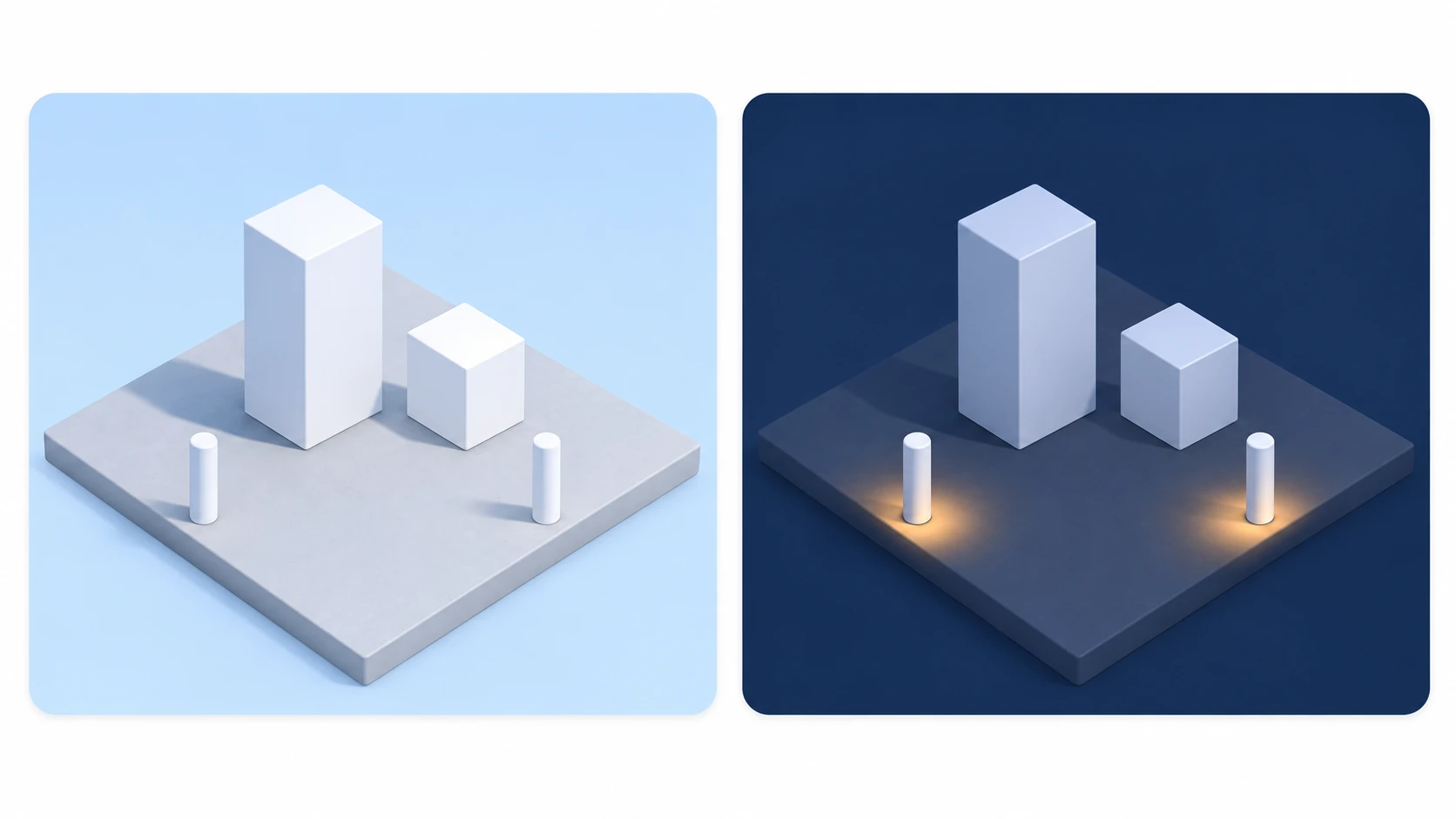
Place one sun light in a 3D scene and run it, and the shadowed sides of boxes sink into the same gray as the background, and their outlines melt away. Make the background a dark color to turn it into night, and now the shadowed sides go completely black.
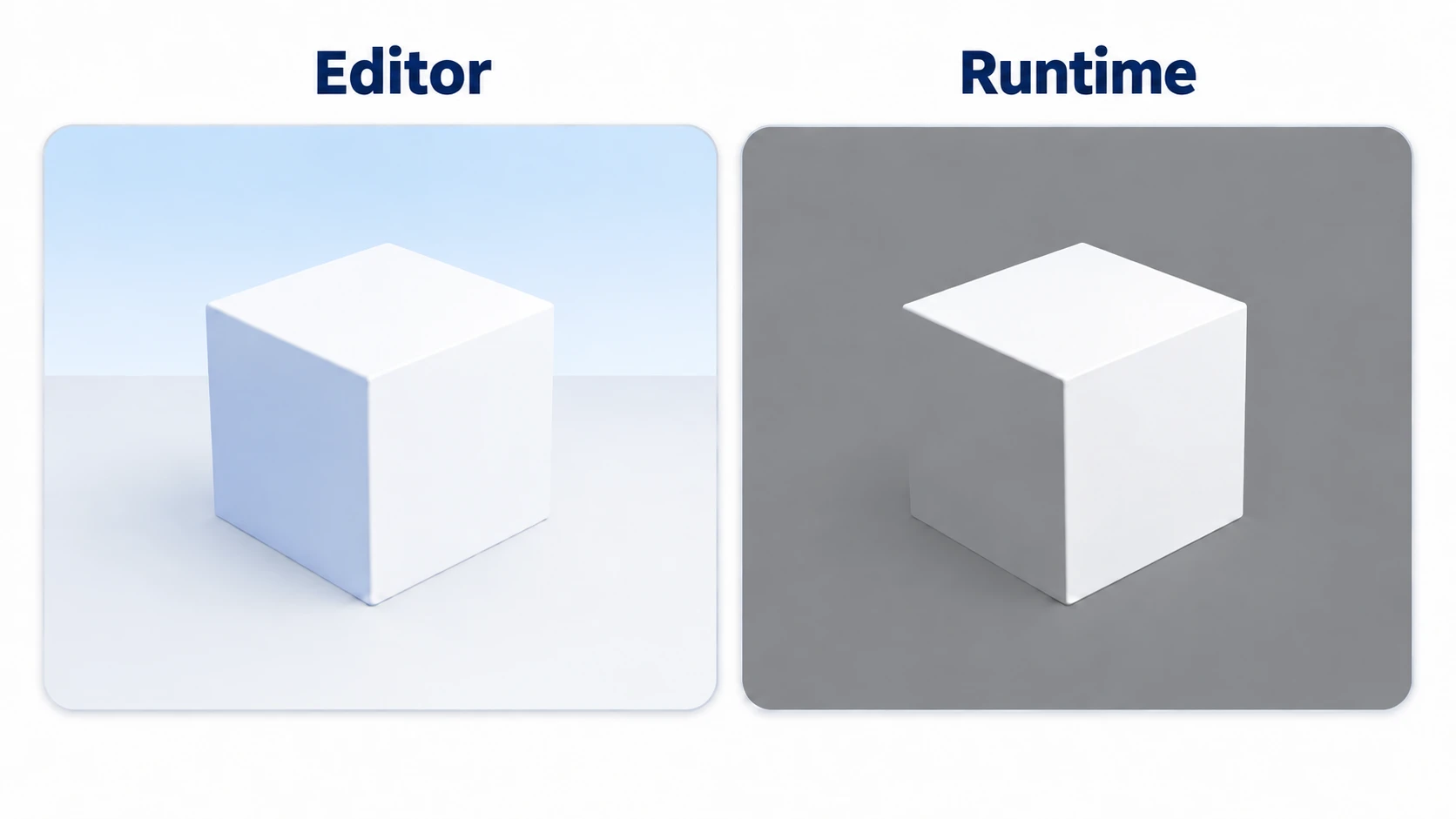
Both have the same cause. A face's brightness is decided by adding the light arriving from lights and the ambient light that lifts even faces the light doesn't hit. The game you run doesn't bring along the ambient light you saw in the editor. Instead, the background color is used as the ambient light.
This article covers deciding ambient light and the sky with WorldEnvironment, using three lights for different jobs, and switching the same plaza between day and night.
What You'll Learn
- A face's brightness is light from lights plus ambient light, and the ambient light at runtime differs from the editor's
- When to use each of three lights (sun, bulb, flashlight), and how to make shadows
- Bringing a blown-out white screen back with Tonemap
- Where to look when night goes completely black
Tested with: Godot 4.7 (renderer, which decides how things are drawn: Forward+)
- How a face's brightness works: light from lights and ambient light
- Deciding ambient light and the sky with WorldEnvironment
- Using the three lights
- How to make shadows
- Bringing back blown-out white with Tonemap
- Night lighting
- Hands-On: Switch the Same Plaza Between Day and Night
- Troubleshooting
- Bonus: Good to Know First
- Summary
How a face's brightness works: light from lights and ambient light
A 3D face's brightness is decided by adding two kinds of light.
- Light from lights: light arriving from a light such as DirectionalLight3D. It lights only faces turned toward the light. Turn on shadows, and objects in the way block it and make shadows
- Ambient light: light that lifts everything, including faces the light doesn't hit. It makes no shadows
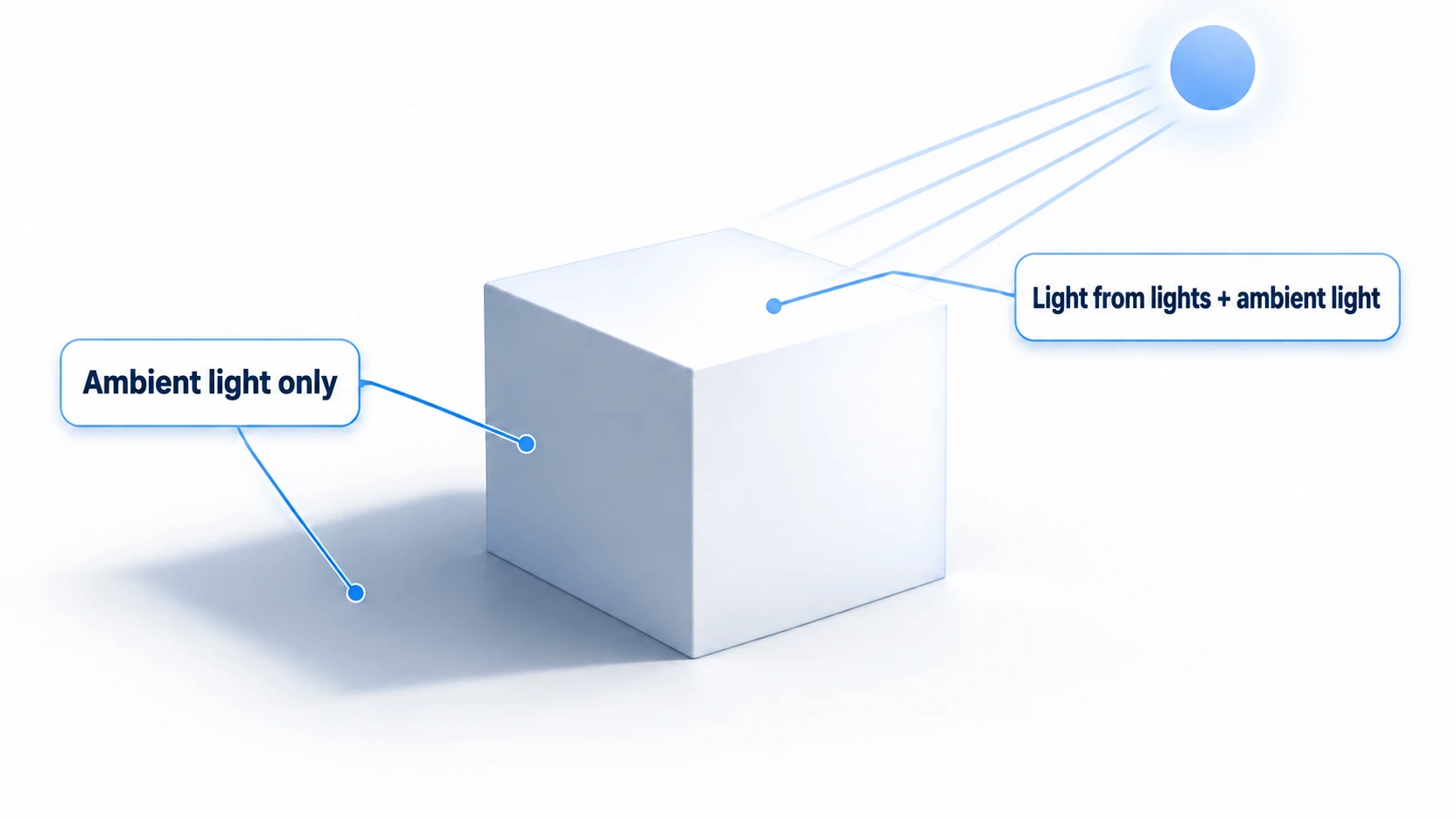
The inside of a shadow doesn't go completely black because ambient light remains there. The shadowed side sinking to gray at runtime, night going completely black, and shadows too faint to see all happen when one side of this addition is too small or too large.
The editor's 3D view is bright from the start because it includes an editing-only sun and ambient light. These aren't nodes placed in the scene, so they don't come along into the game you run. In the game you run, without an Environment, the background color from Project Settings (gray by default) becomes the ambient light as-is. That's why the shadowed side of a white box ends up nearly the same gray as the background, and its outline melts.
Deciding ambient light and the sky with WorldEnvironment
The first thing to place is WorldEnvironment. It's a node that holds one resource (a bundle of settings that can be saved to a file) called Environment, and that one resource decides the whole scene's background and ambient light together.
As a beginner, you only touch four things.
- Background: what to show where there's nothing. A sky, or a single color
- Ambient Light: ambient light. How bright to make faces the light doesn't hit
- Tonemap: how to fit the result into screen colors when the sum is too bright
- Glow: whether to blur bright areas outward
Ambient Light's Source is Background by default, so ambient light is made from the background's color. Change the sky's color and the ground's brightness changes along with it, so in this article set it to Color and decide the color and Energy yourself. Ambient light set to Color is added in the same amount regardless of which way a face points.
How Energy works shows on the faces the light doesn't hit.
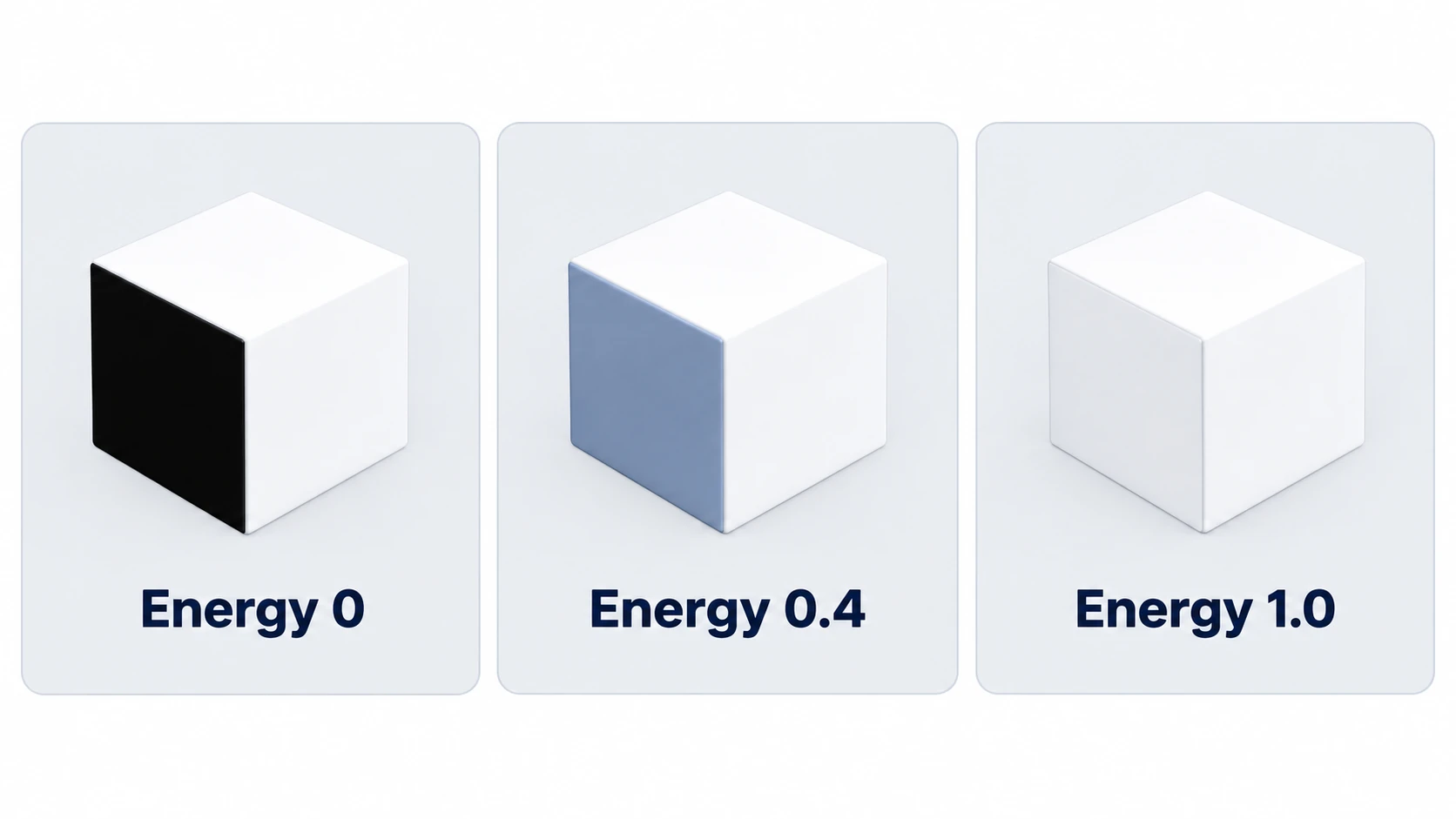
At 0 it's completely black. The higher you go, the brighter the shadowed side gets, and at the default 1 the difference from the sunlit side shrinks and things look flat. For daytime, around 0.3 to 0.5 is the range where both the differences between faces' directions and the shadows are visible.
Using the three lights
As a beginner, knowing three nodes that shine light is enough.
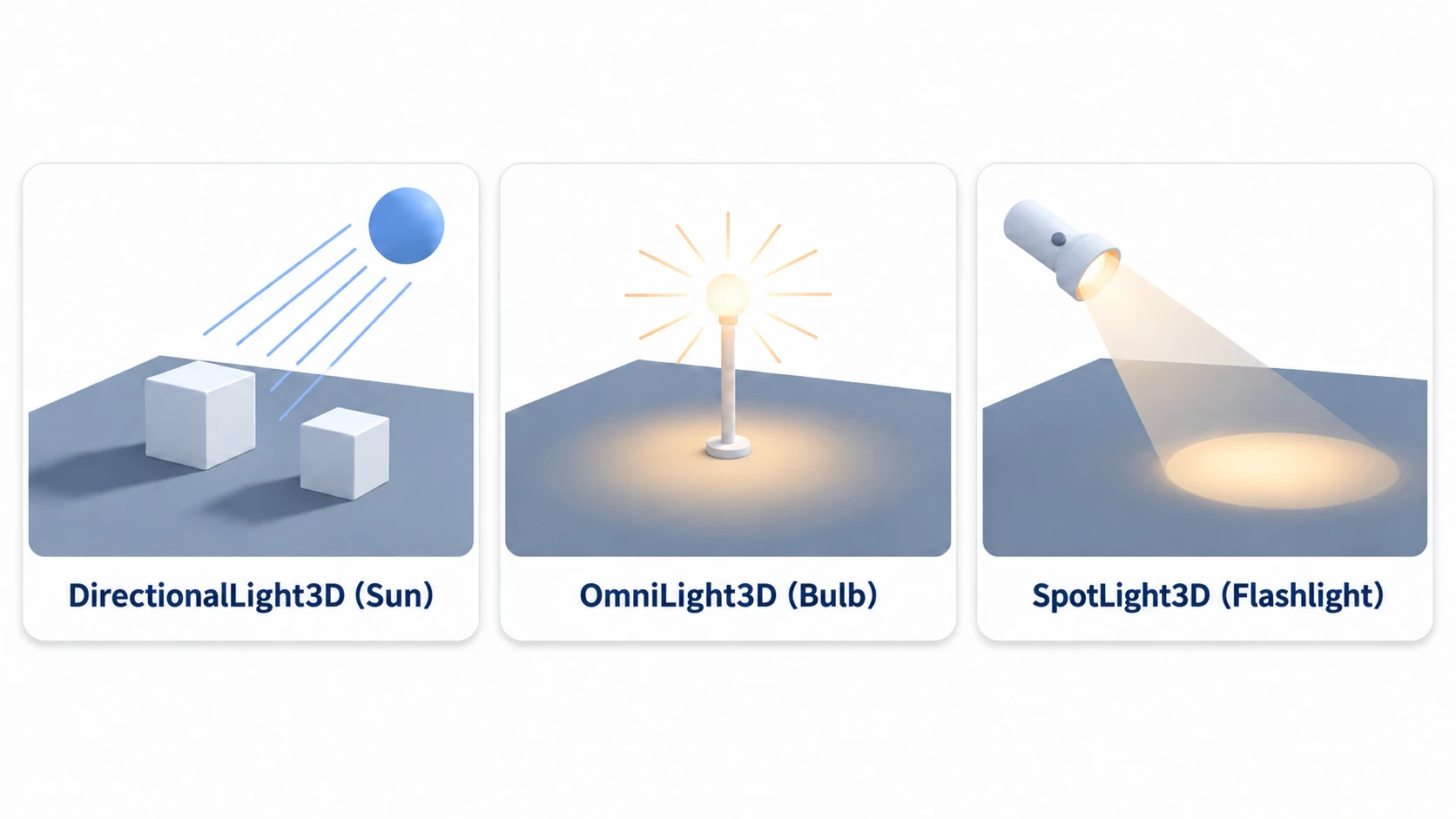
- Sun (DirectionalLight3D): light that has only a direction. It doesn't weaken with distance and reaches everywhere. Shadows stretch in parallel
- Bulb (OmniLight3D): light spreading in all directions from one point. It has a reach (Range). It makes a round pool of light on the floor
- Flashlight (SpotLight3D): light spreading in a cone from one point. It has both a direction and a reach. Shine it at an angle and it makes an ellipse on the floor
The most common misunderstanding with the sun is position. A DirectionalLight3D gives the same result wherever you put it. Only rotation matters, and the light travels toward the node's -Z direction.
In other engines: the three lights correspond to Directional, Point, and Spot Lights in Unity and Unreal Engine (the brightness values aren't shared).
How to make shadows
Placing a light doesn't make shadows. All three kinds have Shadow's Enabled off by default. Check Enabled in the light's Inspector.
Inside the sun's shadow is a place where the sun's light is blocked and only ambient light remains. If shadows don't show even with it on, check these three things.
- Is there a floor to receive the shadow? A floating box alone has nowhere for its shadow to fall
- Is the light hitting the box? For the sun, the direction of its rotation; for bulbs and flashlights, whether it's inside Range
- Is the ambient light's Energy too high? It brightens even the inside of shadows and buries them
Keep the number of lights that cast shadows small. In this article's hands-on too, only the sun casts shadows.
Bringing back blown-out white with Tonemap
Add up the sun and ambient light, and the floor and the tops of boxes can blow out to pure white. That's where the sum has passed the upper limit of brightness the screen can show.
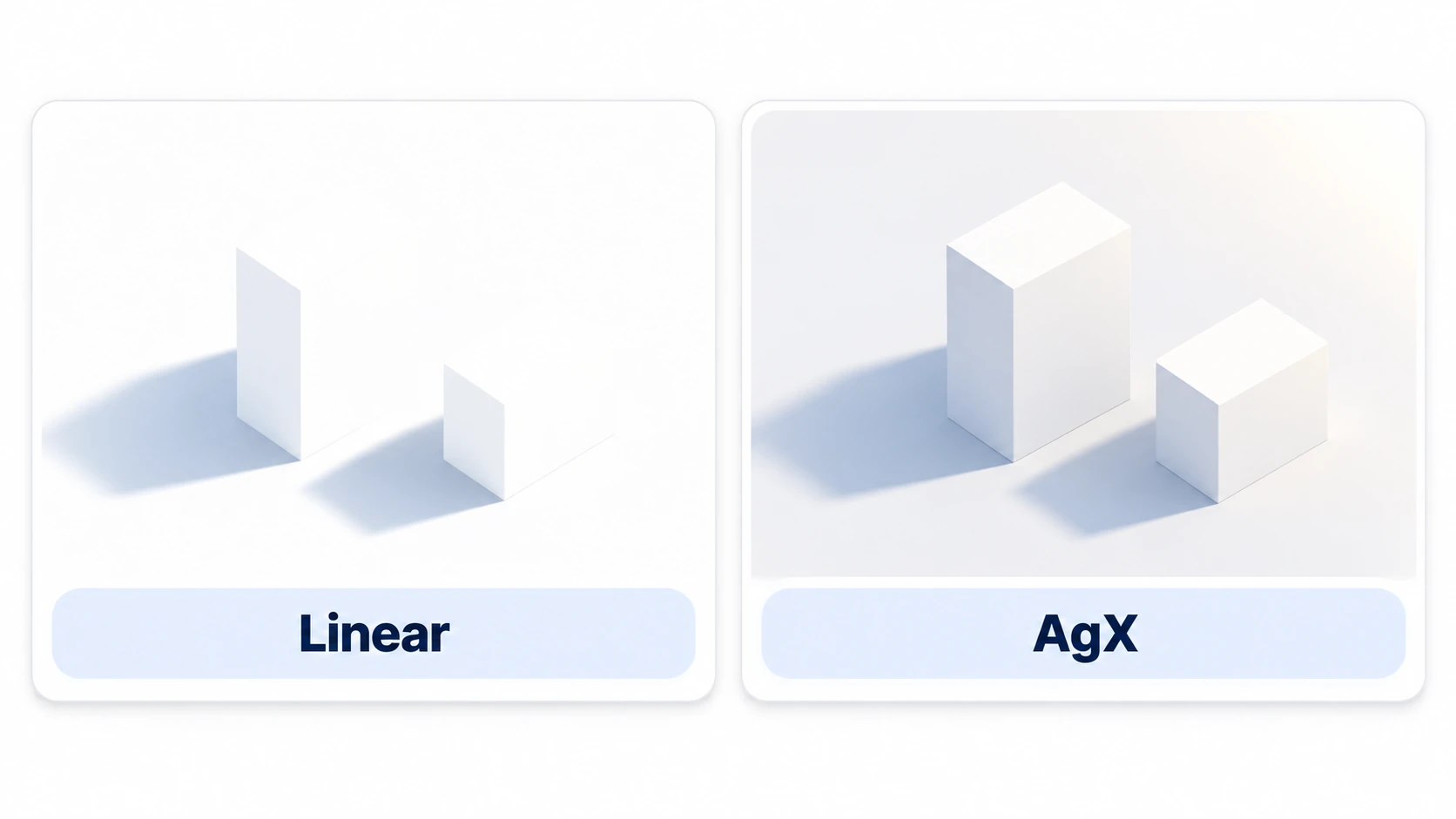
The Environment's Tonemap is the setting that fits overly bright values back into screen colors. The default, Linear, turns anything above the limit straight to white.
Set Mode to AgX, and gradation returns to the blown-out parts (ACES for Godot 4.3 and earlier). AgX approaches white more gently the brighter something is. If you weaken the lights first to get rid of blown-out white, even the parts that weren't blown out get darker. Change Tonemap first, and only if it's still too bright, lower the lights' Energy.
Night lighting
Turn off the sun to make it night, and almost all the light from lights disappears. Only ambient light remains, so if that's near 0, the screen goes completely black, exactly as calculated.
For night, change these four together.
- Hide the sun's DirectionalLight3D
- Make Background a dark navy single color
- For ambient light, set Source to Color, choose a dark blue, and leave Energy at about 0.3. Don't make it 0
- Place OmniLight3D streetlights and make their color warm
The catch here is the streetlights' Range. The default is 5, and no light at all reaches outside it.
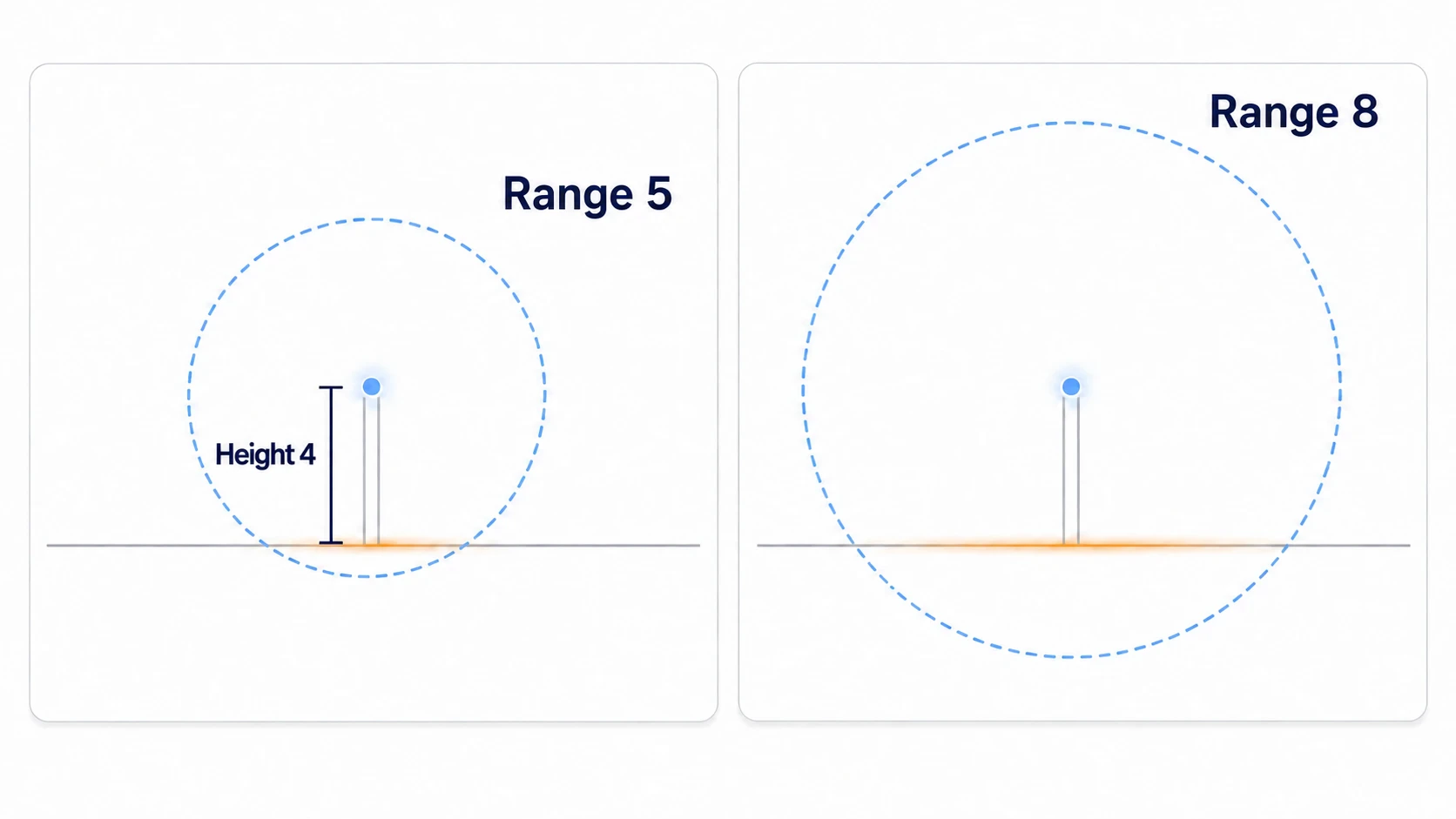
Range is the distance light reaches from the light, so count the height too. For a streetlight 4 meters high lighting 4 to 5 meters out from its base, Range is about 8. At the default 5, it reaches the floor only up to 3 meters from its base, and that light is weak.
Hands-On: Switch the Same Plaza Between Day and Night
An outdoor RPG, a top-down survival game, first-person exploration—every 3D game with day and night has this switch. You'll make one plaza lined with boxes and go back and forth between day and night with a single key.
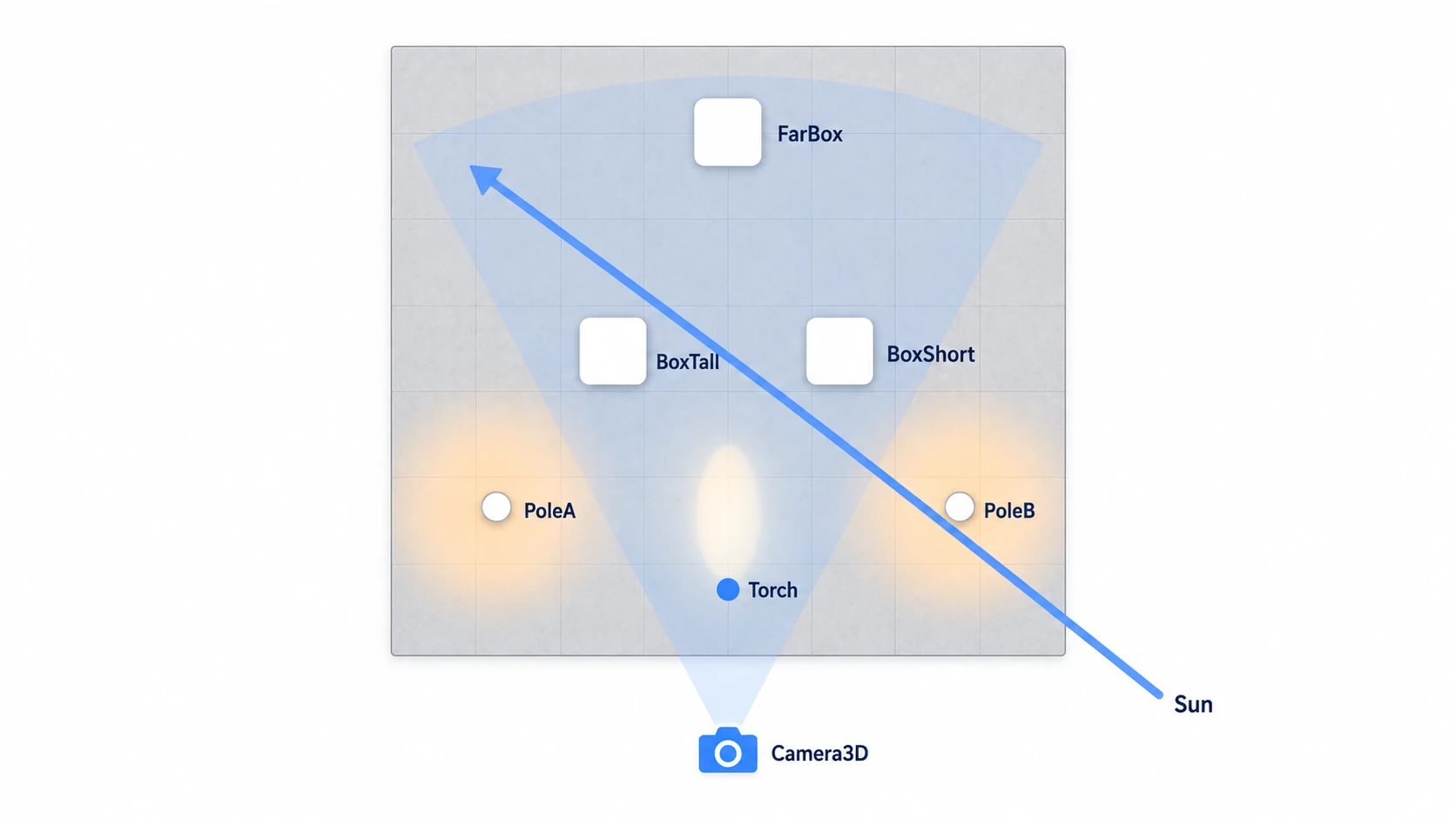
① What to place
Create one new 3D scene. Enter angles in degrees in the Inspector's Rotation, and leave every node's Scale at (1, 1, 1).
- Put a Node3D at the root as Main, and set it as the Main Scene
- Under Main, place a WorldEnvironment. You'll make its contents in ②
- Under Main, place six CSGBox3Ds (boxes whose size you can set numerically)
| Name | Size | Position |
|---|---|---|
| Ground | (20, 0.5, 20) | (0, -0.25, 0) |
| BoxTall | (2, 4, 2) | (-3, 2, 0) |
| BoxShort | (2, 2, 2) | (2, 1, 0) |
| FarBox | (2, 2, 2) | (0, 1, -8) |
| PoleA | (0.2, 4, 0.2) | (-6, 2, 4) |
| PoleB | (0.2, 4, 0.2) | (6, 2, 4) |
- Create a New StandardMaterial3D in Ground's Material, and set Albedo's (the face's color) Color to #808080. Leave the other boxes white
- Under Main, place a DirectionalLight3D as Sun. Rotation (-45, 60, 0), and turn on Shadow's Enabled
- Under Main, place a Node3D as Lamps. Under it, place two OmniLight3Ds, with LampA's Position at (-6, 4, 4) and LampB's at (6, 4, 4). For both, set Range to 8, Energy to 2, and Color to #FFD39A
- Under Main, place a SpotLight3D as Torch. Position (0, 5, 9), Rotation (-60, 0, 0), Range 10, Energy 4, Spot Angle 20
- Under Main, place a Camera3D at Position (0, 6, 13), Rotation (-20, 0, 0), with Current (show through this camera) on. Leave its Environment empty (put one there and it takes priority over WorldEnvironment)
- Under Main, place a Label as StateLabel. Set its Position to (16, 16)
- Right-click WorldEnvironment, Sun, Lamps, Torch, and StateLabel one at a time and turn on Access as Unique Name. Scripts can then call them by name, as in
%Sun(Node References)
A light's Energy is a brightness multiplier, so it's fine to go above 1, as with 2 or 4. Making only the floor gray creates a contrast with the white boxes. Spot Angle is the angle from the center to the edge, so 20 opens the whole cone to 40 degrees.
② Make the day and night Environments
Select WorldEnvironment and choose New Environment in the Inspector's Environment field. Once you've given the new Environment the day values, choose Save As... from the field's menu and save it as res://day.tres.
For both day and night, set Ambient Light's Source to Color and Tonemap's Mode to AgX. Only the background and ambient light differ.
| Item | Day (day.tres) | Night (night.tres) |
|---|---|---|
| Background → Mode | Sky | Custom Color |
| Background contents | New Sky in Sky, then New ProceduralSkyMaterial in its Sky Material | Color set to #080D20 |
| Ambient Light → Color | #AAB8CC | #263A66 |
| Ambient Light → Energy | 0.4 | 0.3 |
For night, make a new one again from New Environment and save it to res://night.tres. Rewrite the day Environment's values to make night, and day.tres itself becomes night.
Setting Background to Sky takes two levels. Create a New Sky in the Sky field, and put a New ProceduralSkyMaterial in its Sky Material. Skip the Sky in between, and no sky is drawn.
Attach a script to Main.
# main.gd (Main's Node3D)
extends Node3D

const DAY := preload("res://day.tres")       # load the files ahead of time
const NIGHT := preload("res://night.tres")

@onready var world: WorldEnvironment = %WorldEnvironment
@onready var sun: DirectionalLight3D = %Sun
@onready var lamps: Node3D = %Lamps
@onready var torch: SpotLight3D = %Torch
@onready var state: Label = %StateLabel

var is_night := false

func _ready() -> void:
	_apply()

func _unhandled_input(event: InputEvent) -> void:
	if event.is_action_pressed("ui_accept"):   # Space or Enter
		is_night = not is_night
		_apply()

func _apply() -> void:
	world.environment = NIGHT if is_night else DAY   # swap the background and ambient light together
	sun.visible = not is_night
	lamps.visible = is_night                         # hiding the parent turns off both child lamps
	torch.visible = is_night
	state.text = "NIGHT" if is_night else "DAY"
No numbers are written in the script. The difference between day and night is just the two .tres files and which lights are shown. By day Sun is shown, by night Lamps and Torch. Lamps is a parent, so one line turns off both streetlights.
③ Run it and check
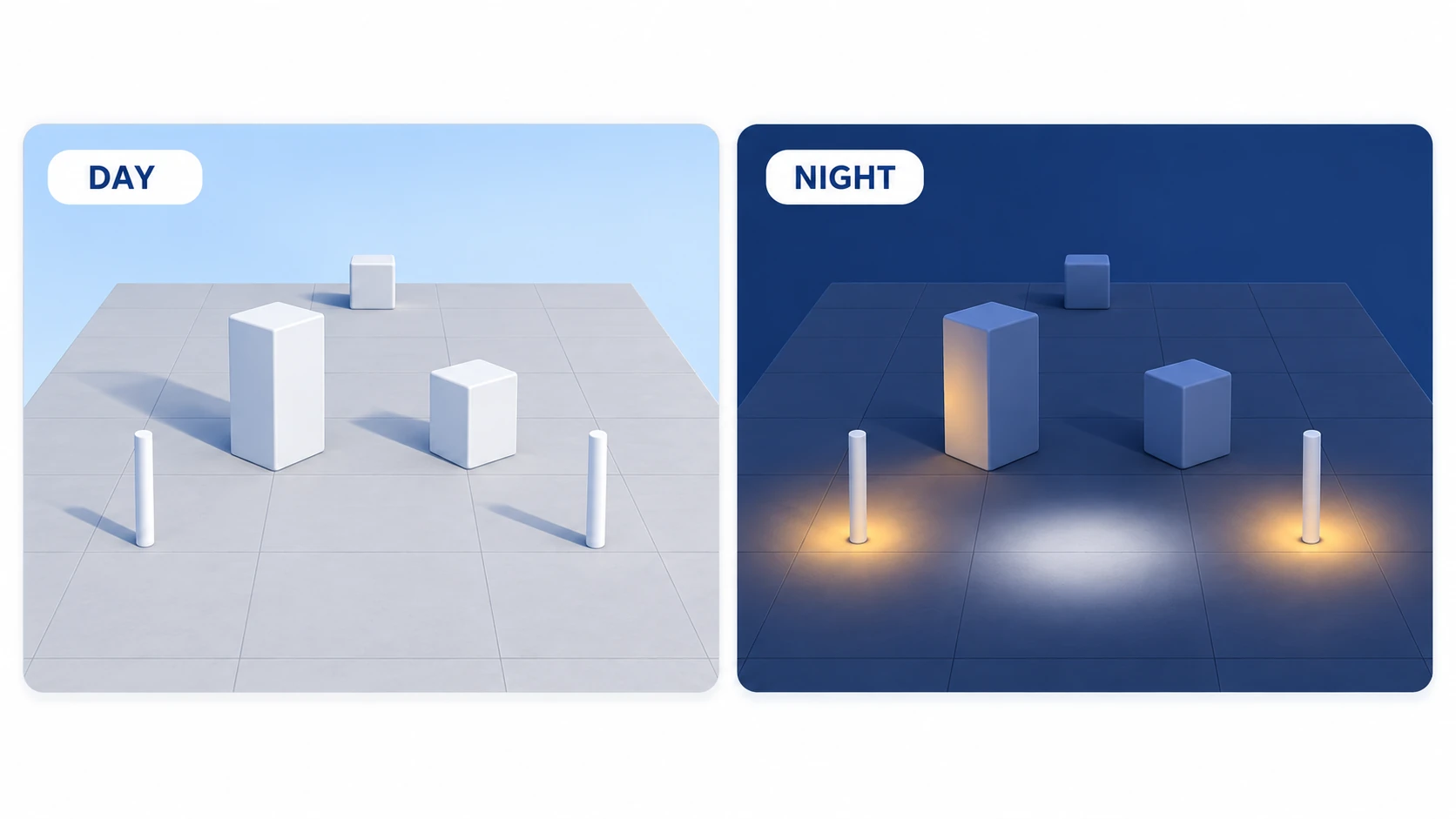
Play, and it starts in day, switching between day and night each time you press Space or Enter. Check three things.
By day, shadows stretch from the two boxes toward the back left of the screen, and the tall box's shadow is clearly longer. From the base of each box to the tip of its shadow, the tall box's stretches 4 meters and the short box's 2 meters. If you can't see shadows, check Sun's Shadow. Stop and move Sun's Position, and the shadows don't change; change Y in Rotation, and the shadows' direction turns.
By night, warm round pools of light form at the feet of the two poles, and Torch's white ellipse falls on the floor in front. If the pools are small and dim, first check whether the streetlights' Range is still at the default 5.
To finish, look at FarBox at the back while it's night. It's inside neither the streetlights' Range nor Torch's cone, so only ambient light is lighting it. It becomes a dark blue that's neither completely black nor daytime-bright, and its outline shows through the brightness difference from the gray floor. Stop once, set Ambient Light's Energy in night.tres to 0, then play and switch to night, and FarBox's blue tint disappears as it sinks into the same black as the floor.
Two points.
- Places light doesn't reach have only ambient light: light from lights is added only to faces it reaches. The brightness of faces it doesn't reach is decided directly by the ambient light's color and Energy
- What you switch is the resource: instead of making two scenes, split the Environment into two files. The boxes stay in the same places, so the only difference is the light
To walk around this plaza, turn on Ground's Use Collision and add the movement from CharacterBody3D Basics.
Troubleshooting
| Symptom | Cause | Fix |
|---|---|---|
| Shadow edges are jagged and rough | The sun's shadows are prepared far into the distance, and the resolution for nearby shadows isn't enough | Lower Directional Shadow's Max Distance (how far from the camera shadows are drawn, default 100) to the range where you want shadows |
| Striped patterns appear on faces / shadows float off the feet | The value that corrects shadow offset doesn't fit | For stripes, raise Shadow's Normal Bias a little. If shadows float, lower Bias |
| After adding more streetlights, part of a large floor gets no light | In Compatibility and Mobile, up to 8 bulbs affect a single mesh | Split the floor into smaller pieces, or narrow Range to reduce how many overlap |
Bonus: Good to Know First
- Glow only blurs bright areas: even with Glow on, by default only areas whose brightness exceeds HDR Threshold (default 1) blur. With this article's light levels, the pools of light on the floor don't reach it, so to check it, lower the threshold a little
- Fog after the lights are settled: just Enabled and Density make far boxes melt into the air. Thick fog makes it hard to tell whether light is reaching, so add it last
- 2D lights are a separate system: 2D lights such as PointLight2D are separate from 3D lights. 2D is covered in 2D Lighting Basics
Summary
- Brightness is addition: a face's brightness is light from lights plus ambient light. The brightness of faces light doesn't reach is decided by WorldEnvironment's Ambient Light color and Energy
- Three lights to shine: the sun has direction, the bulb has distance, and the flashlight has both. Comparing them on the floor shows the difference
- Shadows are off by default: turn on Shadow's Enabled. Keep shadow-casting lights few
- Blown-out white is Tonemap's job: from the default Linear to AgX. Change this before weakening the lights
- Leave ambient light at night: once the sun is off, rebuild the brightness with ambient light and streetlights
Start by placing one WorldEnvironment and comparing Ambient Light's Energy at 0 and 0.4. Once you see how the shadowed faces change, you can build both day and night with numbers. Which lights will light the night in your game?