A presentation lasting a few seconds, like a boss's entrance (a cutscene), is built in AnimationPlayer by lining up the door, the camera, and the boss's movements on a single timeline. It's standard to also add a skip, so players can jump past it from the second time on.
But AnimationPlayer doesn't stop input, so the player can walk around in the middle of the cutscene. Build the skip with stop(), and control comes back with the door still shut and the boss still gone.
This article covers building a 6-second boss entrance so that it ends in the same state even when skipped.
What You'll Learn
- How to split what you leave to the animation (the state that remains at the end) from what you switch and restore yourself (input and the camera)
- When to use property tracks and when to use method tracks
- Why a skip sets
seek()'s third argument totrue, and why it doesn't usestop()- Ending with the same function whether the cutscene is watched to the end or skipped
Tested with: Godot 4.7
- What you leave to the animation and what you switch yourself
- Property tracks (the state that remains at the end)
- Method tracks (events at a single moment)
- Switching input and the camera
- Skipping (jumping to the last moment with seek)
- Hands-On: Build the 6-Second Boss Entrance and Skip It With Enter
- Troubleshooting
- Bonus: Good to Know First
- Summary
What you leave to the animation and what you switch yourself
In AnimationPlayer, you can line up as many tracks as you like, each deciding a node property over time. Put the door's position, the camera's position, and the boss's visibility on one timeline, and the 6-second cutscene becomes a single animation. How to set keyframes is in AnimationPlayer Basics.
But the animation only decides the properties you put in tracks. It doesn't touch the player's input or which camera is showing the scene. You switch these two in the function that starts the cutscene, and put them back in the function that ends it.
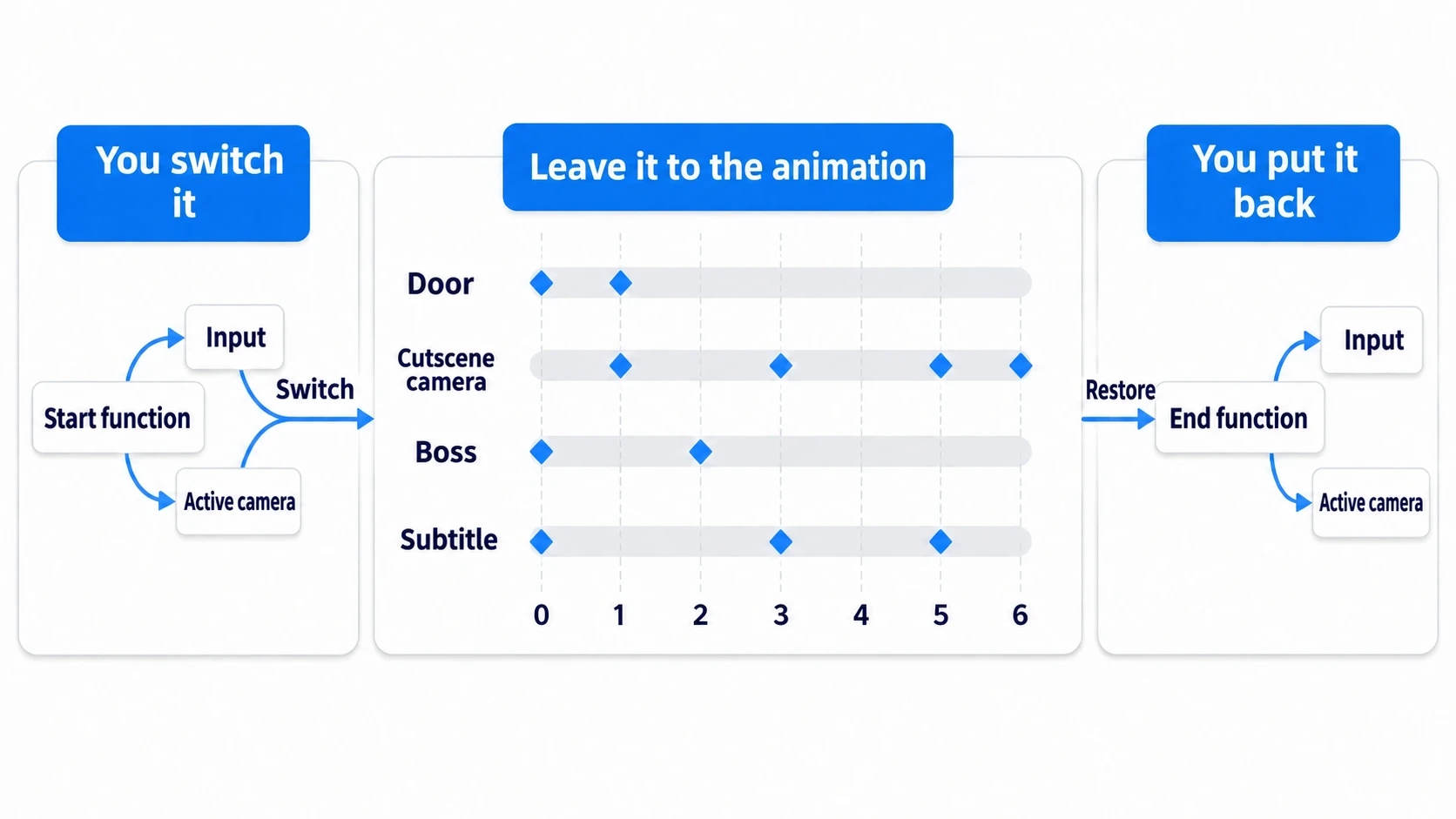
When an animation plays to the end, the keyed properties stay at their last values. The door stays open and the boss stays out. Only write code to put things back when you want them put back.
In other engines: for building presentations, AnimationPlayer, which lines up multiple nodes' movements and function calls on a timeline, plays a role close to Unity's Timeline or Unreal Engine's Sequencer.
Property tracks (the state that remains at the end)
The door has opened, the boss has appeared, the subtitle has disappeared. Things you want to remain after the cutscene ends go in property tracks. The door uses position, the boss uses visible, and the subtitle uses visible too.
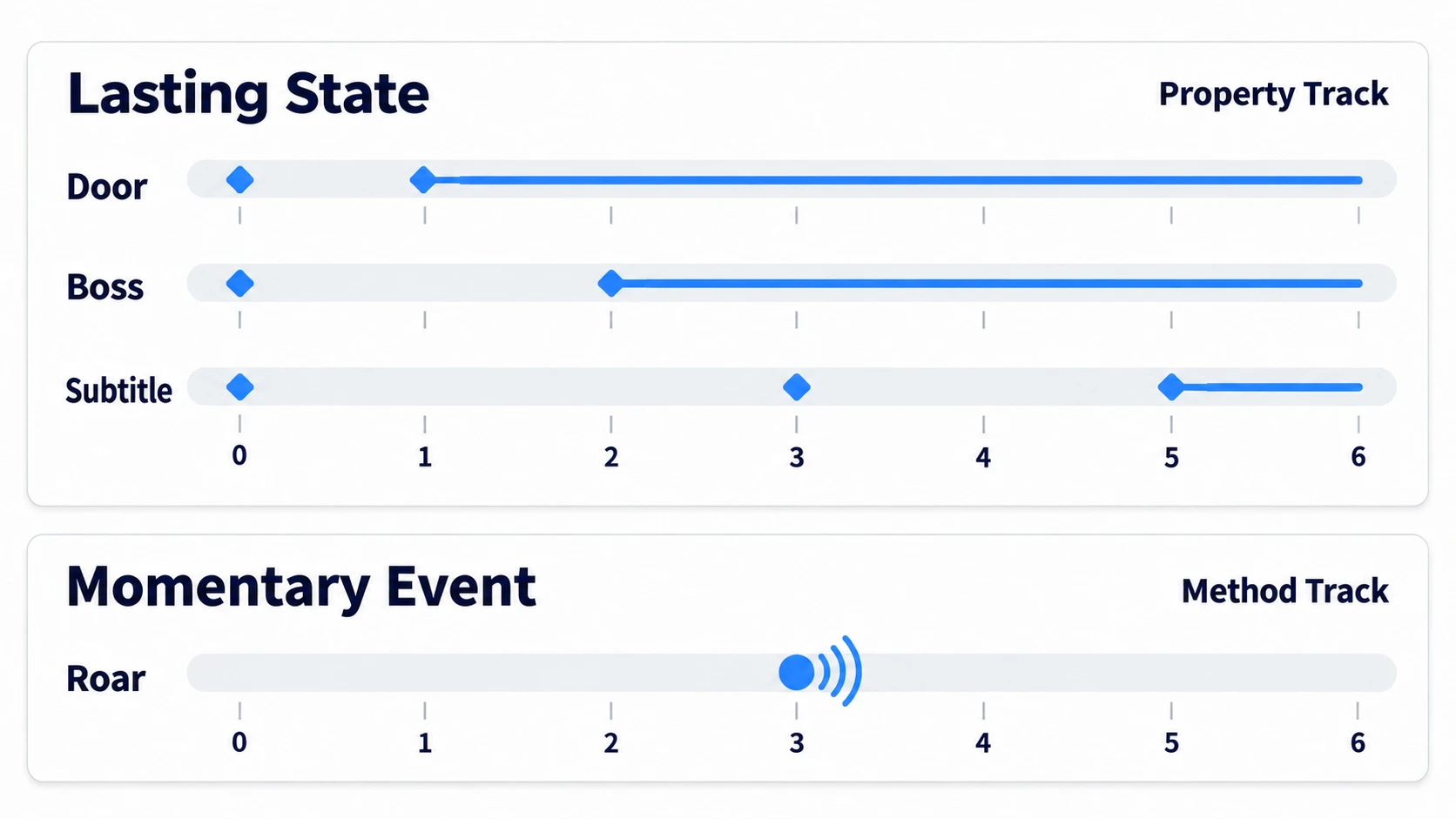
Properties with no in-between values, like visible, get tracks created with the Discrete update mode (switching instantly at the key's time). For the boss, set a false key at 0 seconds and a true key at 2 seconds, and it appears at 2 seconds.
Avoid having a method track call add_child() (the function that adds a node to the scene) to bring the boss out. With the skip explained later, that call gets skipped and the boss is missing. Place the boss in the room from the start and show it with visible. visible only controls whether it's drawn. For a boss with collision or movement, keep its Process Mode (whether the node runs every frame) at Disabled until the cutscene ends, then turn it back on in _finish() to start the fight.
Method tracks (events at a single moment)
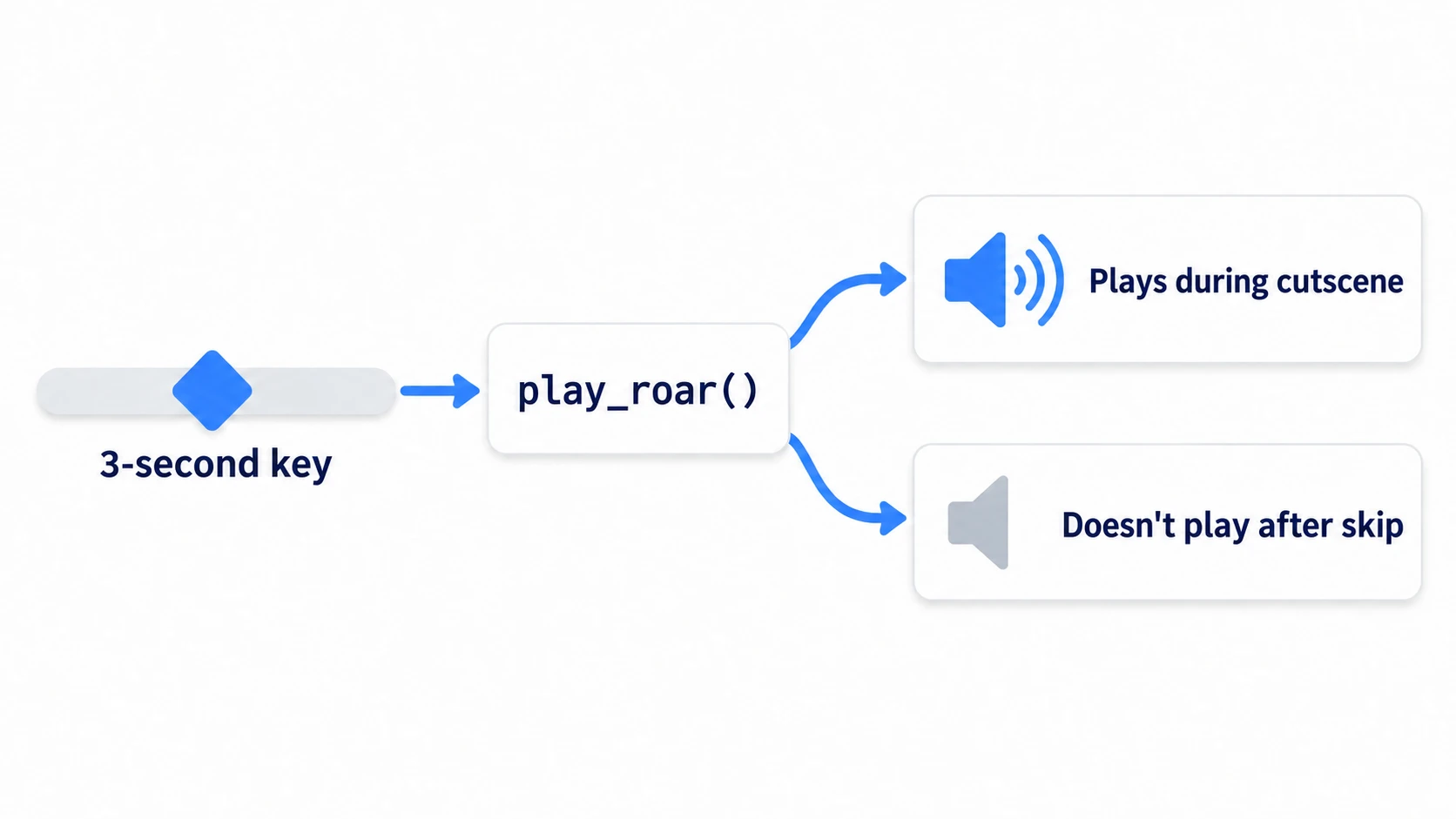
Events that only need to happen once at a given moment, like the roar sound effect, go in a method track (a track that calls a function at a set time). The key at 3 seconds calls Main's play_roar().
# called from the method track at 3.0 seconds
func play_roar() -> void:
	if running:                       # only play it while the cutscene is running
		roar_sound.play()
if running: is there because by default, a method track's call isn't executed on the spot but arrives a little later (AnimationPlayer's Callback Mode › Method defaults to Deferred). Even if the call arrives right after a skip, nothing plays once the cutscene has ended.
Switching input and the camera
In the function that starts the cutscene, stop the player and switch to the cutscene camera. In the function that ends it, put those two back.
func _start() -> void:
	seen = true                        # mark it "seen" as soon as it starts
	running = true
	player.set_physics_process(false)  # keep the player still during the cutscene
	cutscene_camera.make_current()     # switch to the cutscene camera
	cutscene.play("boss_intro")
set_physics_process(false) stops that node's _physics_process(). If movement is kept in _physics_process(), this one line stops the player. Only one camera shows the screen: the camera that last called make_current(). Call make_current() on the player's camera in the end function and it switches back.
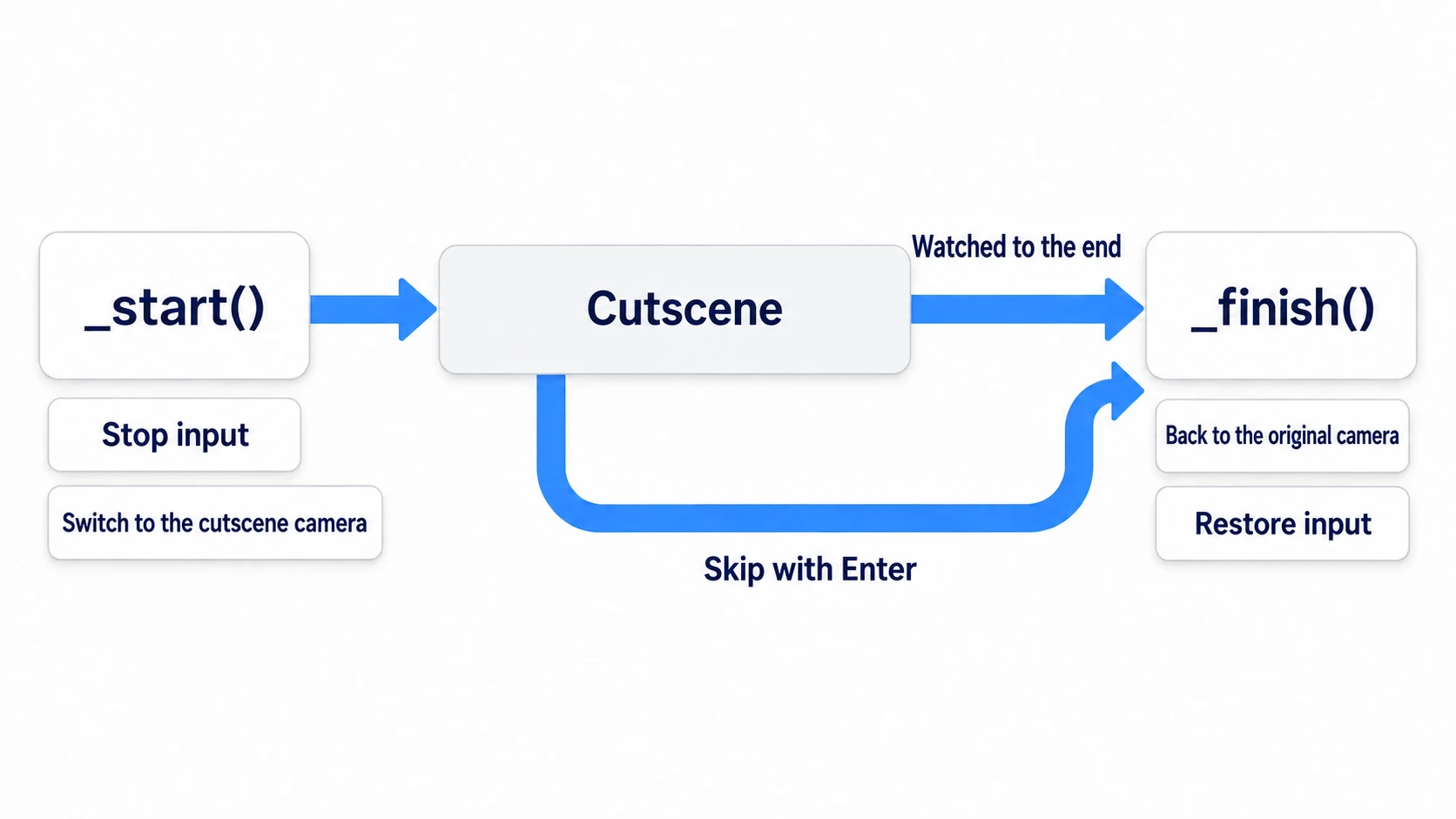
Call the end function both when the cutscene plays to the end (animation_finished) and when it's skipped. So that it only runs once even if called twice, check running at the top. Set the "seen" flag, seen, when the cutscene starts, not when it ends. Set it the moment it starts, and whatever happens partway through, it never starts a second time.
Skipping (jumping to the last moment with seek)
To skip, move the animation to its last moment, then call the end function.
# jump to the last moment. The third true skips processing method and audio tracks
cutscene.seek(cutscene.current_animation_length, true, true)
_finish()
current_animation_length is the length of the animation currently playing (6 seconds here). The second argument (update) set to true applies the values at the destination right away. The door goes to its fully open position, and the boss's visible becomes the last key's true.
The third argument (update_only) set to true skips processing method and audio tracks. Leave it out, and the last method key up to the destination time (here, play_roar() at 3 seconds) is called once, and audio tracks are processed too. This article's play_roar() stays silent thanks to the running check. Functions without such a check, and audio tracks, run the moment you skip.
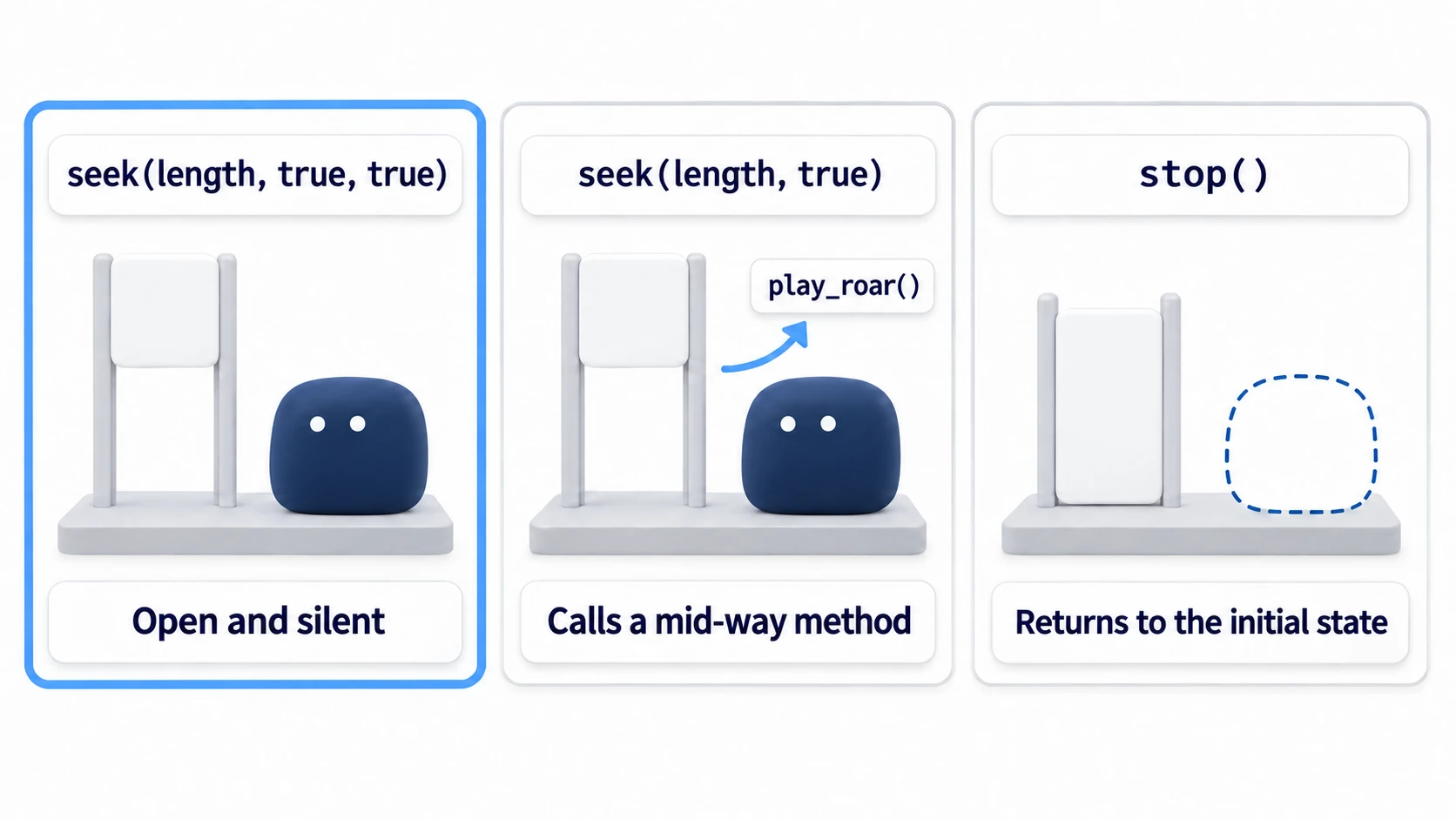
Use stop() to skip, and the door goes back to its closed position, with the boss and subtitle hidden. stop() with no argument reapplies the values from the start of the animation and then stops. When stopping in the end function, use stop(true) to stop with the last values kept.
Seeking to the last moment doesn't emit the animation_finished signal. That's why the skip handling calls _finish() itself.
Since you jump with the third argument set to true, method keys in the skipped stretch are never called. So only put events that are fine to skip in method tracks. Things that must happen after the cutscene, like starting the boss fight, go in _finish(), not in a key at the last moment.
Hands-On: Build the 6-Second Boss Entrance and Skip It With Enter
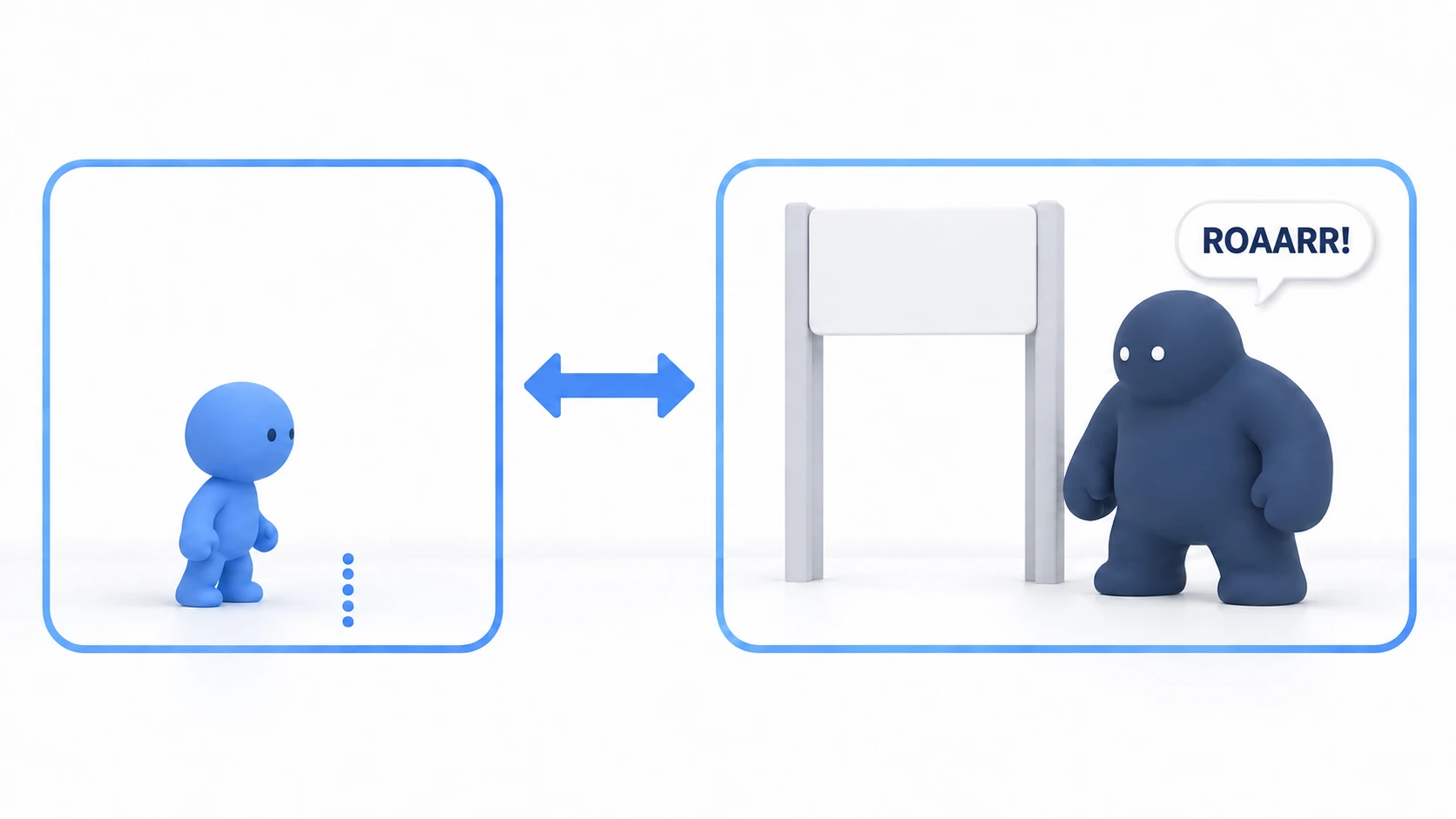
A boss fight in an action game, a key event in an RPG, the moment a door opens in a horror game—showing a fixed few seconds and then handing control back is built the same way. Pass the room's entrance, and the door opens, the camera moves in on the boss to the right, the boss roars, and the camera comes back. Press Enter (ui_accept; Space works too) and it jumps to the final state on the spot.
① What to place
Start with a new 2D project. The root of main.tscn is a Node2D (named Main, set as the main scene), with these as children.
- Player (CharacterBody2D, position (200, 300)). Children: Sprite2D (
icon.svg, Scale 0.5), CollisionShape2D (CircleShape2D, Radius 32), and PlayerCamera (Camera2D) - Trigger (Area2D, position (450, 300)). Child: CollisionShape2D (RectangleShape2D, Size (40, 400)). An invisible line at the entrance
- Door (Sprite2D, position (900, 300),
icon.svg). A door that's visuals only - Boss (Sprite2D, position (1100, 300),
icon.svg, Visible off) - CutsceneCamera (Camera2D, position (450, 300))
- UI (CanvasLayer, a layer that stays at the same place on screen even when the camera moves). Child: Subtitle (Label, Text "ROAARR!", Position (500, 520), Visible off)
- RoarSound (AudioStreamPlayer). Put a sound effect you have (
.wavor.ogg) in Stream. The cutscene works without one - Cutscene (AnimationPlayer)
② Put it together
The player only moves with the arrow keys.
# player.gd (attach to Player)
extends CharacterBody2D

func _physics_process(_delta: float) -> void:
	velocity = Input.get_vector("ui_left", "ui_right", "ui_up", "ui_down") * 200.0
	move_and_slide()
Main handles starting, skipping, and ending the cutscene.
# main.gd (attach to Main)
extends Node2D

@onready var player: CharacterBody2D = $Player
@onready var player_camera: Camera2D = $Player/PlayerCamera
@onready var cutscene_camera: Camera2D = $CutsceneCamera
@onready var cutscene: AnimationPlayer = $Cutscene
@onready var roar_sound: AudioStreamPlayer = $RoarSound

var seen := false        # once seen, don't play it again
var running := false     # whether the cutscene is in progress

func _ready() -> void:
	player_camera.make_current()
	$Trigger.body_entered.connect(_on_trigger_body_entered)
	cutscene.animation_finished.connect(_on_cutscene_finished)

func _on_trigger_body_entered(body: Node2D) -> void:
	if body == player and not seen:
		_start()

# stop input and switch the camera
func _start() -> void:
	seen = true                        # mark it "seen" as soon as it starts
	running = true
	player.set_physics_process(false)  # keep the player still during the cutscene
	cutscene_camera.make_current()
	cutscene.play("boss_intro")

func _unhandled_input(event: InputEvent) -> void:   # input the UI didn't use arrives here
	if running and event.is_action_pressed("ui_accept"):
		# jump to the last moment. The third true skips processing method and audio tracks
		cutscene.seek(cutscene.current_animation_length, true, true)
		_finish()                      # this seek doesn't emit animation_finished

func _on_cutscene_finished(anim_name: StringName) -> void:
	if anim_name == "boss_intro":
		_finish()

# whether watched to the end or skipped, it comes here
func _finish() -> void:
	if not running:
		return                         # run only once even if called twice
	running = false
	cutscene.stop(true)                # stop with the last values kept (no argument goes back to the start)
	roar_sound.stop()
	player_camera.make_current()       # switch back to the original camera
	player.set_physics_process(true)   # give input back

# called from the method track at 3.0 seconds
func play_roar() -> void:
	if running:
		roar_sound.play()
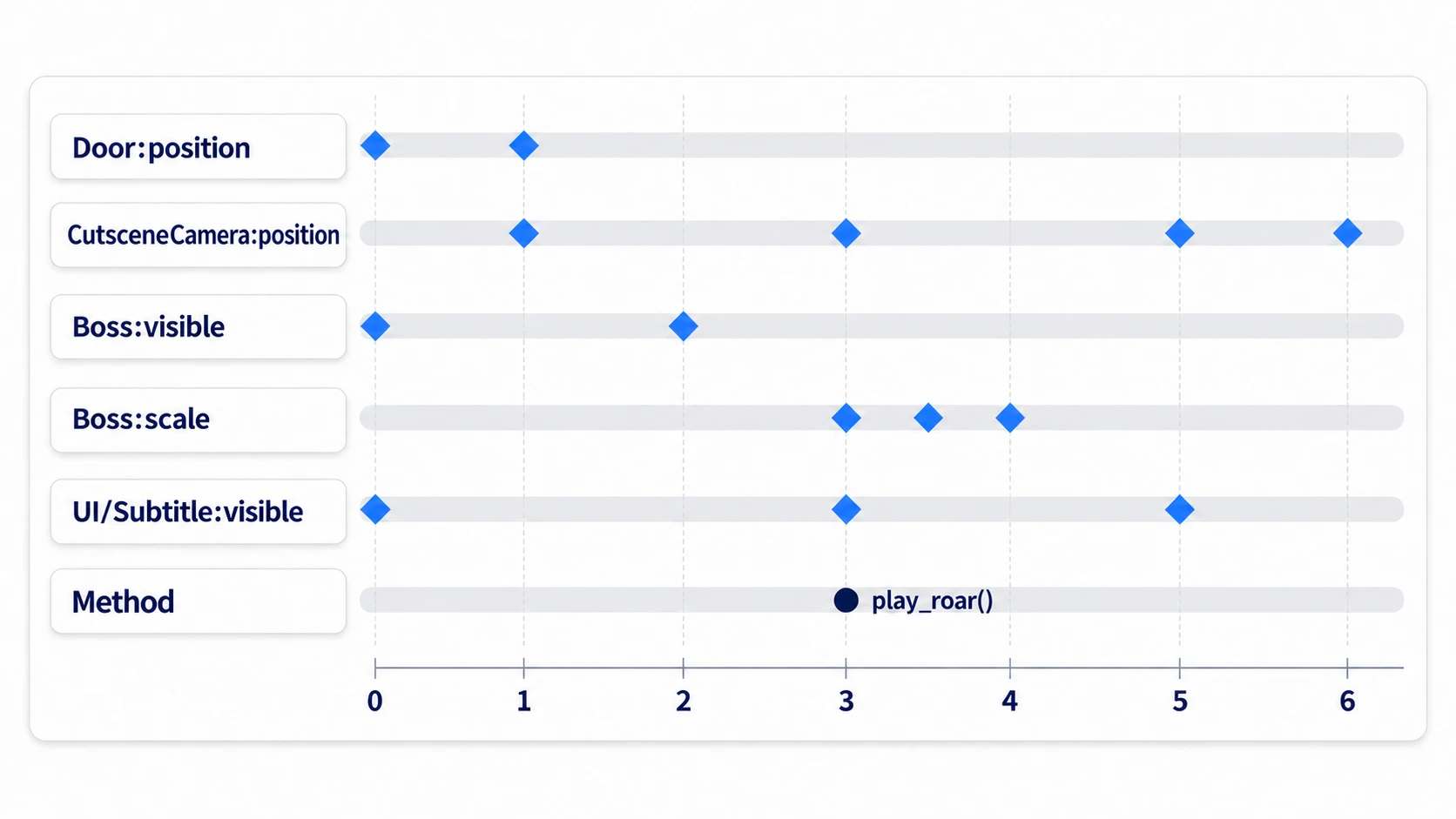
After attaching the script and saving, create a new animation boss_intro in Cutscene. Its length is 6.0 seconds, with looping off. There are six tracks.
| Track | Keys |
|---|---|
Door:position | 0 s (900, 300) → 1 s (900, 150) |
CutsceneCamera:position | 1 s (450, 300) → 3 s (1000, 300) → 5 s (1000, 300) → 6 s (450, 300) |
Boss:visible (Discrete) | 0 s false, 2 s true |
Boss:scale | 3 s (1, 1) → 3.5 s (1.3, 1.3) → 4 s (1, 1) |
UI/Subtitle:visible (Discrete) | 0 s false, 3 s true, 5 s false |
| Method (target Main) | 3 s play_roar() |
Create the method track by choosing Call Method Track from Add Track. Set Main as the target. Right-click at the 3-second position and choose Insert Key, and you can pick play_roar from the list of functions.
③ Run it and check
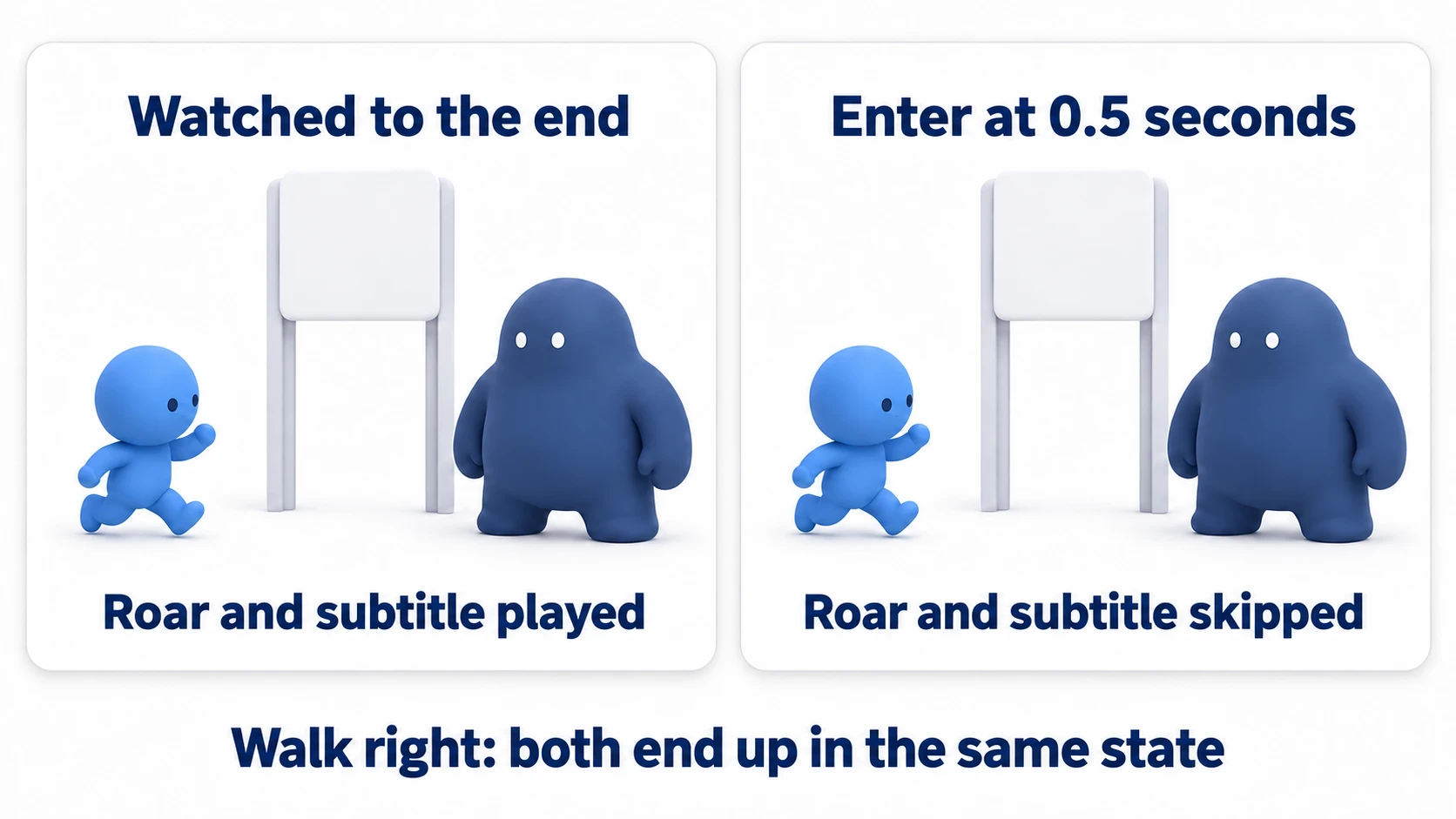
Run Main. Check three things.
First, walk right with the arrow keys. The cutscene starts when you touch the invisible range at the entrance (you can see the range with Visible Collision Shapes in the Debug menu). The door opens upward over 1 second, and the camera moves right toward the boss. At 2 seconds the boss appears to the right of the door, and at 3 seconds it roars and the subtitle appears. During this time, the player doesn't move even if you press the arrow keys. If it does, the movement code is outside _physics_process().
Next, at 6 seconds the camera returns to the player and you can walk again right away. The boss is off screen, but walk right and the door is still open and the boss is still out. Go back through the entrance and pass it again, and the cutscene doesn't play.
To finish, restart the game and press Enter while the door is partway open (around 0.5 seconds). It skips the subtitle and the roar, the camera returns to the player, and you can walk right away. Walk right from there, and just as when you watched to the end, the door is fully open and the boss is out. If the door is shut and the boss is missing, the skip is calling stop() with no argument.
Two points.
- Put the state that remains at the end in property tracks: the door's position and the boss's visibility are on tracks, so the skip only needs to jump to the last moment to reach the same state. You don't have to write a second set of code just for skipping
- One end function: whether watched to the end or skipped, it goes through
_finish(), so you never forget to restore the camera and input. If you move the player with the animation during a cutscene, the multi-track setup in AnimationPlayer Advanced works
Troubleshooting
| Symptom | Cause | Fix |
|---|---|---|
| During the cutscene, walking stops but jumping and attacking still work | Those inputs are received outside _physics_process(), such as in _unhandled_input() | Also call set_process_unhandled_input(false) during the cutscene, and set it back to true in the end function |
| A door with collision opens visually only, and you can't pass through | The animation moves only the visual Sprite2D, and the collision stays in its original place | Make the door an AnimatableBody2D (a physics body meant to be moved by animation) so the collision moves with it. Also set Cutscene's Callback Mode › Process (the step at which the animation writes values) to Physics |
| Playing the animation in the editor, nothing happens at the method key | In the editor's preview, method tracks aren't called | Run the game and start the cutscene to check. If it still doesn't work, check the target node and the function name |
| After checking the animation in the editor, the scene is saved with the door open | The values you checked remained in the scene. The RESET animation (the original values reapplied when saving) doesn't hold the closed values | Put the values "door closed, boss and subtitle hidden" in RESET, and leave Cutscene's Reset On Save on |
Bonus: Good to Know First
- Remember that it was "seen": reload the room scene and
seenis lost, and the door and boss go back to their initial state. In a game where you go in and out of rooms, keepseenin an Autoload. If it was seen, call_start()in_ready(), followed by the sameseek()and_finish()as the skip. It starts from the final state, and the cleanup written in_finish()isn't missed either. How to put it in a save is in Save and Load Basics - Don't pause the game and run only the cutscene: pause the whole tree without any settings, and AnimationPlayer and the Enter input stop along with it. Stop only the things you don't want moving during the cutscene. To stop enemies and bullets too, put them in a group,
set_physics_process(false)them all together in the start function, and restore them in the end function. How pausing and Process Mode relate is in Process Mode Basics - To insert dialogue, make the cutscene wait partway: to insert text that advances line by line,
pause()at that time, andplay()to continue once the conversation ends. How to build conversations is in Dialogue System Basics
Summary
- What you leave to the animation and what you switch yourself: the door, boss, and subtitle are the animation's; input and the camera belong to the start and end functions
- The state that remains at the end goes in property tracks: the last values remain after playback ends. Show the boss with
visible, notadd_child() - Events go in method tracks: only put things that are fine to skip there. The call can arrive a little late, so check
runningbefore playing - Skip with
seek(length, true, true): leave out the third argument and methods from the middle get called; withstop()it goes back to the initial state - One end function: call it from both
animation_finishedand the skip, and turn away the second call withrunning
In your game, which cutscene will players most want to skip the second time around?