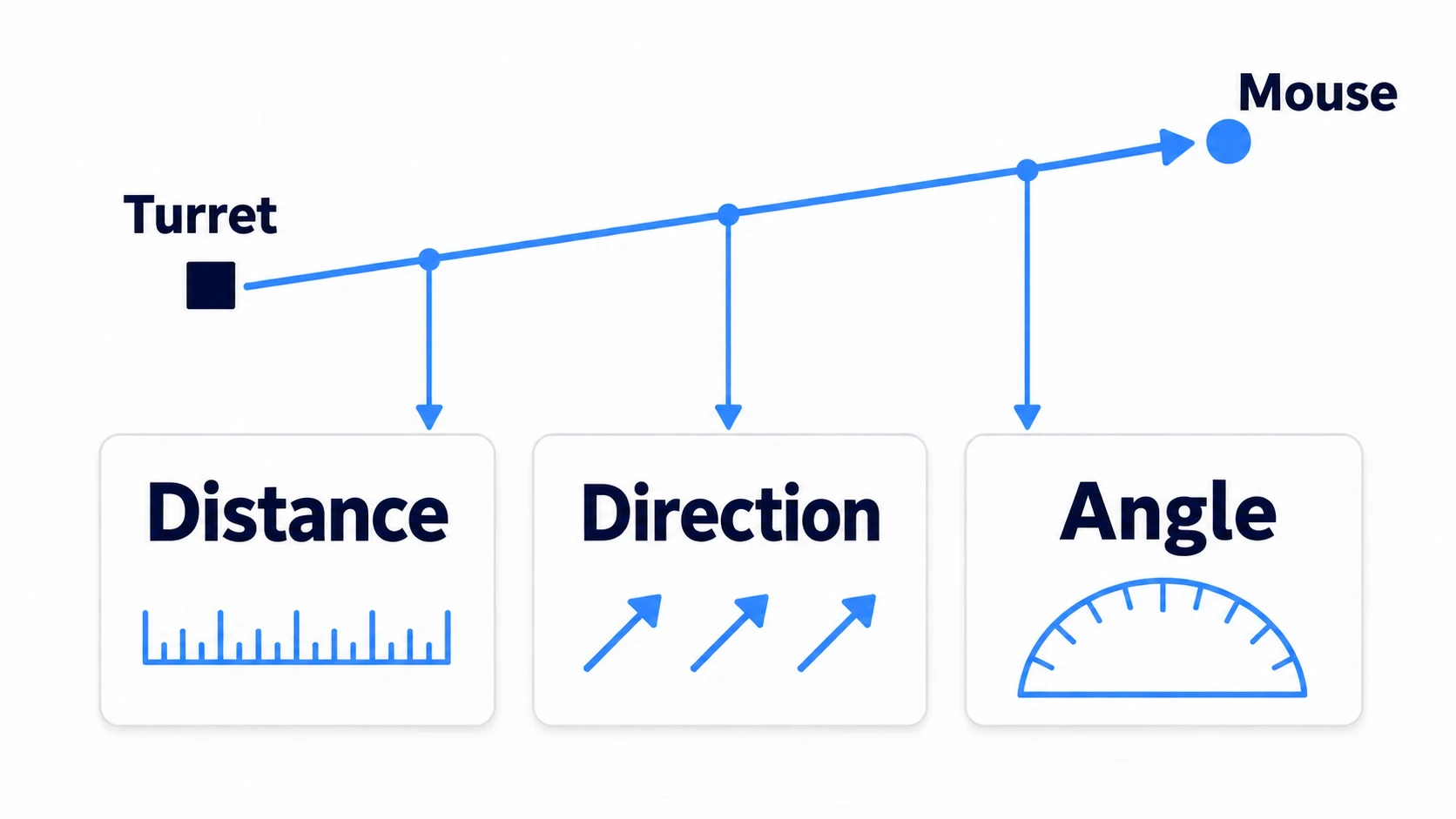
A turret that faces the mouse, or a bullet that flies straight at an enemy, is built from subtracting two positions. From the arrow (Vector2) that subtraction gives you, you pull out distance, direction, and angle, and use each where it fits.
Pull out the wrong one, and the farther away the enemy you aim at, the faster the bullets fly, or the turret swings all the way around every time it passes the left.
This article builds a turret that tracks the mouse while covering how to make the arrow, shrink it to length 1, and turn it into an angle.
What You'll Learn
- A subtraction gives you an arrow. The direction is
target - self- Shrink it to length 1 and distance drops out of the speed
- Both
angle()andlook_at()use right (+X) as the reference- Leave rotation across the left to
rotate_toward()
Tested with: Godot 4.7
- Vector2 (position, velocity, direction)
- Which way to subtract, and kinds of coordinates
- A direction of length 1 (normalized)
- Angles (angle) and the art's front
- From an angle to an arrow (rotated)
- Turning across the left (rotate_toward)
- Hands-On: Fire at a Constant Speed From a Turret That Tracks the Mouse
- Troubleshooting
- Bonus: Good to Know First
- Summary
Vector2 (position, velocity, direction)
Vector2 is a type that just holds two numbers, x and y. The same type is used for three things with different meanings.
- Position: where it is.
global_positionis this - Velocity: how far it moves in one second.
velocityis this - Direction: which way it points. One with a length of 1
Because they're the same type, you can add and subtract them, but the meanings don't mix. Adding a position to a position doesn't give a meaningful place. Meaning appears when you subtract a position from a position.
Which way to subtract, and kinds of coordinates
Subtract two points and you get an arrow from one to the other.
var offset := target.global_position - global_position
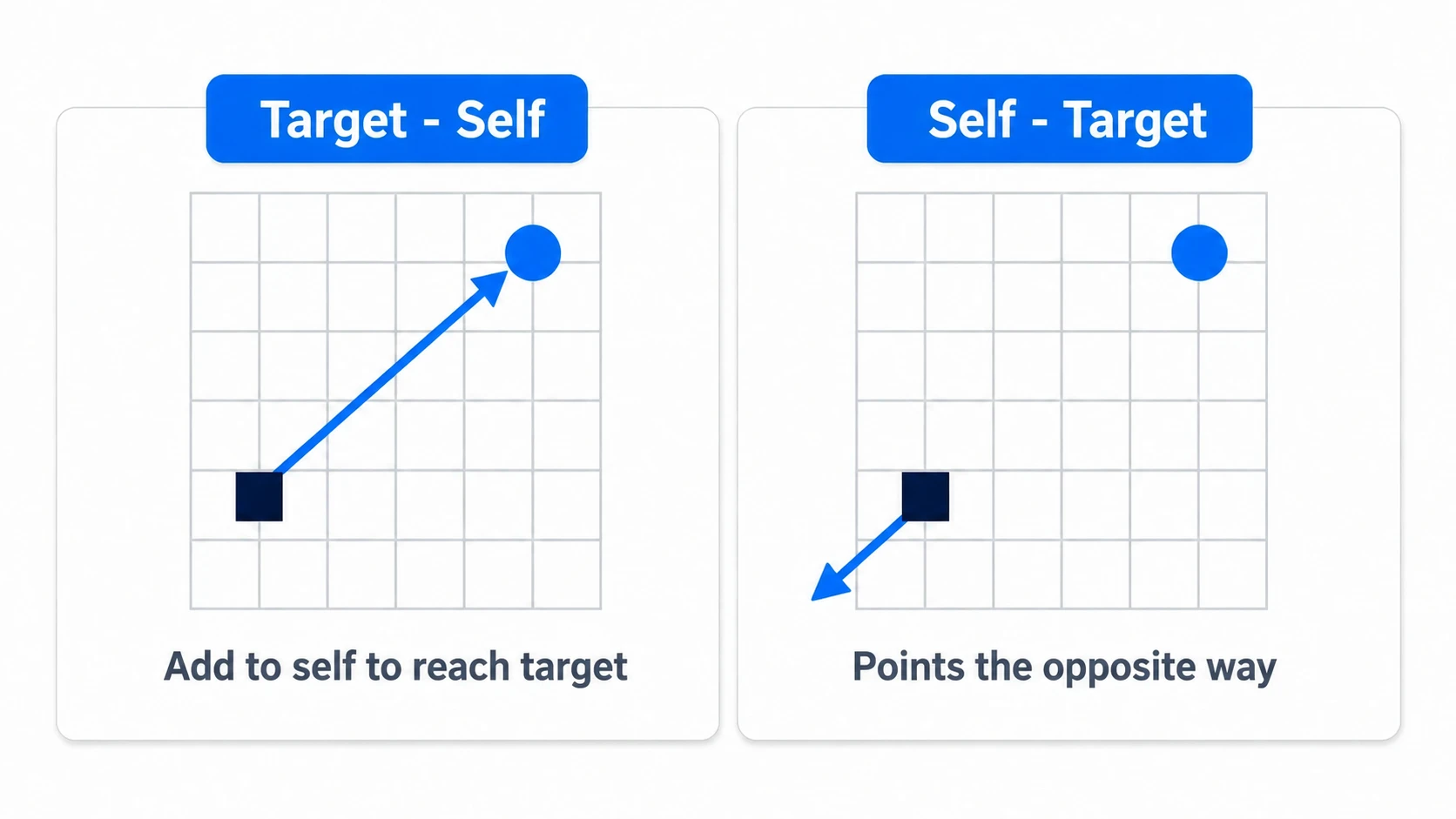
Reverse the order and the arrow points the opposite way. target - self is the arrow that, added to yourself, reaches the target. When in doubt, remember "subtract the starting point from the destination."
There's one more thing to line up before subtracting: the two points need to be the same kind of coordinate.
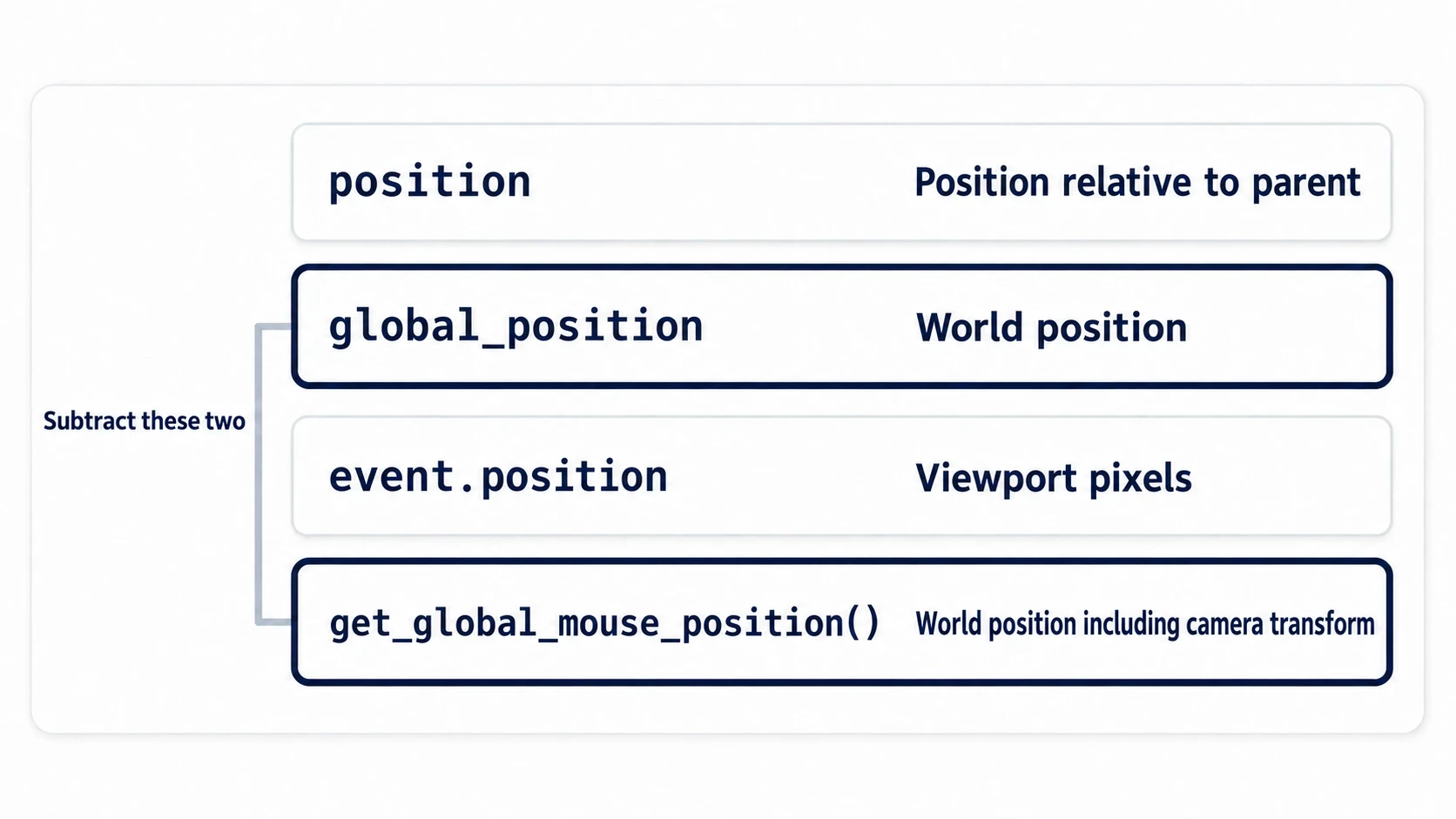
position: the position as seen from the parent. When the parent moves, the reference moves tooglobal_position: the position in the world. The same reference wherever the node hangs- InputEventMouse's
position: pixels on the screen (viewport). It doesn't include the camera's position or zoom get_global_mouse_position(): the mouse's position in the world. Includes the camera
When calculating aim, keep to the pair of global_position and get_global_mouse_position(), and nothing drifts later even if you make the turret a child of a tank or move the camera.
A direction of length 1 (normalized)
The arrow from a subtraction carries both direction and distance. Before using it as a velocity, take the distance out.
var offset := target.global_position - global_position
var dir := offset.normalized()      # length 1. Only the direction remains
var dist := offset.length()         # pull out just the distance
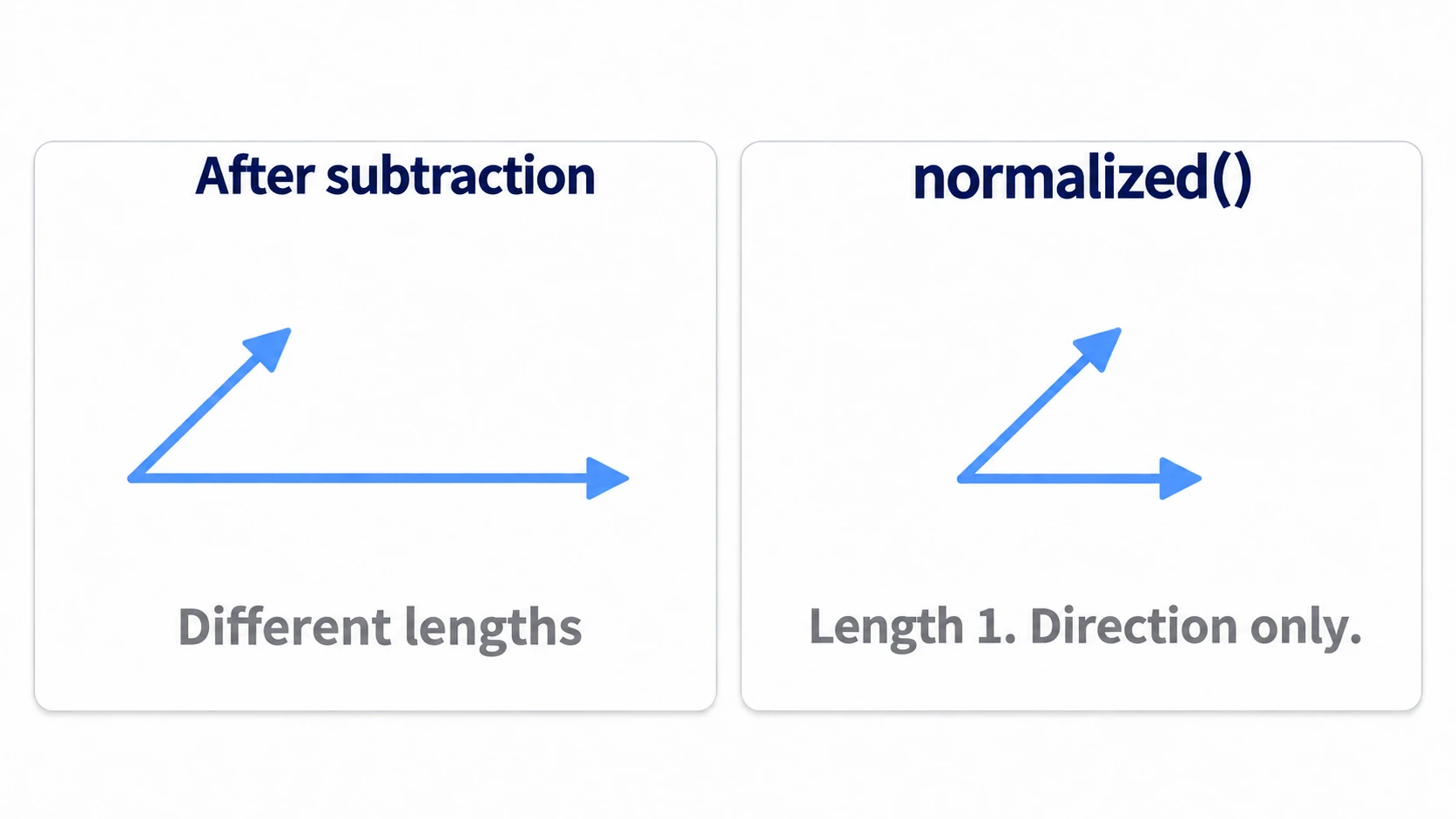
normalized() makes the arrow's length 1. The direction doesn't change. Multiply this by the speed and you get the same velocity regardless of distance.
What happens when you forget to take it out is a common symptom.
velocity = (target.global_position - global_position) * speed # distance goes into the speed
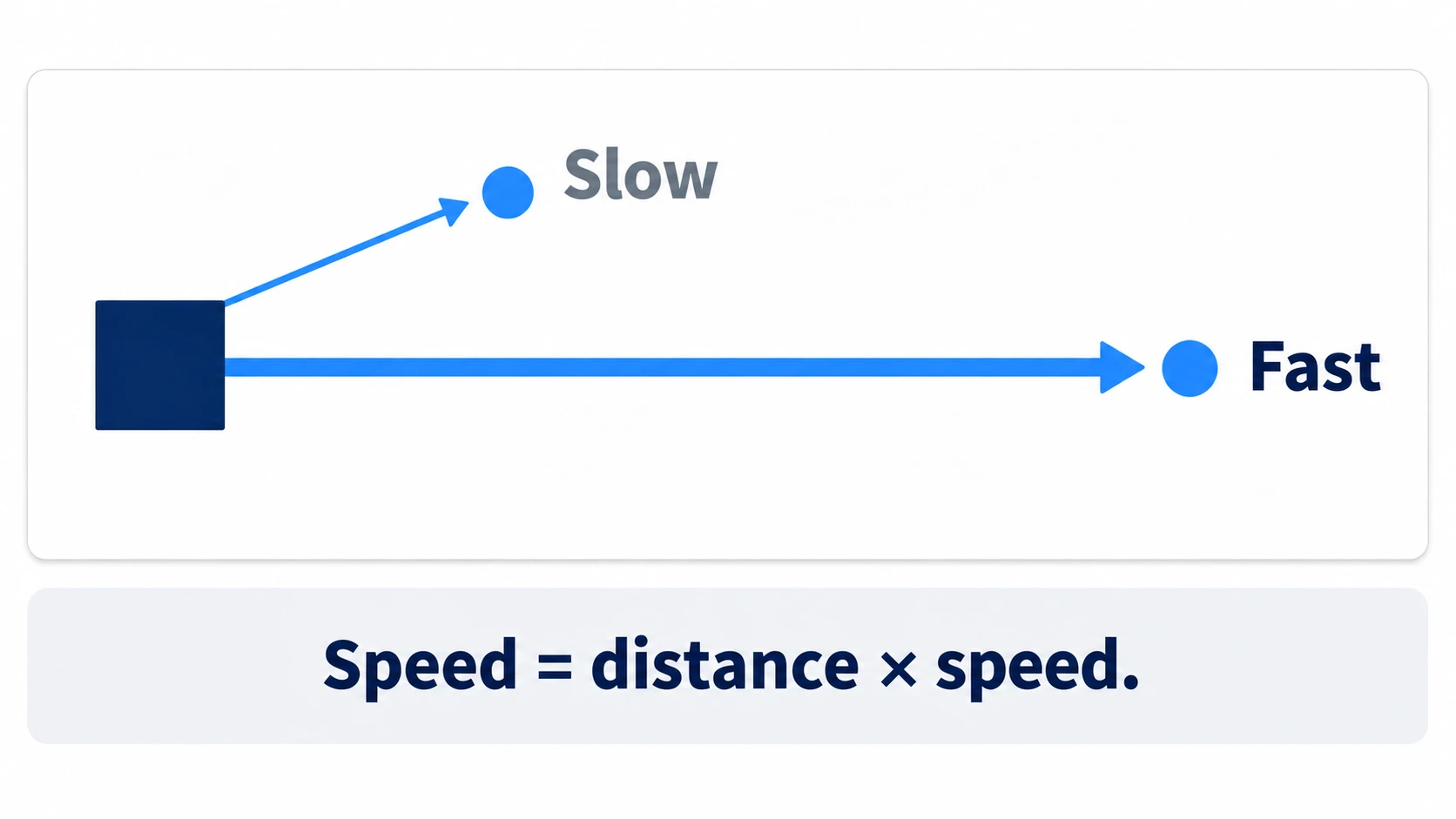
This expression's length is "distance × speed." At a target 100px away it flies slowly, and at a target 800px away it flies eight times as fast. Whether it's diagonal doesn't matter. The farther the distance, the faster it goes.
There are also shortcuts that combine subtraction and normalizing. a.direction_to(b) is the same as (b - a).normalized(), and a.distance_to(b) is the same as (b - a).length().
In other engines: Godot's
direction_to()anddistance_to()correspond to Unity's(b - a).normalizedandVector2.Distance(a, b).
Only be careful when the length is 0. When the mouse overlaps the turret's center, the subtraction is (0, 0), and normalized() returns (0, 0). There's no error, but there's no direction either. Filter it out with is_zero_approx(), which checks whether something is "nearly 0" while tolerating floating-point error, and use the previous direction for that frame.
Angles (angle) and the art's front
Getting an angle from an arrow is angle(). Turning the node toward the point you pass in (world coordinates) is look_at().
global_rotation = offset.angle()     # the arrow's tilt in radians
look_at(target.global_position)      # turn the node toward the target
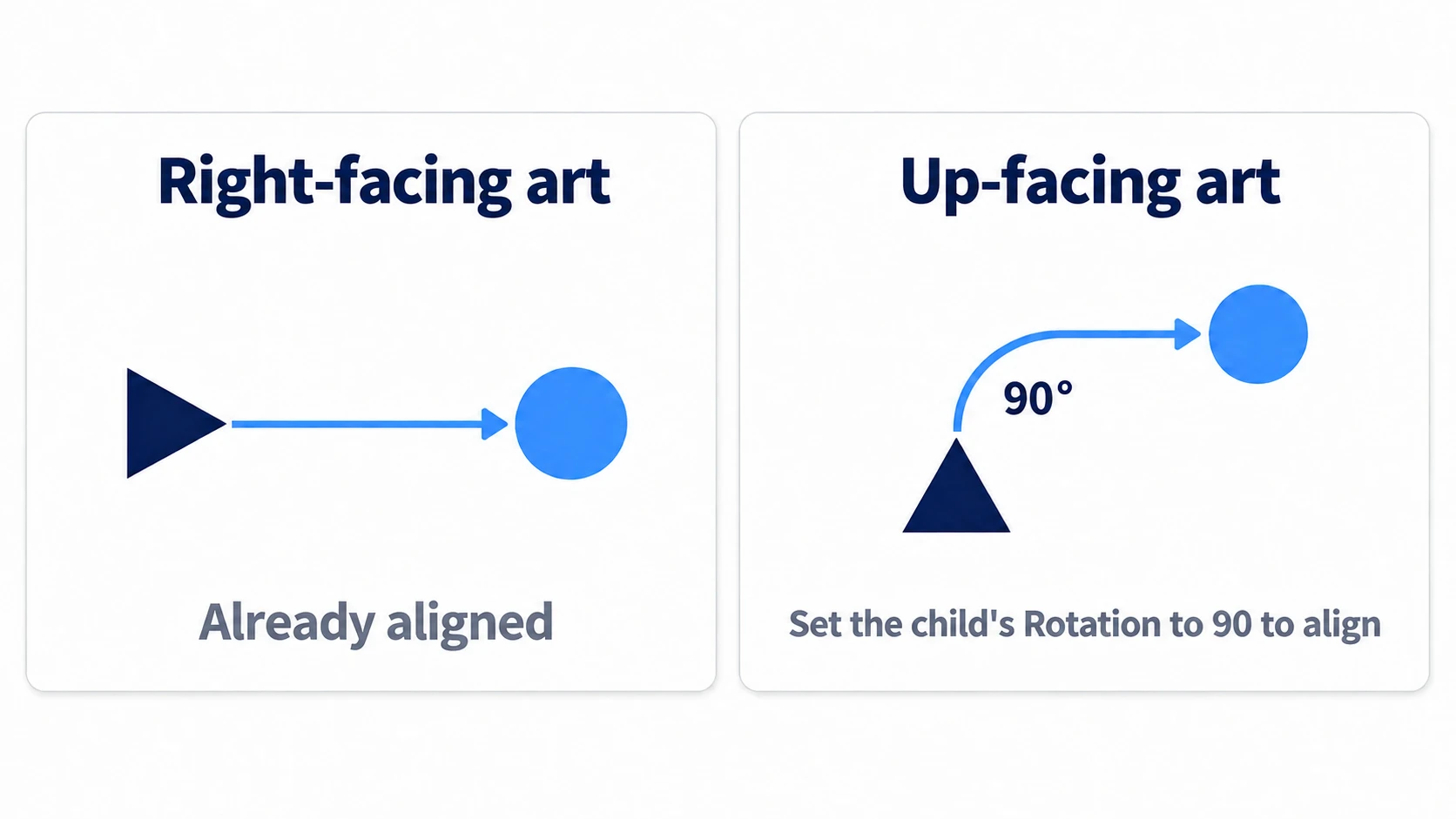
Both use right (+X) as the reference. When rotation is 0, the node is considered to be facing right.
So if you use a sprite drawn facing up as-is, it's 90 degrees off. The fix is to turn the art instead. Make the sprite a child and set its Rotation to 90, and it lines up facing right from the parent's point of view. The parent's code doesn't need to change.
Angles are in radians. The Inspector's Rotation field shows degrees, but rotation in code is radians, and so is what angle() returns. One full turn is about 6.28, and 1 radian is about 57 degrees. Convert to degrees with rad_to_deg() and back to radians with deg_to_rad() (3D rotation is covered in Node3D Basics).
One more thing: on a 2D screen, y increases downward. Angles also turn clockwise (toward the bottom of the screen) for positive values. That's why the angle() of an arrow pointing up and to the right is negative.
From an angle to an arrow (rotated)
After holding a direction as an angle, you'll want to turn it back into an arrow. Firing bullets in the turret's direction is exactly that.
var dir := Vector2.RIGHT.rotated(global_rotation)
Rotate a rightward arrow of length 1 (a unit vector) by rotation, and you get the barrel's current direction. Vector2.from_angle(global_rotation) gives the same result.
This is the round trip. Make an angle from the arrow to the mouse, then go from that angle back to an arrow. Use the arrow you got back, and the bullet flies toward "the current barrel," not "the mouse." While the turret is lagging behind, these two point in different directions.
Turning across the left (rotate_toward)
angle() returns values from -π to π (about -3.14 to 3.14, or -180 to 180 degrees). Crossing the left switches the number between +3.14 and -3.14.
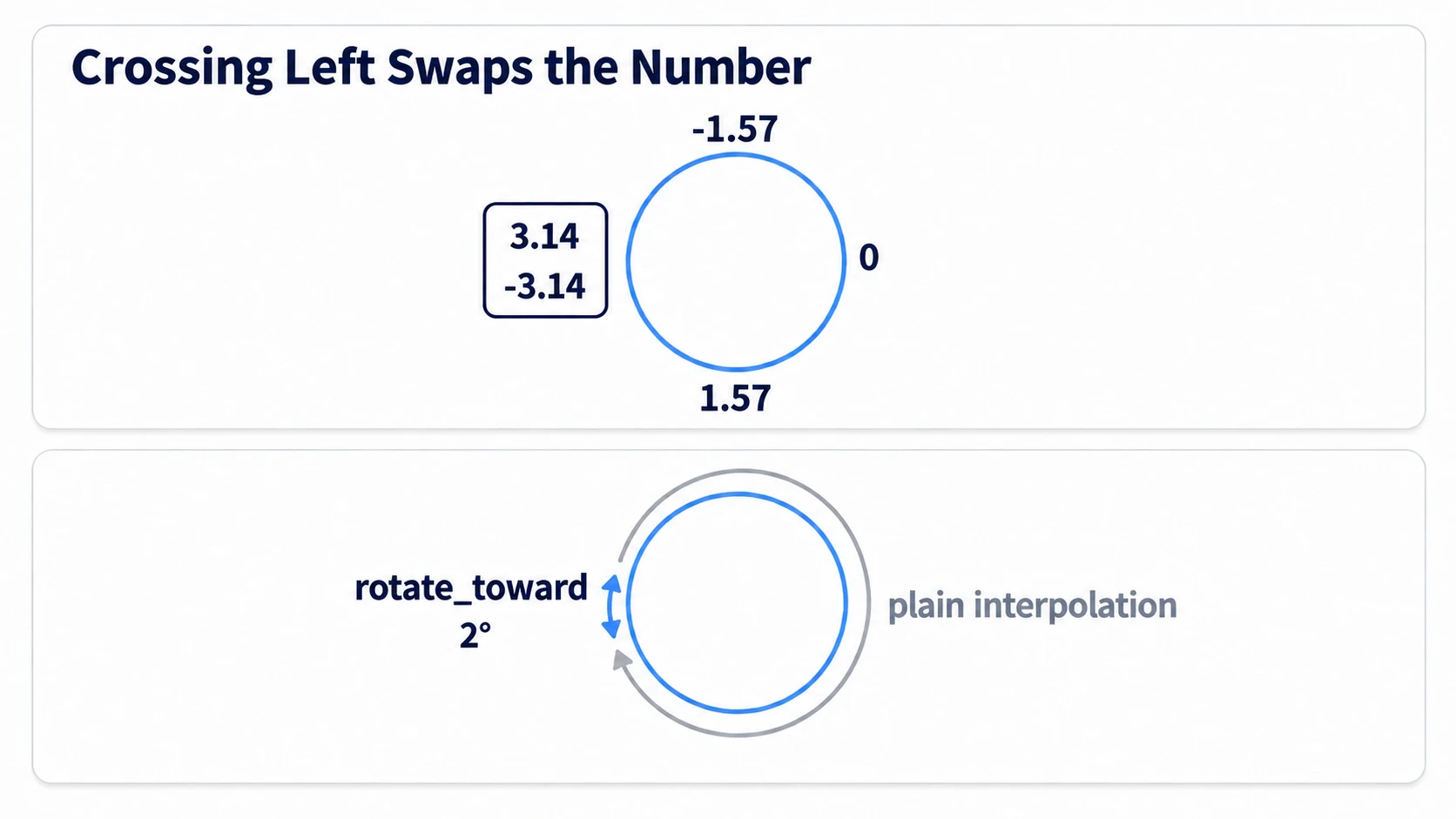
As a direction it's a 2-degree change, but as numbers they're far apart. So if you simply fill in between the numbers (interpolate), the turret goes around the long way.
global_rotation = rotate_toward(global_rotation, offset.angle(), TURN_SPEED * delta)
rotate_toward() isn't a Vector2 method. It's a built-in function you can call from anywhere. It picks the short way and doesn't overshoot the target. The third argument isn't time. It's the largest angle (in radians) it can turn in one call. That's why you pass it in the form TURN_SPEED * delta (delta is the seconds since the previous frame).
lerp_angle(), which moves closer by a fraction, also takes the short way, but moving by the same fraction every frame gets slower as the remaining gap shrinks. For a turret you want to set as "so many radians per second," rotate_toward() is the better fit.
Hands-On: Fire at a Constant Speed From a Turret That Tracks the Mouse
Aimed shots in a shooter, a tower in tower defense, ranged attacks in a top-down ARPG—"face the target and fire" shows up in every genre. You'll build a turret by pulling distance, direction, and angle out of one arrow.
① What to place
First, make the bullet scene. The root is a Node2D named Bullet. Put a Sprite2D under it (res://icon.svg as its Texture, Scale (0.1, 0.1)), and save it as res://bullet.tscn.
# bullet.gd (attach to the root of bullet.tscn)
extends Node2D

var velocity := Vector2.ZERO

var travelled := 0.0

func _process(delta: float) -> void:
	var step := velocity * delta
	global_position += step
	travelled += step.length()
	if travelled > 1200.0:
		queue_free()
Next, the stage. Save a new scene as main.tscn and set it as the main scene.
Main (Node2D)
├── Turret (Node2D)          turret.gd   position (240, 324)
│   ├── Body (Sprite2D)      icon.svg, Scale (0.4, 0.4), Rotation 0
│   └── Muzzle (Marker2D)    position (48, 0)
├── NearTarget (Sprite2D)    position (420, 180)   near, diagonal
├── MidTarget (Sprite2D)     position (560, 324)   near, straight across
└── FarTarget (Sprite2D)     position (900, 324)   far, straight across
For all three targets, put res://icon.svg in Texture and set Scale to (0.2, 0.2). Without it, they don't appear on screen. The targets are just markers, so the code doesn't look at them.
Muzzle, where bullets come out, is placed at (48, 0) because right is the front as seen from the turret. If Body's art faces up, set Body's Rotation to 90 to line it up.
# turret.gd (attach to Turret)
extends Node2D

const TURN_SPEED := 4.0          # radians/second
const BULLET_SPEED := 600.0
const BulletScene := preload("res://bullet.tscn")

@onready var muzzle: Marker2D = $Muzzle

func _process(delta: float) -> void:
	var offset := get_global_mouse_position() - global_position
	if offset.is_zero_approx():
		return                   # don't change direction while overlapping
	global_rotation = rotate_toward(global_rotation, offset.angle(), TURN_SPEED * delta)

func _unhandled_input(event: InputEvent) -> void:
	if event is InputEventMouseButton and event.pressed:
		if event.button_index == MOUSE_BUTTON_LEFT:
			_fire()

func _fire() -> void:
	var bullet := BulletScene.instantiate()
	bullet.velocity = Vector2.RIGHT.rotated(global_rotation) * BULLET_SPEED
	get_tree().current_scene.add_child(bullet)  # make it a child of the stage, not the turret or a tank
	bullet.global_position = muzzle.global_position
The left click is received in _unhandled_input(), where only input the UI didn't use arrives, and it calls _fire(). Bullets are added to the root of the current scene (Main) because as children of the turret, or of a tank you mount it on later, they'd follow along with its rotation and movement. The position is set after add_child().
② Turn it into an angle, then back into an arrow
What turret.gd does is go back and forth between arrows and angles.
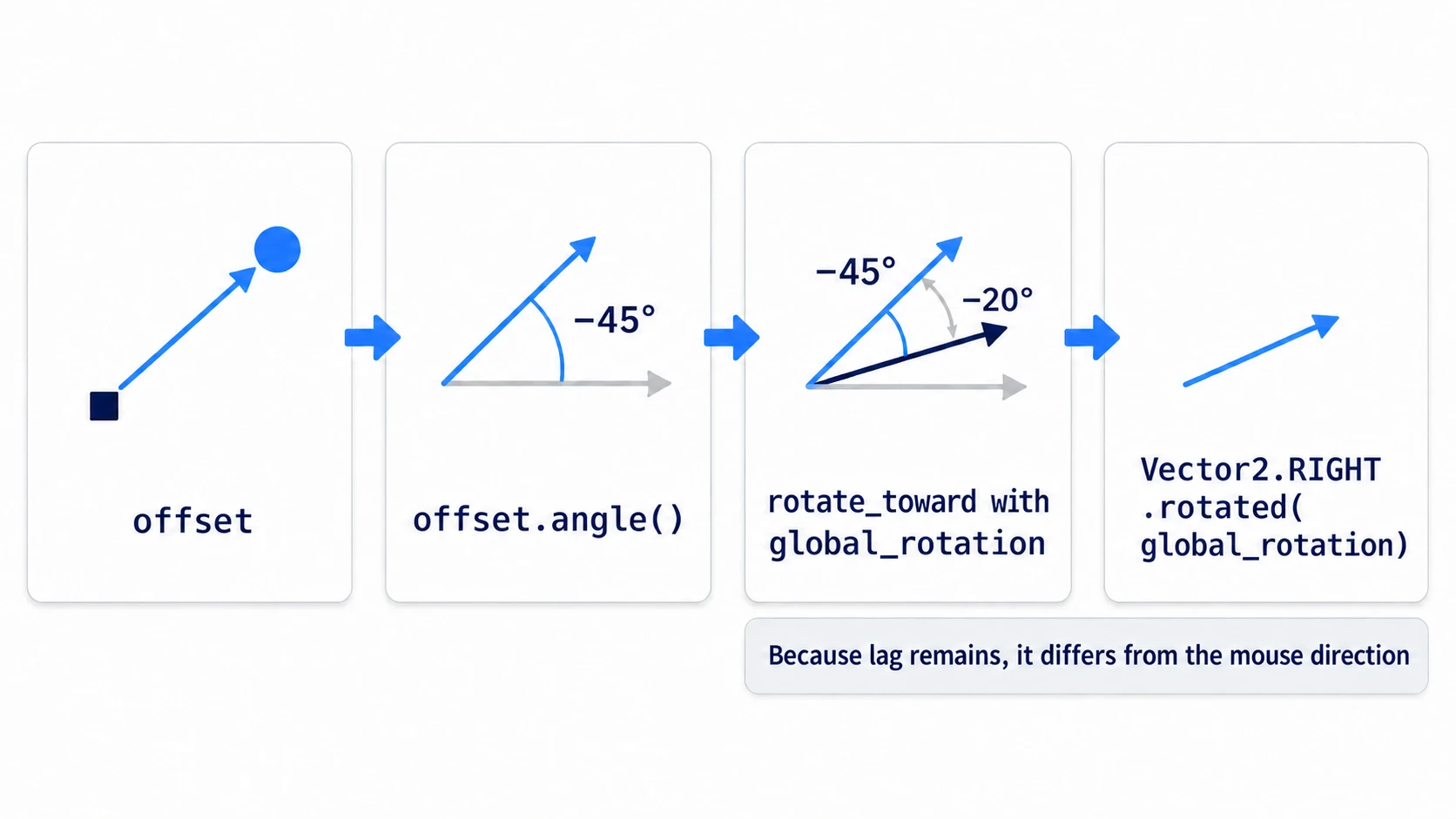
offset.angle()turns the arrow to the mouse into an anglerotate_toward()moves the turret'sglobal_rotationtoward that angle little by little- When firing,
Vector2.RIGHT.rotated(global_rotation)goes from the current angle back to an arrow
Step 2 introduces a lag, so the arrow in step 3 points differently from the arrow to the mouse. That's why bullets fly in the barrel's direction. offset.length() isn't used in this article's hands-on, but you could use it to check range.
global_rotation is used because offset is a subtraction of world coordinates. rotation is the angle as seen from the parent, so it drifts the moment you make the turret a child of a rotating tank.
③ Run it and check
Run with F5. Move the mouse and the turret follows with a slight lag. Check three things.
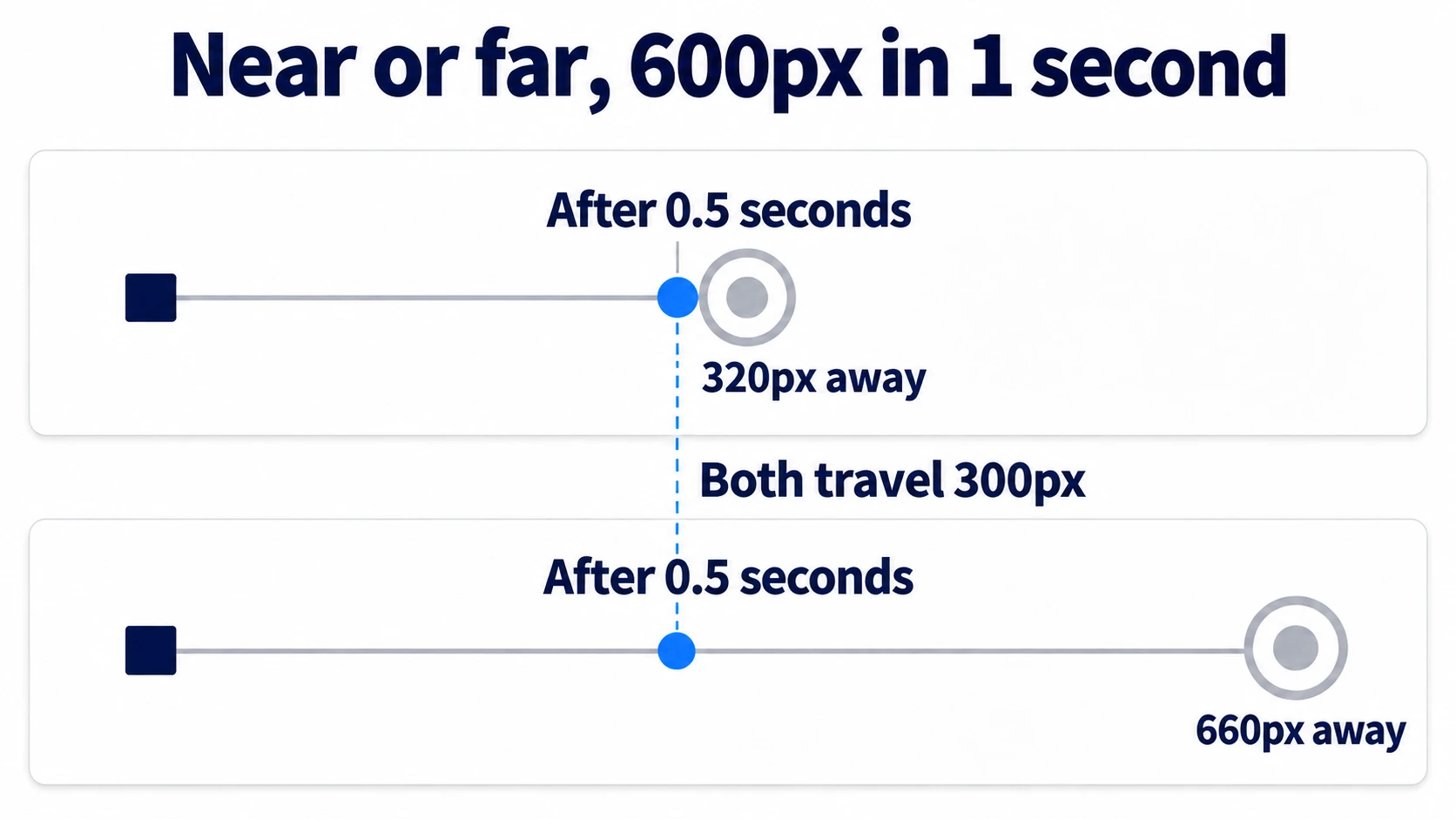
The first is speed. Click the near straight-across target (320px away), then the far straight-across target (660px away). The distances differ by more than double, but both bullets travel 600px per second, flying at the same speed. Vector2.RIGHT has length 1 from the start, so it stays BULLET_SPEED wherever you aim. Diagonal targets are the same.
The second is the barrel. Flick the mouse quickly to the opposite side of the screen and click before the turret catches up. The bullet flies in the barrel's current direction, not toward the mouse.
The third is the left side. Sweep the mouse up and down across the area directly left of the turret, and the turret turns the short way. Wherever you aim, it fires at the same speed, in the barrel's direction, turning the short way. Replace rotate_toward() with lerp(global_rotation, offset.angle(), 0.1) (a function that takes a point between two numbers by a fraction), and where it crosses the left, it swings all the way around the long way.
Finally, swap one line in _fire() for this:
bullet.velocity = (get_global_mouse_position() - global_position) * 1.5
This line also changes the aim from the barrel to the mouse, so the turret's lag disappears. Look only at the speed. A bullet fired at the near straight-across target flies at 320 × 1.5 = 480px per second, and one fired at the far straight-across target at 660 × 1.5 = 990px, more than twice as fast. Normalizing exists to remove this difference.
Two points.
- Multiply the speed by an arrow of length 1: built from a subtraction, that's
normalized()ordirection_to(), and built from an angle, it'sVector2.RIGHT.rotated(). This article's hands-on uses the latter, whereVector2.RIGHThas length 1 from the start - Hold the direction as an angle, and turn it back into an arrow when you use it: the turret's
global_rotationis the source of truth, and bullets are built from it withVector2.RIGHT.rotated(). Build them straight from the mouse, and the tracking lag isn't reflected in the bullets
Troubleshooting
| Symptom | Cause | Fix |
|---|---|---|
Aiming with global_position.angle_to(target) gives the wrong direction | angle_to() is the angle between two arrows, not the direction to a point | Use global_position.angle_to_point(target) or (target - global_position).angle() |
| An enemy jitters in place when it reaches its target | One frame's movement is larger than the remaining distance, so it overshoots and comes back | When the remaining distance is shorter than speed * delta, place it at the target and stop. global_position.move_toward(target, speed * delta) doesn't overshoot |
Writing look_at(target - global_position) makes the turret face the world origin instead of the mouse | look_at() takes a point (world coordinates), not an arrow | Pass the point, as in look_at(target). To turn from an arrow, use global_rotation = offset.angle() |
After using look_at() on the turret, the HP bar and name turn along with it | Children of the node you turn turn along with it | Move the HP bar and name out of the node you turn (the turret), and place them under a parent that doesn't turn |
Bonus: Good to Know First
- Diagonals getting faster is a separate symptom: add up-down and left-right input to get
(1, -1), and the length is1.41. This is also fixed withnormalized(), but the cause is adding two axes, not distance - For comparing distances only, you can skip the square root:
distance_squared_to()returns the distance squared. If you're only comparing which is closer, this is enough - For a CharacterBody2D, put it in
velocity: this article's bullets moveglobal_positiondirectly. For things with a body, put the same arrow invelocityand hand it tomove_and_slide().deltais multiplied inside, so don't multiply it yourself. When to use which is in move_and_slide and move_toward - Checking whether something is in front: use the
dot()of two direction arrows. Positive means in front, negative means behind. An example of building an enemy's field of view is in Vision System
Summary
- Vector2 is two numbers: the same shape is used for position, velocity, and direction
- Subtraction gives an arrow, length 1 gives a direction: the direction is
target - self. Shrink it to length 1 withnormalized()and distance drops out of the speed - Shortcut functions:
direction_to()is subtraction and normalizing,distance_to()is subtraction and length - The reference is right (+X): the same for
angle()andlook_at(), so turn the art to line it up. Go from an angle back to an arrow withVector2.RIGHT.rotated() - Leave rotation across the left to it: use
rotate_toward()
If you don't shrink the length to 1 before multiplying by speed, the farther the target, the faster things move. Does the "move toward the target" code you're writing now shrink the length to 1 before multiplying by speed?