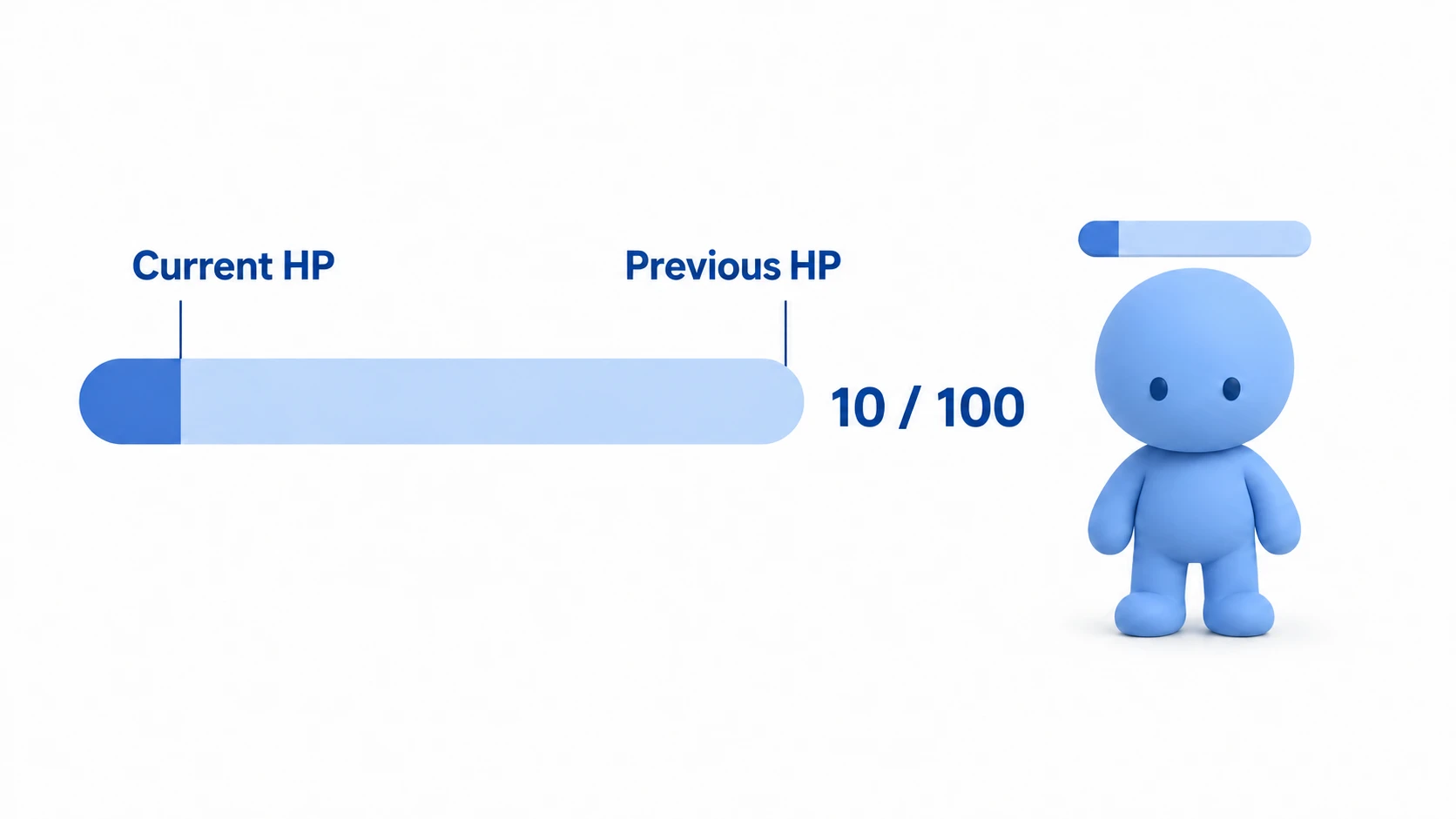
An HP bar is easier to read when the current amount left is readable at a glance and the damage taken also shows for a moment. In Godot, you build it by layering two TextureProgressBars, dropping the front one right away and only the back one late.
Smoothly lower a single bar with a Tween, and you can't read the current HP while it's moving. Drop it instantly, and now you can't tell how much damage you took.
This article covers building a gauge where lost HP fades out late, and placing the same gauge over an enemy's head without it tilting.
What You'll Learn
- A bar draws a ratio, and the fill image is cut off rather than shrunk
- How to layer a front bar and a back bar so only the lost amount fades out late
- How to handle the back bar when taking hits in a row and when healing
- Hands-on: place the same gauge on the HUD and over an enemy's head, keeping the bar level even when the enemy tilts
Tested with: Godot 4.7
The ratio a bar draws
ProgressBar and TextureProgressBar both inherit from the same class, Range. That doesn't mean you place a node called Range in the scene tree; it means both have these three values.
min_value: the value when empty. Defaults to0max_value: the value when full. Defaults to100value: the current value
What a bar draws is the ratio that comes from these three. With min_value at 0, it's value / max_value, so 70 / 100 gives a length of 70%.
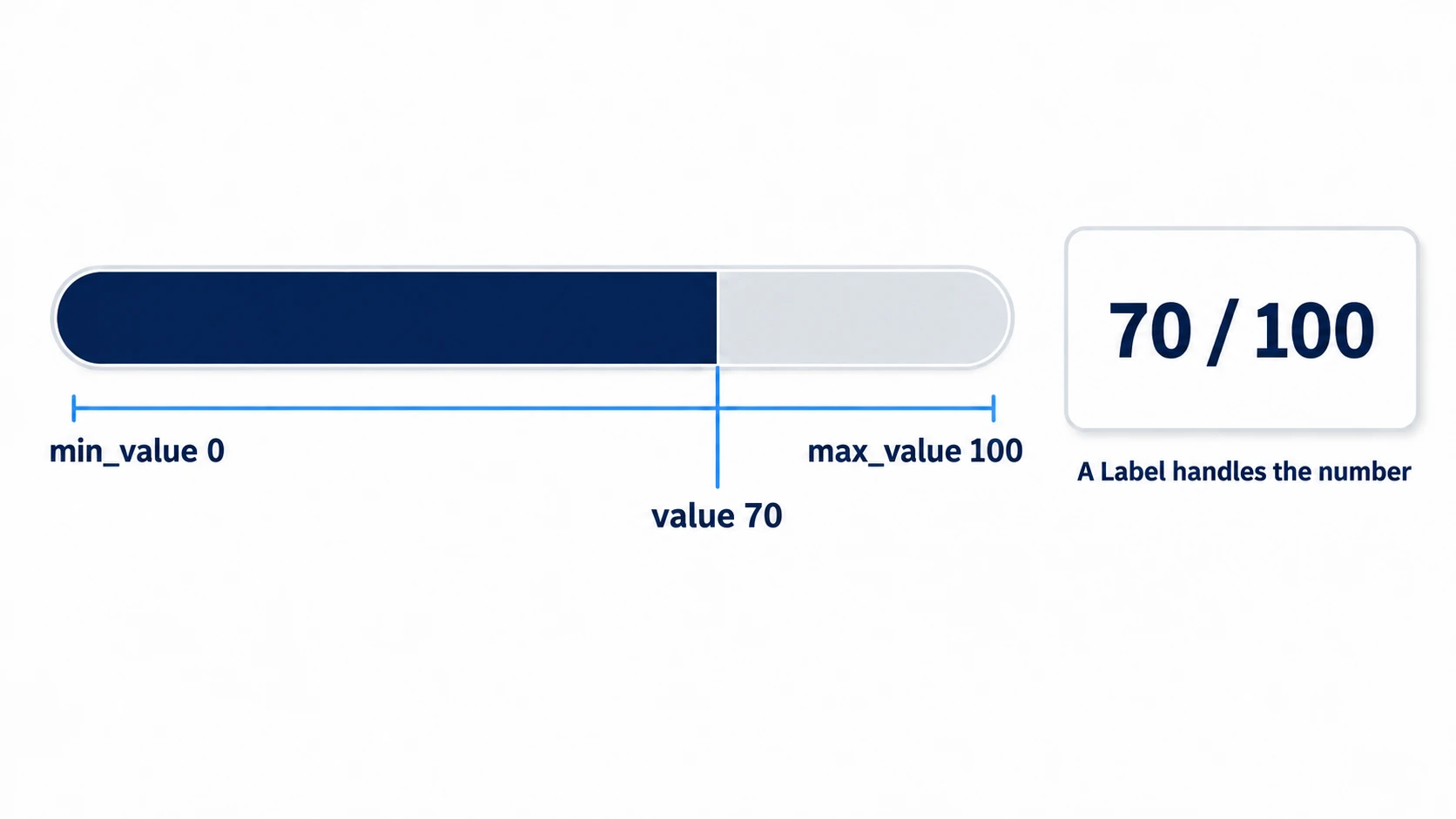
A bar only has a length. If you want to show the number itself, "70 left," put a separate Label. ProgressBar can also show the ratio as "70%," but if you want to show HP as 70 / 100, a Label gives you more freedom.
How to change ProgressBar's colors
Look through ProgressBar's Inspector from top to bottom, and there's no field for the fill color. Touch Modulate, and the background, fill, and number all get tinted together.
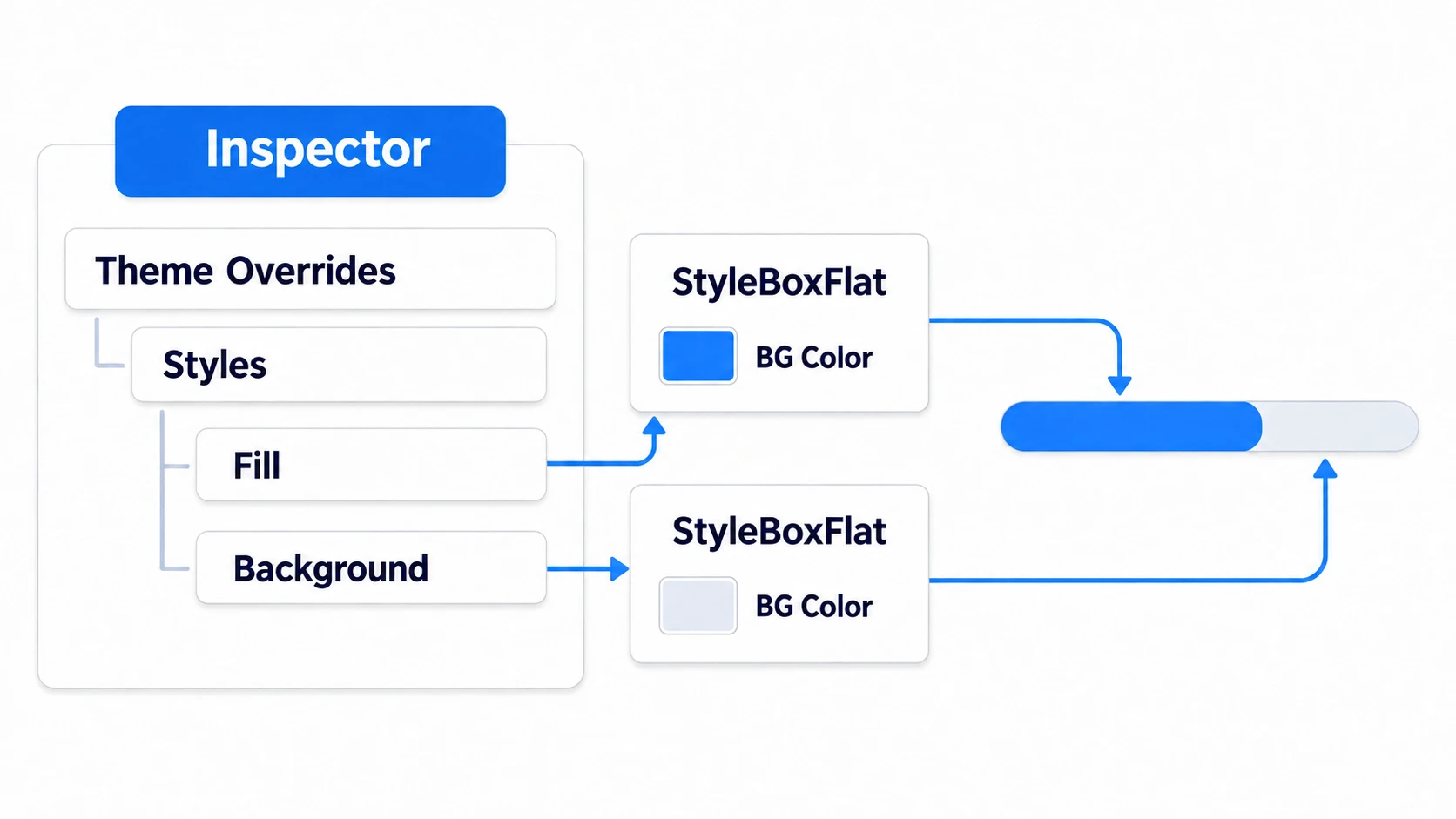
To color them separately, open Theme Overrides in the Inspector. It's the section that overrides the look for this node only; use Styles inside it.
- Create a new StyleBoxFlat (a style that draws a single-color rectangle) in Fill, and make its BG Color the fill color
- Create another new StyleBoxFlat in Background, and make its BG Color the background color
Show Percentage is on by default. Value defaults to 0, so right after you place it, it shows "0%." Turn it off if you don't need it.
For things like rounding the corners or adding a border, ProgressBar is enough. Once you want to handle the background, fill, and frame as separate images, use TextureProgressBar, next.
TextureProgressBar's three textures
TextureProgressBar takes three textures. Open the Textures group in the Inspector, and Under, Progress, and Over are lined up.
texture_under: the background. Shown in full regardless of the valuetexture_progress: the fill. Cut off at the value's ratiotexture_over: a frame on top. Shown in full regardless of the value
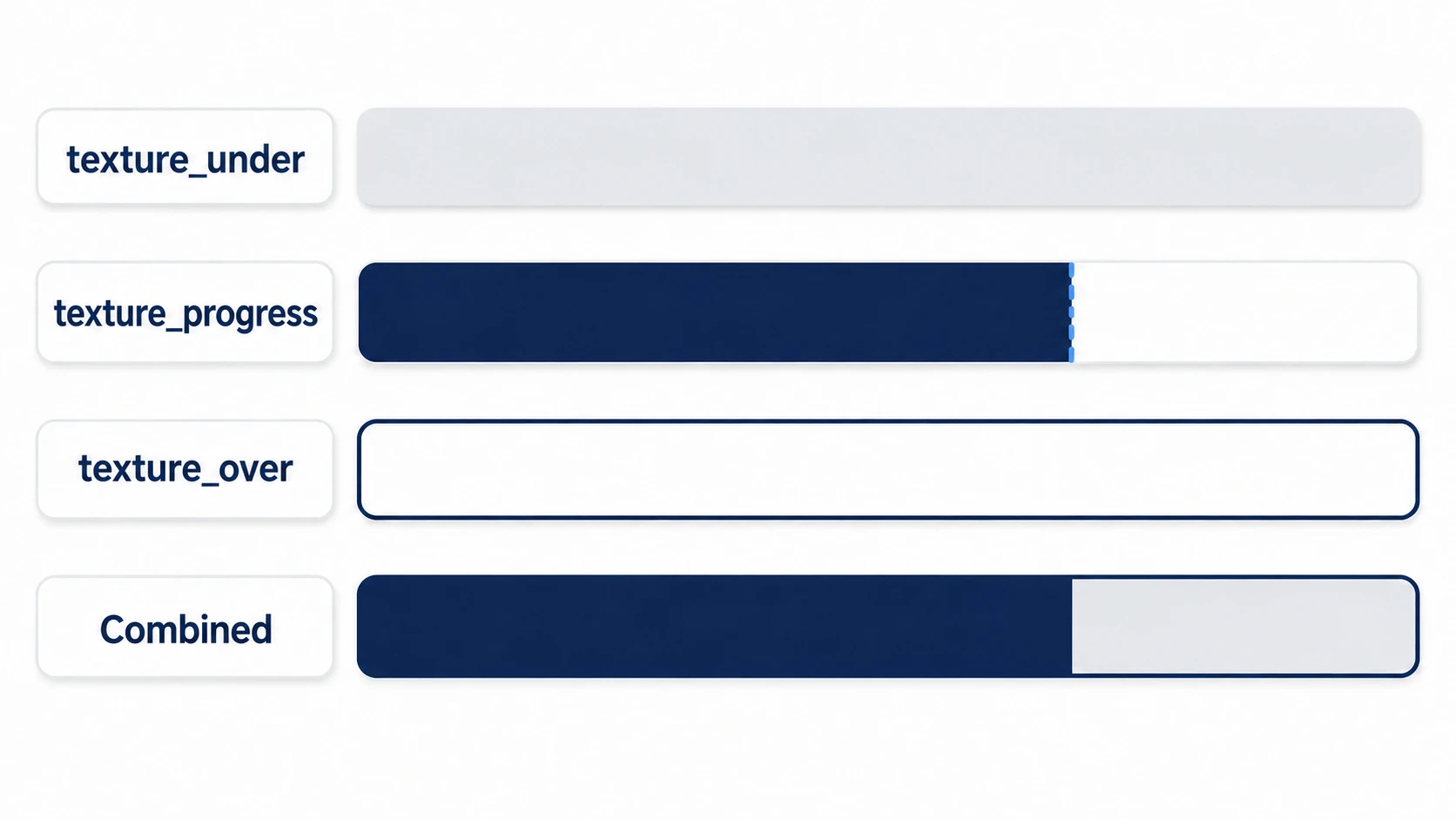
The important one is in the middle. texture_progress isn't shrunk; it's cut off at the ratio's position. So draw your asset as a single bar in its full state. Put in a half-length image, and it just gets cut further. Draw the frame into texture_progress, and the frame gets chipped away along with the fill from the end that decreases. Make the frame an image with a transparent middle and keep it separate in texture_over.
In other engines: TextureProgressBar corresponds to an Image with Image Type set to Filled in Unity's uGUI (Fill Amount decides the filled ratio), and to Progress Bar (Percent) in Unreal Engine's UMG.
The color can be changed with Progress in the Tint group. This is a multiplication, so if you prepare art based on white, the color you specify comes out as-is. Multiply a different color onto art that already has color, and the result gets dragged toward the original color.
A two-bar gauge
Say you place a single bar and smoothly lower its value with a Tween (a mechanism that changes a value little by little over a set number of seconds). While it's moving, its length points to HP that doesn't exist anywhere. HP has dropped to 70, yet the screen is passing through 85, and you can't read what it is now.
What you want is the opposite. Show the current ratio in front without waiting, leave the ratio from before the drop in the back, and let the gap be seen before it disappears. The remaining gap is the display of damage that hasn't faded yet.
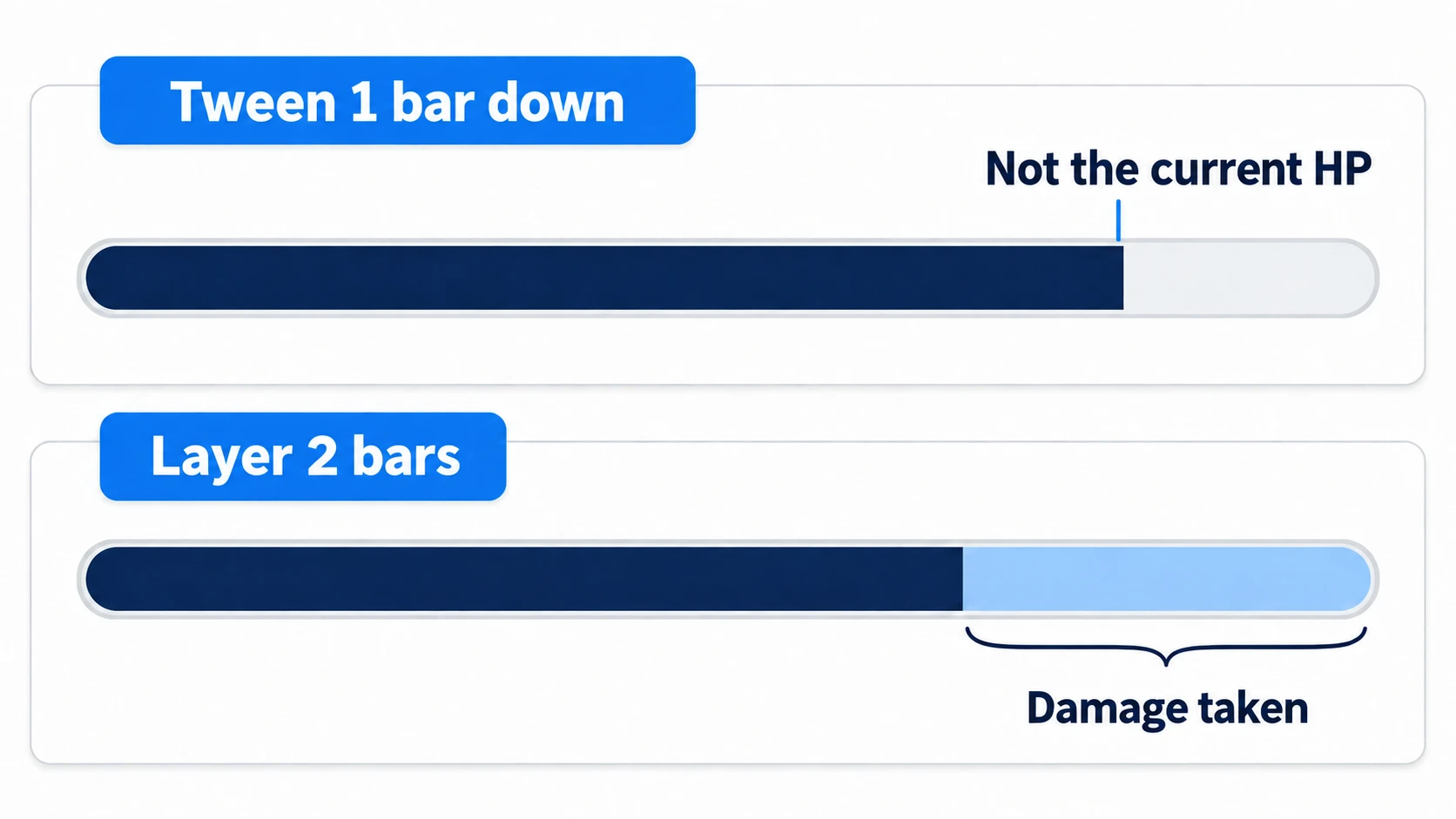
To build it, just layer two TextureProgressBars of the same size in the same place. Among sibling Controls, the one lower in the scene tree is drawn in front, so put the bar you want in the back higher up.
- Back (placed first): the background in
texture_under, and the color that shows what's left intexture_progress. No frame - Front (placed after): the current HP's color in
texture_progress, and the frame intexture_over. No background
Put a background on the front, and it hides the back entirely. Only the back holds the background, and only the front holds the frame. This way, translucent parts don't overlap and get darker either.
Only the back is delayed. The front takes the new ratio on the very frame you assign it, while the back waits 0.2 seconds with a Tween and then catches up over 0.4 seconds. When HP increases (healing), and the very first time, the back also takes the same value without waiting (set_hp() in the hands-on).
Whether it's healing is decided by comparing with the number received last time (_shown_hp), not with back.value. The back bar holds an in-between value that hasn't caught up yet. Say HP drops from 100 to 70, then heals to 90 before the back catches up. back.value is still around 95, so 90 >= back.value doesn't hold, and the back starts dropping further even though it's healing. Compare with the number passed last time, and this mix-up doesn't happen.
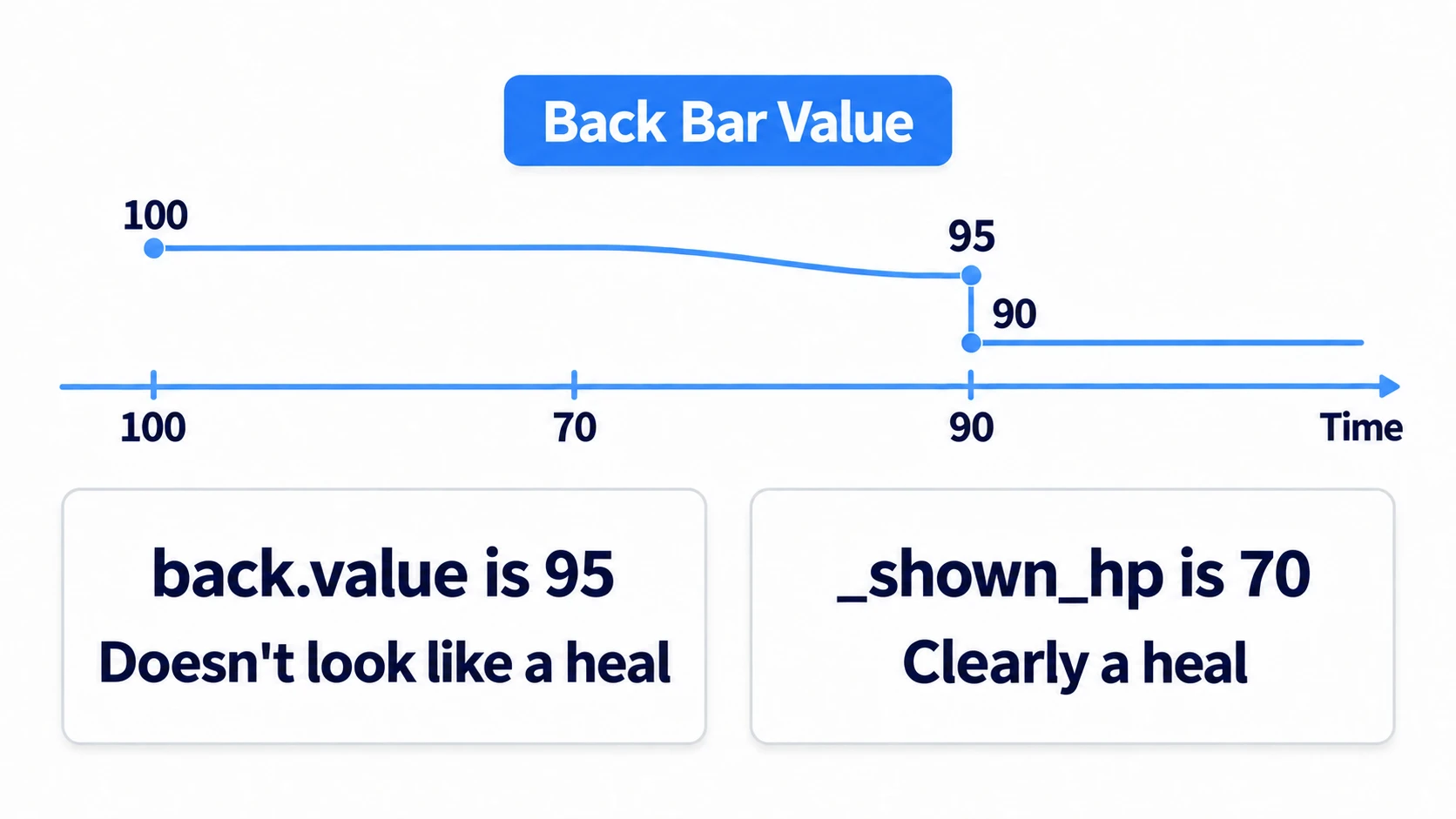
When taking hits in a row, stop the previous Tween before creating a new one. The wait is counted again too, so while the hits keep coming the gap stays open, and once they stop it shrinks all at once.
Set the back bar's Step to 0. At the default 1, the in-between values the Tween moves through are rounded to integers, and the catching-up movement becomes stair-stepped.
A bar over an enemy's head (Flip H and Top Level)
Place the same gauge over an enemy's head, and a new problem appears.
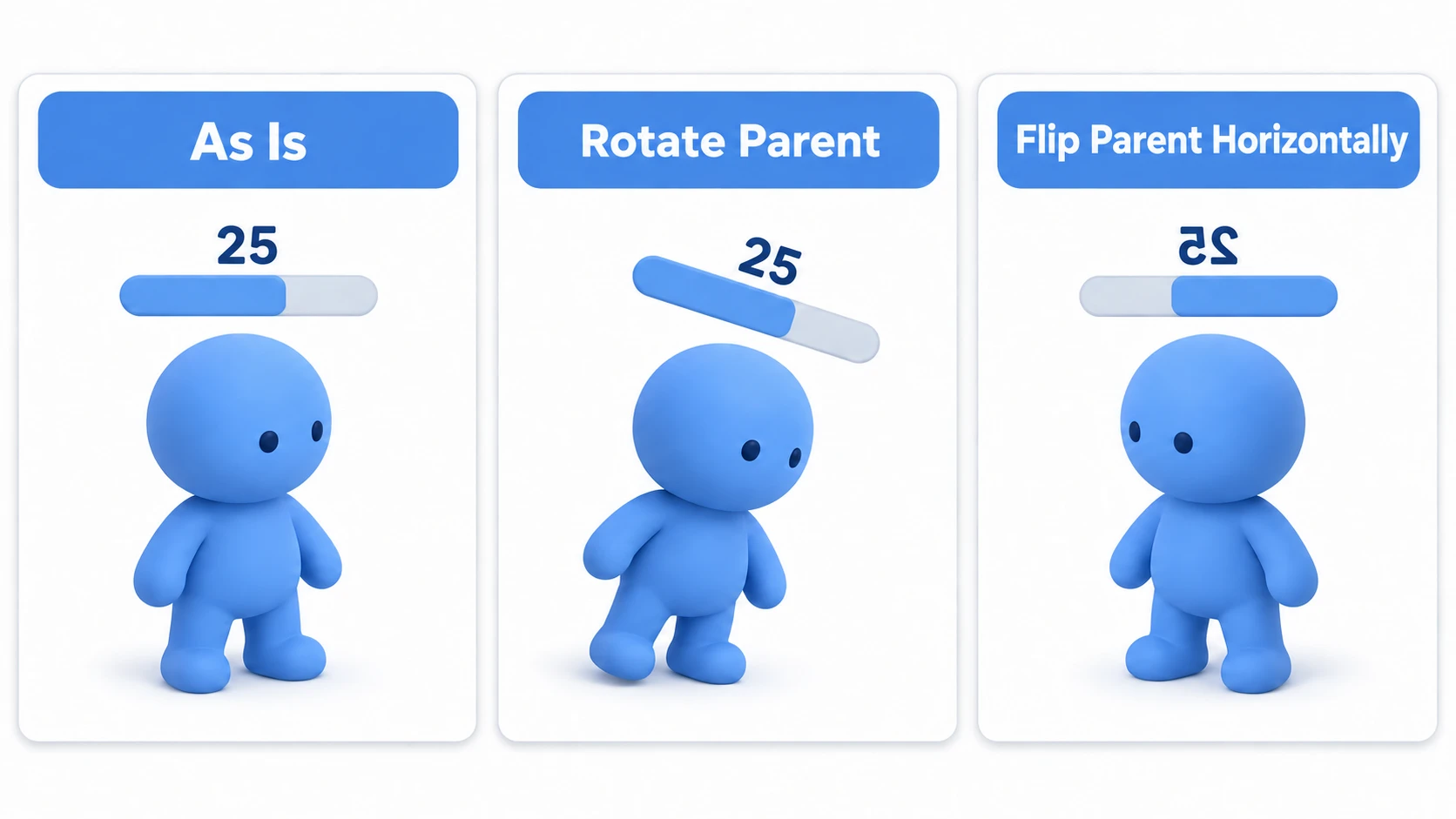
Place a Control under a Node2D, and its position follows the parent. That much is what you want. But it also takes on the parent's rotation, scaling, and the flip from setting scale.x to -1 as-is. When the enemy tilts, the bar tilts too, and the number ends up at an unreadable angle.
Anchors (where in the parent's rectangle to align) can't be relied on either. When the parent is a Node2D, the rectangle the anchors are based on has zero width and height. Neither centering nor filling works, so decide the size yourself.
The fix depends on what you want to move.
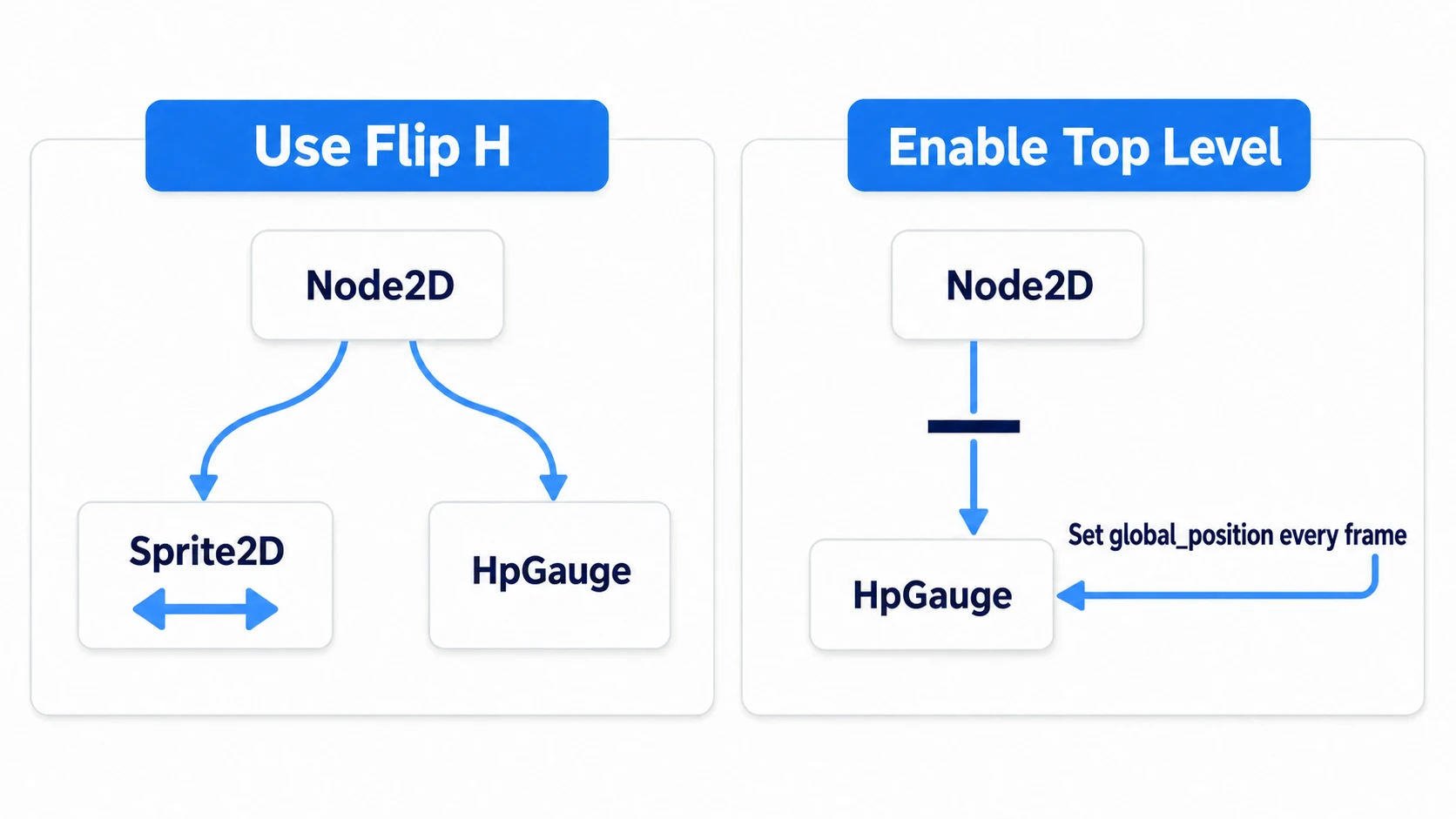
- Only change facing: use Sprite2D's Flip H. It flips only the drawing of the art left to right, and isn't passed on as a transform to children or siblings. Keep the bar as the sprite's sibling, and only the art turns around while the bar stays level
- Rotate the parent itself: give the bar Top Level. It ignores all of the parent's transform at once, but since it ignores movement too, put the position in yourself every frame. These two always go together
Hands-On: Layer Two Bars and Place Them Over an Enemy's Head Too
Taking hits in an action RPG, health gauges in a fighting game, shields in a shooter—showing the lost amount has the same shape in all of them. You'll place the same part both on the HUD and over an enemy's head, and drive it with one script.
① What to place
First build the gauge as a single scene, then place it in two spots.
- Put a Control at the root of a new scene as HpGauge. Attach
hp_gauge.gd, and set Mouse > Filter to Ignore in the Inspector - Add a TextureProgressBar under HpGauge as BackBar. The one placed first is in the back
- Below it, add another TextureProgressBar as FrontBar
- Finally, add a Label as HpLabel. Position
(8, 28) - Set Mouse > Filter to Ignore on BackBar and FrontBar too
- Save it as
HpGauge.tscn
Make the textures by creating a new GradientTexture2D. Set Width to 300 and Height to 24, create a new Gradient, and make the left and right the same color for a single-color strip. For both bars, Textures > Progress is a white strip, Max Value and Value are 100, and Size is (300, 24). Only these three rows differ.
| BackBar | FrontBar | |
|---|---|---|
| Textures > Under | a pale gray strip | none |
| Tint > Progress | pale blue | dark blue |
| Step | 0 | 1 |
Once the scene is saved, place it in Main.
- Put a Node2D at the root as Main. Attach
main.gd - Add a CanvasLayer (a layer fixed to the screen even when the camera moves) under Main as HUD. Place
HpGauge.tscnunder it at position(24, 24) - Add a Node2D under Main as Enemy. Position
(576, 400). Attachenemy.gd - Add a Sprite2D under Enemy with
icon.svgas its Texture - Place
HpGauge.tscnunder Enemy, and set its Scale to(0.4, 0.4) - Add
damage(J),heal(K),flip(L), androtate(M) to the Input Map in Project Settings
Under Enemy, make the Sprite2D and the gauge siblings. Make the gauge a child of the sprite, and when you rotate or scale the sprite itself, the gauge gets transformed too.
② Put it together
# hp_gauge.gd
extends Control

const DELAY := 0.2
const CATCH_UP := 0.4

@onready var back: TextureProgressBar = $BackBar
@onready var front: TextureProgressBar = $FrontBar
@onready var label: Label = $HpLabel

var _tween: Tween
var _shown_hp := -1                          # marks that nothing has been received yet

func set_hp(current: int, maximum: int) -> void:
	if current == _shown_hp and maximum == front.max_value:
		return                               # don't cancel the effect when the same number comes
	front.max_value = maximum
	back.max_value = maximum
	front.value = current
	label.text = "%d / %d" % [current, maximum]
	if _tween:
		_tween.kill()
	if _shown_hp < 0 or current >= _shown_hp:
		back.value = current                 # the very first time, and when healing
	else:
		_tween = create_tween()
		_tween.tween_interval(DELAY)
		_tween.tween_property(back, "value", float(current), CATCH_UP)
	_shown_hp = current
# enemy.gd
extends Node2D

const GAUGE_OFFSET := Vector2(-60, -90)

@onready var sprite: Sprite2D = $Sprite2D
@onready var gauge: Control = $HpGauge

func _ready() -> void:
	gauge.top_level = true                   # don't take on the parent's rotation
	$HpGauge/HpLabel.visible = false         # it's small overhead, so don't show the number

func _process(_delta: float) -> void:
	gauge.global_position = global_position + GAUGE_OFFSET   # put the position in yourself

func set_hp(current: int, maximum: int) -> void:
	gauge.set_hp(current, maximum)           # just pass it to the overhead gauge

func toggle_flip() -> void:
	sprite.flip_h = not sprite.flip_h        # only the art flips

func toggle_rotate() -> void:
	rotation = 0.0 if rotation != 0.0 else 0.3
# main.gd
extends Node2D

const MAX_HP := 100

var _hp := MAX_HP

@onready var hud_gauge: Control = $HUD/HpGauge
@onready var enemy: Node2D = $Enemy

func _ready() -> void:
	_apply()

func _unhandled_input(event: InputEvent) -> void:   # key input the UI didn't use arrives here
	if event.is_action_pressed("damage"):
		_hp = max(_hp - 30, 0)
		_apply()
	elif event.is_action_pressed("heal"):
		_hp = min(_hp + 20, MAX_HP)
		_apply()
	elif event.is_action_pressed("flip"):
		enemy.toggle_flip()
	elif event.is_action_pressed("rotate"):
		enemy.toggle_rotate()

func _apply() -> void:
	hud_gauge.set_hp(_hp, MAX_HP)
	enemy.set_hp(_hp, MAX_HP)
main.gd holds the HP, and the gauge only fills in the number it receives. The overhead gauge is the 300-wide part at 0.4×, so its width is 120, and the -60 in GAUGE_OFFSET puts it centered right above the enemy. Pass it from the combat side with a signal like health_changed(current, maximum), and the gauge doesn't need to know who's sending. How to connect that is in the signals article.
③ Run it and check
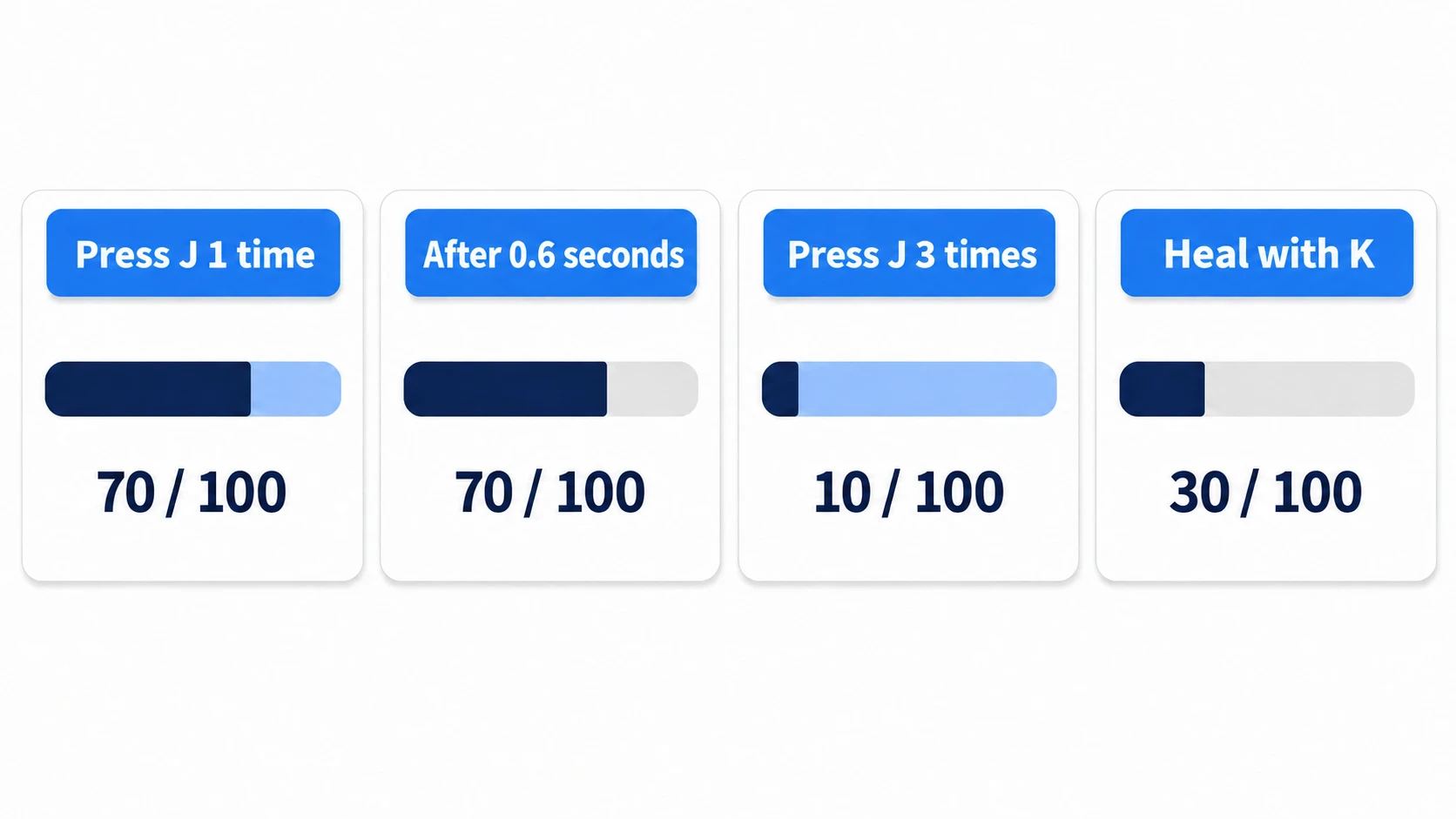
Play with F6 and press J once, and the number and the front bar become 70 / 100 right away, while the back stays full and leaves a gap at the right end. It waits DELAY's 0.2 seconds and then catches up over CATCH_UP's 0.4 seconds, so the gap disappears about 0.6 seconds after pressing. If the front also moves smoothly, you're lowering a single bar with a Tween; if no gap appears the moment you press, you're assigning to the back immediately too.
Restart playback to put HP back at 100, and press J three times at intervals shorter than 0.2 seconds. The front drops to 70, 40, then 10, while the back stays near 100. About 0.6 seconds after the last press, the back shrinks all the way to 10 at once. Press K there, and the front and number jump right up to 30, and the back matches the same value on the spot. If the back shrinks after waiting, you're checking for healing against back.value.
Finally, press L, and only the enemy's art flips left to right while the overhead bar stays level. Press M to tilt the enemy, and the bar with Top Level stays level as it follows above the enemy. If the bar tilts along, the top_level line is missing; if the bar is left behind in place, the _process() line is missing.
Two points.
- The back bar holds "the length that's showing": check for healing with
back.value, and you're comparing with an in-between value that's still catching up. Remember the number received last time, and compare with that - Give the background and frame to one bar each: put a background on the front and it hides the back entirely. Keep the background on the back and the frame on the front, and no part gets darker from overlapping either
How to use Tween itself is in the Tween article, and keeping the HUD intact when the screen width changes is in the UI layout article.
Troubleshooting
| Symptom | Cause | Fix |
|---|---|---|
| You widened the node's Size, but the bar's length doesn't change | With Nine Patch Stretch off, the art is drawn at the texture's size | Turn on Nine Patch Stretch (stretches the edges and middle while keeping the corners) and set the corner widths with Stretch Margin, or match the texture's width to Size |
| The overhead bar with Top Level is drawn above a character in front of it | top_level not only cuts off the parent's transform but also moves it up in drawing order | Where overlap matters, don't use Top Level, and rotate only the Sprite2D. The bar stays level as a sibling |
| Zooming the camera in makes the overhead bar bigger too | A bar that's a child of the enemy is scaled by the camera along with the world | To fix its size, put the bar on a CanvasLayer, and every frame set its position to the enemy's get_global_transform_with_canvas().origin plus the overhead offset |
Bonus: Good to Know First
- Changing the fill direction: change TextureProgressBar's Fill Mode, and you can fill right to left or bottom to top. There are radial values too, useful for cooldown displays. ProgressBar also has Fill Mode, but no radial option
- When you want to change the value by dragging: use the Slider family. The ProgressBar family is for display and has no mechanism for moving it with the mouse
- Change the color when HP is low: assign a color to
tint_progressin code. If you prepared art based on white, the color you specify comes out as-is - Let display-only gauges pass clicks through: a Control's Mouse > Filter defaults to Stop, and TextureProgressBar's to Pass, and both catch clicks instead of passing them on to buttons or the game screen underneath. It doesn't spread from parent to children, so set Ignore on the container and on each of the two bars. Label is Ignore from the start
Summary
- A bar draws a ratio: where
valuesits betweenmin_valueandmax_value. A Label shows the number - The fill is cut off: one full image in
texture_progress. Keep the frame separate intexture_over - Show the lost amount with two bars: the front right away, only the back catching up late with a Tween. Background on the back, frame on the front
- Check for healing against the previous number: what the back bar holds is the length showing while it catches up
- An overhead bar takes on the parent's transform: Flip H if only facing changes, Top Level plus a position every frame if it rotates
If you want to show how much damage was taken too, try layering a second bar. Does your game's gauge only tell the player how much is left?