When you want to check how far an enemy AI notices you, or where it's heading right now, drawing circles and lines on the running screen makes it obvious at a glance. In Godot, a few lines in a node's _draw() let you draw circles, lines, and text on screen.
Print the distance with print and numbers like 180 and 150 just scroll by, without showing how far the detection range actually reaches. Draw it, and you spot mismatches in range or direction on the spot.
This article covers how to use _draw() to draw an enemy AI's detection distance, destination, and state on screen, and overlay them with the collision display to find mismatches.
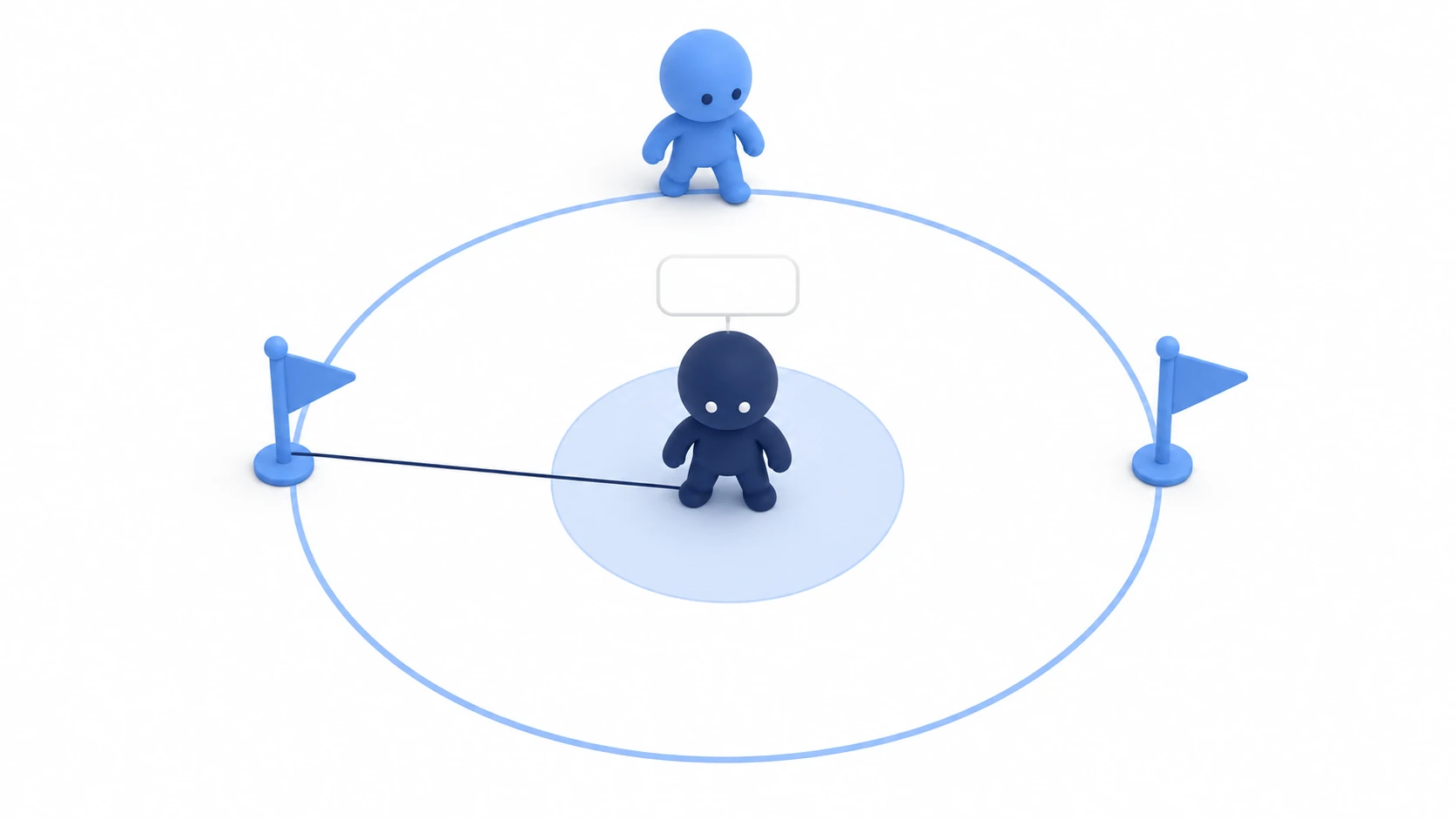
What You'll Learn
- When
_draw()gets called, and how to usequeue_redraw()- The coordinates you draw in, and how to pass other nodes' positions with
to_local()- When to use the Debug menu's displays and when to draw your own
- Why you put the drawing in its own child node
- Hands-on: draw circles, lines, and a state name on a guard enemy, find why it doesn't notice you, and fix it
Tested with: Godot 4.7
_draw() and queue_redraw()
_draw() isn't a function called every frame like _process(). It's called when the node first appears on screen, when it goes from hidden back to visible, when you ask for a redraw with queue_redraw(), and so on. What it drew is reused as-is until the next redraw.
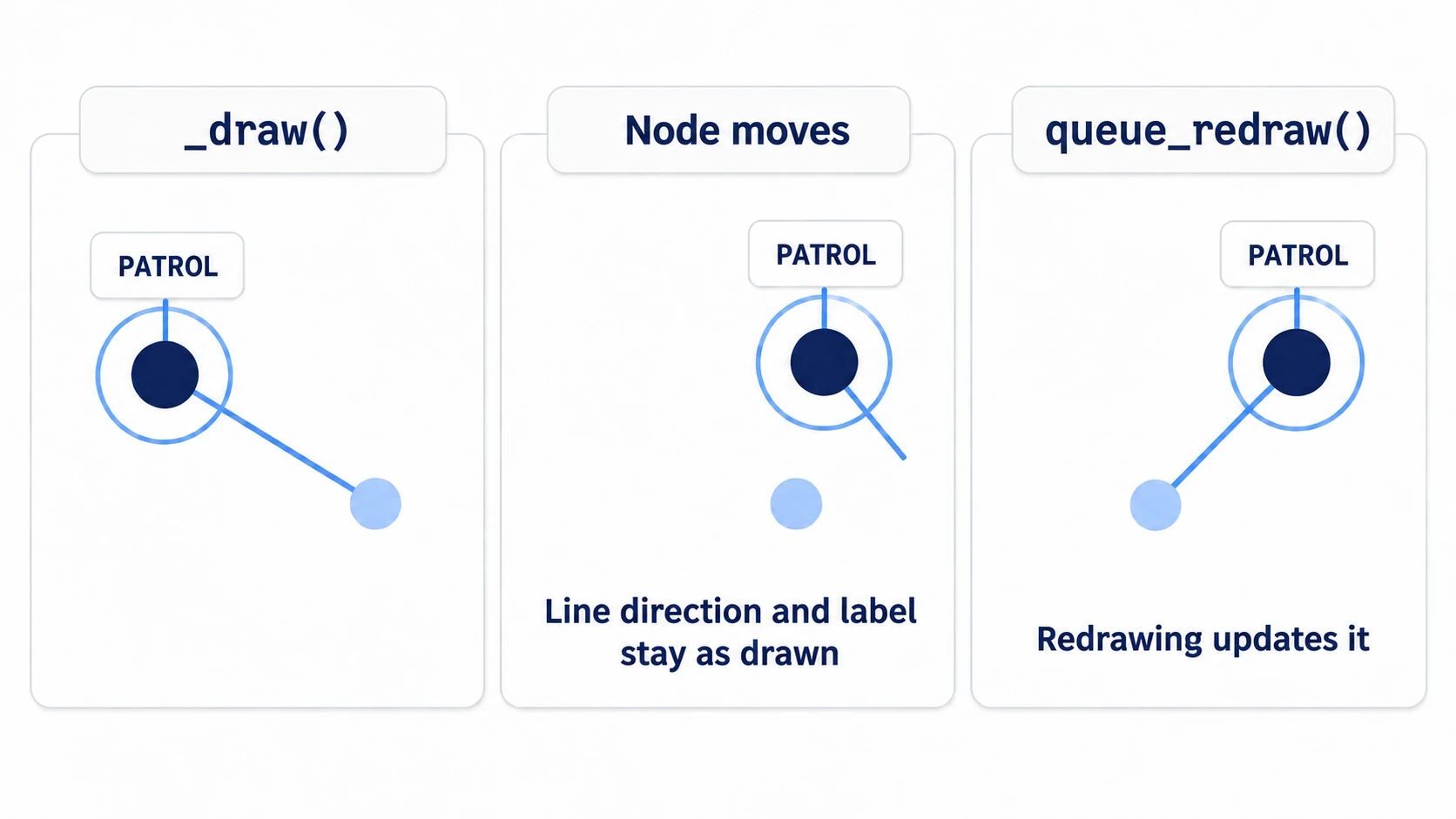
The circles, lines, and text you draw stay attached to the node and move with it. What doesn't change is anything decided by values at the time of drawing: the direction and length of a line pointing at the player, and the contents of state text. If those values change, call queue_redraw() every frame in _process(). Calling it several times in the same frame on the same node still results in a single redraw.
func _process(_delta: float) -> void:
	queue_redraw()   # the values change, so ask for a redraw every frame

func _draw() -> void:
	draw_circle(Vector2.ZERO, 200.0, Color.SKY_BLUE, false, 2.0)   # an outline-only circle
Drawing functions are called inside _draw(). Call draw_circle() directly in _process() and no circle is drawn, and you get an error: "Drawing is only allowed inside this node's _draw()...". The update() in Godot 3 articles was renamed to queue_redraw() in 4.
In other engines: for checking states with shapes, this corresponds to Unity's Gizmos (
OnDrawGizmos) or UE's Draw Debug. But Godot's_draw()is ordinary 2D drawing, so anything you want gone in the shipped game, you remove yourself.
Drawing coordinates (to_local())
Coordinates in _draw() are positions with the drawing node as the origin (local coordinates). Vector2.ZERO means that node's own position. To draw a circle around an enemy, the center is Vector2.ZERO.
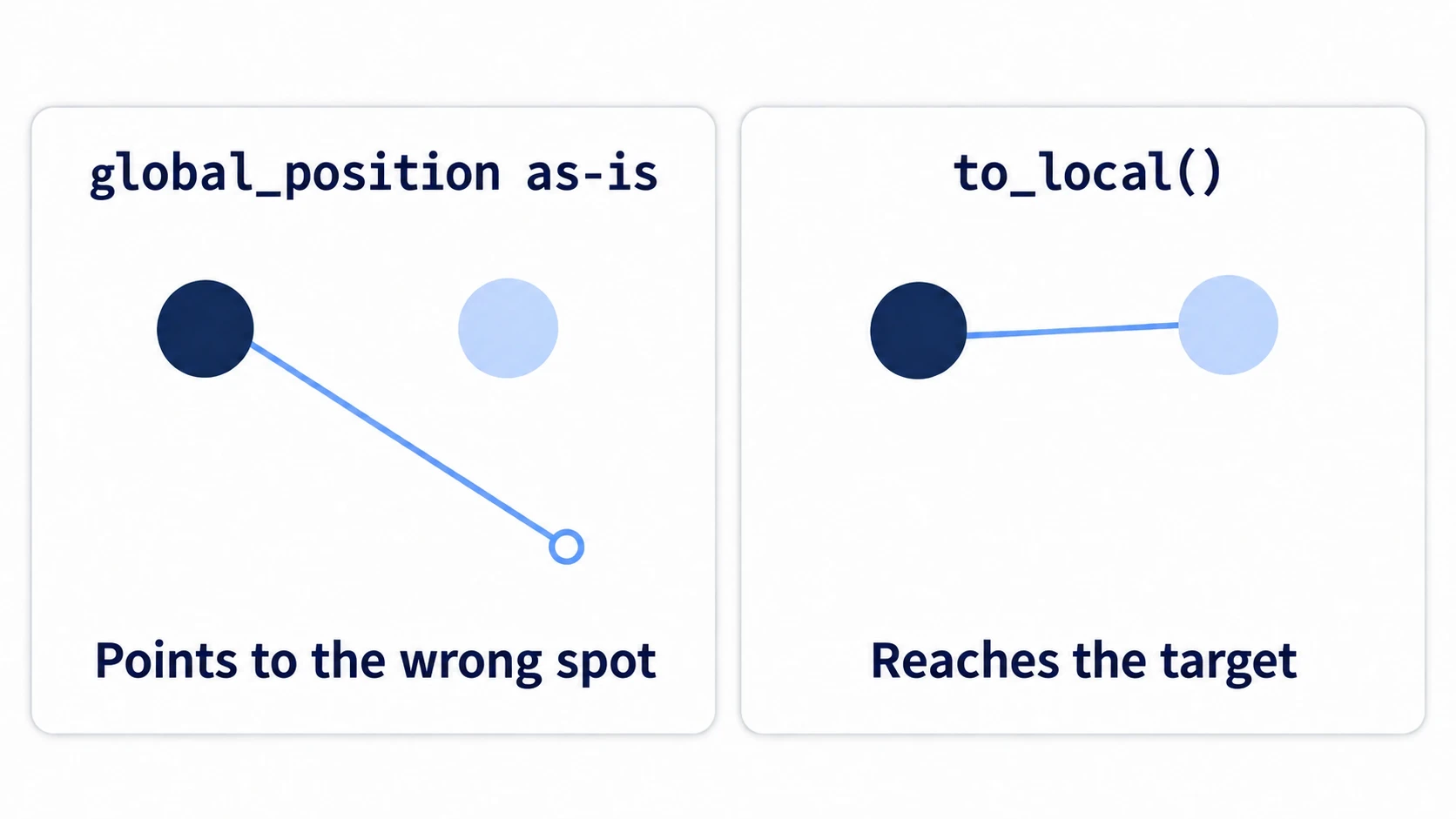
Where people trip is drawing a line to another node's position. Say you pass the player's global_position (its position measured from the origin of the whole world) as the end point as-is. The line points to a spot offset by the drawing node's position (and if the node is rotated or scaled, it's off by that too). Convert the end point to a position relative to the drawing node with to_local() before passing it.
draw_line(Vector2.ZERO, to_local(player.global_position), Color.SKY_BLUE, 2.0)
The Debug menu's displays (Visible Collision Shapes)
The Debug menu at the top of the editor lists displays the engine draws for you. The first one to use when investigating enemy AI is Visible Collision Shapes. It draws CollisionShape2D shapes as translucent overlays, including the ranges of Area2Ds, which report overlaps without pushing back. There are also Visible Paths for paths, and Visible Navigation and Visible Avoidance for navigation.
The checkboxes are read when the game starts. If you toggle one while running, stop and run again.
What the engine draws are "shapes the engine knows about," like collision. It doesn't know about your enemy's detection distance variable, where it's heading right now, or the name of its state. Those you draw yourself.
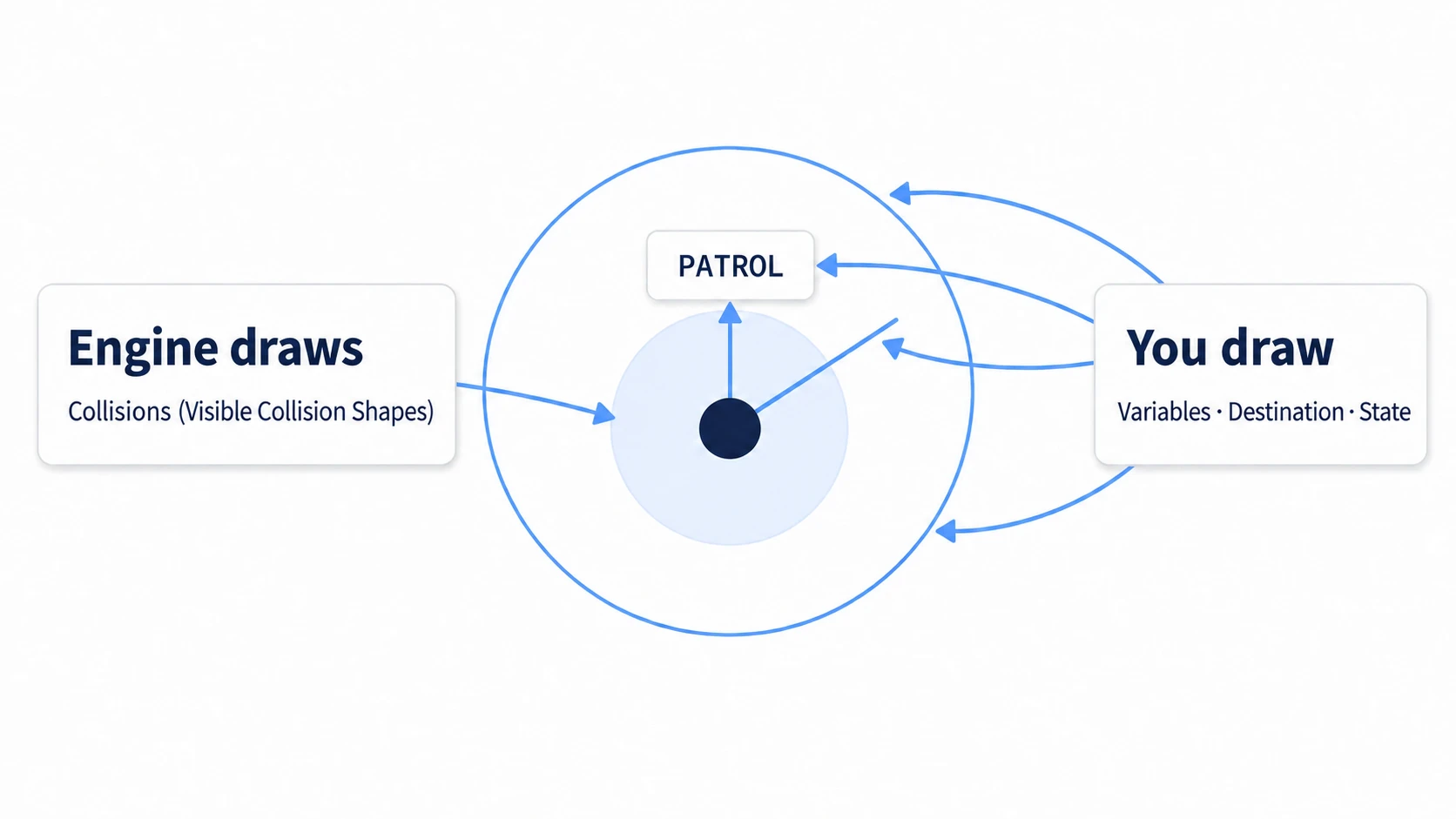
Overlay the two and you can compare on screen whether the value you drew matches the actual detection. If your own circle and the engine's collision circle don't overlap, either the variable or the detection is off.
A child node for drawing (DebugDraw)
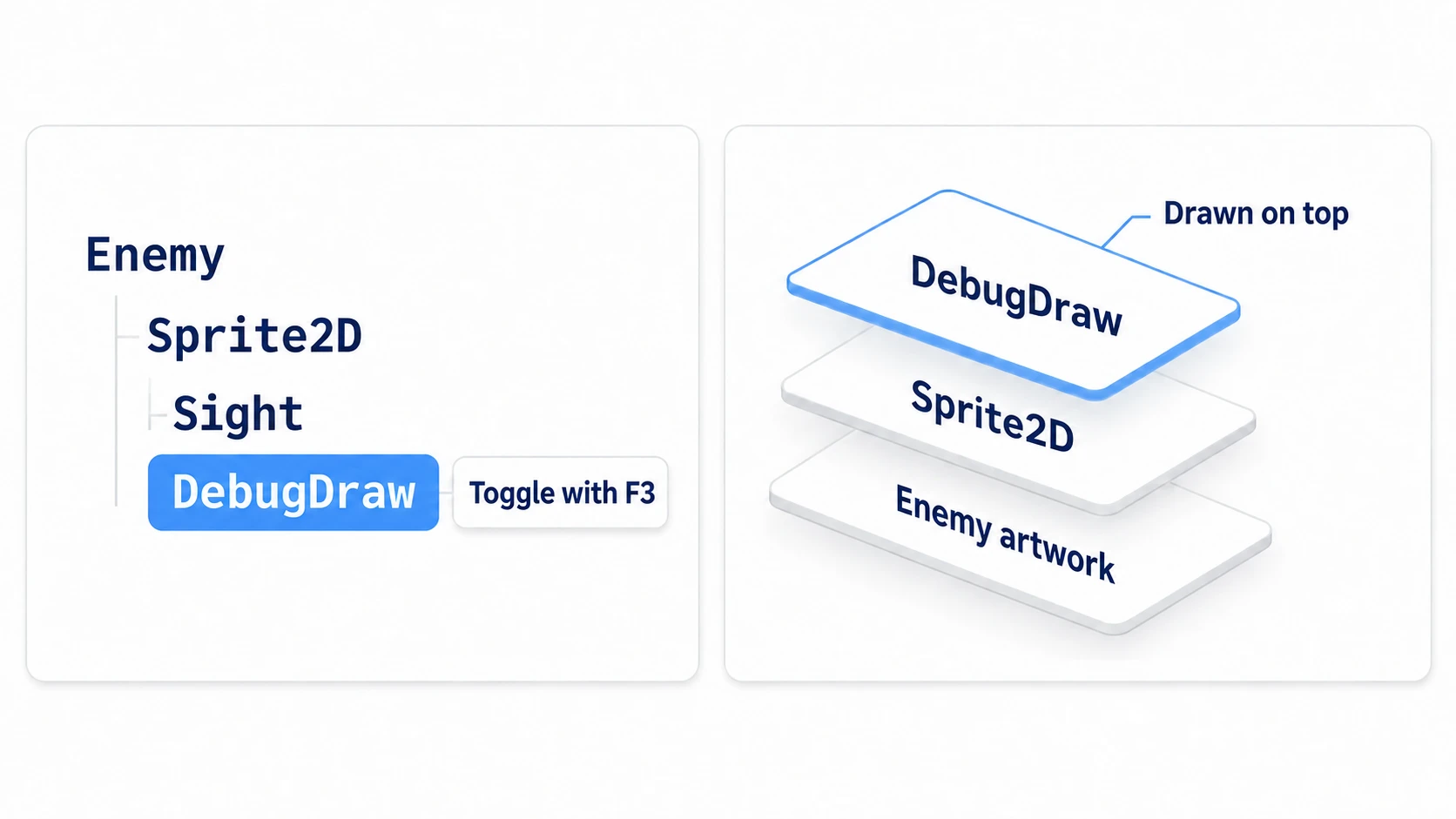
Don't write the drawing code in the enemy's script. Split it out into a child node for drawing called DebugDraw.
One reason is draw order. What a parent draws in _draw() gets covered by a child Sprite2D drawn on top. Draw the circle on the enemy itself and the overlapping part is hidden behind the sprite. Put DebugDraw below Sprite2D in the Scene dock and, since it's drawn later, it lands on top of the sprite.
The other reason is how easily you can show and hide it. If the drawing is gathered in one node, switching its visible is all it takes to hide it. queue_redraw() is also called on DebugDraw itself, the node that has _draw(). Calling it on the enemy doesn't redraw DebugDraw. The export dialog has Export With Debug, which decides whether development features are included. In a game exported with it unchecked, OS.is_debug_build(), which returns whether this is a development build, is false. So in _ready(), remove the whole node. While running from the editor it's true, so the circle still appears.
Hands-On: Draw a Guard's Detection Distance, Destination, and State
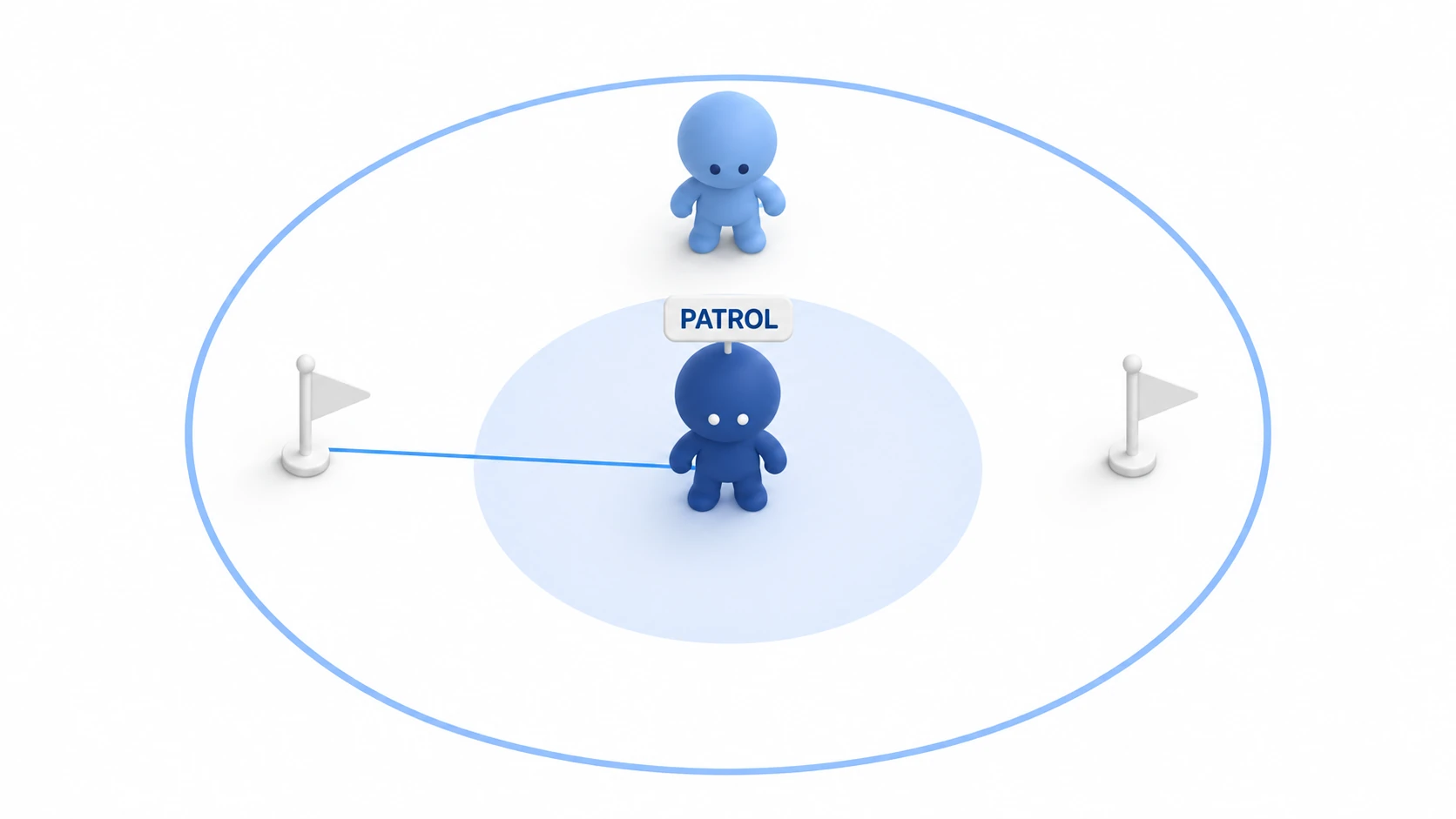
A guard in a stealth game, a patrolling enemy in a top-down action game, a turret in tower defense—they all run on three things: "how far it notices," "where it's heading right now," and "what state it's in right now." You'll build an enemy that patrols and chases once it notices, then draw those three on screen. By overlaying the circle you draw on the collision circle, you'll find why the enemy doesn't notice.
① What to place
Start with a new 2D project. Leave the screen size at the default 1152×648.
main.tscn: the root is a Node2D (named Main). Set it under Project Settings → Application → Run → Main Scene. Place Player and Enemy as children- Player: a CharacterBody2D (position (760, 184), directly above the enemy, a little way off). Add it to the
playergroup in the Groups dock. Once it's in the group, the enemy can tell whether something is the player withis_in_group("player"). Children: a Sprite2D (icon.svg, Scale (0.25, 0.25)) and a CollisionShape2D (CircleShape2D, Radius 16) - Enemy: a Node2D (position (760, 324)). Children, in this order: a Sprite2D (
icon.svg, Scale (0.5, 0.5)), Sight (an Area2D with a CollisionShape2D child (CircleShape2D, Radius 100)), and DebugDraw (a Node2D)
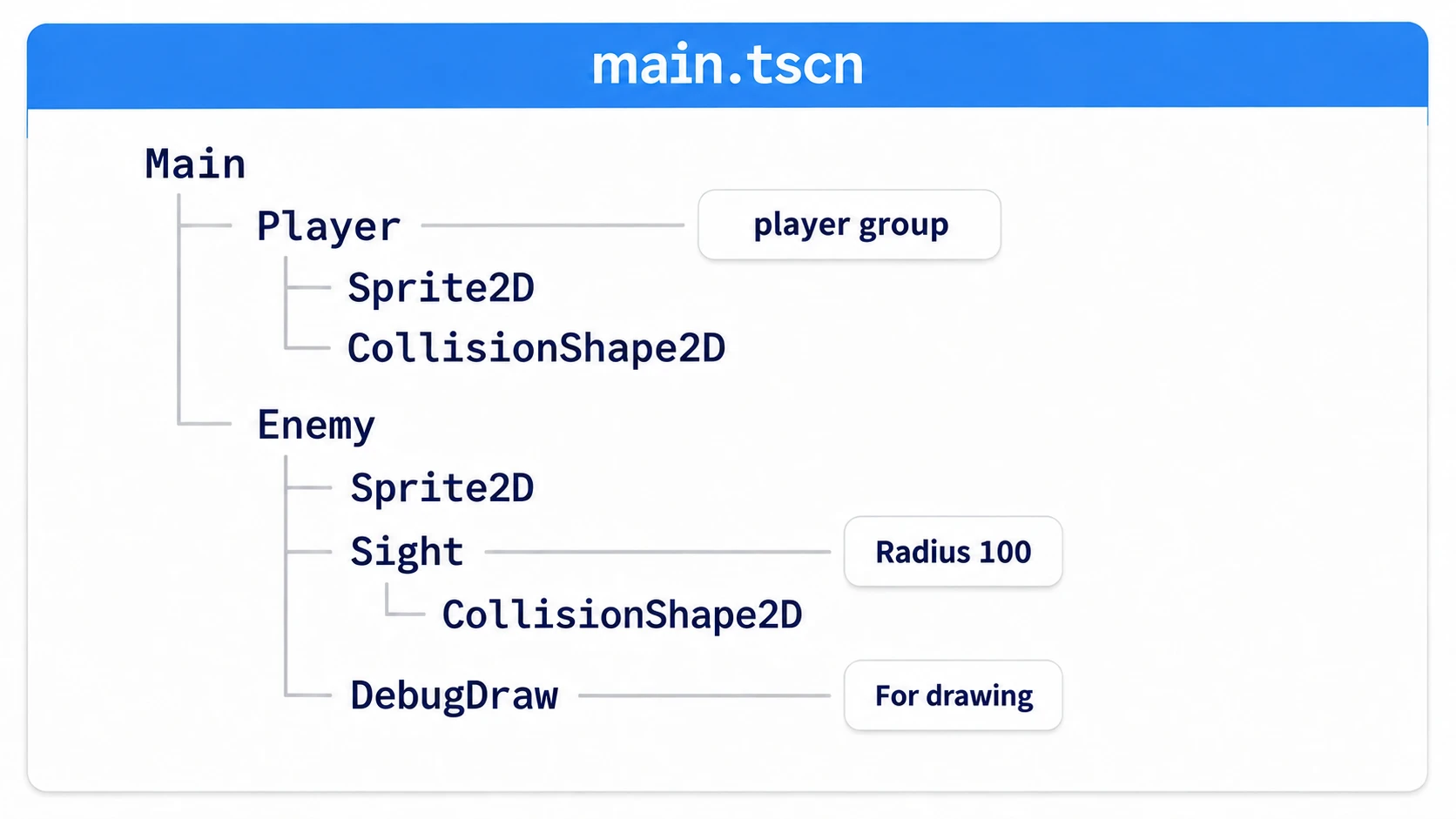
Change visual size only with the Sprite2D's Scale, and leave every other node at (1, 1). Before running, turn on Debug → Visible Collision Shapes.
② Put it together
The player just moves with the arrow keys.
# player.gd (attach to Player)
extends CharacterBody2D

func _physics_process(_delta: float) -> void:
	velocity = Input.get_vector("ui_left", "ui_right", "ui_up", "ui_down") * 200.0
	move_and_slide()
The enemy goes back and forth between two points on the left and right, and chases when the player enters Sight. The Sight Area2D emits body_entered when a body (such as a CharacterBody2D) overlaps it. The detection distance is meant to be 200, from detect_radius.
# enemy.gd (attach to Enemy)
class_name Enemy
extends Node2D

enum State { PATROL, CHASE }

@export var detect_radius := 200.0   # detection distance (supposedly)
@export var speed := 80.0

var state := State.PATROL
var target := Vector2.ZERO           # where it's heading right now (global coordinates)
var player: Node2D = null
var patrol_points: Array[Vector2] = []
var patrol_index := 0

@onready var sight: Area2D = $Sight

func _ready() -> void:
	patrol_points = [global_position + Vector2(-120, 0), global_position + Vector2(120, 0)]
	target = patrol_points[patrol_index]
	sight.body_entered.connect(_on_sight_body_entered)
	sight.body_exited.connect(_on_sight_body_exited)

func _physics_process(delta: float) -> void:
	if state == State.CHASE:
		target = player.global_position
	else:
		target = patrol_points[patrol_index]
		if global_position.distance_to(target) < 4.0:
			patrol_index = (patrol_index + 1) % patrol_points.size()
	global_position = global_position.move_toward(target, speed * delta)   # move toward target by at most speed * delta

func _on_sight_body_entered(body: Node2D) -> void:
	if body.is_in_group("player"):
		player = body
		state = State.CHASE

func _on_sight_body_exited(body: Node2D) -> void:
	if body == player:
		player = null
		state = State.PATROL
DebugDraw just reads the enemy's variables and draws them. class_name Enemy on the first line of enemy.gd lets you write Enemy as a type. The F3 used to show and hide it is a key chosen just for this article's hands-on.
# debug_draw.gd (attach to DebugDraw)
extends Node2D

@onready var enemy: Enemy = get_parent()

func _ready() -> void:
	if not OS.is_debug_build():
		queue_free()                   # remove it in the exported shipped game

func _process(_delta: float) -> void:
	queue_redraw()                     # reflect changes in destination and state in the display

func _unhandled_input(event: InputEvent) -> void:
	if event is InputEventKey and event.pressed and not event.echo and event.keycode == KEY_F3:
		visible = not visible          # toggle with F3

func _draw() -> void:
	var color := Color.ORANGE if enemy.state == Enemy.State.CHASE else Color.SKY_BLUE
	draw_circle(Vector2.ZERO, enemy.detect_radius, color, false, 2.0)   # detection distance (the variable's value)
	draw_line(Vector2.ZERO, to_local(enemy.target), color, 2.0)        # where it's heading right now
	draw_string(ThemeDB.fallback_font, Vector2(-40, -48), Enemy.State.keys()[enemy.state])   # pick the current name from the list of state names
③ Run it and check
Run Main. Check three things.
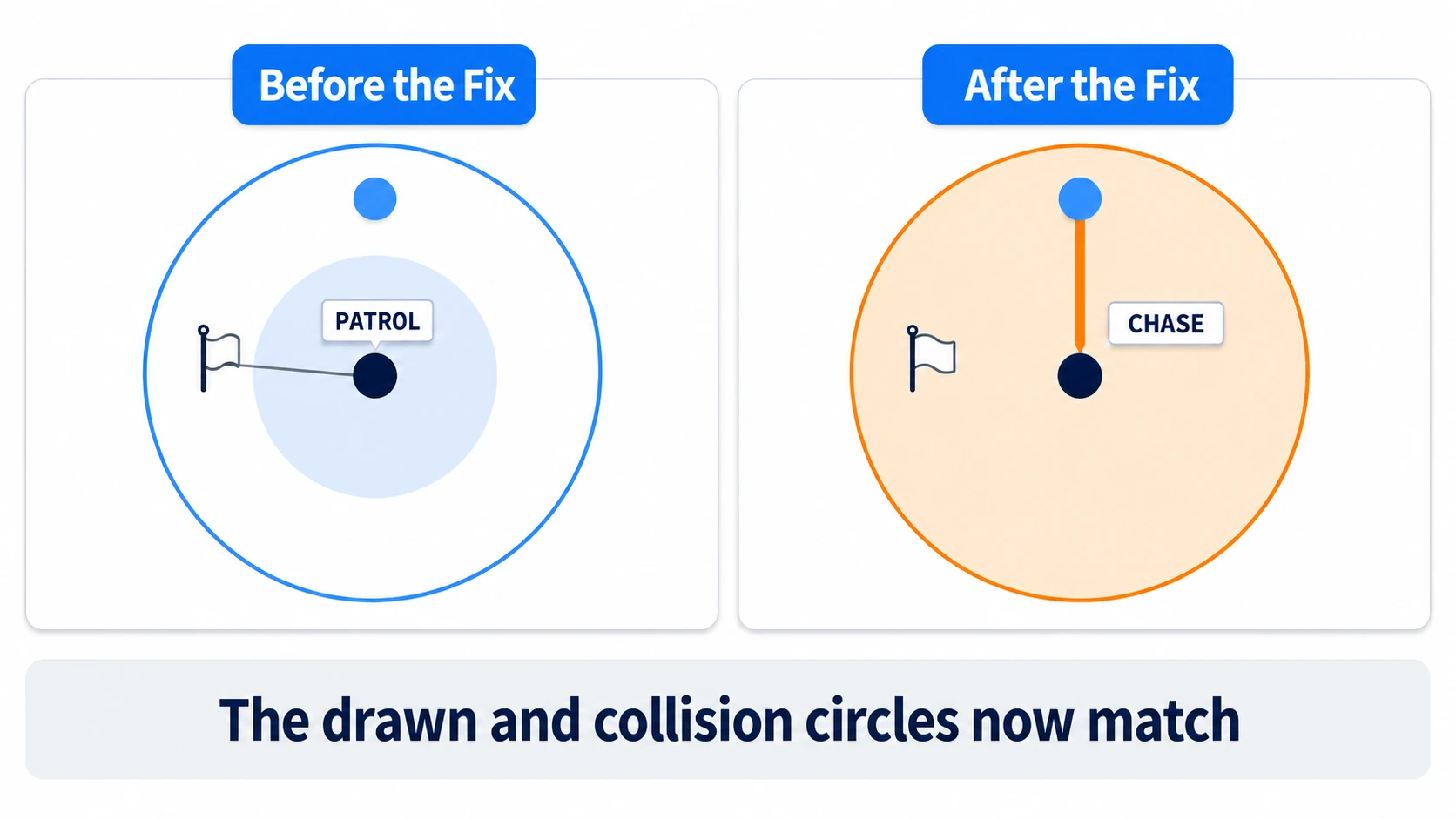
First, the enemy goes back and forth toward the left and right patrol points. Around the enemy appear the circle you drew yourself (radius 200) and a smaller translucent circle (the Sight collision, radius 100). A small collision circle appears around the player too. Above the enemy's head is "PATROL", and the line points to the patrol point it's heading for right now. If you can't see the translucent circle, turn on Visible Collision Shapes and run again.
Next, look at where the player is. The player is inside the large circle from the start, yet the enemy keeps patrolling. Wherever the enemy is between left and right, the distance between the centers is 140 to 184. Even including the player's collision, it doesn't reach the small circle. The distance at which the enemy notices wasn't the 200 you drew. It was the 100 of the collision.
Click the game screen and move closer with the down arrow key. When the player's collision overlaps the small circle, it changes to "CHASE". The circle and line turn orange, and the line reaches toward the player. Keep running sideways and, since the player is faster, you shake it off and it goes back to "PATROL".
To finish, add one line at the top of _ready() in enemy.gd and run again.
($Sight/CollisionShape2D.shape as CircleShape2D).radius = detect_radius # match the collision circle to the circle being drawn
The center and radius of the drawn circle and the collision circle line up, and it switches to "CHASE" right after starting. If you place several enemies, duplicate the shape before this line (the reason is in the second row of Troubleshooting). The player also has a collision radius of 16, so the noticing threshold is 200 + 16 = 216 between the centers. The starting distance is 140, so you're already inside the range.
Two points.
- Draw the value the detection actually reads: the drawn circle read
detect_radius, while detection read the Sight circle. When they look at separate values, the circle you drew and the actual detection disagree. The one line you added makes the collision circle matchdetect_radiusat startup, so the drawn value and the detection value are the same - Overlay it with the engine's display: looking only at the circle you drew, you'd never notice the mismatch. Overlaying it with the Visible Collision Shapes collision made the difference between the two circles visible. If you want to add a viewing angle and wall checks, Vision Detection continues from here
Troubleshooting
| Symptom | Cause | Fix |
|---|---|---|
| The circle is filled in and hides overlapping characters | draw_circle() fills by default | Pass false as the fourth argument and the line width (such as 2.0) as the fifth |
| After duplicating an enemy, changing one's radius changed every enemy's reaction distance | Duplicated enemies share the same CircleShape2D (the shape data still points to the same single one even after duplicating the node) | Before rewriting the radius, swap shape for a shape.duplicate() copy |
draw_string() errors, or the text is in the wrong place | The first argument needs a font. The position is the baseline (the line along the bottom of the text) at the text's left edge | Pass ThemeDB.fallback_font (the backup font the theme provides) as the font. To show it above the head, use a negative Y |
| Hiding it with F3 still leaves the translucent circle | The translucent circle is drawn by Visible Collision Shapes | Turn it off in the Debug menu and run again |
Bonus: Good to Know First
- Want to see the circle while editing too?: put
@tool(a marker that runs the script inside the editor too) at the top of a script, and_draw()can run in the editor too. This article's DebugDraw reads values from the enemy's script, so just adding one@toolline won't make it work. How to set it up is in Editor Plugin Basics - When the state flickers at the boundary: separate the noticing circle from the losing-track circle, and make the losing-track circle a little bigger. Draw both circles and you can see the width of the gap between them
- When you want to see the navigation path: turn on
debug_enabledon NavigationAgent2D and it draws the computed path as a line. How to use it is in NavigationAgent2D Basics
Summary
_draw()only runs when asked: what's drawn stays. If a line's end point or text values change, usequeue_redraw()- Coordinates are relative to the drawing node: pass other nodes' positions through
to_local() - Shapes the engine knows about are in the Debug menu: draw variables, destinations, and states yourself
- Put the drawing node under the enemy as a child: it draws on top of the sprite, and showing and hiding it happens in one place
- Draw the value the detection reads: overlay it with the engine's display to see mismatches
Start by drawing the detection distance circle. In your enemy AI, which values do you want to put on screen and check?