On a top-down map, you want the character in front of the trunk when it's below a tree (toward the front of the screen), and hidden behind the trunk when it goes around above it. In Godot, you build this with Y Sort, which reorders things by their Y coordinate.
Try to fix it with z_index, the number that decides front and back, and the character either never hides at all or always hides. That's because z_index isn't a number to swap every time you walk; it's a number that moves the whole tier something is drawn on.
This article sorts out how far CanvasLayer, z_index, and Y Sort each reach, and covers how to let the character walk behind a tree.

What You'll Learn
- Draw order is split into three tiers, and numbers can't reach across tiers
- Which node to turn Y Sort Enabled on for
- Y Sort compares node origins, and how to line them up with the picture's feet
- How a child's
z_indexis added on top of its parent's
Tested with: Godot 4.7
- The three tiers that decide draw order
- Front and back between CanvasLayers
- Tree order within the same layer
- How to set Y Sort and the position it compares
- z_index and addition between parent and child
- Hands-On: Walk Around to the Front and Back of a Tree
- Troubleshooting
- Bonus: Good to Know First
- Summary
The three tiers that decide draw order
Godot's 2D decides front and back in these three tiers.
- Which CanvasLayer it's on
- The effective
z_indexwithin the same canvas (the single board 2D pictures are drawn onto). Larger is in front - The order within the same effective z. Tree order, or Y Sort order
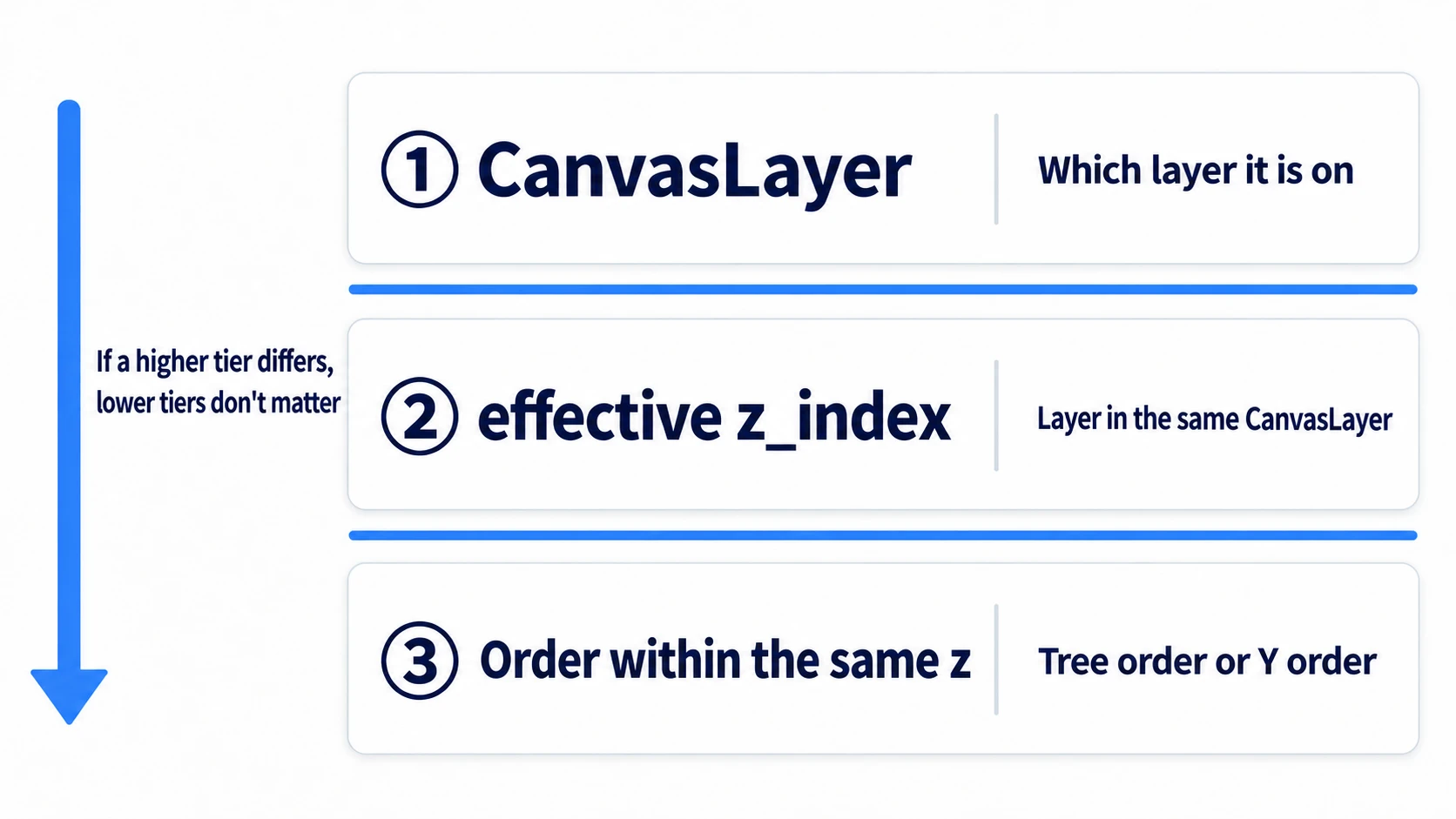
Against something on a different upper tier, the lower tier's numbers can't compete.
"Effective z" is the z actually used for that node. As you'll see later, a child's z_index is added to its parent's, so it can end up a different value from the number shown in the Inspector.
In other engines: in Unity's 2D,
z_index, which fixes front and back, is close to Sorting Layer and Order in Layer; Y Sort is close to the sorting you get with Transparency Sort Mode set to Custom Axis at (0, 1, 0); and sorting a character's parts as one set against the outside is close to Sorting Group.
Front and back between CanvasLayers
CanvasLayer is a node that adds one more board to draw pictures on. The one with the larger layer number comes to the front as a whole, and the contents of separate boards don't mix.

A HUD (displays overlaid on the screen, like health or score) and the pause screen go under a CanvasLayer to fix them "always in front" using this property. In exchange, there's no way for the world side to cut in front of or behind them. A character with Z Index at 100 that still stays behind the hearts is this happening.
To cut in, move that node into a CanvasLayer with a larger layer than the HUD too. A CanvasLayer is fixed to the screen by default. If you want to place it as a world object that flows across the screen as the camera moves, turn on Follow Viewport too. Giving loading screens a large value like 100 is covered in Dynamic Loading Basics.
From here on, it's about things within the same canvas.
Tree order within the same layer
In a scene where you haven't touched a single Z Index, everyone is in the same layer (the same effective z). Front and back within it are decided by the order in the scene tree: nodes lower in the tree are drawn later and come out in front.
Putting the floor first and lining up what stands on it after is enough. Stacking three TileMapLayers works the same way: to put grass on top of the floor, put the grass layer lower in the tree (TileMapLayer Basics).
The dead end comes when you line up the character and the tree as siblings. Tree order doesn't move, so whether the character walks north or south, front and back don't change.
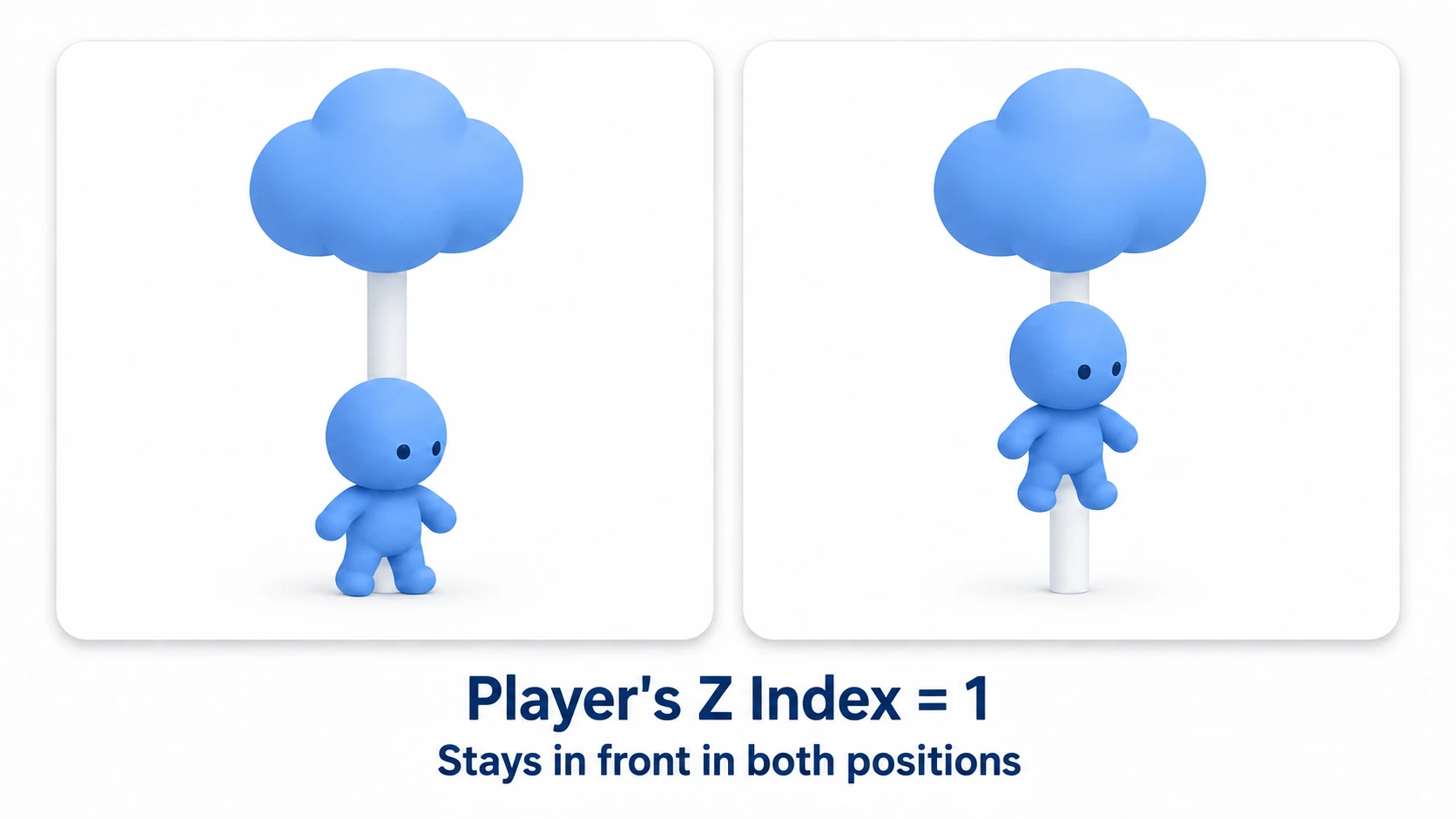
Set the character's Z Index to 1, and it does come in front of the tree. In exchange, it never hides at all. Set the tree to 2, and now it always hides. What z_index can decide is only "which one is on top." Just putting in a value doesn't make them swap automatically to match where you walk.
Don't use z_index for things you want to swap.
How to set Y Sort and the position it compares
Y Sort changes the order within the same layer from tree order to Y-coordinate order. The larger the Y, meaning the lower on screen, the more in front. In a top-down game, this Y is what expresses "in front = closer to the camera."
Where you turn it on is where people stumble. Y Sort Enabled is a switch that sorts that node's contents in Y order. Turning it on for the character itself and the tree itself only sorts what's inside each, so their front-back order doesn't change.
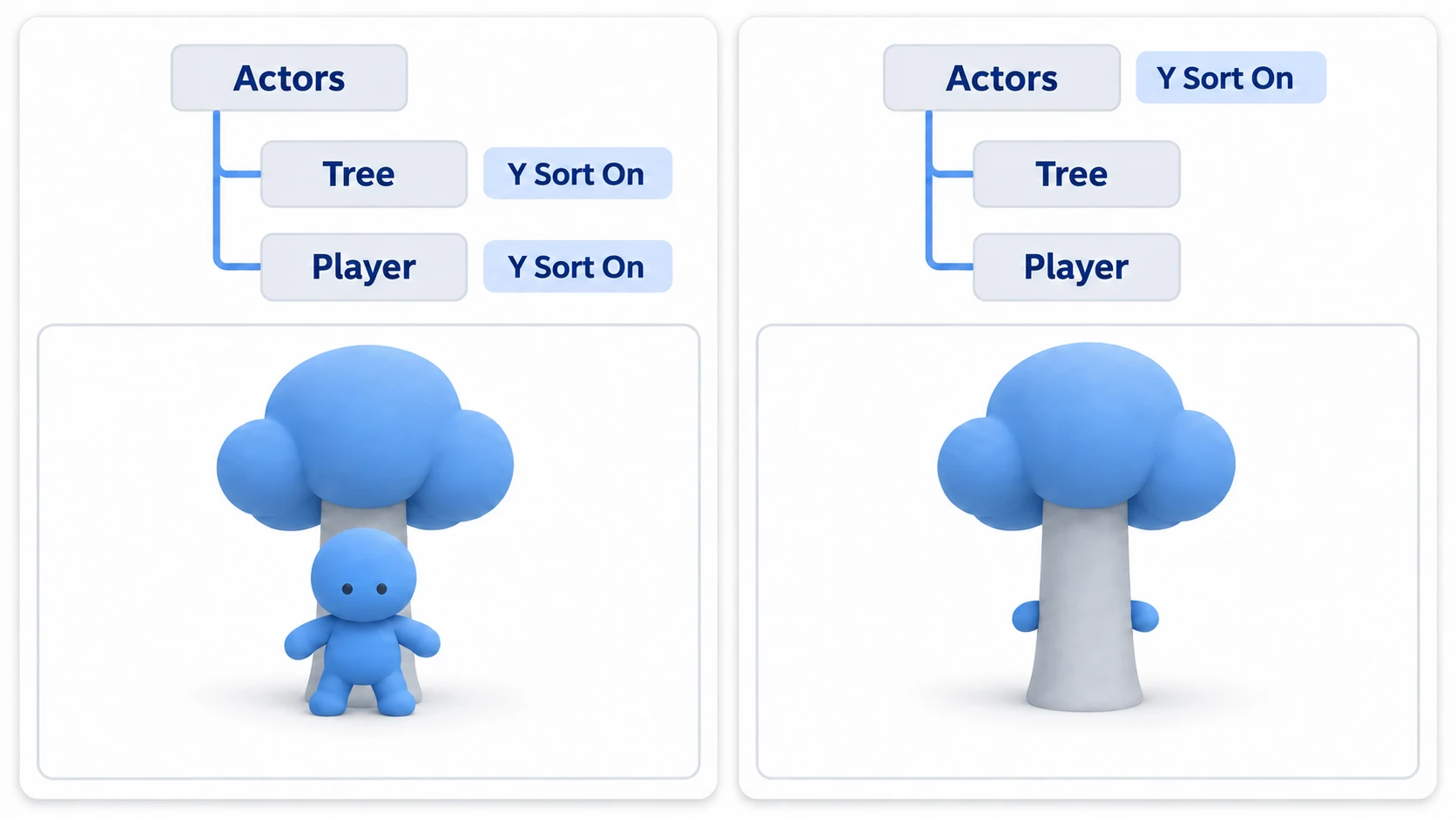
What to turn it on for is the parent that holds the character and the tree as siblings.
Level (Node2D)          Y Sort Enabled = off
├─ Ground
└─ Actors (Node2D)      Y Sort Enabled = on   ← only here
   ├─ Tree
   └─ Player
The YSort node from Godot 3 no longer exists in Godot 4. Y Sort Enabled plays the same role.
What's compared isn't the picture's outline or how much things overlap, but the Y of the node's origin. The cross that appears when you select a node in the editor is that point.
Sprite2D has Centered on by default, so its origin is in the middle of the picture. As-is, the switch also happens in the middle of the picture. What readers expect is the feet and the base of the trunk, so if this is off, it looks like "it isn't working."
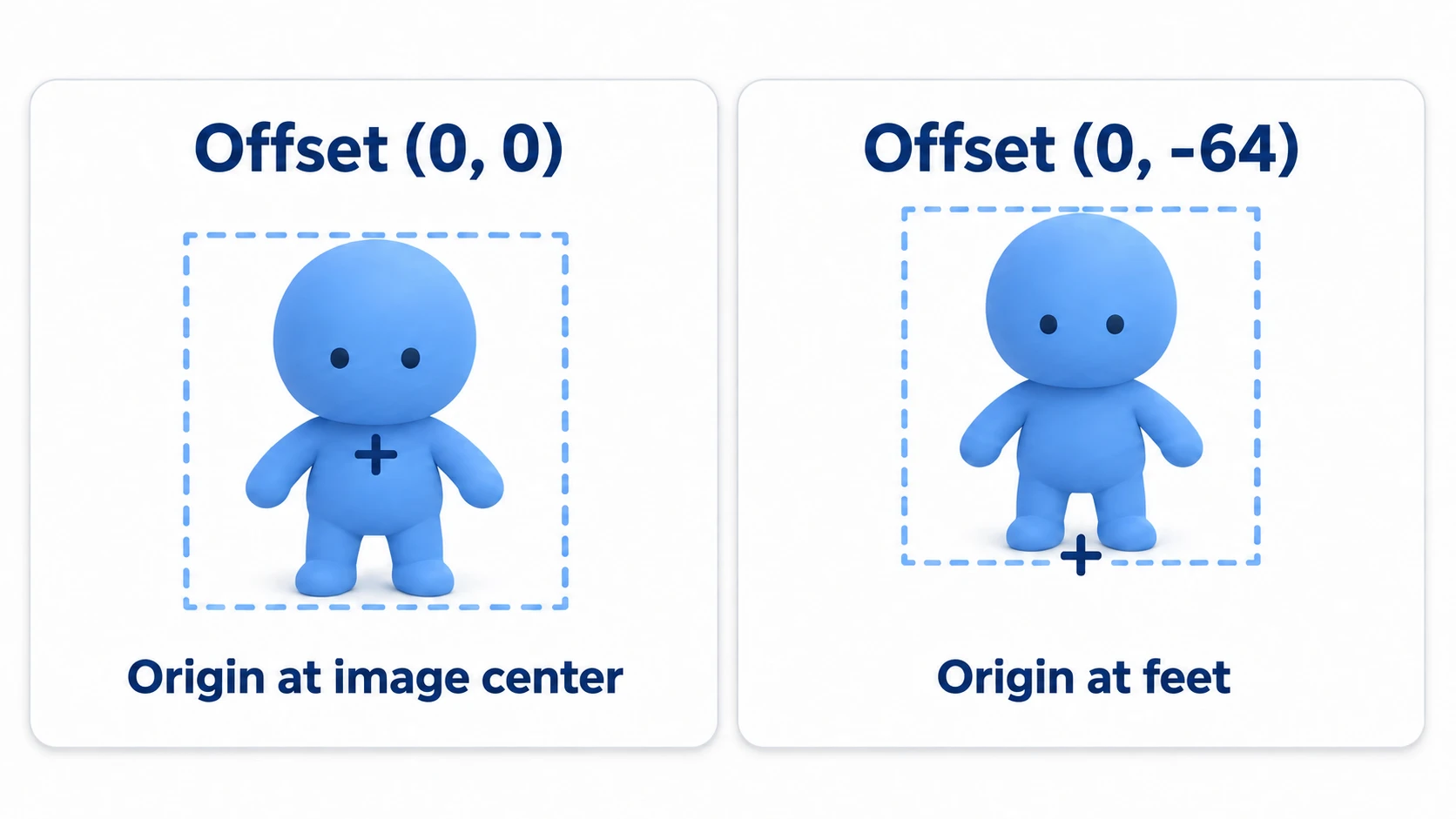
The fix is to put the node's position at the feet and shift the picture up with Offset. For a 128×128 image, setting Offset to (0, -64) puts the picture's bottom edge at the node's position. Centered can stay on.
One more thing: don't turn it on inside the character's scene. Turn it on on the character side, and the body, shadow, and weapon start being sorted as separate participants. If you have the weapon held a little higher, its Y is smaller than the body's, so only the weapon goes behind the body.
z_index and addition between parent and child
z_index is a number that moves the layer itself. Only when you put it on a child is there a bit more to think about.
Z As Relative is on by default. In that case, a child's effective z is the parent's effective z plus its own z_index. If the parent is 10 and the child is 1, the child is 11. Turn it off, and the parent's value isn't added, so its own z_index becomes its value within that canvas. Either way, it doesn't cross CanvasLayers.
When the parent's Y Sort is off and the effective z is the same, a child is drawn after its parent. Setting the child to 0 doesn't put it behind the parent. There are two ways to put it behind: enter -1 in Z Index, or turn on Show Behind Parent (a checkbox that draws it before the parent while keeping z as-is). These two give different results. -1 lowers the effective z itself, so it changes not just the order relative to the parent but also the relationship with things outside.
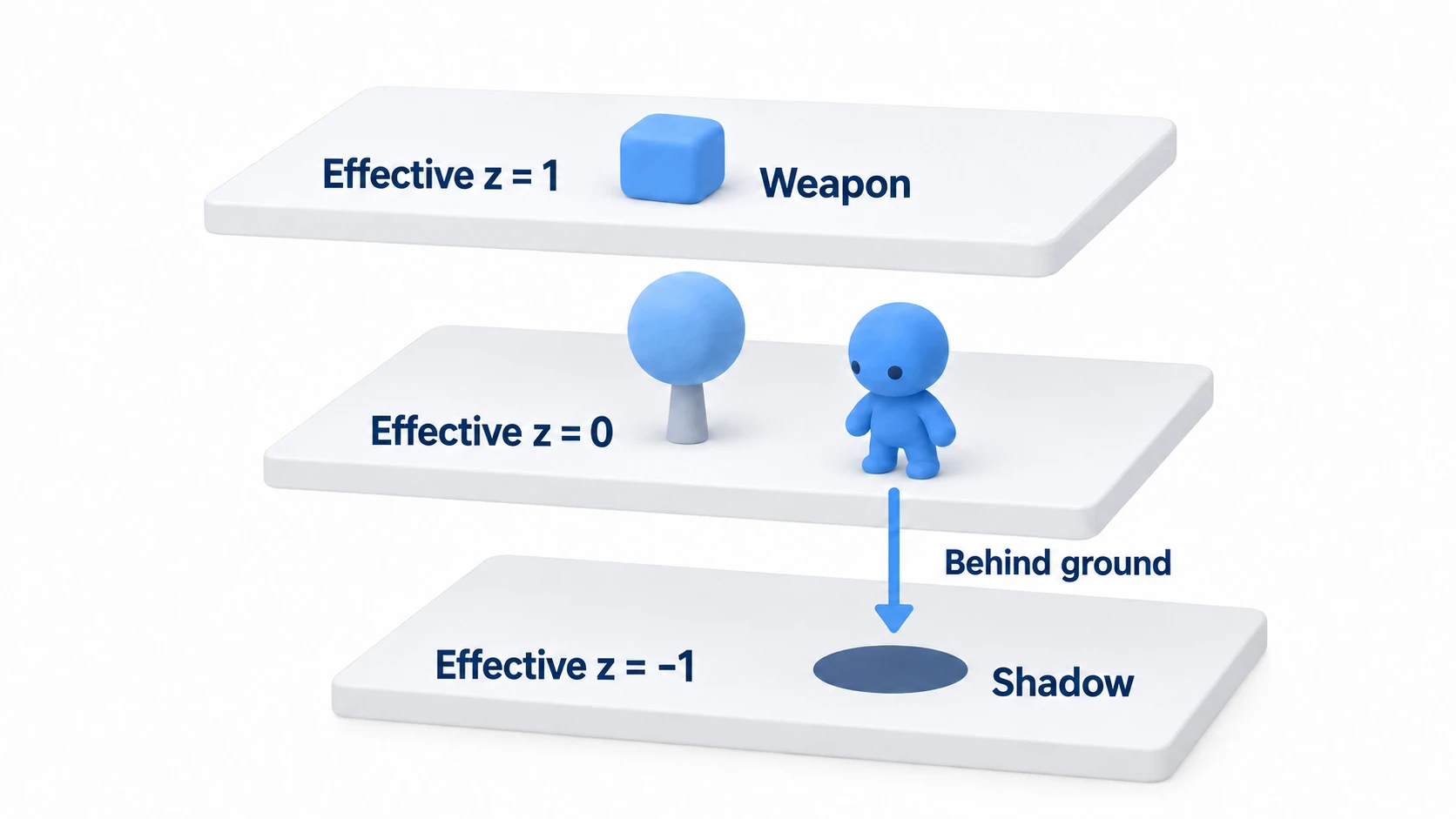
This is where shadows trip people up. Put the shadow as a child of the character and enter -1 to put it behind the body, and it does go behind the body. But its effective z becomes -1, so with the ground still at 0, it sinks behind the ground. What you thought you fixed inside the character turns into a contest with the ground outside it. Leave the shadow at 0 and place it above the body in the tree, and it comes out behind the body and in front of the ground.
| Node | Parent | Z Index | Effective z | Where it shows |
|---|---|---|---|---|
| Ground | Level | 0 | 0 | In front of the shadow (behind everything else) |
| Tree | Actors | 0 | 0 | Competes with Player by Y |
| Player | Actors | 0 | 0 | Competes with Tree by Y |
| Shadow | Player | -1 | -1 | Disappears under the ground |
| Weapon | Player | 1 | 1 | Always in front of the tree |
The bottom two rows of the table (shadow and weapon) are where people trip up.
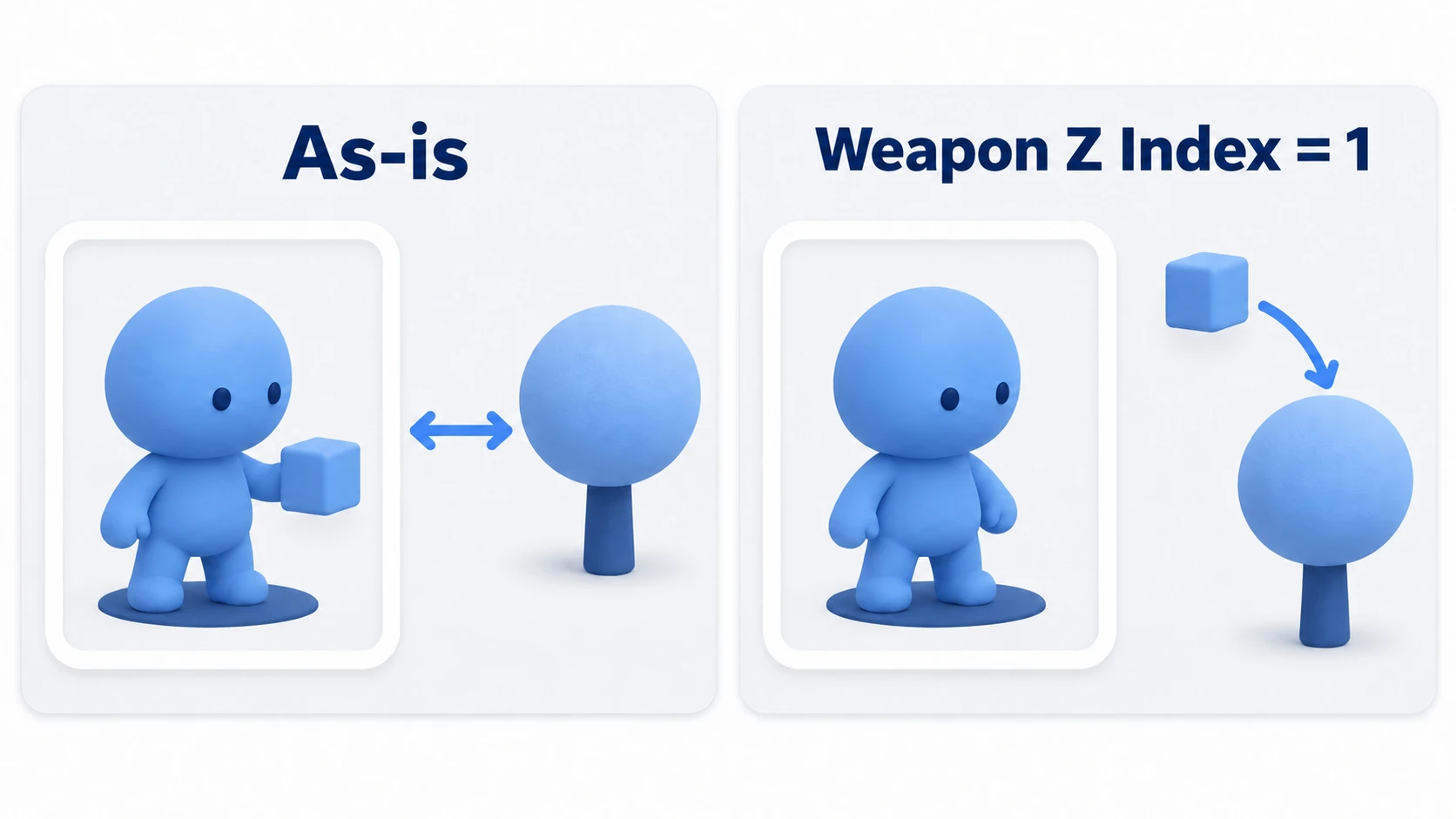
When a part's effective z becomes a different value from the body's, that part leaves its parent's group and starts competing directly with things outside. Set the weapon to 1, and even when the character goes behind the tree, only the weapon stays in front of the trunk.
To decide only the order among parts, leave every Z Index at 0 and arrange them by their order in the tree. Put shadow, body, and weapon in that order, and the shadow is under the body and the weapon on top of it. Then the whole set swaps with the tree together, based on the character's feet.
Hands-On: Walk Around to the Front and Back of a Tree
A forest in a top-down ARPG, fruit trees and villagers in a farming sim, hiding behind pillars in a top-view shooter—they all have the same shape. Here you'll place just one tree and one character, and swap front and back without touching a single Z Index.
① What to place
Create one new scene. The only art is the icon.svg included in every project from the start, so there are no assets to prepare.
Put a Node2D at the root as Level, and attach level.gd.
- Add a ColorRect under Level as Ground. Position
(0, 0), Size(1152, 648), Color dark gray, Mouse Filter Ignore (doesn't receive clicks) - Add a Node2D under Level as Actors. Turn on Y Sort Enabled under Ordering in the Inspector
- Add a Sprite2D under Actors as Tree. Position
(400, 300),icon.svgin Texture, Scale(0.6, 1.4), Offset(0, -64) - Add a CharacterBody2D under Actors as Player. Position
(400, 360), Motion Mode Floating, Y Sort Enabled left off - Under Player, a CollisionShape2D (CircleShape2D, radius
16) - Under Player, three Sprite2Ds. From the top: Shadow (
icon.svg, Scale(0.35, 0.12), Modulate (the color multiplied into the picture) black), Body (icon.svg, Scale(0.4, 0.4), Offset(0, -64)), and Weapon (icon.svg, Scale(0.15, 0.15), position(24, -36)) - Add a CanvasLayer under Level as Hud. Leave Layer at
1. Under it, add a Label as InfoLabel at position(16, 16) - For Tree, Player, and InfoLabel, right-click and turn on "Access as Unique Name"
Ground's Size is the same numbers as the screen. If you've changed the screen size in the project settings, match that. Ground is above Actors in the tree, so it's always drawn at the very back without touching Z Index.
Tree's Offset is (0, -64), so the picture's bottom edge is at (400, 300). This point is the base of the trunk, the height where front and back switch. Player works the same way, with its origin at the feet. It's top-down, so set Motion Mode to Floating (The Difference Between Motion Modes).
② Put it together
# level.gd
extends Node2D

const SPEED := 160.0

@onready var player: CharacterBody2D = %Player
@onready var tree_node: Sprite2D = %Tree
@onready var info: Label = %InfoLabel

func _physics_process(_delta: float) -> void:
	var direction := Input.get_vector("ui_left", "ui_right", "ui_up", "ui_down")
	player.velocity = direction * SPEED
	player.move_and_slide()
	info.text = "Player Y %.1f / Tree Y %.1f" % [   # %.1f shows one decimal place
		player.global_position.y, tree_node.global_position.y
	]
All it does is move and show the two Y values on screen. There isn't a single line deciding front and back. The Y values shown on the label are what Y Sort actually compares.
Writing like %Player gets a node by its unique name rather than by its path in the tree. Even if you rearrange the tree later, these three lines don't need rewriting (Getting Nodes).
③ Run it and check
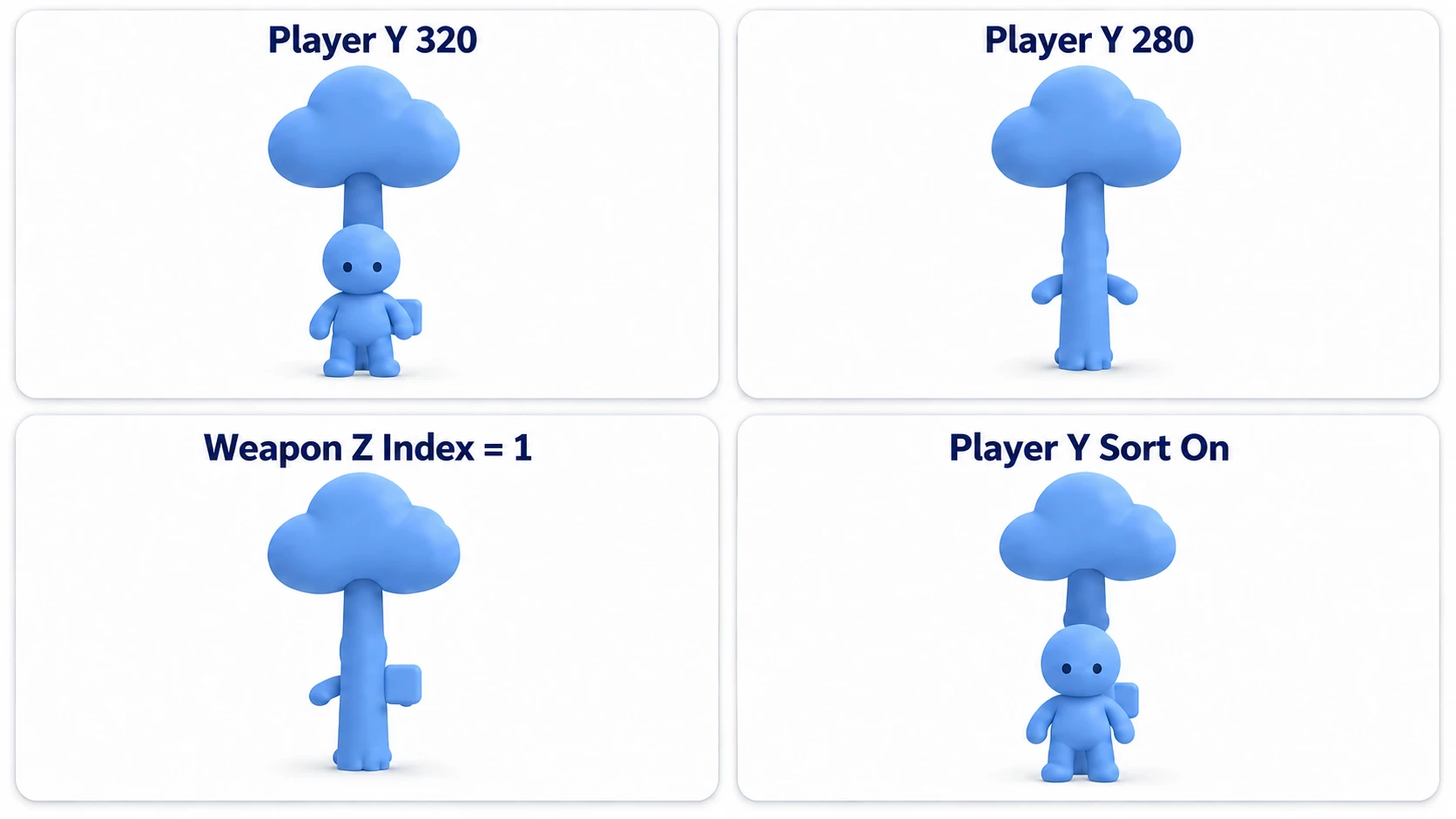
Run with F6 (runs the scene you have open) and walk up and down with the arrow keys. Check three things.
At the starting position of 360, the body and trunk are apart. Walk up, and they start to overlap from around 351; at 320, the top 60% of the body overlaps the trunk. Even so, as long as Player Y is larger than Tree Y's 300.0, the body is in front. Walk further up to 280, and the body has gone behind the trunk and can't be seen. Z Index is 0 on both, and the switch is the single frame crossing 300. It doesn't gradually show through; it swaps all at once.
Next, try turning off Actors' Y Sort Enabled. Wherever you move in Y, the body no longer leaves the front of the trunk. Turn it back on, and with the body hidden by the trunk around 280, set Weapon's Z Index to 1, and only the weapon stays on top of the trunk. You can see that when a part's effective z becomes a different value from the body's, only that part leaves the set.
Finally, set Weapon back to 0, walk down to 360, and turn on Player's Y Sort Enabled. The weapon goes behind the body, and the parts start being sorted separately. Set Player's Z Index to 100 and walk up over the label at the top left, and the label stays in front. Put each thing you tried back as you go.
Two points.
- For things you want to swap, match their effective z and leave it to Y Sort: that's why this article's hands-on doesn't use a single Z Index. The moment its effective z differs from the other's, swapping by Y stops
- The parent makes the range to sort, and a node with Y Sort off moves as one set: turn on Actors, and what's inside it becomes subject to sorting. Leave Player off, and the body, shadow, and weapon are treated as one person's set. Give a part an effective z different from the body's, and only that part leaves the set
If you want to change the order of the shadow and body, swap Shadow and Body in the tree instead of using Z Index. It stays within the same layer, so the relationship with the ground doesn't change.
Troubleshooting
| Symptom | Cause | Fix |
|---|---|---|
| After grouping trees under Trees, the character only comes in front of or behind the whole forest | The container Trees is off, so the forest is sorted as one by Trees' origin Y | Turn on Y Sort Enabled on Trees too. The same goes when trees are drawn in a TileMapLayer |
| You turned on Y Sort Enabled on both the tree and the character, but they don't swap | Y Sort Enabled is a switch that sorts that node's contents. It's only sorting what's inside each of the tree and the character | Turn it on for the parent (Actors) that holds the tree and the character as siblings |
| The height where front and back switch is the middle of the picture, not the base of the trunk | Sprite2D's Centered is on, so the node's origin is at the center of the picture | Put the node's position at the feet and shift the picture up with Offset ((0, -64) for 128×128) |
| After moving things under a plain Node to organize them, Y Sort stopped working | A plain Node isn't a CanvasItem (the common parent of Node2D, Sprite2D, and Control), so the chain of position, z addition, and Y Sort breaks there | Use a Node2D as the container |
Bonus: Good to Know First
- When placing trees with tiles: if you drew tall things in a TileMapLayer, make that layer a child of Actors and turn on Y Sort Enabled on the layer side too. Leave it off, and the whole forest is compared as one sheet, and the character comes out in front of or behind the whole forest. Fix tiles whose base height is off with Y Sort Origin under the TileSet's Rendering
- Don't make two CanvasLayers with the same number: even with the same
layer, the contents of two boards don't mix, and which is in front is decided by tree order. Just changing where they're placed swaps them, so give different numbers to things whose front and back you want to be clear - Darkening the screen is per board too: CanvasModulate, which darkens the world, works per CanvasLayer, so splitting boards splits the range of the darkening too (2D Lighting Basics)
Summary
- Draw order has three tiers: CanvasLayer → effective
z_index→ order within the same layer. Against something on a different upper tier, the lower tier's numbers can't compete - Within the same layer, it's tree order by default: nodes lower in the tree are drawn in front
- Put Y Sort on the parent: Y Sort Enabled is a switch that sorts that node's contents in Y order. Turn it on for the parent that holds the things you want sorted
- What's compared is the Y of the node's origin: Sprite2D's origin is the center of the picture, so shift the picture up with Offset to line it up with the feet
- Don't use
z_indexfor things you want to swap: a child'sz_indexis added to its parent's, and when a part's effective z differs from the body's, only that part leaves the set
Start by picking one node in your own scene that currently has a z_index. If you put that number in to decide "always this one," it's right as it is. If you put it in because you want them to swap as they move up and down, that's Y Sort's job. What in your game do you want the character to be able to walk behind?