If you're going to distribute a Japanese-language game, settle on one font for the game's text and put it in your project. To change the color of, or wobble, just part of a single line in dialogue or messages, use RichTextLabel.
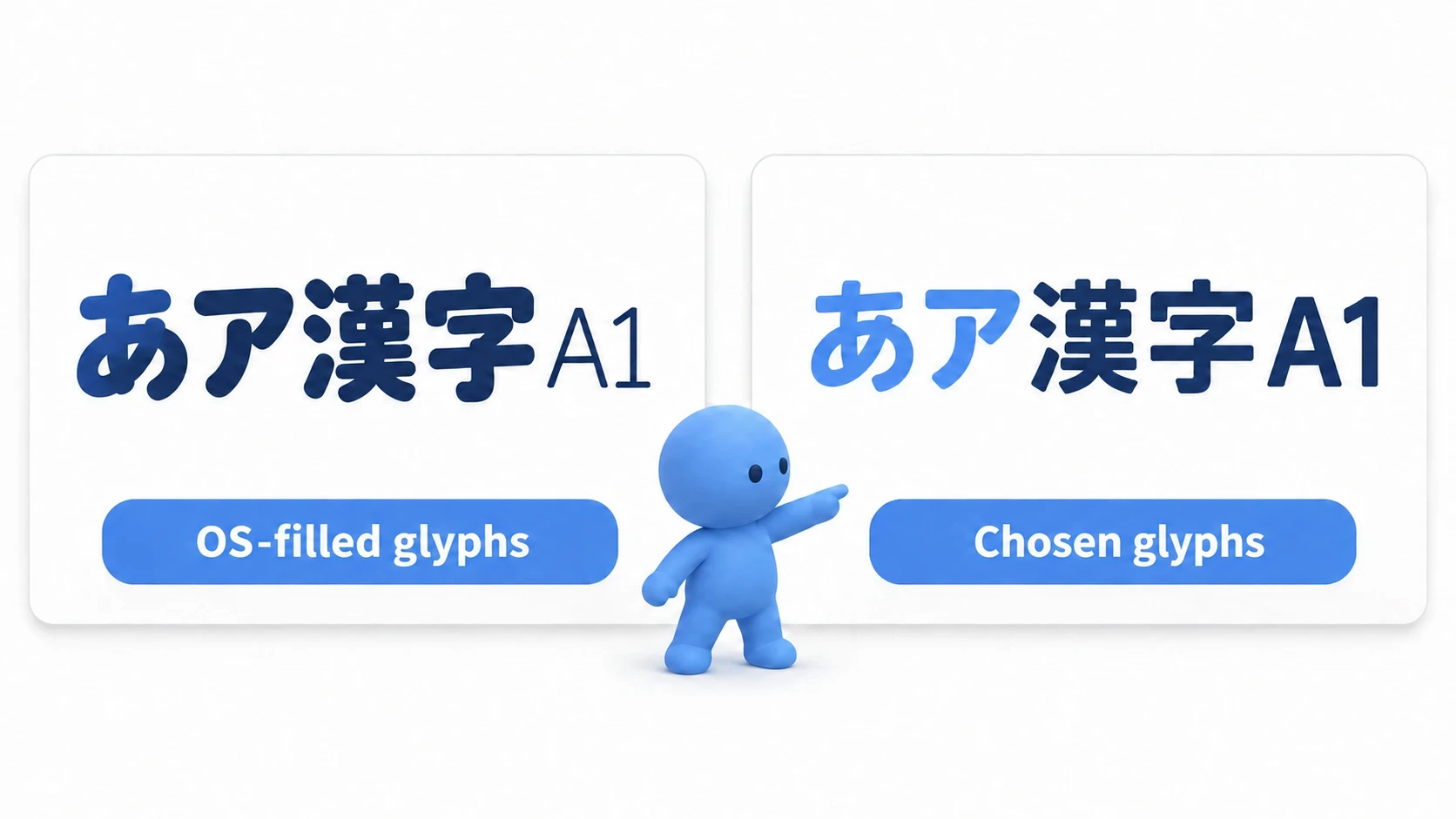
Even without adding a font, Japanese in a Label is readable as-is. But that's because the OS's fonts are filling in the characters, so the look changes when you make text bold or on the PCs you distribute to, and on the Web build, boxes appear.
This article covers settling your project's text on a single font, and mixing color and wobble into one line with RichTextLabel.
What You'll Learn
- Why Japanese is readable even without adding a font, and why you shouldn't leave it that way
- Steps to add one FontFile and match the bold slot too
- What changes from Label when you switch to RichTextLabel
- Hands-on: put the same line in a Label and a RichTextLabel side by side, and add color and wobble
Tested with: Godot 4.7 (Windows)
Japanese filled in by the OS's fonts
Type 「こんにちは」 ("hello") into a Label in a new project, and it's readable as-is. You haven't set any font.
Godot's default font covers Latin letters and digits, and doesn't have Japanese characters. Godot 4 fills in characters missing from the current font with the OS's fonts. Both Windows and macOS have fonts with Japanese in them, so it ends up readable.
It seems convenient, but this is where the trouble starts.
- The characters change by environment: the font filling things in changes on the PCs you distribute to. Not just the typeface but also character widths and line heights change, so text that fit in a box on your screen can overflow on theirs
- The typeface splits within one line: it mixes the default font for Latin letters and digits with the OS's font for kana and kanji
- On the Web, you get boxes: inside a browser, there's nothing to fill them in (Web Export Basics)
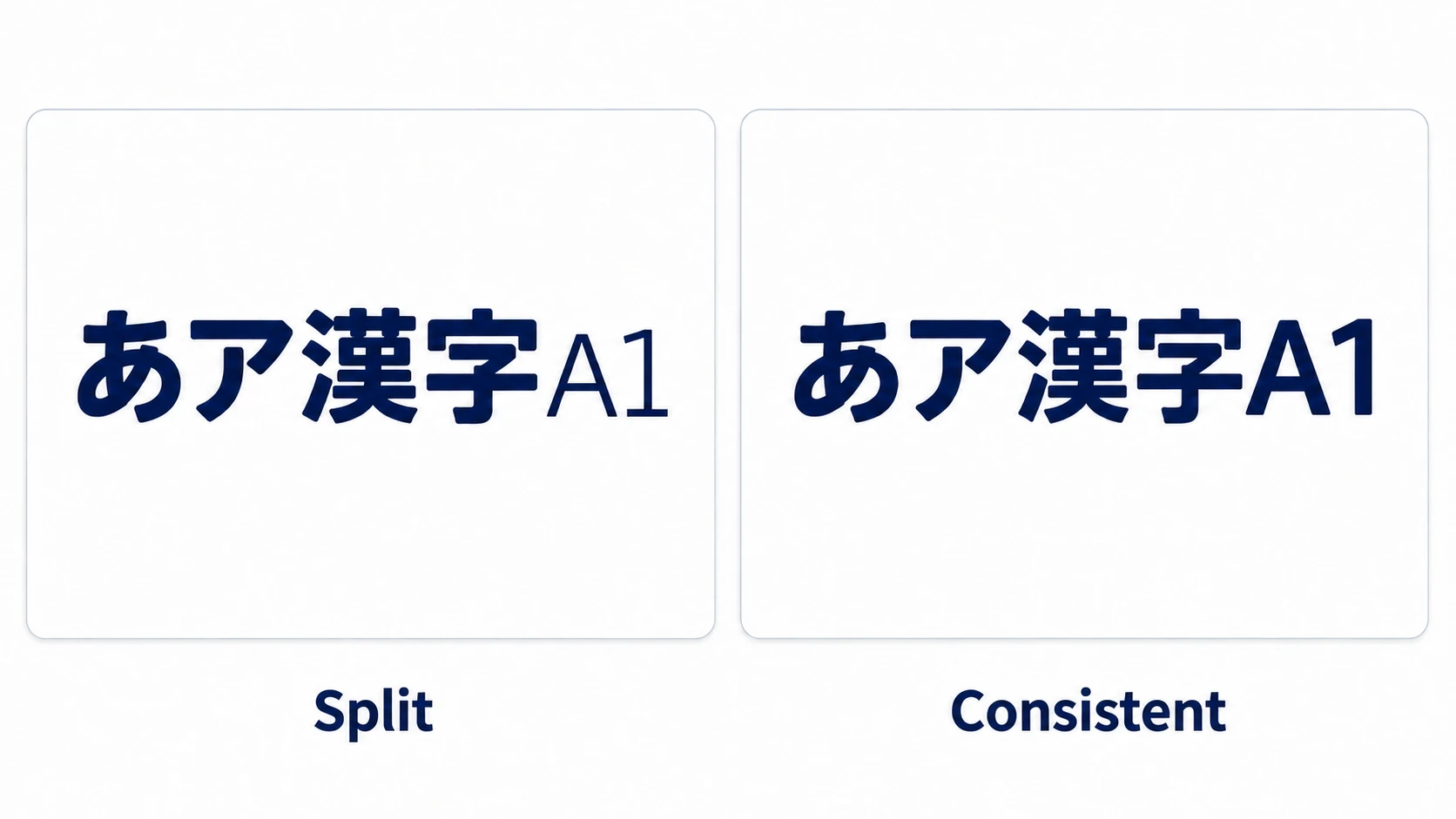
No boxes appearing and the characters being settled are two different things. As long as it's readable on your own PC, you won't notice even if it's split.
How to add a font (FontFile and Custom Font)
There are three font-related resources, each with a different role.
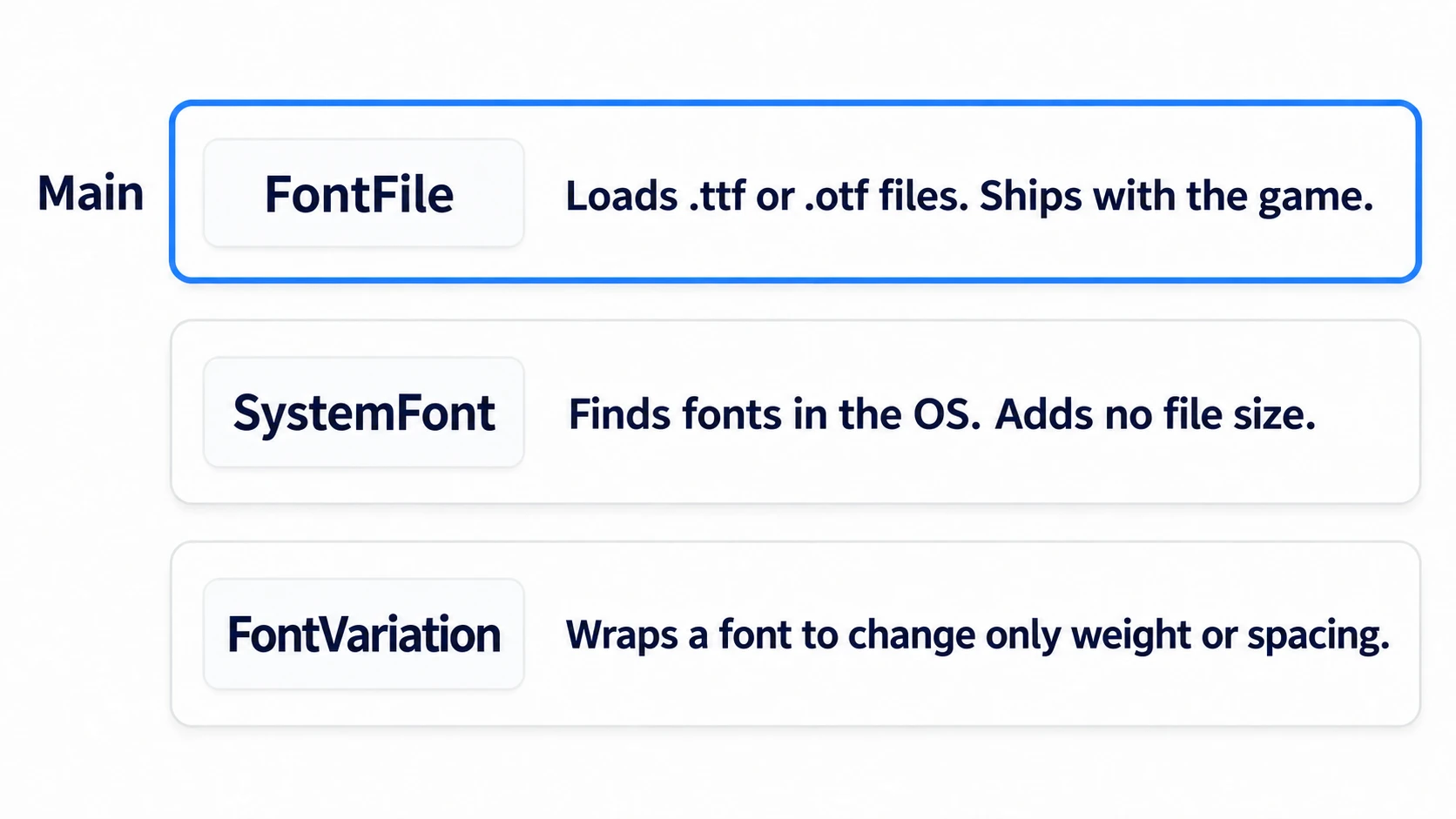
- FontFile: a resource that loads a
.ttfor.otf. The whole file goes into the game, so the characters that file has are the same wherever it runs - SystemFont: a resource that searches the OS of the environment it runs in, by family name and weight. It doesn't add file size, but in environments where it isn't found, it falls back to another font
- FontVariation: a resource that wraps an original font to make one with only the weight or spacing changed. It doesn't become a different typeface
For beginners, the main road is FontFile. Prepare one .ttf or .otf with Japanese in it, and copy it into your project folder. Choose one whose distribution is permitted.
In other engines: FontFile corresponds to a font asset in Unity's TextMeshPro. TextMeshPro creates a separate asset with characters baked from the font file, while Godot loads and uses the file as-is.
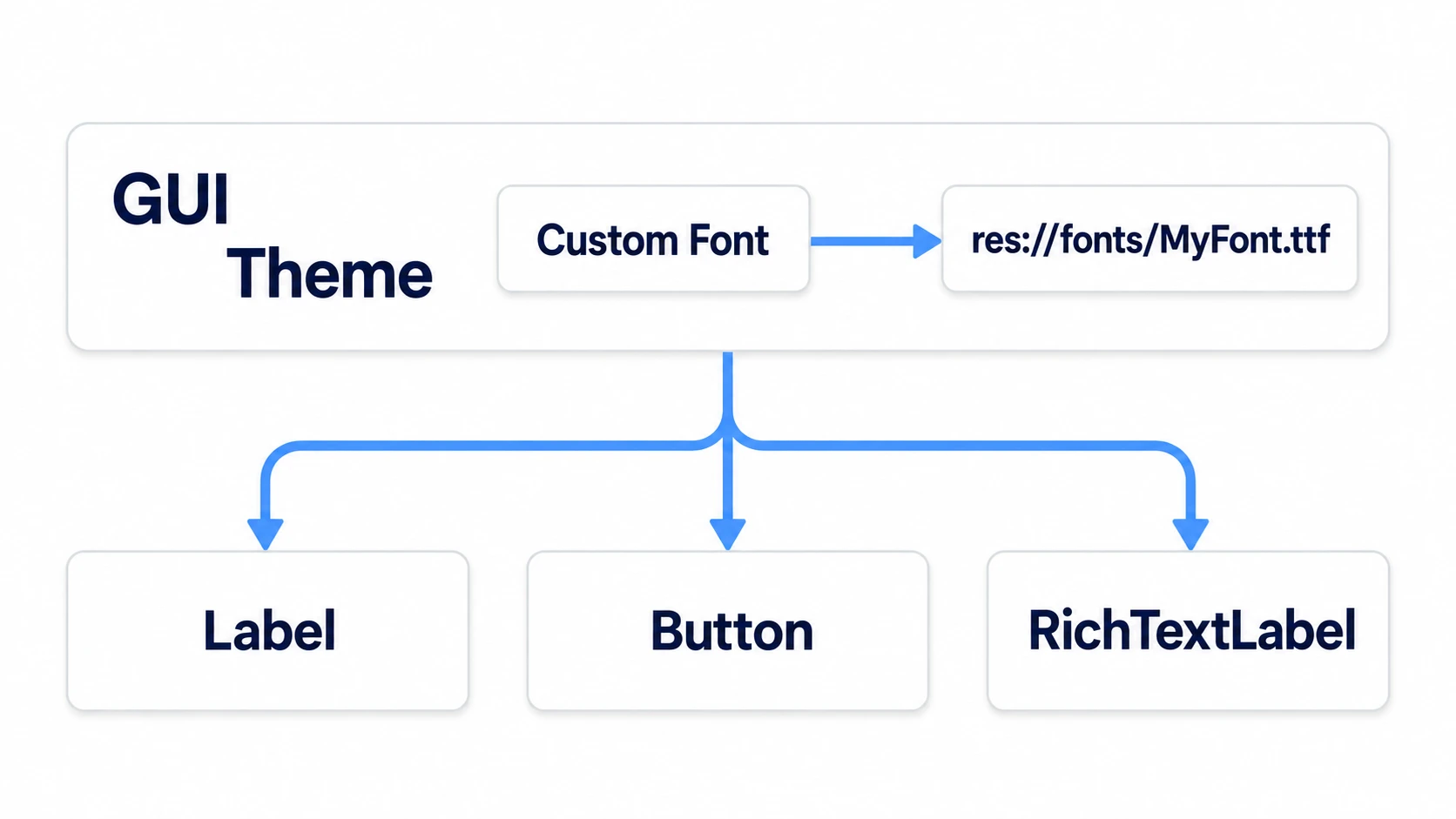
There's one place to put it. In Project Settings, set that file in GUI → Theme → Custom Font. This is the catch-all for the whole project, so every Control with nothing set individually uses it. This setting is read when the editor starts, so after setting it, reopen with "Project > Reload Current Project."
Where to plug in a Theme, and where inheritance breaks, is the subject of Theme Basics. What this article adds is just one line: put one font in the catch-all.
The bold slot (bold_font)
The names of the slots that take fonts differ by node. Label and Button have just one, font. RichTextLabel splits it into five slots: normal, bold, italic, bold italic, and monospace.
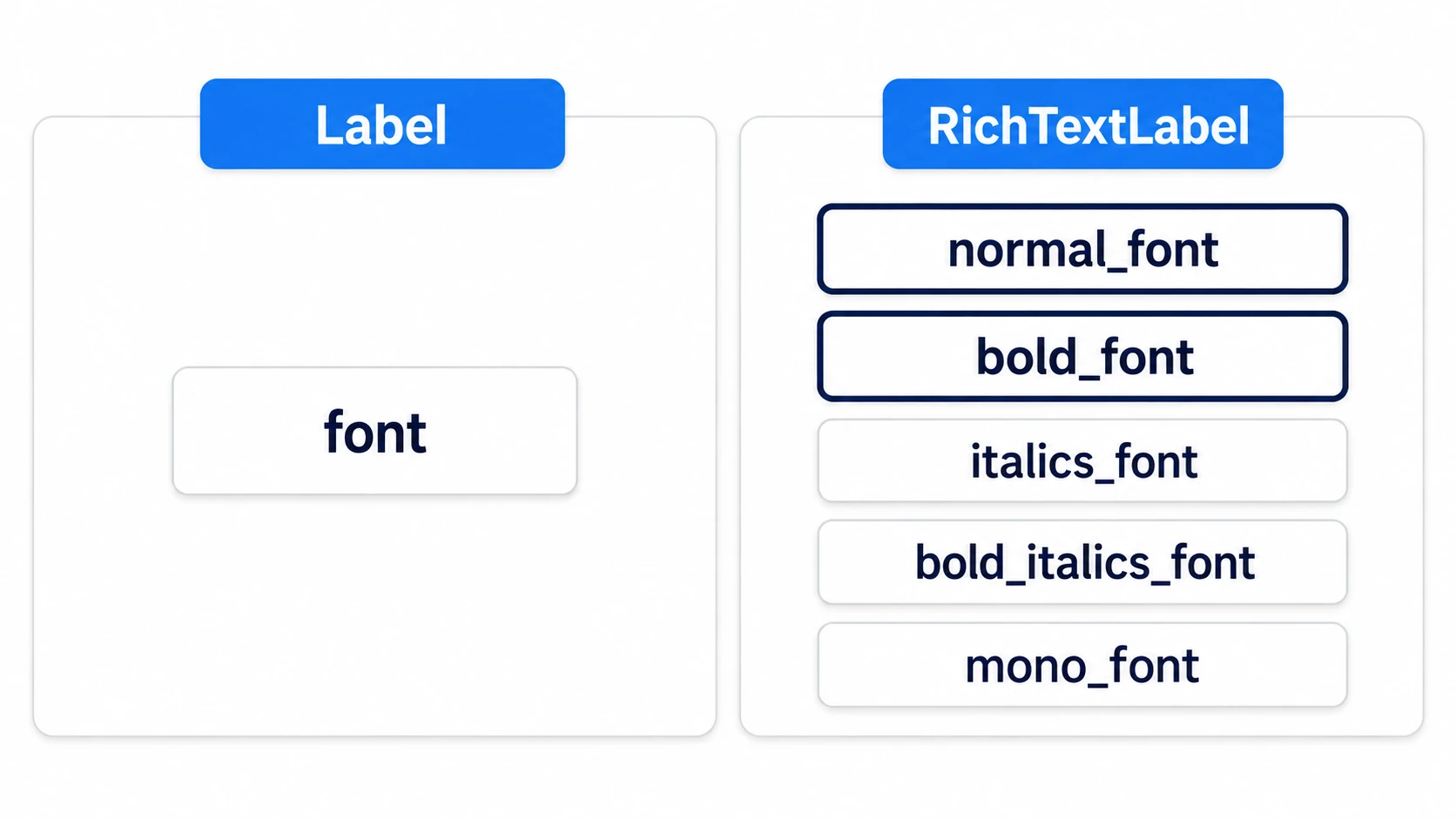
A formatting instruction wrapped in square brackets like [b] is called a tag, and this way of writing is called BBCode. [b] isn't "make these characters thicker"; it's a tag that switches to the bold_font slot. Likewise, italic [i] switches to italics_font, and monospace [code] to mono_font. What often happens here is overriding only normal_font and stopping there. Normal text changes to the new font, while the bold slot stays as it was, so only the words with [b] come out in a different typeface.
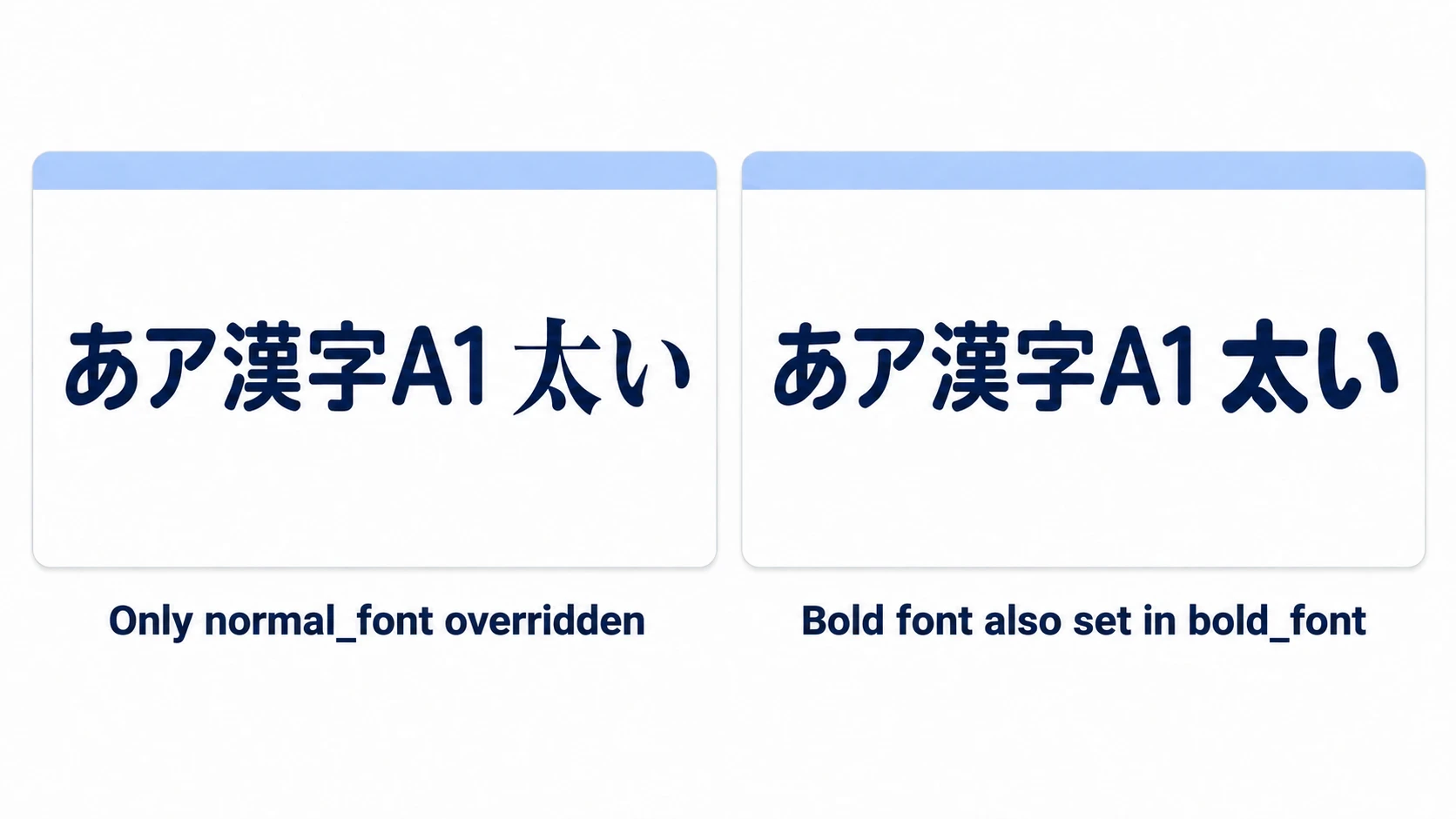
If you added it via the project setting Custom Font, it comes out a bit differently. The bold slot is also synthesized from that same font. The typeface doesn't split, but the strokes thicken uniformly, so kanji with many strokes get smudged.
Either way, the sure approach is to prepare the Bold from the same family and assign it to bold_font as well. That makes two files, but the result is that much clearer.
How RichTextLabel differs from Label
If the whole line looks the same, a Label is enough. Names, HP, and button text are like this.
Switch to RichTextLabel only when you want to mix weight, color, size, or wobble within one line. When you do, a few things work differently.
bbcode_enableddefaults to off. Tags written in the Inspector's Text show up as plain characters- LabelSettings (settings that hand color, font, and size to a Label all at once) doesn't apply. Set the font and size per slot with theme overrides
scroll_activedefaults to on. Lines that don't fit in the box scroll out of view
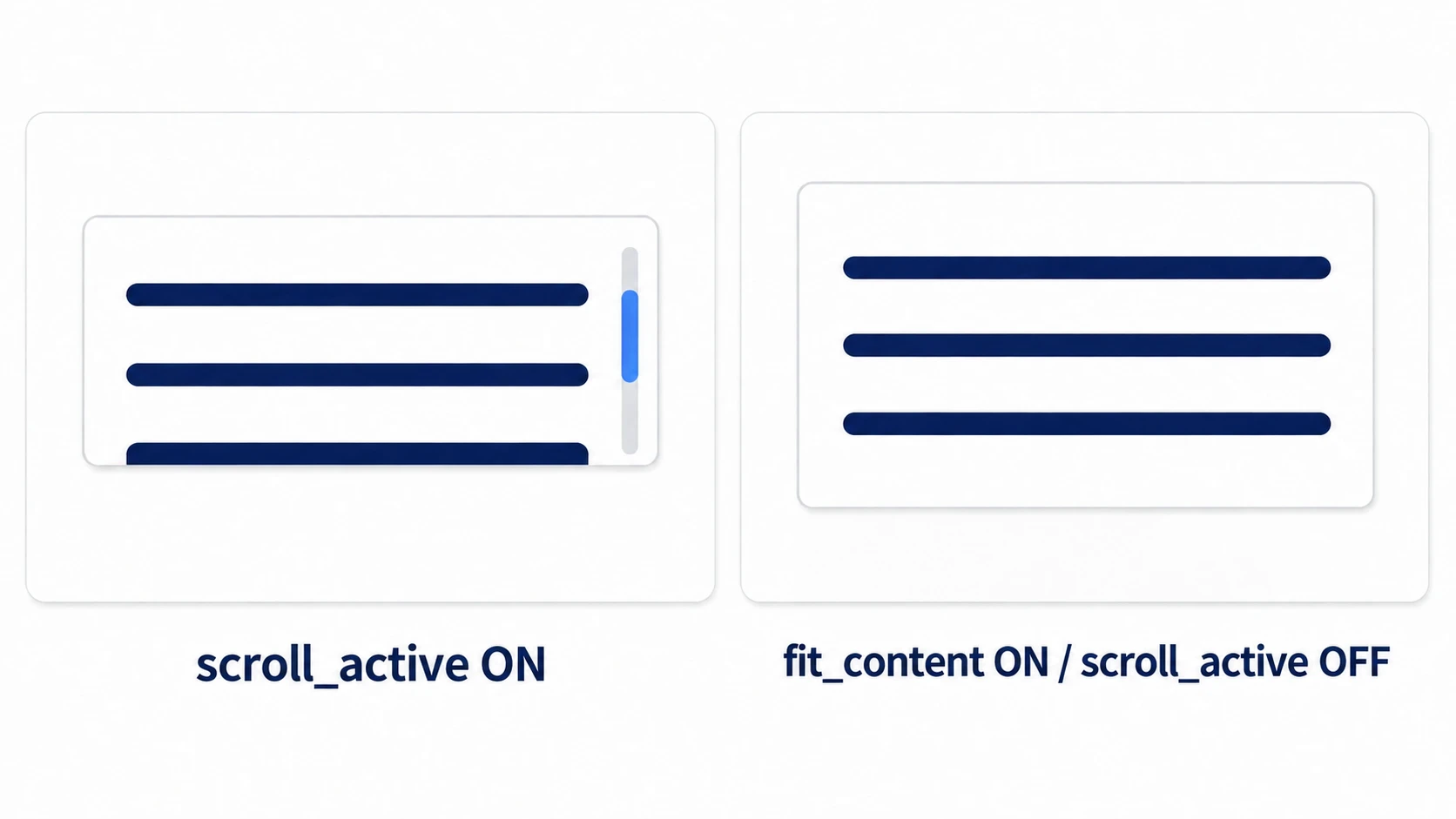
When you want to show everything, like a single line of dialogue or an item-pickup message, turn scroll_active off and fit_content on. fit_content doesn't squeeze the text into the box; it fits the node's own minimum size to the content. It grows by that much even when it isn't inside a container.
When using it together with wrapping, also decide the width to wrap at. Enter a number for the width of Custom Maximum Size, and set the height to -1 (no limit).
When adding text from code, there are three separate methods.
add_text(): doesn't interpret.[b]shows as-isappend_text(): interprets, and adds to the endparse_bbcode(): interprets, and replaces the contents
Even with bbcode_enabled off, append_text() and parse_bbcode() interpret tags. These two are a separate route from the Text field.
Commonly used BBCode tags
These five tags are the ones you'll use as a beginner.
| Tag | What it does | Arguments |
|---|---|---|
[b] | Switches to the bold_font slot | None |
[color=#4a90e8] | Changes the color of just that span | A color name or a hex value with # |
[font_size=28] | Changes the size of just that span | A number |
[wave amp=10 freq=3] | Makes it wave up and down | amp (size of the wobble), freq (speed) |
[shake rate=20 level=5] | Shakes it irregularly | rate (speed), level (strength) |
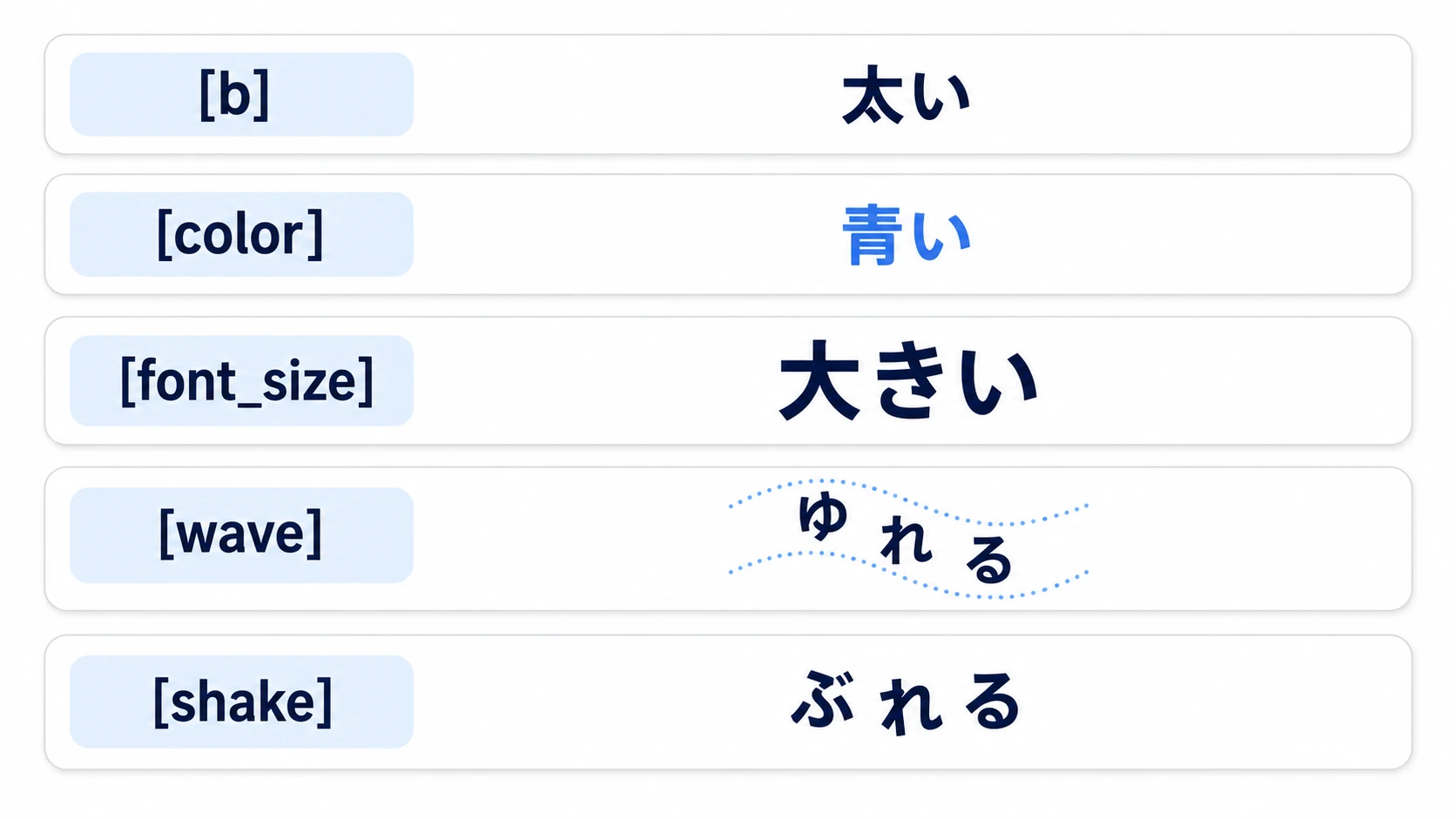
Leave out amp, and a fairly large value goes in. At body text size, start from a small value like 10 and find where the top and bottom don't get cut off.
When tags show up on screen as-is, check in this order.
bbcode_enabledis still off- The tag name is in uppercase.
[B]and[COLOR]don't work - You're using full-width square brackets. 「[color=red]」 looks similar but is a different character
- There's a space between
[and the tag name, or before or after= - There's no closing tag. Everything after it keeps the same effect
Hands-On: Put the Same Line Side by Side and Compare
An item-pickup message in a shop, a quest update, a status name shown next to damage—wanting to change color or weight within one line has the same shape in all of them. Put the same string in a Label and a RichTextLabel, and compare them side by side.
① What to place
Create one new scene. Prepare two fonts that include Japanese, Regular and Bold from the same family, and copy them into your project folder. After setting Regular in GUI → Theme → Custom Font in Project Settings, reopen the editor.
- Put a Control at the root as Main. Set Anchors Preset to Full Rect, and attach
main.gd - Under Main, place a PanelContainer (a container that lays a background panel under its contents and wraps them) named Box. Anchors Preset Center, Custom Minimum Size
(420, 0) - Under Box, place a VBoxContainer named Rows
- Under Rows, place a Label named PlainLabel. Its text is
あア漢字A1 太い, and set Theme Overrides → Font Sizes → Font Size to24 - Under Rows, place a RichTextLabel named Rich. Leave Text empty
- On Rich, turn BBCode Enabled on, Fit Content on, and Scroll Active off, set Autowrap Mode to Word Smart (also breaks long words that don't fit), and set Custom Maximum Size to
(404, -1) - Under Rich's Theme Overrides → Fonts, assign Regular to Normal Font and Bold to Bold Font
- Likewise under Font Sizes, set both Normal Font Size and Bold Font Size to
24 - For Rich, turn on "Access as Unique Name" from the right-click menu (so code can get it with
%Rich)
PlainLabel and Rich's first line use the same string so you can compare the same character shapes side by side. If the sizes don't match too, you can't tell whether a difference is weight or size.
If the wobbling text gets cut off at the top or bottom, create a "New StyleBoxEmpty" (a style that draws nothing) from the empty slot in Rich's Theme Overrides → Styles → Normal, and add top and bottom Content Margin (padding inside the box). RichTextLabel clips anything outside its box when drawing, so leave room inside for the wobble.
② Put it together
# main.gd
extends Control

const LINE := "あア漢字A1 [b]太い[/b]\n[color=#4a90e8]青い[/color] [wave amp=10 freq=3]ゆれる[/wave]"

@onready var rich: RichTextLabel = %Rich

func _ready() -> void:
	_show_parsed()

func _unhandled_input(event: InputEvent) -> void:
	if event is InputEventKey and event.pressed and not event.echo:   # echo is the auto-repeat while held. Only catch the first press
		if event.keycode == KEY_T:
			rich.clear()
			rich.add_text(LINE)        # doesn't interpret, so the tags show as-is
		elif event.keycode == KEY_R:
			_show_parsed()

func _show_parsed() -> void:
	rich.clear()
	rich.append_text(LINE)             # interpret and add
The sample text stays in Japanese because Japanese glyphs are what this article is checking: 「太い」 means "thick," 「青い」 "blue," and 「ゆれる」 "wobbling." clear() only clears the display; the Inspector's Text doesn't change. Since that's left empty, only what you add from code is visible.
③ Run it and check
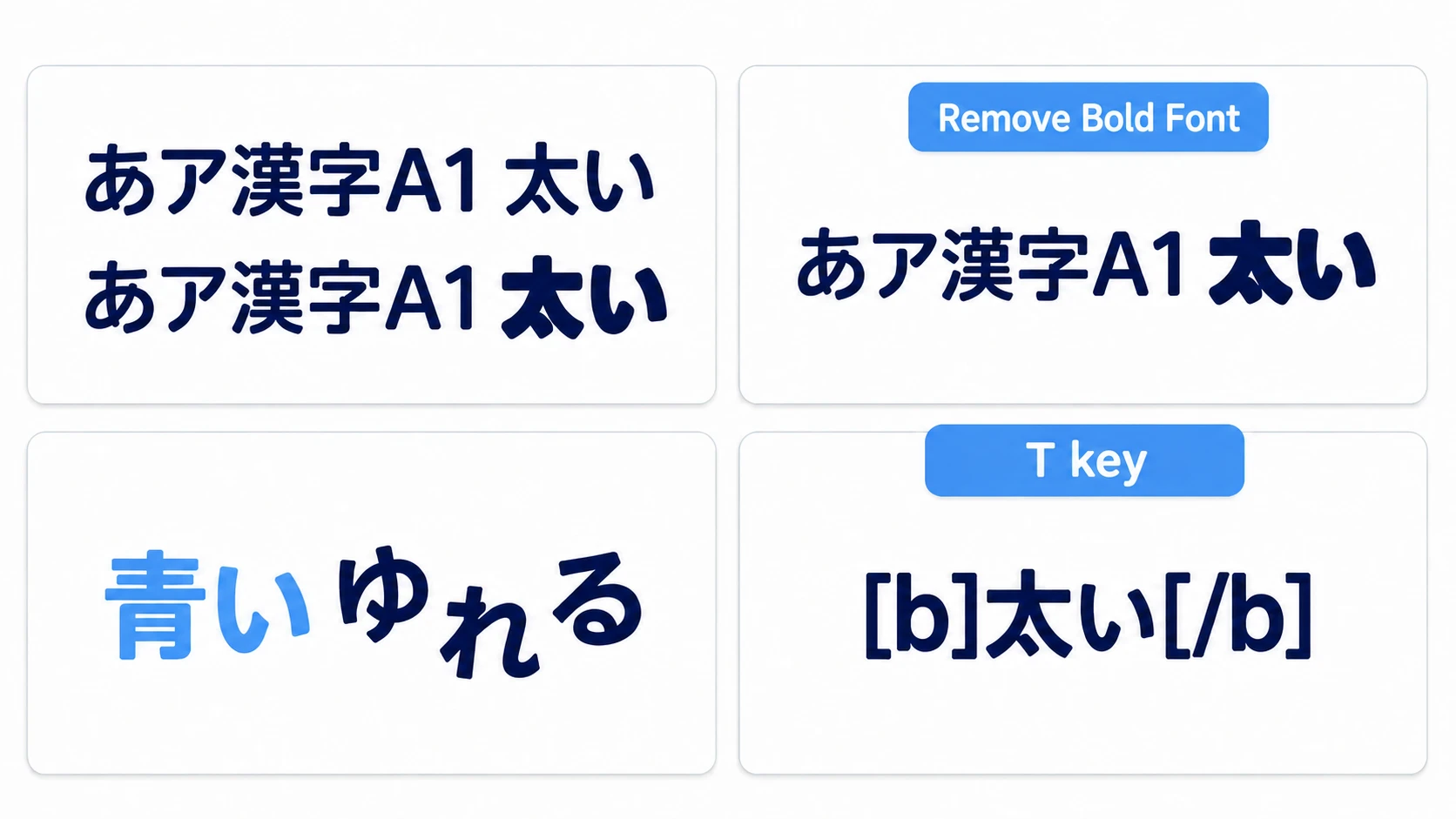
Play with F6 (plays only the scene you have open), and the same あア漢字A1 lines up in the same shape and size on the first line of the Label above and the RichTextLabel below. If the shapes differ, either reopening for Custom Font isn't done, or one of the nodes still has a different font set. Only 「太い」 in the bottom one is thicker, in the same family.
Remove Rich's Bold Font assignment for a moment, and bold switches to being synthesized from the Custom Font's Regular: the strokes thicken uniformly and the insides of kanji get a bit crushed. Put it back, and it returns to that family's proper Bold shapes.
On the second line, only the two characters 「青い」 change color, and only 「ゆれる」 moves up and down. The text [b] and [color] themselves don't appear on screen. If the top or bottom of 「ゆれる」 is cut off, increase the Content Margin.
Press the T key, and it switches to add_text(), with the tags showing as-is. Press R to go back. The look changes even though bbcode_enabled stays on, because the method used to add the text is different.
Two points.
- Readable is not the same as settled: the OS fills things in, so you won't notice as long as no boxes appear. Put one font in Custom Font, and the characters that font contains become your game's characters
- Slot names differ by node: Label has one,
font; RichTextLabel is split intonormal_font,bold_font, and so on. Change only one, and it splits right there
How to reveal text one character at a time is in Dialogue System Basics. visible_characters counts displayed characters, so interpreted tags aren't included.
Troubleshooting
| Symptom | Cause | Fix |
|---|---|---|
| You added a font, but only some symbols or old kanji are in a different typeface | The OS's fonts are still filling in characters your font doesn't have | Choose a font that has those characters, or add a font that has them to the font's import setting Fallbacks (a list of fonts to search when a character is missing) |
| You changed the font, but only the editor's text changed | You changed Interface > Editor > Fonts > Main Font in Editor Settings | Put the game's font in Project Settings' GUI → Theme → Custom Font |
Only spans with both [b] and [i] come out in a different typeface | Bold italic uses a separate slot called bold_italics_font | If you use italic too, put the same family's font in that slot as well |
Bonus: Good to Know First
- Making bold with a variable font: with a variable font, which can change weight within a single file, you can make bold by setting the weight axis (key
"weight") to700in FontVariation'svariation_opentype. This weight axis only works on variable fonts; put it on a static Regular and no error appears, but the text stays thin - File size and the moment of loading: a CJK (Chinese, Japanese, Korean) font covering every language runs to tens of MB. Even if only the characters you use appear on screen, the whole file goes into the package. Keep it to two files, Regular and Bold, or a single variable font, and your exports stay light
- If you bundle it, check the distribution terms: putting a font in your game and distributing it counts as redistribution. Some licenses require a notice
- Word Smart is enough for wrapping: Japanese text has no spaces, but both Word and Word Smart find where to break from the kinds of characters
Summary
- It's readable thanks to the OS: Japanese missing from the default font is filled in by the OS's fonts. It changes by environment, and on the Web it becomes boxes
- The main road is one FontFile: put it in Project Settings' Custom Font, and reopen the editor
- Bold is a separate slot: RichTextLabel is split into
normal_fontandbold_font. Put the same family's Bold inbold_fonttoo - The route decides whether tags are interpreted:
bbcode_enableddefaults to off.append_text()andparse_bbcode()interpret even when it's off - To show everything, flip the two:
scroll_activeoff,fit_contenton. If you wrap, also decide the width limit
Pick one Label in your own game and put in a line that mixes Latin letters and kanji. Does the text's height or thickness change partway through?