When your game gets heavy, the FPS number alone won't tell you what to fix. Godot's debugger comes with a tool that shows, by function name, which functions used a frame's time.
Fixes based on guesses often miss. As you cut the number of enemies or print timings with print, the code slowly falls apart in places.
This article explains how to pull out the name of the heavy function with Monitors and the Profiler, then fix it and confirm the result.

What You'll Learn
- Why FPS alone doesn't tell you what's heavy
- The order to open Monitors, Profiler, and Visual Profiler
- Reading the Profiler list to tell apart total time including callees, the function's own time, and how many times it was called
- Hands-On: Pull one heavy function out of a swarm of 300 and fix it
Tested with: Godot 4.7
- The time available per frame
- When to use each of the three tabs
- Monitors: numbers about once a second
- Profiler: time per function
- How to read Calls (the number of times called)
- Hands-On: Pull one heavy function out of a swarm of 300
- Where to look next from the function name
- Troubleshooting
- Bonus: Good to Know First
- Summary
The time available per frame
If you're aiming for 60 FPS, you need to have the next screen ready about every 16.7 milliseconds (1000 ÷ 60). In that time, physics calculations (_physics_process() and collision), game processing (_process()), and draw preparation all run.
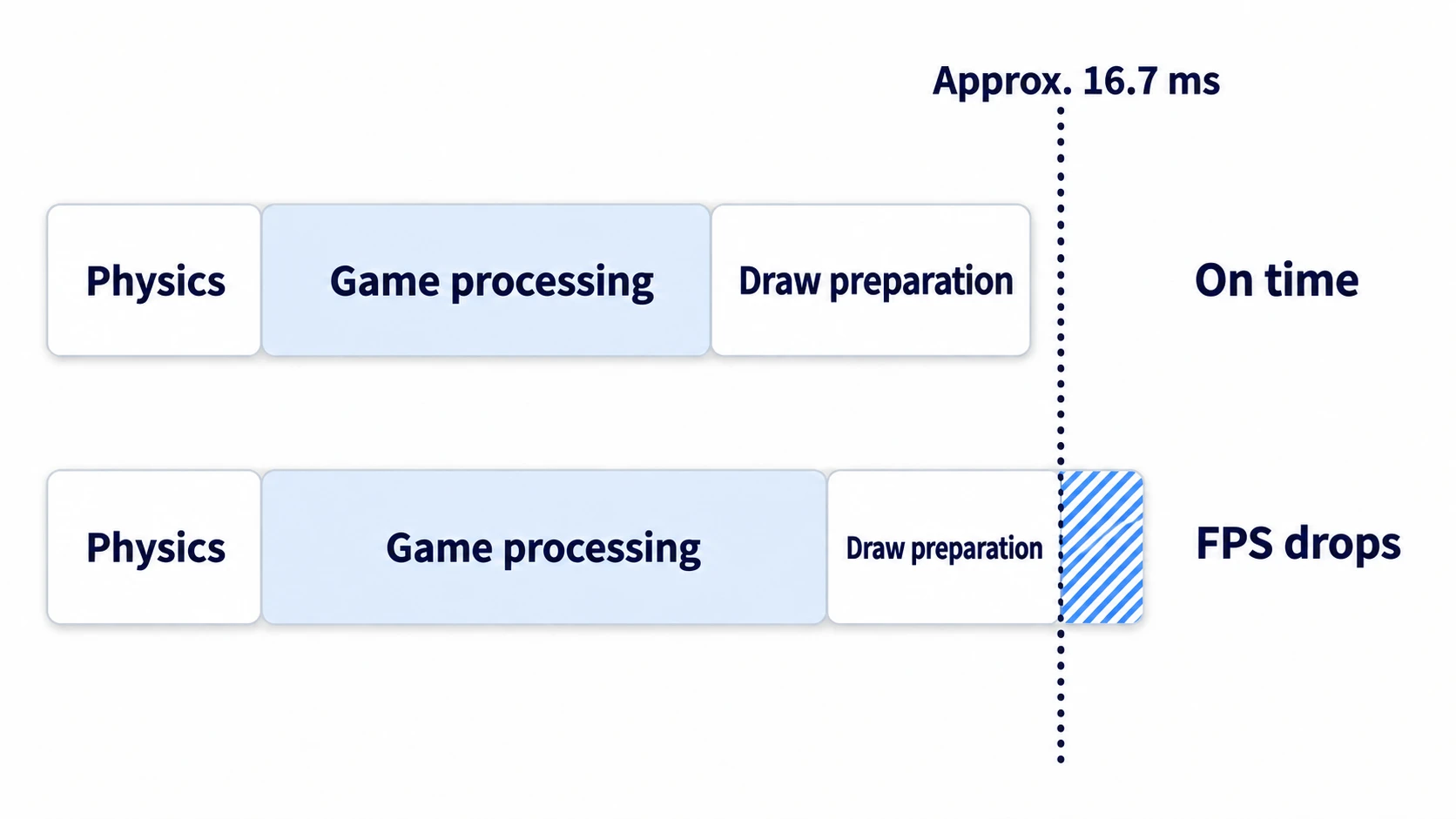
If any of them takes too long, the next screen isn't ready in time and FPS drops. FPS is the result of counting how many frames were drawn about every second. It tells you it dropped, but not which part grew, or which function within it. The measurement tabs in the debugger are for looking at that.
When to use each of the three tabs
Of the tabs in the Debugger panel at the bottom of the editor, this article uses three.
- Monitors: Records FPS, processing time, node count, and more about once a second. As long as the game is running, it records without pressing anything
- Profiler: Records, for each frame, how many milliseconds each function took. Recording starts when you press Start
- Visual Profiler: Records the CPU and GPU (the part responsible for drawing) time for each rendering step. This also starts recording when you press Start, and the names of functions you wrote don't appear
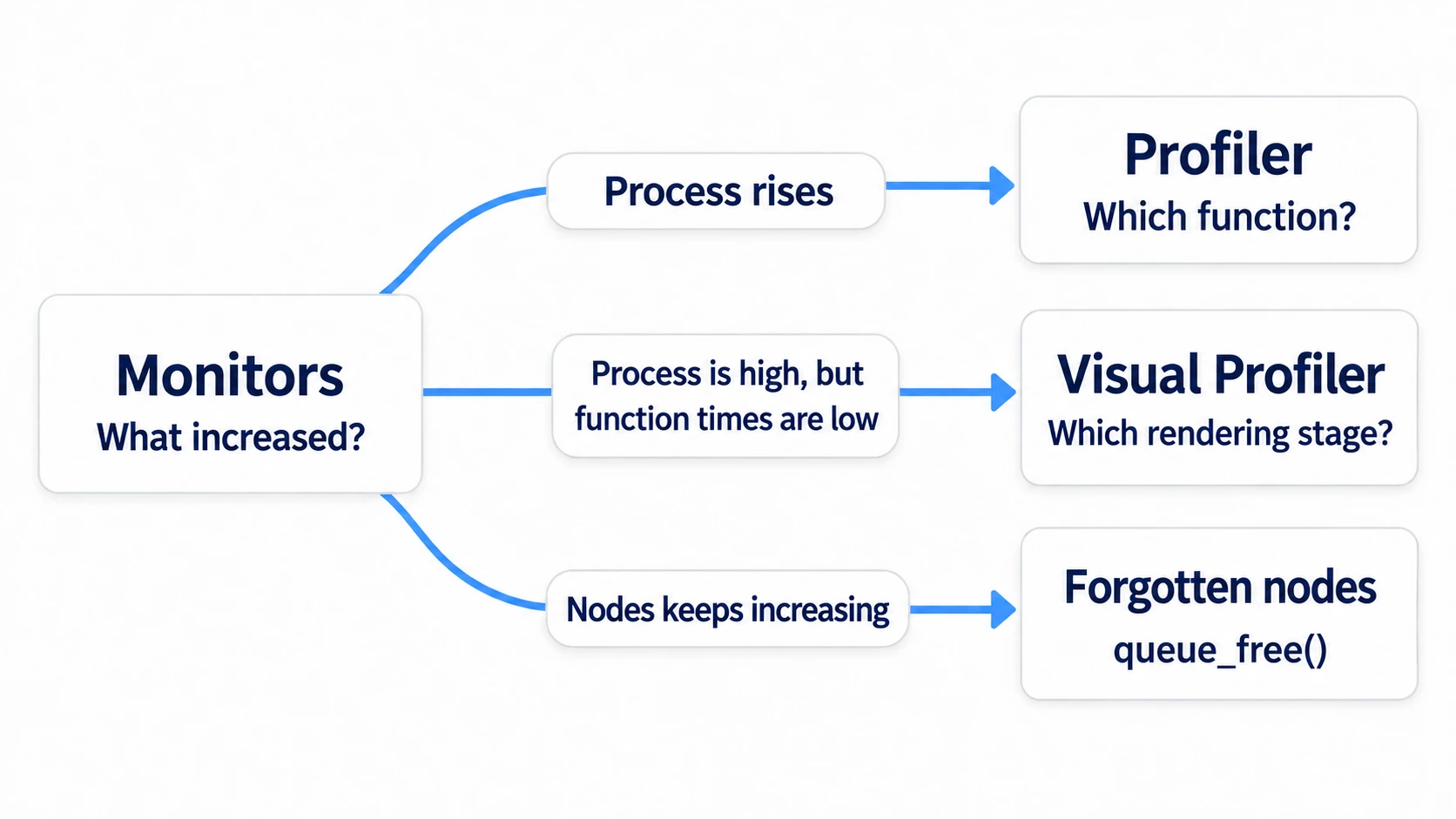
Open them from coarse to fine. First, in Monitors, look for numbers that move along with the FPS drop. If Process has risen, look for the function name in the Profiler.
If Process is high but all your own functions are small, suspect rendering and open the Visual Profiler.
Monitors: numbers about once a second
Check an item in the list on the left of the Monitors tab, and a graph of that item appears on the right. Start with these four.
| Item | What the number is |
|---|---|
| FPS under Time | The number of frames drawn in about one second |
| Process under Time | The longest non-physics processing time within a roughly one-second window. Includes draw preparation |
| Physics Process under Time | The longest processing time for a single physics step within a roughly one-second window |
| Nodes under Object | The number of nodes currently in the tree |
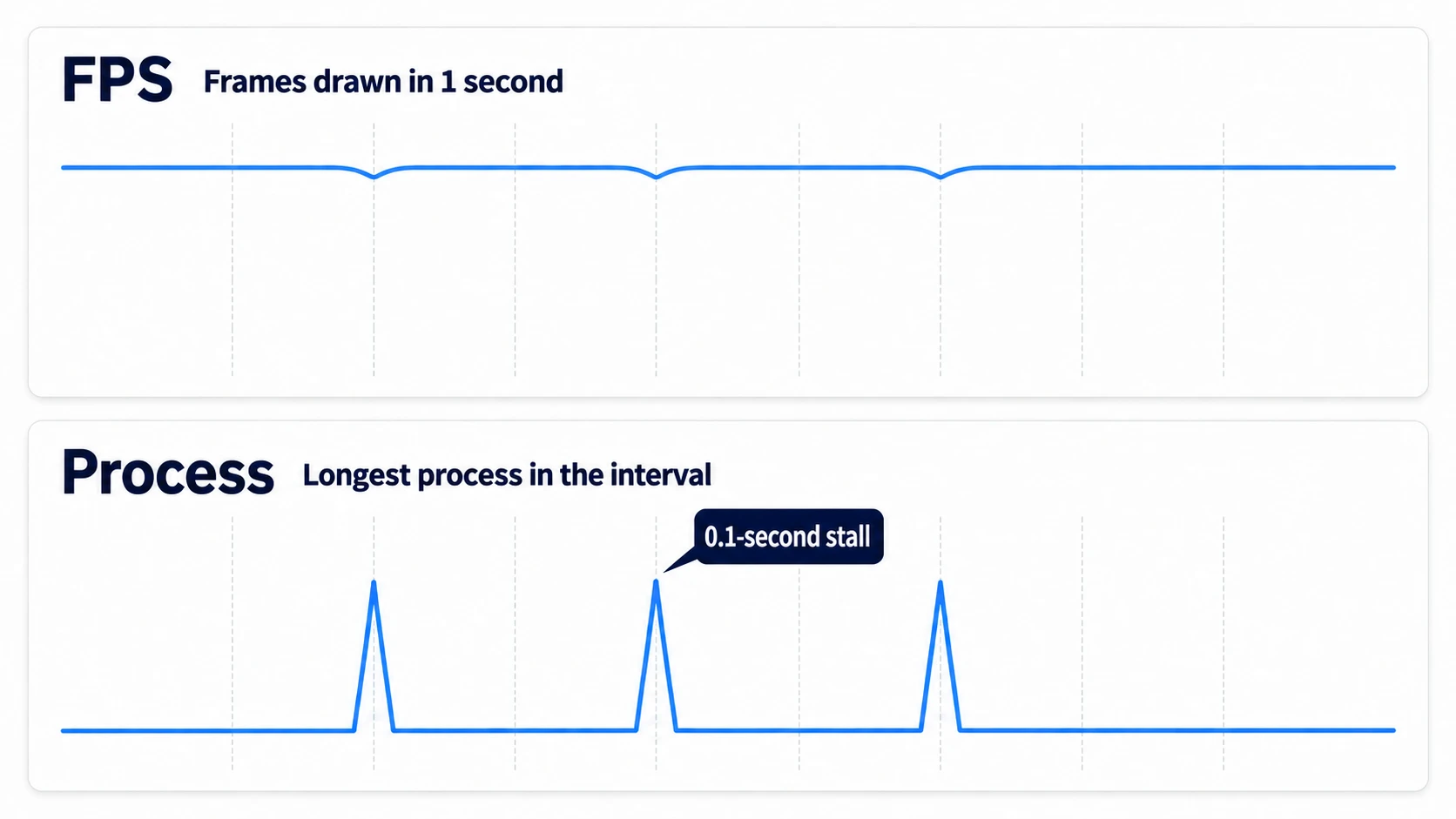
FPS and Process are counted differently. Even with a hitch that stalls for 0.1 seconds, the number of frames drawn in that second only drops by a few, so it doesn't stand out in FPS. Process is the maximum in the window, so it spikes only in the window where things stalled. If the stall is inside physics, the spike shows up in Physics Process instead. When things stutter now and then, look for spikes in these two rather than in FPS.
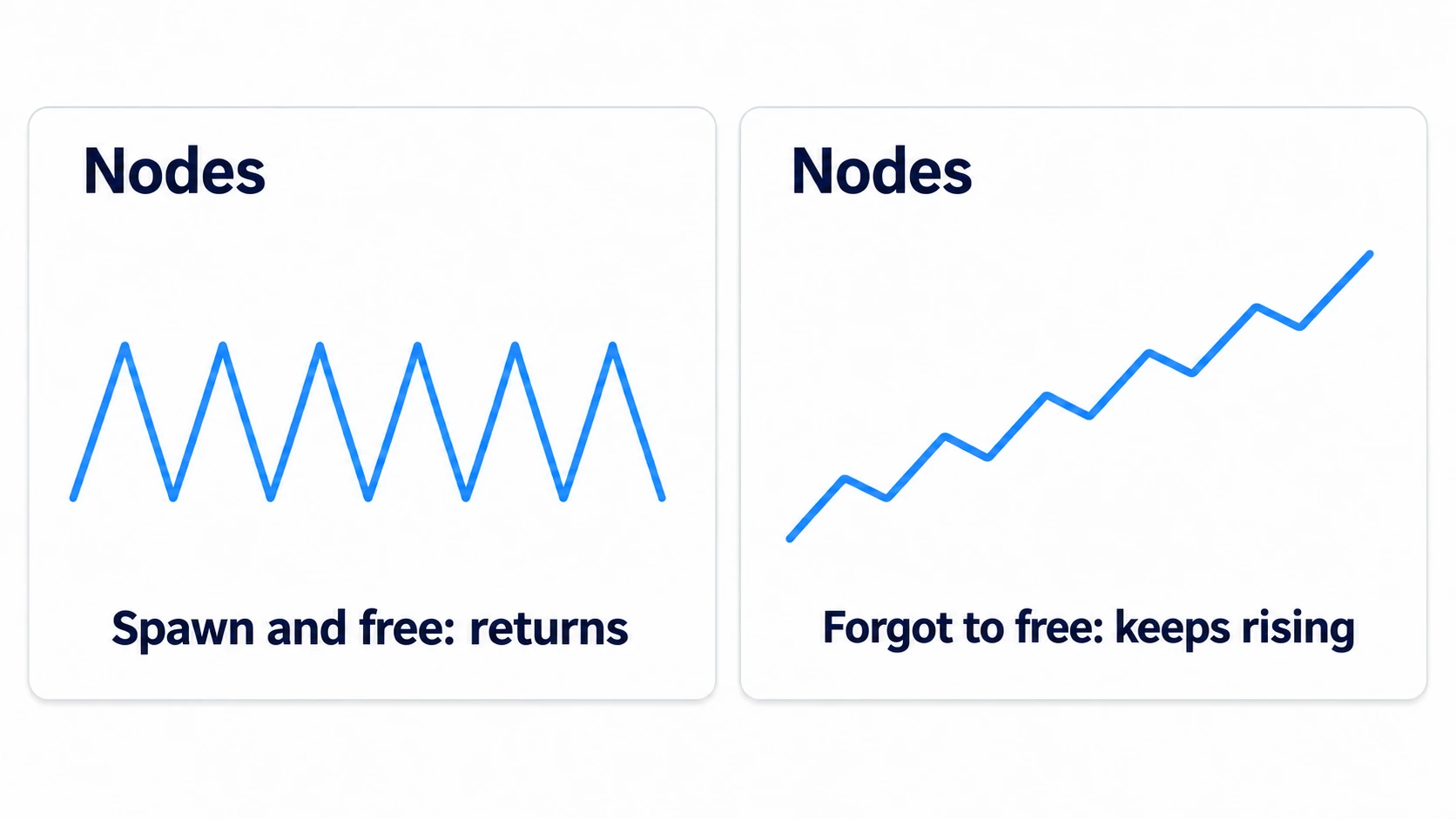
Nodes helps you tell what kind of load it is. If it grows every time enemies or bullets spawn and doesn't come back down when they disappear, suspect forgotten nodes rather than a heavy function. If bullets that flew off screen aren't queue_free()d, they stay in the tree and the count keeps growing.
Profiler: time per function
Use the Profiler in the order record, then select.
- Run the game from the editor and press Start in the Profiler tab
- Reproduce the heavy scene for a few seconds
- Press Stop
- Click one heavy frame in the graph on the right
Time you didn't record can't be viewed afterward. Even if you open the tab after the stutter, that spike isn't there. Recording overwrites older data, so press Stop right after reproducing the heavy scene. The Script Functions numbers shown right after pressing Stop are also a total over the whole recording, not a single frame. Click one bar partway through the graph before reading.
Script Functions in the list on the left shows your own functions that ran in that frame. The columns are Time (time taken) and Calls (number of times called in that frame).
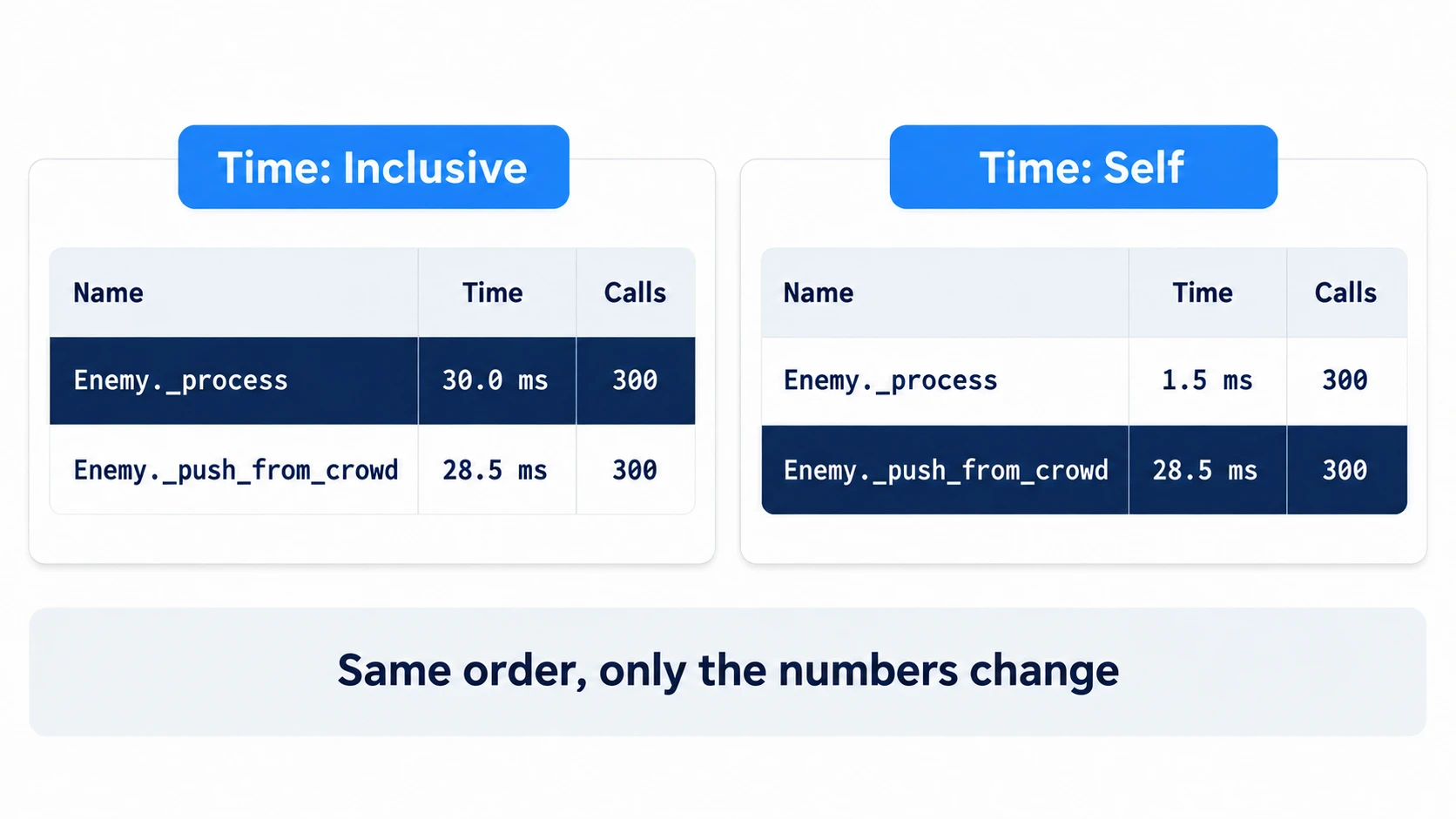
The first thing people stumble on is the order. The list is sorted by Inclusive time, largest first. Inclusive is the total including the time of functions called from within that function. If _process() calls a heavy function, the caller, _process(), comes out on top.
Switch Time: at the top to Self, and it shows only the time the function itself used. The order stays the same; only the numbers change. Compare the Time numbers rather than the order, and find the row with the largest one. That's the function actually using the time.
In other engines: The debugger's Profiler tab corresponds to Unity's Profiler and Unreal Engine's Unreal Insights or
statcommands.
If a script has a class_name (a class name given to the script), names in the list appear with the class name. With class_name Enemy, it's Enemy._process. Without one, every script's _process is listed under the same name, and the file name only appears when you hover over the row.
Built-in functions don't appear as rows in the list. With the default settings, the time for get_nodes_in_group() or distance_to() goes into the Self time of your own function that called them. The list only gives you names down to functions you wrote yourself; what's heavy inside them, you confirm by reading the code.
How to read Calls (the number of times called)
A frame's Time is the average time per call multiplied by Calls. Switch Measure: at the top from the default Frame Time (ms) to Average Time (ms), and the time per call shows directly. Even for the same 5 milliseconds, looking at Calls changes what you check next.
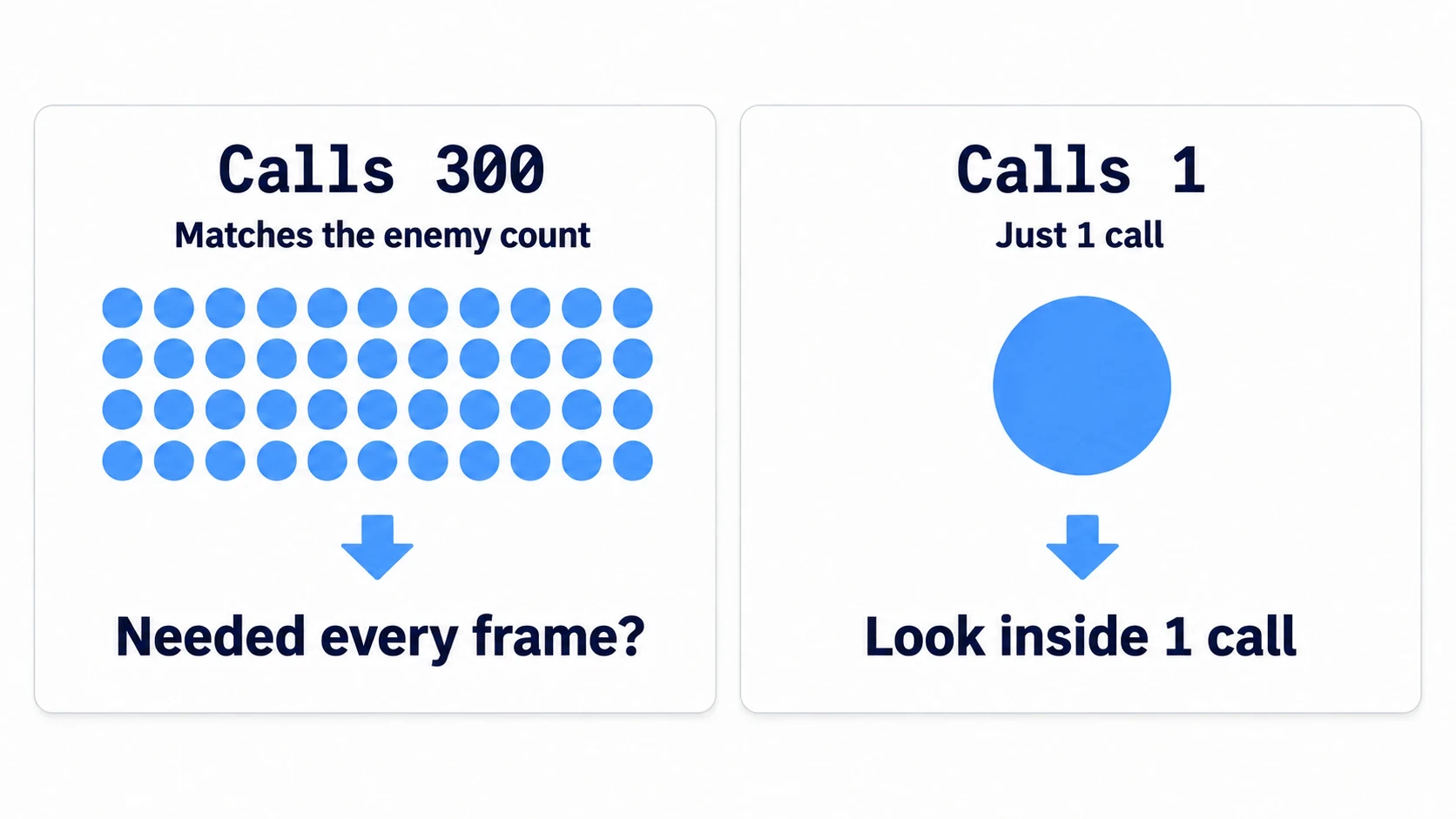
If Calls matches the number of enemies or bullets, every one of them is doing one unit's worth of work every frame. First, check whether that work is needed every frame. If it can be thinned out, thin it out; if the result only needs to be computed once, remember it and reuse it. If it really is needed every time, look into making each call lighter. If Calls is 1 but Time is large, what's inside that single call is heavy.
Hands-On: Pull one heavy function out of a swarm of 300
Enemy swarms in a survivor-like, bullets in a bullet hell, grunts in a top-down ARPG — they all have hundreds of nodes with the same script. It's where one unit's small waste gets multiplied by hundreds. Here you'll build a scene where 300 enemies close in on the player. You'll pull out the name of the function that made it heavy with the Profiler, and after fixing it, confirm that the row shrinks.
① What to place
Start with a new 2D project. Leave the screen size at the default 1152×648.
main.tscn: The root is a Node2D (named Main, set as the main scene). Add Player and Enemies as children- Player: A Sprite2D (
icon.svg, position (576, 324), Z Index 1). Select Player, press+in the Groups dock, and create a group namedplayer. Player gets checked when you create it (the enemies use this to find who to chase) - Enemies: A Node2D. The container for enemies
enemy.tscn: The root is a Sprite2D (named Enemy,icon.svg, Scale (0.25, 0.25)). Attachenemy.gd
Setting Player's Z Index to 1 keeps it visible instead of buried under the gathering enemies.
Turn off V-Sync while comparing. V-Sync is a setting that times frames to the screen's refresh (FPS management). Set Project Settings → Display → Window → V-Sync → V-Sync Mode to Disabled and rerun the game. With V-Sync on, FPS is capped at the screen's refresh rate, and the time spent waiting for the screen gets mixed into Process, so you can't see the improvement after fixing. Measure before and after with the same settings, and restore it when you're done.
② Put it together
Main spawns 300 enemies scattered around the screen in _ready(). Fix the seed (seed) of the random numbers used for placement so you can measure from the same layout before and after the fix.
# main.gd (attach to Main)
extends Node2D

const ENEMY_SCENE := preload("res://enemy.tscn")

@export var enemy_count := 300

func _ready() -> void:
	var rng := RandomNumberGenerator.new()
	rng.seed = 12345   # Measure from the same layout before and after the fix
	for i in enemy_count:
		var enemy: Enemy = ENEMY_SCENE.instantiate()
		enemy.position = Vector2(rng.randf_range(0.0, 1152.0), rng.randf_range(0.0, 648.0))
		$Enemies.add_child(enemy)
Each enemy heads toward the player while moving away from allies that are too close. Every enemy calls _push_from_crowd(), which looks for allies, every frame.
# enemy.gd (attach to Enemy)
class_name Enemy
extends Sprite2D

const SPEED := 60.0
const PERSONAL_SPACE := 32.0   # Move away from allies closer than this

@onready var player: Node2D = get_tree().get_first_node_in_group("player")

func _ready() -> void:
	add_to_group("enemies")

func _process(delta: float) -> void:
	var to_player := global_position.direction_to(player.global_position)
	var away := _push_from_crowd()                  # Checks everyone, every frame
	global_position += (to_player + away).normalized() * SPEED * delta

# Returns the direction to move away from allies that are too close
func _push_from_crowd() -> Vector2:
	var away := Vector2.ZERO
	for other: Enemy in get_tree().get_nodes_in_group("enemies"):
		if other != self and global_position.distance_to(other.global_position) < PERSONAL_SPACE:
			away += other.global_position.direction_to(global_position)
	return away
Each of the 300 checks all 300, so the loop runs 90,000 times per frame. Because of class_name Enemy, it shows up in the list as Enemy._process.
③ Run it and check
Run it with F5. Check three things.
First, check FPS, Process, and Nodes in Monitors. The enemies gather in the center, forming a big swarm on top of the player's position. Process stays stuck high, and FPS stays low. If it doesn't get clearly heavy, select Main and set Enemy Count to 600 in the Inspector (4 times as many loop iterations). Nodes levels off after the enemies finish spawning and doesn't keep growing.
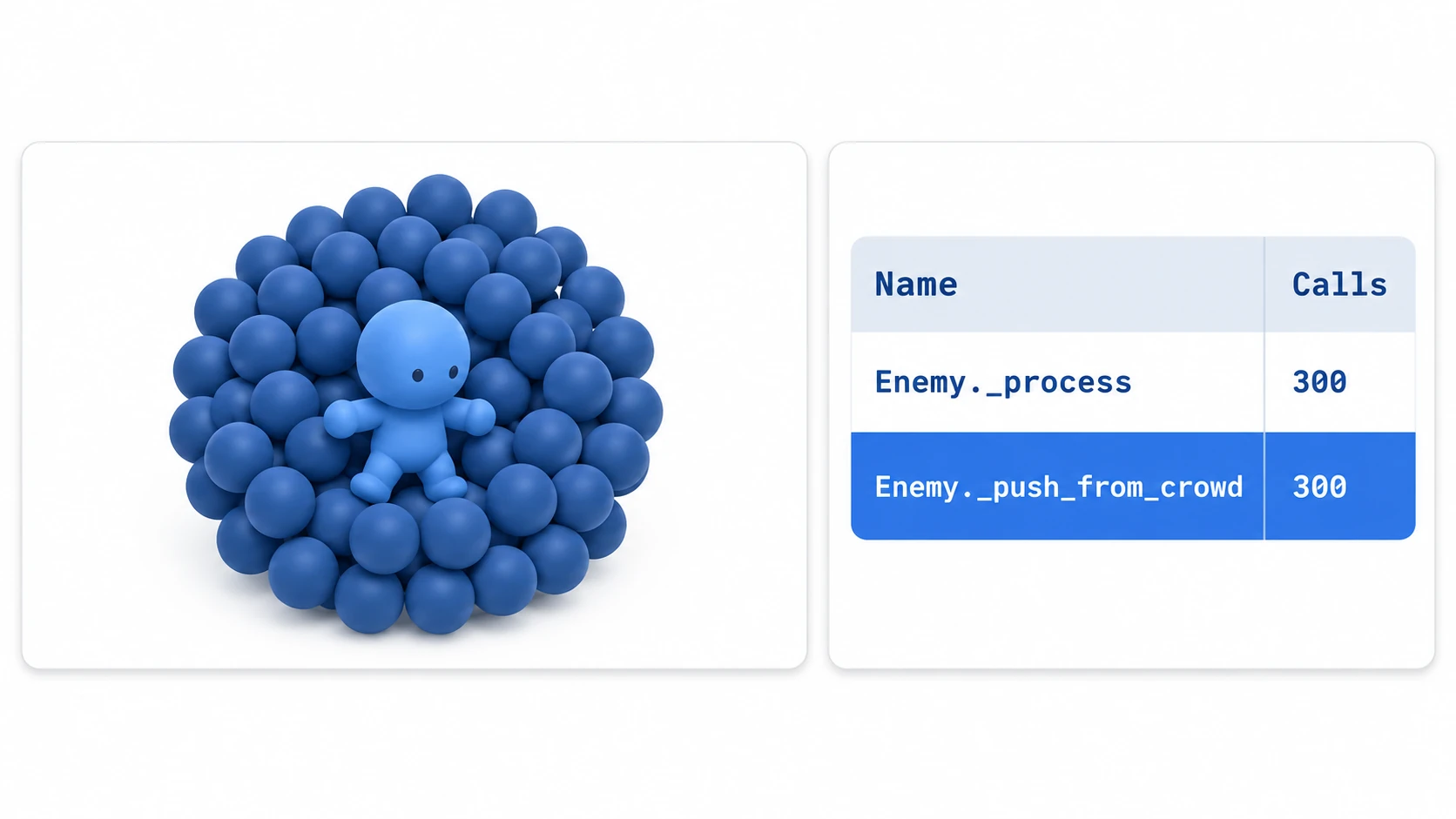
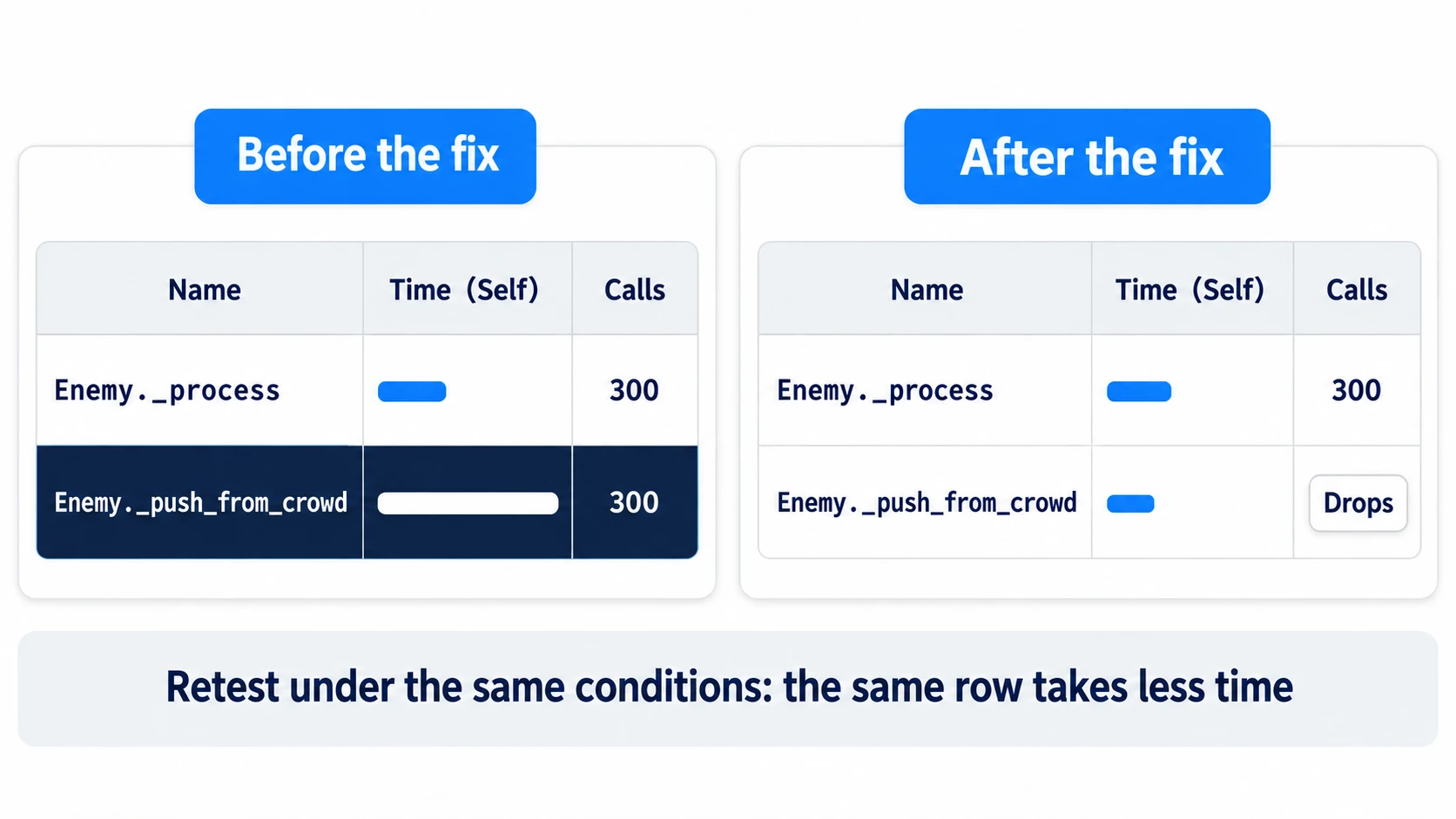
Next, wait about 5 seconds for the enemies to finish gathering in the center, then press Start in the Profiler, wait about 3 seconds, and press Stop. Click one bar partway through the graph, and the list shows Enemy._process then Enemy._push_from_crowd from the top. As long as you avoid frames right after launch, Calls is 300 for both. Switch Time: to Self, and _process's number shrinks while _push_from_crowd's stays large. The one using the time is _push_from_crowd, and since its Calls matches the number of enemies, you question whether everyone needs to check every frame.
To finish, change it so _push_from_crowd() is called only once every 0.2 seconds. Keep _ready() and _push_from_crowd(), add two variables below the const PERSONAL_SPACE line, and replace only _process() with the following.
var crowd_push := Vector2.ZERO                 # The last "move away" direction checked
var push_timer := randf_range(0.0, 0.2)        # Staggered so everyone doesn't check on the same frame

func _process(delta: float) -> void:
	push_timer -= delta
	if push_timer <= 0.0:
		push_timer = 0.2
		crowd_push = _push_from_crowd()        # Check only once every 0.2 seconds
	var to_player := global_position.direction_to(player.global_position)
	global_position += (to_player + crowd_push).normalized() * SPEED * delta
With the same number of enemies, wait 5 seconds the same way and measure again. Enemy._process's Calls is still 300. Enemy._push_from_crowd's Calls becomes 1500 per second (300 enemies ÷ 0.2 seconds) divided by the frames. At 60 FPS, that's about 25 per frame on average, and the function's total time shrinks by about the same proportion. If this function was most of the frame's load, FPS in Monitors rises and Process drops too.
Finally, change the interval 0.2 to 1.0 in both places and measure. Calls drops by about another fifth. In exchange, enemies clearly take longer to untangle after overlapping. You can see lightness and responsiveness being traded off through a single number.
There are two key points.
- Measuring means narrowing down to one name: Knowing that Process is high doesn't decide what to fix. Only once you've narrowed it down to
Enemy._push_from_crowdcan you act - Compare numbers under the same conditions: Keep the enemy count, V-Sync, and placement randomness the same. The graph's vertical axis adjusts to the data being shown, so compare the numbers in the same row rather than the heights of the lines. Checking less often delays how quickly enemies move away from each other, so also check that the overlaps and movement are acceptable
Where to look next from the function name
What the Profiler tells you isn't how to fix it, but where to look next. Pick candidates from the function name and Calls, and use the table below as a guide for what to read.
| How it looks in the list or Monitors | What to suspect | Next |
|---|---|---|
| Your function's Calls matches the enemy count, and inside it checks distances to everyone | Brute-force checks every frame | Area2D Basics (pick up only nearby targets with collision) |
| Your function's Calls matches the enemy count, and inside it looks up nodes every time | get_node() or re-fetching groups every frame | Node Reference Basics |
| A function that spawns bullets or effects is heavy, and Nodes goes up and down | Creating and destroying nodes | Object Pooling Basics |
| Only on the one frame where the scene switches, a function with Calls 1 is heavy | Loading, creation, initialization | Dynamic Loading Basics |
| Physics Process is high, and the Profiler's Physics 2D entry is large | The number of collision pairs | Collision Layer and Mask Basics |
| Process is high, but all your functions are small | Rendering | Look at per-step times in the Visual Profiler (not available with the Compatibility renderer on macOS) |
Troubleshooting
| Symptom | Cause | Fix |
|---|---|---|
| Clicking the graph paused the game | Clicking while recording sends a pause request to the game | Resume with the Continue button on the Debugger's Stack Trace tab. Press Stop first before reading |
| Right after Stop, Calls is in the tens of thousands | The last bar added when stopping is the total for the whole recording | Click a bar partway through the graph to see a single frame |
| Numbers measured in the editor are larger than in a game exported in release form | Running from the editor adds the load of debug features and measurement | In the editor, look at candidates to fix and before/after differences. Confirm final behavior in a game exported with Export With Debug (the checkbox for including development features in the export) unchecked |
| Nodes is flat, but memory use grows the longer you play | Nodes only removed from the tree with remove_child() aren't freed; they aren't counted in Nodes and pile up in Orphan Nodes (nodes left outside the tree) | Also check Object → Orphan Nodes in Monitors. For nodes you don't need, queue_free() them instead of just removing them |
Bonus: Good to Know First
- Show numbers in the game screen: Call something like
Performance.get_monitor(Performance.TIME_FPS)to show the same numbers as Monitors on screen.TIME_PROCESSis in seconds, so multiply by 1000 for milliseconds. Both only change about once a second - Separate one-time load: If it's heavy only the first time, loading, initialization, and draw preparation are the candidates. Do the same action again and check whether it happens every time
Summary
- FPS is a result: See what grew with Process and Physics Process in Monitors. Both are the maximum for the window, so they catch brief stalls too
- Open Monitors → Profiler: If Process is high but your functions are small, the Visual Profiler. If Nodes keeps growing, forgotten nodes
- The list is in Inclusive order: Switch to Self and look for the row with the largest number rather than going by order
- Use Calls to tell the kind of load: If it matches the enemy count, question whether the work is needed every frame. If it's 1, look inside the single call
- After fixing, measure again under the same conditions: Keep the enemy count, V-Sync, and placement the same, and watch the same row shrink
Start by looking at Calls for the _process() of the script with the most instances. Which script has the most instances in your game?