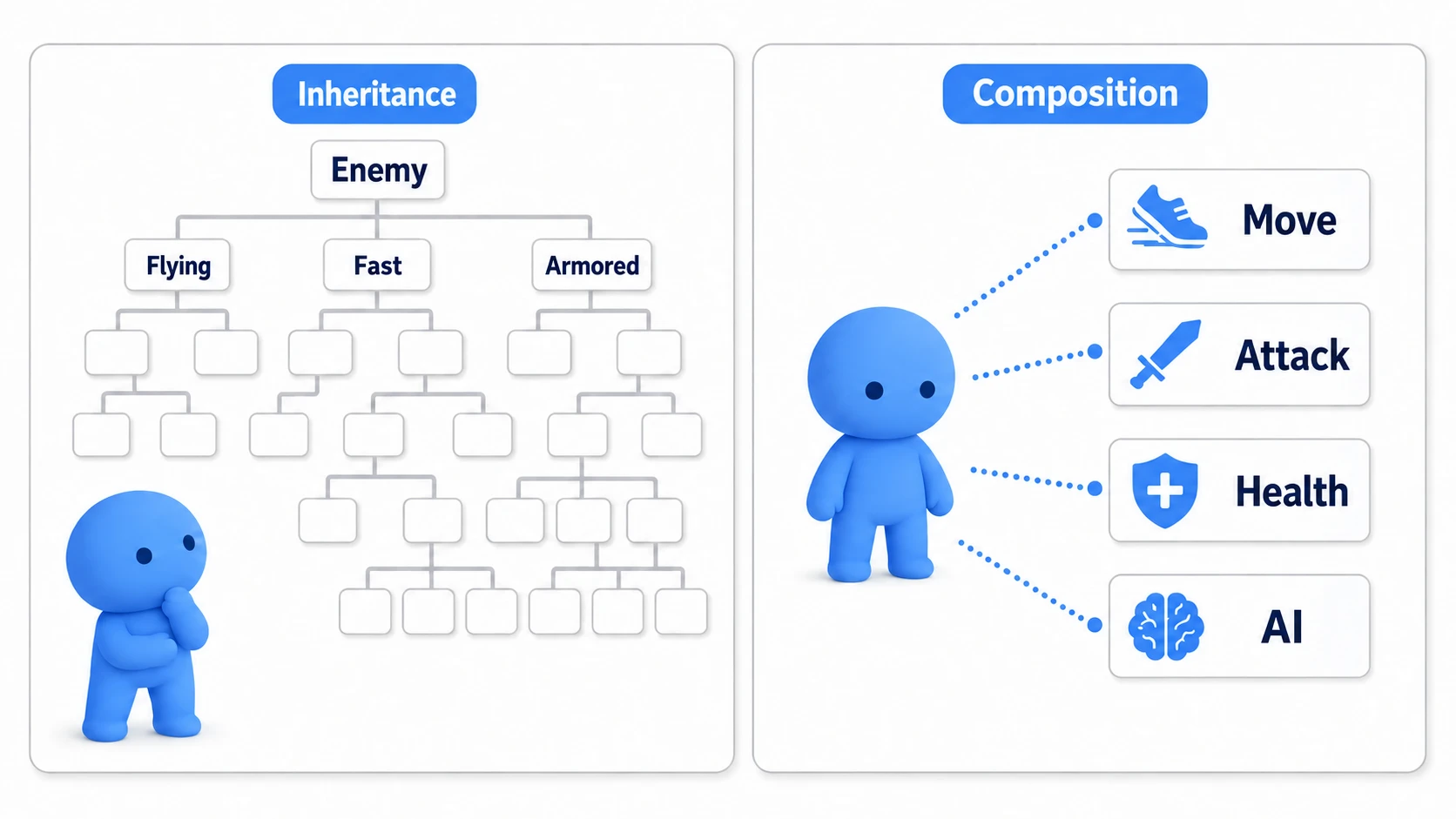
The hero of a 2D action game moves while switching between idle, move, jump, and attack. The basic feel is that they plant their feet during an attack and start walking in the held direction once the swing ends. In Godot, you build this with a state machine, which pins the current state down to one.
If you add an attack by stopping things with a variable like is_attacking and an if, the hero slides sideways while attacking, or can swing in the middle of a jump. Every condition you add reveals another hole.
This article covers reading input differently inside each state to switch between idle, move, jump, and attack, and build a hero who can't move during an attack.

What You'll Learn
- The same input splits into "switch," "move," or "discard" depending on the state
- Why input is read inside each state's function, and telling the moment of pressing apart from holding
- How the attack ends on its own, and why the remaining time is counted inside the state
- Hands-on: a hero who can't move while attacking and walks again when it ends
Tested with: Godot 4.7
What input means in each state
Pinning the state down to one with an enum (a list of the names of the states you can choose) and handing off to each state's function with match (a branch that picks the logic for the current state) is the same as for enemy AI. The basic idea is in State Machine Basics.
In other engines: this is the same approach as state management written with C#
enumandswitchin Unity.
What differs is the reason for switching states. The enemy switches on distance and vision, but the player switches on buttons. And the same button means different things depending on the current state.
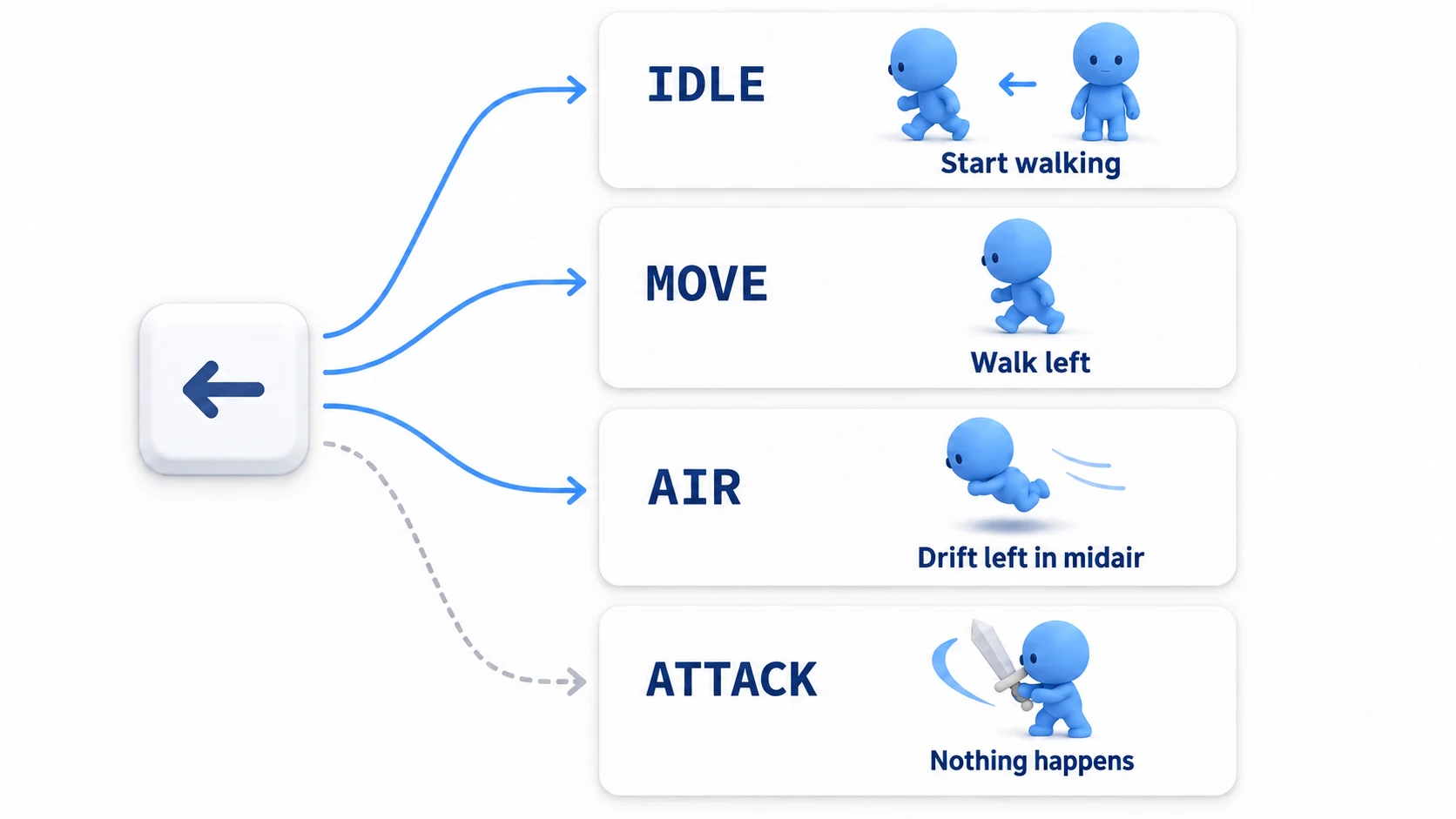
How input is received splits into three kinds.
- Switch: move to another state. ←→ while idle, and jump and attack on the ground
- Move: stay in the state and only change the speed. ←→ while moving and in midair
- Discard: do nothing. All input during an attack, and jump and attack in midair
| State | ←→ | Jump | Attack |
|---|---|---|---|
IDLE | Switch | Switch | Switch |
MOVE | Move | Switch | Switch |
AIR | Move | Discard | Discard |
ATTACK | Discard | Discard | Discard |
For the enemy AI, distance and vision conditions only decided "whether to move to another state." For the player, the same key becomes "switch," "move," or "discard" depending on the state. This table becomes the shape of the code as-is.
Where to read input
Line up the input ifs at the top of _physics_process() (the function called on every physics step) without looking at the state, and the attack button works in midair too. A slash starts partway through the arc of a jump.
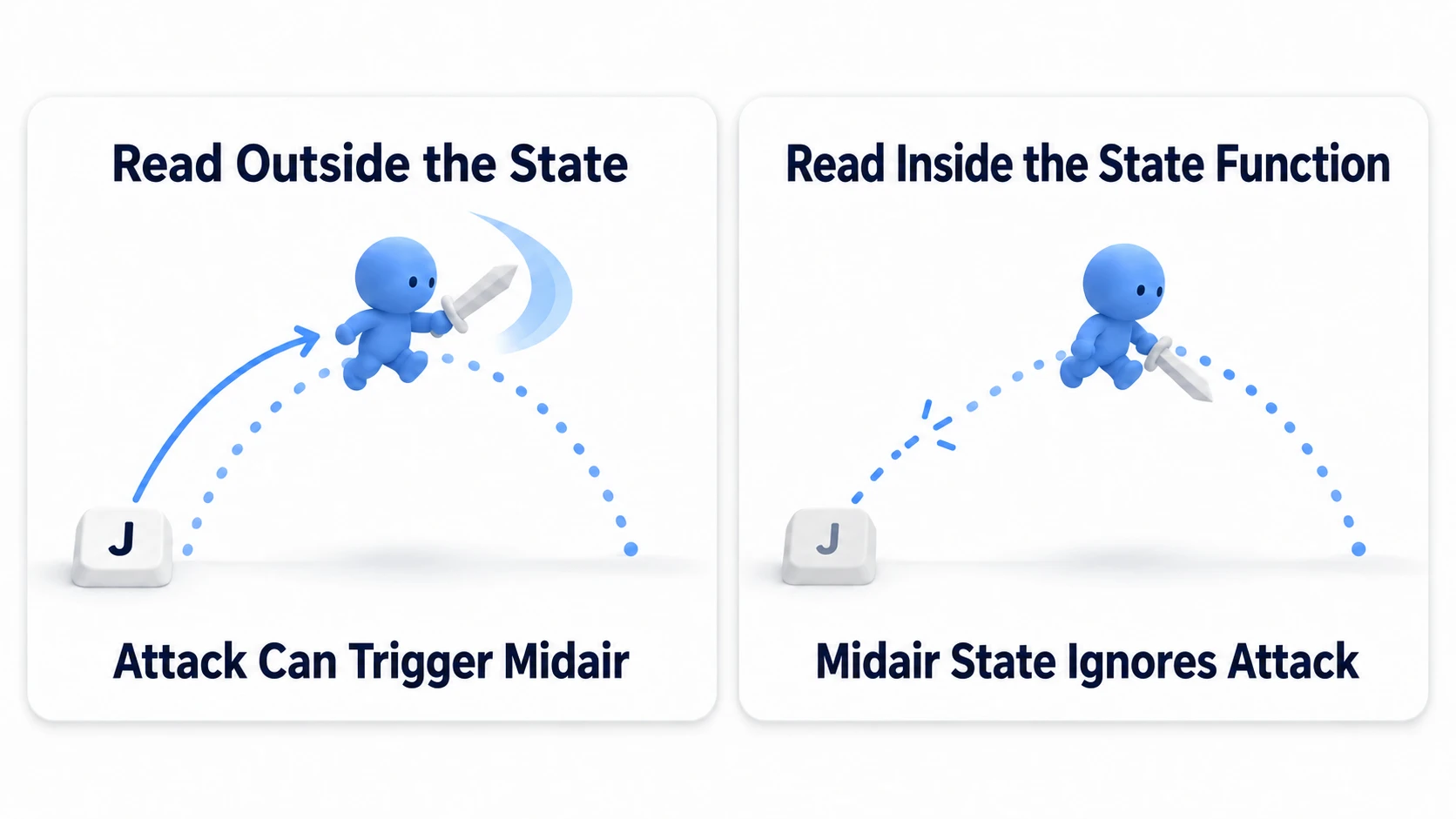
Read input inside each state's function. If you don't write the jump and attack checks in the midair function, those two become "discard." A press that wasn't read never takes effect later either. Press again after landing and the attack comes out.
Split how you read it by the kind of input too. ←→ works for as long as it's held, so read it with Input.get_axis(). It returns -1 for ←, 1 for →, and 0 if neither or both are pressed. Jump and attack only work at the moment of pressing, so read them with Input.is_action_just_pressed(). Both can be read inside _physics_process().
Read the jump with is_action_pressed() (while held), and every time you land with Space held down, you jump again. You want one press to mean one jump, so read it at the moment of pressing.
How the attack ends (remaining time)
The enemy's ATTACK in State Machine Basics was a state that lasted as long as the player was in range. The player's attack ends on its own once the set time comes, whether or not the button is still held.
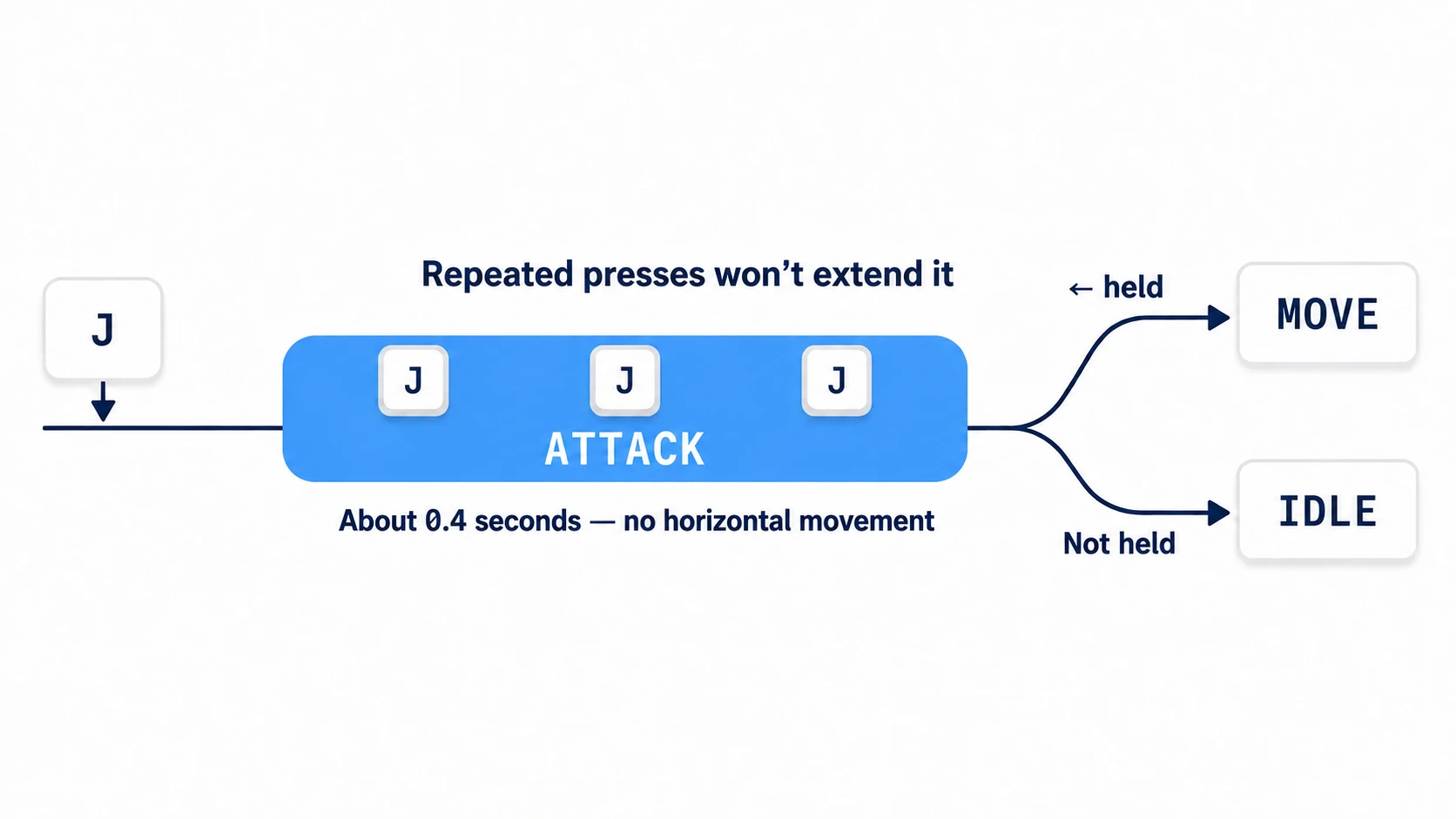
Set the remaining time the moment you enter the attack state, and subtract the seconds elapsed (delta) every frame inside the attack function. When it reaches 0, read the direction being pressed again at that moment, and go back to MOVE if ←→ is held, or IDLE if it's released. There's no need to remember "it was walking before the attack."
What you stop during the attack is only the horizontal speed (velocity.x, the pixels moved per second). velocity.x keeps its previous value until you put 0 in again, so when entering an attack from walking, set it to 0 yourself. move_and_slide() is what moves the body using the speed in velocity. Keep gravity and this function running in the same place in every state.
The attack button isn't read during an attack either, so mashing it doesn't extend the attack. What switches states is a function you write yourself called change_state() (the full code is in the hands-on). At its top, it ignores switches to the same state. Even if ATTACK somehow gets requested again, the remaining time doesn't reset.
Waiting for the attack's length with await
Waiting for the attack's length with await (a way of stopping the function at that line and continuing after time passes) looks short and easy to follow.
# The tempting version
func _start_attack() -> void:
	change_state(State.ATTACK)
	await get_tree().create_timer(0.4).timeout
	change_state(State.IDLE)   # even if it moved to another state along the way, this puts it back to IDLE
The trouble comes when the state changes while waiting. Say you take damage mid-attack and move to a flinch state. The code after await isn't canceled when the state changes. After 0.4 seconds, the rest runs and puts it back to IDLE in the middle of the flinch.
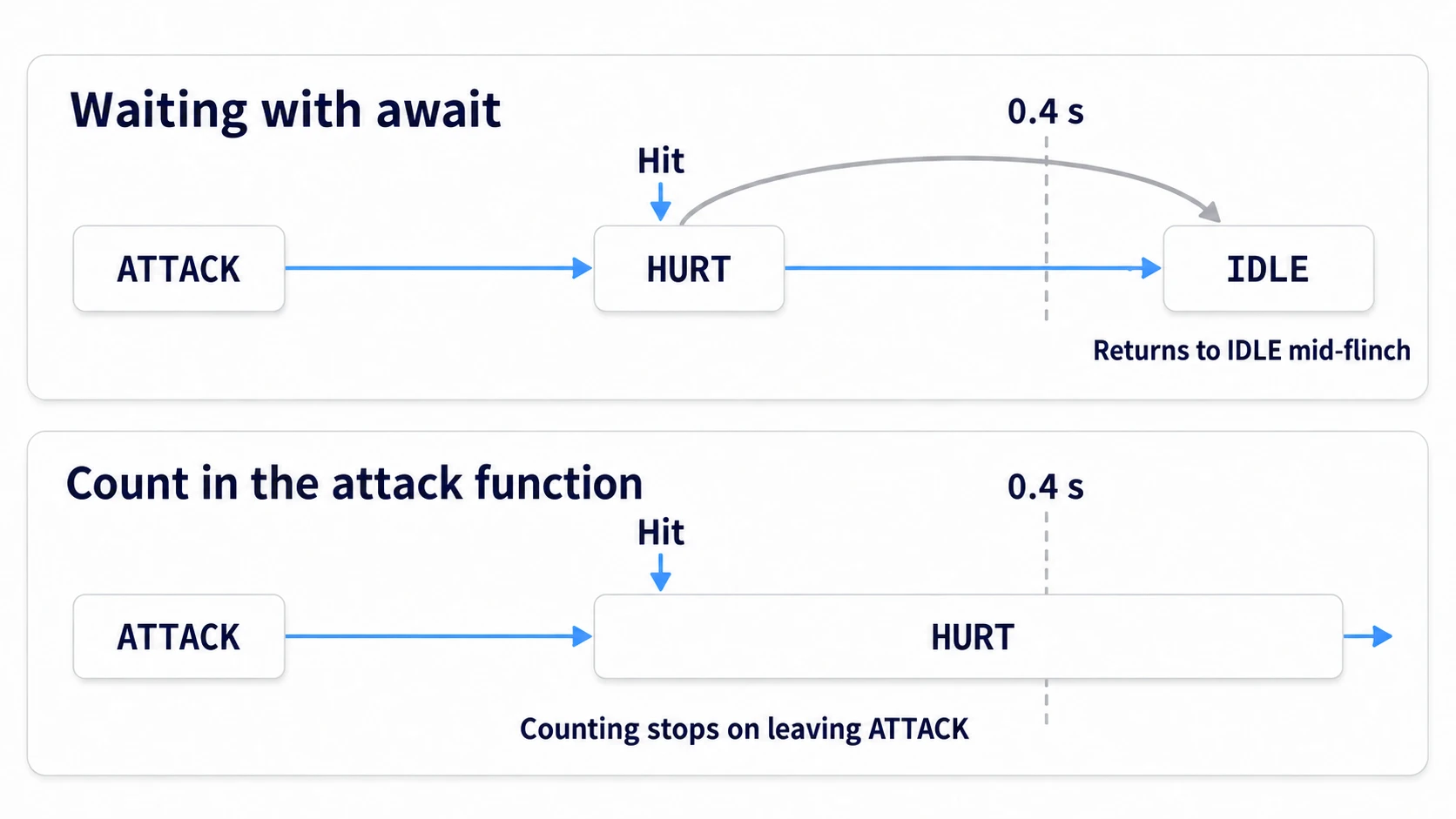
Count the remaining time inside the attack function, and when you leave the attack, both the counting and the end check stop. How to use await itself is in await Basics.
If you count with a Timer node, stop() it when leaving the attack. You can also end it with AnimationPlayer's animation_finished signal. That signal arrives when any animation finishes, such as a landing animation, so when you receive it, check the animation name and the current state before going back. A looping animation doesn't send it even after one loop, so turn looping off for the attack animation.
Switching the visuals (change_state)
Start the attack animation just once, at the moment of entering ATTACK. Write it all inside change_state(), and each attack starts playback exactly once. A finished animation never starts again on its own either. Match the length of the attack animation to the constant ATTACK_TIME (0.4 seconds) in the hands-on code. If they're off, you get time where the swing is over but you still can't move, or time where you've started walking but the sword is still out.
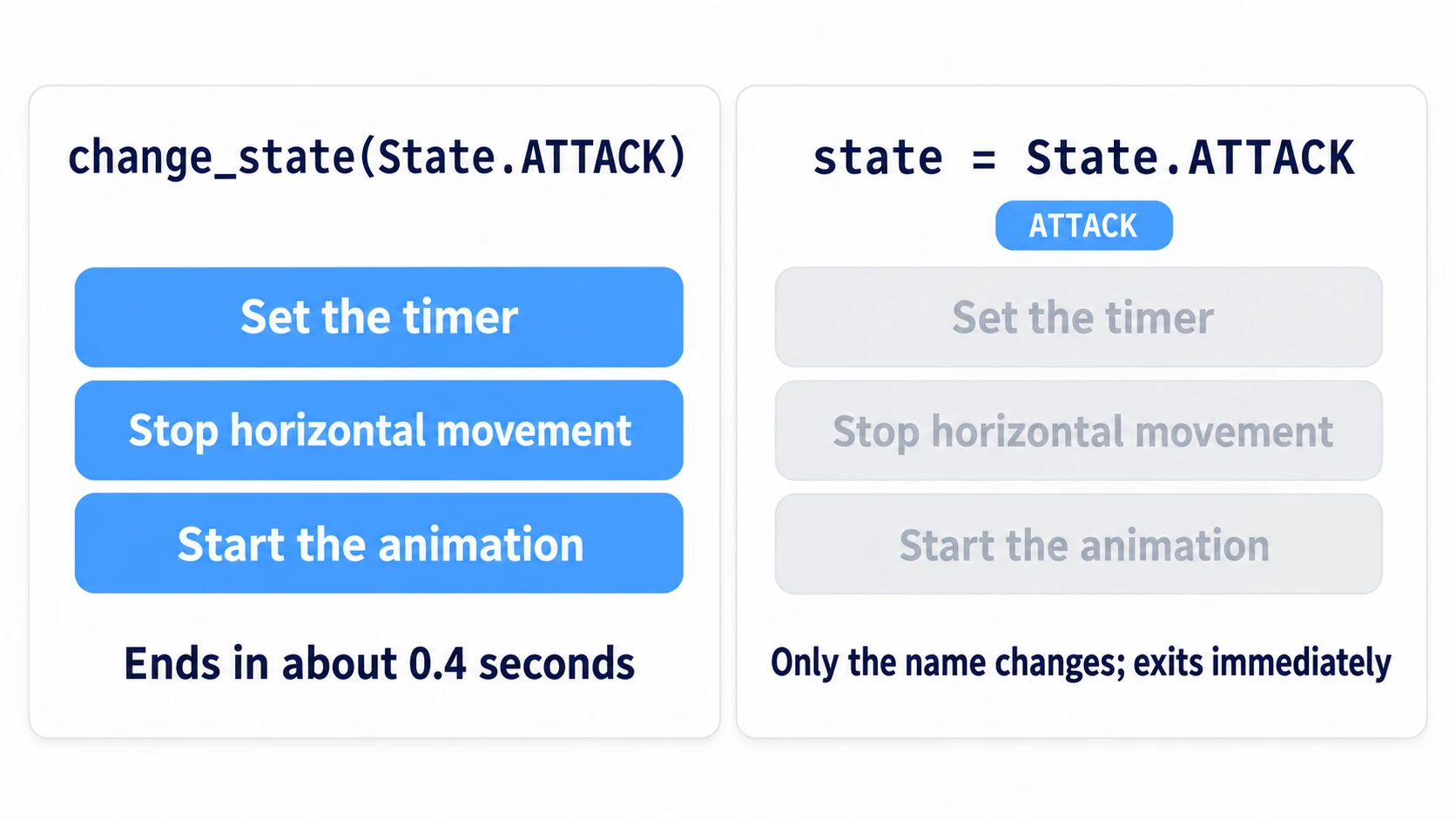
Always change the state through change_state(). Write state = State.ATTACK directly, and both setting the remaining time and starting the animation are skipped. The remaining time stays at 0, so the attack ends on the next frame and never looks like a swing. When switching visuals with an AnimationTree state machine too, switch just once, inside change_state(). How to build it is in AnimationTree Basics.
Hands-On: A Hero Who Can't Move While Attacking and Walks Again When It Ends
A swordsman in a side-scroller, the hero of a Metroidvania, a brawler in a beat 'em up—heroes who plant their feet during an attack appear in many action games. Here you'll add an attack to a hero who can walk and jump on a floor, and build it up to not moving during the attack and starting to walk in the held direction when it ends.
① What to place
Start from a new scene. You won't use any art assets. Instead, you'll check things by showing the state name on a label. The floor becomes visible if you turn on Visible Collision Shapes in the Debug menu.
Add these four actions to Input Map in Project Settings (InputMap Basics).
| Action | Keys |
|---|---|
move_left | A and ← |
move_right | D and → |
jump | Space |
attack | J |
- Put a Node2D at the root as Main, save it as
main.tscn, and set it under Project Settings → Application → Run → Main Scene - Place a StaticBody2D, used for floors and walls that don't move, as Floor, and set its Position to (576, 628). Create a RectangleShape2D in the Shape of its child CollisionShape2D, and set its Size to (1152, 40)
- Place a CharacterBody2D as Player and set its Position to (576, 592). Put a RectangleShape2D (32, 32) in its child CollisionShape2D
- Under Player, place a Sprite2D (
icon.svgin Texture, Scale (0.25, 0.25)) and a Label (named StateLabel, Position (-24, -48))
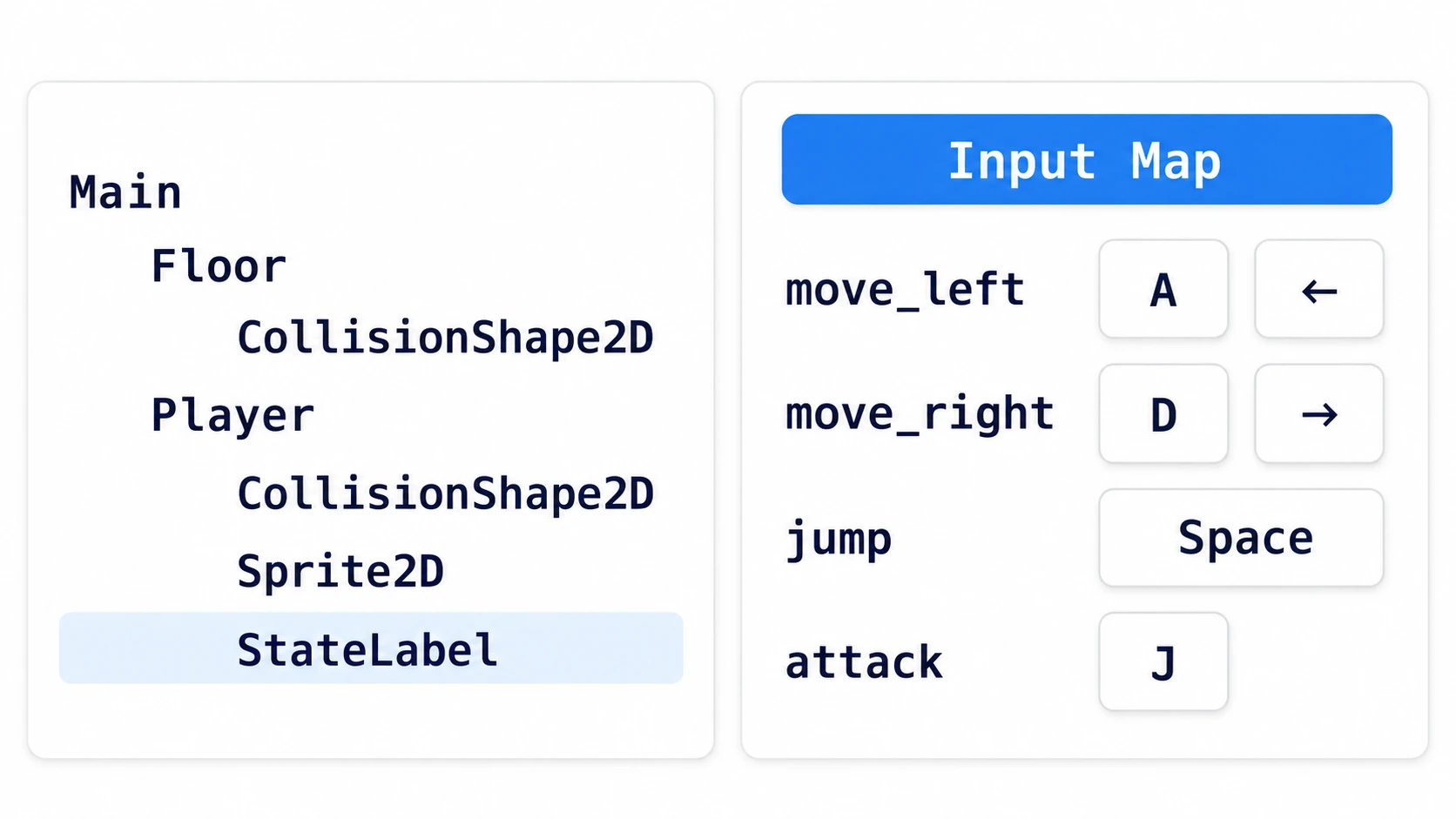
The floor sits at the bottom of a new project's default screen (1152×648). The top of the floor is at y=608, and the 32×32 Player sits right on the floor when its center is at y=592.
② Put it together
The movement between states is shown in the figure below. Only the end of an attack and landing split into MOVE or IDLE depending on the direction held at that moment.
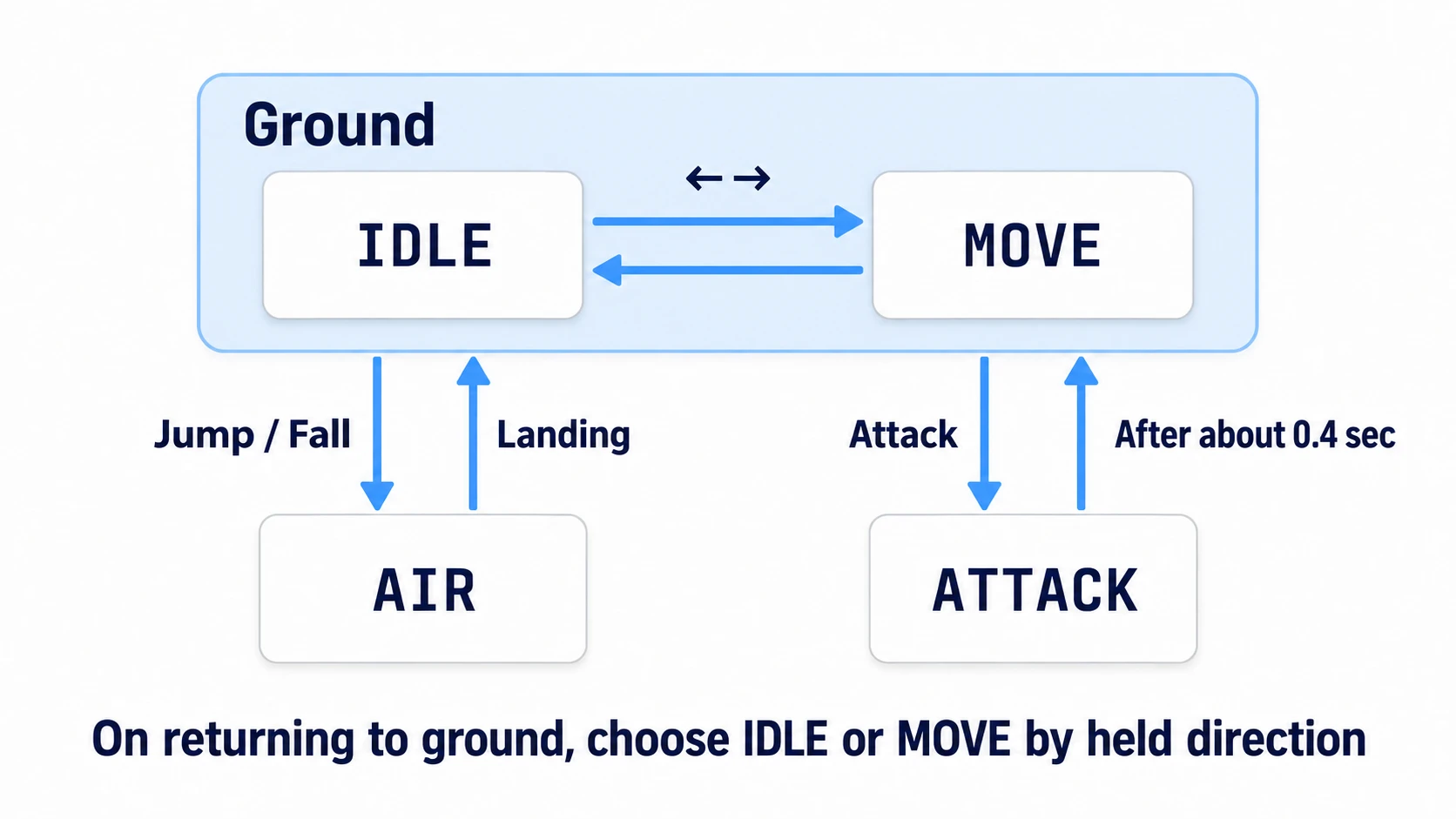
Attach a script to Player. The contents of each state's function correspond to one row of the table above.
# player.gd (Player's CharacterBody2D)
extends CharacterBody2D

enum State { IDLE, MOVE, AIR, ATTACK }

const SPEED := 200.0
const JUMP_VELOCITY := -400.0
const GRAVITY := 980.0
const ATTACK_TIME := 0.4          # attack length (seconds)

var state: State = State.IDLE
var attack_left := 0.0            # attack time remaining

@onready var state_label: Label = $StateLabel

func _ready() -> void:
	state_label.text = State.keys()[state]

func _physics_process(delta: float) -> void:
	if not is_on_floor():                 # if not standing on the floor
		velocity.y += GRAVITY * delta     # gravity applies in every state

	match state:
		State.IDLE:
			_state_idle()
		State.MOVE:
			_state_move()
		State.AIR:
			_state_air()
		State.ATTACK:
			_state_attack(delta)

	move_and_slide()                      # once, in every state

func _state_idle() -> void:
	velocity.x = 0.0
	if not is_on_floor():
		change_state(State.AIR)           # fell off a ledge
	elif Input.is_action_just_pressed("jump"):
		_jump()
	elif Input.is_action_just_pressed("attack"):
		change_state(State.ATTACK)
	elif _axis() != 0.0:
		change_state(State.MOVE)          # ←→ means "switch"

func _state_move() -> void:
	velocity.x = _axis() * SPEED          # ←→ means "move"
	if not is_on_floor():
		change_state(State.AIR)
	elif Input.is_action_just_pressed("jump"):
		_jump()
	elif Input.is_action_just_pressed("attack"):
		change_state(State.ATTACK)
	elif _axis() == 0.0:
		change_state(State.IDLE)

func _state_air() -> void:
	velocity.x = _axis() * SPEED          # in midair ←→ still means "move". Jump and attack aren't read
	if is_on_floor():
		change_state(_ground_state())     # on landing, decide by the direction held at that moment

func _state_attack(delta: float) -> void:
	velocity.x = 0.0                      # stop only the horizontal movement. Input isn't read
	attack_left -= delta                  # delta is the seconds in this physics frame
	if attack_left <= 0.0:
		change_state(_ground_state())     # ends on its own, returning by the direction held at that moment

func _jump() -> void:
	velocity.y = JUMP_VELOCITY
	change_state(State.AIR)

func _axis() -> float:
	return Input.get_axis("move_left", "move_right")

func _ground_state() -> State:
	return State.MOVE if _axis() != 0.0 else State.IDLE

func change_state(next: State) -> void:
	if next == state:
		return                            # ignore switches to the same state
	state = next
	if state == State.ATTACK:
		attack_left = ATTACK_TIME         # set the clock the moment it enters
		velocity.x = 0.0                  # stop horizontal movement from the frame it enters
	state_label.text = State.keys()[state]
State.keys() returns an array of the enum's names. The enum has no numbers written in it, so each state's value is also its index in the array. State.keys()[state] puts the current state's name (such as "ATTACK") on the label.
③ Run it and check
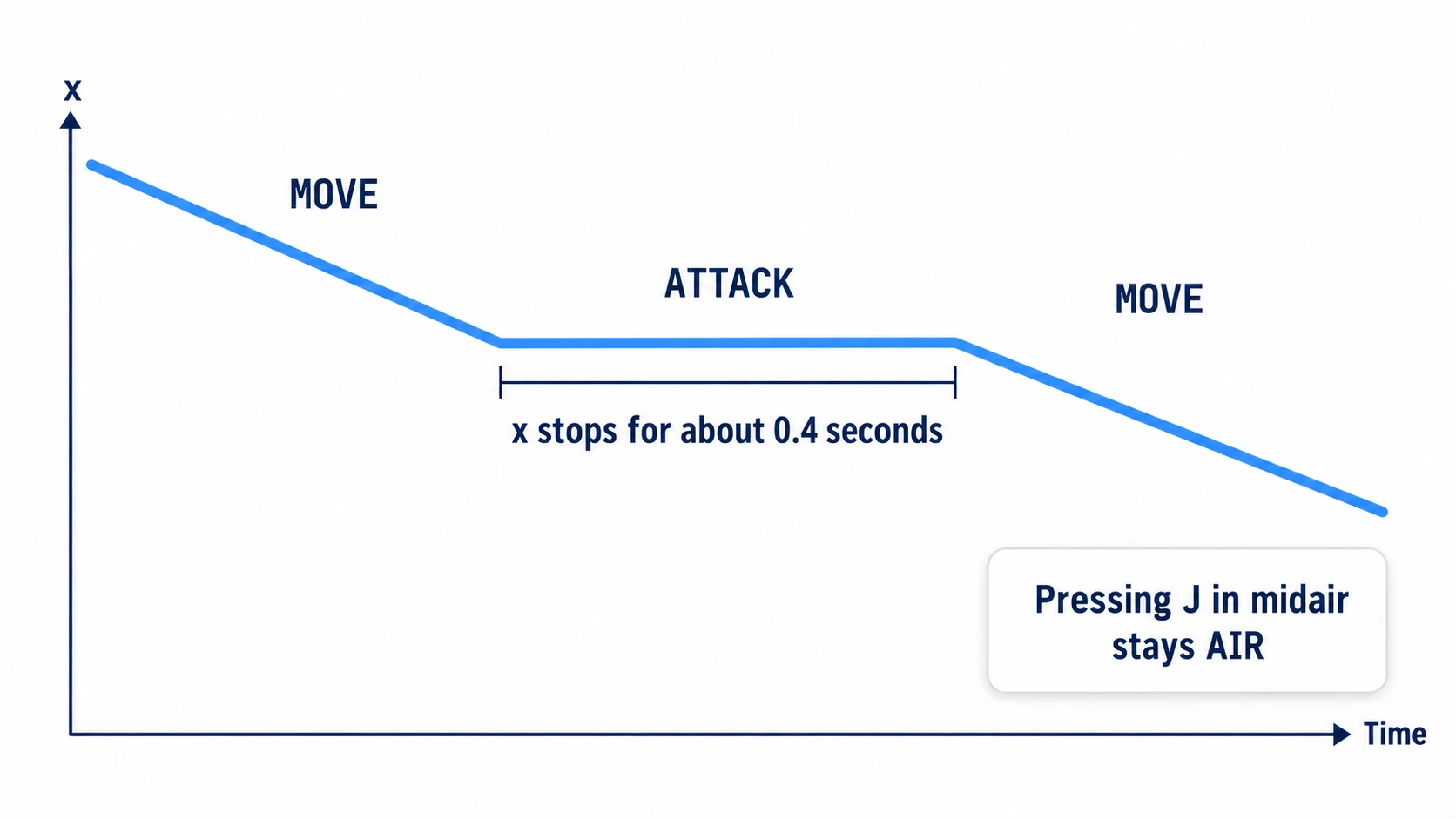
Run with F5 and watch the state name on the label and the hero's position. is_on_floor() becomes true after move_and_slide() touches the floor. So for just one frame right after starting it passes through AIR, then settles on IDLE. Check three things.
Press ← and it becomes MOVE, moving about 200 pixels left per second. Release it and it's IDLE. Jump with Space and it becomes AIR, rising about 85 pixels and landing after about 0.83 seconds. Press J in midair and it stays AIR with nothing happening, and on landing it becomes MOVE if ← is held or IDLE if it's released. If you can swing in midair, _state_air() is reading the attack button.
Landing with Space held down doesn't jump again right away. To jump again, release it and press again. If it jumps on every landing, you're reading the jump with is_action_pressed().
To finish, press J while holding ←. The label becomes ATTACK, and for about 0.4 seconds the hero's position doesn't move by a single pixel. Mashing J during that time doesn't extend the attack. Once the swing ends, it goes back to MOVE without passing through IDLE, and starts walking left. If it creeps forward during the attack, velocity.x is left over somewhere in ATTACK.
Two points.
- The state's function decides what input means: the same ← key switches in idle, moves in move, and is discarded during an attack. Discarding input just means not writing it in that state's function
- The attack ends on its own, and where it goes back to is decided by the input at that moment: count the remaining time inside the attack function. When it ends, it reads the held direction again, so it flows naturally into walking
To add an attack that doesn't plant the feet, change ←→ in the attack row of the table from "discard" to "move." For buffered input that remembers a jump pressed during an attack, change "discard" to "remember it and use it when the attack ends." If you want to polish how jumps feel, the input buffering in Jump Basics goes in the same place.
Troubleshooting
| Symptom | Cause | Fix |
|---|---|---|
| Every landing stops for an instant before walking | Landing always goes back to IDLE | Decide where to go back by the direction held at that moment, like _ground_state() |
| After adding art, the hero faces right on every attack | Facing is decided every frame by the sign of velocity.x, and the 0 during an attack is treated as right | Only change facing when ←→ is pressed (when _axis() isn't 0) |
| Pressing jump and attack together doesn't produce the attack | In the ground functions the jump comes first in the elif order, so an attack press in the same frame isn't read | Write the one you want to prioritize higher up |
Walking off the edge of a platform falls while staying MOVE | The moving function doesn't look at is_on_floor() | In the ground state functions, move to AIR once off the floor |
Bonus: Good to Know First
- If you add a midair attack, don't stop gravity: change the attack button in
AIRto "switch," and stop onlyvelocity.xinsideATTACK. Stop the vertical movement too and the hero freezes floating at the top of the jump. When it ends, check the floor and go back toAIRif still in the air - If you add getting hit, add one more state: add a flinch state and move to it with
change_state()when taking damage. The attack's remaining time exists only inside the attack function, so it never jumps back on its own in the middle of the flinch - When the states pile up: once each state's function gets long, move on to splitting each state into its own node and script. When to move over is in "When to split into state classes" in State Machine Basics
Summary
- Three kinds of input: the same button splits into "switch," "move," or "discard" depending on the state. Use
is_action_just_pressed()for the moment of pressing andget_axis()for while held - Read it inside the state's function: don't write input you discard in that state's function. A press that wasn't read never takes effect later
- The attack ends on its own: count the remaining time inside the attack function, and when it ends, decide where to go back by the held direction
- Stop only the horizontal movement: run gravity and
move_and_slide()in the same place in every state - Change the state through
change_state(): write it directly and both setting the clock and switching the visuals are skipped
Start by writing out your current hero's states and inputs in the form of the table above. If every cell gets one of "switch," "move," or "discard," you can turn it straight into code. How many states does your hero have?