You change an enemy's speed from 80 to 200 and it feels better. But the next day, after touching a few other values too, you can't remember what you changed or how. Even if you kept a copy of the folder as MyGame_old, the only way to see the difference is to open both and compare.
Put the project in Git and that difference reads as a single line. Godot saves scenes as text, and a value you changed in the Inspector becomes one line as-is. But as soon as you start, you may see a flood of unfamiliar files, or a confirmation dialog in English when you switch branches.
This article covers putting a Godot project in Git, reading changed values as diffs, and trying things on a branch and rolling them back.
What You'll Learn
- Why a value changed in the Inspector becomes one line in a diff
- Which files go into Git, and the
.godot/folder that doesn't- The dialog the editor shows when you switch branches, and which button to press
- How to read a conflict when two branches change the same line
- Hands-on: try a faster enemy on a branch and roll it back
Tested with: Godot 4.7 / Git 2.28 or later
Godot scenes and diffs: a changed value becomes one line
Git is a tool that records the contents of your project folder whenever you like, so you can compare or go back later. One record is called a commit. Comparing two records and listing the lines added and removed gives you a "diff."
Godot and Git get along well because almost every file Godot saves is text. Scene .tscn files, the project settings in project.godot, and .gd scripts can all be opened in Notepad. Open the enemy scene enemy.tscn and this is what's inside:
[gd_scene format=3 uid="uid://…"]

[ext_resource type="Texture2D" uid="uid://…" path="res://icon.svg" id="1_…"]
[ext_resource type="Script" uid="uid://…" path="res://enemy.gd" id="2_…"]

[node name="Enemy" type="Sprite2D" unique_id=…]
texture = ExtResource("1_…")
script = ExtResource("2_…")
speed = 200.0
A [node …] line marks the start of one node, and the lines under it are the values changed in the Inspector. The last line, speed = 200.0, is the result of setting Speed to 200 in the Inspector.
The important part is that a value left at its default isn't written at all. With a script that says @export var speed := 80.0 (@export is the marker that shows it in the Inspector), there's no speed line while it's 80. Set it to 200 and save, and one line appears. Set it back to 80 and save, and it disappears.
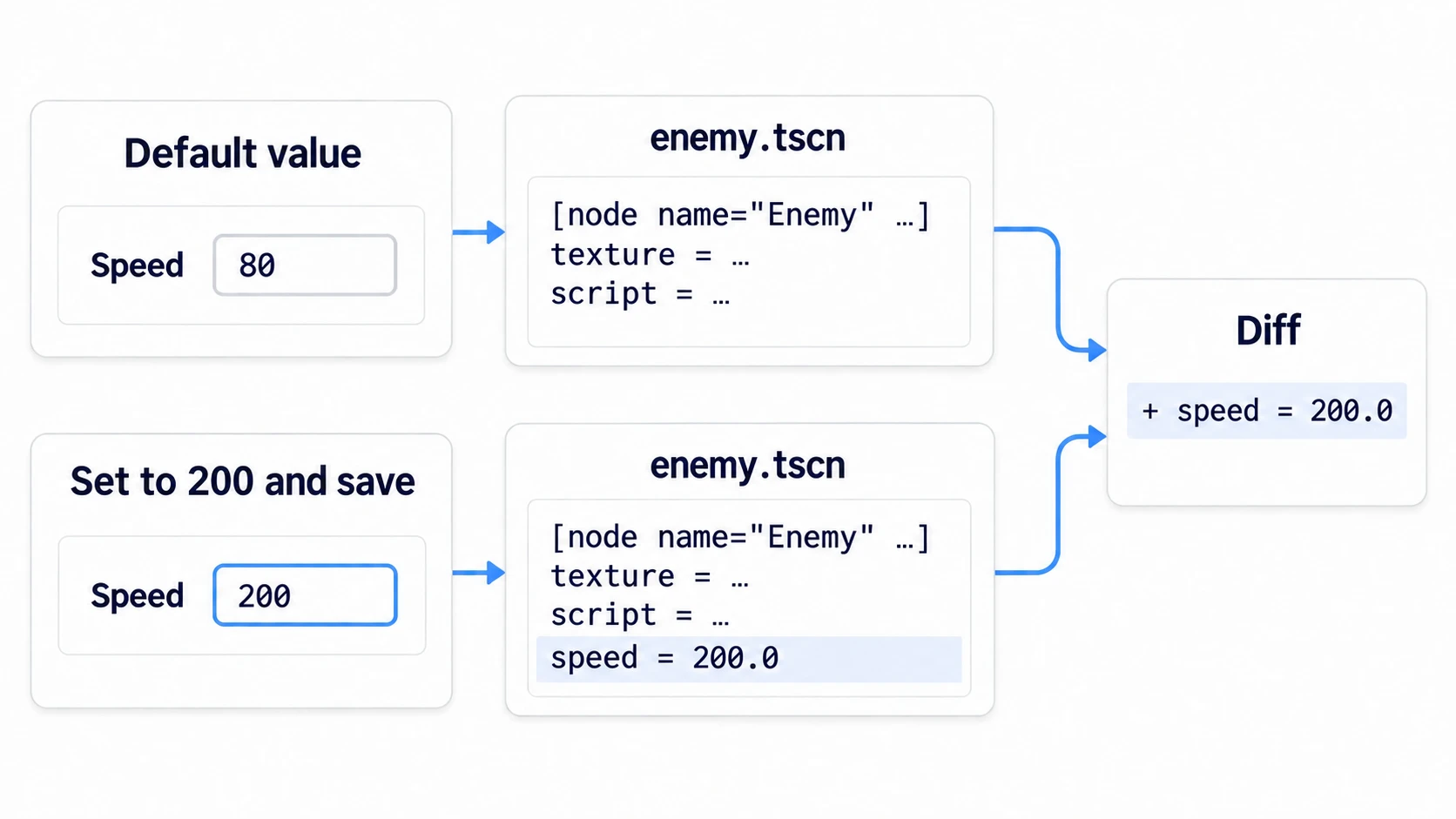
So the diff for changing the speed is just "enemy.tscn gained one line, speed = 200.0." Even without taking notes on which values you touched, the diff tells you. Being able to try things on a branch and compare them, and to fix things when they conflict, both come from being able to read this one line.
In other engines: Unity scenes can also be diffed in Git if saved in text format. Unreal Engine's
.uassetfiles are binary, so comparing their contents means using the editor's diff tool.
The line is written into the scene file where you changed the value. Change it in enemy.tscn and it goes into enemy.tscn. Select an enemy placed in main.tscn and change it there, and it goes into main.tscn.
Files to put in Git, and .gitignore
Besides the files you made, your project folder has a .godot/ folder that Godot creates. Its contents are copies that can be rebuilt, like the results of importing images, plus information specific to that PC, like the state of the editor's windows. Put it in Git and the change list fills up with files you never touched.
Near the bottom of the new project screen is a field called Version Control Metadata. If it's the default Git, a .gitignore is created too. It's a list of files for Git to ignore, and .godot/ is excluded there. For a project created with None, you can create one later with Project → Version Control → Create/Override Version Control Metadata...
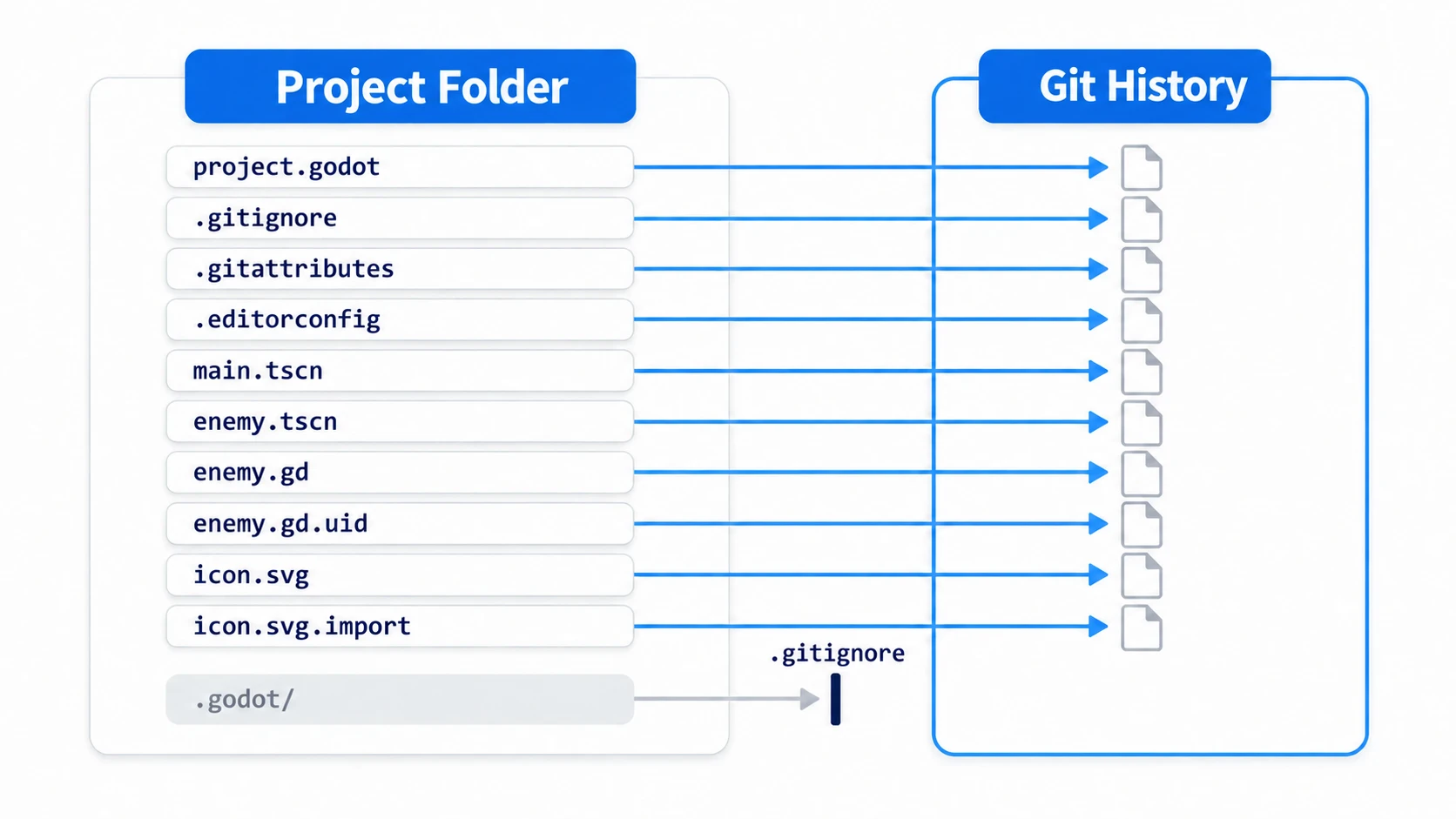
Also commit the .gitattributes created alongside it (a setting that makes line endings consistent), the .import files next to your images, and the .uid files next to your scripts. More detail on what to include and exclude is in Project Organization.
Godot doesn't create the place where records are kept (the repository). Create it by typing git init in a terminal (a window where you type commands as text; on Windows, PowerShell or similar), or with a tool that has a UI, like GitHub Desktop. Using Git from inside the editor requires a separately distributed Git plugin, but this article doesn't use it.
Committing and checking the diff
Take a commit after reading the diff. Choose the changes to include (git add), then record them with a short message (git commit).
git diff                       # see changes not yet git add-ed (new files don't show)
git add -A                     # make every changed file a candidate for the record
git commit -m "Make enemies faster"    # record it with a short message
Newly created files don't show up in git diff, so check the list with git status too.
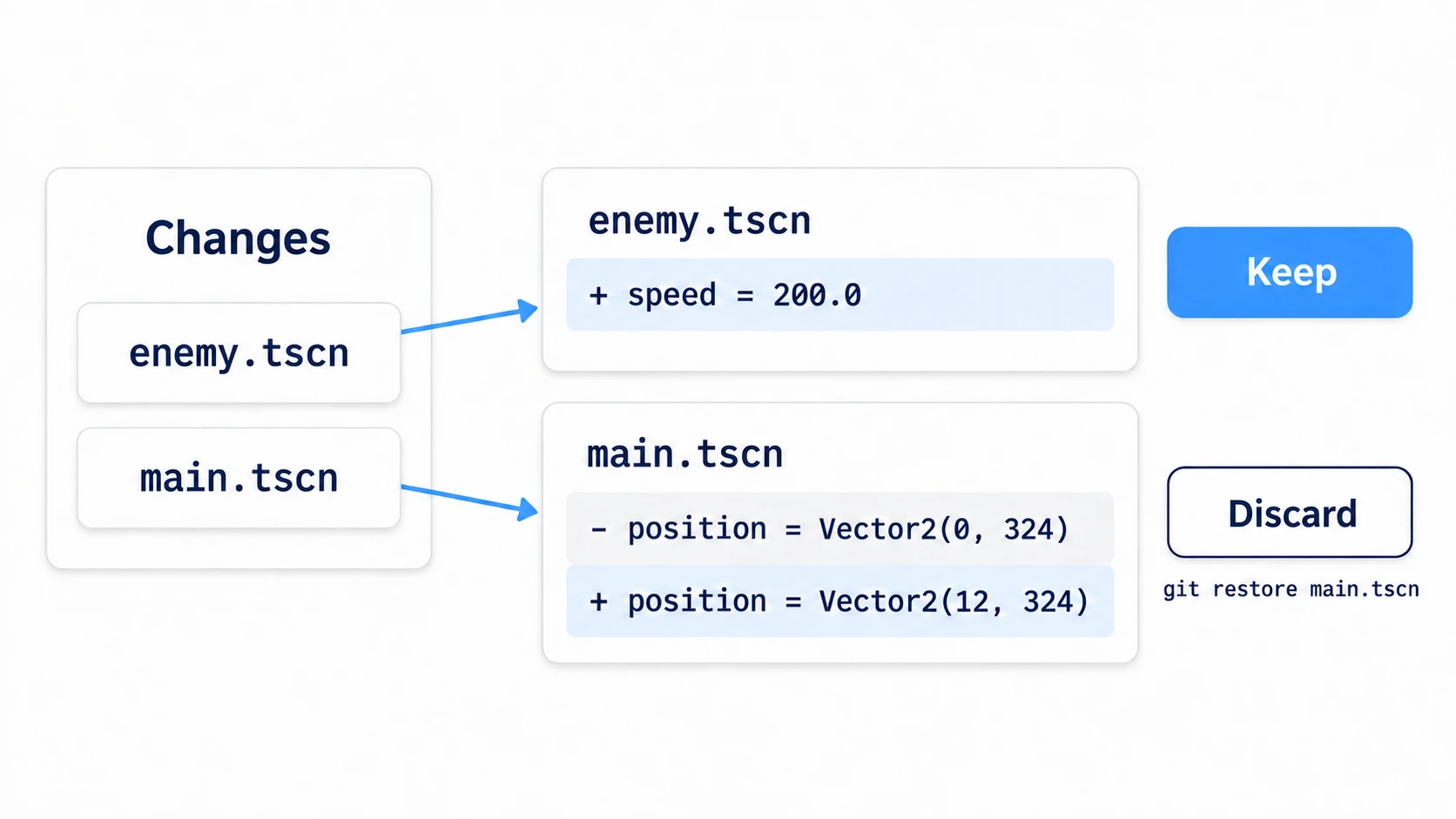
The point of reading the diff first is to catch changes you don't want to include. Even if you meant to change only the enemy's speed, you may have accidentally dragged an enemy placed in a scene, or saved another scene too. Before git add, you can put just that file back to its last recorded state.
git restore main.tscn # throw away the changes to main.tscn and return it to the last recorded state
If that scene is open in Godot, a reload confirmation appears when you return to the window, so press Reload from disk.
A good rule of thumb for when to commit: the game launches, and you can say what you changed in one sentence. Breaks like "made enemies faster" or "added a title screen." Every save is too fine-grained, and once a week doesn't let you pick the point you want to go back to.
Trying things on a branch
You want to try making the enemy even faster, but you don't want the hassle of undoing it if it doesn't work out. That's when you create a branch: another line of work that splits off from the current record. However much you change and commit on a branch, the main you started with doesn't move. If you like it, merge it into main. If not, throw the branch away.
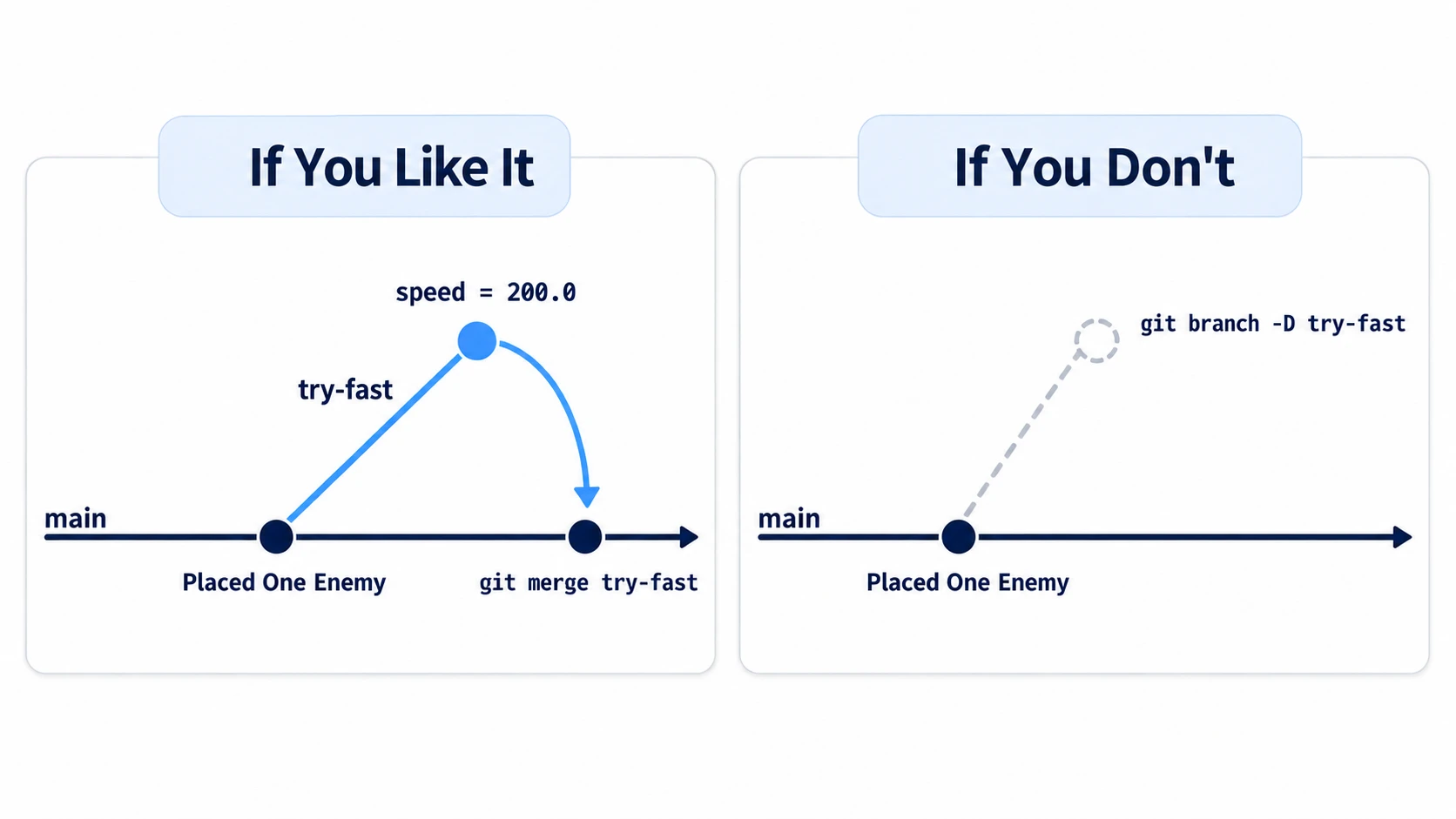
git switch -c try-fast   # create a branch called try-fast and switch to it
git switch main          # go back to main
When you switch branches, Git rewrites the files in your project folder to the contents of the branch you switched to. You can switch even with Godot open. When you return to the Godot window, if a scene you have open was rewritten, you get this confirmation.
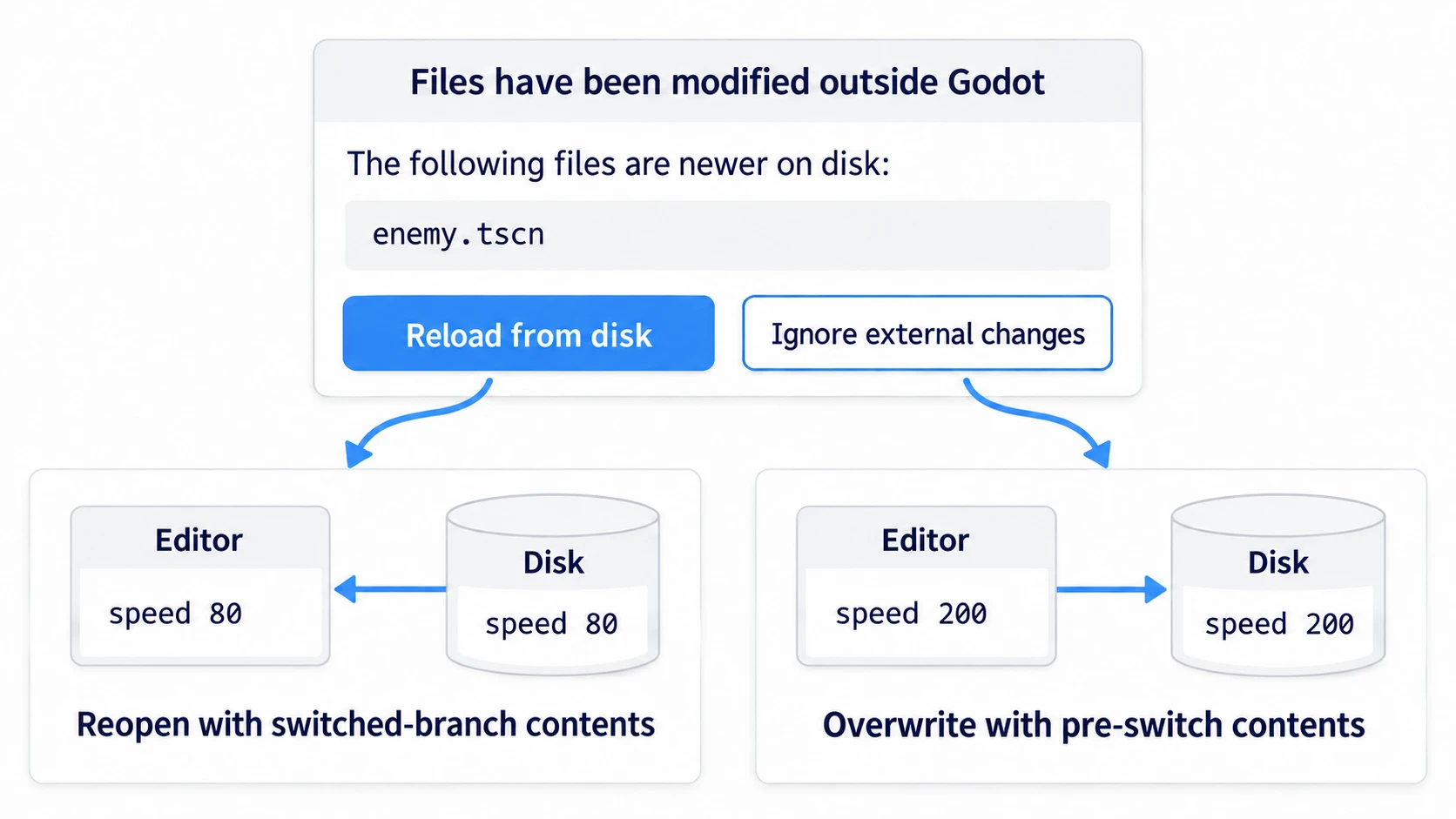
The title is "Files have been modified outside Godot". It's a notice that files changed outside Godot, and it lists the names of the rewritten scenes. Press Reload from disk. It reopens the scenes with the contents of the branch you switched to. The other button, Ignore external changes, saves the editor's old contents from before the switch again. The files on the branch you switched to get overwritten.
Scripts are reloaded without a confirmation, as long as you're not in the middle of editing them. If you save and commit before switching, all you have to do when you come back is press Reload from disk.
How to fix a conflict
When you merge a branch into main and the same line changed on both, Git can't decide which one to keep and stops. That's a conflict. It sounds like something that happens when two people work together, but it happens solo too. Say you set speed to 120 on main and committed, while on try-fast you'd set it to 200. Try to merge with git merge try-fast, and this gets written into enemy.tscn:
[node name="Enemy" type="Sprite2D" unique_id=…]
texture = ExtResource("1_…")
script = ExtResource("2_…")
<<<<<<< HEAD
speed = 120.0
=======
speed = 200.0
>>>>>>> try-fast
Below <<<<<<< HEAD is the line from the branch you're on (main here). Below ======= is the line from try-fast, the one you tried to merge. Keep only the one line you want and delete the three marker lines. Save, then run git add enemy.tscn and git commit --no-edit, and the merge is done. Without --no-edit, a screen for writing a message (vim, on Windows) may open and leave you stuck.
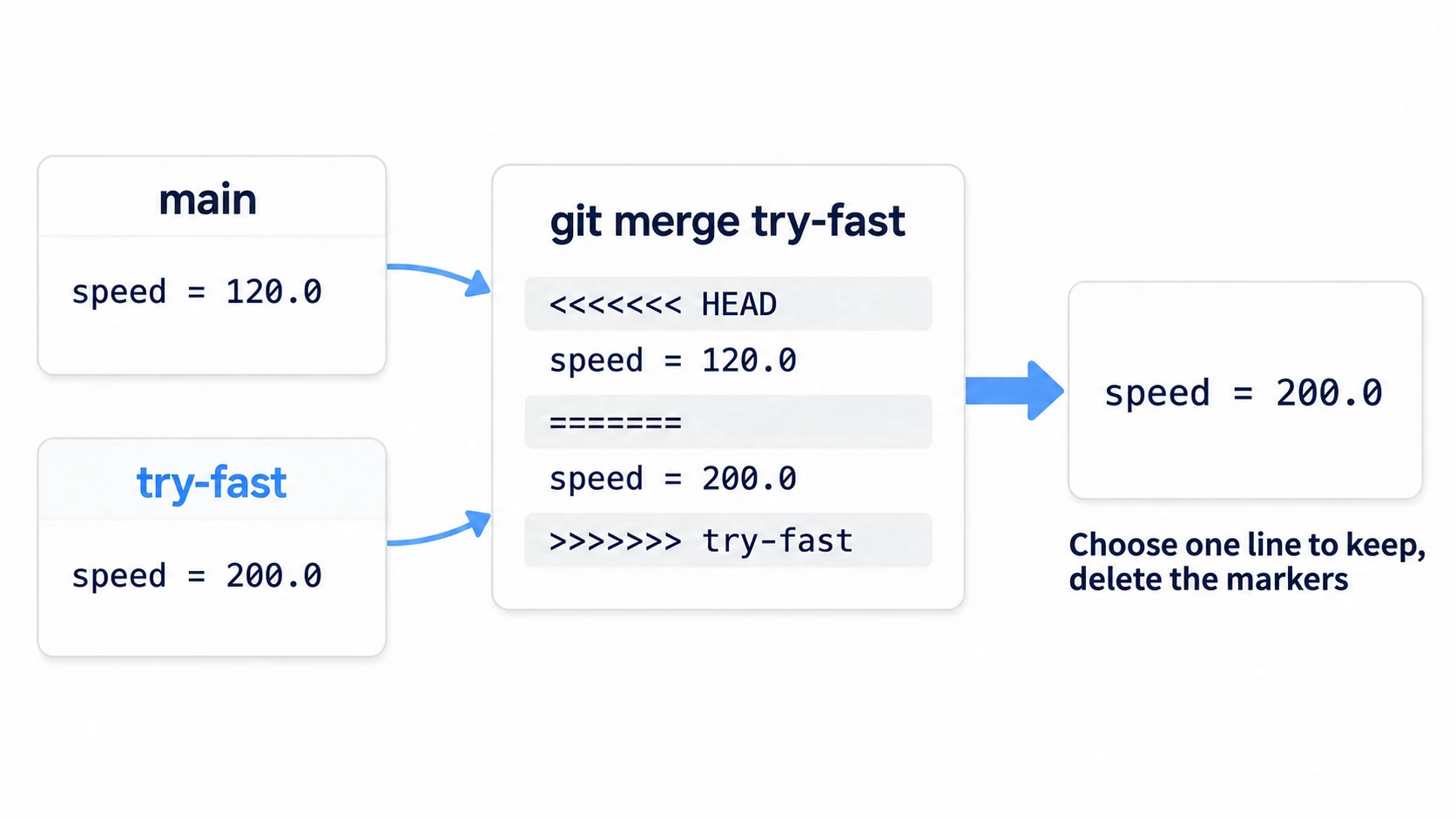
As long as the markers remain, Godot can't open that scene, so delete the markers in a text editor first.
When changes that added, removed, or reordered nodes collide and the result is hard to read, it's faster to stop the merge with git merge --abort, adopt one side's contents, and redo the other side's operations in the editor.
To avoid collisions, keep each branch to different scenes.
Hands-On: Try a Faster Enemy on a Branch and Roll It Back
An enemy in a side-scroller, a bullet in a shooter, a block in a falling-block puzzle—every genre has moments where you want to change a speed and compare how it feels. Here you'll make a project where one enemy just walks, try a different speed on a branch, switch back and forth with main to compare, and then throw it away.
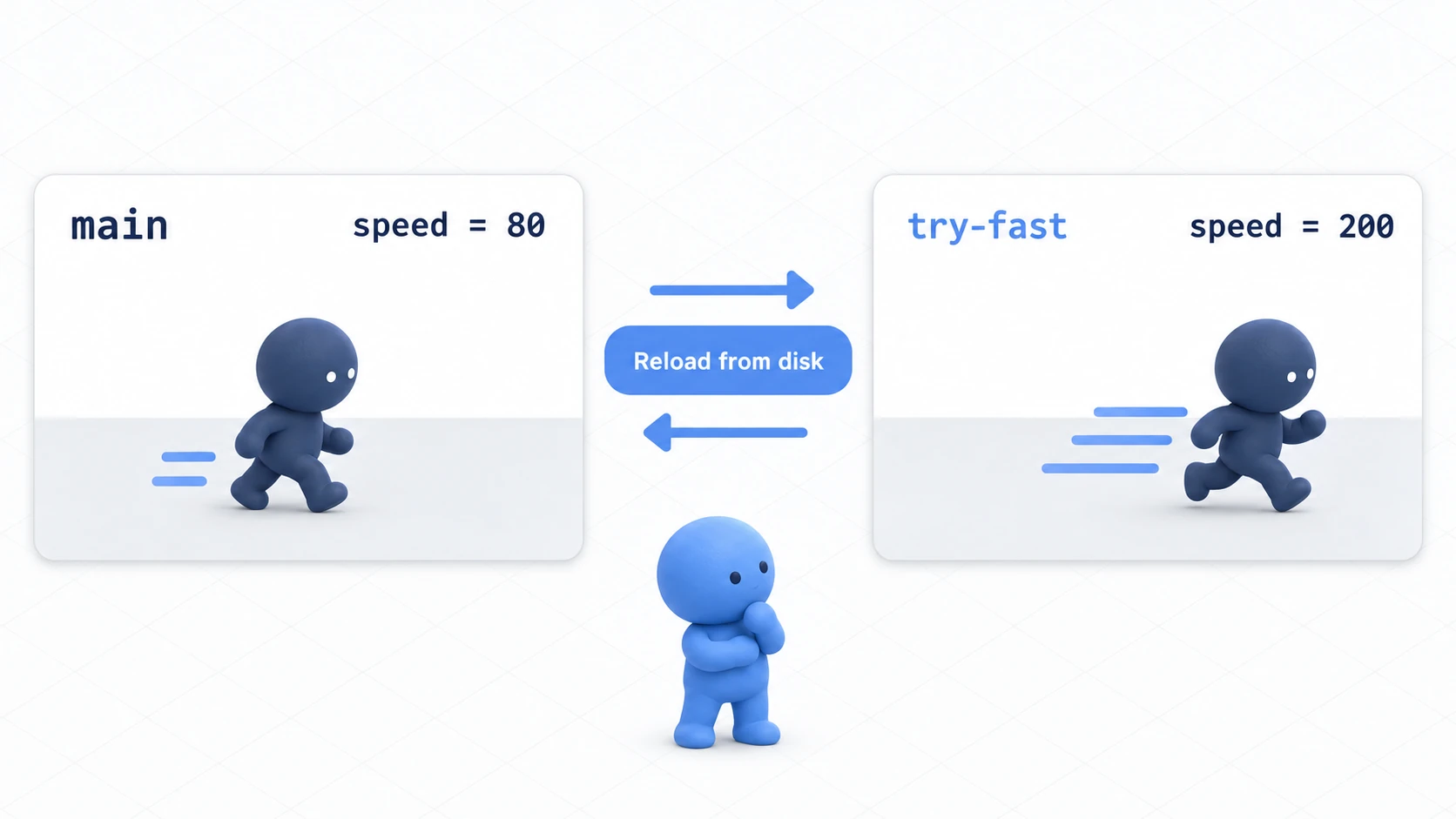
① What to place
Start from a new project. Install Git (you can get it from git-scm.com) so that typing git --version in a terminal shows a version.
- Create a new project. Leave Version Control Metadata at the default Git
- Create a scene with a Sprite2D as its root and name it Enemy. Drag
icon.svginto Texture and save it asenemy.tscn - Attach a script
enemy.gdto Enemy
# enemy.gd (Enemy's Sprite2D)
extends Sprite2D

@export var speed := 80.0   # pixels moved per second

func _process(delta: float) -> void:
	position.x += speed * delta
	if position.x > 1152.0:   # once the center passes the right edge of the screen, go back to the left edge
		position.x = 0.0
- Create a scene with a Node2D as its root and name it Main. Drag
enemy.tscnfrom the FileSystem dock to place it as a child - Set the placed enemy's Position to (0, 324) and save as
main.tscn - With
main.tscnopen, press F5, and when asked for a main scene, choose Select Current. If the enemy walks from left to right, you're ready
Finally, open a terminal in the project folder and take the first record.
git init -b main           # create the place for records. The first branch is named main
git add -A
git status                 # check which files will go into the record
git commit -m "Placed 1 enemy"
In GitHub Desktop, choose File → Add local repository... and pick the folder. It will say it isn't a repository, so create one from the create a repository link inside that message. Leave Git ignore at None. Creating it also takes a first record called "Initial commit".
② Try it on a branch
Create a branch called try-fast and switch to it. From here on, main is the name of a branch, and it has nothing to do with the scene main.tscn.
git switch -c try-fast
Open enemy.tscn in Godot and set the root Enemy's Speed to 200. Save with Ctrl + S, then look at the diff in the terminal.
git diff
 [node name="Enemy" type="Sprite2D" unique_id=…]
 texture = ExtResource("1_…")
 script = ExtResource("2_…")
+speed = 200.0
Record it, then go back to main.
git commit -am "Try faster enemies"   # -a includes changes to files already being tracked (new files aren't included)
git switch main
Click the Godot window and the confirmation appears, so press Reload from disk.
Here's how the same operations map to GitHub Desktop.
| Task | Command | GitHub Desktop |
|---|---|---|
| Create a branch and switch to it | git switch -c try-fast | Current branch at the top → New branch |
| See the diff | git diff | Select the file under Changes on the left |
| Record it | git commit -am "…" | Write in the box below and press Commit |
| Switch branches | git switch main | Pick main from the Current branch list |
| Throw a branch away | git branch -D try-fast | Right-click try-fast in the list → Delete... |
③ Run it and check
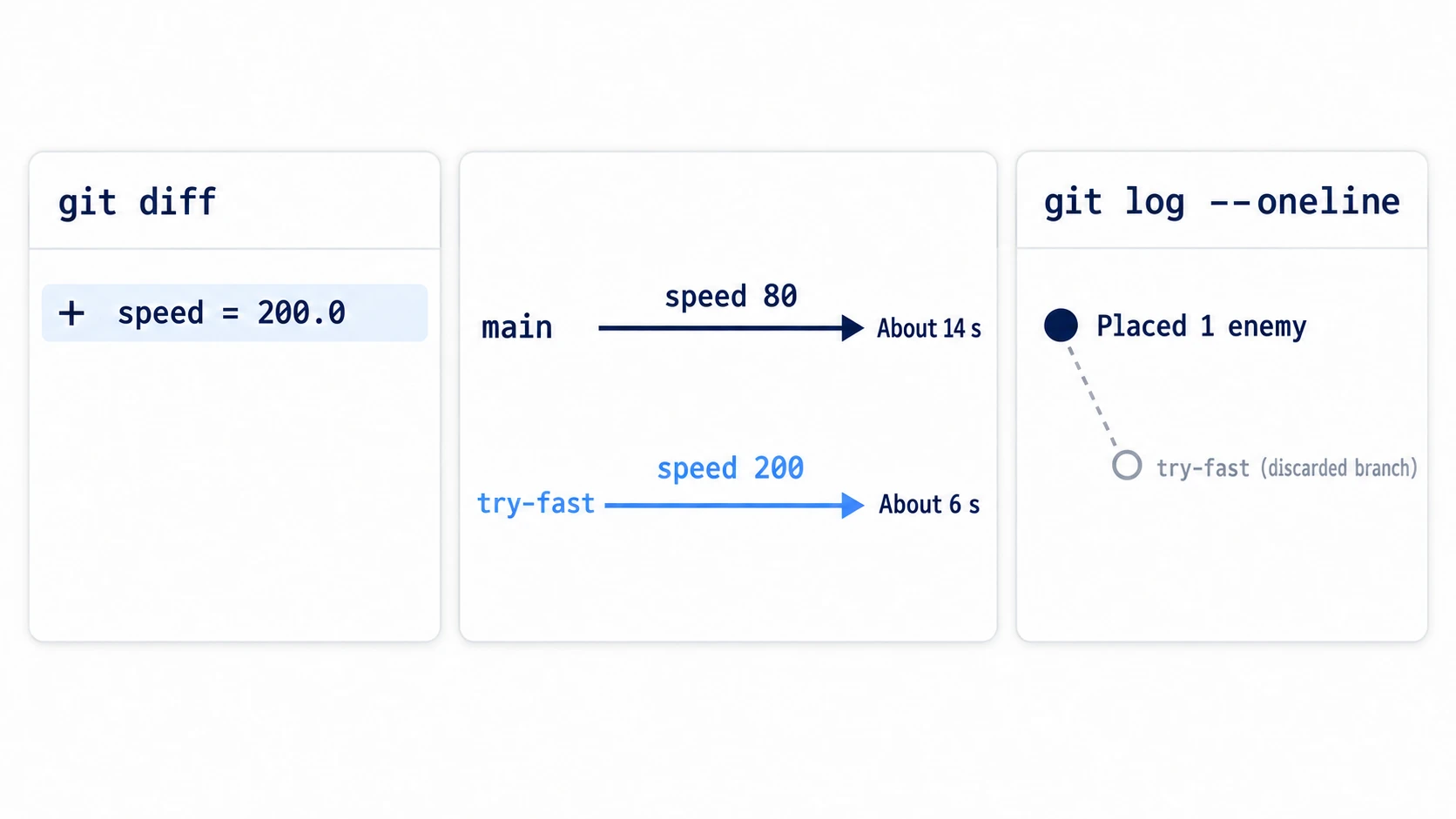
Switch back and forth between main and try-fast, running with F5 each time. Stop the game before each switch. Check three things.
The git status from ① lists 10 files, including project.godot and enemy.tscn. .godot/ isn't there. If it shows up, you set Version Control Metadata to None when creating the project. The git diff from ② is just one line, +speed = 200.0. If the diff shows up in main.tscn, you selected the enemy placed in main.tscn and changed it there.
Switch back to main, press Reload from disk, and Speed in the Inspector goes back to 80. Run with F5 and the enemy takes about 14 seconds to walk from the left edge of the screen to the right. Switch with git switch try-fast and press Reload from disk again. Run it and it crosses the same distance in about 6 seconds. If the value doesn't change, you pressed Ignore external changes in the dialog.
To finish, while on main, run git branch -D try-fast to throw the branch away. enemy.tscn has no speed line, and git log --oneline, which lists each record on one line, shows just "Placed 1 enemy" (or "Initial commit" if you created it with GitHub Desktop). The change you tried on the branch is gone, and main is still at the first record.
Two points.
- One line in the diff is the changed value itself: values equal to the default aren't saved, so lines increase by exactly the number of things you changed in the Inspector. If the diff is one line, you changed one thing
- After switching, Reload from disk: Godot notices that an open scene was rewritten and shows the dialog. If you save and commit before switching, that's the only button you need to press
If you want to keep a change you liked, run git merge try-fast on main instead of throwing it away. If main has no new records of its own, it says "Fast-forward" and merges it as-is. Once you start exporting your game, add one line to .gitignore for the export folder too (Export Basics).
Troubleshooting
| Symptom | Cause | Fix |
|---|---|---|
git commit says "Please tell me who you are." | You're using Git on this PC for the first time and haven't set a name and email | Run git config --global user.name "Your Name" and git config --global user.email "[email protected]", then commit again |
There's a .gitignore, but files in .godot/ show up in the change list | You committed .godot/ before adding .gitignore | Remove it from the record only with git rm -r --cached .godot and commit. The folder itself isn't deleted |
| Changes followed you after switching, or it stops with "Your local changes ... would be overwritten" | Uncommitted changes don't belong to any branch | Commit before switching. If you don't need the changes, discard them with git restore <file> (if already git add-ed, run git restore --staged <file> first) |
Bonus: Good to Know First
- Images and sounds only show as "changed":
.pngand.oggaren't text, so a diff only says they changed. If you'll be swapping large assets many times, set up Git LFS before adding them, which moves the actual files to a separate store. GitHub won't accept files over 100 MiB - Secrets live in
.godot/: export passwords and encryption keys are saved separately inside.godot/. The export settings fileexport_presets.cfgis fine to commit. Keys written in scripts or JSON aren't excluded, so don't write them there - Push to GitHub and it survives even if your PC dies: create a repository on GitHub, register it as the destination, and send your work with
git push, and you can continue from the same records on another PC
Summary
- Scenes are text: a value changed in the Inspector becomes one line in the
.tscn. Left at the default, there's no line - Read the diff before committing: put back changes you don't want with
git restore - Don't commit
.godot/: with the Git setting at project creation,.gitignoreexcludes it - Try things on a branch: create one with
git switch -c, and throw it away withgit branch -Dif you don't like it. After switching, choose Reload from disk - Read conflicts between the markers: pick the line to keep and delete the markers. Godot can't open a scene with markers left in it
Start by putting the project you're working on into Git, change one value in the Inspector, and run git diff. If the value you changed shows up as one line, you no longer need to remember which values you touched. What message will you write for your first commit?