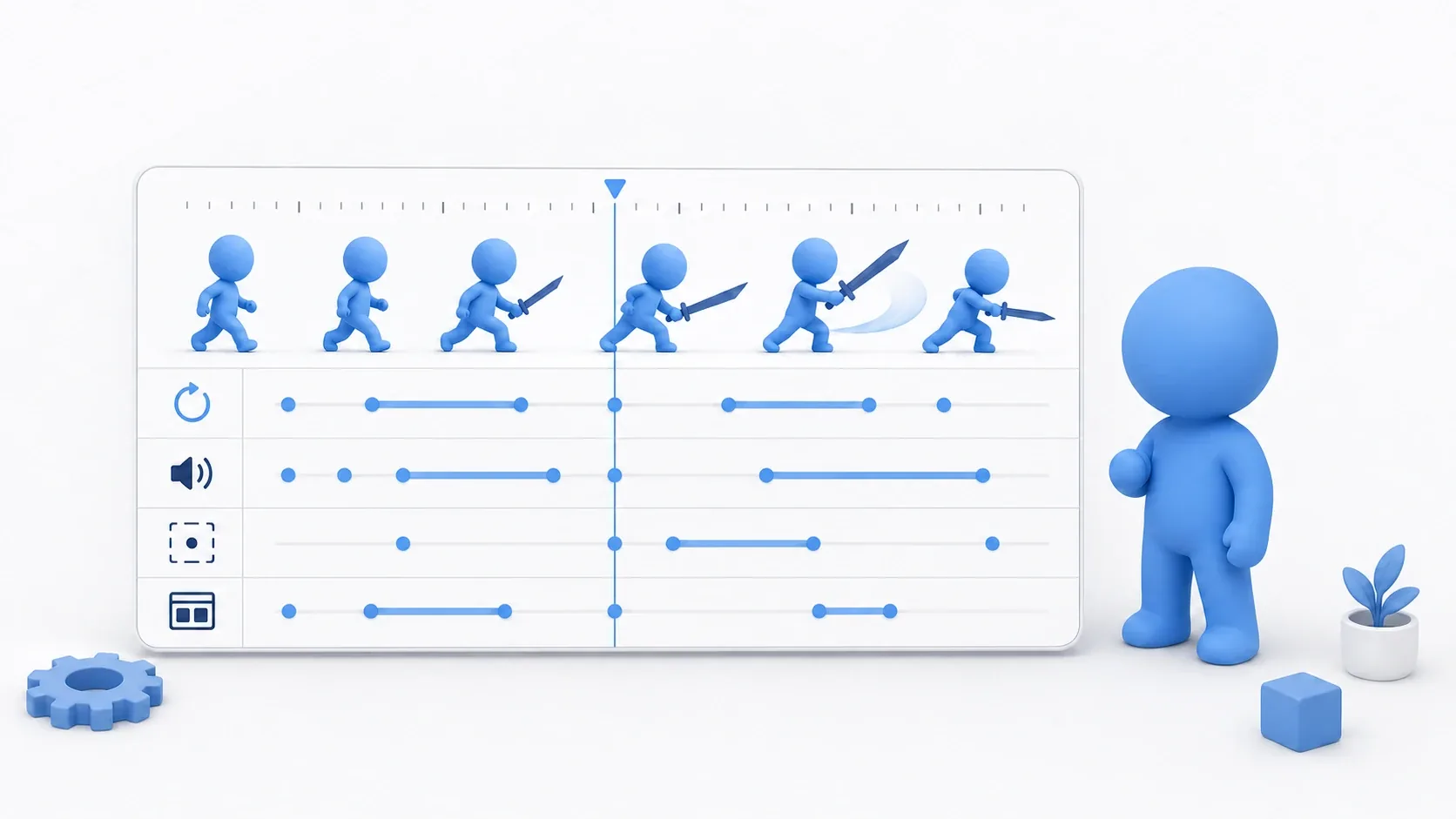
When you want to play a fixed movement, like a door that opens when you step on a switch and closes when you leave, you set keys in AnimationPlayer. Set two keys, one at the start and one at the end, and Godot fills in the movement in between.
But it's common to think you've set the keys and then find that nothing moves when you play. If you can't see that one row of the timeline corresponds to one Inspector property, you won't know where to fix it.
This article covers how the timeline and the Inspector correspond, and how to build a door that opens when you step on a switch.
What You'll Learn
- How one timeline row corresponds to one Inspector property, and what the key icon writes
- The order of playhead, value, and key icon, and what happens when you break that order
- Four things to check when a key you set doesn't move anything on playback
- Where reverse playback starts from, and where the name of a finished animation is kept
Tested with: Godot 4.7
- How the timeline and the Inspector correspond
- The order for clicking the key icon
- Four things to check when setting keys
- Interpolation and update mode
- Reverse playback, and the state after playback ends
- Hands-On: A Door That Opens When You Step on It
- Troubleshooting
- Bonus: Good to Know First
- Summary
How the timeline and the Inspector correspond
Select an AnimationPlayer and the Animation panel opens at the bottom of the screen. Create a new animation there, and you get a screen with a list of tracks (one row per property you animate) on the left half and a time ruler on the right half. Above the ruler is a vertical line pointing at the current time (the playhead).
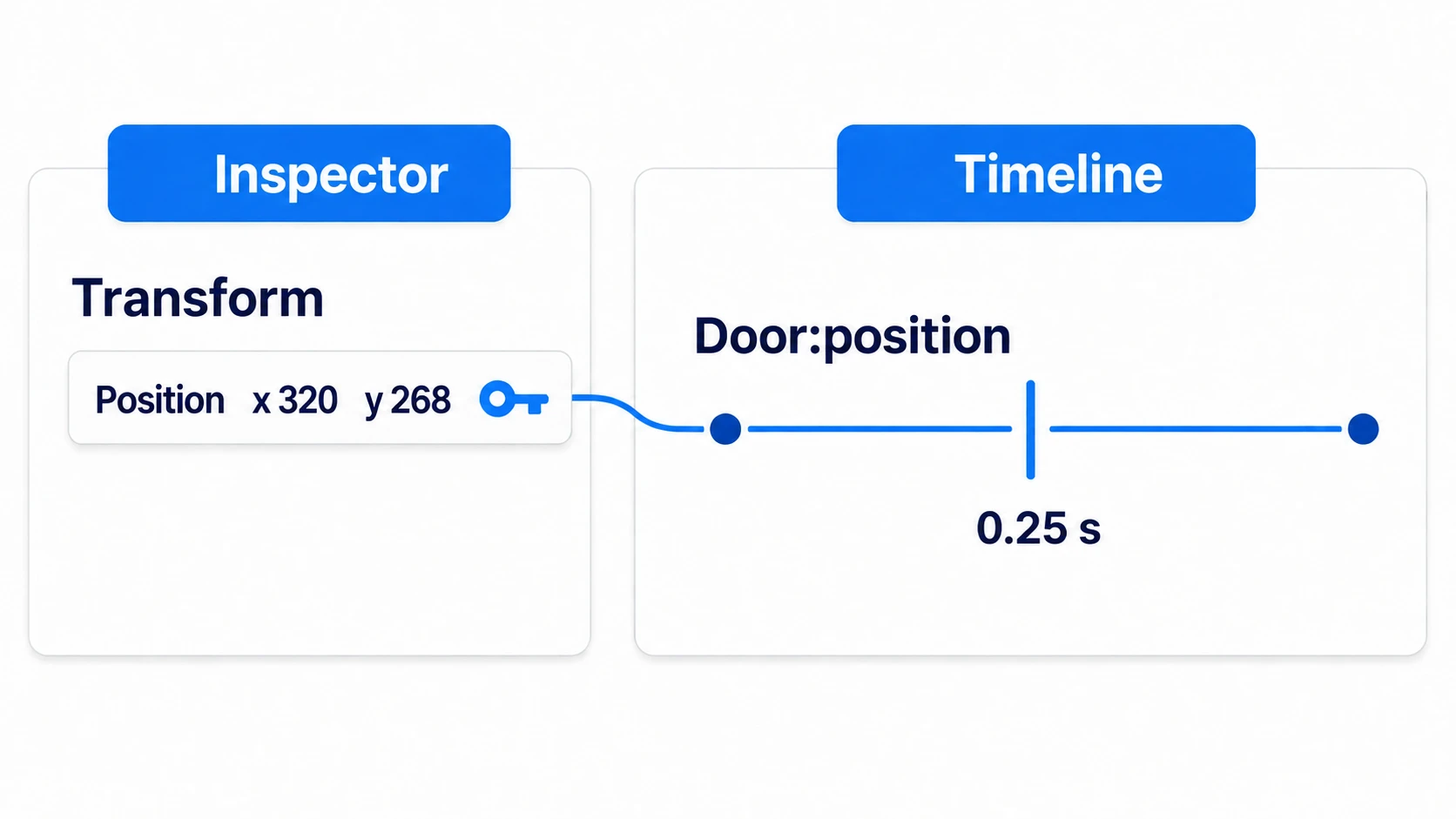
Select a node in this state, and a key icon appears at the right edge of each Inspector property. Click it, and a single point, "at this time, this property has this value right now," is recorded on that property's row. That single point is a key.
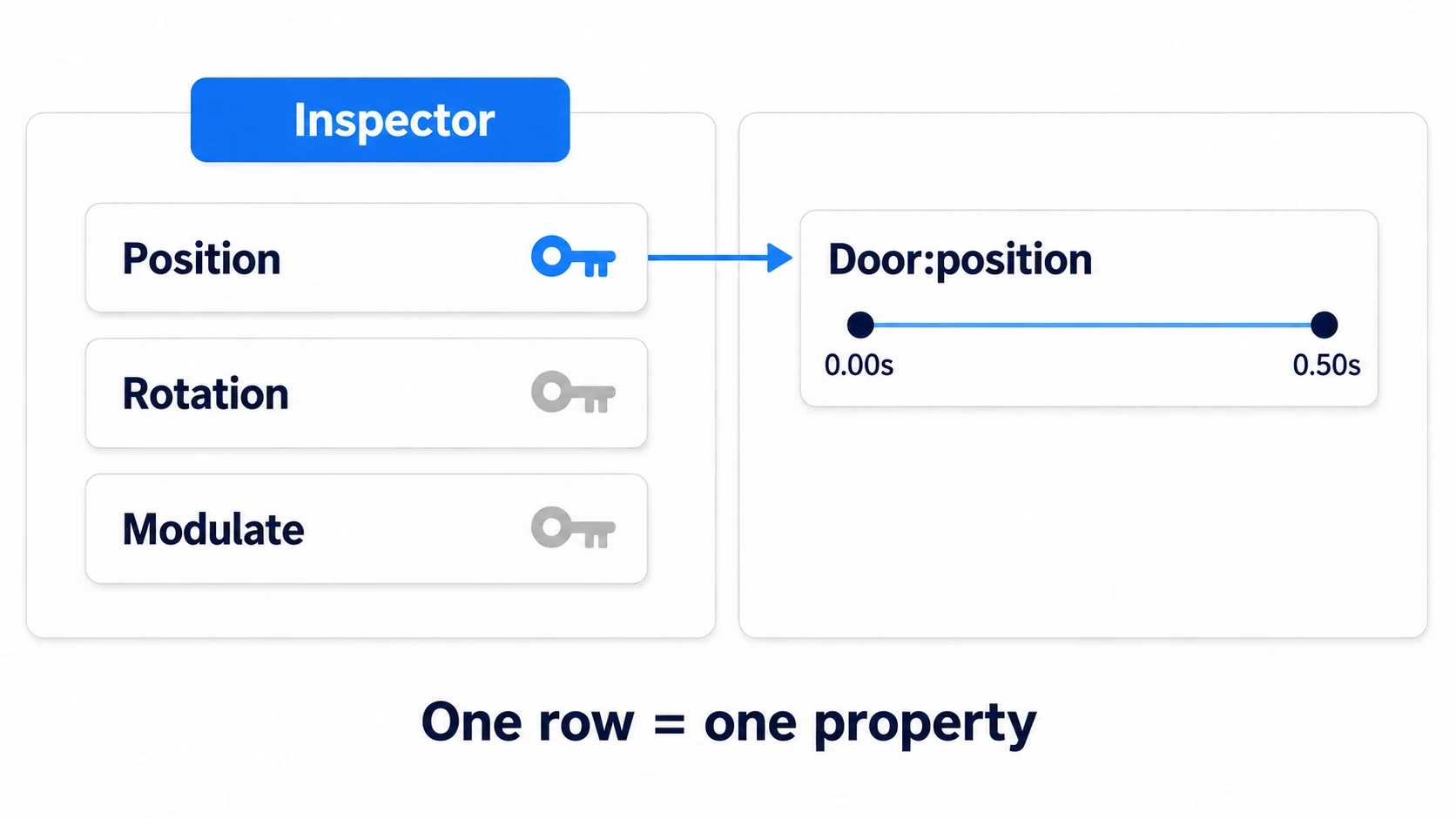
Each row in the track list points to which node's which property. A row named Door:position handles the position of the node called Door. Sprite2D:modulate would be Sprite2D's color.
To move the door from the closed position to the open position, the same row needs two keys with different times and values. If 0.00 seconds holds (320, 300) and 0.50 seconds holds (320, 236), playback runs through values that fill in between them. This "filling in between" calculation is called interpolation.
It isn't just a tool for swapping art. Any property with a key icon, whether position, color, or angle, can be animated the same way. Lining up hitboxes and sounds with art changes is in the article on combining an attack into one AnimationPlayer.
In other engines: Godot plays property changes with AnimationPlayer. For moving things over time like a door, it's close to an Animation Clip made in Unity's Animation window, or an implementation using a Timeline in Unreal Engine.
The order for clicking the key icon
Almost every case of a key not getting set comes down to order.
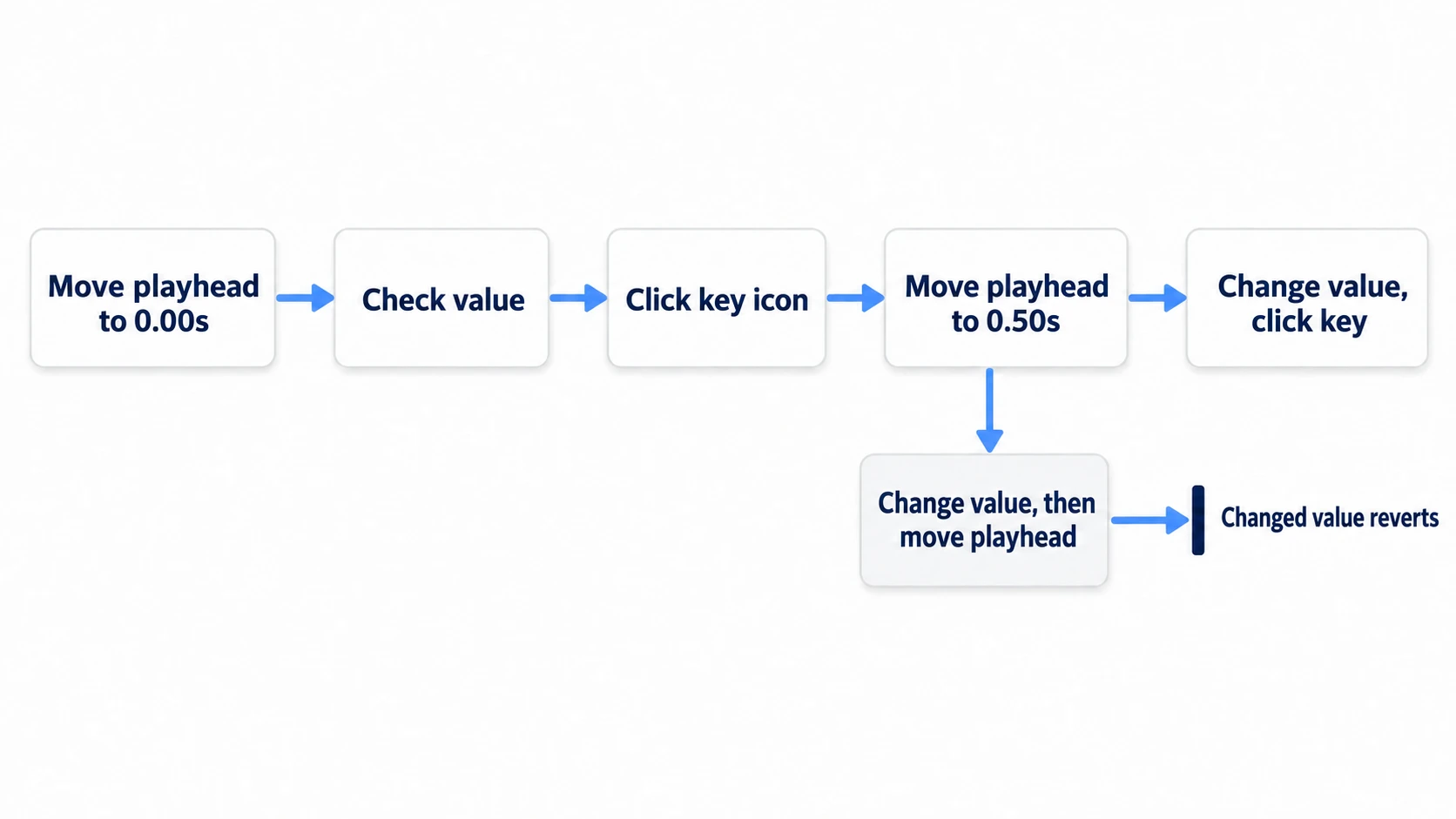
- Move the playhead to
0.00seconds - Check the closed value in the Inspector
- Click the key icon
- Move the playhead to
0.50seconds - Enter the open value and click the key icon again
Only move the playhead before changing the value. Move the playhead after changing the value, and it's overwritten with the value at the new time. Once a track exists, moving the playhead pours in the value for that time every time.
"Move the door first, then decide the time" is the most common way to get stuck. The changed value disappears, so you carry on thinking you set the key.
Four things to check when setting keys
If you can click the key icon but nothing moves on playback, check these four things.
It went into a different animation. If the panel's dropdown is still on RESET, the key goes into a separate animation called RESET. RESET is a special animation holding the initial pose that each property is set back to when saving. Playing open does nothing because it has no tracks. Before clicking the key icon, check that the dropdown shows open.
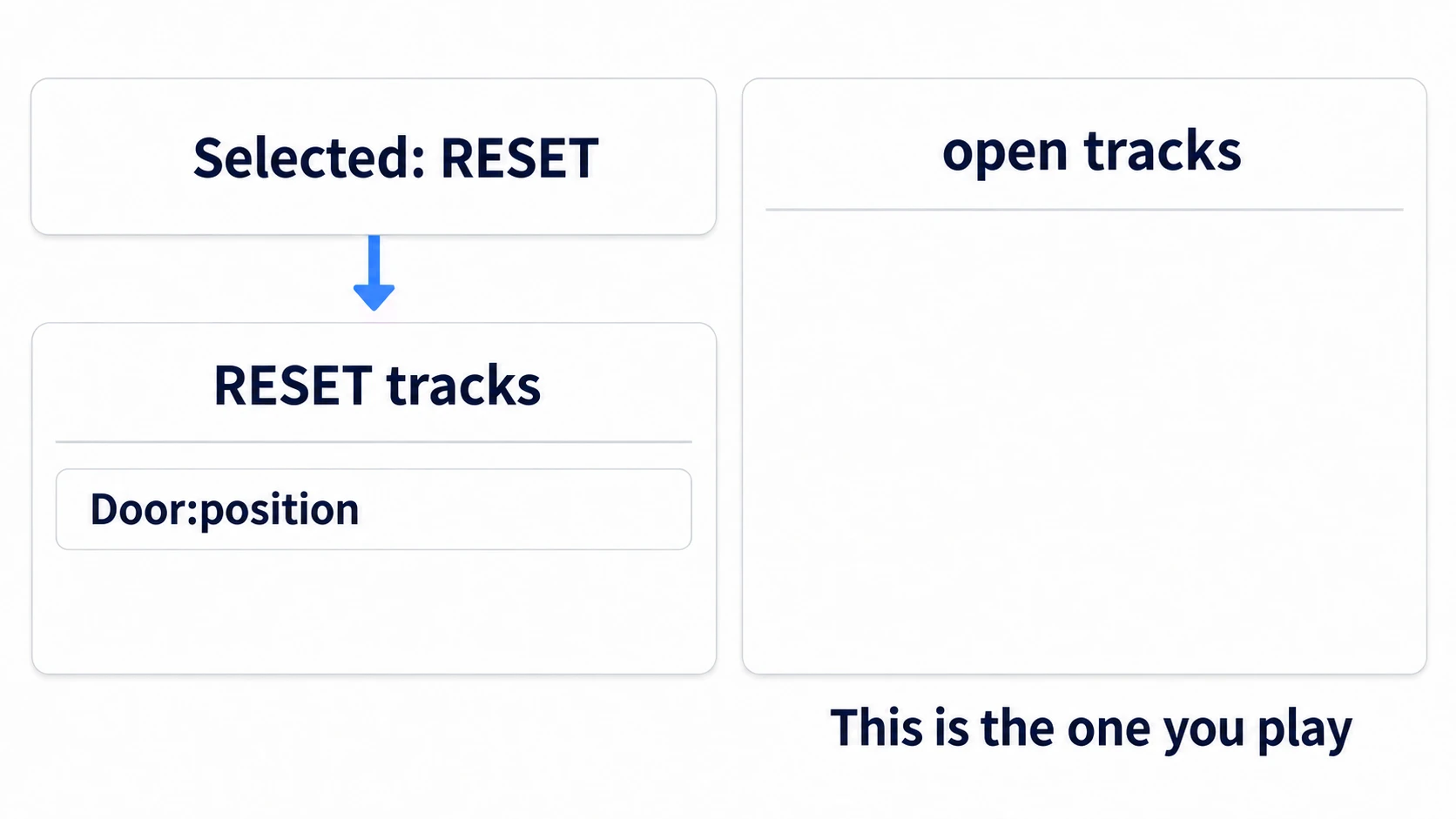
You clicked again at the same time. Clicking the key icon at the same time on the same row doesn't add a key; it overwrites the value. The track may look like it grew, but it still holds a single point. To make a second point, move the playhead first.
It's left outside the length. A newly created animation is 1 second long. Set a key at 1 second and then shrink the length to 0.5, and that key isn't deleted. It stays, outside the range, so it never plays. Decide the length first.
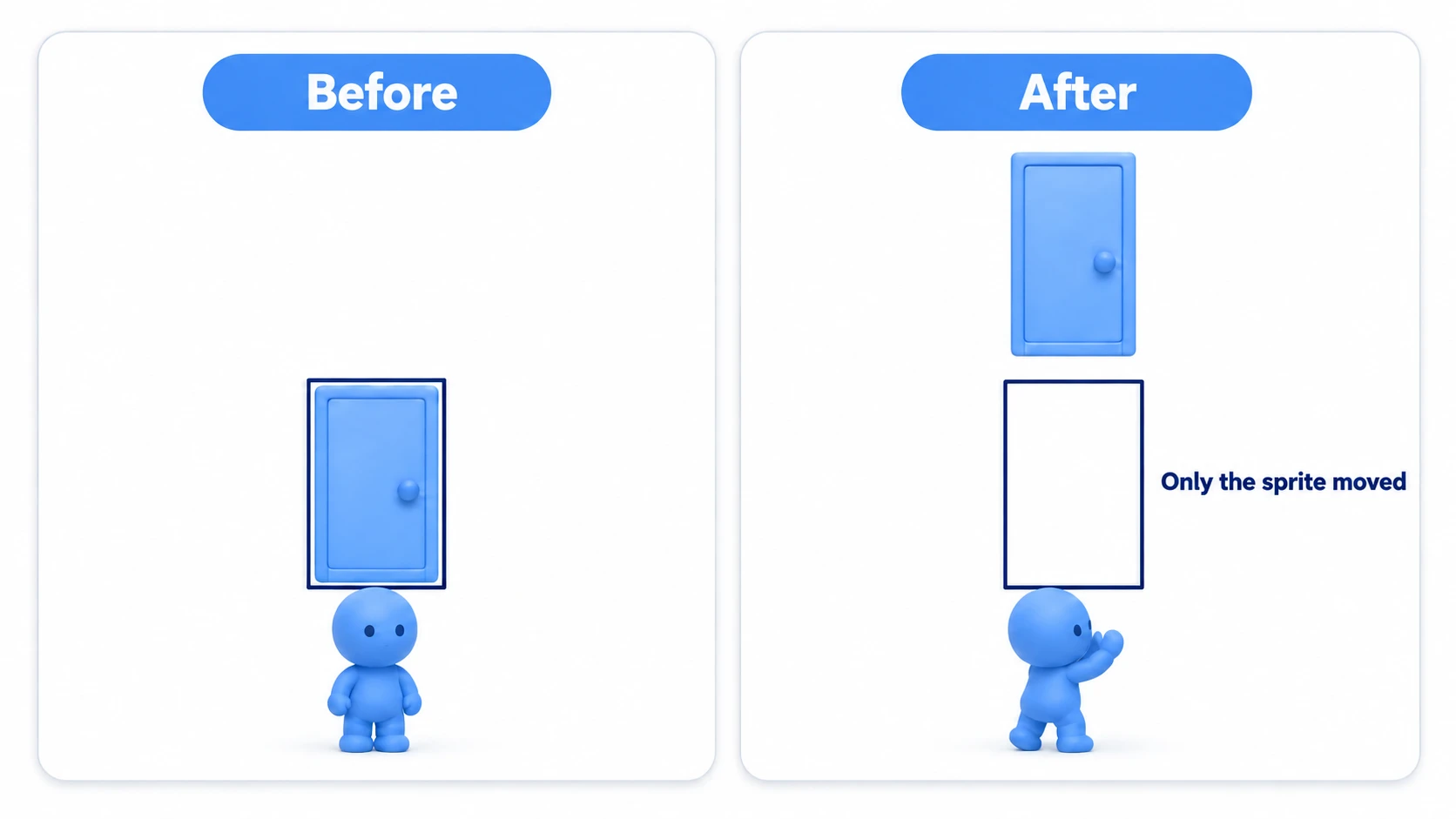
You're only moving the art. The key goes onto the property of the node you currently have selected. Click it with Sprite2D, the door's art, selected, and you get a Door/Sprite2D:position row. On playback only the art moves up, and the collision stays where it was. To move the whole door, select not the art but the parent that holds the art and the collision together.
Interpolation and update mode
On the right side of a track sit two settings that look alike.
- Interpolation: how to fill in between keys. Linear connects them in a straight line, Nearest holds the previous key's value until the next key is reached, and Cubic draws a smooth curve. Linear is enough for the door's position
- Update mode: when to write the value. Continuous writes every frame, and Discrete writes only when passing a key. Use Continuous for position and color, and Discrete for properties that are only on or off, like checkboxes
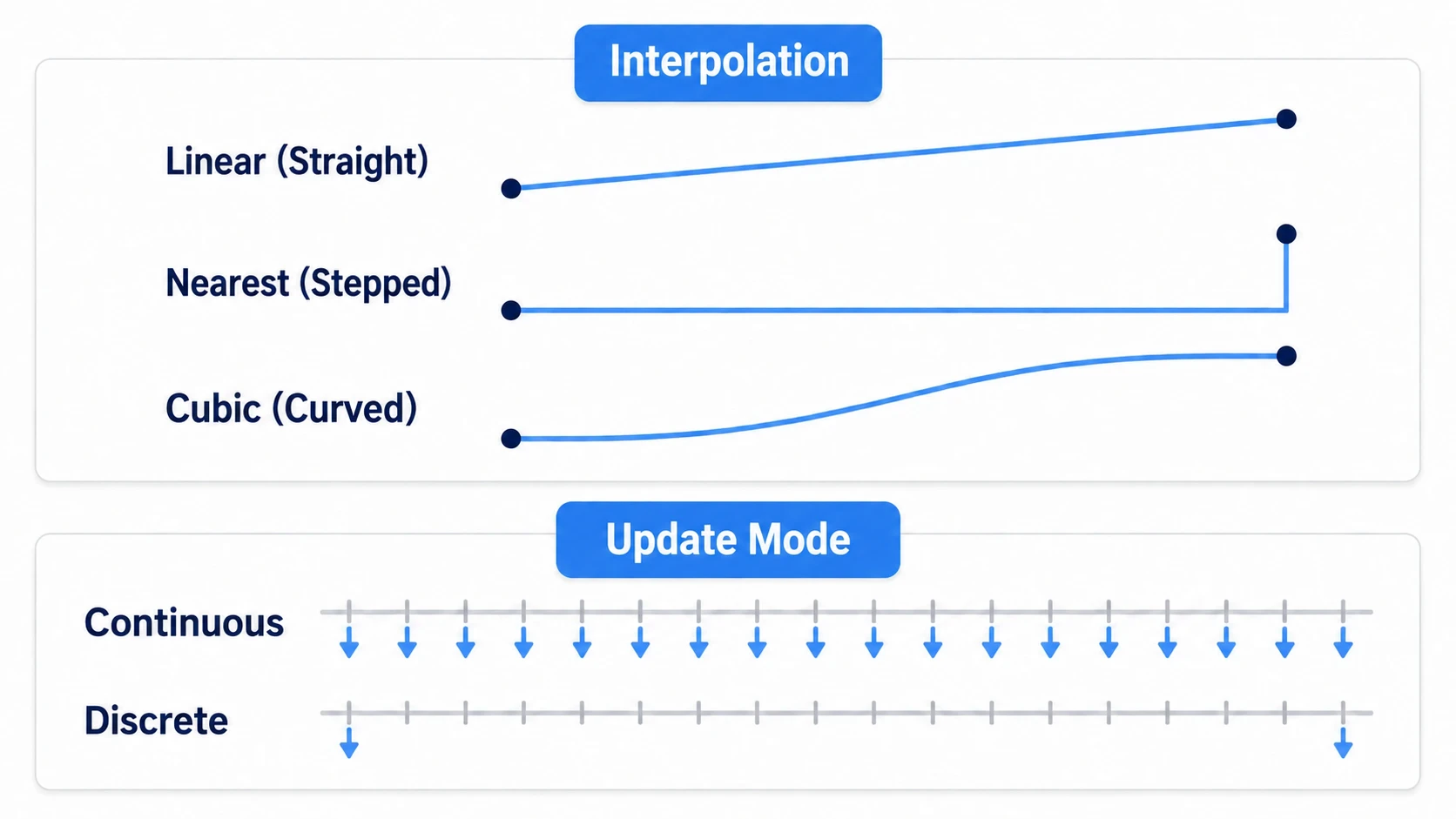
Nearest isn't "snap to the closer key." With keys at 0.00 and 0.50 seconds, it's still the 0.00-second value at 0.49 seconds.
The length field and the loop button sit at the top right of the timeline. For an animation like a door that "opens and is done," leave looping off. Turn it on, and the fully open door jumps to the closed pose and starts opening again.
Reverse playback, and the state after playback ends
Playing is one line: play("open"). For the reverse direction, use play_backwards("open").
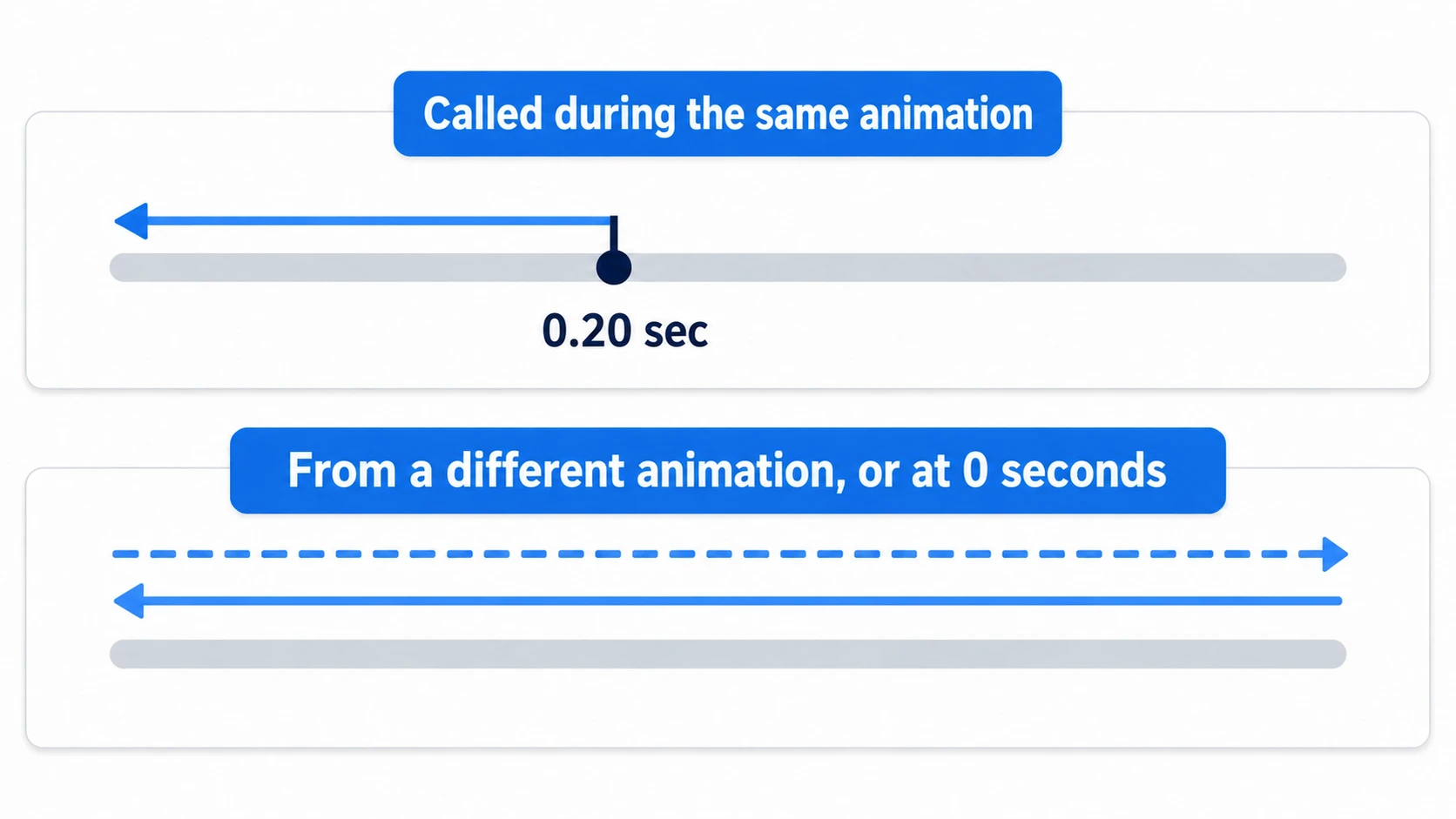
If the same animation is partway through playing, play_backwards() goes back from that position. Call it when the door has opened to 0.2 seconds, and it closes from 0.2 seconds. It only jumps to the end before going back when switching from a different animation, or when the position is at 0 seconds.
The state after playback ends has its own trap. When playback stops, current_animation becomes an empty string. The animation name is kept in assigned_animation instead. The position and length stay at the end values, so check "is it already fully open?" with three things: it isn't playing, assigned_animation is "open", and the position equals the length (_is_fully_open() in the hands-on).
Call play("open") without checking this, and playback restarts from 0 seconds. The fully open door closes once and then opens again.
Hands-On: A Door That Opens When You Step on It
A trap door in a dungeon, a starting gate in a racing game, a hidden door in an escape game—"opens when you approach, closes when you leave" has the same shape in all of them. You'll build it up to the door moving 64 pixels up out of the way to open the passage, then going back once you've passed through.
① What to place
Make one door that blocks a passage, in a new scene.
- Put a Node2D at the root, name it Level, and attach
level.gd - Add an AnimatableBody2D under Level as Door. Position
(320, 300). Turn on Sync To Physics - Under Door, place a Sprite2D (
icon.svgas its Texture, Scale(0.5, 0.5)) and a CollisionShape2D (RectangleShape2D, size(64, 64)) - Add an AnimationPlayer under Level. In the Inspector, set Process inside Callback Mode to Physics
- Add two StaticBody2Ds under Level: WallTop (position
(320, 236)) and WallBottom (position(320, 364)) - Give each of the two walls a CollisionShape2D child (RectangleShape2D, size
(640, 64)) - Add an Area2D (a range that only reports overlaps and doesn't stop bodies) under Level as Switch. Position
(320, 300). Give it a CollisionShape2D child (RectangleShape2D, size(256, 128)) - Add a CharacterBody2D under Level as Player. Position
(140, 300). Put it in the groupplayer(a name tag on the node) in the Groups dock, and create and attachplayer.gd - Under Player, place a Sprite2D (
icon.svgas its Texture, Scale(0.3, 0.3)) and a CollisionShape2D (CircleShape2D, radius20)
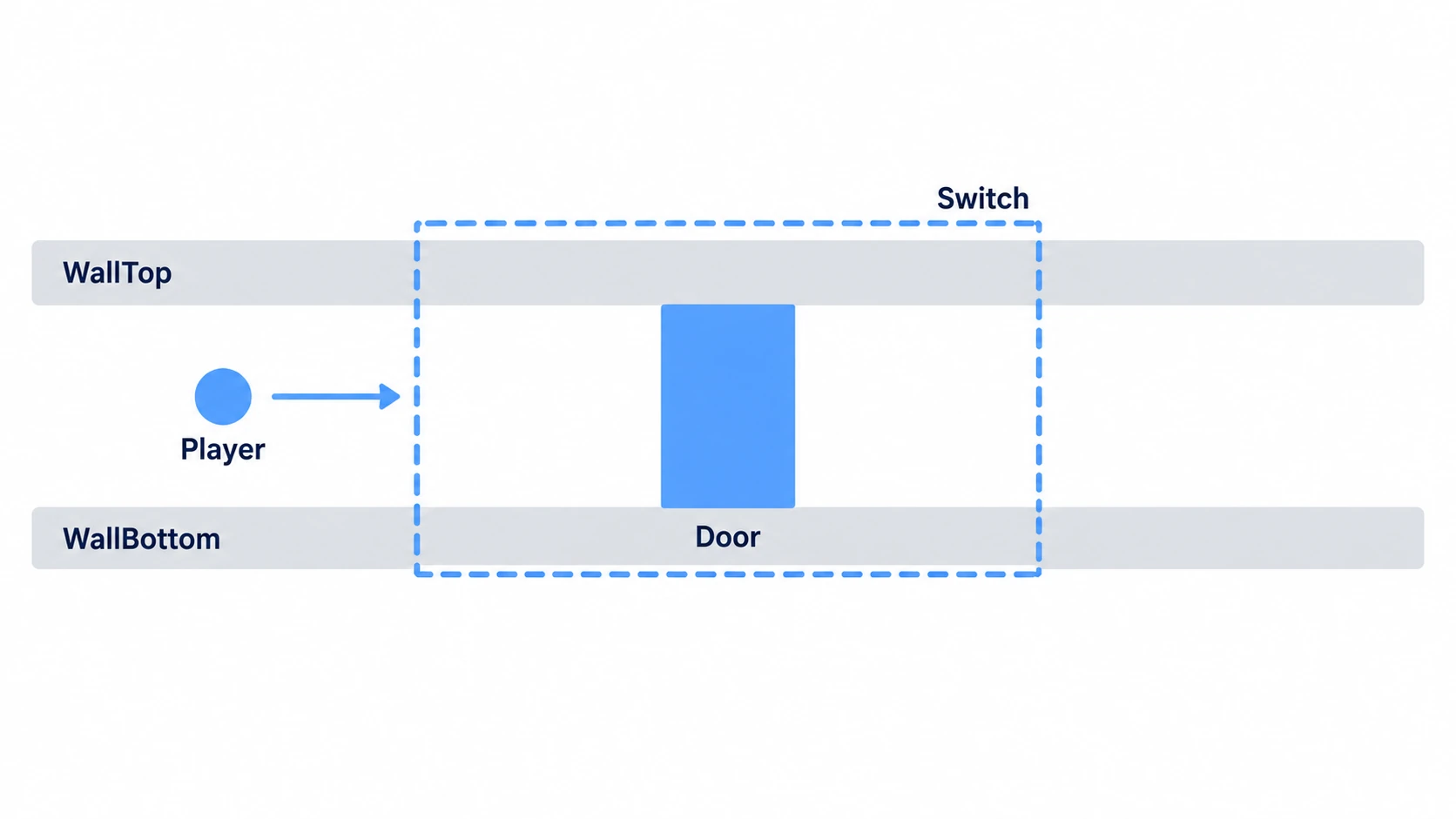
Switch and the walls are only shapes, so you won't see them when you run. Turn on Visible Collision Shapes from the Debug menu at the top of the editor.
The passage formed by the top and bottom walls is the band where y runs from 268 to 332, and the closed door blocks it exactly. Raise the door 64 pixels and it moves to 204 to 268, completely out of the passage.
Make Switch wider than the door. If it only covers the area in front of the door, you leave the switch the moment you enter the passage, and the door comes down before you pass through. Because it's wide, the door and walls overlap Switch too, so body_entered, which arrives when a body enters the range, comes for them as well. That's why the code tells the player apart by group.
The door is an AnimatableBody2D rather than a StaticBody2D so that, as a moving door, it can push things. Moving a StaticBody2D doesn't count as movement that pushes things. Line up Sync To Physics with AnimationPlayer's Process set to Physics, and the door moves at the same timing as the physics update, so whatever it pushes doesn't jitter.
② Set two keys
Select the AnimationPlayer and create a new animation named open in the panel at the bottom. First set the length to 0.5, and leave looping off.
Then select Door in the scene tree and go in this order. Selecting Door, not Sprite2D, is the important part.
- Move the playhead to
0.00seconds - Check that Transform > Position in the Inspector is
(320, 300), and click the key icon at its right edge - When asked whether to create a track, leave Use Bezier Curves off (turning it on makes a different kind of track), leave Create RESET Track(s) on, and create it
- Move the playhead to
0.50seconds - Change Position's
yto236(64 pixels up) - Click Position's key icon again
If one row called Door:position appears with keys at 0.00 and 0.50 seconds, you've succeeded. If it says Door/Sprite2D:position, select again and redo it.
Select Switch, and connect body_entered and body_exited to Level from the Signals dock.
# level.gd
extends Node2D

@onready var anim: AnimationPlayer = $AnimationPlayer

func _on_switch_body_entered(body: Node2D) -> void:
	if not body.is_in_group("player"):
		return
	if _is_fully_open():
		return                             # calling play when fully open goes back to 0 seconds
	anim.play("open")

func _on_switch_body_exited(body: Node2D) -> void:
	if not body.is_in_group("player"):
		return
	anim.play_backwards("open")            # if partway, go back from that position

func _is_fully_open() -> bool:
	if anim.is_playing():
		return false                       # not fully open while it's still moving
	if anim.assigned_animation != "open":
		return false                       # current_animation becomes empty when it finishes
	return is_equal_approx(anim.current_animation_position, anim.current_animation_length)   # compare allowing for floating-point error
# player.gd
extends CharacterBody2D

const SPEED := 300.0

func _physics_process(_delta: float) -> void:
	velocity = Input.get_vector("ui_left", "ui_right", "ui_up", "ui_down") * SPEED
	move_and_slide()
③ Run it and check
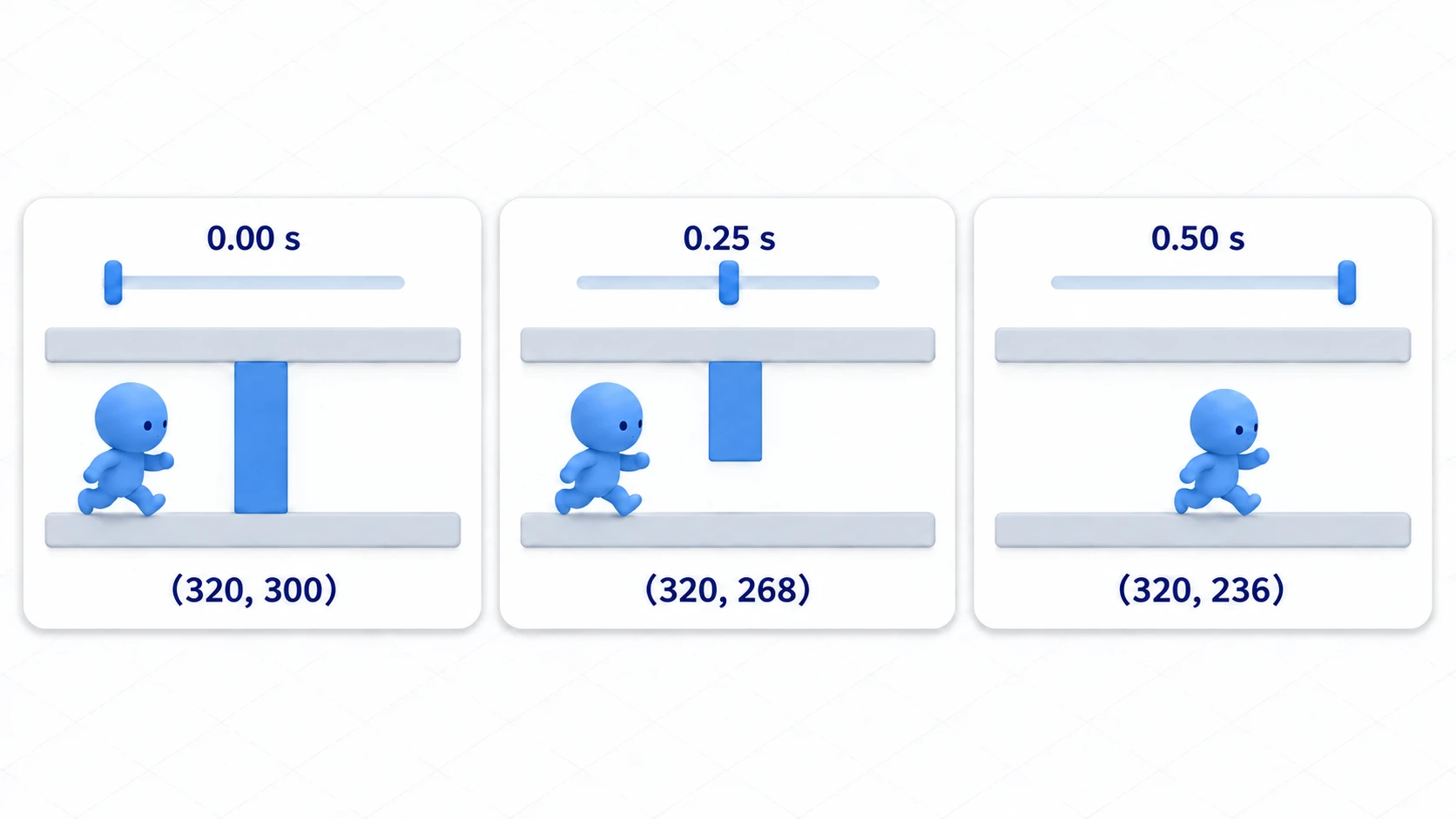
Before running, move the timeline's playhead by hand. With Door still selected, put the playhead at 0.25 seconds, and the Inspector's Position is (320, 268). That's exactly halfway between 300 at 0.00 seconds and 236 at 0.50 seconds, a number you never set yourself. Interpolation is filling in between. If it stays at 300, either there's no key at 0.50 seconds, or interpolation is Nearest or the update mode is Discrete.
Once you've checked, move the playhead back to 0.00 seconds before saving. AnimationPlayer's Reset On Save (on by default) sets things back to the RESET values when saving. Even if you save while showing a different time, the closed position is what gets saved.
Run it and walk right with the right arrow key. When you enter the switch's range, the door starts rising. The player arrives before the door finishes rising, so it catches on the door's bottom corner for a moment, and about 0.4 seconds after entering the switch you can pass underneath. If only the door's art rises and you can't get through, you set the keys on the Sprite2D row. Even after passing under the door you're still inside the switch, so the door stays open. Walk to the right edge and out of the switch, and the door comes down and blocks the passage.
To finish, step just a little into the left edge of the switch, stop, and leave to the left before the door finishes rising. The door starts closing from the height it reached, and never jumps to the top first before closing. You set only two keys, at 0.00 and 0.50 seconds, and interpolation fills in every height in between.
Two points.
- The key icon attaches to "that property of the node you have selected right now": click it with Sprite2D selected, and only the art moves while the collision stays in place. Check every time that the row's name matches the node you want to move
- A stopped animation's name is in
assigned_animation:current_animationonly returns the name of what's playing. It becomes empty when playback stops, so comparing names there never matches
If you want to add sounds or effects when it finishes closing or opening, go on to the article on combining hitboxes and sound into one AnimationPlayer.
Troubleshooting
| Symptom | Cause | Fix |
|---|---|---|
| The door is open at startup | You saved while showing the open time, with no RESET track. Or RESET holds the open pose | Switch the dropdown to RESET and re-set the Door:position key at (320, 300). If there's no RESET, move the playhead back to 0.00 seconds before saving |
| After moving the door somewhere else, it jumps back to its original position the moment it plays | The key records the exact position (320, 300) as seen from the parent Level | Re-set the keys after moving the door. If you make the door its own scene and set keys on a child's position inside that scene, it won't depend on where it's placed (keys on the root's position jump to those coordinates no matter where it's placed) |
| After duplicating the door, only one of them moves | A track points to its target by name, like Door:position. The duplicated Door2 isn't a target | Give each door its own AnimationPlayer. Make the door its own scene and place it as instances |
Bonus: Good to Know First
A Node2D's rotation turns around that node's origin. When you want to turn it around one edge like a hinge, put a parent node at the pivot point, place the art offset as its child, and animate the parent's rotation. Give the door's art itself an angle, and it turns around its middle.
You can also build it so the collision is removed only while the door is open. The key icon works on CollisionShape2D's Disabled too. In that case, set the update mode to Discrete and put keys only at the times you want it to switch. If you can move the whole door, as in the hands-on, leaving the collision alone keeps it to a single state.
For movement whose destination isn't decided until runtime, like where a picked-up coin flies off to, Tween is a better fit than setting keys. Keys are the tool for when the destination is decided from the start.
How it divides the work with art swapping is in the comparison with AnimatedSprite2D, and stopping controls while showing a door opening is in Cutscene Basics.
Summary
- One row is one Inspector property: the key icon writes "at this time, this property has this value right now"
- Playhead, value, then key icon: change the value and then move the playhead, and it's overwritten with the value at the new time
- Decide the length first: shrink it later, and keys left outside stay there and never play
- The key icon attaches to the selected node: to move the whole door, select the parent, not the art
play_backwards()goes back from partway: partway through the same animation, it goes back from that position. A stopped animation's name is kept inassigned_animation
The node you select before clicking the key icon decides what moves. Is what you want to move right now the art, or the container that holds the art and the collision together?