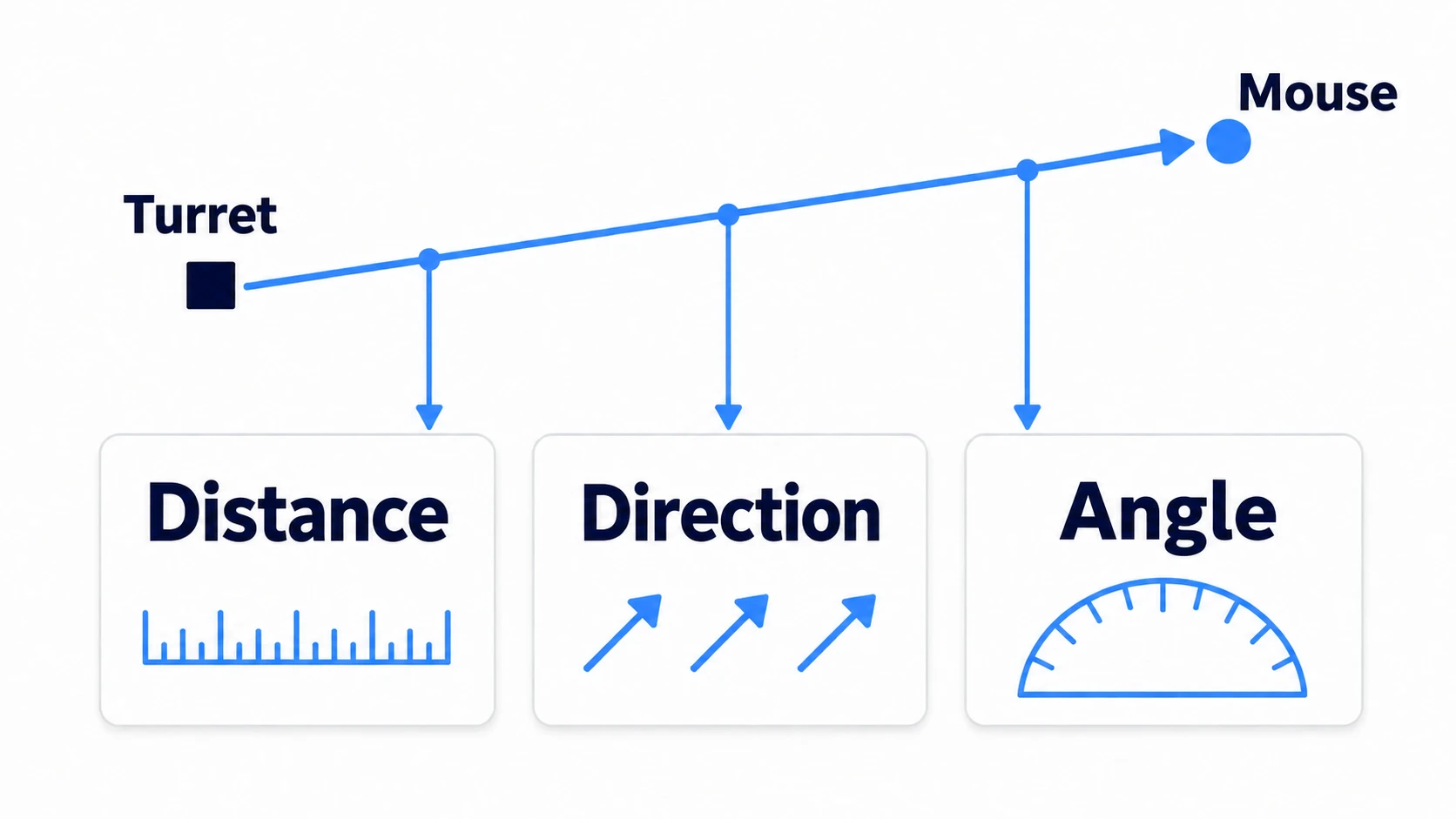
When you make a game built on PC playable on phones too, there are two things to get right: how you receive finger input, and placing the HUD inside the part of the screen that avoids the camera cutout.
Build it with a mouse mindset, and one tap makes you jump twice, or the pause button you put in the top right hides behind the camera cutout. Even if you built it for portrait, the device launches in landscape.
This article covers remembering fingers by number to zoom with two fingers, and fitting the HUD inside the usable part of the screen, while checking everything in the editor on PC.
What You'll Learn
- Why one tap fires twice, and the idea of choosing a single point to receive input
- Remembering fingers in a dictionary keyed by their number (
index), and how to make a button that works while held- The formula for pinch zoom from the distance between two points
- How to make margins that avoid the notch, and the screen orientation setting
Tested with: Godot 4.7 (Windows)
- How touch differs from the mouse
- Finger numbers (index) and buttons that work while held
- The math for pinch zoom
- The safe area (the part that avoids the notch)
- Screen orientation, and reapplying when the size changes
- Hands-On: Check Two-Finger Zoom and the Safe Area on PC
- Troubleshooting
- Bonus: Good to Know First
- Summary
How touch differs from the mouse
A mouse cursor is always somewhere on the screen, one of it, even when nothing is pressed. A finger appears where you press and vanishes when you let go. Two or three can touch at the same time, too.
Despite this difference, Godot projects come with two settings from the start that carry input between fingers and the mouse. They're under Input Devices → Pointing in the project settings.
emulate_mouse_from_touch: on by default. Finger touches also create left mouse button inputemulate_touch_from_mouse: off by default. Turn it on and a left click on PC also creates a touch
Don't turn off emulate_mouse_from_touch. Thanks to it, Controls built for the mouse also work with fingers on a real device. In exchange, one finger delivers two kinds of input.
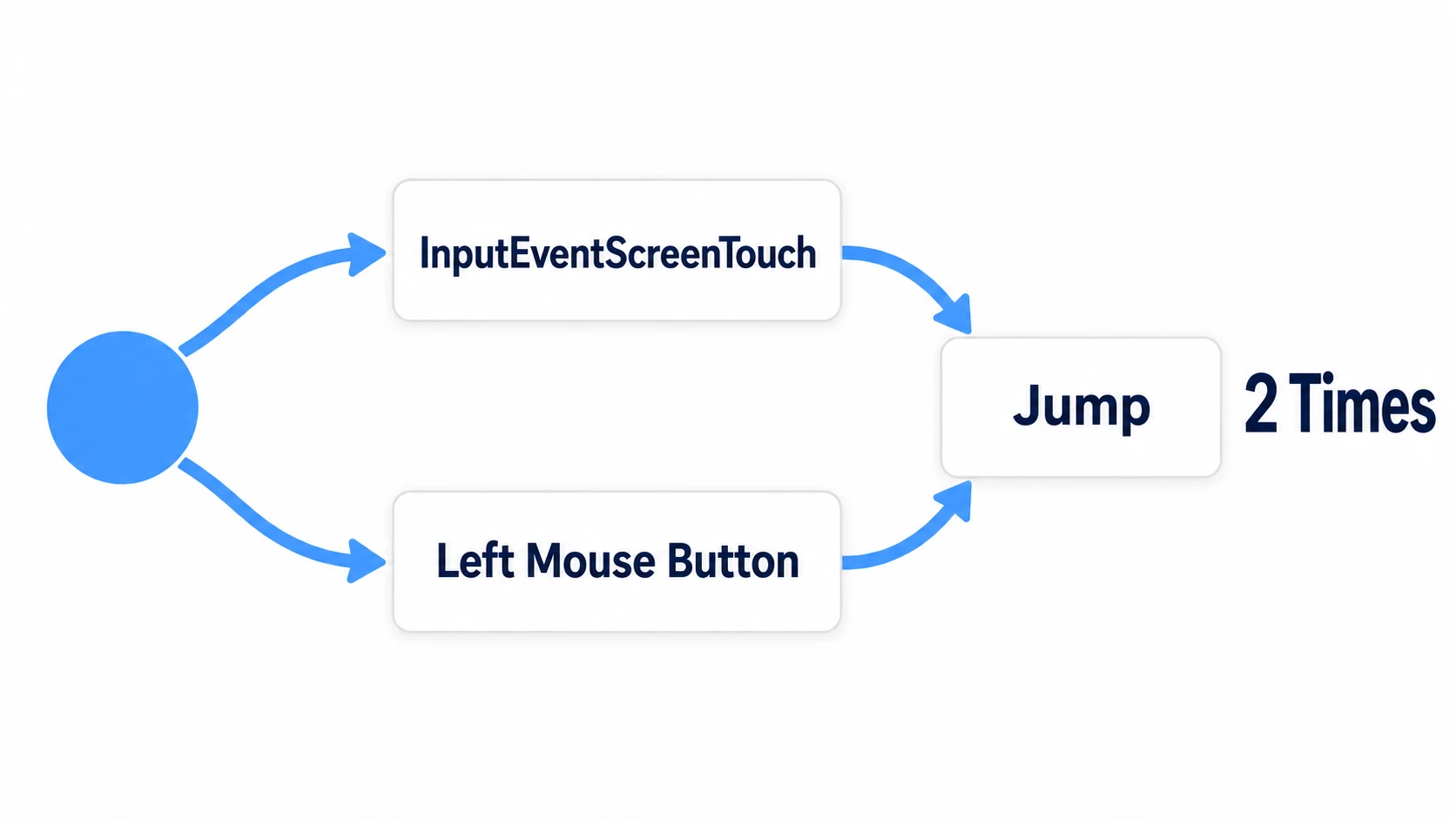
The notice that arrives when a finger touches or leaves the screen is InputEventScreenTouch. Write your own handling with it, and also do the same thing with an action (an operation you named in the Input Map) assigned to the mouse button, and one tap runs both. Decide on one point to receive input.
For buttons and menus where a single tap is enough, leaving it to the mouse side is the quickest way. Place a Button and it can be pressed with a finger as-is. Read InputEventScreenTouch yourself only when you want to handle a second finger.
Finger numbers (index) and buttons that work while held
Fingers have numbers. That's the index on InputEventScreenTouch and on InputEventScreenDrag, which arrives when a finger moves, and the same number stays attached while the finger is touching. The first finger is usually 0, but it isn't guaranteed that they line up 0, 1 in the order you press. Let go of 0 first, and the remaining finger stays 1.
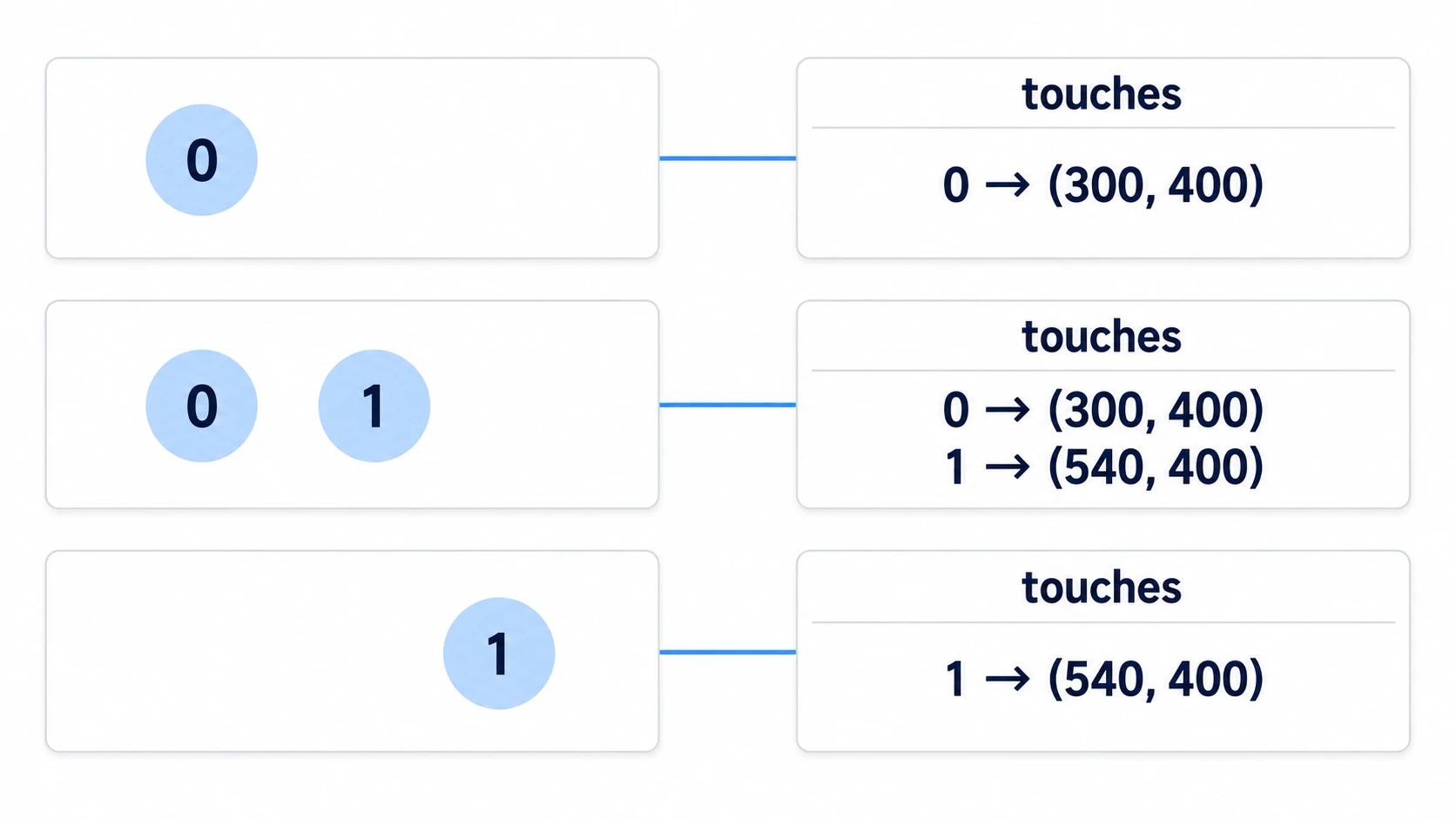
One dictionary (Dictionary), which remembers keys and values in pairs, is enough to manage them. Use the index as the key and put in the position, and erase the key when the finger is released or canceled. What receives them is _unhandled_input(), where input not used by UI such as buttons arrives one at a time.
func _unhandled_input(event: InputEvent) -> void:
	if event is InputEventScreenTouch:
		if event.canceled or not event.pressed:
			touches.erase(event.index)
		else:
			touches[event.index] = event.position
	elif event is InputEventScreenDrag:
		if touches.has(event.index):
			touches[event.index] = event.position
canceled is set when the OS takes the touch away partway through a press. Pulling down the notification bar is one such case, and if you miss it, the finger stays in the dictionary forever.
If all you're doing is placing buttons on screen, you don't need the dictionary. In 4.7, Button is pressed per finger, so two Buttons for moving and jumping can be pressed at the same time with two fingers.
But a Button's pressed arrives only once, when released. For places you want to keep working while held, like a move button, use TouchScreenButton.
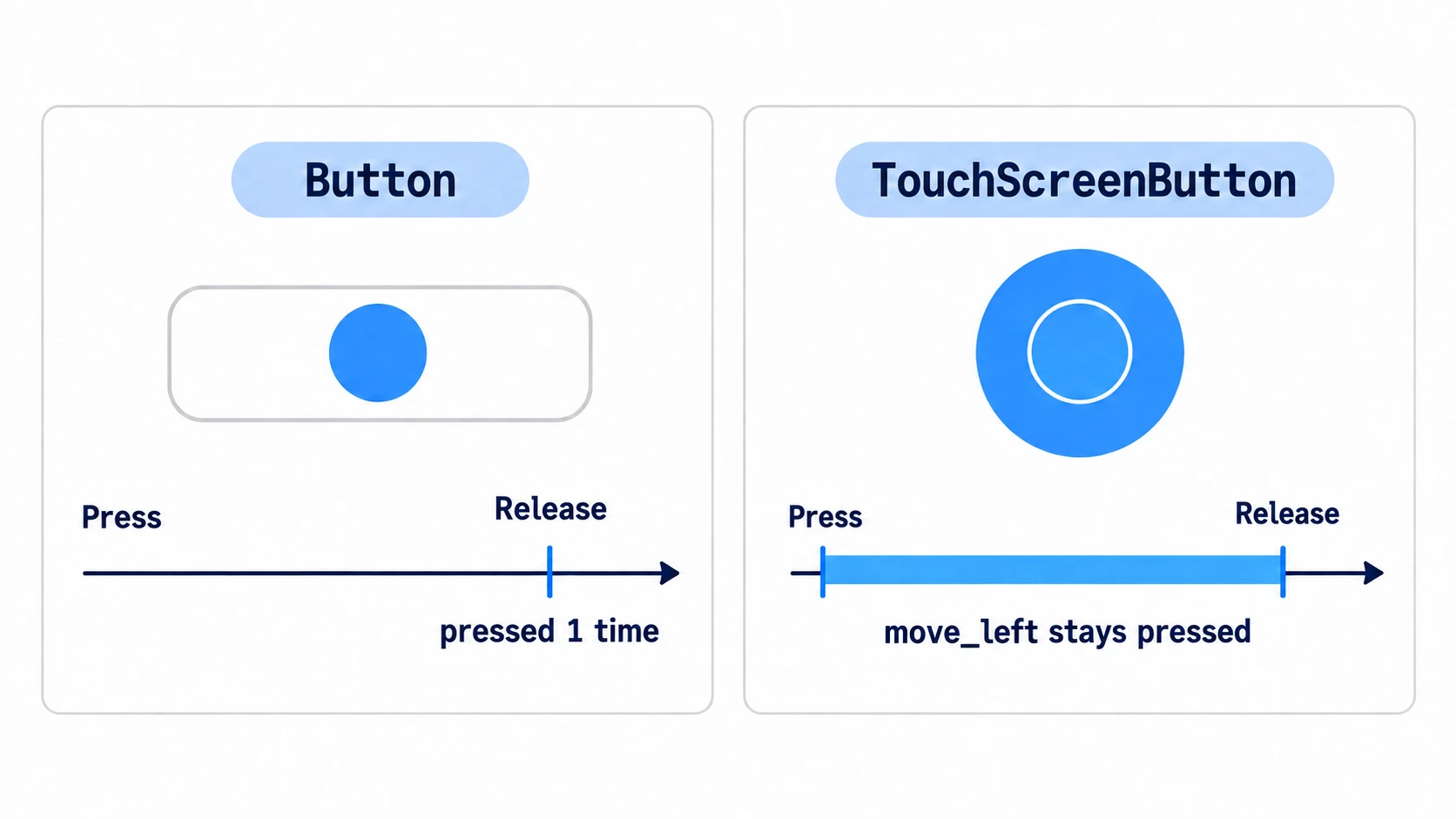
- It's a relative of Node2D, so it doesn't use the anchor system that pins Controls to screen corners and edges. To place it in a corner of the screen, set its position yourself
- Put an Input Map action name in
action, and that action stays pressed while it's held. You can read it as-is with the sameInput.get_vector()as the keyboard - The pressable area is decided by Shape. If that's empty, it's the rectangle of the Texture Normal art. If both are empty, it can't be pressed
The math for pinch zoom
Zoom can be worked out from just the distance between two fingers.
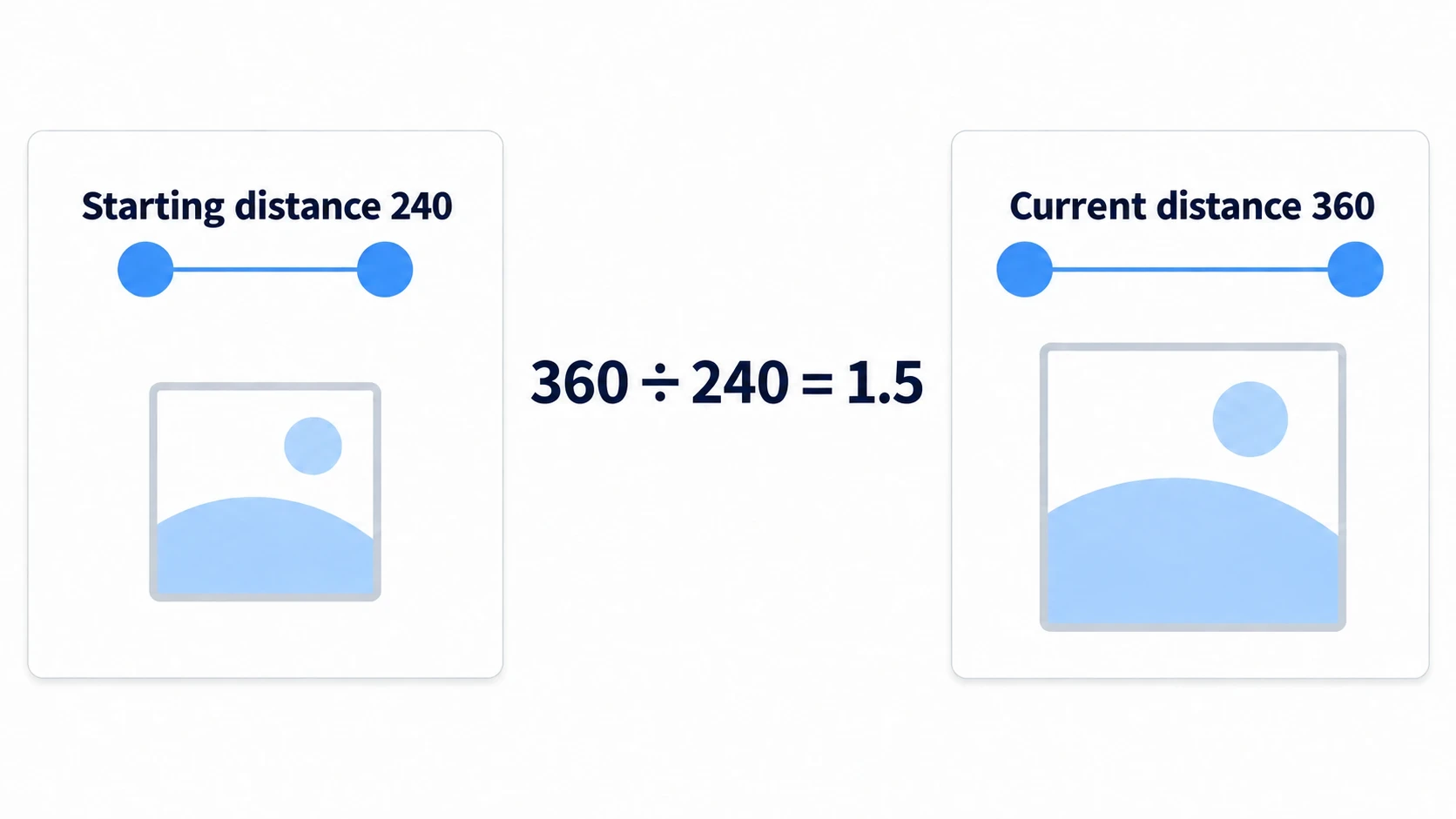
Remember the distance at the moment the second finger lands, and the scale at that moment. After that, just multiply by "current distance ÷ starting distance."
if start_distance <= 0.0:
	start_distance = distance          # the distance at the moment the second finger lands
	start_scale = zoomable.scale       # the scale at that moment
zoomable.scale = start_scale * (distance / start_distance)
The key point is remembering the scale at the start. Without it, every second pinch snaps back to 1×.
The safe area (the part that avoids the notch)
A PC window is a rectangle, but a phone screen has rounded corners and a camera cutout at the top. DisplayServer.get_display_safe_area() returns the "area where it's safe to place things," avoiding that cutout.
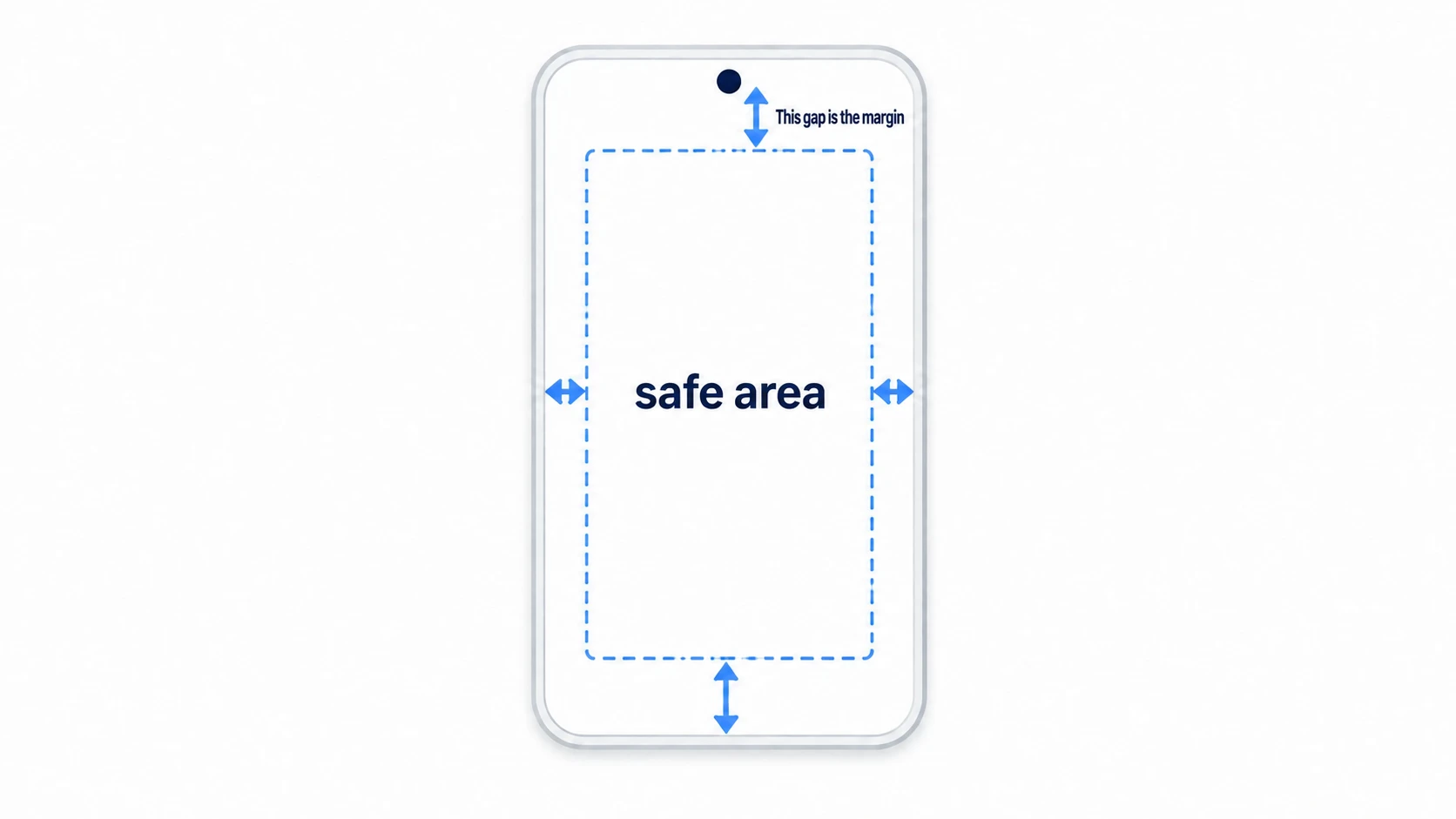
What comes back is a Rect2i (an integer rectangle), in screen pixels. The origin and scale differ from the coordinates of the viewport (the area where the game's picture is drawn), so you can't use it as margins directly. There are three steps to line them up (_apply_safe_area() in the hands-on).
- Subtract the window position, so the window's top-left becomes the origin
- Multiply by the ratio of viewport size ÷ window size
- Clip negative values to 0
Put the top, bottom, left, and right margins you get this way into a MarginContainer stretched to fill the screen (a container that fits its children inside margins set for each side). In the Inspector, the margins are values under Constants in Theme Overrides, so set them from code with add_theme_constant_override(). Make the HUD's contents children of this container, and they all shift below the cutout together.
Run it in an ordinary PC window, and all four come out 0. On a screen with nothing cut out, 0 is the correct answer.
Screen orientation, and reapplying when the size changes
display/window/handheld/orientation in the project settings decides which orientations the device allows. The default is Landscape, so even if you designed in portrait, the device launches in landscape.
Choose Portrait for portrait only, Sensor Portrait to stay portrait but allow flipping upside down, or Sensor to follow the device's orientation.
This setting doesn't rotate the PC window. To check it in the editor, drag the edges of the running window and swap its width and height.
When the viewport's size changes, the size_changed signal arrives, so apply the margins again there.
func _ready() -> void:
	get_viewport().size_changed.connect(_apply_safe_area)
	_apply_safe_area()
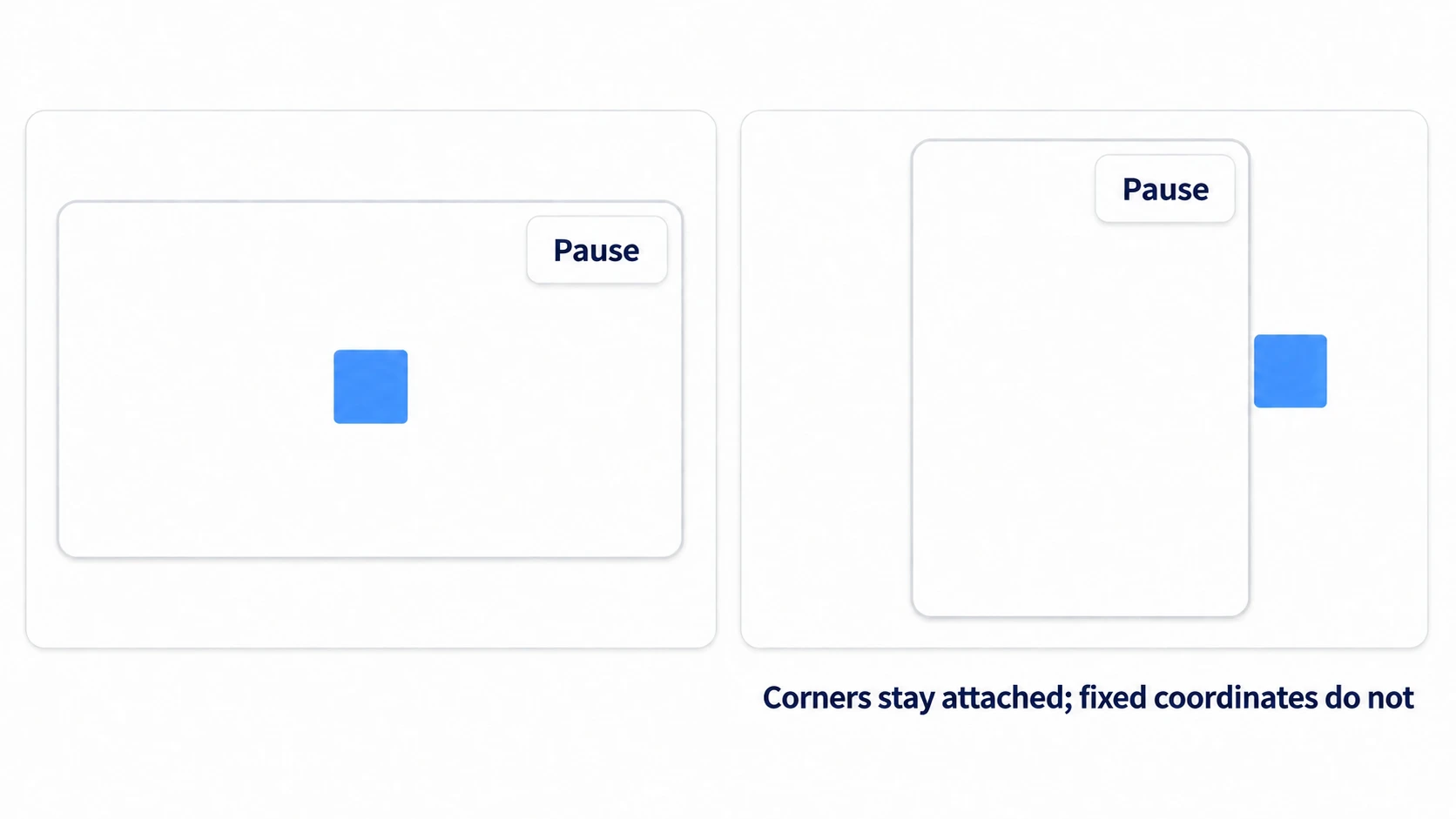
Controls pulled to a corner with anchors or containers stay in the corner this way (Control Layout Basics). What doesn't follow along is a Node2D given fixed coordinates. If you placed a TouchScreenButton in a corner, set its position again here.
Hands-On: Check Two-Finger Zoom and the Safe Area on PC
A puzzle board, a picture in an encyclopedia, a photo viewer—two-finger zoom has the same shape in all of them. So you can tell right from wrong without putting it on a device, you'll show the current values on screen.
① What to place
Create one new scene. The only art is the icon.svg that comes with every project.
First, decide three things in the project settings.
- Turn on
input_devices/pointing/emulate_touch_from_mouse. This uses the PC mouse as finger 0, and you'll turn it back before exporting. Even with it on, it can only create one finger, so the second finger is added with the keyboard - Set
display/window/stretch/modetodisabled. With the defaultcanvas_items(a method that draws at a base resolution and scales to fit the window), the window's numbers and the viewport's numbers don't match. This is also only while checking - Set
display/window/handheld/orientationto Sensor. When you put it on a device, it rotates to follow the device's orientation
Put a Node2D at the root as Main and attach main.gd.
- Add a Node2D under Main as Zoomable. Position
(576, 400). Give it a Sprite2D child (icon.svg) - Add two Sprite2Ds under Main: Finger0 and Finger1.
icon.svg, Scale(0.3, 0.3), Modulate alpha0.5, and Visible off - Add a CanvasLayer (a layer drawn fixed to the screen, unaffected by the camera or zoom) under Main as Hud
- Add a ColorRect under Hud as FakeNotch. Anchors Preset Top Wide, height
80, Mouse Filter Ignore (let touches pass through), and Visible off - Add a MarginContainer under Hud as SafeMargin. Anchors Preset Full Rect. Leave Mouse Filter at the default Pass, so fingers reach the game underneath
- Add a Label under SafeMargin as InfoLabel. Set both Horizontal and Vertical under Container Sizing to Shrink Begin
- Add a Button under SafeMargin as ResetButton. Text "Reset." Set Horizontal under Container Sizing to Shrink End and Vertical to Shrink Begin
- Turn on Access as Unique Name for Zoomable, Finger0, Finger1, FakeNotch, SafeMargin, InfoLabel, and ResetButton. From code, get them with a
%, as in%SafeMargin
A MarginContainer places all its children in the same rectangle, so Container Sizing is what splits the label to the top left and the button to the top right. Without it, the button stretches to fill the rectangle.
② One script
# main.gd
extends Node2D

const FAKE := 99                         # the fake second finger's number (doesn't collide with real finger numbers)
const FAKE_OFFSET := Vector2(240, 0)
const FAKE_NOTCH := 80

var touches := {}                        # index -> Vector2 (viewport coordinates)
var start_distance := 0.0
var start_scale := Vector2.ONE
var notch := 0

@onready var margin: MarginContainer = %SafeMargin
@onready var info: Label = %InfoLabel
@onready var zoomable: Node2D = %Zoomable
@onready var fingers: Array[Sprite2D] = [%Finger0, %Finger1]

func _ready() -> void:
	get_viewport().size_changed.connect(_apply_safe_area)
	%ResetButton.pressed.connect(_on_reset_pressed)
	_apply_safe_area()

func _unhandled_input(event: InputEvent) -> void:
	if event is InputEventScreenTouch:
		if event.canceled or not event.pressed:
			touches.erase(event.index)
			if event.index == 0:
				touches.erase(FAKE)               # remove the fake second finger along with it
		else:
			touches[event.index] = event.position
	elif event is InputEventScreenDrag:
		if touches.has(event.index):          # don't pick up a finger whose press we never saw start
			touches[event.index] = event.position
	elif event is InputEventKey and event.pressed and not event.echo:
		if event.keycode == KEY_2:            # place or remove the fake second finger
			if touches.has(FAKE):
				touches.erase(FAKE)
			elif touches.has(0):
				touches[FAKE] = touches[0] + FAKE_OFFSET
		elif event.keycode == KEY_N:          # show or hide the fake notch
			notch = 0 if notch > 0 else FAKE_NOTCH
			%FakeNotch.visible = notch > 0
			_apply_safe_area()
	_refresh()

func _refresh() -> void:
	var keys := touches.keys()
	keys.sort()
	for i in fingers.size():
		fingers[i].visible = i < keys.size()
		if fingers[i].visible:
			fingers[i].global_position = touches[keys[i]]
	var distance := 0.0
	if keys.size() >= 2:
		distance = touches[keys[0]].distance_to(touches[keys[1]])
		if start_distance <= 0.0:
			start_distance = distance         # the distance at the moment the second finger lands
			start_scale = zoomable.scale      # the scale at that moment
		if start_distance > 0.0:
			zoomable.scale = (start_scale * (distance / start_distance)).maxf(0.2)   # never smaller than 0.2×
	else:
		start_distance = 0.0
	info.text = "Fingers %d / Distance %d" % [keys.size(), distance]

func _on_reset_pressed() -> void:
	zoomable.scale = Vector2.ONE              # put the art back to 1×
	start_distance = 0.0

func _apply_safe_area() -> void:
	var safe := DisplayServer.get_display_safe_area()
	var win_pos := Vector2(DisplayServer.window_get_position())
	var win_size := Vector2(DisplayServer.window_get_size())
	var view := get_viewport().get_visible_rect().size
	var ratio := view / win_size
	var origin := (Vector2(safe.position) - win_pos) * ratio   # from screen pixels to viewport units
	var far := (Vector2(safe.end) - win_pos) * ratio
	margin.add_theme_constant_override("margin_left", ceili(maxf(origin.x, 0.0)))
	margin.add_theme_constant_override("margin_top", maxi(ceili(maxf(origin.y, 0.0)), notch))
	margin.add_theme_constant_override("margin_right", ceili(maxf(view.x - far.x, 0.0)))
	margin.add_theme_constant_override("margin_bottom", ceili(maxf(view.y - far.y, 0.0)))
The fake second finger uses the number 99, which real fingers never get. That way, when a real second finger is touching on a device, it doesn't get erased along with the fake one.
③ Try it and check
Play, and hold down the left mouse button toward the left side of the screen. Choose a spot with at least 240 of room to the right. Check two things.
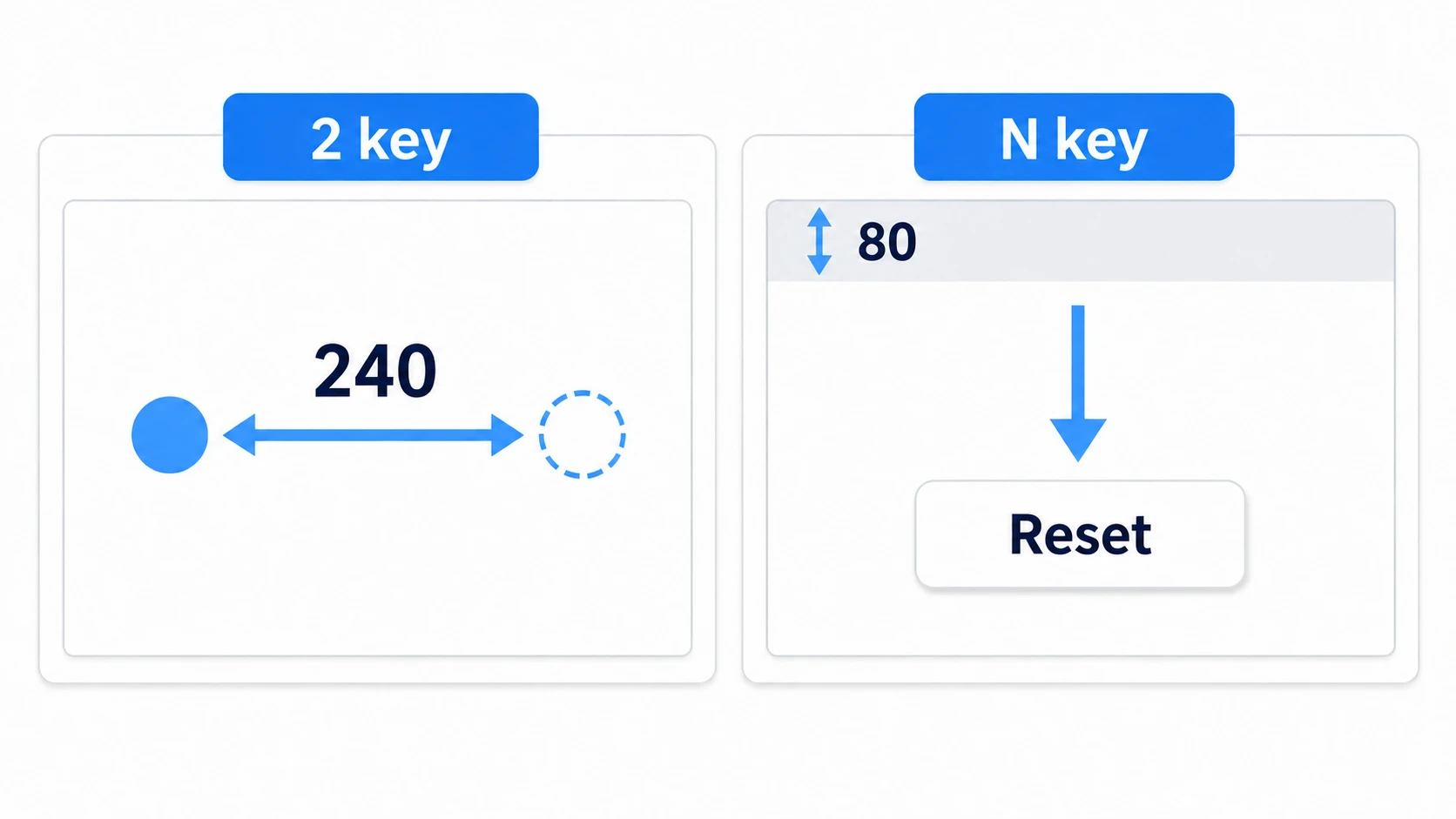
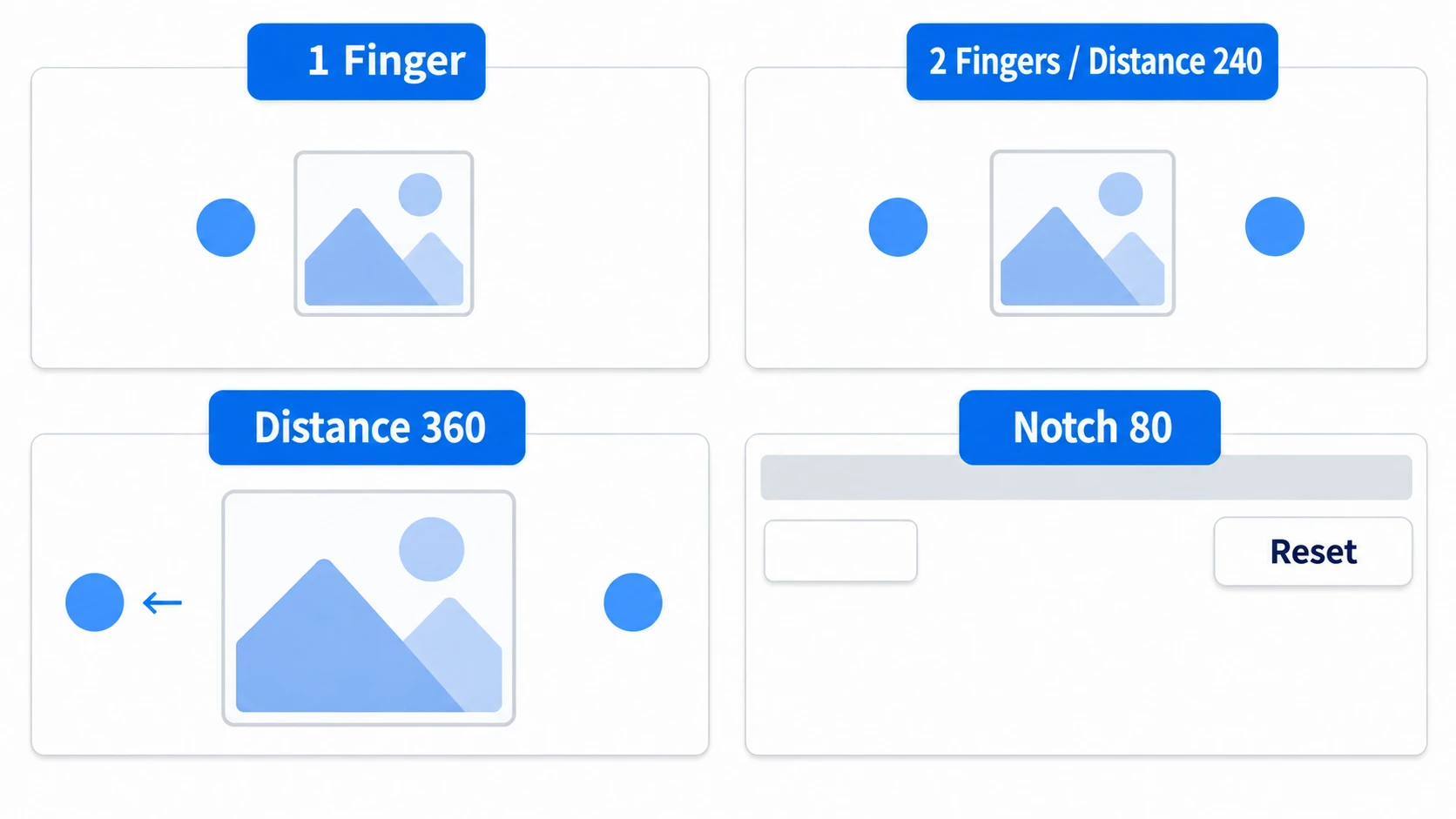
The first is fingers and pinch. Finger0 appears where you press, and the label says "Fingers 1." Press the 2 key and Finger1 appears 240 to the right, changing it to "Fingers 2 / Distance 240," but the art's size doesn't change yet. Move the mouse left from there, and since the fake second finger doesn't move, the distance widens, and at "Distance 360" the art is 1.5 times larger. Press 2 again and it goes back to "Fingers 1," with the size staying where it was. Press "Reset" and it goes back to 1×.
The second is the notch and orientation. Press the N key, and an 80-high strip appears at the top edge, pushing the label and "Reset" down below it. Drag the edges of the running window to make it tall, about 600 wide and 900 high, and "Reset" follows the top-right corner. Whether the strip is shown or the window is tall, the HUD fits in the corners inside the cut-out area. The art that was in the center has fixed coordinates, so it gets left behind toward the right edge.
There are also two things you can't reproduce on PC. The fake notch is fixed to the top edge and doesn't rotate sideways like on a real device. Finger1 is a point placed with a key, so its number never swaps the way a real second finger's can. Only these two need checking on a device.
Two points.
- Decide on one receiving point: leave things that only need a tap to Button, and read
InputEventScreenTouchonly where you need a second finger. Call the same handling from both, and it runs twice - Turn the cut-out area into margins, and apply them again every time the size changes: connect to
size_changed, and even when width and height swap, the HUD stays in the corners
When you're done checking, turn emulate_touch_from_mouse off and set stretch/mode back to canvas_items. Export for desktop with it still on, and mouse operations keep arriving as touches too.
Troubleshooting
| Symptom | Cause | Fix |
|---|---|---|
| After placing the HUD, touching anywhere on screen shows no finger | A screen-filling ColorRect or Control still has its Mouse Filter at the default Stop | Set it to Ignore. Containers like MarginContainer default to Pass, so they're fine as-is |
| While dragging, passing over a button stops the finger marker | The button (Stop) marks the drag passing over it as handled | Receive only drags in _input() (a function input reaches before the UI). Move the start of presses there too, and the game under the button reacts as well |
| Moving the camera makes the on-screen TouchScreenButton drift along with it | It's placed in the same place as the game's art (outside a CanvasLayer) | Make it a child of a CanvasLayer |
| Making it tall overlaps the label and button, or pushes the button off screen | A Label won't shrink narrower than its text, so the whole container becomes wider than the screen | Shorten the label's text, or set an Autowrap Mode so it wraps |
Bonus: Good to Know First
- With a stretch setting that shows black bars: the margin formula assumes the drawing area fills the window. Set
aspecttokeepto show black bars, and you need to subtract the shift of the drawing area toward the center too. How to decide is in First Project Setup - When the device is rotated 180 degrees: the screen size stays the same, and only the notch moves to the opposite side.
size_changeddoesn't arrive, so the margins stay on the old side. Readget_display_safe_area()again every so often, and apply it again when the value changes - When you want to zoom centered between the fingers: this article's zoom pivots on the art's center (the node's origin). To zoom like a map, keeping the point between the fingers still, also shift the position on every zoom so that point stays at the same screen position
- Putting it on a device: exporting to Android and signing are in Export Settings. If you're building an on-screen stick, the idea of throwing away the area near the center is the same as the deadzone in Gamepad Basics
Summary
- Touches also become the mouse: by default, finger touches also create left mouse button input. Call the same handling from both and it runs twice
- Remember fingers by
index: put them in a dictionary and erase them on release and oncanceled - For holding, use TouchScreenButton: buttons you want to keep working while held become a TouchScreenButton with
actionset - Pinch is a ratio of distances: "current distance ÷ starting distance." Remember the scale at the start too
- Convert the safe area's units: it comes back in screen pixels, so convert to viewport units. When the orientation changes, apply it again with
size_changed
Putting the HUD inside a MarginContainer changes nothing on PC. That nothing changes is the sign it's ready to change on a phone. Which container is your game's HUD inside?