When you create a new project in Godot, decide three things before you start building: the renderer, the design resolution, and stretch. These three decide how your game appears on other people's screens, which come in different sizes and shapes.
Start building without deciding them, and on a friend's wide monitor the enemies you parked off screen become visible. The pixels in your pixel art blur into a mix of thick and thin. The tricky part is that as long as you're looking at your own monitor, the right settings and the wrong ones look exactly the same.
This article covers the three things to decide first, and how to check the result by dragging the edge of the window.
What You'll Learn
- That the game screen is "one designed image, projected onto the window by stretch"
- The three things to decide first, in the order they hurt to change later
- How to pick a design resolution (match the narrowest screen you support)
- The 4.7 defaults for new projects (
canvas_items+expand) and when to change them
Tested with: Godot 4.7
How design resolution and stretch work
You build a game with one image of a fixed size in mind. The size of that image is the design resolution. But the window of whoever actually plays is a different size and a different aspect ratio. Stretch is what decides how that one image gets projected onto the window in between.
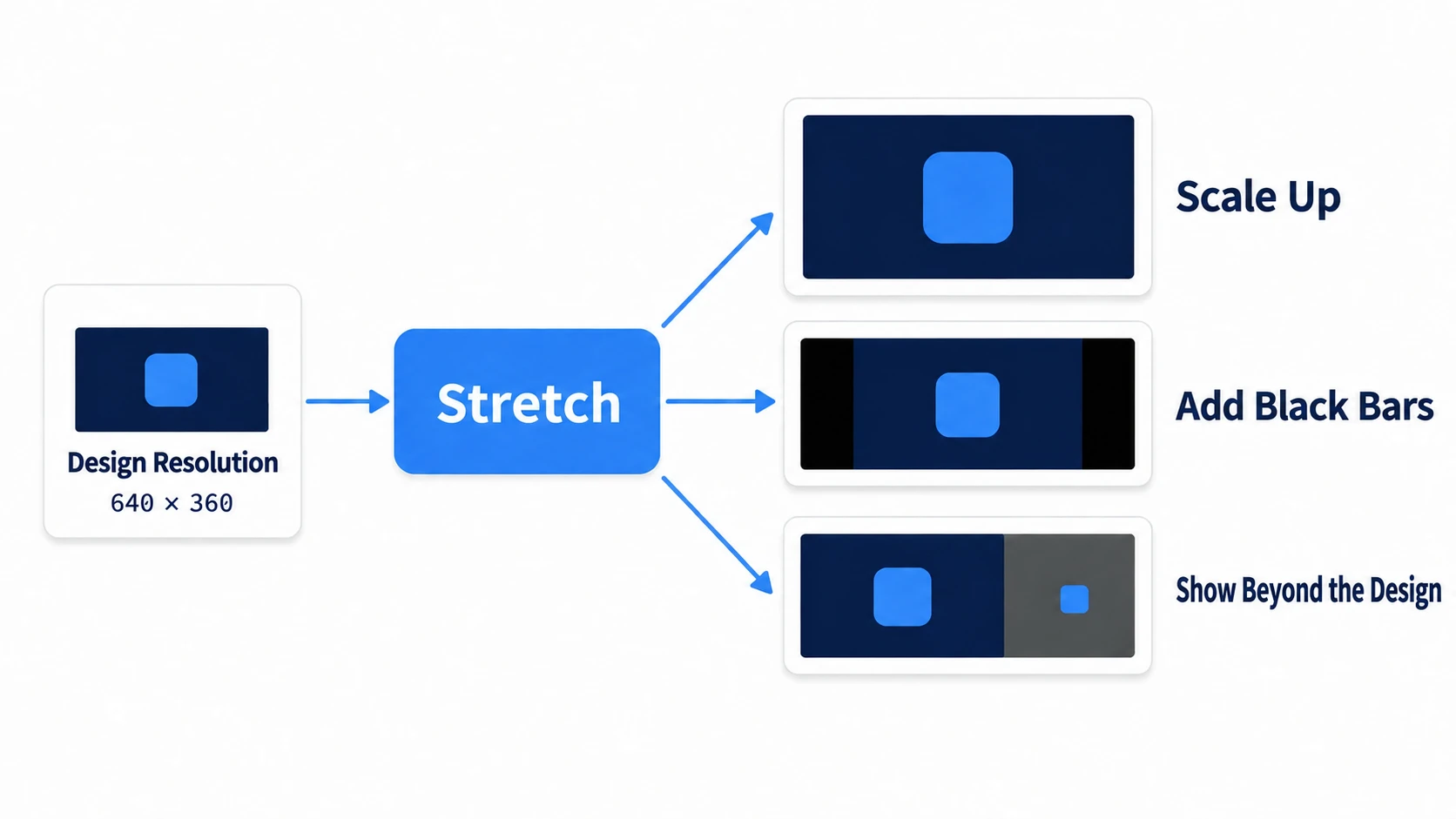
Three things are decided by how it's projected. How to enlarge the image when the window is bigger (mode). When the aspect ratio differs, whether to put black bars in the extra space or show beyond the design (aspect). Whether to round the scale to a whole number (scale_mode). A friend's monitor showing things off screen and pixels blurring both come from one of these three.
You see no difference on your own PC because the window and the designed image are the same size, so the projection stays at 1× and does nothing. You can't tell whether the settings are right without changing the window size.
The three settings to decide first
Project Settings has hundreds of fields, but deciding three before you start building is enough: the renderer, the design resolution, and stretch. The later you change them, the more of what you've already built you'll have to fix. Here they are in the order they hurt, with stretch's mode and aspect listed separately.
- The renderer (how the screen is drawn): the look of lights and glow (the bleed around bright areas) changes, and you may have to rewrite shaders (small programs that draw how things look)
- Stretch
mode: how things are drawn changes. Text, 2D lights, and the sharpness of 3D all change - The design resolution: the positions of placed sprites, how many tiles are visible, and fixed-size UI all shift
- Stretch
aspect: whether you show black bars or show beyond the design flips
Choosing a renderer
There are three renderers. Pick by where you'll ship, not by which look you like.
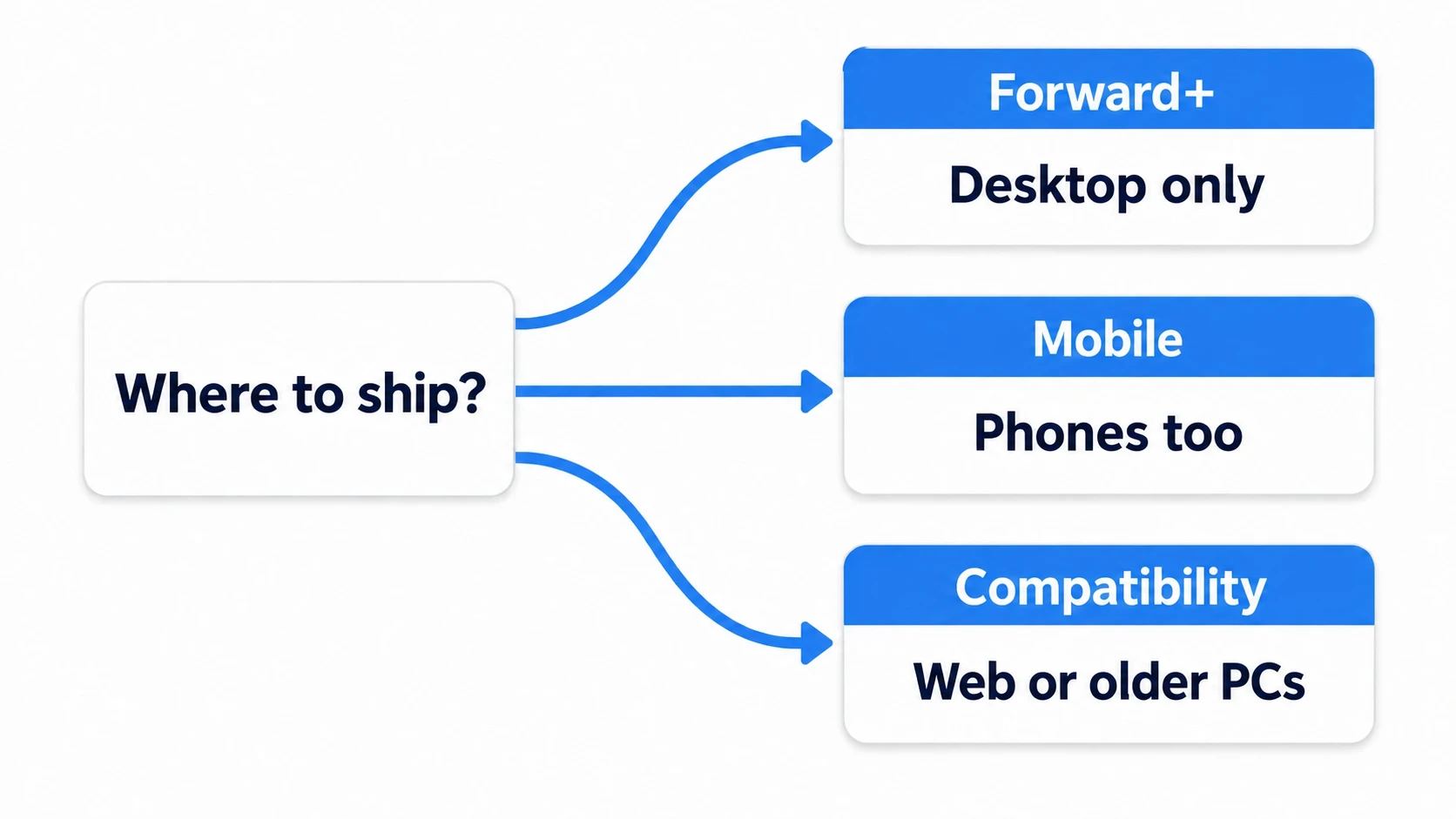
- Forward+: for shipping only to desktop. The one to pick if you want elaborate lighting in 3D
- Mobile: for shipping to phones too. Finger controls and avoiding the notch (the cutout at the top of the screen) are covered in Touch Input
- Compatibility: for shipping to the Web, or when you want it to run on older PCs too
Compatibility runs on more hardware, but in exchange you can't use features exclusive to Forward+, such as light that bounces in real time or effects that reflect what's on screen onto the floor. For a 2D game, you'll rarely miss them.
By default, even a Forward+ project switches to Mobile on phones and Compatibility on the Web. While editing, you keep seeing the Forward+ look, so you won't notice differences in how many lights work or how light looks until you run it on a real device. If you know where you're shipping, match the renderer you edit with too.
After changing the renderer, you need to restart the editor. Don't look at the screen before restarting and conclude "nothing changed."
Choosing a design resolution
The design resolution is a promise about the area every screen will always show. Depending on the stretch mode you choose in the next section, it's either used as the reference for where things are placed, or it's the size the picture is actually drawn at.
A new project defaults to 1152 × 648. That's the initial value of the width and height in Project Settings (viewport_width and viewport_height). It wasn't chosen for your game, so overwrite it before you start building.
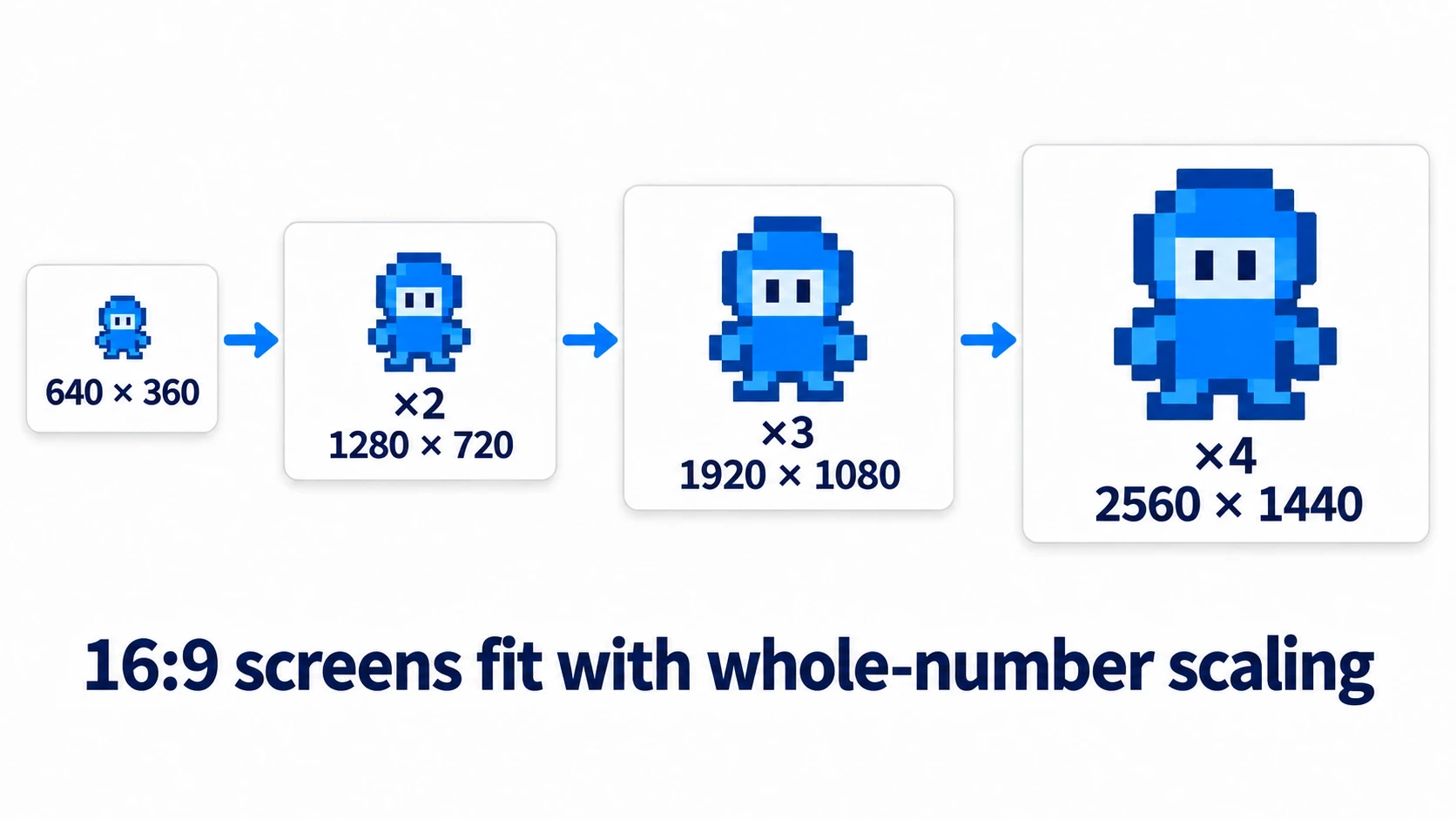
Start with 640 × 360 for pixel art and 1280 × 720 for ordinary 2D and 3D. The reason for 640 × 360 is that 2× is 1280 × 720, 3× is 1920 × 1080, and 4× is 2560 × 1440. On a 16:9 screen, it fits at a whole-number scale whether it's a laptop, full HD, or 4K. On a 16:10 laptop or a 1366 × 768 screen it doesn't divide evenly, and the leftover becomes black bars or scenery outside the design.
1280 × 720 is a promise that every screen shows at least this much. The easy mistake here is entering 1920 × 1080 to match your own full HD monitor. Ship to a small laptop or a handheld like the Steam Deck, and on that screen everything shrinks and the UI gets cramped. Match the design resolution to the narrowest screen you support, not the best monitor you own.
Stretch (mode, aspect, scale_mode)
Projects newly created in 4.7 start with mode set to canvas_items and aspect set to expand. For ordinary 2D and 3D, that causes no trouble. You change them for pixel art and when you want to protect your composition. A project created in 4.6 or earlier whose stretch you never changed still has mode at disabled, and the game won't scale up when you enlarge the window.
mode gives you two choices. The difference is where the picture gets drawn.
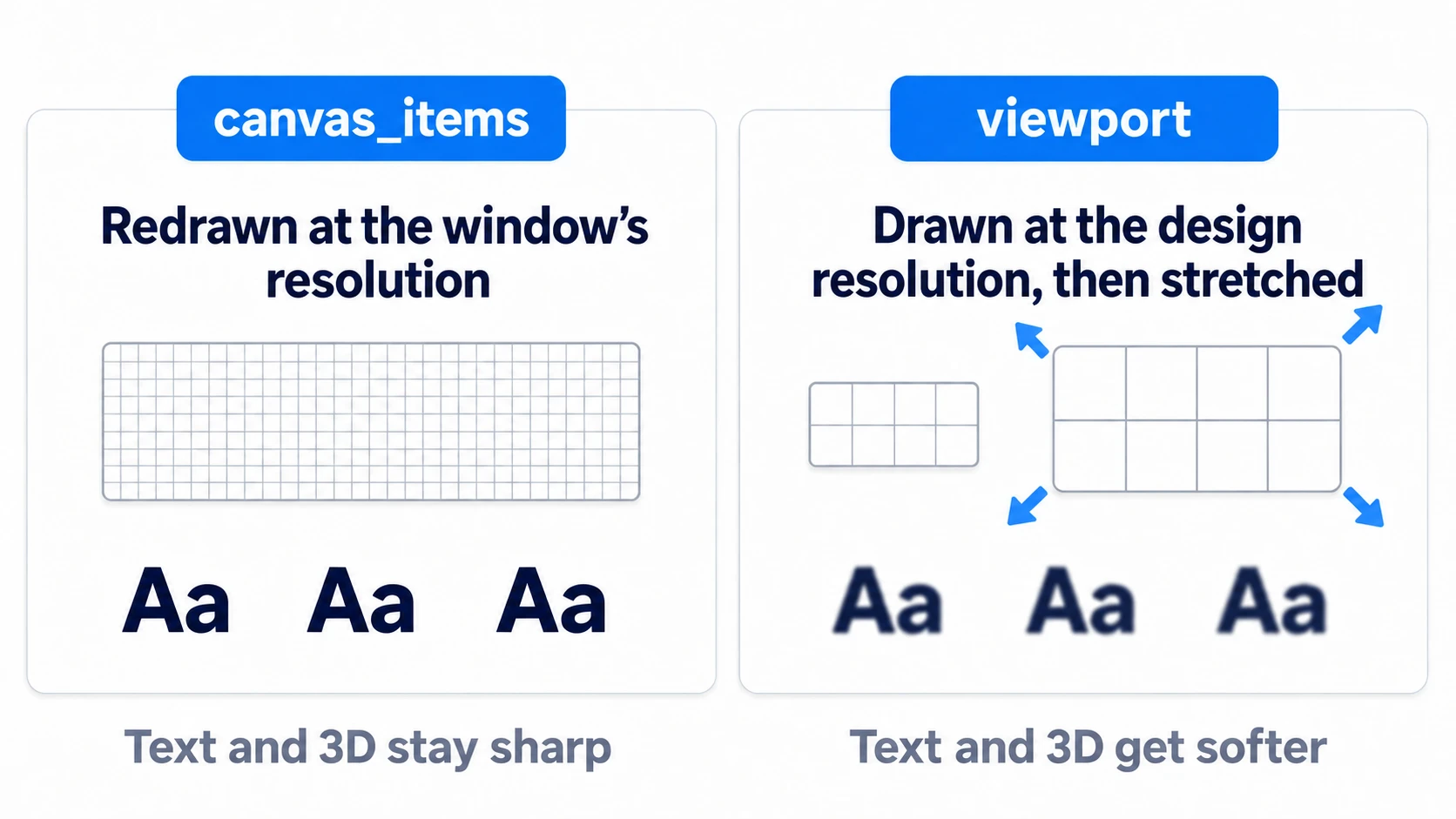
canvas_items redraws at the window's resolution. The design resolution is used as the reference for placement, and the actual drawing happens at the window's resolution. That's why text and 3D stay sharp. In exchange, when the scale is an awkward number like 2.13, pixel widths stop matching.
viewport first draws one picture at the design resolution, then stretches it to the window. It's not the same thing as the design resolution field viewport_width. Text and 3D get softer by however much it's stretched. For pixel art you want to enlarge that one image with its pixels intact, so you choose viewport.
Next is aspect. It decides what happens to the extra space on a screen with a different aspect ratio.
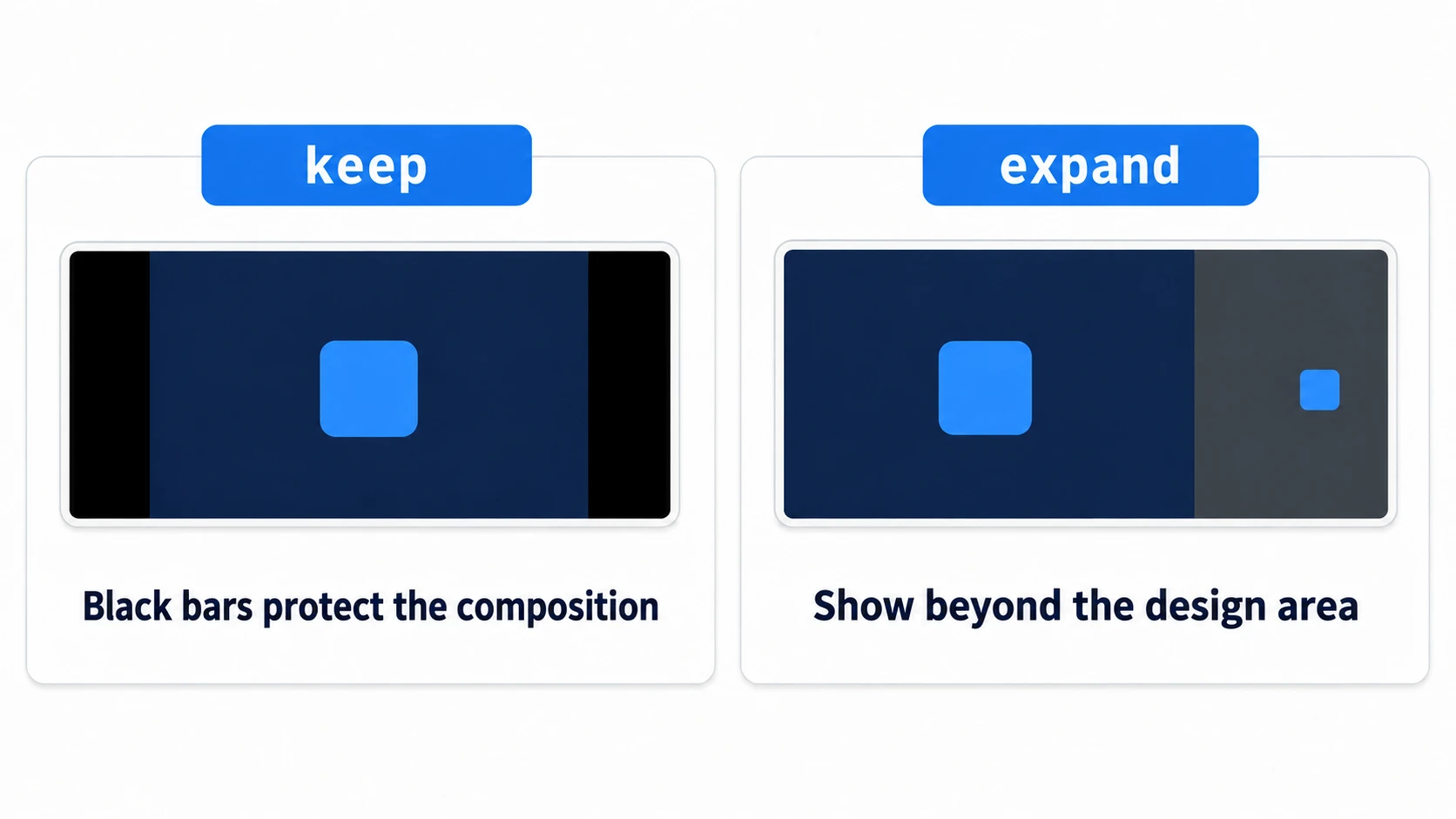
keep protects the composition and puts black bars on the extra side. expand shows no black bars and widens the visible area instead. On a wide screen it widens sideways, and on a taller screen such as 16:10 it widens vertically, so things you placed outside the design can become visible.
Black bars aren't a sign that something's unfinished. They're proof that you didn't show the player an area you never designed. For games where the composition carries meaning, like a single-screen puzzle, choose keep. For a side-scroller, the default expand is natural. In 3D the camera decides what's visible, so the default is fine.
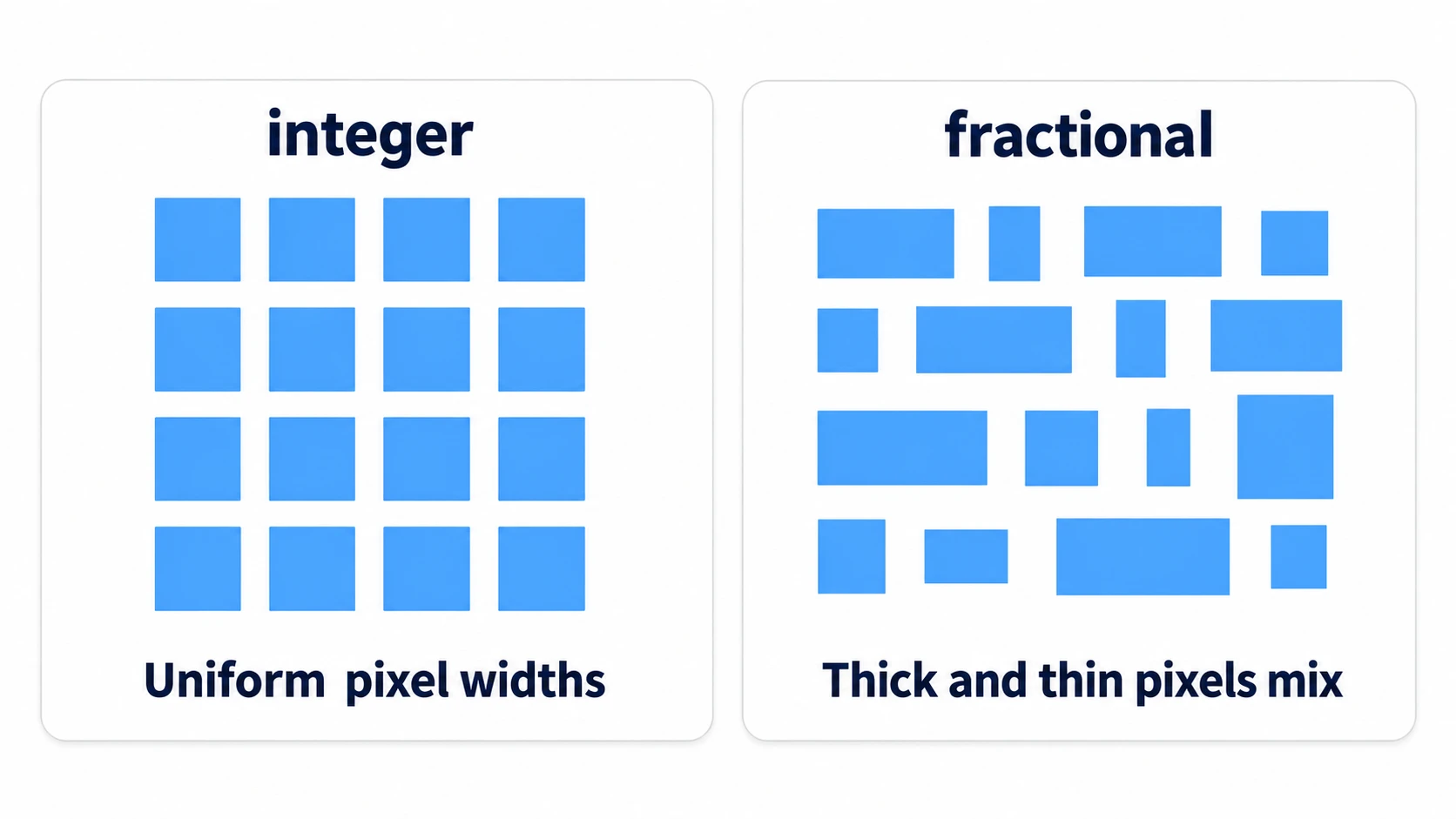
Last is scale_mode. Set it to integer and the scale is rounded down to a whole number. Where 2.5× would fit, it shows 2×, and the leftover becomes black bars. With fractional, at 2.5× a single pixel splits into 2-pixel-wide and 3-pixel-wide versions, so thick and thin pixels mix. Setting viewport alone still gives awkward scales depending on the window size. Pair it with integer and pixel widths match in any window.
Pixel art needs one more change: set the texture scaling method to Nearest (scale up without blending neighboring colors). rendering/textures/canvas_textures/default_texture_filter switches the 2D default for everything at once.
In short, for ordinary 2D and 3D, just set the design resolution to 1280 × 720 and leave everything else at the 4.7 defaults. For pixel art, change these five:
- Design resolution:
640 × 360 mode:viewportaspect:keepscale_mode:integer- Filter: Nearest
Hands-On: Drag the Window Edge and Watch How It Breaks
A pixel-art action game, a single-screen puzzle, a side-scrolling shooter—each is a game where you decide in advance how it will break on someone else's screen. Staring at the settings screen won't tell you whether they're set correctly. Set the design resolution to 640 × 360 and try three ways of projecting, starting from the default.
① What to place
In a new project, create a 2D scene, save it as main.tscn, and make it the main scene that opens first on F5.
Main (Node2D)
├── Background (ColorRect)   a background that fills the design resolution
├── Logo (Sprite2D)          a marker placed in the center
└── Outside (ColorRect)      a square placed just outside the design resolution
- Background: Position
(0, 0), Size(640, 360), navy - Logo:
res://icon.svgin Texture, Position(320, 180), Scale(0.5, 0.5) - Outside: Position
(660, 150), Size(60, 60), light blue
Outside sits just outside the right edge of the design resolution. With settings that protect the composition, this square stays hidden.
② Enter the settings
In Project Settings, enter these four. If you can't find a field, turn on Advanced Settings in the top right and it appears.
display/window/size/viewport_width:640display/window/size/viewport_height:360display/window/size/window_width_override:960display/window/size/window_height_override:540
Start with mode and aspect at the 4.7 defaults (canvas_items and expand). If your project was created in 4.6 or earlier, set them to the same values here. The stretch fields are under display/window/stretch/.
The override (the size of the window that opens first) is 960 × 540 so it opens at exactly 1.5× the design. At the same size as the design, the scale is 1×, and it looks identical whether the settings are right or wrong. The size also fits on a small laptop screen. This override applies to exported games too. When you actually ship, set it again to the size you want the window to open at (for pixel art, something like 1280 × 720, twice the design).
One more thing: 4.7 embeds the running game in the editor's Game view. While embedded, widening the frame won't make the game any bigger than the size you set. From the menu on the Game tab's toolbar, uncheck Embed Game on Next Play. From the next run, the game opens in an ordinary window whose edge you can drag.
③ Run it and check
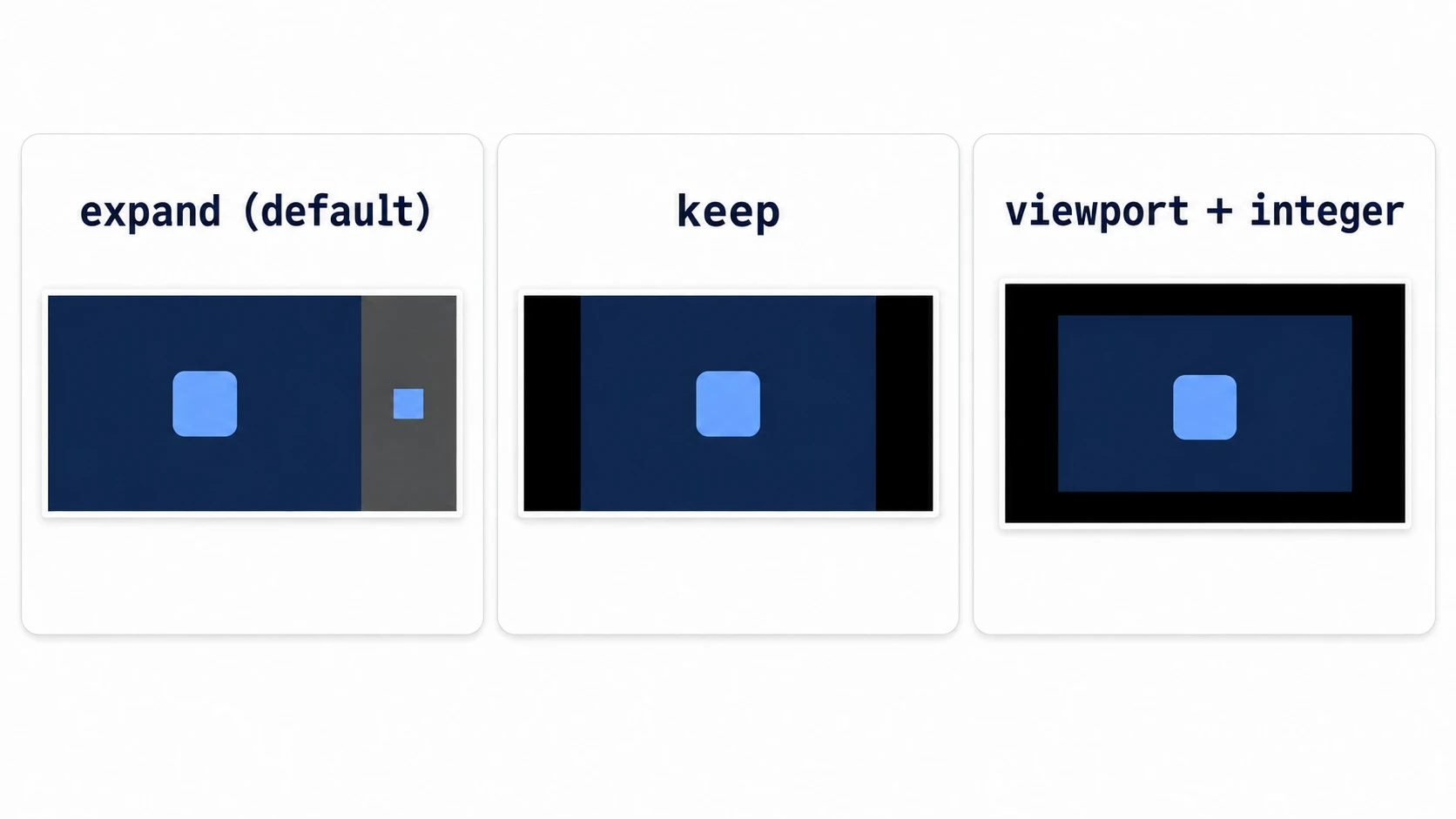
Run with F5. Check three things.
First, leave the default expand. In the 960 × 540 window, the designed image shows at 1.5×. Drag the right edge of the window to widen it, and the visible area stretches to the right until the light blue Outside square appears. The navy background ends at the design's 640 mark, and past that is the game's default dark gray. If the navy background shows up small in the top left of the first window instead of filling it, mode is still disabled.
Next, set aspect to keep, run, and widen it the same way. This time black bars appear on the left and right, and Outside stays hidden. The logo and background stay centered in the window without changing shape.
Finally, switch to the pixel-art combination. Keep aspect at keep, set mode to viewport and scale_mode to integer. Set default_texture_filter to Nearest too, then run. The 640 × 360 picture appears at 1× in the center of the 960 × 540 window, with black bars on all four sides. Instead of 1.5×, it was rounded down to a whole-number 1×. You can now choose for yourself how it breaks: black bars, or showing beyond the design.
Two points.
- Your own screen shows no difference: as long as the window and the design resolution are the same size, stretch stays at 1× and does nothing. You can build levels for weeks and the developer's screen stays perfect. A few seconds of dragging the window closes that blind spot
- Choose how it breaks in advance:
keepversusexpandisn't about which one is right. It's a choice about what you give up. If you go withexpand, keep the floor, enemies, and anything the player controls inside the design resolution, and put only background on the sides that widen
For an ordinary 2D or 3D project, put the settings you tried back to the 4.7 defaults. Stretch goes back to canvas_items, expand, and fractional, and the filter to Linear. Then set the design resolution to 1280 × 720 and start building. Where to put your files is in Project Organization.
Troubleshooting
| Symptom | Cause | Fix |
|---|---|---|
| When a pixel-art character or the camera moves, the pixels jitter and blur | Fractional positions (such as 0.5 pixels) are used as-is for drawing | Turn on rendering/2d/snap/snap_2d_transforms_to_pixel and drawing positions snap to pixels. Movement gets a little stair-stepped |
After switching to expand, UI placed in the top right drifted away from the screen edge | The UI is placed with Position numbers. The visible area widens, but the placed coordinates don't move | Make it a child of a Control that fills the screen and place it with a top-right anchor (a way of placing things relative to the parent's edges) (UI Layout) |
| The exported game doesn't open in the window size you expected | The window_width_override value from your tests is still there. At 0, it opens at the design resolution's size (a small window for 640 × 360) | Enter the size you want it to open at (such as 1280 × 720) |
Bonus: Good to Know First
- Leave
stretch/scaleat1.0: changing it adds another layer of scaling on top of stretch's scale and even changes the visible area. Leave the scale to stretch - Fullscreen is one line of code:
DisplayServer.window_set_mode(DisplayServer.WINDOW_MODE_FULLSCREEN)switches to it - Leave the high-DPI setting at its default: keep
display/window/dpi/allow_hidpienabled. Disable it and on a screen with Windows display scaling at 125% or 150%, the OS stretches the whole game window and it goes blurry - What to read next: to export and hand it to people, see Export Basics. To make it playable in a browser, see Web Export. For frame rate and V-Sync, see Frame Rate and V-Sync
Summary
- The screen is a projection of one designed image: stretch projects it onto the window, so on your own screen it's 1× and shows no difference
- Decide three things first: the renderer, the design resolution, and stretch
- Pick the renderer by where you ship: Forward+ for desktop, Mobile for phones, Compatibility for the Web
- The design resolution is the narrowest screen: start from
640 × 360for pixel art and1280 × 720for everything else - Stretch defaults and exceptions: new 4.7 projects are
canvas_items+expand. Pixel art isviewport+keep+integer+ Nearest
Start by dragging the edge of the window. If it breaks the way you chose (black bars, or beyond the design), the setting is already working. Which will your game show: black bars, or the scenery beyond your design?