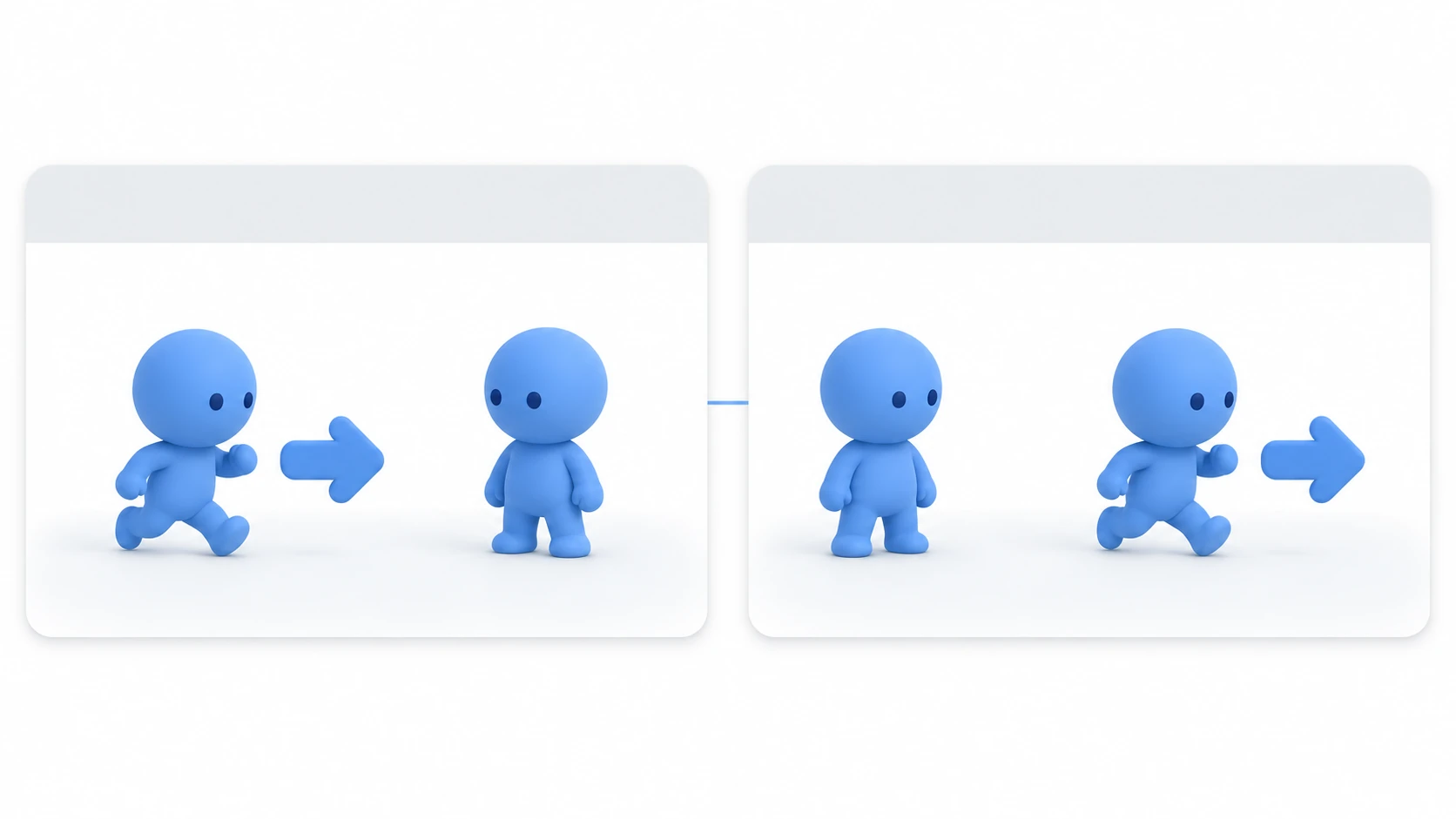
When you want people to play your game, the easiest form is one they can play just by opening it in a browser. With Godot's Web export and itch.io (a site where you can publish indie games for free), all you have to hand over is a URL.
But double-clicking the exported index.html doesn't start the game, and just uploading a zip to itch.io shows only a download button on the page. What you hand over for the Web isn't a file but a page, so where and how you place it becomes part of how it runs.
This article explains how to confirm it runs in your local browser first, then put it on itch.io.
What You'll Learn
- The set of files a Web export produces
- Why it won't open via
file://, and how to run it locally- The three settings on itch.io, and how to test while keeping it private
- Three browser-specific limits (sound, key input, fonts)
Tested with: Godot 4.7
The files a Web export produces
For Windows, you get two files, an .exe and a .pck (one if you turn on Embed PCK). For the Web, you get a row of files prefixed with the name you chose for the export target.
If you set the export target to index.html, you get something like this.
index.html                         What the browser reads first
index.js                           Code for starting up
index.wasm                         The engine itself
index.pck                          The game's data
index.audio.worklet.js             Audio processing
index.audio.position.worklet.js    Audio processing
index.png / index.icon.png / index.apple-touch-icon.png   Boot splash and icons
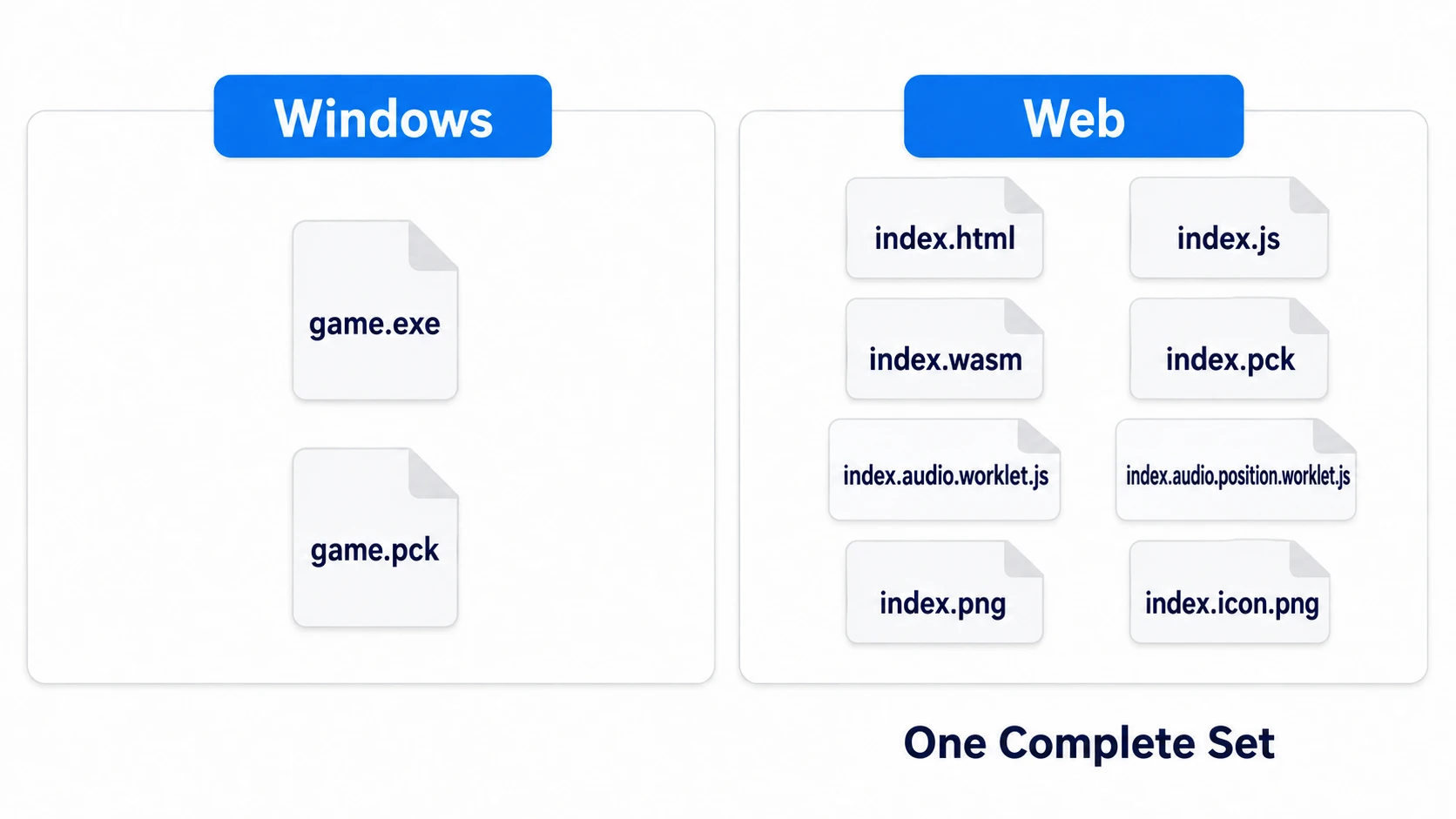
This set belongs together. When distributing, include every file produced by that export. If a required file is missing, it may fail to start, or only the sound may fail.
There's a reason to name the export target index.html. Many hosts read index.html first when a folder is opened. When you put a zip on itch.io, this name is also the entry point.
For rendering, only Compatibility works on the Web. Forward+ and Mobile don't run. Project Settings → Rendering → Renderer → Rendering Method has a separate .web field, which is set to gl_compatibility (that is, Compatibility) from the start. Even if you develop in Forward+ day to day, the Web build is exported with this field's setting. Lighting and shadows are drawn the Compatibility way, so 3D can look different from the editor.
General export topics, and reinstalling templates when a preset turns red, are in Export Basics.
Running it in your local browser (Run in Browser)
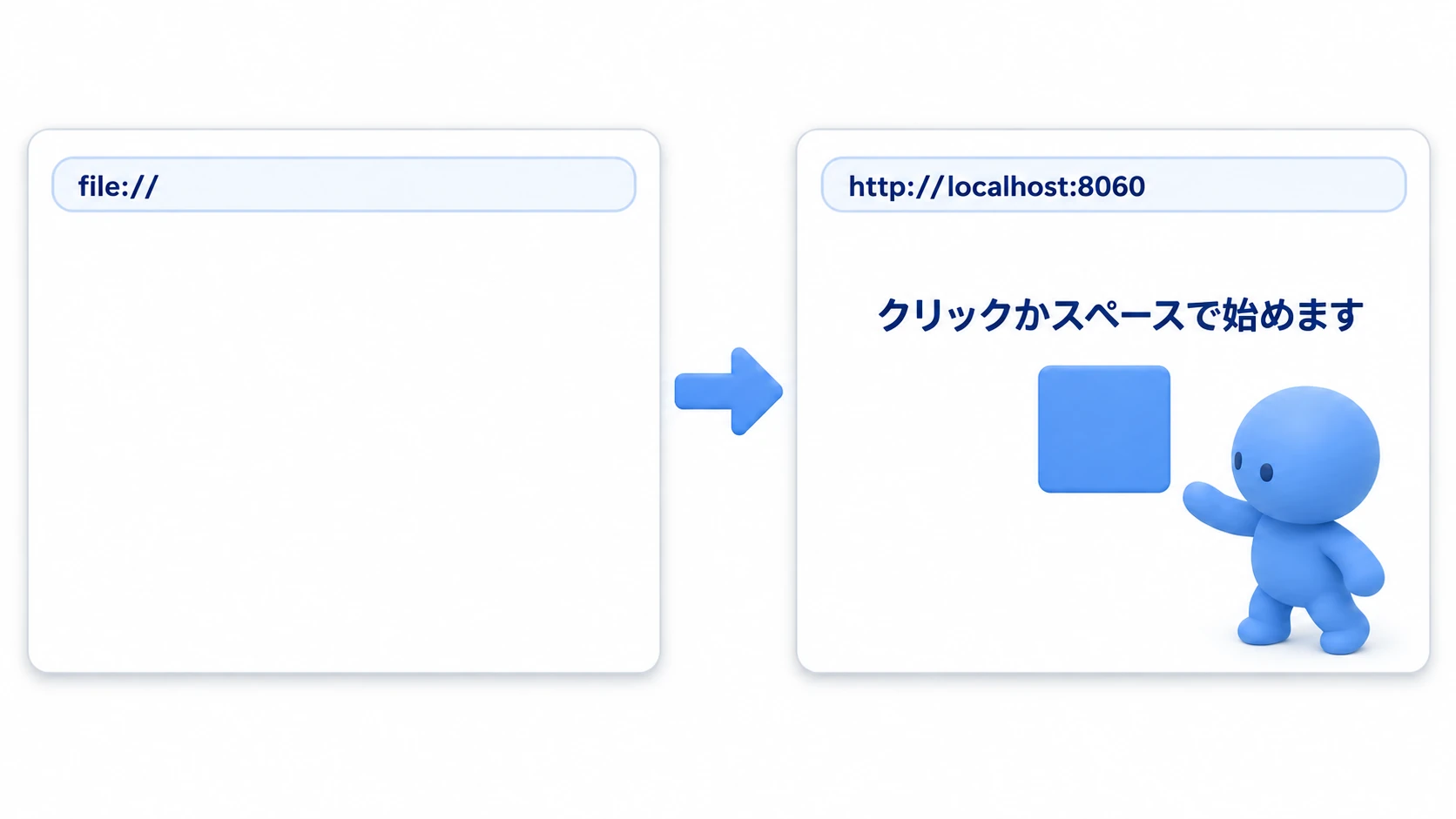
Double-click the exported index.html, and the browser opens, but the game doesn't start. Sometimes it stays white; sometimes an error appears. Look at the address bar, and it starts with file://.
file:// means you opened a local file directly; http:// means it was served from a host called a server. In the file:// state, the browser can't fetch the .wasm or .pck sitting next to it. The browser distinguishes between opening something as a file and having it served from a host.
In other engines: Unity's Web build (WebGL) is also normally run through a web server rather than opened directly via
file://. Unity's Build And Run starting a local web server plays the same role as Godot's Run in Browser. Unreal Engine 5 has no built-in browser export.
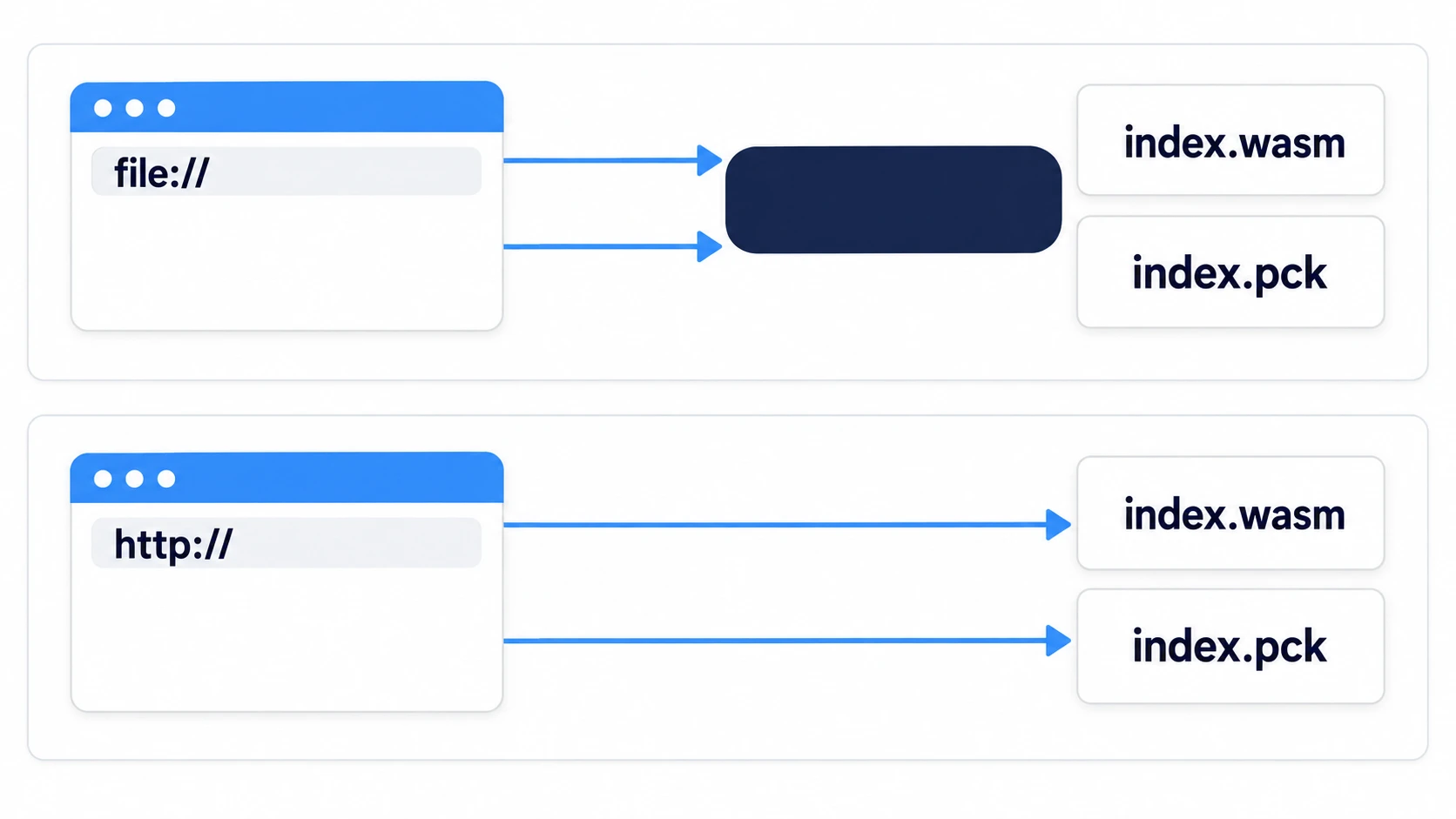
To check locally, run it from the editor. Create one Web preset (settings per export target) and turn on Runnable (the setting that lets you launch it directly from the editor), and a Web item appears between the stop and run buttons. Choose Run in Browser from there, and a built-in server starts and a browser opens. By default, it's http://localhost:8060/tmp_js_export.html.
What's running here is something the editor re-exported to a temporary folder. It's separate from the index.html in the export folder you saved. It's a tool for first checking whether the game runs on the Web; check the files you'll distribute after uploading the zip.
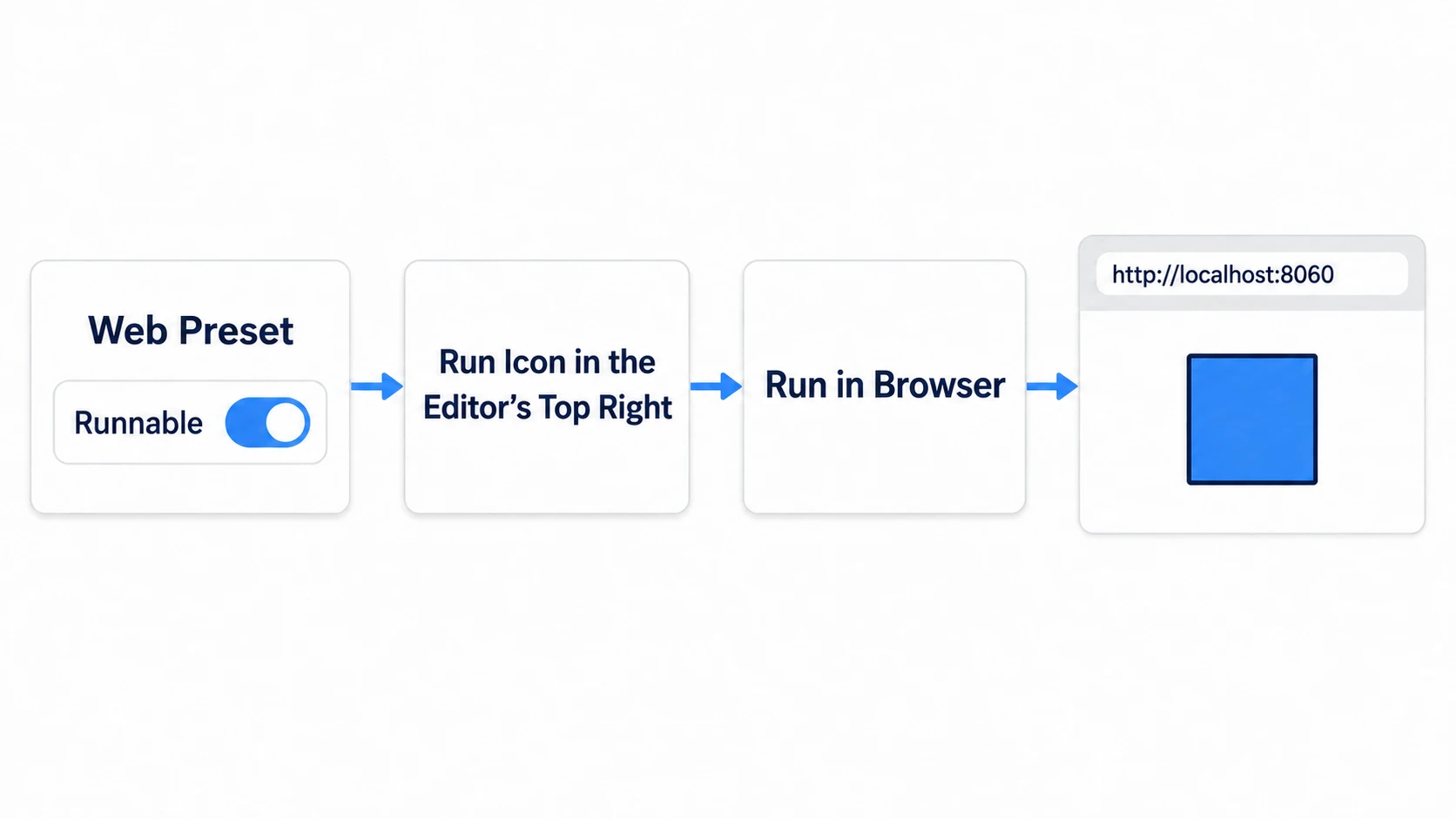
Check every time whether the address bar says file://. When you get a white screen, look here first.
Three settings on itch.io
Create an account and set up a new project page. Choosing HTML for Kind of project on the creation screen lines up the settings that follow. The zip to upload is made by selecting every file inside the export folder and compressing them. If you compress the folder itself, index.html ends up one level deeper when the zip is opened. Make sure index.html is visible at the top level of the zip.
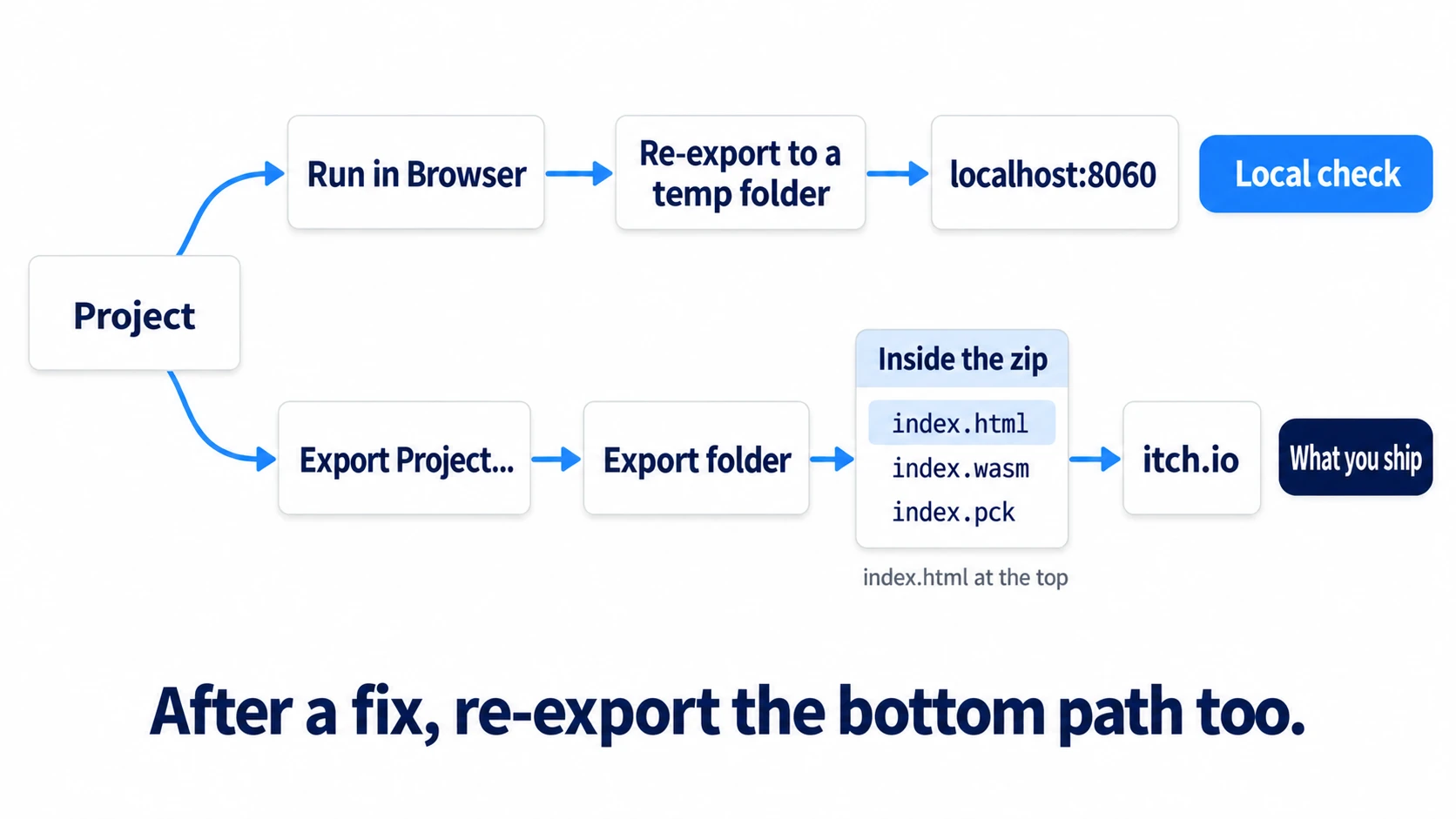
From there, you touch three places.
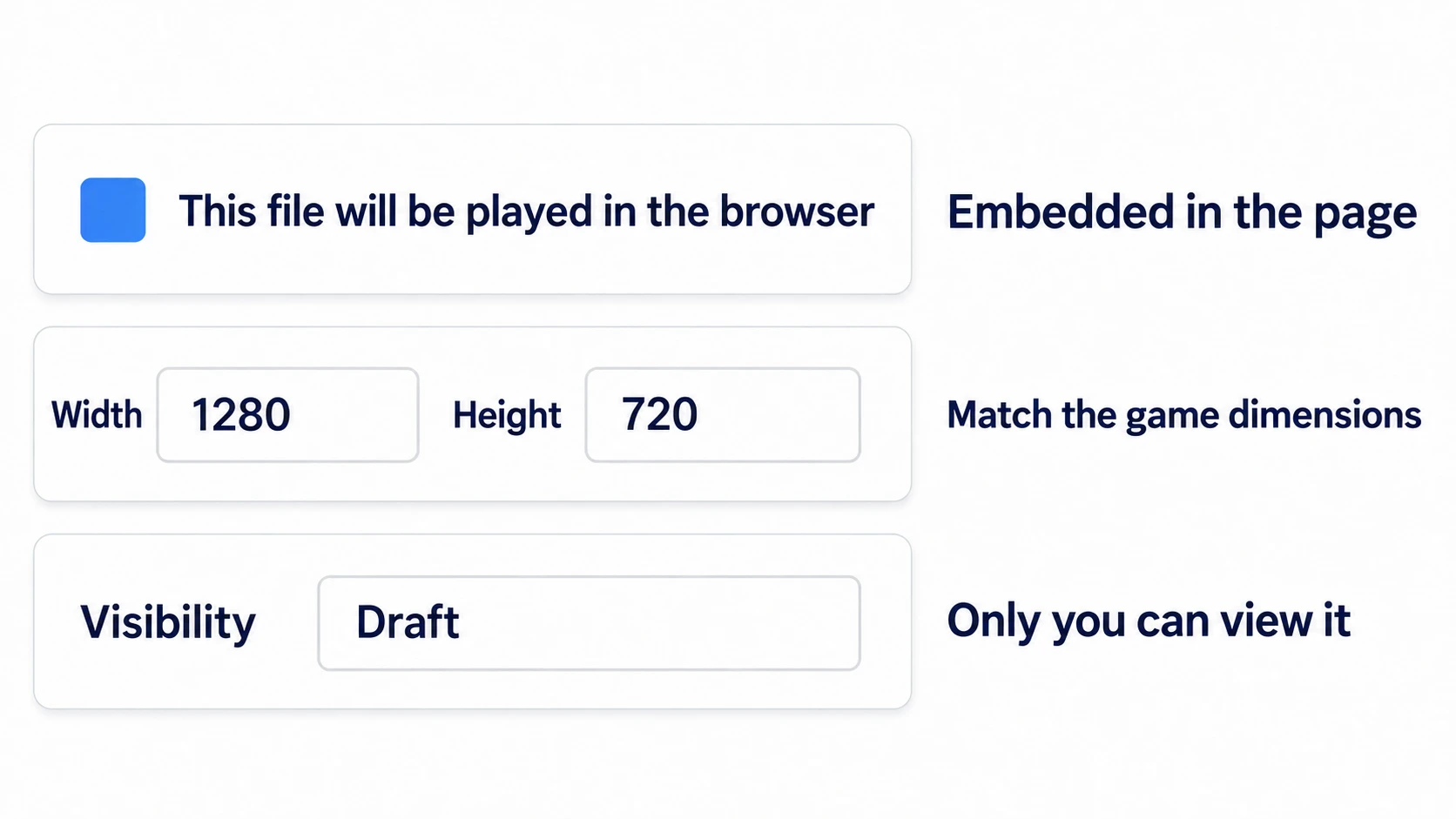
- Upload the zip under Uploads and tick This file will be played in the browser. Without it, the other person downloads it, opens it locally, and ends up at the blank
file://page from before - Decide how it's displayed and its dimensions in Embed options. To embed it in the page, enter the width and height. If you've set Stretch to
canvas_itemsandkeep(settings that stretch the whole screen while keeping the aspect ratio) as in the hands-on, even smaller numbers with the same aspect ratio as the game shrink it while keeping the ratio - Set the visibility to Draft, and it isn't public. Change it once you're ready to show people
Check from the page view, not the edit screen. The embed first shows itch.io's launch button (Run game); press it and the game starts.
The first input, sound, and key input
Browsers have a mechanism that doesn't play sound until the user interacts. It's there to keep music from blaring the moment a page opens.
Godot tries to resume audio when it receives a key press or click. Even so, sounds played before any input either never play or are heard late. If your game plays a sound effect in _ready(), the results differ between the Windows build and the browser.
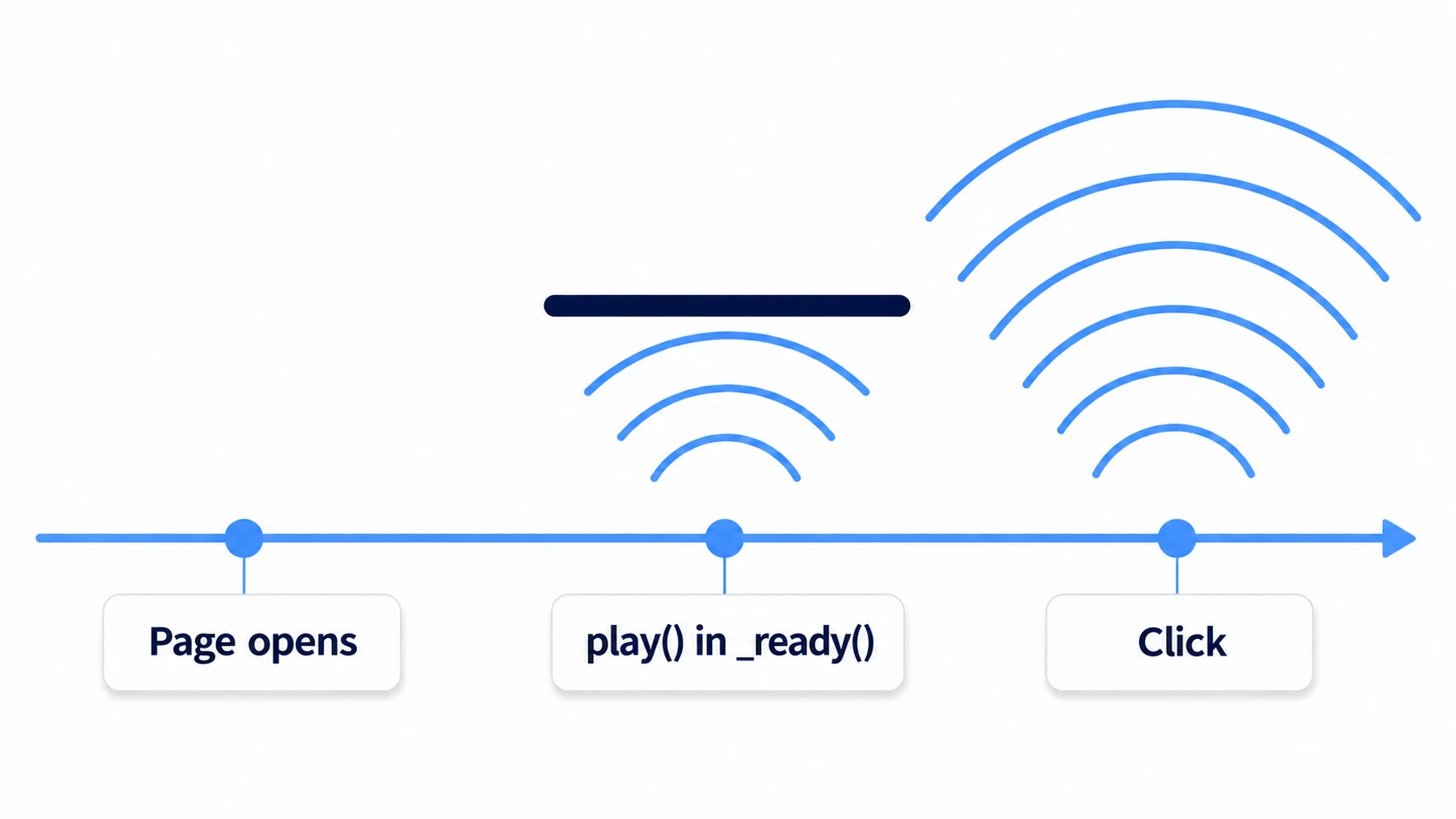
Play the first sound you want heard in response to an action, such as pressing a start button.
The keyboard is similar. A game embedded in a page may not receive input until you click the screen. If pressing the arrow keys scrolls the page instead, the game isn't receiving input yet. Clicking the screen once fixes it.
Japanese fonts in the Web build
When running on a PC, the OS's fonts fill in glyphs the font doesn't have. That's why Japanese text shows up just by putting it in a Label. How relying on that fallback makes the typeface change from system to system is covered in Japanese Font Basics. The same applies to any characters the default font doesn't cover, such as Chinese or Korean.
That fallback isn't available on the Web. In the same project, the characters turn into boxes only in the browser.
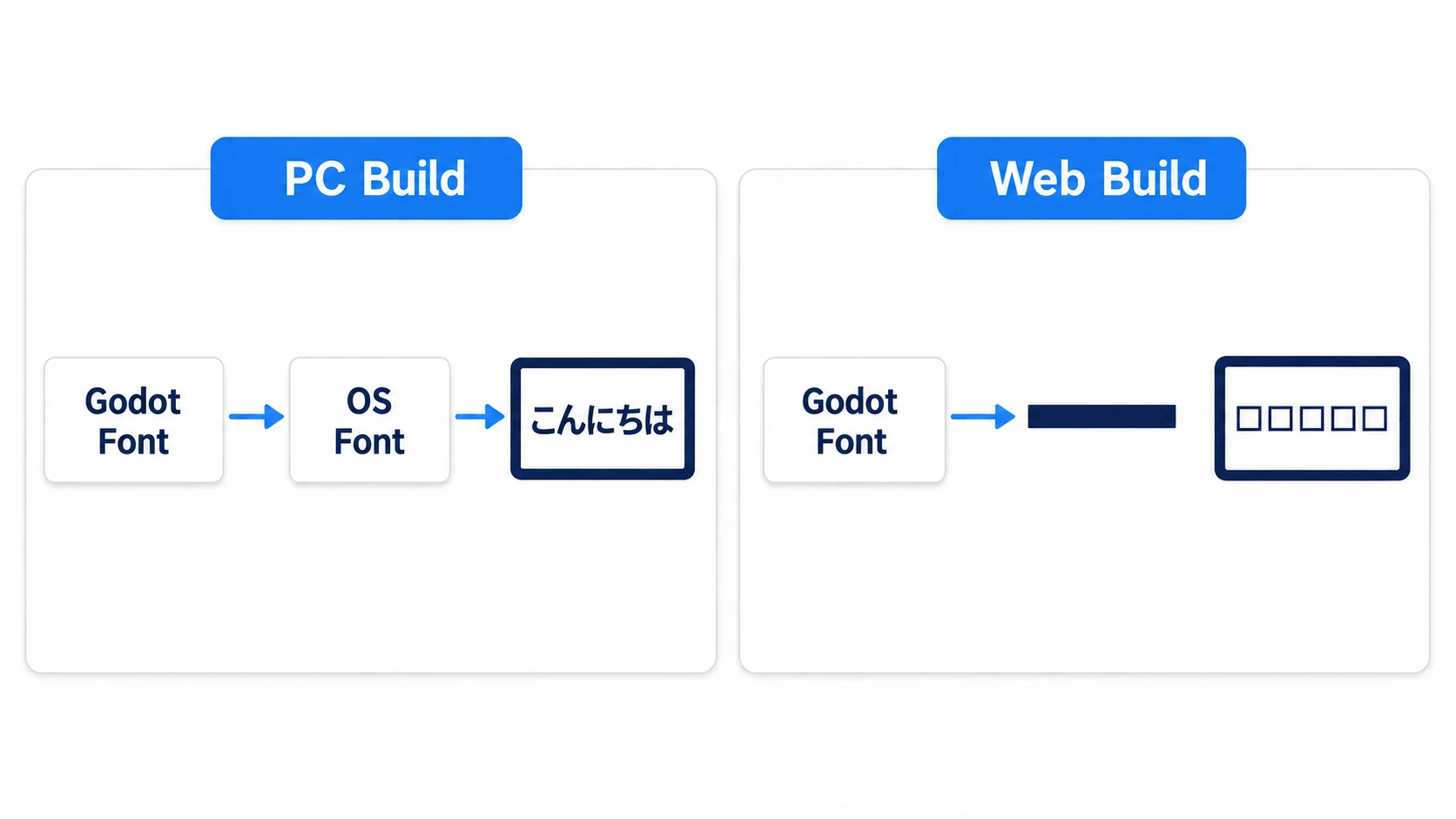
The fix is to put a Japanese font file in the project folder and assign it. For a single Label, use Font under Theme Overrides; for the whole project, set Project Settings → GUI → Theme → Custom Font. Just adding the file doesn't make it used.
Hands-On: Check four things in your local browser
A game jam submission, a test request to a friend, a portfolio — the first step for all of them is getting it "running in your own browser." You can check up to here even without an itch.io account. Check these four things.
- Whether the address is
http:// - Whether the Japanese text is readable
- Whether sound plays and the square moves after input
- Whether the Japanese text turns into boxes when you remove the font
① What to place
Create one new scene. The label deliberately uses Japanese so you can see the font issue for yourself.
- In Project Settings → Display → Window → Size, set Viewport Width to
1280and Viewport Height to720 - In the same place, set Stretch → Mode to
canvas_itemsand Aspect tokeep(stretches the whole screen to the window while keeping the aspect ratio) - Prepare one Japanese font (
.ttfor.otf) that's licensed for distribution and copy it into the project folder. Free fonts like Noto Sans JP are easy to work with - Put a Node2D at the root named Main. Attach
main.gd, save it asmain.tscn, and set it with Set as Main Scene from the FileSystem dock's right-click menu - Add a ColorRect as a child of Main at position
(540, 310), size(200, 100). Set Filter in the Mouse group to Ignore (so clicks on the square aren't grabbed by the square and reach the script) - Add a Label as a child of Main named MessageLabel. Position
(480, 200). Set its text to 「クリックかスペースで始めます」 ("Click or press Space to start") - In MessageLabel's Inspector, set
Theme Overrides > Fonts > Fontto the font file you added - Add an AudioStreamPlayer as a child of Main named ClickSound. Put a short sound file in Stream
- For ColorRect and MessageLabel, turn on "Access as Unique Name" from the right-click menu (this lets you get them by name alone, like
%ColorRect)
If you forget to set the font, the characters turn into boxes when you check the Japanese text.
# main.gd
extends Node2D

const SPEED := 400.0

var _started := false

@onready var box: ColorRect = %ColorRect
@onready var label: Label = %MessageLabel
@onready var sound: AudioStreamPlayer = $ClickSound

func _unhandled_input(event: InputEvent) -> void:
	if _started:
		return
	if not event.is_pressed() or event.is_echo():
		return                            # Don't count releases or held-key repeats
	if event is InputEventMouseButton:
		if event.button_index != MOUSE_BUTTON_LEFT:
			return                        # Don't start from the mouse wheel
	elif event is InputEventKey:
		if event.keycode not in [KEY_SPACE, KEY_ENTER]:
			return
	else:
		return
	_started = true
	sound.play()                          # Play the first sound in response to input
	label.text = "動いています"            # "Running" (Japanese on purpose, to test the font)

func _process(delta: float) -> void:
	if not _started:
		return
	box.position.x += Input.get_axis("ui_left", "ui_right") * SPEED * delta
② Export
Open Project → Export... and choose Web from Add.... If the preset is red, the templates aren't installed, so install them following the steps in Export Basics.
- Turn on the preset's Runnable
- Leave Options → Variant → Thread Support off (turning it on requires extra settings on the host; covered in the bonus section)
- Press Export Project..., choose a new empty folder, and name the file
index.html
Open the exported folder, and you'll see files starting with index. It's tempting to double-click index.html here, but that's the first mistake.
Go back to the editor, choose the Web item from the run buttons, and run Run in Browser. What runs here is re-exported to a temporary folder, but it tells you whether the game runs on the Web.
③ Run it and check
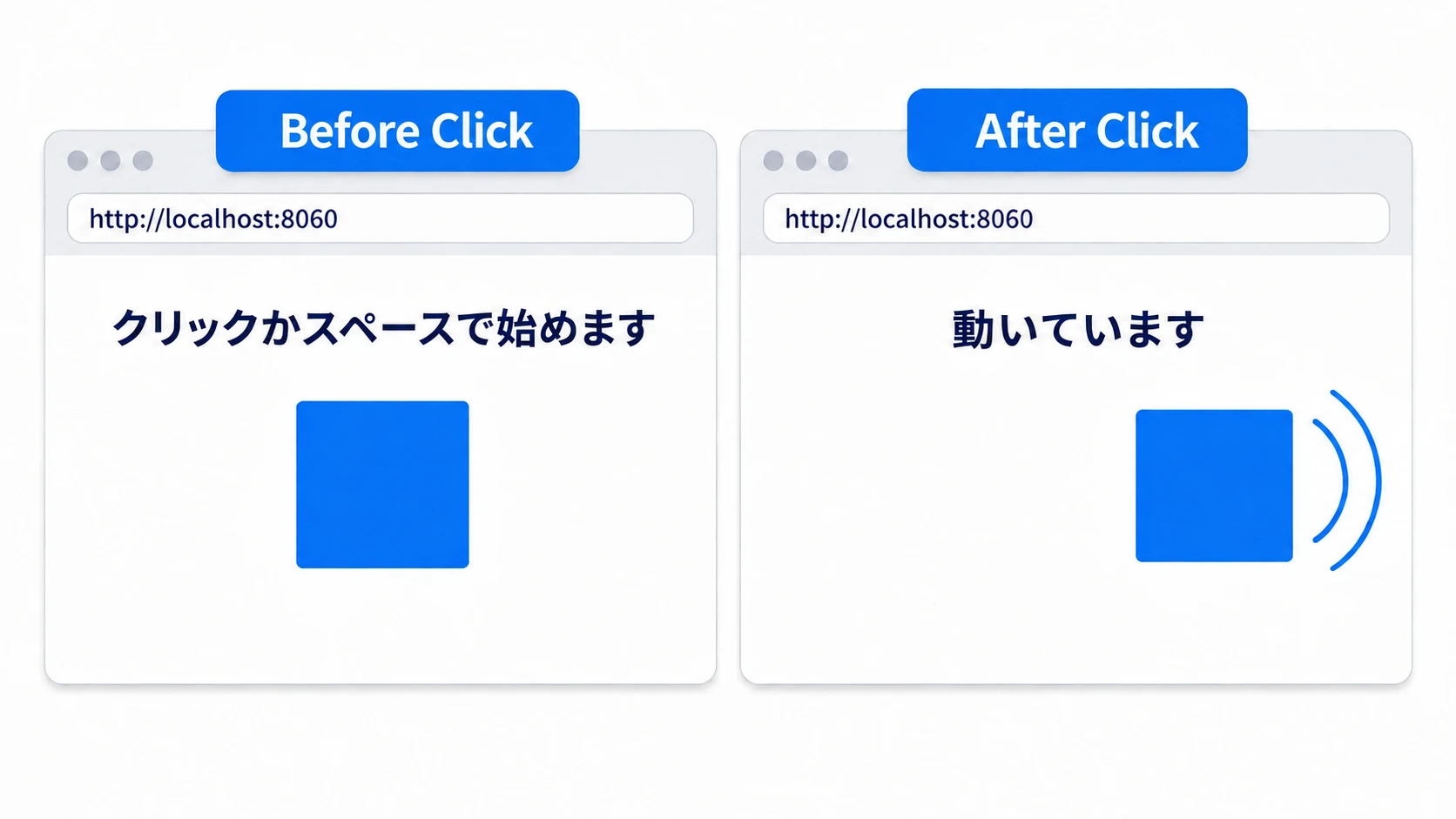
When the browser opens, look at the address bar first. If it starts with http://localhost:8060/..., it's being served from a host. If it's file://, you've opened the index.html in the export folder.
In the center of the screen is a square, and above it you can read 「クリックかスペースで始めます」 in Japanese. If you see a row of boxes, the font setting isn't getting through.
Left-click the screen or press Space, and a sound plays and the label changes to 「動いています」 ("Running"). After that, the left and right keys move the square. Before starting, pressing left or right does nothing. If there's no sound, also check whether the browser tab is muted.
Finally, remove the font in just one place. With no Japanese font set in the theme or project settings, clear MessageLabel's Theme Overrides → Fonts → Font and open it again with Run in Browser. The Japanese that was readable when you pressed F5 in the editor turns into boxes in the browser. It was readable on the PC because the OS font was filling in, and this one change shows that the Web has no such fallback. Once you've checked, put the font back.
If you have an account, upload to itch.io from here. What Run in Browser showed was re-exported to a temporary folder, so if you fixed anything while checking, first re-export with Export Project.... Then select every file inside the export folder, zip them, upload to Uploads, and tick This file will be played in the browser. Enter width 1280 and height 720 in Embed options, keep the visibility at Draft, view the page, press Run game, and check the same things. The address is https://. In the embed, click the game screen first. Before you click, the arrow keys are used to scroll the page.
There are two key points.
- Resist the urge to open it right after exporting: Double-clicking
index.htmlalmost always gives you a white page. Do your first check with the editor's browser run - Pass all four locally before uploading: When itch.io shows a white page, you can tell whether the cause is the game or how it's placed. If it runs locally, suspect three things: whether you re-exported, the play-in-browser checkbox, and Thread Support
General export settings are in Export Basics, and what to decide when starting a project with the Web in mind is in Initial Project Setup.
Troubleshooting
| Symptom | Cause | Fix |
|---|---|---|
| Fixed locally, but itch.io still has the old version | Only Run in Browser's temporary folder is new; the export folder you distribute is still the old one | Re-export with Export Project... before zipping |
| Runs locally, but only itch.io shows white | With Thread Support on, the host needs extra settings | Re-export with it off and first check whether it runs |
| Scrollbars appear or the aspect ratio breaks on itch.io | The width and height in Embed options don't match the game's screen size | First set them to the same dimensions as the game (1280×720). If that doesn't fix it, also check Godot's Stretch settings |
| The preset is red and you can't export to the Web even after reinstalling templates | The 4.7 .NET editor can't export to the Web | If the project is GDScript only, open it in the standard editor and export |
Bonus: Good to Know First
- Leave Thread Support for when you need it: Turning it on requires a mechanism called
SharedArrayBufferon the browser side, and the host server has to return certain headers. itch.io has a setting for this, but ship with it off first and consider it only once performance becomes a problem - Loading is slow because of size: The engine alone is tens of megabytes. At first, it's enough to leave out long
wavfiles and large unused images, and not to add several weights of a Japanese font - Web saves live in a different place:
user://is placed in storage the browser keeps for that site. It's separate from saves made when running in the editor, and clearing the browser's site data deletes it - Web-only differences: You can check whether it's the Web build with
OS.has_feature("web"). Use it for small differences, like hiding the Quit button on the Web
Summary
- What comes out is a set: All the files headed by
index.htmlbelong together. When distributing, gather the whole set into a zip - It won't run via
file://: To view locally, use the editor's Run in Browser. Check every time that the address bar sayshttp:// - Three places to touch on itch.io: The play-in-browser checkbox, the embed dimensions, and the visibility setting
- Sound and keys come after input: Play the first sound in response to a click or key, and in embeds, click the game screen first
- Add a font for Japanese: The Web has no OS font fallback
When you first open your game in a browser, where will these differences show up?