A settings screen is where players change values like volume and language, have them take effect in the game right away, and keep them until the next launch. In Godot, you build it by remembering the values in an Autoload and keeping them in a file with ConfigFile.
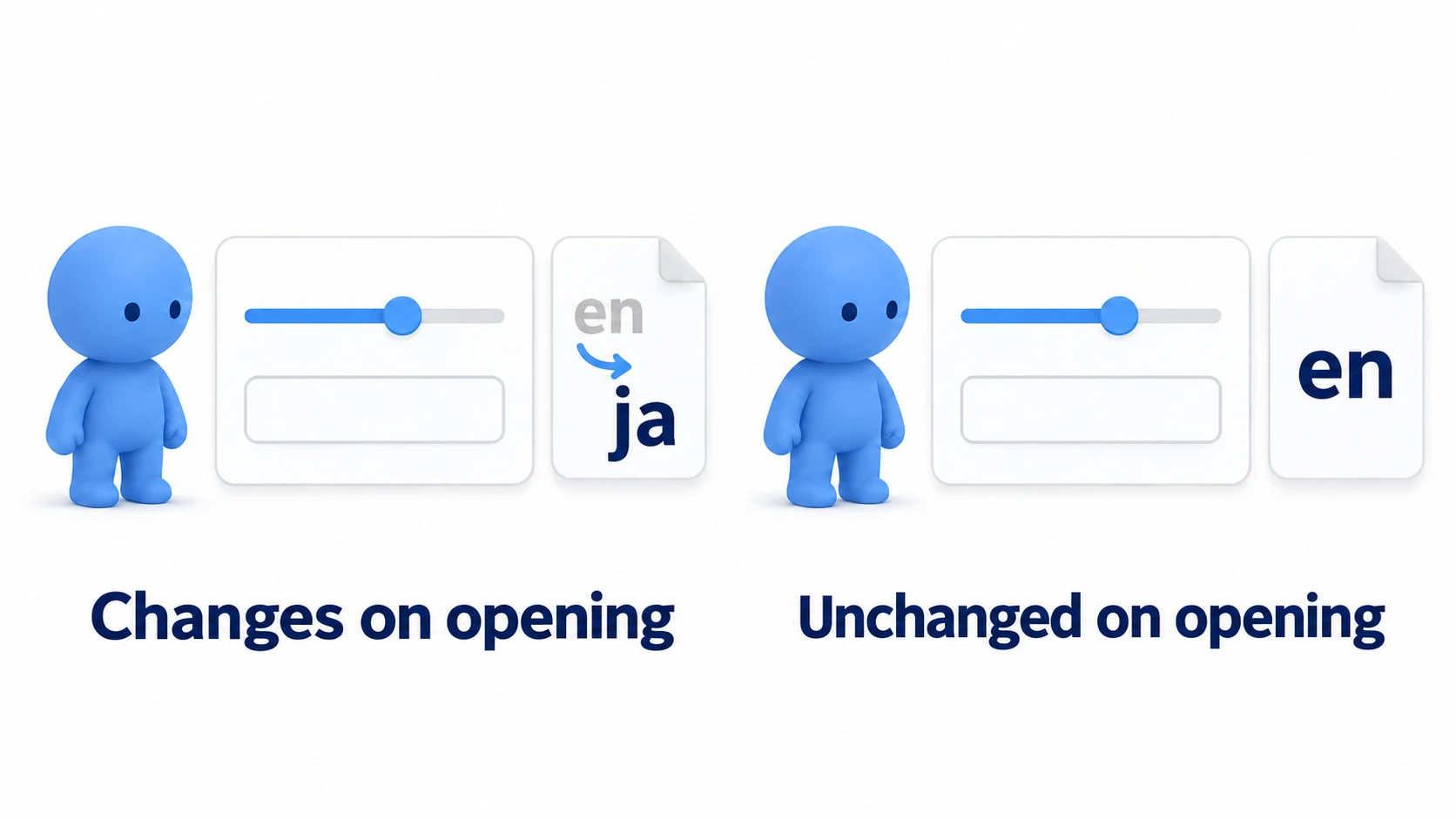
There's a catch: the line that restores the file's values to the screen when it opens sends the same cue (a signal) as when a player operates it. If that cue triggers a save, the language you chose last time goes back to its default just from closing the screen without touching anything.
This article explains how to put volume, language, and maximize together on one screen, building a settings screen whose values don't change just by opening it.
What You'll Learn
- A settings screen's job splits into three: "change," "apply," and "keep"
- Assignments from code emit signals too, and how to fill in values without emitting them
- Why the values written to the file should come from the side that remembers them, not the screen
- Hands-On: put volume, language, and maximize on one screen, and confirm the values match after replaying
Tested with: Godot 4.7
The three jobs of a settings screen
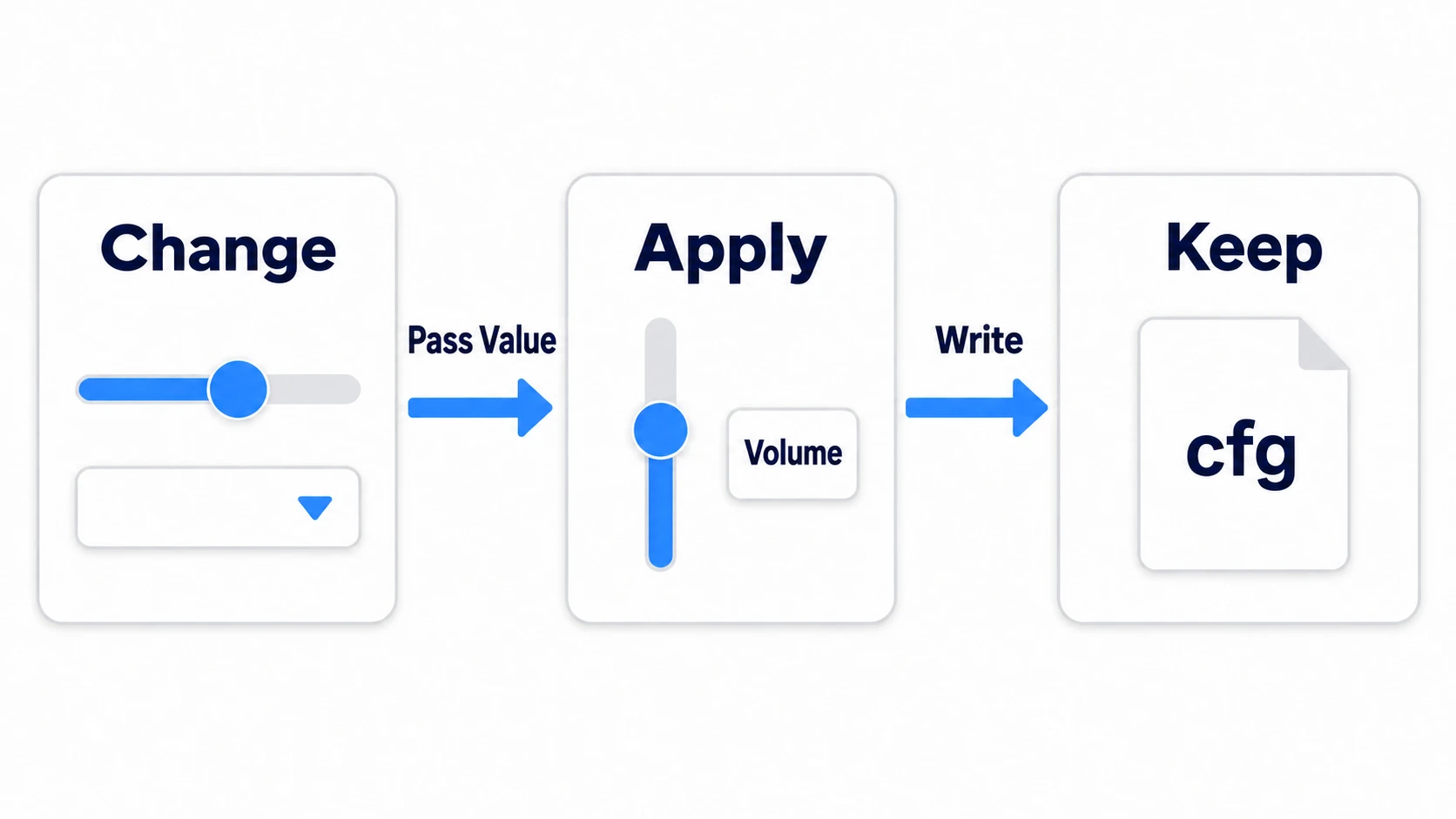
A settings screen's job splits into three: "change" the value with sliders and dropdowns, "apply" that value to the game, and "keep" it in a file for the next launch.
| Job | Handled by | Contents |
|---|---|---|
| Change | The screen's Controls | Sliders, dropdowns, and checkboxes lined up |
| Apply | The side that remembers | Calls AudioServer (sound), TranslationServer (language), and DisplayServer (window) |
| Keep | The side that remembers | Writes to user://settings.cfg with ConfigFile |
"The side that remembers" is a node that holds the settings values in one place; you'll build it in a later section. user:// is a writable folder provided for each game. The three servers, such as AudioServer, aren't nodes: each is a single access point the engine provides from the start, and any script can call it by name without placing anything in the scene.
The screen only passes values along; it touches neither the engine nor the file. Draw this line, and most of the problems in the following sections go away.
The details of applying each setting are covered in their own articles. Volume buses are in Audio Basics, switching languages in Localization Basics, remapping keys in InputMap Basics, and the screen's layout in UI Layout Basics. The ConfigFile format itself is in Save/Load Basics.
Assignments from code and signals
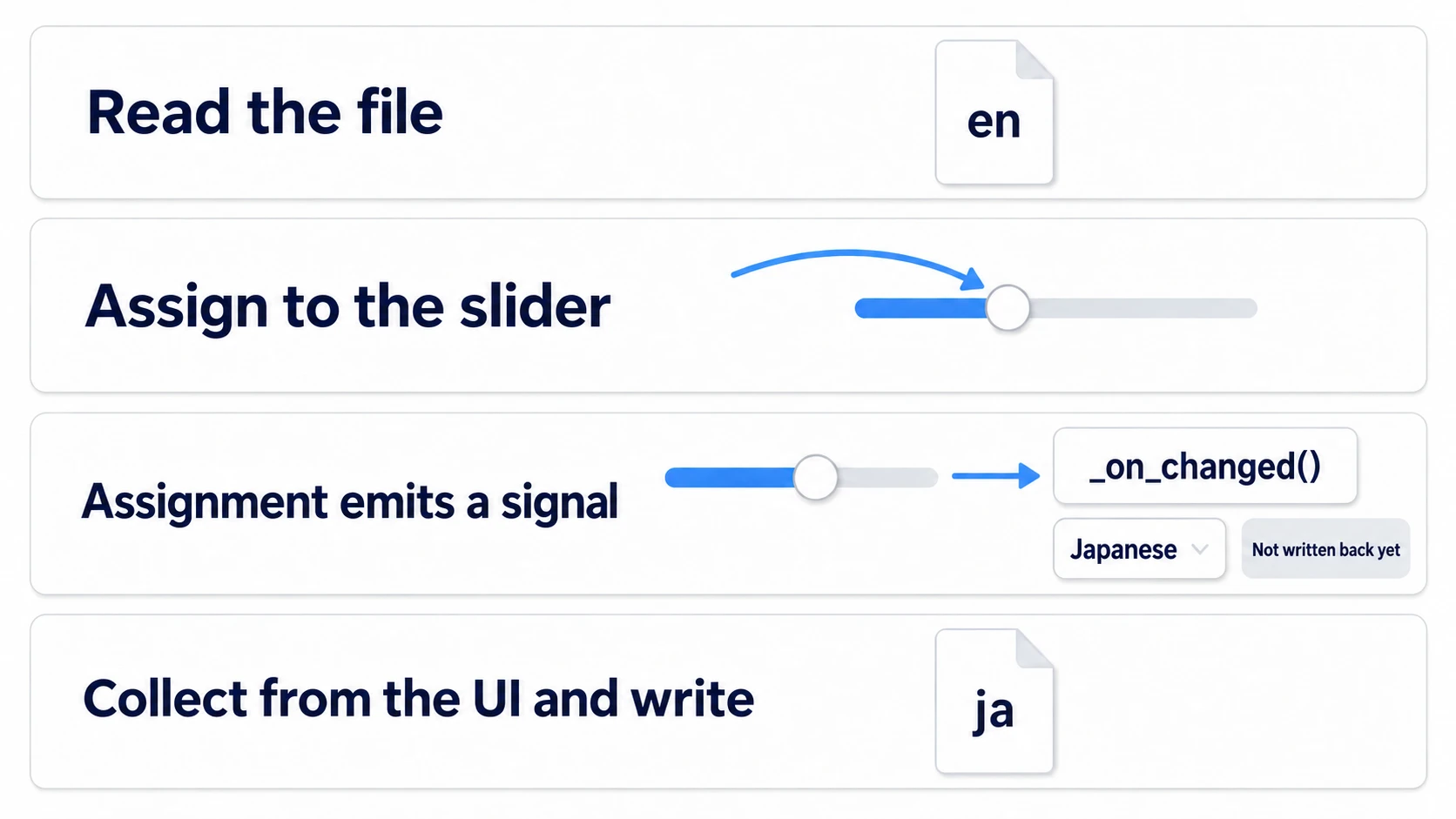
It's easy to write code assuming a signal is something that fires when you press a button or grab a slider. But HSlider's value_changed is a signal that announces "the value changed." It doesn't distinguish whether a person or code changed it. CheckButton's toggled is the same.
The accident described at the start comes from this. Say you connected a save function that gathers the screen's values and writes them to the file to value_changed. When opening, restoring the file's value with slider.value = ... runs the save function on that assignment. At that moment, the language dropdown hasn't been restored yet, and it still has the first item, "Japanese," selected. The file's en gets overwritten with ja right there.
Each node provides an entry point that separates setting a value from announcing it.
| Node | Emits a signal | Doesn't emit |
|---|---|---|
| HSlider | slider.value = 0.3 | slider.set_value_no_signal(0.3) |
| CheckButton | check.button_pressed = true | check.set_pressed_no_signal(true) |
| OptionButton | — | option.select(1) |
In other engines: These correspond to Unity's
Slider.SetValueWithoutNotify()andToggle.SetIsOnWithoutNotify(). In Unity too, assigning toslider.valuecallsonValueChanged.
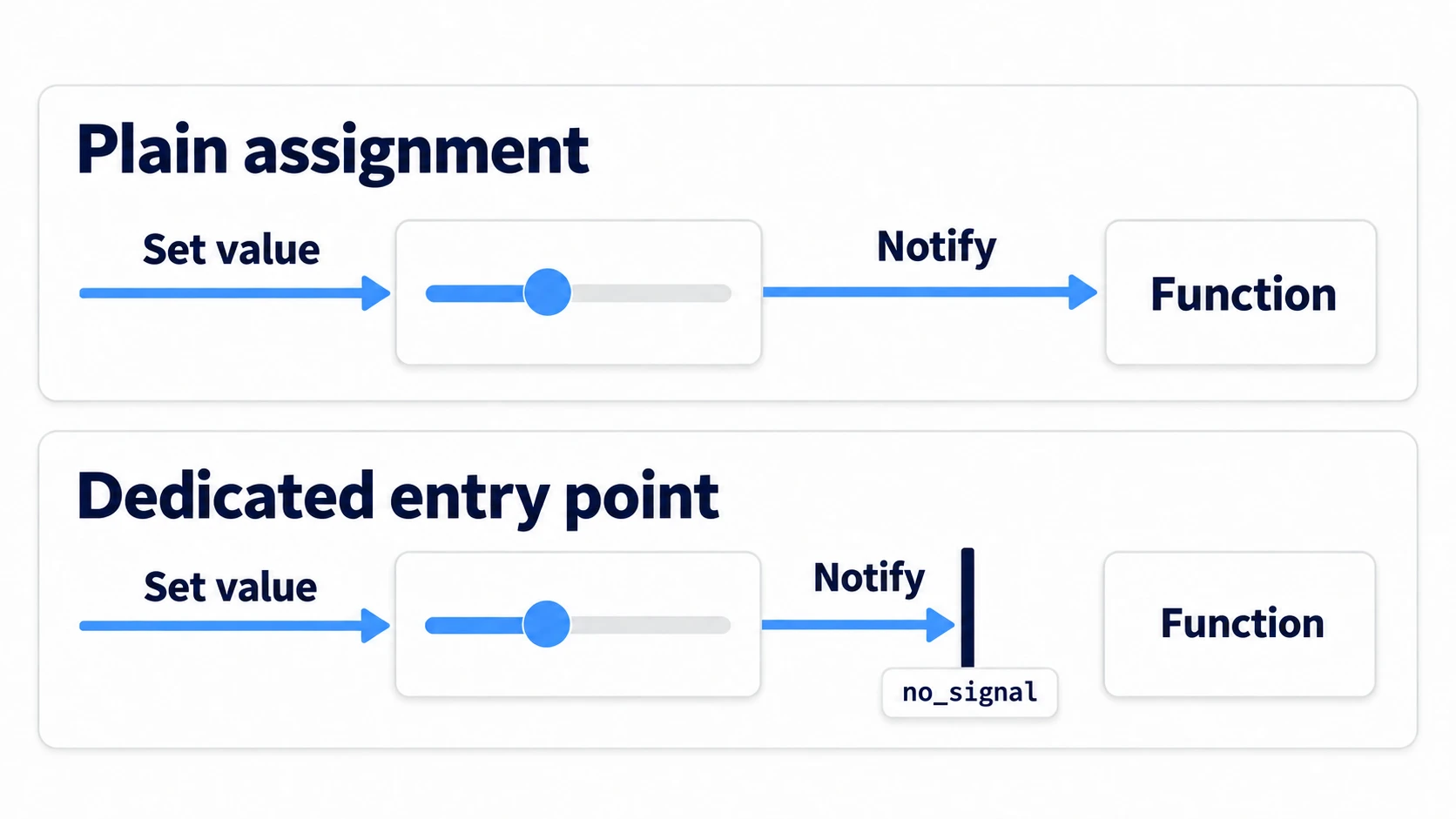
Only OptionButton has an empty cell for the way that emits a signal. select() doesn't emit item_selected to begin with, so you can call it as-is when restoring values.
Where the values written to the file come from
Even with the signals stopped, one more risk remains. The save function from before went around the controls on the screen and wrote their values at that moment to the file.
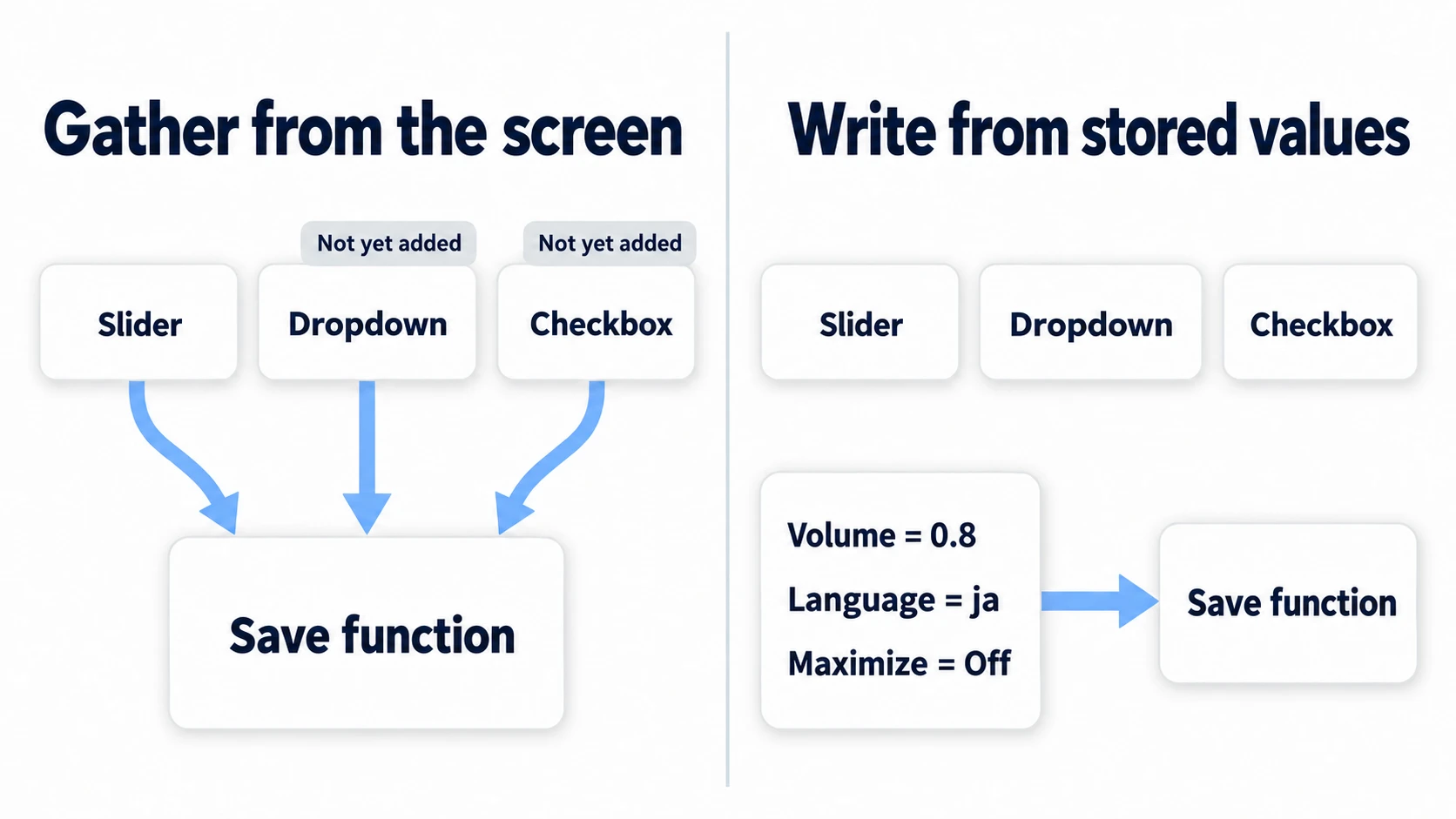
This approach assumes the screen is complete at the moment the save runs. That assumption breaks right after opening, or right after adding a control.
So create one side that remembers the values, and make it the only source. The screen only passes values along, and the file is written only from the remembering side's variables. However far the screen has been built, what gets saved doesn't change.
Put the remembering side in an Autoload. An Autoload is a node that stays around across scene changes and is loaded before the first scene appears. It can read the file the moment the game starts and apply the volume and language.
When to write to the file
If you write to the file on every value_changed, dragging the slider just once triggers dozens of writes.
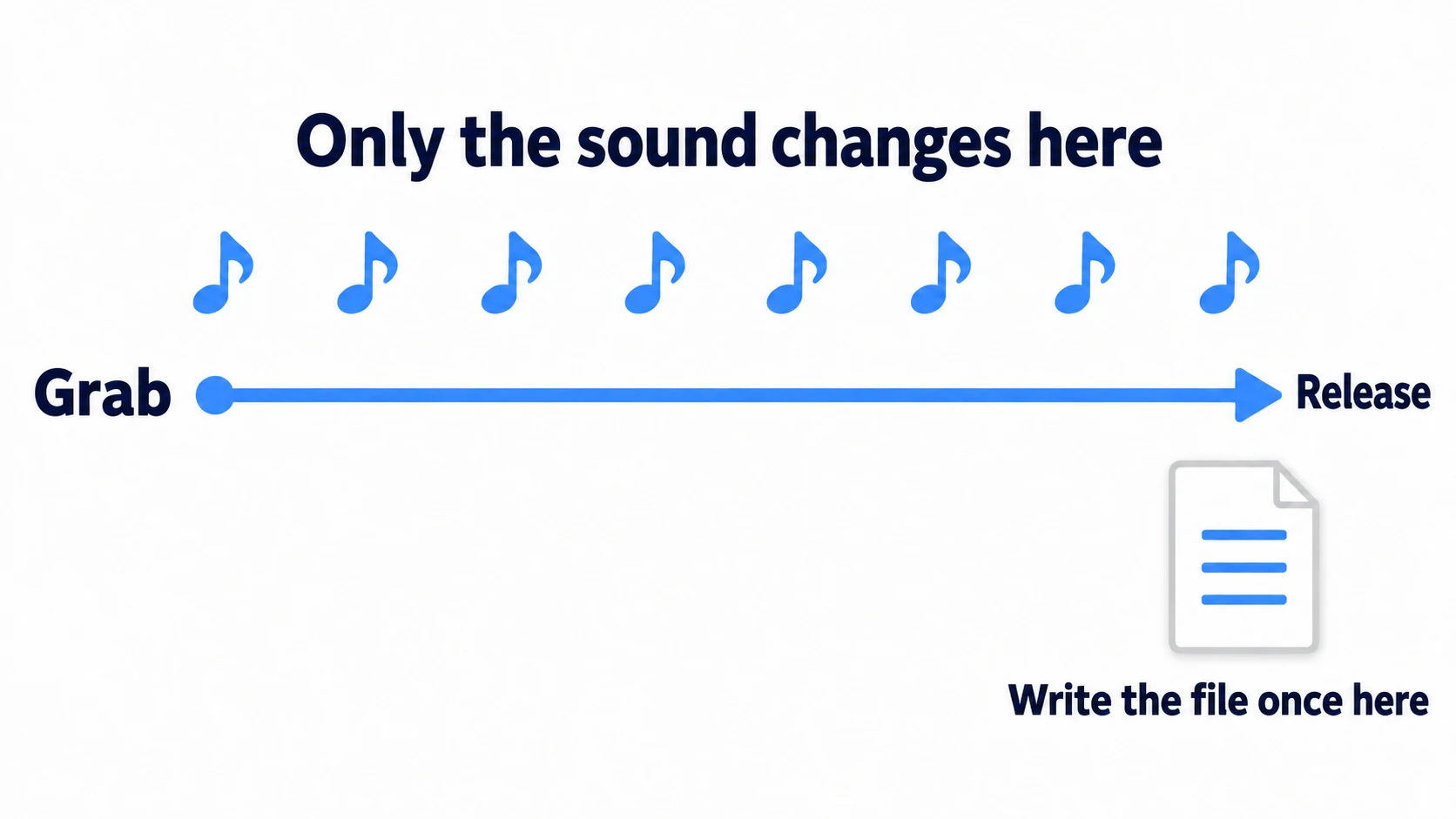
For a slider, update only the volume while it's being dragged, and write just once on drag_ended, which fires when you let go. Dropdowns and checkboxes aren't continuous values, so it's fine to apply the change the moment it's made and write it right there.
drag_ended doesn't fire when the value is changed with the keyboard, the gamepad's left and right, or the scroll wheel. Catch those misses by writing again when closing. When the game window is about to close, a notification called NOTIFICATION_WM_CLOSE_REQUEST arrives. The editor's stop button doesn't send this notification, so close with the window's × when checking.
How to hold the defaults
A settings file can be opened and edited by hand. Items may also have been added since a previous version. When loading, send all three of the following cases back to the same constants in code.
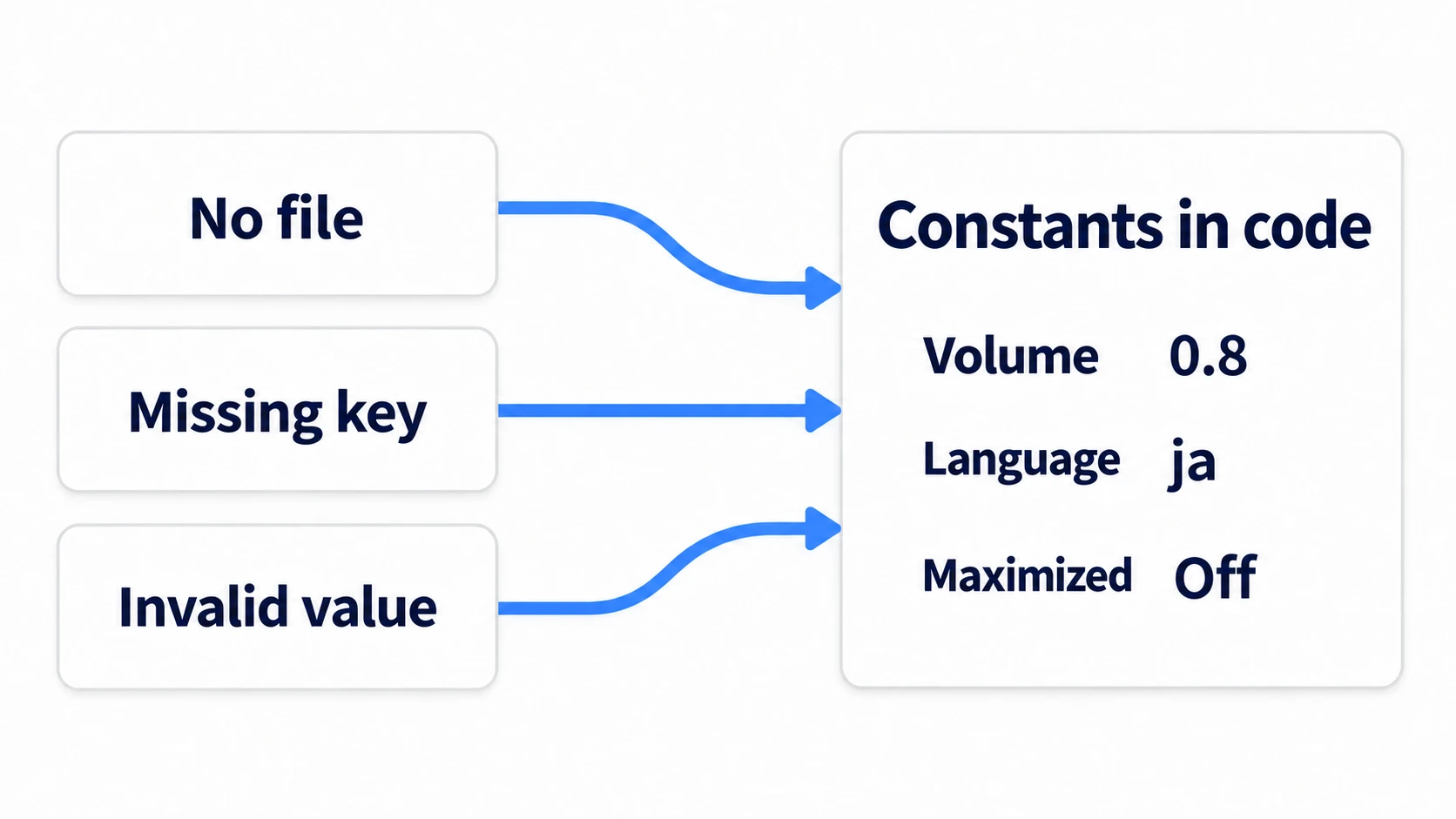
When the file doesn't exist or can't be read, ConfigFile.load() doesn't return OK, so the game starts with the constants. A ConfigFile file has "key = value" lines like master=0.8 lined up under headings (sections) like [audio]. When a key is missing, the constant passed as the third argument of get_value() goes into just that key. When a value is bad, such as the wrong type or out of range, the loading code sends it back to the constant too.
With a single set of constants, you can use the same ones for a "Reset to Defaults" button. However, just deleting the file on the button press isn't enough. The volume playing right now and the current language would stay as they were.
Put the variables back to the constants, apply them to the engine, reflect them on the screen without emitting signals, and write them to the file. With all four done, what you see the moment you press it matches the next launch.
Hands-On: Put volume, language, and maximize on one screen
The options in an RPG, the settings tab in a competitive game, the gear icon in a mobile game: the lineup on a settings screen looks similar even across genres. Here you'll put three different kinds on one screen and confirm that values don't disappear when it's opened.
① What to place
Create one new scene.
- Put a Control at the root, name it Main, and set it as the Main Scene. Anchors Preset is Full Rect. Attach
main.gd, which you'll write later - Under Main, place a PanelContainer named Box. Set Anchors Preset to Center and Custom Minimum Size to
(460, 0) - Under Box, place a VBoxContainer named Rows
- Under Rows, place two HBoxContainers named VolumeRow and LocaleRow. Under each, place a Label (Text "Volume" and "Language") and an HSlider named VolumeSlider or an OptionButton named LocaleOption, respectively
- VolumeSlider: Min
0, Max1, Step0.01. Under Layout's Container Sizing, give Horizontal Expand and Fill (stretching the slider to the full remaining width of the row) - Under Rows, place a CheckButton named MaximizeCheck (Text "Maximize"), a Button named ResetButton (Text "Reset to Defaults"), and a Label named StateLabel
- For the five nodes VolumeSlider, LocaleOption, MaximizeCheck, ResetButton, and StateLabel, turn on "Access as Unique Name" from the right-click menu. Code can then get them by name, as in
%VolumeSlider - Create
settings.gdand register it under Globals → Autoload in Project Settings with the name Settings
Maximizing the window doesn't work if you play with the game embedded in the editor. Uncheck Embed Game on Next Play in the menu at the top right of the Game tab before playing.
② Put it together
Here's the remembering side. Reading and writing the file, and applying to the engine, are contained here.
# settings.gd (registered as an Autoload named Settings)
extends Node

const PATH := "user://settings.cfg"
const LOCALES := ["ja", "en"]
const DEFAULT_VOLUME := 0.8
const DEFAULT_LOCALE := "ja"
const DEFAULT_MAXIMIZED := false

var volume := DEFAULT_VOLUME
var locale := DEFAULT_LOCALE
var maximized := DEFAULT_MAXIMIZED

func _ready() -> void:
	var config := ConfigFile.new()
	if config.load(PATH) == OK:                       # if it can't be read, keep the constants
		var v = config.get_value("audio", "master", DEFAULT_VOLUME)
		volume = v if v is float and v >= 0.0 and v <= 1.0 else DEFAULT_VOLUME
		locale = _known(str(config.get_value("display", "locale", DEFAULT_LOCALE)))
		var m = config.get_value("display", "maximized", DEFAULT_MAXIMIZED)
		maximized = m if m is bool else DEFAULT_MAXIMIZED   # wrong type, back to the constant
	_apply()

func set_volume(value: float) -> void:
	volume = clampf(value, 0.0, 1.0)
	AudioServer.set_bus_volume_db(0, linear_to_db(volume))   # convert 0–1 to decibels for Master (bus 0)

func set_locale_code(code: String) -> void:
	locale = _known(code)
	TranslationServer.set_locale(locale)
	save()

func set_maximized(on: bool) -> void:
	maximized = on
	DisplayServer.window_set_mode(
		DisplayServer.WINDOW_MODE_MAXIMIZED if on else DisplayServer.WINDOW_MODE_WINDOWED
	)
	save()

func reset() -> void:
	volume = DEFAULT_VOLUME
	locale = DEFAULT_LOCALE
	maximized = DEFAULT_MAXIMIZED
	_apply()
	save()

func save() -> void:
	var config := ConfigFile.new()
	config.set_value("audio", "master", volume)       # write from these variables, not the screen
	config.set_value("display", "locale", locale)
	config.set_value("display", "maximized", maximized)
	config.save(PATH)

func _notification(what: int) -> void:
	if what == NOTIFICATION_WM_CLOSE_REQUEST:          # the notice that the window is about to close
		save()                                        # don't miss volume changed with the scroll wheel

func _known(code: String) -> String:
	return code if code in LOCALES else DEFAULT_LOCALE

func _apply() -> void:
	AudioServer.set_bus_volume_db(0, linear_to_db(volume))
	TranslationServer.set_locale(locale)
	DisplayServer.window_set_mode(
		DisplayServer.WINDOW_MODE_MAXIMIZED if maximized else DisplayServer.WINDOW_MODE_WINDOWED
	)
The screen side only passes values along and shows the state in two lines.
# main.gd (the Main Control)
extends Control

@onready var slider: HSlider = %VolumeSlider
@onready var option: OptionButton = %LocaleOption
@onready var check: CheckButton = %MaximizeCheck
@onready var state: Label = %StateLabel

func _ready() -> void:
	option.add_item("Japanese")
	option.add_item("English")
	_pull()

	slider.value_changed.connect(_on_volume_changed)
	slider.drag_ended.connect(_on_drag_ended)
	option.item_selected.connect(_on_locale_selected)
	check.toggled.connect(_on_maximize_toggled)
	%ResetButton.pressed.connect(_on_reset_pressed)

func _on_volume_changed(value: float) -> void:
	Settings.set_volume(value)                        # apply to the engine only (don't write to the file)
	_refresh()

func _on_drag_ended(changed: bool) -> void:   # changed isn't the volume; it's whether the value differs from before the drag
	if changed:
		Settings.save()                               # write just once on release
		_refresh()

func _on_locale_selected(index: int) -> void:
	Settings.set_locale_code(Settings.LOCALES[index])
	_refresh()

func _on_maximize_toggled(on: bool) -> void:
	Settings.set_maximized(on)
	_refresh()

func _on_reset_pressed() -> void:
	Settings.reset()
	_pull()

func _pull() -> void:
	slider.set_value_no_signal(Settings.volume)       # restore without emitting a signal
	check.set_pressed_no_signal(Settings.maximized)
	option.select(Settings.LOCALES.find(Settings.locale))
	_refresh()

func _refresh() -> void:                              # a display for checking
	var config := ConfigFile.new()
	config.load(Settings.PATH)                        # if it can't be read, the two below become -1 and "—"
	var saved_volume: float = config.get_value("audio", "master", -1.0)
	var saved_locale := str(config.get_value("display", "locale", "—"))
	state.text = "Volume  Screen %.2f / Engine %.2f / File %.2f\nLanguage  Screen %s / Engine %s / File %s" % [
		slider.value, db_to_linear(AudioServer.get_bus_volume_db(0)), saved_volume,
		Settings.LOCALES[maxi(option.selected, 0)], TranslationServer.get_locale(), saved_locale
	]
_refresh() is a display for this article and isn't needed in a real game. It lines up what each of the three places holds right now, as-is. It rereads the file every time a value changes, so remove it once you're done checking.
③ Run it and check
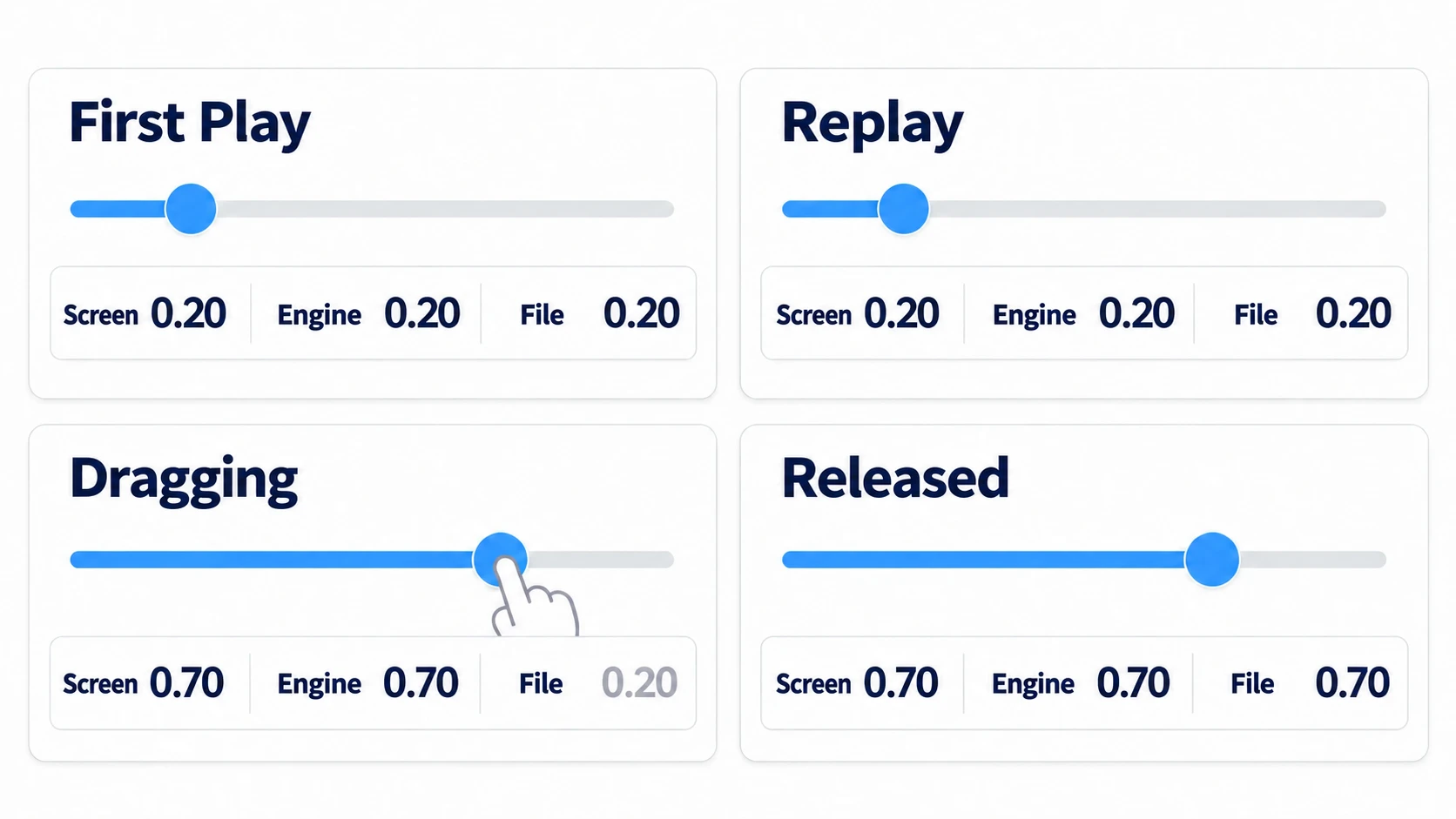
Play, set the language to "English," drag the volume slider left to around 0.20, and turn "Maximize" on. The window expands to fill the screen, and in the two lines below, all three volume numbers are the same and all three languages are en. If it doesn't expand, first check that Embed Game on Next Play is unchecked.
Stop with the editor's stop button and play again. The window starts maximized, the slider is at 0.20, and the dropdown shows "English." Stop with the stop button without touching anything and open settings.cfg, and it's still locale="en". The file's modification time is also unchanged from last time, showing that opening the screen didn't write even once. You can open the save folder with Open User Data Folder in the editor's Project menu.
Next, drag the slider right to around 0.70. While you're moving it, only Screen and Engine change, and File stays at 0.20. The moment you let go, File becomes 0.70 too. Press "Reset to Defaults," and the window returns to its original size. The slider goes to 0.80, the dropdown to "Japanese," and all three values match in both lines.
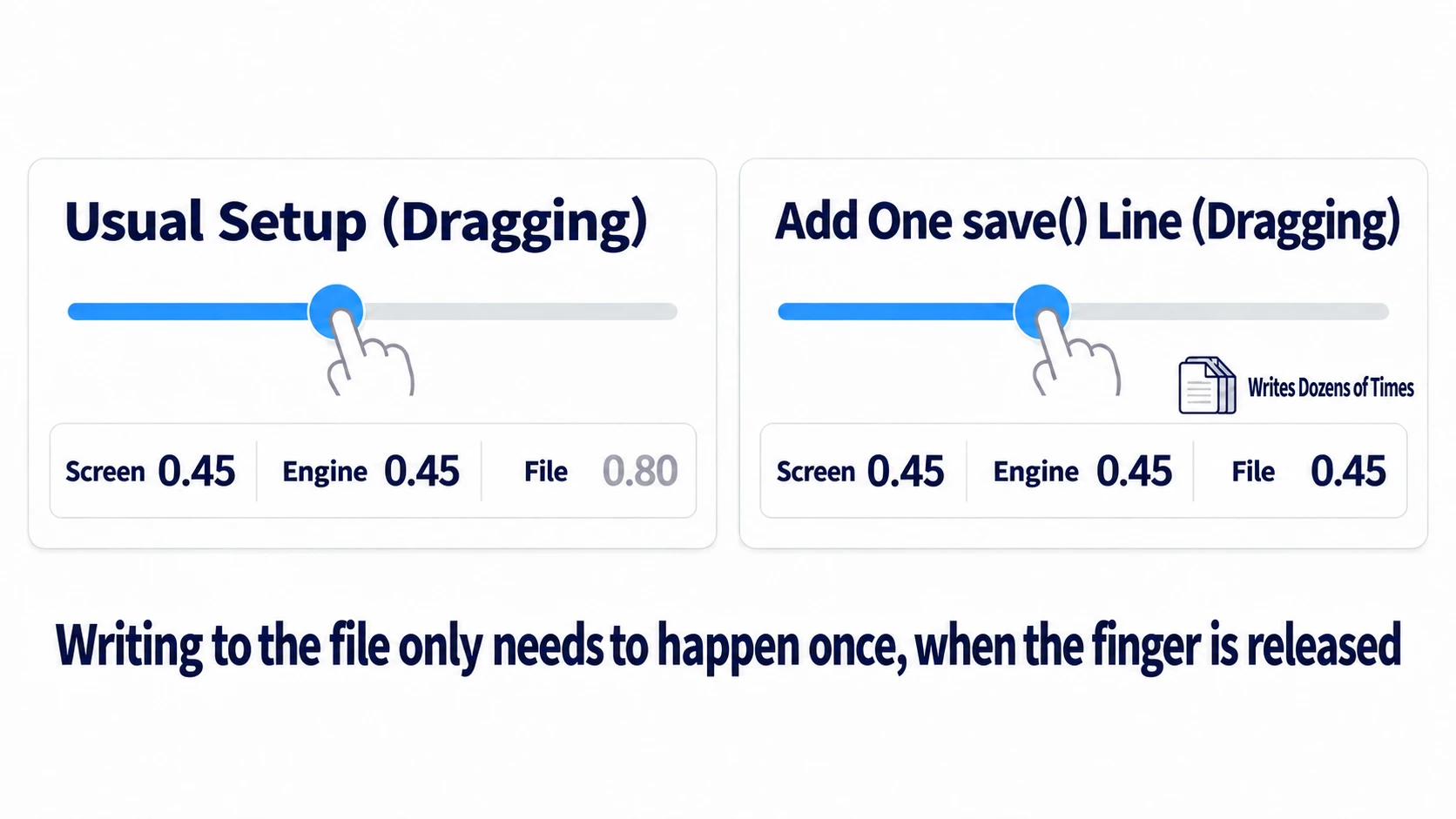
To finish, add one line and see the difference in when writing happens. In _on_volume_changed() in main.gd, add Settings.save() on the line after Settings.set_volume(value). Play and drag the slider. This time, the File number follows along even during the drag. That means the file is being written dozens of times during a single drag. Delete the line you added, and writing goes back to just once, when you let go.
There are two key points.
- Assignments and user actions go through the same entrance: When restoring values to the screen, set them with
set_value_no_signal()andset_pressed_no_signal(). Only for OptionButton can you callselect()as-is, since it doesn't emit a signal to begin with - Have a single source for the values you write:
save()looks only at Settings' variables. However far the screen has been built, the file's contents don't change
To add an item, add one pair of a constant and a variable. Then add one line each to the loading in _ready(), _apply(), reset(), save(), and the screen's _pull(). The places to touch are fixed, so things don't get messy as they grow. If you want to include key assignments too, the way to remap them is in InputMap Basics.
Troubleshooting
| Symptom | Cause | Fix |
|---|---|---|
| After adding a slider for sound effects, moving it barely changes the volume | The 0–1 value is passed straight to set_bus_volume_db(). It takes decibels, and 0 is the original volume | Convert with linear_to_db() before passing it |
| After opening the settings screen from the pause menu, neither the slider nor the buttons respond | While get_tree().paused = true, a screen whose Process Mode is the default Inherit stops too and doesn't receive input | Set the Process Mode of the settings screen's root (Main) to Always (Pause Basics) |
| After adding a "Quit" button to the game and closing with it, volume changed with the scroll wheel isn't kept | Closing with get_tree().quit() doesn't send NOTIFICATION_WM_CLOSE_REQUEST | In the quit button, call Settings.save() before quit() |
| Setting the language to "English" doesn't turn the on-screen text into English | set_locale() only switches the language; translated text comes from translation files | Register translation files under Localization → Translations in Project Settings (Localization Basics) |
Bonus: Good to Know First
- Keep it in a file separate from save data: Settings and progress have different lifespans. The accident of deleting a save and losing the volume setting too is prevented just by separating the containers. When you change the format of items later, include a version number and convert (Save Data Versioning)
- "Cancel" can wait: Making it coexist with applying changes the instant they're made requires remembering the whole state at the moment the screen opened. "Reset to Defaults" alone is enough to start
Summary
- Split into three places: The screen changes; the Autoload Settings applies and keeps
- Assignments emit signals too: When restoring to the screen, use
set_value_no_signal()andset_pressed_no_signal().OptionButton.select()doesn't emit to begin with - Write values from the variables: Since it doesn't go around the screen's controls, it doesn't depend on how far the screen is built
- Write at the end of an operation: During a drag, only the engine. Keep values on
drag_endedand on the window-close notification - One set of defaults in code: No file, missing key, and bad value all go back to the same constants
Start by getting the three hands-on items working, and watch Screen, Engine, and File line up. To connect language switching all the way to actual translated text, Localization Basics continues from here. What will you put on your game's settings screen?